Driver Updates
- : Driver updates are currently supported in
- Endpoint Central from build version 10.0.423.
- Patch Manager Plus from build version 10.0.545. (Also supported in cloud edition)
- Support is extended currently for Windows driver and BIOS updates only. Learn more about the supported devices.
What are drivers?
A driver is software that acts as an intermediate between the operating system (OS) and hardware. The OS sends requests to the drivers, and the drivers then ensure the devices perform the required tasks; you can think of drivers as translators. For example, when you click the play button on a video in any application, that particular application sends your request to the OS. The OS then requests the video driver to play the video on the screen using the video and sound cards.
What is the BIOS?
The BIOS (short for Basic Input/Output System) is also known as System Setup. It's firmware that’s embedded in a small memory chip on the computer's motherboard. The BIOS contains instructions that the PC uses to perform basic input and output functions; it also acts as an interface between the OS and hardware. For instance, when a computer is first started, the BIOS activates all of the basic hardware required to boot the OS. This includes the following hardware devices:
- Chipset
- Processor and cache
- System memory or RAM
- Graphics and audio controllers
- Keyboard and mouse
- Internal drives
- Network controllers
- Internal expansion cards
The importance of patching drivers
Driver patches are installed to upgrade the existing hardware driver. Keeping drivers patched ensures smooth communication between the various applications installed on a machine and its hardware. Leaving drivers unpatched can also lead to vulnerabilities like Meltdown and Spectre; these processor flaws proved that hardware vulnerabilities are no less threatening than software vulnerabilities.
To effectively manage your systems, you should patch drivers regularly. Patching every driver helps improve your endpoint performance severalfold. To enable the driver updates feature, go to the Endpoint Central web console, navigate to Admin > Patch Settings > Patch Database Settings, and click on the Enable Driver Updates checkbox.
When are driver updates released?
Hardware manufacturers will release driver updates to:
- Repair bugs.
- Release new features.
- Unveil a new version of the driver that improves device performance.
- Resolve security issues.
The importance of patching the BIOS
The BIOS does much more than just control basic functions. Without a proper BIOS in place, the OS would fail to load. Patching the BIOS is quite different from patching drivers and installing other updates. BIOS updates have a low impact and they're infrequent.
How to patch driver updates?
The process of installing driver and BIOS updates
Most drivers are automatically installed by your OS. When a new device is connected to a Windows machine, the OS automatically detects it and starts looking for an appropriate driver. Drivers are usually in the form of an executable file. If you need to manually install a driver, run its .exe file.
In general, patching the BIOS consumes a lot of time and energy, as there are many manual steps to follow. If the BIOS isn’t updated properly, the computer will become completely inoperable.
This process follows these six steps for installing driver and BIOS updates: synchronize, scan, download, test, deploy approved patches, and generate reports.
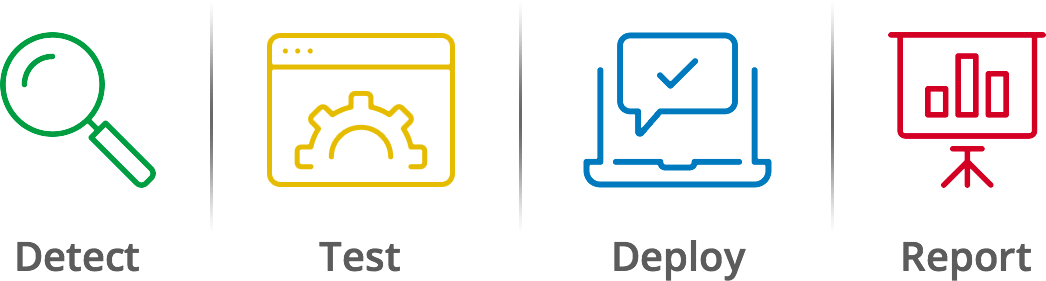
- Synchronize: Driver and BIOS patch information is collected from the vendor sites and fed into the patch database. This patch database is then synchronized with the server.
- Detect: The computers in your network are automatically scanned to identify the machines that are missing patches.
- Download: All missing patches are downloaded from the vendor sites. This includes security updates, non-security updates, service packs, rollups, optional updates, and feature packs.
- Test and approve: The downloaded patches are tested on non-production machines. The patches are then approved only if they cause no issues post-deployment.
- Deploy: With the ’ flexible deployment policies, you can select the deployment window and create patching policies. This patch management policy provides access to multiple deployment settings to help you decide when to deploy a patch.
- Report: After successful deployment, reports are automatically generated and the information is sent to the server. The customized reports help you to easily filter data and share the results in a variety of formats.
Why do linked patches of driver get approved automatically?
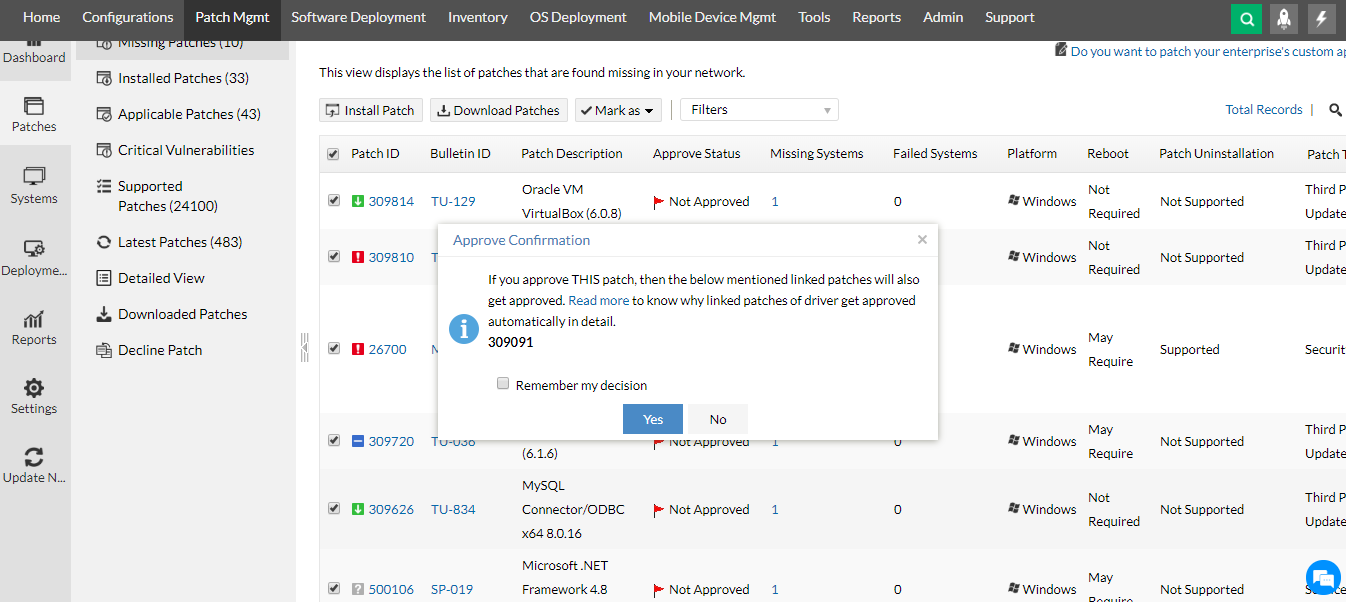
If you approve or decline a driver patch, all the associated patches inline i.e., in the list waiting for approval, will also get approved or declined. This is because those patches are the same .exe files. If one driver patch is approved, then the other linked patches of the driver with the same .exe file will also be approved.
For example, an "Intel HD Graphics 610" patch (Version 24.20.100.6170) has a linked dependency of the "Intel/Realtek High Definition Audio Driver" patch (Version 10.25.0.8) as both of them share the same patch download link. So, if any of the above two patches are installed, the linked patch will also be installed on the machine (if applicable).