Red Hat Linux Patching
Configure Red Hat Linux settings, and install patches manually or automatically, using Patch Manager Plus.
Overview
Patch Management for Red Hat Enterprise Linux enables administrators to manage all security and non-security patches that are released by the Red Hat Security Advisory (RHSA), for Red Hat subscribed machines and servers. It enables organizations to identify, install, and audit Red Hat package updates, helping enterprises maintain a high level of security across Linux endpoints.
Configuring Red Hat Linux settings for patching
The Red Hat Linux Settings and server-nomination procedure in this section applies to the on-premises console.
This section provides the prerequisites to patch Red Hat systems and instructions to configure Red Hat settings.
Prerequisites
- Ensure that the nominated Red Hat machine has a Standard Red Hat Enterprise Linux subscription that points to Red Hat's CDN.
- Configure proxy settings in YUM and ensure https://cdn.redhat.com/ is accessible from the nominated system.
- Ensure that https://access.redhat.com/ is accessible from the central server.
- Ensure the External Download Tool is available on the Central Server. The patch download in a Red Hat Linux environment is triggered through an external download tool, located under Server Installed Directory → Lib → Download Tool.
- Install agents on the RHEL systems to be patched.
- Allow your proxy to download .jar and .rpm files.
- Verify that you have purchased sufficient licenses for your patching requirements.
- Ensure that the Red Hat machines have at least 20GB of space in the
/var/cachedirectory for the offline meta sync.
The Red Hat Linux Settings page is populated automatically after these prerequisites are met and a valid certificate is uploaded from a nominated system. No separate manual configuration is required to add the machine. If the page shows no results, verify the prerequisites and allow the certificate upload to complete.
System nomination steps for RHEL patch management
1. Provide Red Hat account information
- Provide the credentials using which you have purchased the Red Hat subscription. This information is required to validate and download all the .rpm packages for your network.
- Ensure this credential has permissions to download packages from the Red Hat portal to the server machines.
2. System nomination
System Nomination is a process of hand-picking one computer each for these categories — Server, Desktop, and Workstation — in your network. The selected systems are used to download the meta files required by the YUM tool for patching.
Red Hat Linux uses YUM (Yellow dog Updater Modified) as its package management solution. YUM provides all dependencies required to deploy a patch.
- Verify that the UEMS agent is installed on the computer.
- Check that the nominated system has an active Red Hat subscription.
- Configure proxy in YUM such that https://cdn.redhat.com/ is accessible from the nominated system.
- Ensure that it has an active internet connection without any firewall restrictions. Only the nominated machine requires an active internet connection.
- Ensure that there is at least 20GB free space for the cache directory (default location: /var).
- Ensure that the machine has minimal downtime.
- The nominated machine should have the following specifications: RAM size of 4GB or higher, and a processor of Intel Core i3 (2 Core / 4 Thread) 2.0 GHz or higher.
Steps to follow for system nomination:
- Provide the name of the computer nominated for the Server category.
- Provide the name of the computer nominated for the Desktop category.
- Provide the name of the computer nominated for the Workstation category.
3. Whitelist domains
The following domains need to be whitelisted for the Red Hat packages to be downloaded:
- https://access.redhat.com
- https://cdn.datatables.net
- https://sso.redhat.com
- https://access.cdn.redhat.com
- https://static.redhat.com
- https://www.redhat.com
- https://cdn.jsdelivr.net
- https://code.jquery.com/
If dependency packages remain in Download Pending Dependency Packages or a certificate download fails, verify that the server can access the listed Red Hat domains. In particular, confirm that https://cdn.redhat.com and https://access.redhat.com open from the server, correct any firewall or proxy block, and then redeploy the patches.
Install Red Hat Linux patches manually
To install patches manually, first log in to the Patch Manager Plus console and then follow the steps given below:
- Click on the Deployment tab → Manual Deployment.
- Select Install/Uninstall Patch and choose your desired platform (Windows / Mac / Linux). As you are going to install Red Hat Linux patches, select Linux.
- Give a suitable Name and Description to the configuration you are creating to install the patch.
- Add the patches that you wish to install on your Linux systems. Click on Add Patches, and a window pops up showing a separate section for the patches missing in your network. You can filter them based on the type of application or the type of patch update, such as security or non-security patches. After selecting the patches that you wish to install, click OK.
- Optionally, schedule when you wish to install the patches. For example, if you don't want the installation to happen on business days, click the Install After checkbox and give a suitable date and time after which the patch updates will get installed. You can also click Do not apply this configuration after the time specified below and give the expiry date and time after which the patch installation task is aborted.
- Configure the Deployment Settings by applying a deployment policy that suits your enterprise — for example, the Weekend Policy — or create a policy of your own by clicking Create/Modify Policy.
- Define your target computers based on Remote Office or Domain. You can select multiple targets by clicking the add button, and further filter computers by categories such as Domain, IP Address, IP Range, or Operating System. You can also exclude computers from deployment — for example, a critical server where patching would cause downtime — by specifying its IP address under Exclude Target.
- Optionally, configure the Execution Settings. Selecting Retry this configuration on failed targets redeploys patches on failed targets for a specified number of times, and you can configure retries during startup or refresh.
- To receive notifications on updates to this configuration, select Enable Notification and enter your email address. You can also configure notification settings to receive updates at regular intervals.
- Click Deploy or Deploy Immediately to install patches on your Linux systems.
Install Red Hat Linux patches automatically
The entire process of patching Red Hat Linux can be automated using Patch Manager Plus. Automate Patch Deployment handles the entire process, from scanning systems for missing patches, to downloading them from the Red Hat Linux vendor site, up to deploying the patch updates on your systems.
To install patches automatically, log in to the Patch Manager Plus console and follow the steps given below:
- Click on the Deployment tab → Automate Patch Deployment.
- Click Automate Task and choose your desired platform: Windows, Mac, or Linux. Select Linux, since you are installing patches for your Linux systems.
There are four stages of creating an APD task:
- Select Applications: Select the Linux and third-party updates that you want to install based on their severities.
- Choose Deployment Policy: Apply any deployment policy listed, or create a policy of your own to suit your business needs.
- Define Target: Select your target computers by Domain or Remote Office. This deployment policy will be applied to the specified target computers.
- Configure Notifications: Enable email notifications to receive updates on this automated deployment task.
Once you click Save, your APD task is created.
Kernel version and OS release
If the kernel reports a newer minor version but the OS still reports the previous release, only the latest kernel packages were installed. The newer userspace packages were not applied.
On an affected computer, check:
cat /etc/redhat-releaseuname -rrpm -q redhat-releasesubscription-manager release --showdnf repolist
If subscription-manager release is locked to the previous minor version, newer kernels can install while the OS version stays locked.
Architecture and workflow for Red Hat patching
This section explains the processes involved in patching Red Hat systems, with the help of architecture diagrams.
1. Cache creation
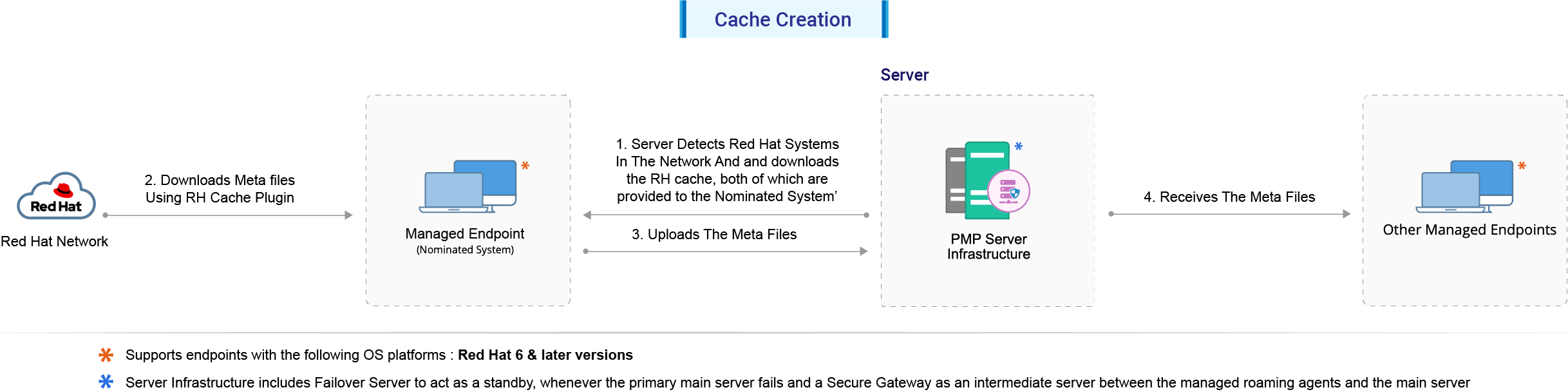
Steps involved in the process of cache creation:
- The Patch Manager Plus server detects the available Red Hat versions and architecture in all the systems in your network.
- The Nominated System (for the Server category) downloads the RH Cache Plugin from the server. The plugin resides on the Nominated System.
- The RH Cache Plugin on the Nominated System downloads required meta files for all the other systems in the network (belonging to the Servers category) from the Red Hat portal, using the YUM tool.
- The downloaded files are then uploaded to the server.
- All the other systems in the network receive the data from the server. Each system uses the metadata to detect its missing patches and dependencies.
2. Scan and deployment
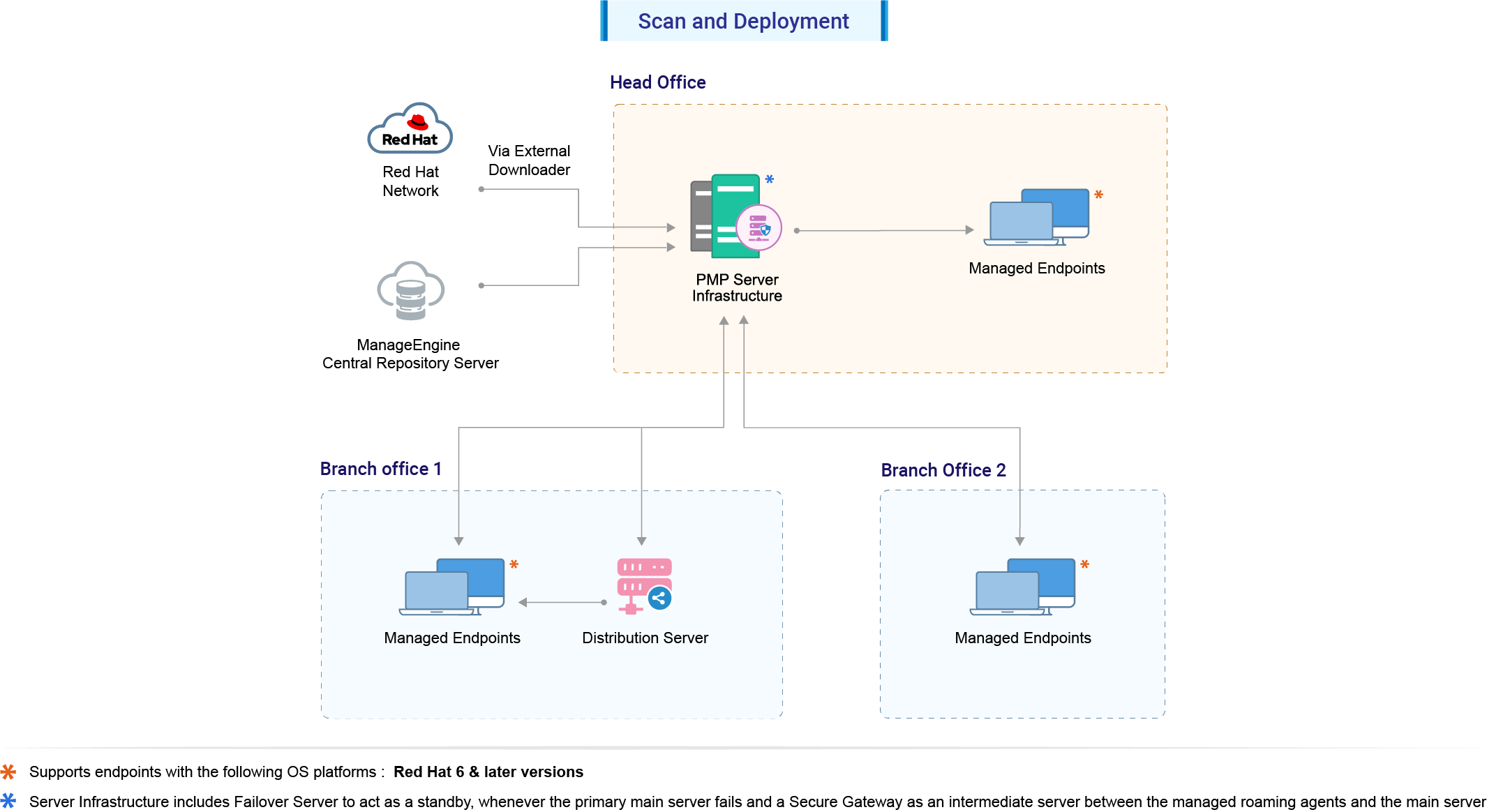
Steps involved in the process of scanning and patch deployment:
- The Central Server syncs the External Download Tool and supported patches information from the central Patch Repository.
- The server initiates a scan on all the Red Hat systems and detects the missing patches.
- The External Download Tool downloads the patches and dependencies from the Red Hat portal using the account credentials provided.
- The downloaded files are replicated from the Central Server to the Distribution Server(s), and remote office agents download the files from the Distribution Server; other agents download the files directly from the Central Server.
- Once patches are downloaded and available, deployment is carried out.
Source and domain details
The Patch Manager Plus server collects patch information from the Red Hat security advisories site and stores it in cache. This cache contains all the patch bulletins for Red Hat Linux. The system you have nominated downloads the RH Cache Plugin, and bulletins are pulled from this source.
Red Hat Linux patches are downloaded from the domain below. The RH Cache Plugin on the Nominated System downloads all patches from this domain using the YUM tool. For Enterprise OS management, patches are downloaded from this domain.
The downloaded files are sent to the Patch Manager Plus server, which connects to the External Download Tool and the online patch database and scans all the systems in your network. The External Download Tool downloads all the patches from the Red Hat portal, and every system in the network then downloads the file from the server so that the missing patches can be deployed.