Reboot Configuration
Your system has restarted multiple times, and you’d like to know what process or task triggered the reboots. Follow the steps below to determine the exact cause.
Check Power Event History
Open Threats & Patches → Systems → Scan Systems, search for the computer, open it, and select Power Event History.
Power Event History lists Event Executed Time, Event Type, Task Type, Task Name, Task Created By, Deployment Policy, Reason for Event Execution, Is the Event Forced?, Event Trigger, and User Responsible.
If Event Trigger shows a Windows process from the Start menu, the reboot was not initiated by Patch Manager Plus.
1. Check System Event Logs
Open the Windows Event Viewer and filter logs with the following Event IDs:
- 1074 — A process or user initiated a restart/shutdown.
- 1076 — Reason for unexpected shutdown/restart.
- 41 — System restarted without a clean shutdown (e.g., power failure or crash).
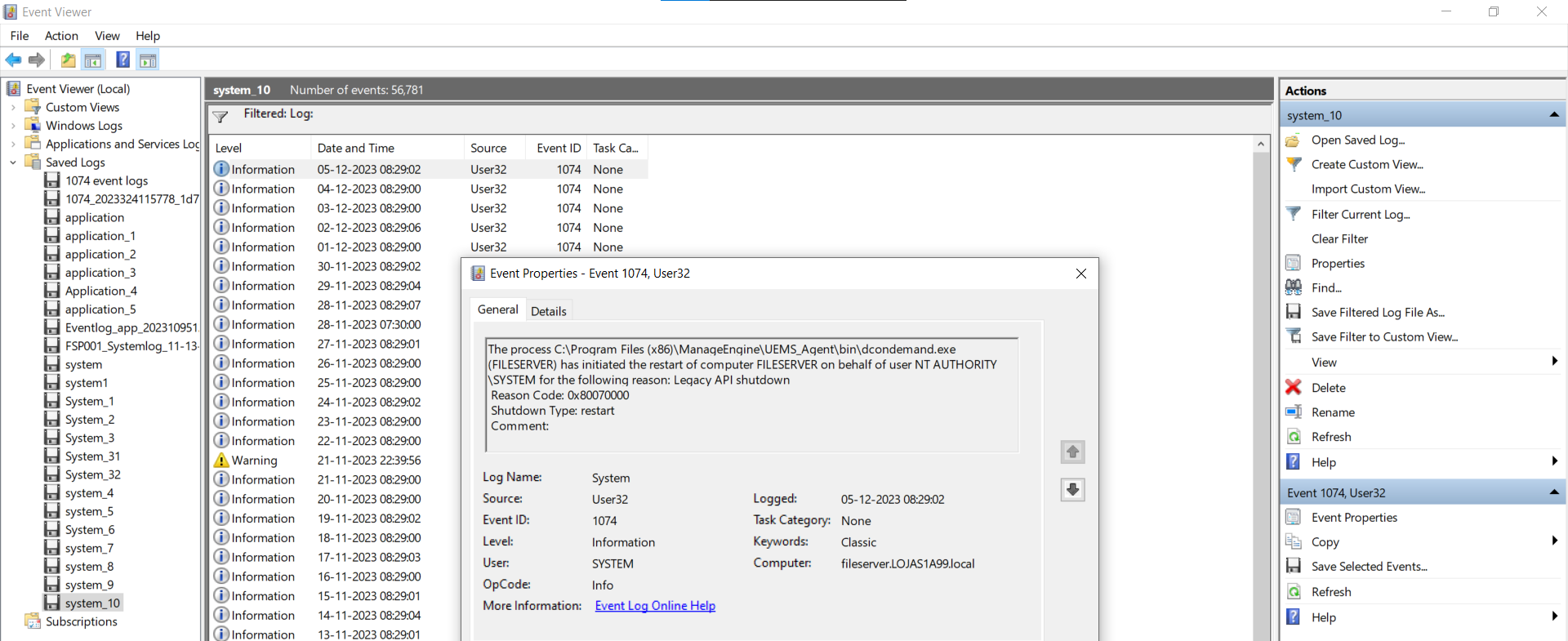
Look at the process in these events.
2. If the Reboot Was Triggered by dcmsghandler.exe
This indicates the restart was initiated by the patch/deployment agent. Open the following logs:
dcmsghandleraccess.log→ shows when and how the reboot was triggered.dcconfigaccess.log→ shows which task or deployment policy was running at that time.rbt.json→ contains details of the latest deployment that triggered the reboot.
dcconfigaccess.log shows a task "8x8 need to delete" that ran at 11:41:13
dcmsghandleraccess.log shows IMMEDIATE_REBOOT triggered at 11:41:21
This means the reboot was linked to that deployment task.
If you are on build 2516 or later, you can also check <agent-installation-directory>\logs\dcrebootaccess.log on the affected computer, which provides detailed information about the reboot, including:
- Collection name (e.g., “Windows OS Patch Deployment”)
- Deployment policy ID
- Whether the reboot was postponed or immediate
25-04-15,1,67740000002449363,Windows OS Patch Deployment,67740000002449337,....,PROMPT_REBOOT
This indicates the reboot came from the “Windows OS Patch Deployment” task.
3. If the Reboot Was Triggered by dcondemand.exe
This means a remote shutdown task was initiated by an administrator.
- Open
ondemandrequest.log - Search for the keyword
remoteshutdowntaskdetails - This will show the task ID, shutdown message, and whether the action was postpone-able.
{
  "shutdown_message": "Your computer will be Shutdown/Restart by the Administrator...",
  "task_id": 52721000000444001
}
This above message confirms the restart was triggered remotely by an administrator request.
4. If the Reboot Was Triggered by TrustedInstaller.exe
TrustedInstaller.exe is the Windows Modules Installer service used by Windows Update during patch installation. When patches are installed successfully, Windows itself may trigger pending update installation, component servicing, or an automatic reboot even if the deployment was initiated through Patch Manager Plus.
If Windows has already restarted, the Patch Manager Plus reboot queue is cleared and the force-reboot prompt is not shown. The force-reboot prompt is also not shown when no remaining patch requires a reboot.
Check scheduled remote shutdown tasks
Open Tools → Remote Shutdown → Schedule Shutdown. Check whether a task targets the affected computer with a matching operation and scheduled time. Compare its execution evidence with the restart event and the patch deployment timeline. A matching schedule alone does not confirm that the task caused the restart.
5. If the Process Is Different
If the reboot is not caused by dcmsghandler.exe, dcondemand.exe, or TrustedInstaller.exe, capture a screenshot of the Event Log entry and share it with support. This will help identify whether another process or system failure was responsible.
6. Stop a deployment-policy reboot
To stop a restart that is supposed to be done by a deployment policy:
- Delete
<DC_Agent>/data/rbtJobs.json. This file is not the same asrbt.json. - Restart the agent service.
- If
dcmsghandler.exeis running, end that process.
The agent refresh cycle is 90 minutes. You can also choose Apply Configurations from the agent tray. If a reboot is still scheduled, Apply Configurations can still proceed with the reboot.