Windows 11 Feature Pack Deployment Issues
This page provides step-by-step troubleshooting solutions for common errors encountered during Windows 10 and Windows 11 feature pack deployments in Patch Manager Plus and Patch Manager Plus. Errors are grouped by category — validation issues, incompatibility issues, and environmental issues.
General Troubleshooting Steps
Before proceeding with specific error resolutions, try these general steps first.
- Restart the system and retry the deployment.
- Ensure the ISO file is properly downloaded and not corrupted.
- Check system requirements for the Windows version you are trying to install.
- Verify that no security policies (GPO, antivirus, endpoint security) are blocking the update.
- Make sure the system has enough disk space.
Validation Issues
The following errors relate to ISO file validation — edition, language, architecture, version, and file integrity checks performed before deployment proceeds.
The Downloaded Executable Is Not Proper
Possible Cause
This issue occurs when the dependency file is deployed directly. Dependency patches are intended only for ISO-based installations and not for direct deployment.
Resolution
Avoid deploying the dependency patch directly. Instead, deploy the appropriate feature pack patch or the Windows Update component restore patch to proceed with the installation.
Incorrect Function / Error Code 50002 / Invalid Function
Possible Cause
7z.exe is not found in the agent bin directory.
Resolution
Logs are necessary to identify the exact reason for this error. Contact support with the relevant log files.
Error Code 50003 / Edition Mismatch
The expected Edition is Enterprise, but it isn't found in the uploaded ISO file / The expected Edition is Professional, but it isn't found in the uploaded ISO file
Possible Cause
The deployment fails because the uploaded ISO file does not contain the exact edition of Windows running on the target system. During deployment, the system verifies whether the edition is present in the ISO, and if it is missing, the process fails.
Resolution
Download and upload the appropriate ISO file that matches the edition of the target system, then proceed with the deployment. For enterprise systems, download the Enterprise edition ISO from the Microsoft 365 Admin Center — this is the exclusive source for enterprise ISO files. For detailed download steps, refer to this Microsoft guide.
To confirm the correct ISO edition was uploaded, review the following logs.
Check the Machine Edition
- Log file:
devicepatchscan.log - Keyword:
OS_NAME
[ 2024-06-04 10:52:25:555 ] [ 9408 ] [INFO] CreateAndAddAgentParams: added OS_NAME = Windows 10 Enterprise Edition (x64)
[ 2024-06-04 10:52:25:555 ] [ 9408 ] [INFO] CreateAndAddAgentParams: added SERVICE_PACK = Windows 10 Version 22H2 (x64)
[ 2024-06-04 10:52:25:555 ] [ 9408 ] [INFO] CreateAndAddAgentParams: added OS_VERSION = 10.0.19045
Feature Pack Deployment Failed via Patch
- Log file:
Windows11update.logorWindows10update.logordcprereqhandler.log - Keyword:
Count
[ 2024-12-12 14:57:38:335 ] [ 24680 ] [INFO] [FeaturePackCommonUtils::RetrieveIndexCount] Count Recieved from powershell: 1
[ 2024-12-12 14:57:39:370 ] [ 24680 ] [INFO] [FeaturePackCommonUtils::ValidateISOEditionThroughPowershellMethod] Output : enterpriseeval
[ 2024-12-12 14:57:39:370 ] [ 24680 ] [INFO] [FeaturePackCommonUtils::ValidateISOEditionThroughPowershellMethod] Comparing ISO Edition (enterpriseeval), Machine Edition (Enterprise)
[ 2024-12-12 14:57:39:520 ] [ 24680 ] [ERROR] [main] The expected Edition is Enterprise, but it isn't found in the uploaded ISO file
[ 2024-12-12 14:57:39:521 ] [ 24680 ] [INFO] [ApplicationCleanUp] Exit Code : 50003
Feature Pack Deployment Failed via Software Deployment (SWD)
- Log file:
WindowsSWInstaller - Keyword:
Count
[ 2024-12-17 11:31:41:194 ] [ 19076 ] [INFO] [FeaturePackCommonUtils::RetrieveIndexCount] Count Recieved from powershell: 1
[ 2024-12-17 11:31:41:994 ] [ 19076 ] [INFO] [FeaturePackCommonUtils::ValidateISOEditionThroughPowershellMethod] Output : enterpriseeval
[ 2024-12-17 11:31:41:994 ] [ 19076 ] [INFO] [FeaturePackCommonUtils::ValidateISOEditionThroughPowershellMethod] Comparing ISO Edition (enterpriseeval), Machine Edition (Enterprise)
[ 2024-12-17 11:31:42:074 ] [ 19076 ] [ERROR] [ValidateISO] Failed to validate the ISO details
[ 2024-12-17 11:31:42:074 ] [ 19076 ] [INFO] [main] ISO validation failed with error code : 50003
[ 2024-12-17 11:31:42:074 ] [ 19076 ] [INFO] [main] ExitCode : 50003
Error Code 50006 / Error Code 1047526908 / Language Mismatch
Possible Cause
The deployment fails because the uploaded ISO file does not include the language installed on the target system. During deployment, the system checks if the exact system language is present in the ISO. If it is missing, the process fails.
Resolution
Download and upload an ISO file that includes the language matching the target system's installed language, then proceed with the deployment. For example, if the system is running en-GB, ensure the English — International ISO file is used.
0809 for English — United Kingdom), refer to the Microsoft documentation on Default input locales for Windows language packs.Check the Machine Default Language
- Log file:
devicepatchscan.log - Keyword:
String from Registry
[ 2025-01-19 09:23:35:945 ] [ 14820 ] [INFO] String from Registry : 0809 and Integer after Conversion : 2057Feature Pack Deployment Failed via Patch
- Log file:
Windows11update.logorWindows10update.logordcprereqhandler.log
[ 2024-12-19 08:20:06:121 ] [ 23928 ] [ERROR] [FeaturePackCommonUtils::ValidateISOLanguage] Language folder :en-us do not exist
[ 2024-12-19 08:20:06:122 ] [ 23928 ] [INFO] [FeaturePackCommonUtils::GetLanguageMismatchRemarks] Language folder : en-GB exist
[ 2024-12-19 08:20:06:122 ] [ 23928 ] [ERROR] [main] The system language is en-us, but the uploaded ISO file is en-GB
Feature Pack Deployment Failed via SWD
- Log file:
WindowsSWInstaller.log
[ 2024-11-08 13:45:13:789 ] [ 5364 ] [INFO] [FeaturePackCommonUtils::RetrieveMachineOSLanguage] String from Registry : 0809 and Integer after Conversion : 2057
[ 2024-11-08 13:45:13:789 ] [ 5364 ] [INFO] [FeaturePackCommonUtils::RetrieveMachineOSLanguage] Machine OS Language Retrieved : en-gb
[ 2024-11-08 13:46:15:215 ] [ 5364 ] [ERROR] [FeaturePackCommonUtils::ValidateISOLanguage] Language folder : en-gb do not exist
[ 2024-11-08 13:46:15:216 ] [ 5364 ] [INFO] [main] ISO validation failed with error code : 50006
[ 2024-11-08 13:46:15:216 ] [ 5364 ] [INFO] [main] ExitCode : 50006
Error Code 50009
Possible Cause
The ISO file placed in the patches folder or SWD repository is less than 3 GB, indicating an incomplete or corrupted download.
Resolution
Delete the ISO file from the patches folder or SWD repository on the agent machine and redeploy the feature pack. Before proceeding, verify the ISO file on the server — ensure it is above 3.5 GB. If it is not, delete the file, re-download a complete ISO, and attempt deployment again.
Error Code 2 / Error Code 50040 / The System Cannot Find the File Specified (SWD)
Possible Cause
This issue may occur if:
- The ISO or executable file was not uploaded correctly.
- The ISO file was not renamed correctly:
Windows10.isofor Windows 10 orWindows11.isofor Windows 11. - The installation switch was not specified using the correct
.exefile name.
Resolution
Verify that the ISO file is correctly renamed and placed in the package directory as outlined in the Windows 10 and Windows 11 deployment articles. Ensure the installation switch includes the correct executable file name. Refer to Packagedetails.pdf to cross-check the configuration.
[ 2024-10-25 12:29:38:932 ] [ 6032 ] [INFO] windows 11.ISO
[ 2024-10-25 12:31:01:263 ] [ 6032 ] [INFO] InstallEXEFile : Exit code of the process : 2
[ 2024-10-25 12:31:01:264 ] [ 6032 ] [ERROR] Error Code : 2 , Error Message : The system cannot find the file specified.
If the ISO file is named Windows 11.iso (with a space), rename it to Windows11.iso (no space).
[ 2024-10-16 17:51:28:458 ] [ 6036 ] [INFO] Win11_23H2_English_x64v2.iso
[ 2024-10-16 17:53:34:708 ] [ 6036 ] [INFO] InstallEXEFile : Exit code of the process : 2
[ 2024-10-16 17:53:34:709 ] [ 6036 ] [ERROR] Error Code : 2 , Error Message : The system cannot find the file specified.
If the ISO file is named Win11_23H2_English_x64v2.iso, rename it to Windows11.iso.
[ 2024-12-17 15:19:19:962 ] [ 18032 ] [ERROR] InstallEXEFile : Unable to create the process for the installation arguments Win11SWD.exe and the error code is 2
[ 2024-12-17 15:19:19:963 ] [ 18032 ] [ERROR] Error Code : 2 , Error Message : The system cannot find the file specified.
If the upgrade uses an EXE, confirm the installation switch matches the actual EXE file name (e.g., WindowsSWD.exe).
Error Code 50015
Possible Cause
ISO extraction fails prior to installation.
Resolution
On the affected agent machine, manually extract the uploaded ISO to verify it is not corrupted. If manual extraction fails, re-upload the ISO and redeploy. If manual extraction succeeds, contact support.
Steps to Extract ISO Manually
- Place the ISO in
<Agent Install Dir>\patchesand name itWindows.iso. - Open a command prompt as Administrator.
- Run the following command:
"<Agent Install Dir>\bin\7z.exe" x -y "<Agent Install Dir>\patches\Windows.iso"Error Code 10 / Error Code 50032 / Architecture Mismatch
The environment is incorrect / The system architecture is x64, but the uploaded ISO file does not match this architecture
Possible Cause
The downloaded ISO file architecture (x86 or x64) does not match the system's architecture.
Resolution
Compare the system's architecture with that of the ISO file. If there is a mismatch, delete the existing ISO and download a new ISO that matches the system's architecture. To verify, review windows11update.log or dcprereqhandler.log. If the ISO architecture is listed as Unknown instead of x64, the ISO may be corrupted.
[ 2025-05-30 15:04:58:329 ] [ 7300 ] [INFO] [LogIsoDetails] ImageIndex : 1
ImageName : Windows 11 Home
ImageSize : 20,237,673,068 bytes
Architecture : Unknown
Error Code 50007 / Version Mismatch
Possible Cause
The uploaded ISO file does not match the target system's current OS version or intended upgrade path.
Resolution
Download and upload the correct ISO file that matches the target system's OS version. For example, if you intend to upgrade to Windows 11 23H2 but upload a 24H2 ISO, deployment will fail due to version mismatch.
[2024-12-13 21:04:14:423] [4604] [ERROR] [FeaturePackCommonUtils::ValidateISOBuildVersion]
Expected ISO Build Version 10.0.26100.1742 and Mounted ISO Build Version 10.0.22631 are not same.
[2024-12-13 21:04:14:423] [4604] [ERROR] [main]
The expected build version is 10.0.22631, while the ISO build version is 10.0.26100.1742
[2024-12-13 21:04:14:713] [4604] [INFO] [ApplicationCleanUp] Exit Code : 50007
Error Code 50033
Possible Cause
After extraction, the system cannot find install.wim or install.esd in the ISO sources folder.
Resolution
Mount the uploaded ISO file and navigate to the sources folder to verify the presence of install.esd or install.wim. If the file is not present, download a new ISO file.
Error Code 50036
Possible Cause
The system does not have enough free disk space. Minimum required free space:
- 16 GB for Windows 10 to Windows 10 upgrades
- 22 GB for Windows 10 to Windows 11 and Windows 11 to Windows 11 upgrades
Resolution
Verify that the required free disk space is available before proceeding with the feature pack deployment.
Incompatible Issues
The following errors occur when the target system does not meet the hardware or software requirements for the upgrade.
Error Code 50010 / TPM Version Not Compatible with Windows 11
Possible Cause
The target system does not meet the minimum TPM requirement. Windows 11 requires TPM version 2.0.
Resolution
Refer to the Windows 11 specifications page for minimum requirements.
- Log files — Patch deployment:
Windows11update.log/Windows10update.log/dcprereqhandler.log - Log files — SWD:
WindowsSWInstaller.log
[ 2024-08-13 16:27:09:418 ] [ 5468 ] [INFO] TPM Check Bypass Enabled : FALSE
[ 2024-08-13 16:27:09:419 ] [ 5468 ] [INFO] TPM Version Check : FALSE
[ 2024-08-13 16:27:09:419 ] [ 5468 ] [ERROR] The System TPM Version is not Compatible for Windows 11. Required TPM version : 2.0 and above
[ 2024-08-13 16:27:09:419 ] [ 5468 ] [INFO] ExitCode : 50010Error Code 50011
Possible Cause
The system does not have a supported processor for Windows 11.
Resolution
Ensure the system meets the minimum processor requirements defined by Microsoft for Windows 11. Refer to the Windows processor requirements page.
Error Code 50012
Possible Cause
The system does not meet the minimum RAM requirement. Windows 11 requires at least 4 GB of RAM.
Resolution
Ensure the device has 4 GB or more RAM before attempting the upgrade. Refer to the Windows 11 specifications page.
Error Code 50013
Possible Cause
The system firmware is incompatible — the device does not support or have UEFI and Secure Boot enabled. These are mandatory requirements for Windows 11.
Resolution
Verify that the system supports UEFI and that Secure Boot is enabled in the BIOS/UEFI settings. Refer to the Windows 11 specifications page (search for "System firmware").
Error Code 1047526904 / Feature Pack Update Blocked by an Incompatible Application
Feature pack update blocked due to the program 'xxxx'. Action: AutoUninstall
Possible Cause
Incompatible applications present on the system are blocking the upgrade.
Resolution
Upgrade the incompatible application(s) to the latest version or uninstall them, then proceed with the feature pack deployment.
How to Identify Incompatible Applications
Navigate to the Panther folder and open data.xml or Compatdata.xml. Search for the keyword CompatibilityInfo BlockingType="Hard". This section lists all applications blocking the upgrade.
<Programs>
  <Program Name="VMware Workstation" Id="00002467e056a1281877e58eb20249d1154800000904">
    <CompatibilityInfo BlockingType="Hard" StatusDetail="UpgradeBlock"/>
    <Action Name="AutoUninstall" ResolveState="NotRun"/>
  </Program>
</Programs><Programs>
<Program Name="McAfee DLP Endpoint" Id="0000a9134b5d07d84b027801a8feaa88cb4c00000904">
<CompatibilityInfo BlockingType="Hard" StatusDetail="UpgradeBlock"/>
<Action Name="AutoUninstall" ResolveState="NotRun"/>
</Program>
</Programs>Error Code 1047526912 / Error Code 1047526910 / Hardware Compatibility Block
Feature pack update blocked due to the hardware 'Setup_InsufficientSystemPartitionDiskSpace' / 'CpuFms' / 'Setup_HostIsBootedFromPortableWorkspace'
Possible Cause
The system does not meet the minimum system requirements for the Windows 11 upgrade.
Identifying Incompatible Hardware
Navigate to the Panther folder, open data.xml or Compatdata, and search for CompatibilityInfo BlockingType="Hard". Windows also generates setupdiagresults.log, ScanResult.xml, and Compatdata logs during the upgrade process.
1. Setup_InsufficientSystemPartitionDiskSpace
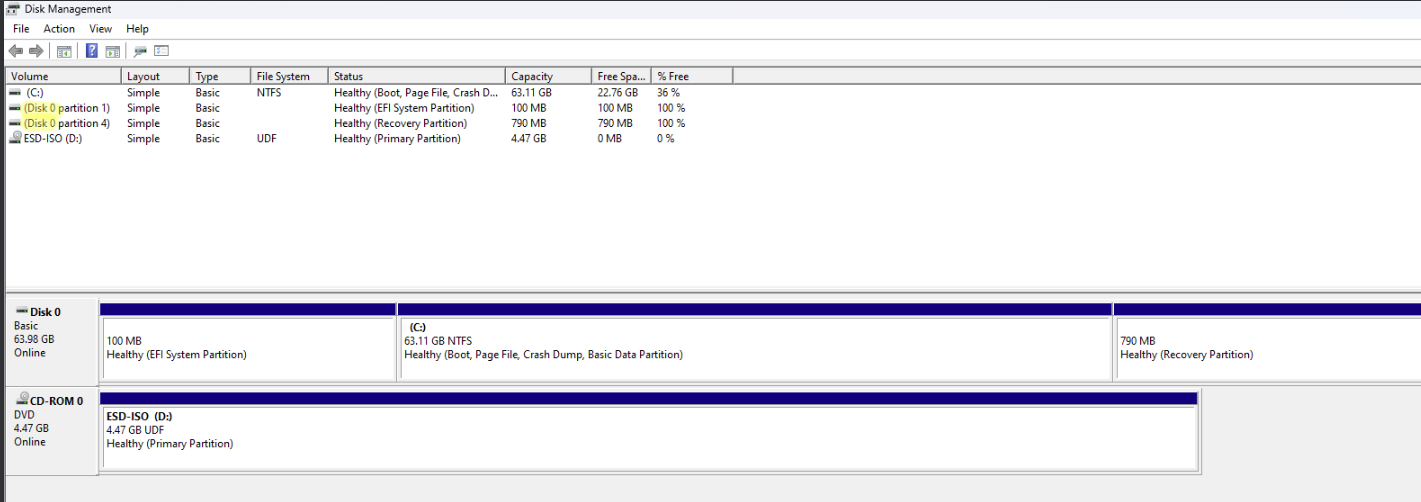
The Microsoft reserved partition (MSR) has less than 15 MB of free space. According to Microsoft, upgrades fail when the reserved partition has less than 15 MB free.
Ensure at least 15 MB of free space is available. To check the reserved partition free space, open a command prompt as Administrator and run:
mountvol S: /S
fsutil volume diskfree S:
mountvol S: /D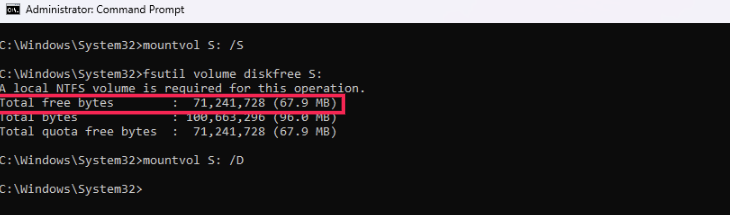
2. CpuFms — Incompatible Processor
The system does not have a compatible processor. Refer to the Windows 11 specifications page and the CPU compatibility list to confirm processor requirements.
3. Setup_HostIsUEFICompliant — Outdated BIOS
The system BIOS is outdated or not compatible with the upgrade. Update the BIOS, reboot the system, and then proceed with the feature pack upgrade.
4. TpmVersion — TPM 2.0 Not Enabled
Windows 11 requires TPM version 2.0. Verify that TPM 2.0 is present and enabled. Refer to the Windows 11 specifications page.
5. UefiSecureBoot — Secure Boot Not Enabled
The system lacks UEFI and Secure Boot support. Ensure UEFI firmware with Secure Boot is enabled before proceeding. Refer to the Windows 11 specifications page (search for "System firmware").
6. Setup_HostIsBootedFromPortableWorkspace
The system is running from a Portable Workspace (a bootable USB or external storage device containing a full Windows installation). Windows does not support upgrading devices running from a Portable Workspace. Contact Microsoft for further assistance.
Error Code 2138537982
Possible Cause
Error 0x80888002 indicates unsupported hardware.
Resolution
Run the PC Health Check Tool to verify whether the system meets all Windows 11 upgrade criteria.
Error Code 1047526904 / Your PC Isn't Supported Yet on This Version of Windows
Possible Cause
Patch Manager Plus validates the uploaded ISO details — version, architecture, edition — against the target system before launching setup.exe. This error occurs after setup.exe is initiated and is recorded in ScanResult.xml and Compatdata logs generated by Windows during the upgrade process.
Resolution
Logs are necessary to identify the exact reason. Contact support with the relevant log files.
Error Code 1047526945
Possible Cause
Installation cannot proceed because the system is low on disk space.
Resolution
Free up disk space on the system drive and redeploy the feature pack.
Environmental Issues
The following errors are caused by system environment conditions — disk space, permissions, antivirus interference, pending reboots, and service states.
Error Code 50001
Possible Cause
Required data cannot be retrieved from the ISO file — possibly due to file corruption, an unsupported format, or issues during mounting or extraction.
Resolution
Delete the existing ISO file from the patch store. Re-download the ISO from the Microsoft 365 Admin Center or using the media creation tool, rename and copy it to the patch store, and redeploy the feature pack update.
Error Code 50004 / ISO File Extraction Failed
Possible Cause
This may occur if files from a previous extraction were not properly closed, the extraction tool is blocked by antivirus, or the uploaded ISO is corrupted or incomplete.
Resolution
Solution 1 — Process and System Cleanup
Open Task Manager and terminate setupprep.exe and SetupHost.exe if running. Alternatively, restart the affected machine and retry deployment.
Solution 2 — Disable Antivirus
Whitelist the agent installation folder (default: C:\Program Files (x86)\ManageEngine\UEMS_Agent). If the issue persists, temporarily disable the antivirus.
Solution 3 — ISO File Replacement
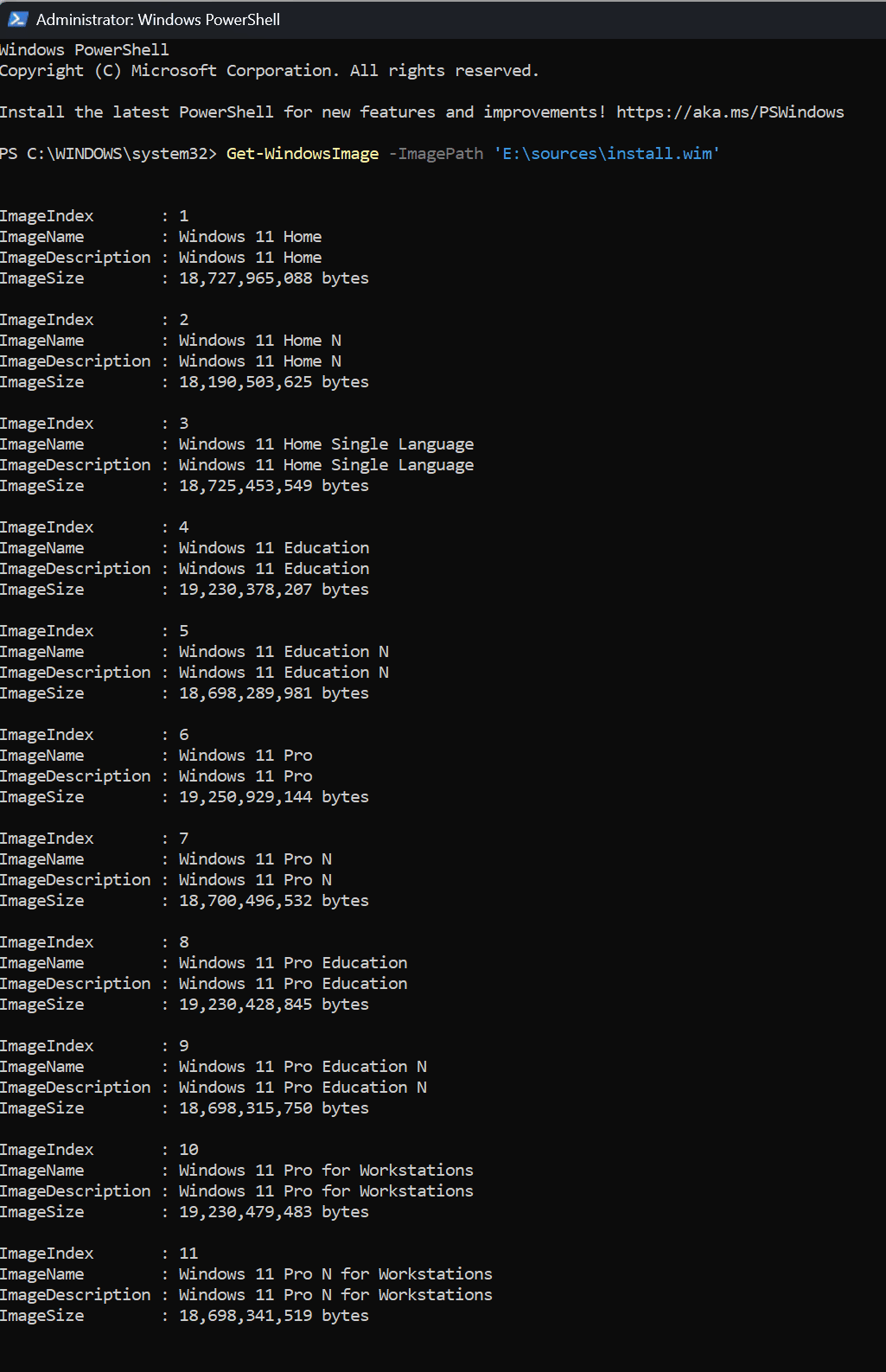
Upload a verified, uncorrupted ISO. To verify ISO integrity, run the following PowerShell command after mounting or extracting the ISO (replace E with the mounted partition letter or extracted location):
Get-WindowsImage -ImagePath 'E:\sources\install.wim'The output should display a list of editions in the ISO.
Error Code 50019
Possible Cause
Failure in extracting the ISO file — possibly due to insufficient permissions (access denied) or a corrupted ISO.
Resolution
Logs are necessary to identify the exact reason. Contact support with the relevant log files.
Error Code 50031
Possible Cause
Feature pack installation is skipped because the same version was recently installed. Redeploying with the same ISO build version within 3 days of a previous successful installation causes this error.
Resolution
To redeploy immediately, remove the following file from the affected system and then retry deployment:
C:\Program Files (x86)\ManageEngine\UEMS_Agent\logs\installed_fp_details.jsonError Code 50039
Possible Cause
Failure in constructing the scheduler.xml file required for running setup.exe via Task Scheduler, or an error occurred while retrieving the result from the executed setup.exe process.
Resolution
Logs are necessary to identify the exact reason. Contact support with the relevant log files.
Error Code 50035
Possible Cause
A rollback may have occurred because antivirus software blocked the setup process.
Resolution
Check if antivirus is enabled and disable it before retrying the upgrade. If redeploying the same ISO build version, remove the following file from the affected system to allow immediate redeployment:
C:\Program Files (x86)\ManageEngine\UEMS_Agent\logs\installed_fp_details.jsonError Codes 1073741819 / 1073740940 / 1073741584 / 1047527137
Possible Cause
An unexpected crash of the deployment executables setup.exe and setuphost.exe.
Resolution
This ISO crash issue was resolved in the ISO released in January 2024. Upgrade the system using the January 2024 ISO or any later version. Ensure the ISO version is 22621.3007 or higher.
To verify the ISO release month, check the following log files:
- Patch deployments:
windows11update.log/windows10update.log/dcprereqhandler.log - SWD deployments:
windowsSWInstaller.log
ImageName : Windows 11 Education
Architecture : x64
Version : 10.0.22621.2428
EditionID : Education
CreatedTime : 10/1/2023 1:18:19 AM
Languages : en-US (Default)
Access Is Denied / Error Code 50005 / Error Code 2147024891
Possible Cause
Antivirus or encryption software is interfering with deployment, triggering an illegal operation and preventing the system from accessing the required file.
Resolution
Temporarily disable or uninstall the antivirus software, then proceed with the feature pack deployment.
How to Verify if Antivirus Is Present
- Log file:
setupdiagresult.log - Keyword:
RegisteredAV
RegisteredAV = CrowdStrike Falcon Sensor
FilterDrivers = WinSetupMon
UpgradeStartTime = 27-11-2024 20:22:46
UpgradeEndTime = 28-11-2024 12:09:06Error Code 50008
Possible Cause
The system is unable to retrieve the mounted drive letter during deployment, often due to restrictions on PowerShell execution by Group Policy, antivirus, or endpoint security software.
Resolution
Ensure that PowerShell commands are allowed in your environment by updating the Group Policy, antivirus, or endpoint security settings. Once enabled, redeploy the feature pack.
Error Code 183 / Cannot Create a File When That File Already Exists / Error Code 2147023278
The process cannot access the file because it is being used by another process
Possible Cause
Windows Installer or setup.exe is already processing another request.
Resolution
Suspend all configurations, reboot the machine, and create a new configuration to redeploy the feature pack during system startup. If the issue persists, open Task Manager and terminate the following processes if active: setup.exe, setuphost.exe, Windows Installer, Windows Setup, Modern Setup Host. Then redeploy during system startup.
Error Code 50016
Possible Cause
A restart is pending from the previous feature pack installation.
Resolution
Restart the system to complete the Windows feature upgrade.
Error Code 1047527161
Error code 1047527161 (0xC1900107) indicates that a cleanup operation from a previous installation attempt is still pending. A system restart is required to proceed.
Resolution
Method 1
Restart the system to complete the pending cleanup, then re-initiate the upgrade.
Method 2
- In File Explorer, navigate to the C: drive. Click View and enable Hidden items.
- Locate and rename the folder named
$WINDOWS.~BT. - Perform Disk Cleanup to remove residual files. Refer to this Microsoft guide for steps.
- Redeploy the feature pack update.
Error Code 1047527167
Possible Cause
A driver caused a problem during the upgrade process.
Resolution
Disable or remove all third-party antivirus or antispyware software. Disconnect all peripheral devices except the mouse, keyboard, and display. Update all installed drivers and redeploy the feature pack.
Error Codes 1047526942 / 1047526941 / 1047526940 / 1047526939
Possible Cause
A pre-install script failed to execute or returned an error.
Resolution
If custom scripts are used for setup tasks, review them for errors, correct or delete the script, and redeploy the feature pack. Also check whether encryption software is blocking the upgrade — if so, update it to the latest version or temporarily disable it before redeploying.
How to Find the Failing Script
- Log file:
setupact.log
2024-11-08 14:23:37, Info MOUPG SetupManager::ExecuteCustomScript: Running
[C:\Windows\system32\update\run\FDEBCBF7-9A83-479A-BFD6-887862DAD49A\preinstall.cmd]
2024-11-08 14:23:38, Info MOUPG SetupManager::ExecuteCustomScript: Script returned: [0x4]
2024-11-08 14:23:38, Error MOUPG CSetupManager::ExecuteCustomScript(12140): Result = 0xC19001E2
The System Cannot Find the Path Specified
Possible Cause
Antivirus software is interrupting the upgrade process.
Resolution
Temporarily disable or uninstall the antivirus software, then proceed with the feature pack deployment. To verify if antivirus is present, check setupdiagresult.log for the keyword RegisteredAV.
Not Enough Disk Space / There Is Not Enough Space on the Disk / The Disk Is Full
Possible Cause
During update installation, Windows extracts packages to a separate folder, requiring sufficient space. This error occurs if the drive (typically C:) lacks space or the Temp folder is full. Refer to this Microsoft article for further details.
Resolution
Verify that the machine has enough disk space. Run Disk Cleanup to remove junk files and clear the Temp folder before redeploying the patch.
Not Enough Memory Resources Are Available to Complete This Operation
Possible Cause
Feature pack deployment requires a minimum of 20 GB free space for x64 systems and 16 GB for x86 systems.
Resolution
Verify that the system has the required free space before proceeding with the feature pack deployment.
Not Enough Memory Resources Are Available to Process This Command
Possible Cause
CPU or memory usage was at 100% during deployment.
Resolution
Deploy the patches during system startup. To verify the system shutdown status, search for the keywords shutdown or bootup in dcagentserviceaccess.log.
Not Enough Storage Is Available to Process This Command
Possible Cause
Low disk space on the system drive.
Resolution
The deployment requires at least 16 GB of free space. Run Disk Cleanup, clear the Temp folder, and free up space on the C: drive until it exceeds 16 GB. Then redeploy the patch.
The Service Cannot Be Started — Windows Update Services Disabled
Possible Cause
Windows Update-related services are stopped or disabled, preventing OS updates from installing.
Resolution
Ensure the following services are enabled and running. Set their startup type to Automatic, Manual, or Automatic (Delayed Start) as appropriate:
- Windows Installer — handles installation, modification, and removal of applications packaged as
.msior.msp. - Windows Module Installer — manages installation and removal of Windows updates and optional components.
For more guidance, refer to this page, as well as the official Microsoft articles: Windows upgrade and installation errors and the resolution procedures documentation.
Error Code 1047527154 / EULA Accept Required
Possible Cause
Error MOSETUP_E_EULA_ACCEPT_REQUIRED — the user has not accepted the End User License Agreement (EULA), which is mandatory for the installation to proceed.
Resolution
Add the /EULA accept switch in the registry using the FP_COMMAND_LINE value.
Registry Configuration via Console
- Registry Configuration: Manual
- Action: Write Value
- Header Key: HKEY_LOCAL_MACHINE
- Sub-Key: SOFTWARE\WOW6432Node\AdventNet\DesktopCentral\DCAgent\Patch
- Data Type: REG_SZ
- Value Name: FP_COMMAND_LINE
- Value Data:
/auto upgrade /DynamicUpdate disable /quiet /noreboot /compat IgnoreWarning /EULA accept /BitLocker TryKeepActive
Manual Registry Edit
- Open Registry Editor on the affected machine.
- Navigate to
HKEY_LOCAL_MACHINE\SOFTWARE\WOW6432Node\AdventNet\DesktopCentral\DCAgent\Patch(64-bit) orHKEY_LOCAL_MACHINE\SOFTWARE\AdventNet\DesktopCentral\DCAgent\Patch(32-bit). - In the right pane, right-click and select New → String Value.
- Set the name as
FP_COMMAND_LINEand enter the desired switch value.
FP_COMMAND_LINE already exists, update the value with the required switches. Refer to this Microsoft page for more information about the /EULA switch.Error Code 216 / This Version Is Not Compatible with the Version of Windows You're Running
Possible Cause
Error ERROR_MACHINE_TYPE_MISMATCH — the deployed ISO does not match the system's Windows version or architecture.
Resolution
Compare the system's architecture with that of the ISO file. If there is a mismatch, delete the existing ISO and download a new ISO that matches the system's architecture. Review windows11update.log / windows10update.log / dcprereqhandler.log — if the ISO architecture is listed as Unknown, the ISO may be corrupted.
Error Code 1813 / The Specified Resource Type Cannot Be Found in the Image File
Possible Cause
Error ERROR_IMAGE_TYPE_NOT_FOUND — the required installation files (install.esd or install.wim) are missing or inaccessible.
Resolution
Delete the existing configuration and package. Create a new configuration and package using the updated template Windows 11 FeaturePack Upgrade (DC). Refer to this page for steps.
DNS Server Not Authoritative for Zone
Possible Cause
There may be an issue with the silent switch argument used during deployment.
Resolution
Share the switch arguments used with the support team so they can analyze and identify any errors.
Feature Pack Update Blocked Due to Insufficient Free Disk Space (-1047526898)
Possible Cause
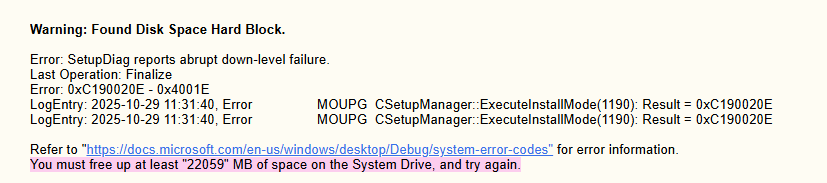
Error 0xC190020E (MOSETUP_E_INSTALLDISKSPACE_BLOCK) — Windows Setup has determined there is not enough free disk space on the system drive to continue the upgrade.
Resolution
Free up space on the system drive (C:) and then proceed with the deployment. Refer to the Microsoft upgrade error codes reference for more information.
To find the exact required disk space, locate the SetupDiagResults.log file in the agent logs folder and search for the entry "You must free up". This line specifies the total disk space required to complete the installation.
The Wait Operation Timed Out / Error Code 258
Either you haven't provided the silent switches or the silent switches are incorrect / The software package installation failed as the installation process took longer than the timeout limit
Possible Cause
Low system performance. Feature pack deployment typically takes 1—1.5 hours. If deployment exceeds 4 hours, the workflow terminates with a timeout error.
Resolution
Restart the system and redeploy the failed patches during system startup. For software deployment (SWD), set the installation time limit to 6 hours.
Error Code -2147024865 / A Device Attached to the System Is Not Functioning
Possible Cause
Duplicate folders exist in C:\Users or a user does not have a valid Windows profile.
Resolution
Delete or move invalid or unnecessary user folders from C:\Users. Also clean up duplicate or invalid profile entries from the registry at HKEY_LOCAL_MACHINE\SOFTWARE\Microsoft\Windows NT\CurrentVersion\ProfileList.
How to Identify Duplicate Profiles
- Log file:
setupact.log(in the Panther logs directory) - Keyword:
Duplicate profile detected for S-
2024-12-04 10:17:09, Warning MIG Duplicate profile detected for user
S-1-5-21-715849514-2861270963-1347632883-1004(C:\Users\Admin) vs.
S-1-5-21-715849514-2861270963-1347632883-1001(C:\Users\Admin).
2024-12-04 10:17:09, Error MigPlatformStartupOnline caught exception:
Win32Exception: Duplicate profile detected for S-1-5-21-715849514-2861270963-1347632883-1004.
Abandoning.: The specified user does not have a valid profile.
Error Code 500100 / Error Code 50034
Possible Cause
The Windows setup process from Windows 10 to Windows 11 is initiated using Task Scheduler, but the process creation fails during execution.
Resolution
Modify the registry to use an alternate method for initiating the Windows setup process:
- Root Key: HKEY_LOCAL_MACHINE
- Sub Key: SOFTWARE\WOW6432Node\AdventNet\DesktopCentral\DCAgent\Patch\InternalSettings
- Value Name: ForceCreateProcess
- Data Type: REG_DWORD
- Value Data: 1
Error Code 500101 / Error Code 50041
Possible Cause
PowerShell and DISM commands used to validate the ISO are blocked or fail due to system restrictions.
Resolution
Verify whether antivirus or security software is blocking PowerShell or DISM execution. Remove or modify any policies that prevent execution of PowerShell scripts or DISM commands.
%1 Is Not a Valid Win32 Application
Possible Cause
The dependency patch of the feature pack has been deployed directly.
Resolution
Scan the systems and check the Missing Patches list. Deploy the patch whose description starts with Feature Pack Update.
Unable to Download the Dependency File from the Server
Possible Cause
A connectivity issue exists between the server and the agent.
Resolution
Redeploy the feature pack update. If the problem persists, contact support.
Error Code 50042
Possible Cause
A previous deployment failed to terminate existing feature pack installation processes.
Resolution
Open Task Manager and terminate the following processes if running: setupprep.exe and SetupHost.exe. Alternatively, restart the affected machine and retry the deployment. If you need further guidance, contact support.