Integrating Custom/Other Ticketing Systems with PAM360
If you are using a ticketing system other than the ones natively supported by PAM360, you can still integrate it by implementing a custom integration. To use custom integrations, you should specify more accurate details to validate with the ticketing system for automated approval of requests related to privileged access. Also, you have to write the necessary conditions to be validated with the ticketing ID. This process requires creating a custom implementation class and configuring it within PAM360. To help you understand the steps, we will use Zendesk integration as an example.
By following the steps below, you can successfully integrate your preferred ticketing system and enable PAM360 to validate ticket IDs for password retrieval, reset, and other access-control workflows.
- Creating an Implementation Class
- Checking Connection with the Ticketing System
- Mapping PAM360 Columns to Ticketing System Fields
- Validating Ticket Conditions
- Compiling the Implementation Class
- Integrating Custom Ticketing System in PAM360
- Additional Implementation Tips
1. Creating an Implementation Class
The first step is to create an implementation class, referencing a sample designed for Zendesk integration. A key aspect of this process is generating an authentication token to establish a secure connection between PAM360 and the ticketing system. Ensure that the authentication token (AUTH TOKEN) is generated using the credentials of an administrator with full access. This can be done by either embedding the credentials directly in the implementation class or generating the token separately and using it for authentication.
Example: Generating a Base64 Authstring for Zendesk
Below is an example code snippet for generating a Base64 Authstring, commonly used in REST APIs with a Base64 Authorization header:
//Constructing Authstring from Zendesk login credentials
String username = "username@example.com"; //Zendesk username
String password = "zendeskpassword"; //Zendesk password
Base64 encoder = new Base64();
byte[] encodedPassword = (username + ":" + password).getBytes();
byte[] encodedString = encoder.encodeBase64(encodedPassword);
String authStr = new String(encodedString);
Additional Detail
Some ticketing systems provide an AUTH TOKEN via their GUI. If available, you can directly use these tokens for integration. Avoid hard-coding credentials in the implementation class by using REST API calls with direct Base64 tokens that are generated through Java or any online editors.
2. Checking Connection with the Ticketing System
Once the authentication token is ready, validate the connection between PAM360 and the ticketing system using REST APIs. Each ticketing system has its own procedure to fetch ticket details. Refer to your ticketing system's documentation for the API endpoints and request formats.
Example: Fetching Ticket Information from Zendesk
The following code snippet demonstrates how to retrieve ticket information:
String sUrl = "https://<zendesk-instance>.zendesk.com/api/v2/tickets/"; //Zendesk API URL
sUrl = sUrl + ticketId +".json"; //Ticket ID for validation
URL url = new URL(sUrl);
HttpsURLConnection connection = (HttpsURLConnection) url.openConnection();
connection.setRequestProperty("Authorization", "Basic" + authStr); //Adding Authstring in the header
PAM360 will use this connection to validate ticket details based on the parameters provided by the user.
3. Mapping PAM360 Columns to Ticketing System Fields (Optional)
To enhance the validation process, you can configure PAM360 to compare specific fields with corresponding fields in the ticketing system. For instance, you can map Resource Name in PAM360 to Subject in the ticketing system.
Before granting access to passwords, PAM360 will verify if the mapped values match.
Example: Validating Resource Name Against Ticket Subject
String sUrl = "https://<zendesk-instance>.zendesk.com/api/v2/tickets/"; //Zendesk API URL
sUrl = sUrl + ticketId +".json"; //Ticket ID for validation
URL url = new URL(sUrl);
HttpsURLConnection connection = (HttpsURLConnection) url.openConnection();
connection.setRequestProperty("Authorization", "Basic" + authStr); //Adding Authstring in the header
If the mapping is configured, access will only be granted if the validation succeeds.
4. Validating Ticket Conditions (Optional)
PAM360 allows you to validate specific conditions associated with a ticket to ensure it meets the required criteria. By default, PAM360 checks that the ticket "STATUS' is not in a "CLOSED" state. You can configure additional conditions, and PAM360 will validate all of them against the ticketing system. For more details on the configuration, click here.
PAM360 automatically displays all available fields from the ticketing system, including custom fields, enabling you to define specific values for validation. These conditions can be tailored to meet your requirements, ensuring tickets comply with your organization's access-control policies.
The following snippet demonstrates how to validate a ticket's status based on the configured conditions:
JSONObject ticket = (JSONObject)ticketingOuput.get("ticket");
String status = (String)ticket.get("status");
boolean statusCheck = "open".equalsIgnoreCase(status); //Checks if the ticket status is in open state
By configuring such validations for ticketing conditions, you can ensure tickets meet specific criteria before access is granted.
5. Compiling the Implementation Class
After creating the implementation class, compile it into a JAR file to integrate it with PAM360 by following the below steps:
- Include the following JAR files in your classpath (available in the <PAM360-Installation-Directory>\lib folder):
- AdventNetPassTrix.jar
- json_simple-1.1.jar
- commons-codec-1.7.jar
- For Windows, compile the implementation class:
javac -d . -cp AdventNetPassTrix.jar;json_simple-1.1.jar;commons-codec-1.7.jar ZendeskImpl.java
- For Linux, compile the implementation class:
javac -d . -cp AdventNetPassTrix.jar:json_simple-1.1.jar:commons-codec-1.7.jar ZendeskImpl.java
6. Integrating Custom Ticketing System in PAM360
Caution
- Once the implementation class is compiled, place the JAR file in the <PAM360-Installation-Directory>\lib folder and restart the PAM360 service to apply the changes.
- You need at least two administrators in your organization to perform custom ticketing system configuration.
- Log in to the PAM360 web interface and navigate to Admin >> Integrations >> Ticketing System Integration.
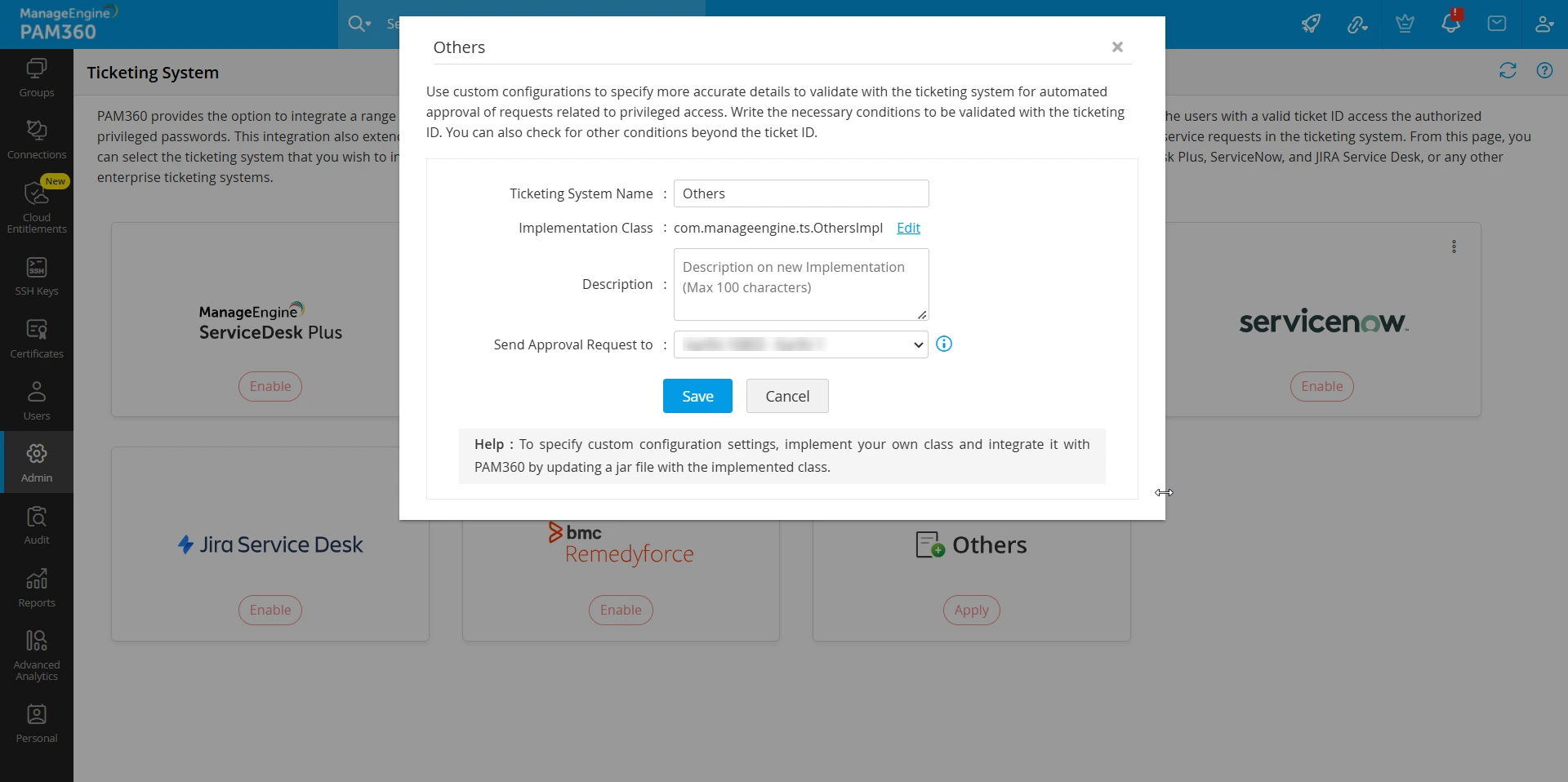
- Select Others for a new ticketing system and click Apply.
- In the window that appears, enter a name for the custom ticketing system.
- Click Edit beside the Implementation Class field and modify the implementation class if necessary.
- Next, enter the description of your choice in the Description field.
- Select the approval administrator from the dropdown beside the Send Approval Request to field.
Once approved, the ticketing system workflow will become mandatory for password retrieval and reset operations.
For further information, refer to the sample implementation class created for integrating Zendesk.
Caution
Ensure the below SHA256 Checksum value upon downloading the file:91e8fce1d8724001e2c646ff3f3bcdc978d65b3cd6616eb77a52b350d48be194
7. Additional Implementation Information
For mapping PAM360 columns to ticketing system fields and validating ticket conditions, you might require additional information during the implementation. Refer to the tips below for details.
7.1 Columns in PAM360
PAM360 sends several columns for mapping and validation. Key columns include:
- PAM360 User Name - Name of the logged-in user.
- Resource Name - Name of the resource.
- DNS Name - IP Address of the resource.
- User Account - Account name associated with the resource.
- Resource Type - Type of the resource being accessed (Windows, WindowsDomain, Linux, and more).
- Resource Description - Description about the resource.
- Department - Department to which the resource belongs.
- Location - Resource location.
- Domain Name - Domain name of the resource.
- Request Type - Specifies the request type for which a ticketing system call is made. It can be any of the following:
- RETRIEVAL - Password access.
- REQUEST - Password access request raised through Access-Control workflow.
- RESET - Password reset.
- AUTOLOGON - 'Open Connection' request.
- User Organization Name - Organization name of the user who made the request.
- User Current Organization Name - Name of the organization where the requested account is present.
Apart from the above mentioned columns, all additional columns will be sent as displayed below:
- Resource additional field - Resource@field_name
- Account additional field - Account@<field_name
7.2 Credentials to Access Ticketing System
To successfully integrate and access the ticketing system, ensure the following credentials are configured correctly:
- AUTHTOKEN - The authentication token value provided in the integration GUI. This token is required for authorizing PAM360 to communicate with the ticketing system.
- TICKETINGSYSTEMURL - The URL of the ticketing system as configured in the integration GUI. This is the endpoint where requests from PAM360 will be sent.
7.3 Advanced Configuration Details
For advanced configuration of the ticketing system integration with PAM360, consider the following settings:
- ISPAM360TICKETCRITERIA - Indicates whether the integration between PAM360 and the ticketing system is configured.
Type: Boolean (true or false)
- PAM360TICKETCRITERIACOLUMNS - Specifies the mapping details between PAM360 and the ticketing system. Each element in the array represents a criterion. For instance, the PAM360 column User Account can be validated against the ticketing system column REQUESTER using the match parameter EQUAL in criterion C1.
Type: JSONArray
Example:
[ ["C1","User Account","REQUESTER","EQUAL"],
["C2","PAM360 User Name","TECHNICIAN","EQUAL"] ] - PAM360TICKETCRITERIA - Defines the relationship between different criteria. Each element in PAM360TICKETCRITERIACOLUMNS contains a criterion name, which determines the relationship.
Type: String
Example: C1 or C2 - ISTICKETVALUECRITERIA - Indicates whether validation for ticketing system values is configured.
Type: Boolean (true or false)
- TICKETVALUECRITERIACOLUMNS - Specifies the criteria that the ticket must satisfy. Each array element represents a criterion. For example, the ticket column STATUS must not be Closed under criterion C1.
Type: JSONArray
Example:
[ ["C1","STATUS","Closed","NOT_EQUAL"],
["C2","URGENCY","high","EQUAL"],
["C3","IMPACT","high","EQUAL"] ] - TICKETVALUECRITERIA - Defines the relationship between different criteria specified in TICKETVALUECRITERIACOLUMNS. Each element includes the first parameter as the criterion name.
Type: String
Example: C1 or (C2 and C3) - ISTICKETCHANGEIDSTATUS - Indicates whether the system is configured to validate the change status of tickets.
- TICKETCHANGEIDSTATUS - Specifies the associated Change ID Status for the ticket ID value.
These configurations ensure precise mapping and validation between PAM360 and the ticketing system for seamless integration.
7.4 Matching Parameters
The following match parameters are used to validate criteria in PAM360 integrations:
- EQUAL - The values of the two parameters must be the same.
- NOT_EQUAL - The values of the two parameters must be different.
- CONTAINS - The value of the first parameter must include the value of the second parameter.
- NOT_CONTAINS - The value of the first parameter must not include the value of the second parameter.
- STARTS_WITH - The value of the first parameter must begin with the value of the second parameter.
- ENDS_WITH - The value of the first parameter must end with the value of the second parameter.
Date-Based Comparison Parameters:
- LESS_THAN - The date value of the first parameter must be earlier than the date value of the second parameter.
- GREATER_THAN - The date value of the first parameter must be later than the date value of the second parameter.
- LESS_THAN_EQUAL - The date value of the first parameter must be earlier than or equal to the date value of the second parameter.
- GREATER_THAN_EQUAL - The date value of the first parameter must be later than or equal to the date value of the second parameter.
These parameters ensure that all criteria are validated based on the appropriate conditions for accurate integration and data consistency.