General Settings
Using the General Settings section of Access Manager Plus, you can carry out important setting changes such as enabling the Forgot Password option to reset user passwords, configuring to send Email Notifications on user creation or role modification, managing local authentication settings and so on.
To configure the general settings in Access Manager Plus, navigate to:
You will see different settings categorized under the following sections. Click each link to view the details:
1. Password Retrieval
To view and manage all global settings related to password retrieval, click Password Retrieval from the left pane.
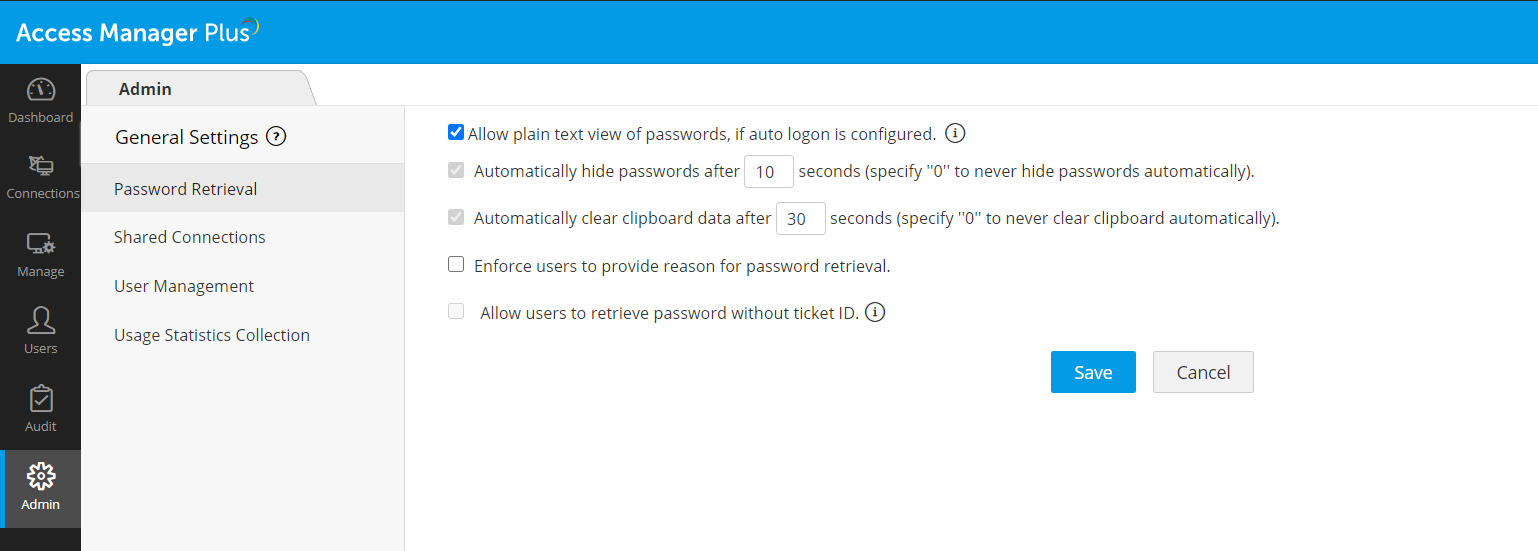
1.1 Allow plain text view of passwords, if auto logon is configured
Enable this option to allow the users to view the passwords of connections in plain text when auto logon is configured. If this option is disabled, users cannot retrieve the password, however they can still launch remote sessions.
1.2 Automatically hide passwords after X seconds (specify '0' to never hide passwords automatically)
By default, passwords are hidden behind a string of hash symbols. On clicking the string, the passwords appear in plain text. By default, the passwords are shown for 10 seconds only, after which they will be automatically hidden. Specify the desired value in seconds in the Automatically hide passwords after X seconds option. If you specify 0, passwords will continue to remain in plain text until you click the password to hide.
1.3 Automatically clear clipboard data after X seconds (specify '0' to never clear clipboard automatically)
Access Manager Plus uses the clipboard utility of browsers to copy passwords when you copy them from Access Manager Plus. By default, the copied passwords will be available for 30 seconds. In this option, specify the time in seconds after which the clipboard will be cleared and the copied password will no longer be available. If you specify 0, clipboard will not be cleared automatically.
1.4 Enforce users to provide reason for password retrieval
Enable this option to enforce users to provide a reason for requesting access to the password. This reason for retrieval will be recorded in the audit logs.
1.5 Allow users to retrieve password without ticket ID
If ticketing system integration is done in your environment, then by default, users will be prompted to provide a ticket ID while requesting for a password. Enable this option to allow users to retrieve passwords without providing a ticket ID.
2. Password Reset
To view and manage all global settings related to password reset in Access Manager Plus, click Password Reset from the left pane.
2.1 Enforce users to provide a reason when changing the connection password
Enable this option to prompt users to enter a reason while attempting to change the password of a connection. This reason will be recorded in the audit logs.
2.2 Allow users to reset the password without providing a ticket ID
If ticketing system integration is done in your environment, then by default, users will be prompted to provide a ticket ID when they try to reset the password of a connection. Enable this option to allow users to reset passwords without providing a ticket ID.
3. Shared Connections
Note:
- Shared Connections: Connections that are public and available for use by all users in the environment.
- Owned Connections: Connections that are set to private by the connection owners. These connections are not visible or accessible to other users in the environment.
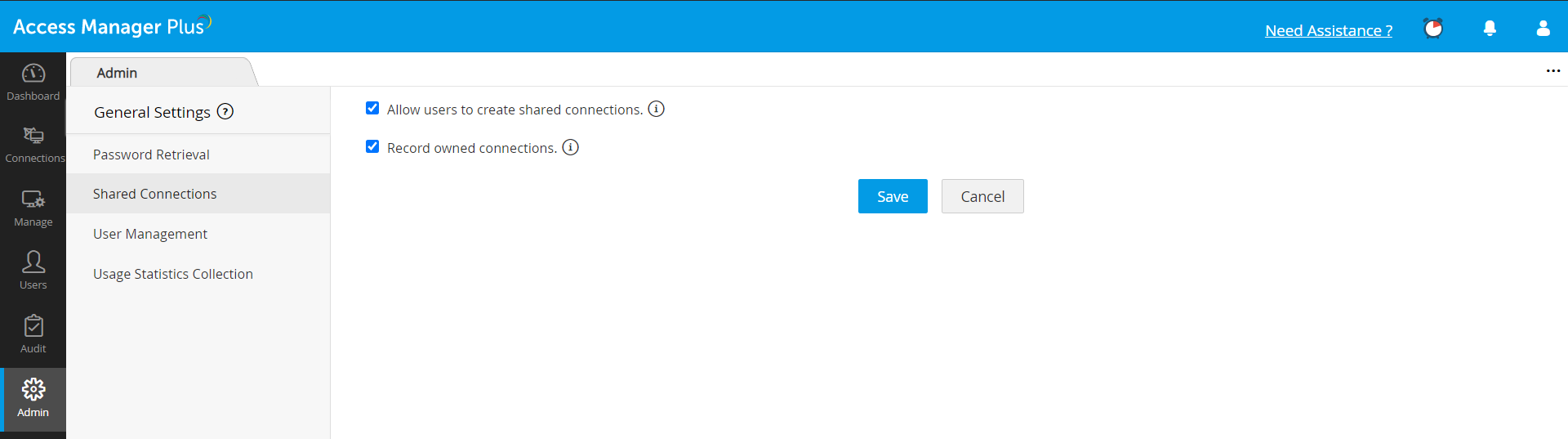
To manage all global settings related to shared connections, click Shared Connections from the left pane.
3.1 Allow users to create shared connections
Enable this option to allow users to share their private/owned connections with other users in your environment. If you disable this option, all connections that are currently public will turn into private/owned connections.
3.2 Record sessions of owned connections
Enable this option to record and track remote sessions carried out on private/owned connections by the respective connection owners.
4. User Management
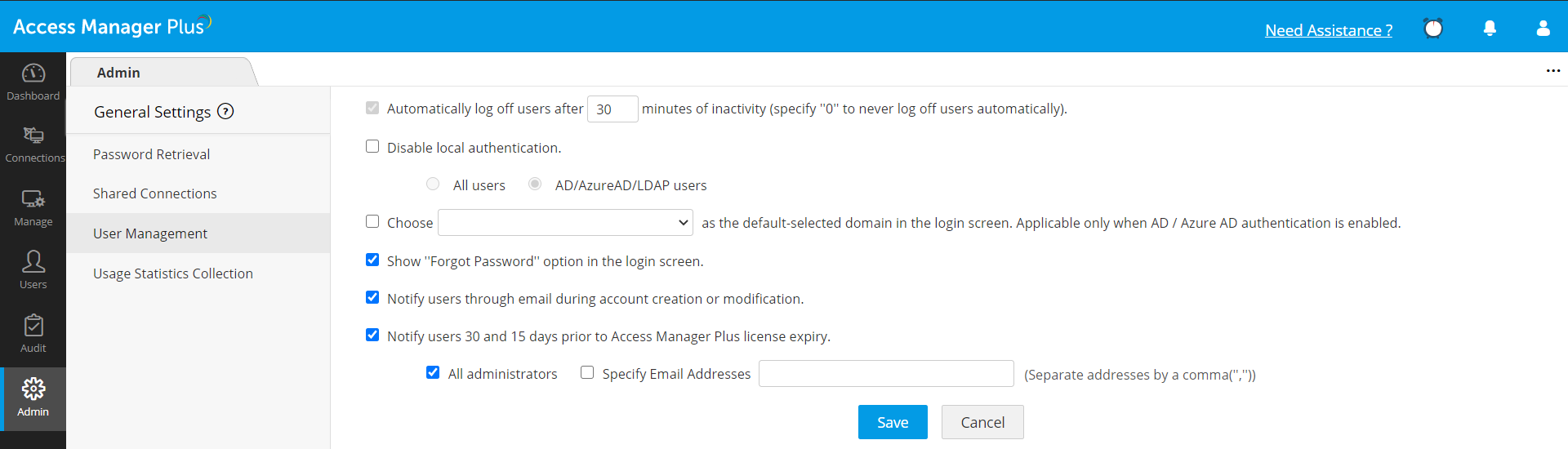
To view and manage all global settings related to user management in Access Manager Plus, click User Management from the left pane.
4.1 Automatically log off users after X minutes of inactivity (specify '0' to never log off users automatically)
Specify a specific time in minutes after which an inactive user session will timeout and log off automatically; by default, the time will be set as 30 minutes. You can specify '0' minutes to never log off inactive users automatically. To impose the same restriction on users logged in through the browser extensions, select the option: Enforce this as a maximum time limit also for users logged in through browser extension.
4.2 Disable local authentication
Access Manager Plus provides three types of authentication:
- LDAP authentication
- AD authentication/Azure AD authentication
- Access Manager Plus's local authentication.
By default, Access Manager Plus allows local authentication along with LDAP or AD authentication. If you want to restrict either the LDAP or AD/Azure AD authentication alone, then select the respective options: All users or . Once the local authentication is disabled, the Access Manager Plus users will be able to login to Access Manager Plus using their workstation password alone.
4.3 Choose default-selected domain in the login screen. (Applicable only when AD/Azure AD authentication is enabled)
If you have users from various domains, the Access Manager Plus login screen will list down all the domains in the drop-down. You can choose the frequently used domain here for ease of use for the users. Once you do so, that domain will be shown as selected by default in the login screen.
4.4 Show "Forgot Password" option in the login screen
By default, the 'Forgot Password' option is enabled for all users who use Access Manager Plus's local authentication. By clicking on 'Forgot Password', users can get a new login password sent to their email. Disable this option if you do not wish to display the 'Forgot Password' option in the login screen for all users.
4.5 Notify users through email during account creation or modification
By default, users are notified via email whenever their account is added in Access Manager Plus or an existing account is modified. Disable this option if you do not wish to send email notifications to users regarding account creation or modification.
4.6 Notify users through email 30 and 15 days prior to Access Manager Plus license expiry
You can notify all administrators or any users regarding the expiry of Access Manager Plus license.
Two notifications will be sent:
To send notifications you can either select all administrators as recipients or specify email addresses separated by a comma (',').
The email ids specified here will be available as a consolidated list under Admin >> Configuration >> Notification Email IDs.
5. Usage Statistics Collection
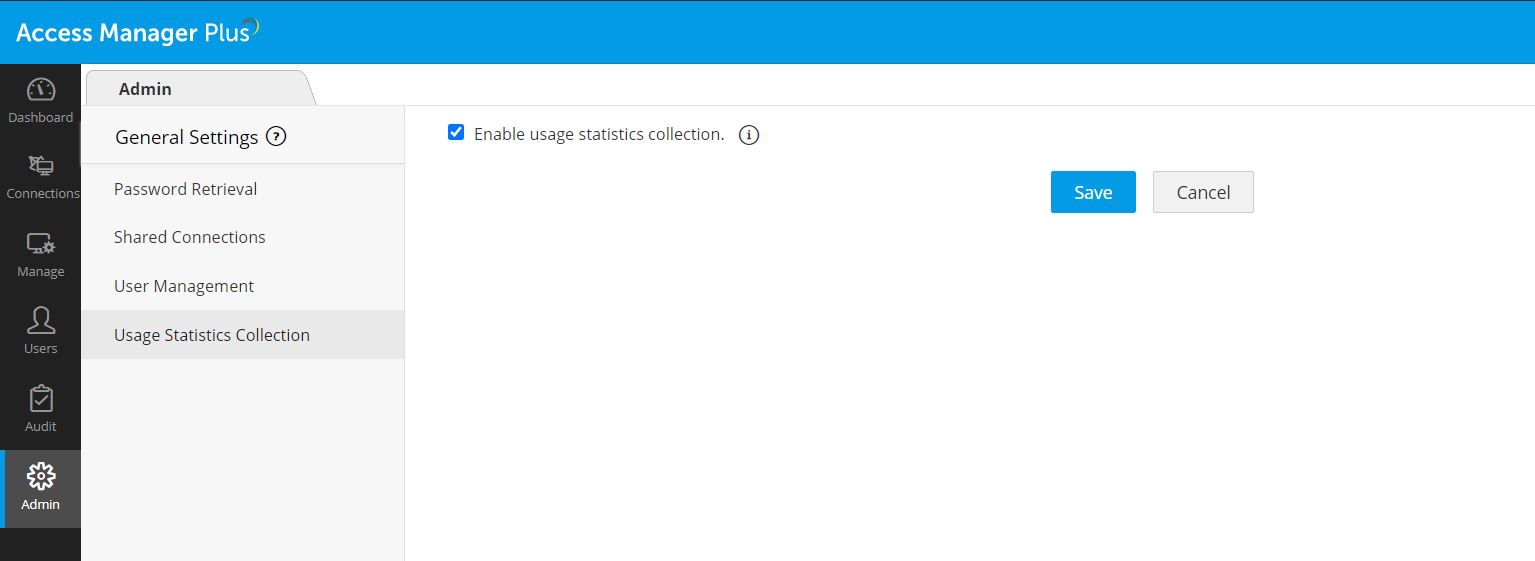
By selecting this option, you can choose to send information to ManageEngine about how the product is used. As per the product End-user License Agreement (EULA), the data collected will pertain to the license details, configuration of the system in which Access Manager Plus is installed, statistics on the frequency of use of various features. This is a feedback mechanism to improve the product. Uncheck the option if you don't wish to allow usage data collection.
Click Usage Statistics Collection from the left pane and enable or disable the option Enable usage statistics collection.
