AI Alarm Summary
AI Alarm Summary in Applications Manager uses a configured GenAI provider to generate concise, readable insights from alarm data. It helps operations teams quickly understand alert volume, severity patterns, affected monitors, recurring issues, probable causes, and recommended next steps without leaving Applications Manager.
AI-generated summaries are intended to assist investigation and decision-making. Review the generated output before taking any action.
Prerequisites
- Configure at least one GenAI provider from Settings → Product Settings → Integrations (Add-On Settings).
- Add one or more models to the provider configuration.
- Set a default model if you want Applications Manager to use a preferred model automatically.
- Ensure the Applications Manager server can connect to the selected AI provider or the locally hosted model (such as Ollama).
For provider setup details, refer to the AIOps Integrations section.
- When no specific alarms are selected, only the top 100 alarms matching the applied filters are summarized by default.
- The generated summary reflects the alarm context available at the time of generation.
- Summary quality, response time, and availability depend on the selected provider and model.
- Changing the model or summary language regenerates the summary.
- AI-generated recommendations should be reviewed by an administrator before implementation.
Types of AI Alarm Summary
Applications Manager supports the following AI alarm summary types:
| Summary type | Description |
|---|---|
| Filtered alarm summary | Generates a consolidated summary based on the alarms that match the current filter context on the Alarms page. |
| Selected alarms summary | Generates a focused summary for the alarm rows manually selected on the Alarms page. |
| Monitor group alarm summary | Generates a summary for alarms scoped to a selected monitor group. |
| Individual alarm summary | Generates a detailed summary for one alarm, including recent event history to help identify recurrence and probable causes. |
How to generate AI alarm summary
AI Alarm Summary can be generated from different access points in Applications Manager, depending on the alarm context you want to summarize. Use the links below to navigate to the relevant procedure:
Generating AI Alarm Summary from the Alarms tab
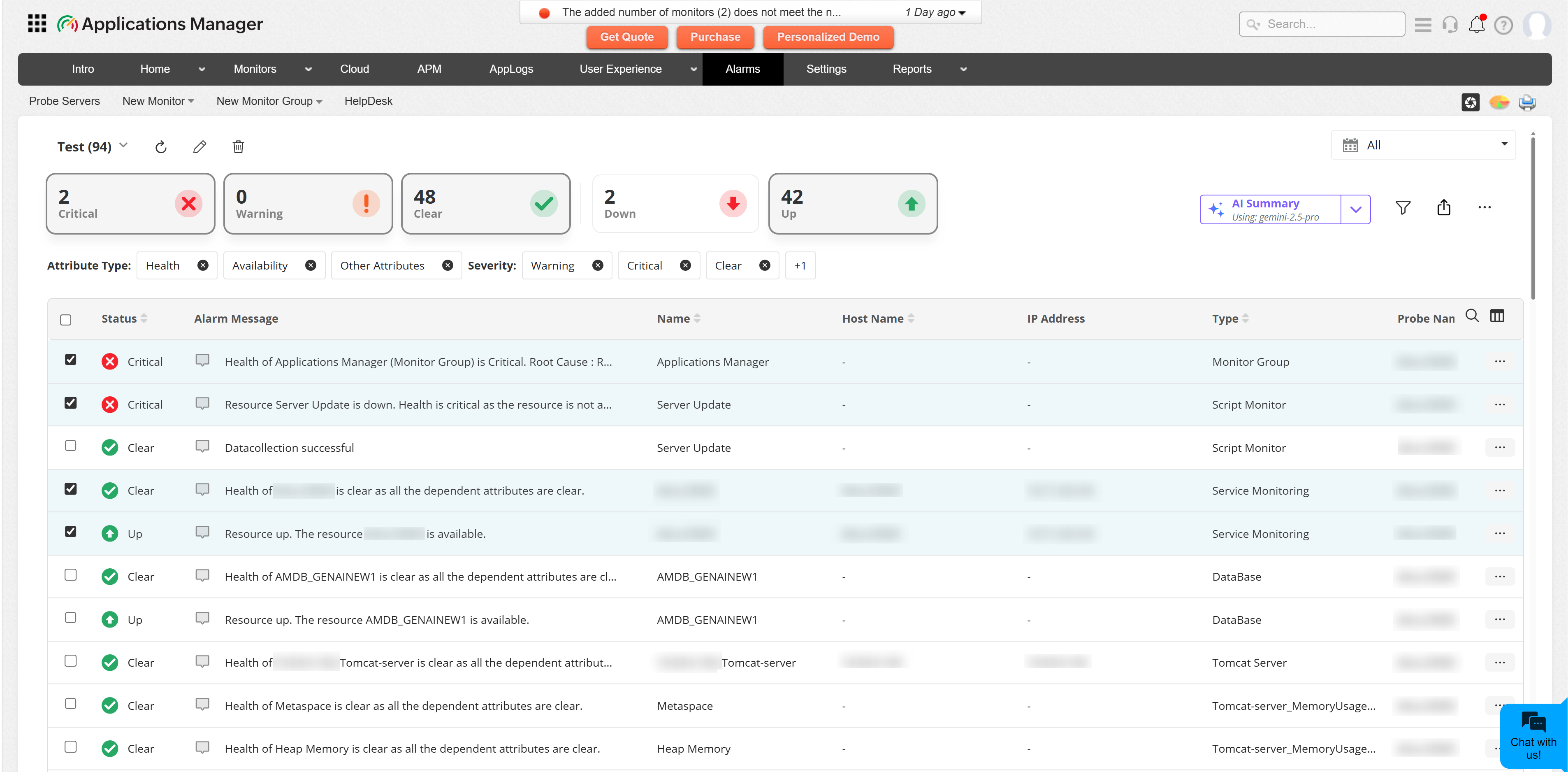
Use the Alarms tab to generate a summary for alarms that match the current filters. If specific alarm rows are selected, Applications Manager summarizes only the selected alarms.
Follow the steps below to generate AI alarm summary in the Alarms tab:
- Go to the Alarms tab.
- Apply the required alarm filters, such as severity, monitor type, attribute type, or time period.
- To summarize only specific alarms, select the required alarm rows. If no rows are selected, Applications Manager summarizes alarms from the current filter context.
- Click AI Summary.
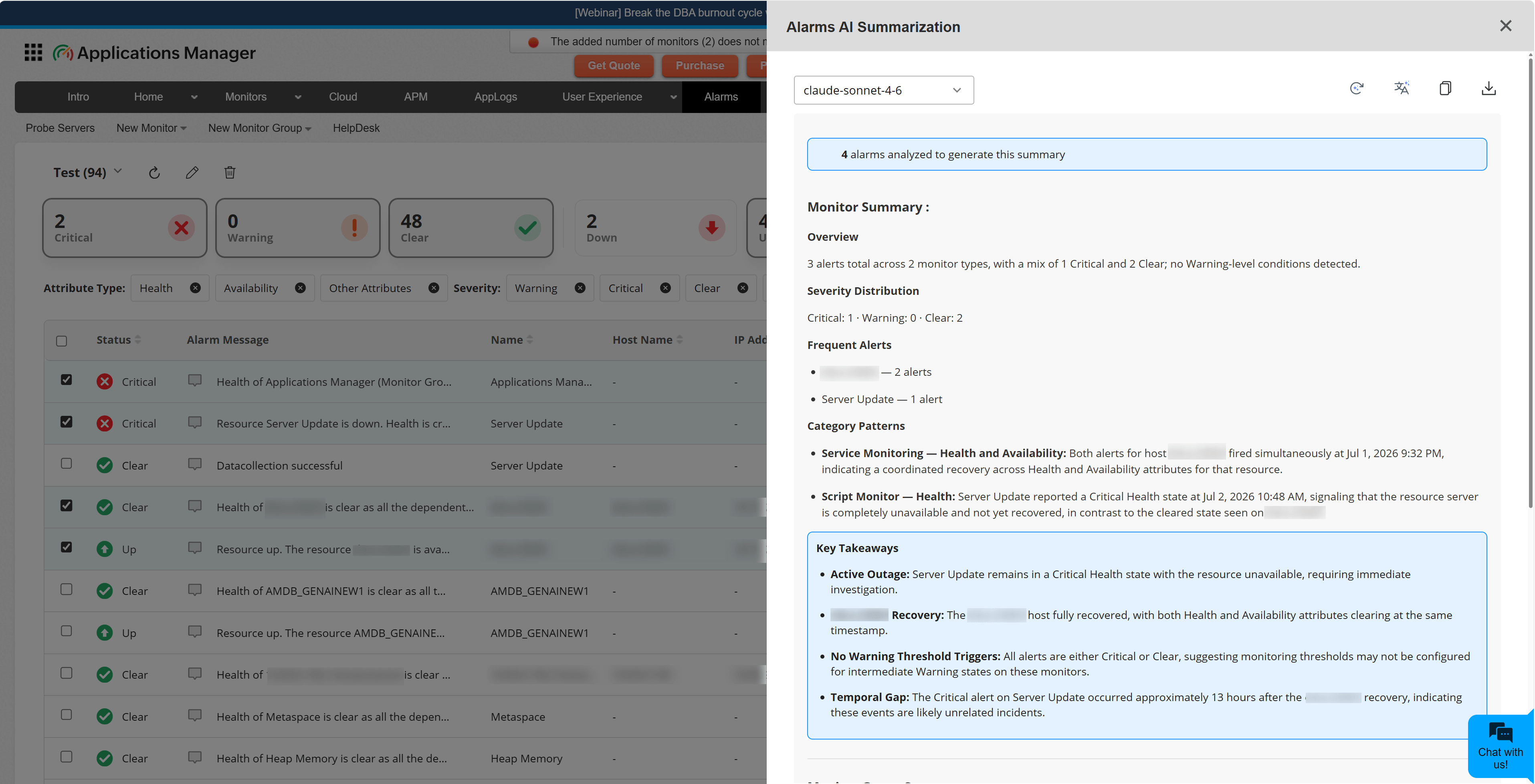
- Select the AI model from the dropdown, if required. If a default model is configured, it is selected automatically. If no default model is configured, the first available model is selected. You can choose a different configured provider and model if required.
- Review the generated summary in the AI summary panel.
Generating AI Alarm Summary from the Monitor Group details page
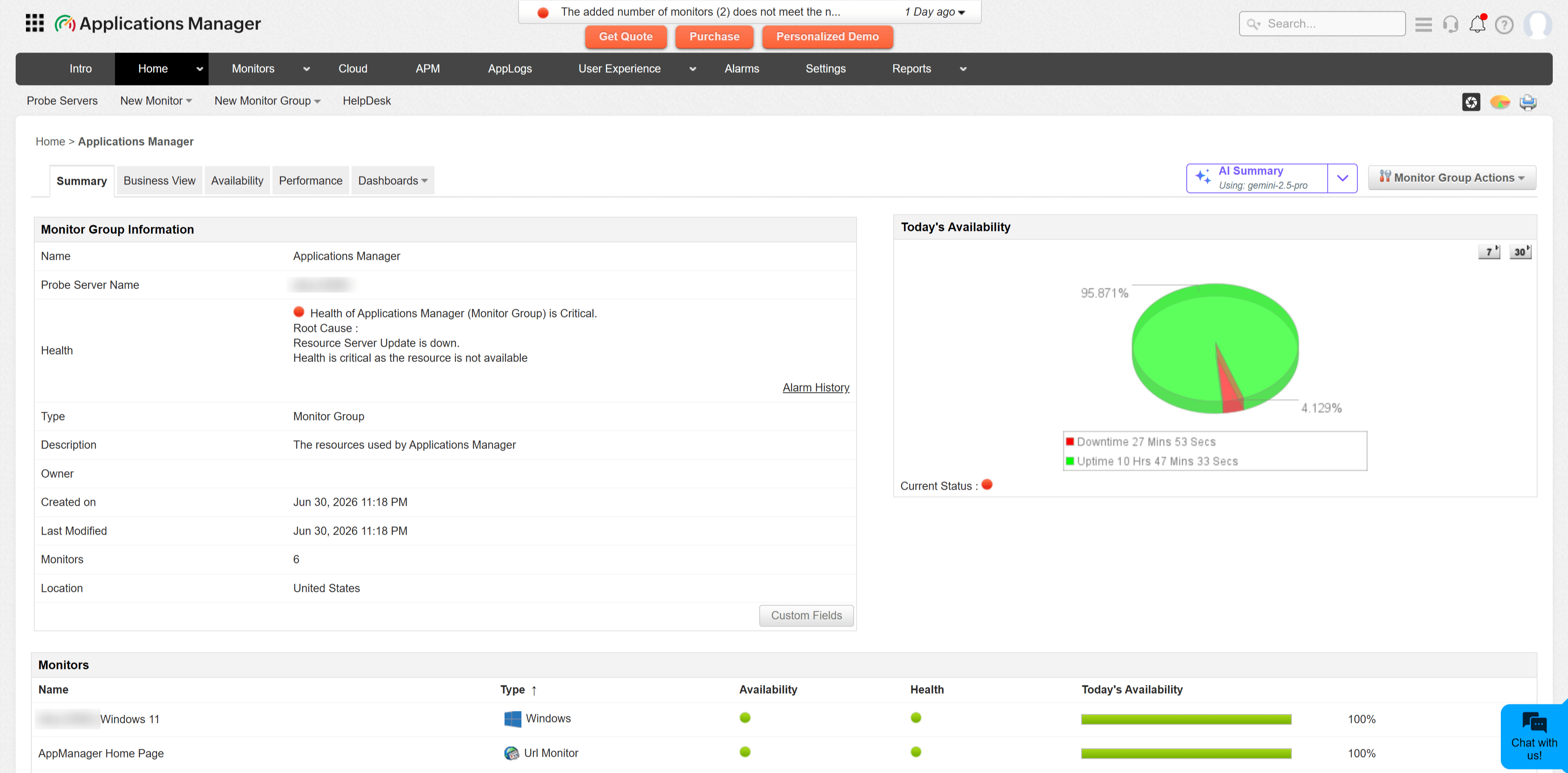
Use the Monitor Group details page to generate a summary for recent alarms associated with a selected monitor group.
Follow the steps below to generate AI alarm summary in the Monitor Group details page:
- Open the required Monitor Group details page.
- Click AI Summary.
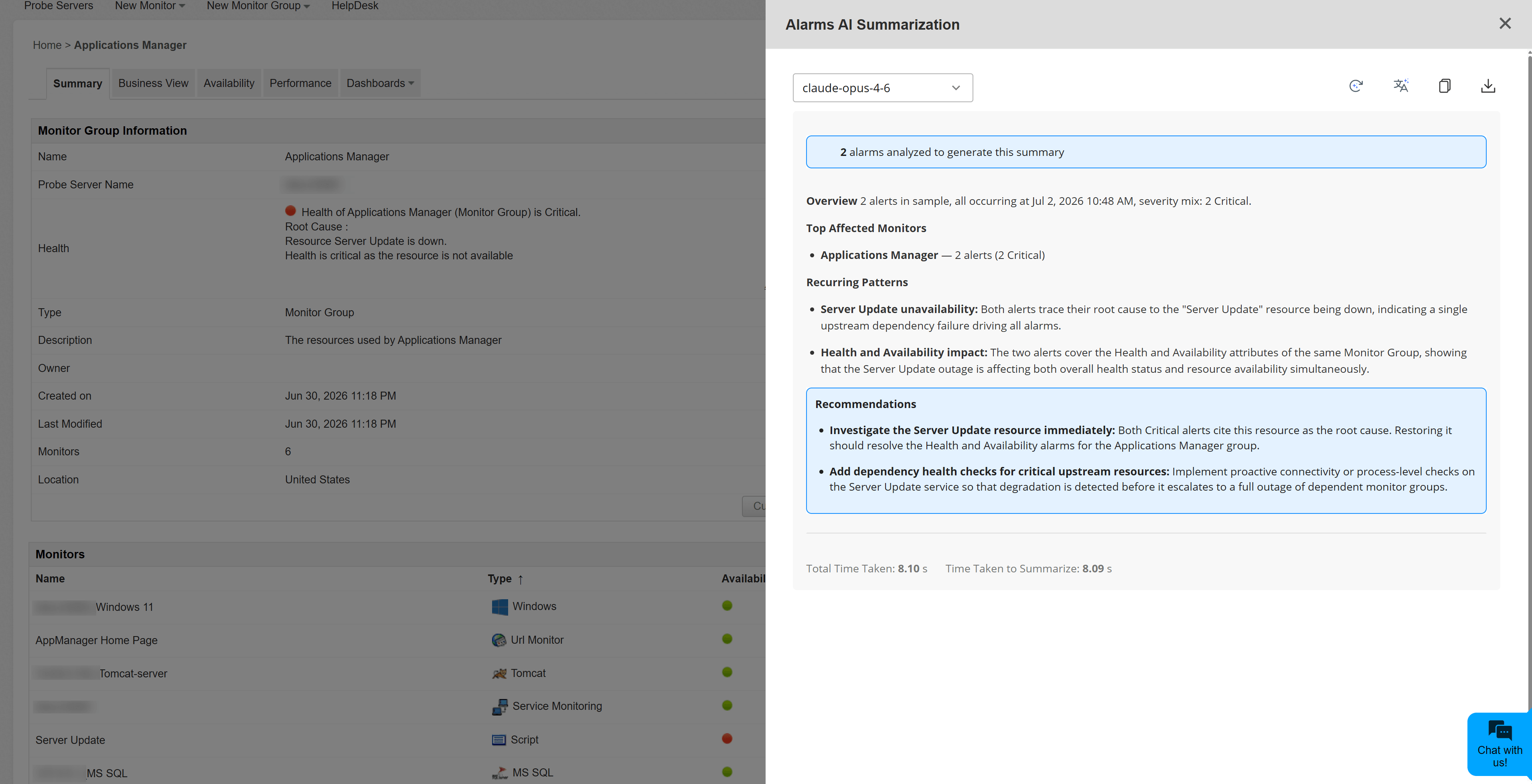
- Select the AI model from the dropdown, if required. If a default model is configured, it is selected automatically. If no default model is configured, the first available model is selected. You can choose a different configured provider and model if required.
- Review the generated monitor group alarm summary in the AI summary panel.
Generating AI Alarm Summary from the Alarm Details page
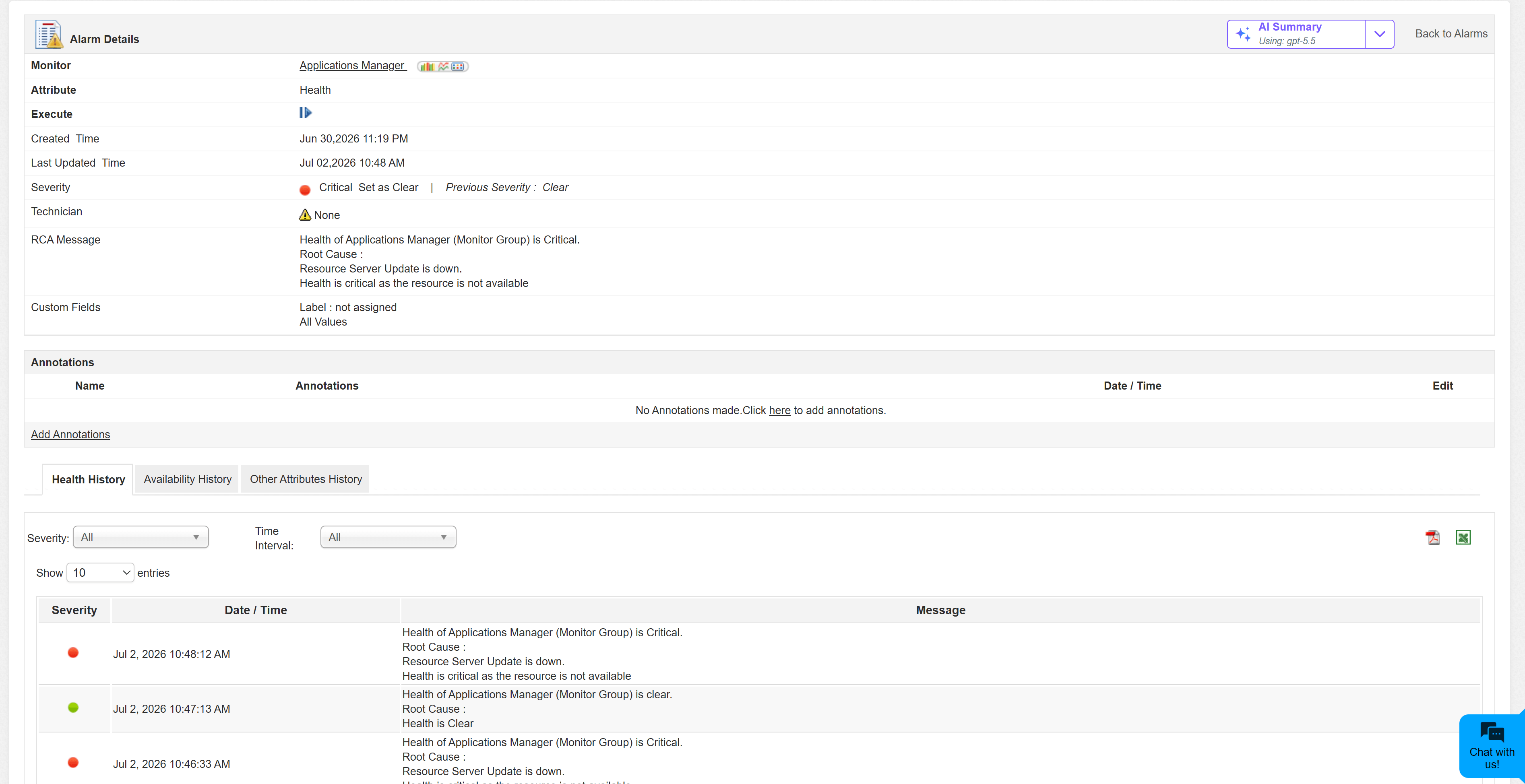
Use the Alarm Details page to generate a summary for a single alarm along with recent event history for the same monitor and attribute.
Follow the steps below to generate AI alarm summary in the Alarm Details page:
- Go to the Alarms tab.
- Open the required alarm to view the alarm details.
- Click AI Summary.
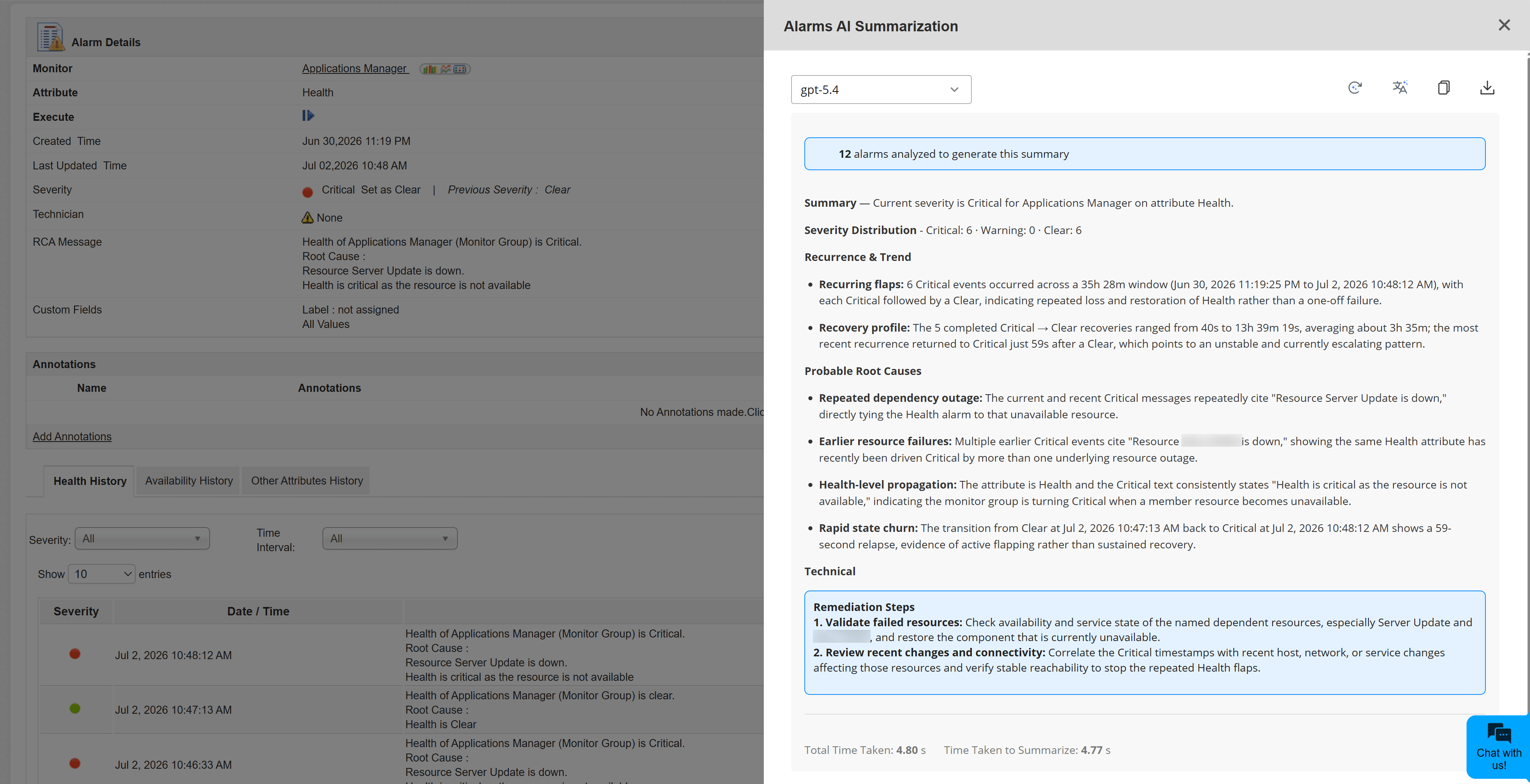
- Select the AI model from the dropdown, if required. If a default model is configured, it is selected automatically. If no default model is configured, the first available model is selected. You can choose a different configured provider and model if required.
- Review the generated summary. Applications Manager uses the selected alarm and its recent event history to generate the summary.
AI summary panel options
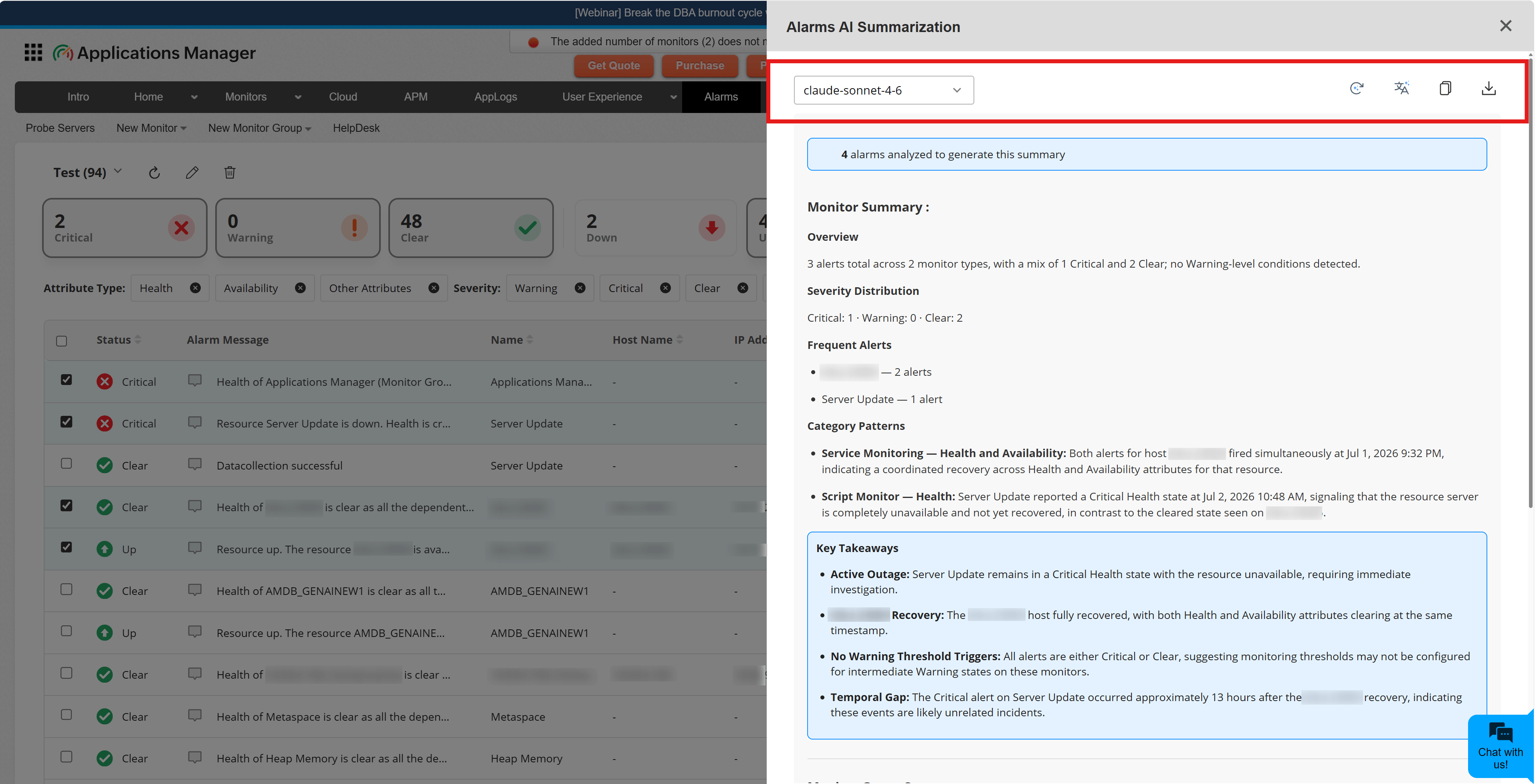
The AI summary panel displays the generated summary and the number of alarms analyzed. Depending on the summary type and available alarm data, the summary may include severity distribution, frequent alerts, affected monitors, recurring patterns, technician workload, probable root causes, and recommended remediation steps.
The panel also provides the following options:
| Option | Description |
|---|---|
| Model selection | View the automatically selected model or choose a different configured provider and model. Changing the model regenerates the summary with the selected model. |
| Regenerate | Generate the summary again using the current alarm context, selected model, and selected language. |
| Summary Language | Generate the summary in a different supported language. |
| Copy | Copy the generated summary text. |
| Export to PDF | Download the generated summary as a PDF file. |
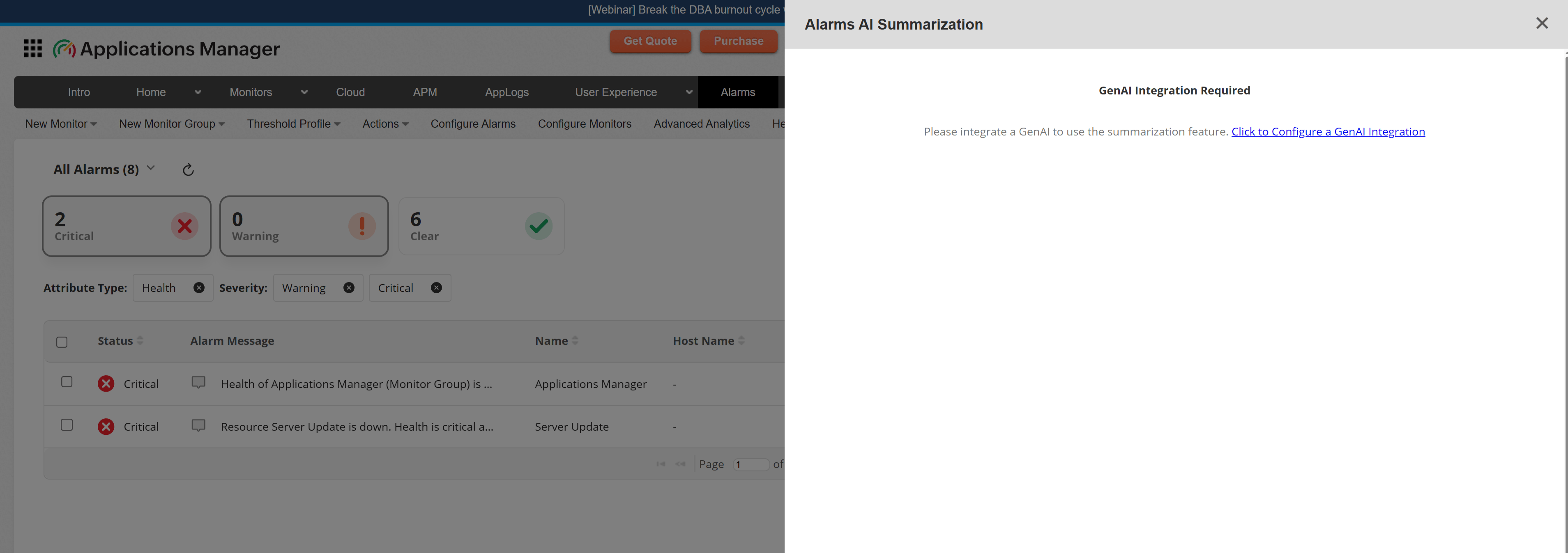
Note: If a GenAI provider is not configured, Applications Manager displays a GenAI Integration Required message with an option to configure a GenAI integration.