Shared Folder Configuration Guide for Applications Manager
Using a network shared folder in Applications Manager ensures that reports are well-organized, accessible from multiple servers, and stored in designated folders as per your configuration. By setting up a shared folder either through Windows folder sharing or on Linux using Rsync or SSHFS you can save scheduled reports to different locations within your network. This document provides the prerequisites and steps to configure a network shared folder from a peer server to the Applications Manager server.
How to share a common folder in Applications Manager
- Steps to share a common folder with Applications Manager in Windows
- Steps to share a common folder with Applications Manager in Linux
- The shared folder should be reachable to the Applications Manager server.
- Folder sharing is supported only between servers running the same operating system.
Steps to share a common folder with Applications Manager in Windows
- Right click on the folder you wish to share and click on Properties.
- Under Sharing tab, click on Advanced Sharing.
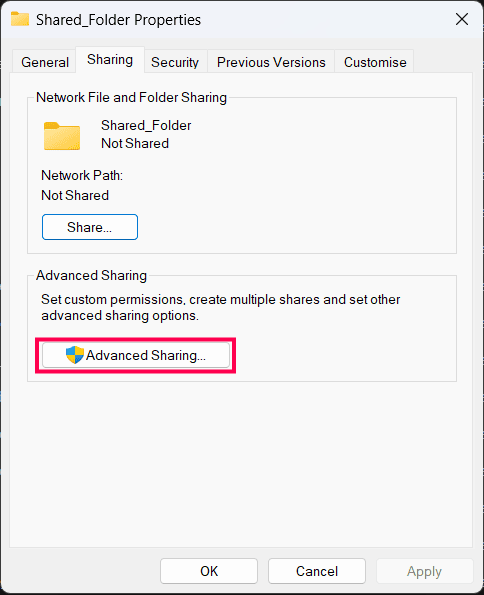
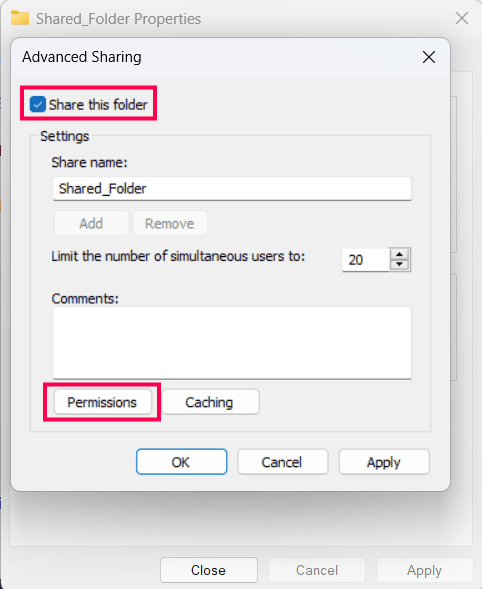
- Enable the Share this folder option and provide a Share Name.
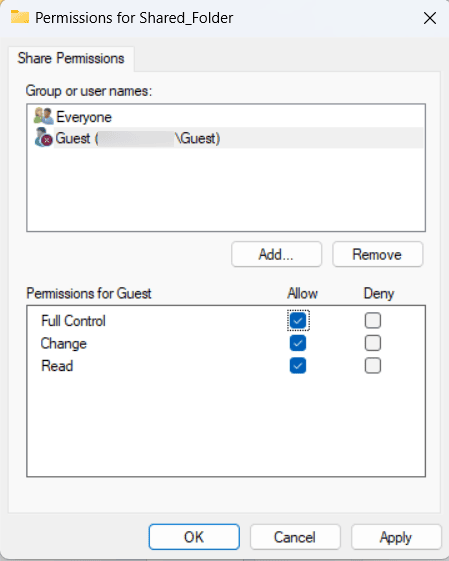
- Click on Permissions. In the window that opens, click on Add.
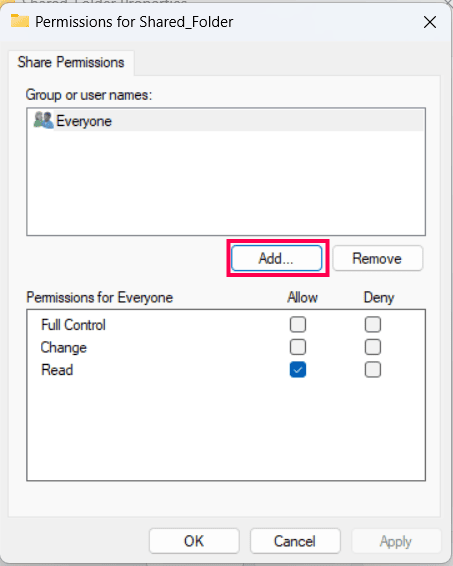
- Click on Object Types and make sure that both 'Computers' and 'Users' options are selected. This will allow you to share the file with a particular device in the network.
- Specify the user with which you wish to share the folder. Click on Check Names to select the server name from the list and click OK.
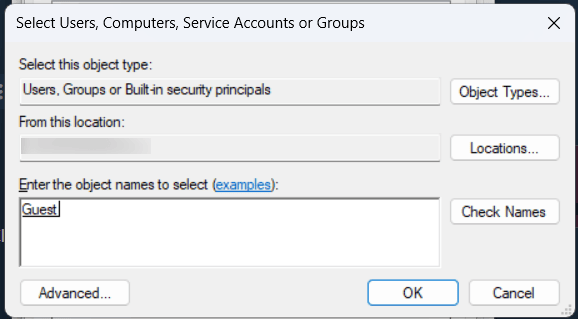
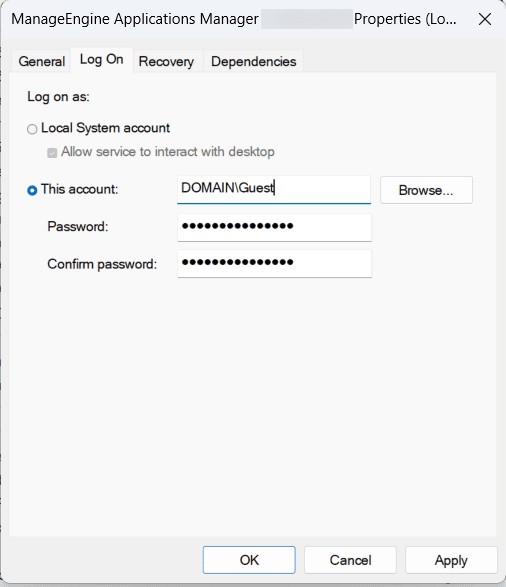
- Select the required users and servers and select the access privilege as Full Control. Click on Apply.
Steps to share a common folder with Applications Manager in Linux
In Linux installations, you can configure file sharing between your servers using Remote Synchronization (Rsync). It can be used to transfer the differences between folders for keeping files and directories synchronized across the network. You should configure SSH authentication between these servers for the rsync to work.
Prerequisites
- File sharing must be configured in both the servers.
- You can establish file sharing across Linux servers through the Rsync (Remote Synchronization) utility.
- The configured user should have full control for the shared folder.
- Make sure that the shared folder is empty.
Follow the steps below to configure Rsync
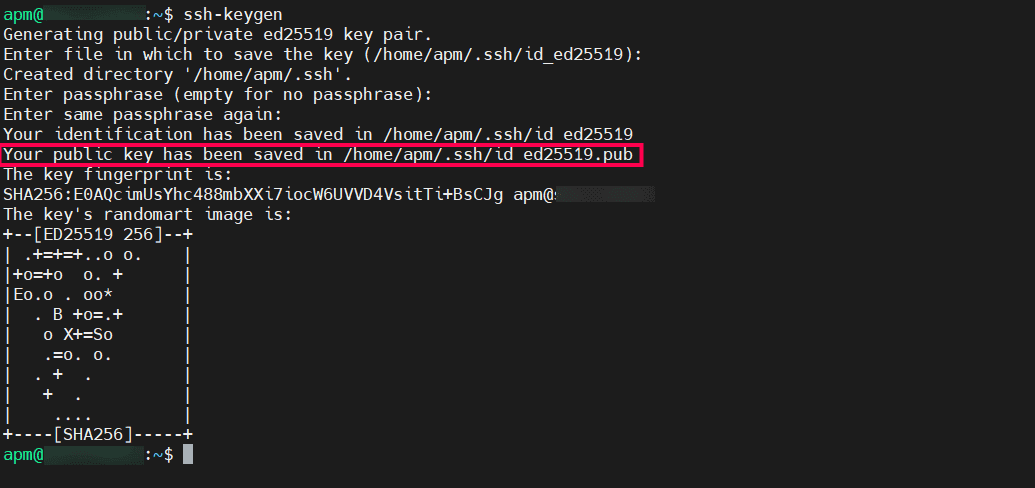
- Log in to the Applications Manager installed server, launch a terminal and execute the below given command. This will generate a pair of public and private keys.
ssh-keygen - Provide a path to store the generated keys in that directory, or save in default path.
- Press the Enter key twice for the password prompt. The public and private key will be generated successfully.
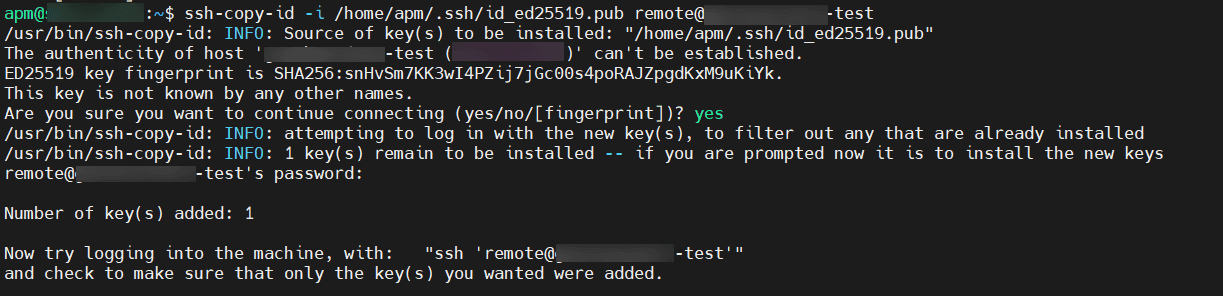
- Copy the generated public key file to the peer server using the command,
ssh-copy-id -i <public-key-file-path> <user@peer-machine-name>
- <public-key-file-path> refers to the directory where the generated public key is saved (eg: /home/apm/.ssh/td ed25519.pub).
- The peer server refers to the server that includes the folder intended for sharing.
- Enter the peer server's user password to successfully copy the installed Applications Manager's key to the peer server.
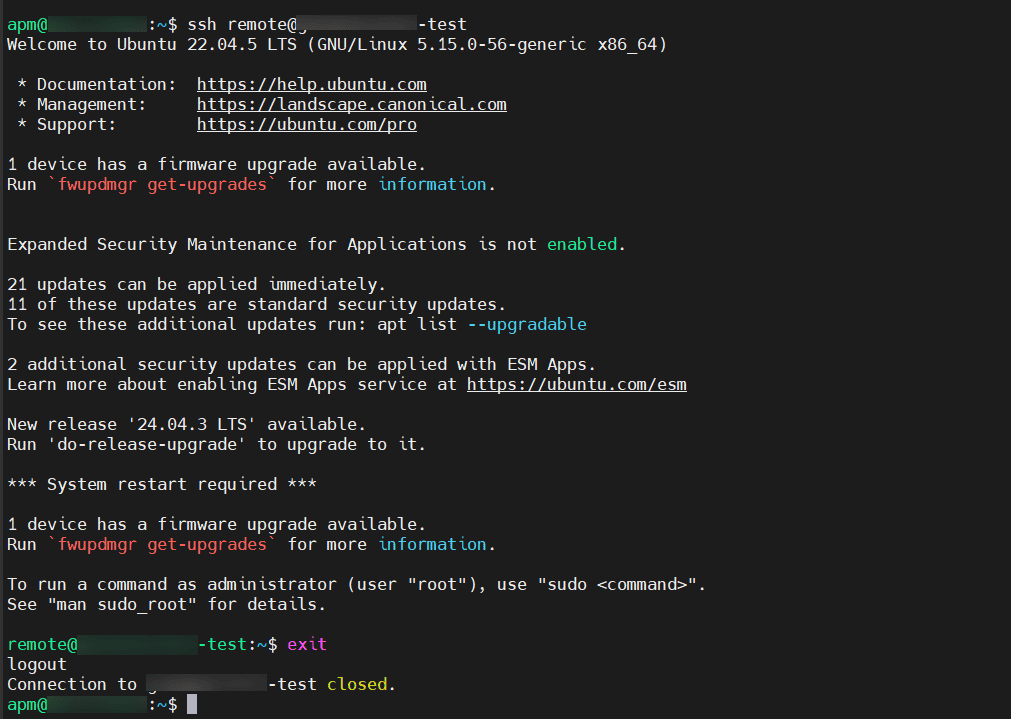
- To verify if the key has been copied to the peer server, log in to the peer server from Applications Manager using the command,
ssh <peer-machine-name>
- Once the login attempt is successful, use the 'exit' command to log out.
Steps to configure shared folder using SSHFS in Applications Manager server
SSHFS (SSH File System) is a client tool that allows you to mount a remote file system onto your local server through an SSH connection, essentially creating a virtual local folder accessible by authorized users. SSHFS (Secure Shell Filesystem) uses the SSH (Secure Shell) protocol to communicate with the server, which encrypts all connections, keeping them secure. SSH authentication should be configured in Applications Manager server to use SSHFS to access the network shared folder in the peer server.
Follow the appropriate command below to install SSHFS based on your Linux OS:
Debian/Ubuntu
sudo apt-get update sudo apt-get install sshfs
CentOS/RHEL
sudo yum install epel-release sudo yum install sshfs
FEDORA
dnf install fuse-sshfs
SUSE
sudo zypper install sshfs
After the installation is complete, create a folder in the required path (eg: /opt/AppManager/SharedFolder), so that the input provided for common folder path should be in the format USER@SHARED_HOST:/Desired/Path
eg:- john@shared-host:/opt/AppManager/SharedFolder