Audit User Actions
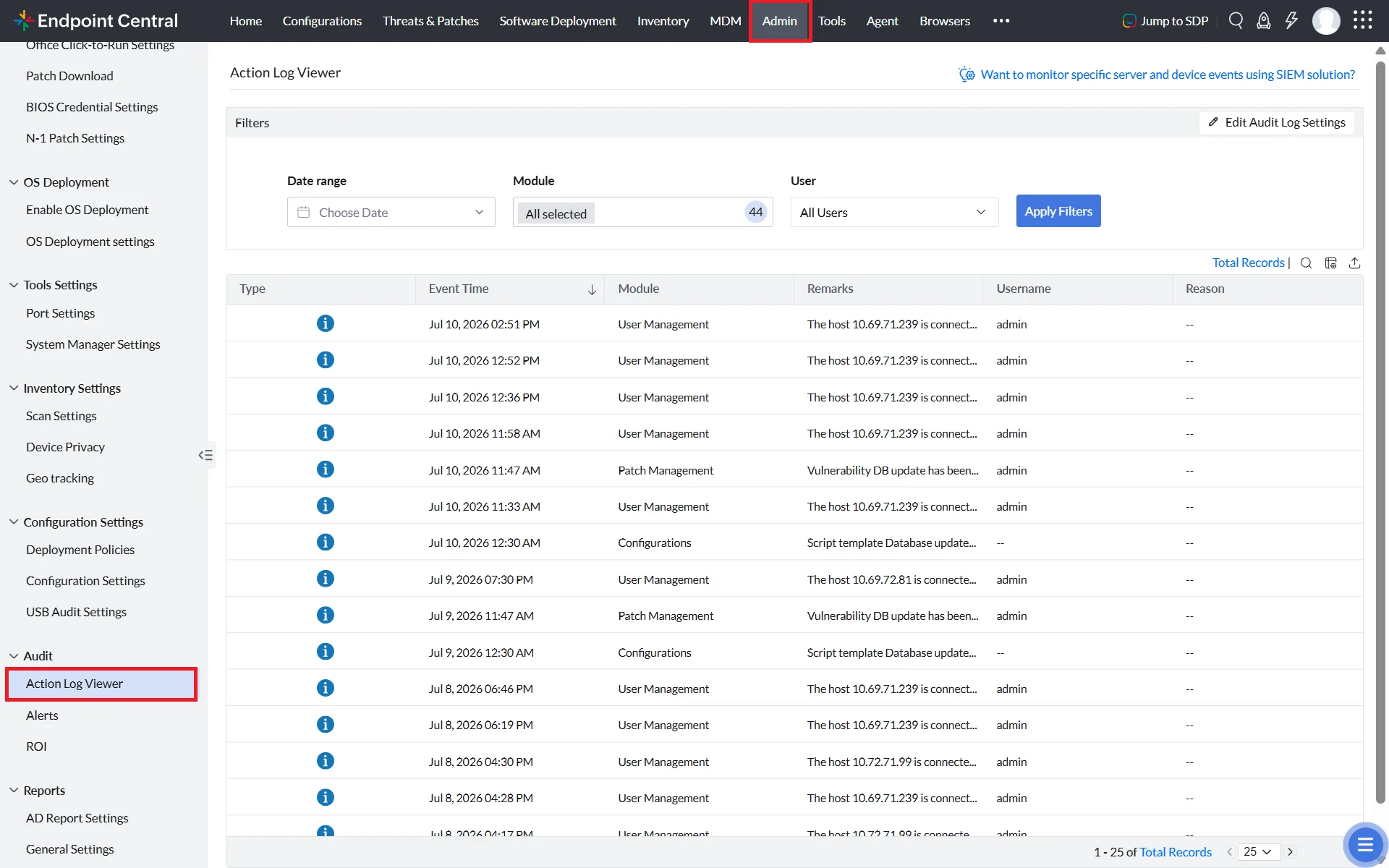
With the inclusion of role-based administration, it is more likely that different users will have different access levels in Central Server application. It is very important for the administrator to review the changes done by all the users periodically and ensure that everything is smooth. The Action Log Viewer logs the actions performed by users across modules, along with date and time.
Configure Action Log Viewer:
The admin can filter the data into user-wise and module-wise for easier analysis. Here's how:
- The first step is to choose the Date Range. This date range is customizable.
- The next step is to choose the necessary modules. Modules can be filtered based on your needs. If you want to view the logs for all the modules, enable the checkbox for All.
- The last step is to choose the users. All the Central Server users will be listed in drop down. If you want to view the event logs for all users, select All from the drop down.
Example: To see who changed an OS Deployment template, select OS Deployment in the Module filter and click Apply Filters. Export the report to see the username of the person who made each change.
The logs will be maintained for a specific number of days. The default is 30 days. You can set this between 30 and 750 days. You can configure the action log settings by:
- Login to Central Server.
- Navigate to Admin -> Audit -> Action Log Viewer .
- Click on Edit Audit Log Settings in the top-right corner and enter the number of days in Maintain events history for.
Points to Note
- Each entry records the user, the time, the module and a remark describing the action. To find out which settings or values were changed inside a configuration or policy, check with the user who modified it.
- For Custom Groups, each update to a group is recorded as one entry with the user and the time of the change. To see the computers currently in a group, open the group from Admin -> Custom Groups.
- The time at which a user logs in to the console is recorded. Select the User Management module to view login entries.
- The User IP address is shown for console login events. Select the User Management module to view them.
- To see which configurations or software were deployed to a specific computer, use Reports -> Configuration Reports -> Configurations by Computer.
- The System Tools module in the Action Log Viewer shows administrative actions. To view System Tools task history, use History Settings on the Tools -> System Tools page.
Host Name Collection
This feature is available for on-premises editions.
The name of the device that is used to access the Central Server Console can also be tracked for auditing purposes. This can be done by configuring Central Server's Action log viewer. To enable this feature:
- Login to the Central Server Console.
- Navigate to Admin-> Audit -> Action Log Viewer.
- Click on Edit Audit Log Settings.
- Toggle the collect host name button.
Alerts
Navigating to Admin -> Audit - >Alerts will display a list of Central Server alerts. It is determined by the alerts you have configured throughout the product at various locations. You can filter the alerts based on various parameters such as date range, module type, alert type and alert level.
To know more about alerts, click here.