Configure Custom Scripts for Windows | Computer Configuration
Administrators often need to apply a setting or run a task that the standard configurations in Endpoint Central do not cover — such as disabling Windows auto update, setting the date format, or checking whether a file exists. A Custom Script configuration lets you run your own scripts or commands on Windows endpoints to handle these cases, so you are not limited to predefined options.
You apply a Custom Script configuration to Windows endpoints as a Computer Configuration. You can run it Once, during Every Startup, during Subsequent Startup, or on Every Refresh Cycle.
- Computer Configuration applies to the computer as a whole and runs at the system level. Choose it when your script changes system-wide settings. If your script acts on per-user resources such as files under the user profile, browser cache, cookies, or applications installed per user deploy it as a User Configuration instead.
- Script Repository is the library where scripts are stored before they are deployed to end machines. You can add your own scripts or start from predefined script templates.
How Custom Script Configuration Works
When you deploy a Custom Script configuration, the script or command moves from the console to each target computer and runs there under the account you choose.
- Add the script to the Script Repository, or decide to enter a command directly.
- Create the configuration and choose how the work is supplied: the Repository option runs a stored script; the Command Line option runs commands you type.
- Set when and as whom it runs - the Frequency and the Run As account.
- Define the targets, optional retry options, and optional email notifications.
- The agent runs the script on each target computer. Any dependency files are copied to the folder from which the script runs, and they are deleted after the deployment succeeds.
- Results are reported to the console. Exit codes determine whether the run counts as successful. Execution Status and Remarks show the outcome per computer.
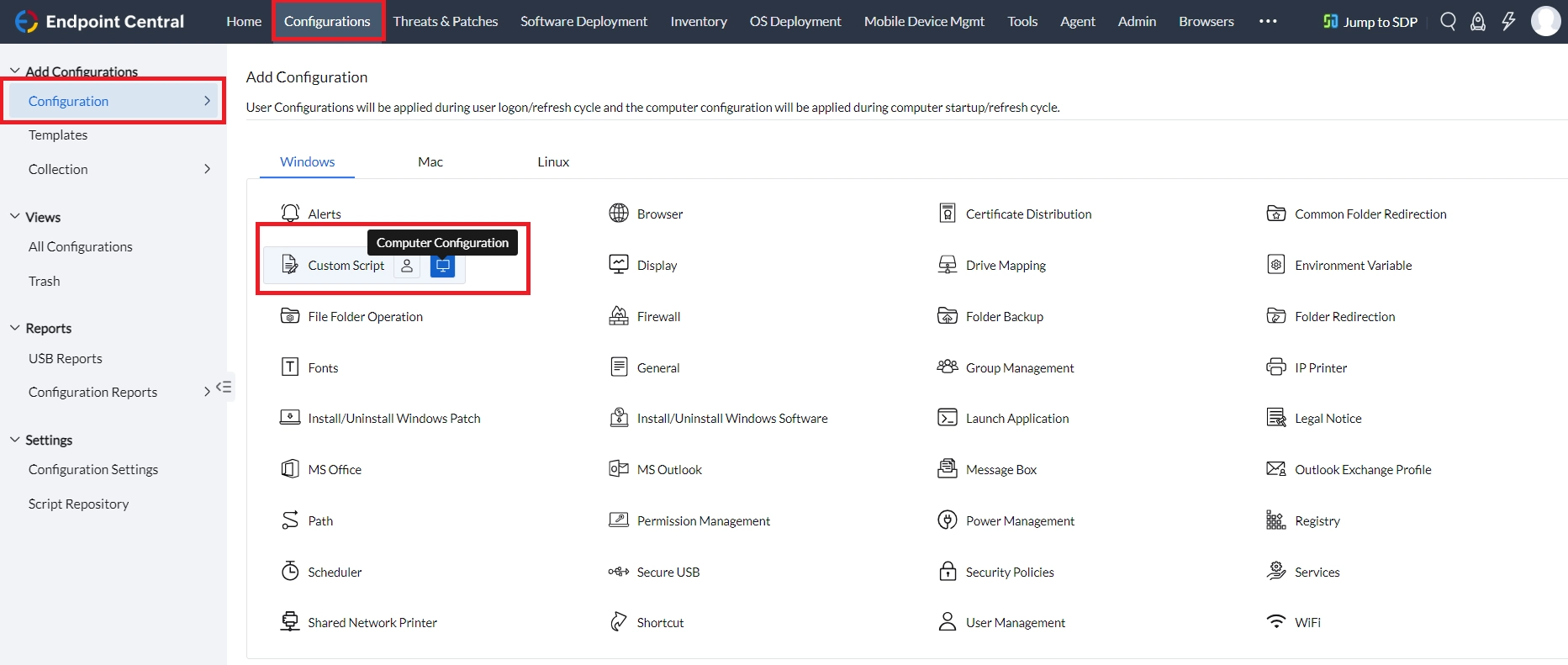
Key points to consider before deploying Custom Scripts
- Repository or Command Line. Use Repository for a script file you want to reuse. Use Command Line for short commands, which you separate with a semicolon. Dynamic variables can be assigned in the command line.
- Computer or User Configuration. Choose by what the script acts on: system-wide settings or per-user resources.
- System user or Run as User. With System user, the script runs at system level. With Run as User, it runs with credentials you select — Domain Admin credentials are recommended to avoid access level issues.
- How success is judged. An exit code of 0 means success by default. If your script returns other codes that you consider successful, list them in Exit codes, separated by commas.
Requirements and Limitations
- Scripts must run silently.Endpoint Central cannot respond to prompts, credential requests, or UAC prompts — even when the script runs as System user or with admin credentials. An interactive script (for example,
Add-Computerwithout-Credential) stays in Ready to Execute or Yet to Apply, or fails. - System user uses the System profile. Per-user variables such as
%LOCALAPPDATA%,%APPDATA%,%USERPROFILE%, and%TEMP%point to the System profile, not the logged-on user's profile, so paths to per-user applications are not found. - No pre-deployment condition. There is no built-in option to skip deployment. Write any conditional logic inside the script and report the result through exit codes.
- No deployment policy or postponable reboot. A standalone Custom Script configuration does not support either. To run a script with reboot or postpone options, add it as a post-deployment activity in a Software Deployment task.
- No Active Directory object changes. Scripts run by the agent cannot change Active Directory objects such as adding a computer to a security group. Endpoint Central supports only domain join and OU placement for such tasks.
- Non-zero exit codes mark a run as failed. A command such as
taskkillreturns a non-zero exit code when the target process is not running. Unless you add that code to Exit codes, the configuration is marked Failed and is retried if retry options are enabled. - Limited run history for startup runs. With During Every Startup, Execution Status and Remarks show only the current or most recent run. To verify a specific machine, check the agent-side
dcconfigaccess.logfile on the target computer, which records one entry per deployment of the configuration.
Sample use cases
Block the Microsoft Store
You want to stop users from opening the Microsoft Store on managed computers. The Script Repository includes a predefined template for this.
Add the Disable_WindowsStore.bat template to the repository from Configurations → Templates → Script Repository, then deploy it as a Custom Script configuration.
NoteBy default, this template does not work on Windows 10 Pro.Check Whether a Folder Exists Across Computers
You need to know which computers have a specific folder. Deploy the CheckIfFolderExists.vbs template with the folder path as the script argument and select Enable logging for troubleshooting. The result for each computer appears in Execution Status → Remarks.
Activate or Replace a Windows Product Key with a MAK Key
You need to activate Windows or replace a product key on endpoints. Save the following commands as a
.batfile, add the file to the Script Repository, and deploy it as a Windows Computer Custom Script configuration:Batchcscript //nologo %windir%\system32\slmgr.vbs /ipk <MAK-product-key> cscript //nologo %windir%\system32\slmgr.vbs /ato
Additional use cases
- Change the time zone. If a custom script that changes the time zone fails with an "insufficient privileges" error, deploy the predefined ChangeTimeZone.bat template instead.
- Retrieve a computer's AD OU path.Endpoint Central does not store the OU path of a device. Deploy a script that queries Active Directory with Enable logging for troubleshooting selected, and read the output in Remarks.
- Force-apply pending configurations. Deploy a configuration with the Command Line option that runs
cfgupdate.exeon the target computers. - Uninstall an MSI-based application silently without a software package. Enter
msiexec.exe /x {Product-GUID} /qn /norestartin the Command Line field.
Configuration Overview
Prerequisites
- The script must be in the Script Repository before it can be deployed, unless you use the Command Line option.
- When adding a script or dependency file to the Script Repository, type the file name manually instead of copying and pasting it. Copied names can contain invisible special characters that cause the file copy to fail during deployment.
- If a script uses "$depFile01" to refer to an uploaded dependency file, enter the exact dependency file name (for example
Lockscreen.jpg) in Script Arguments. If the field is blank, the script fails with a "cannot find the file" error. - If a script pauses for input such as "Press any key to continue", the deployment fails with The wait operation timed out. To run such a
.cmdscript without interaction, enter echo. |<scriptname>.cmd in Script Arguments.
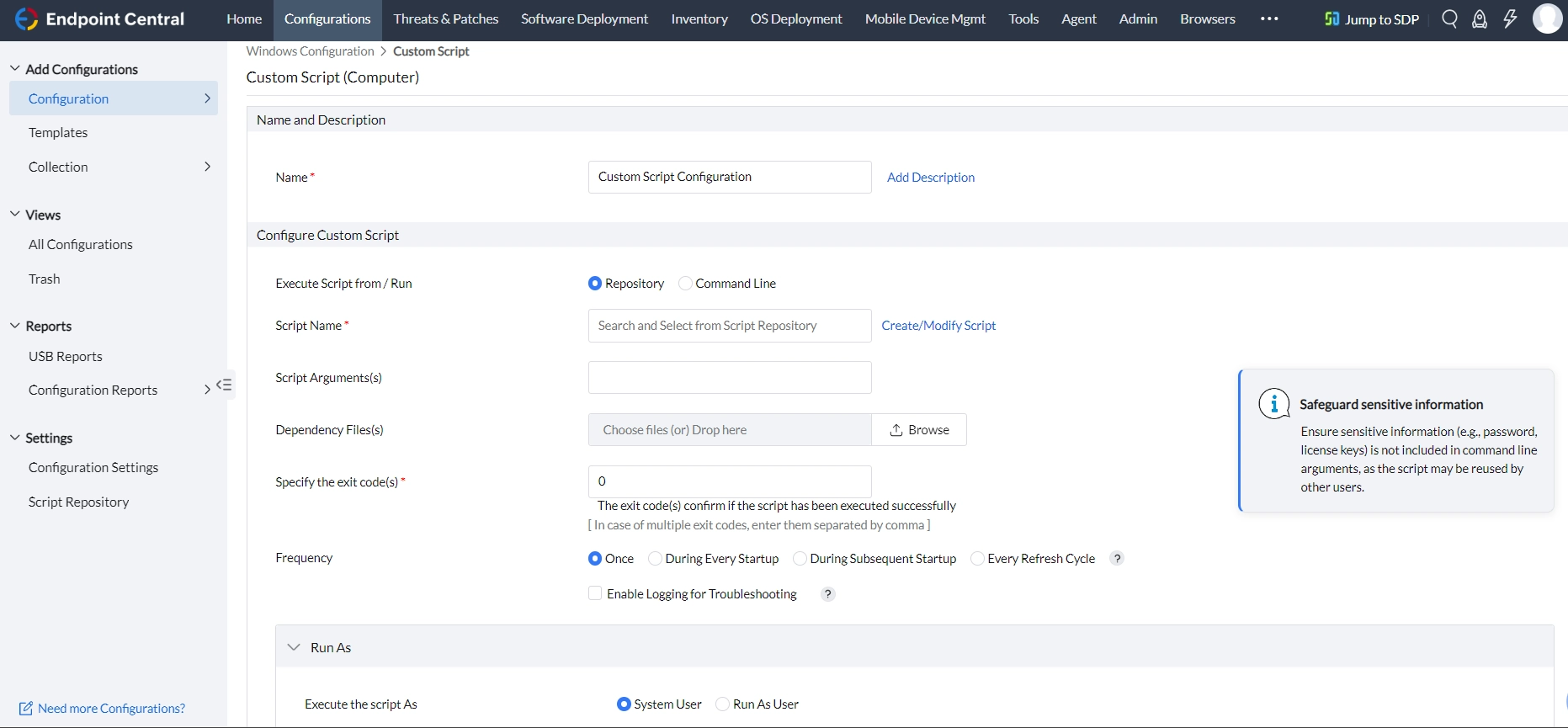
Settings
Frequency Options
Supported Configurations
Frequently Asked Questions
There is no Daily or scheduled-time option. To run a script on a fixed schedule, create a Collection that combines a File Folder Operation configuration (to copy the script) with a Scheduler configuration (to run it). You can add a second File Folder Operation configuration to delete the script afterwards.
Create a Collection and add one Custom Script configuration per script file. The Collection groups the configurations and deploys them together.
taskkill returns a non-zero exit code when the target process is not running. Endpoint Central treats any non-zero exit code as a failure by default. To resolve this, add the exit code returned by taskkill when no process is found (typically 128) to the Exit codes field in the configuration, separated by a comma.