How to Schedule a Script in Endpoint Central
In certain scenarios, you may need to run scripts on a regular basis to achieve tasks like file cleanup, system maintenance, or other recurring actions. Endpoint Central provides an efficient way to automate these tasks using the File Folder and Scheduler configurations. This guide will walk you through the steps to set up and configure scheduled scripts, ensuring that your tasks are executed periodically and consistently across your devices.
What is Scheduling a Script
Scheduling a script involves automating the execution of a script at a predefined date and time.
In Endpoint Central, scheduling a script is achieved using a Collection, which consists of two key configurations:
- File/Folder Configuration: Deploys the script file to a designated location on target machines.
- Scheduler Configuration: Registers the script in Windows Task Scheduler on target machines, ensuring it executes at the specified time.
How to Configure File Folder and Scheduler Configuration as Collection to Schedule a Script
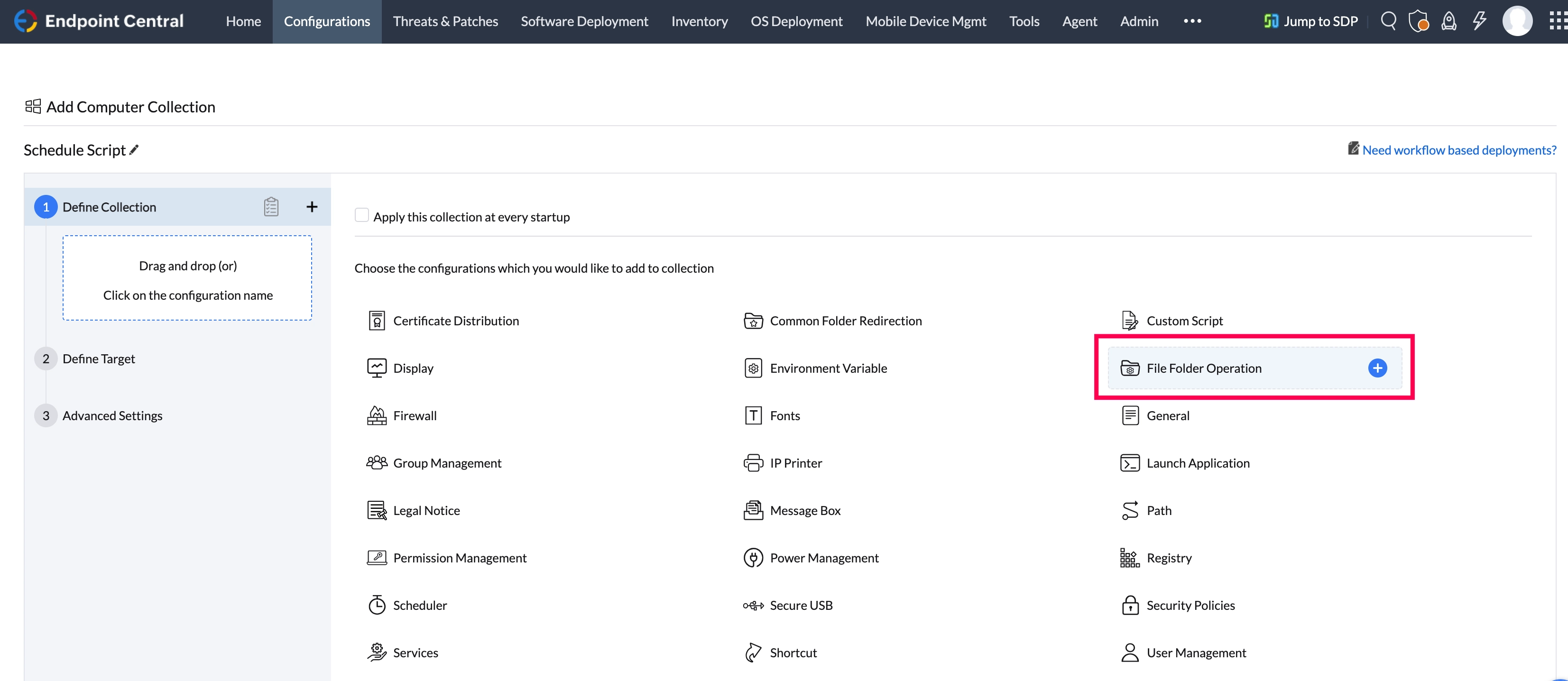
- In the Endpoint Central console, navigate to Configurations > Collection > Computer Collection
- Add File Folder Configuration
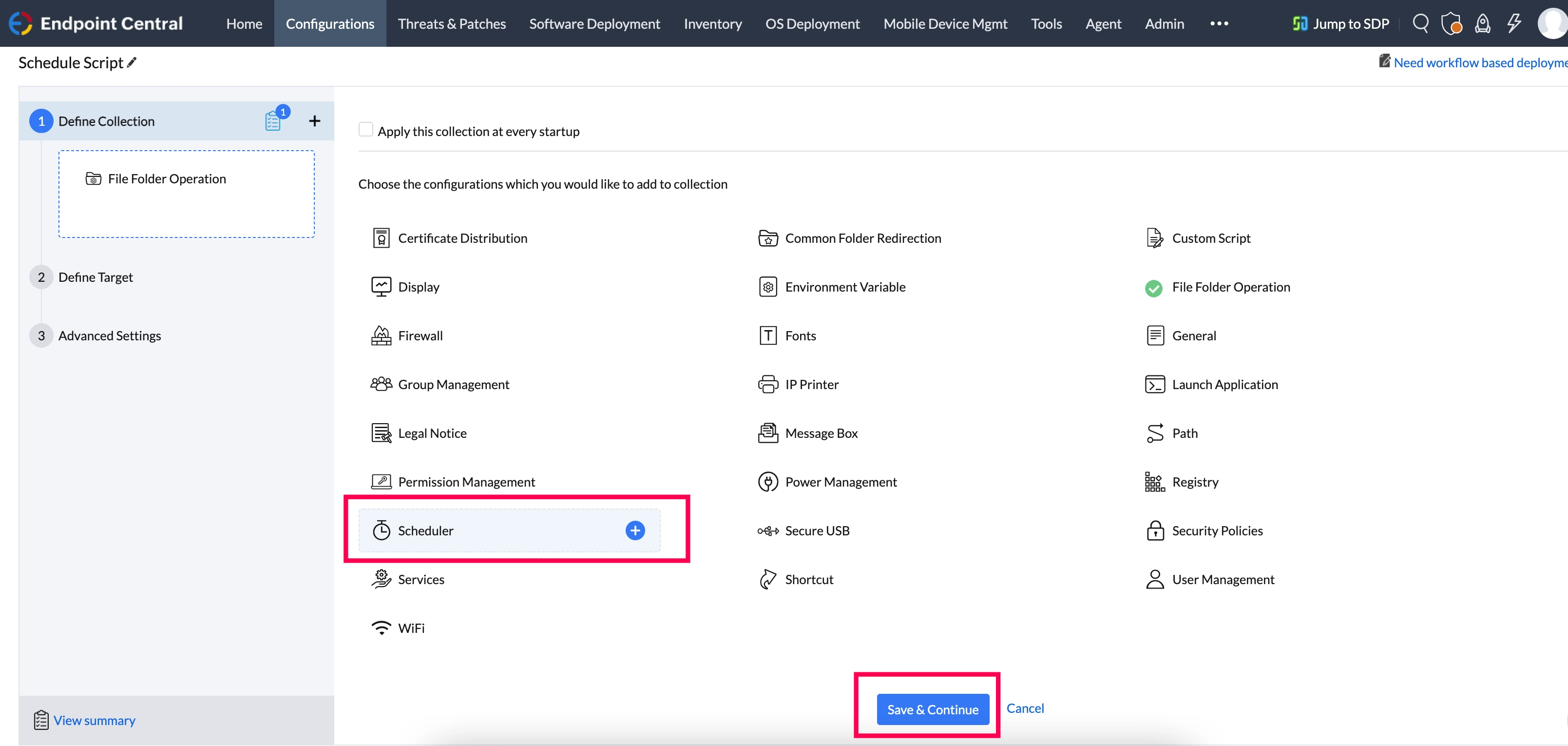
- Add Scheduler Configuration
- Click Save & Continue
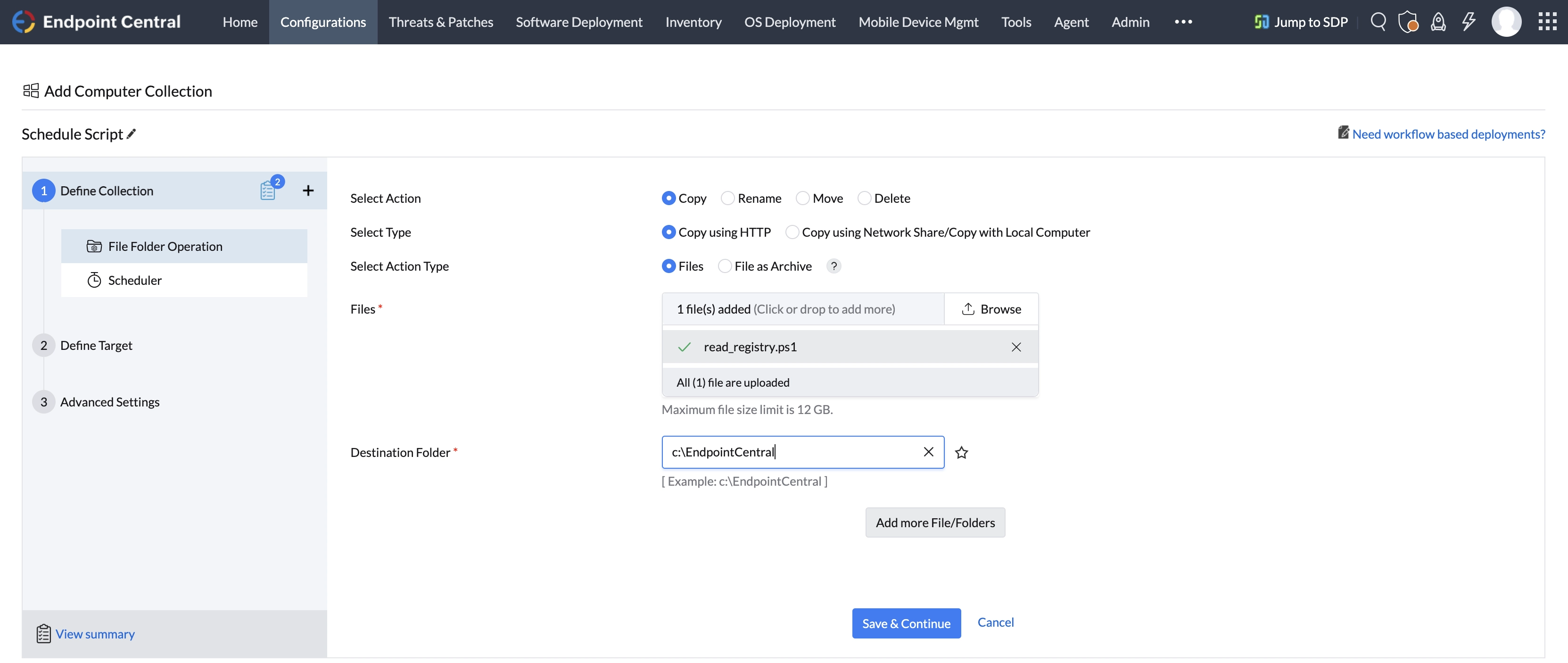
- In the File Folder configuration:
- Select Action as Copy
- Select Type as Copy using HTTP
- Select Action Type as Files
- Upload the script file
- Specify the destination location to copy the file
- Click Save & Continue
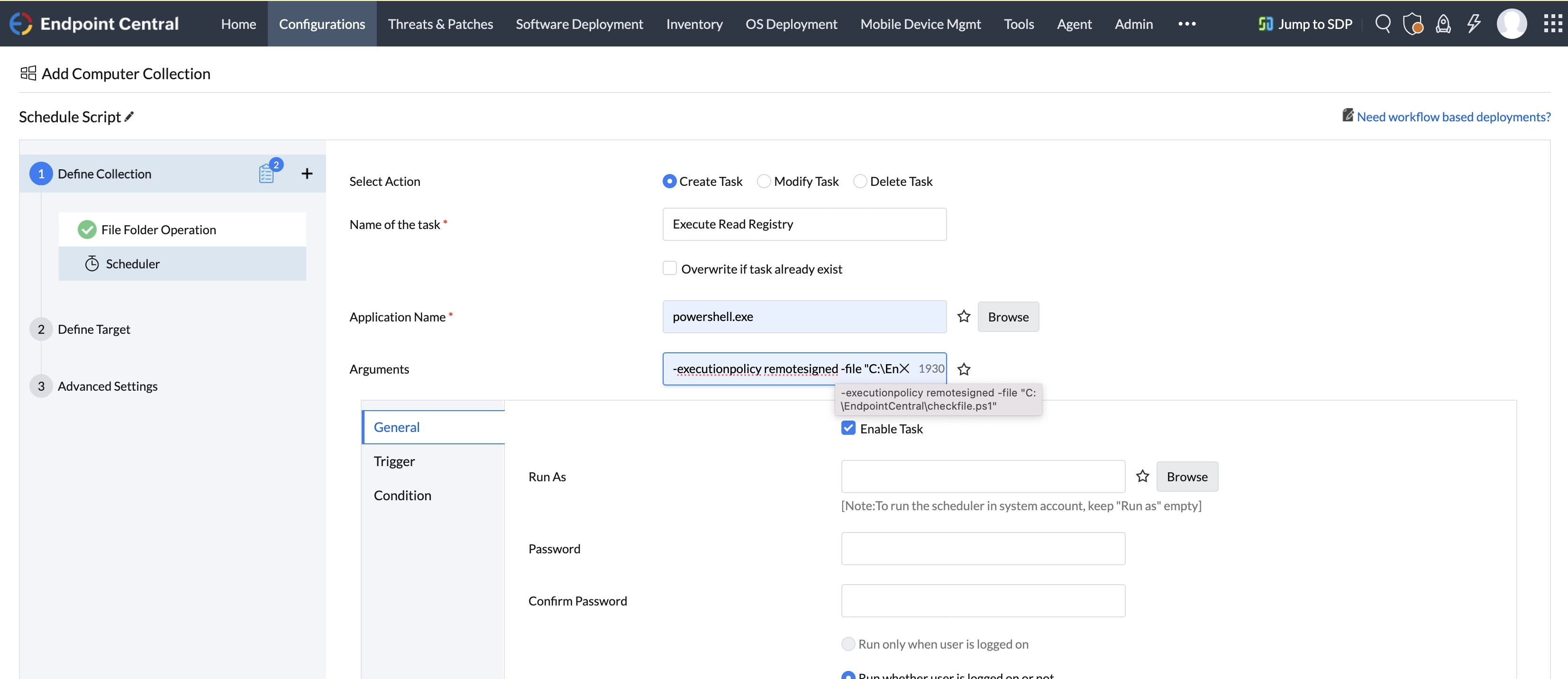
- In the Scheduler configuration:
- Select Action as Create Task
- Specify Name of the Task
- Specify the Application Name
- Specify the Arguments
- Click Trigger
- Specify Frequency
- Specify Start At
- Click Save & Continue
Depending on the script execution platform, use the appropriate application name and arguments:
For PowerShell scripts:
Application Name: powershell.exe
Arguments: -executionpolicy remotesigned -file "C:\EndpointCentral\cleanup_logfiles.ps1"
For Batch (.bat) scripts:
Application Name: cmd.exe /c
Arguments: "C:\EndpointCentral\cleanup_logfiles.bat"
NoteNote: As per the scheduler configuration, Endpoint Central will add only the task to the Windows Task Scheduler. The script execution will be managed by the Windows API.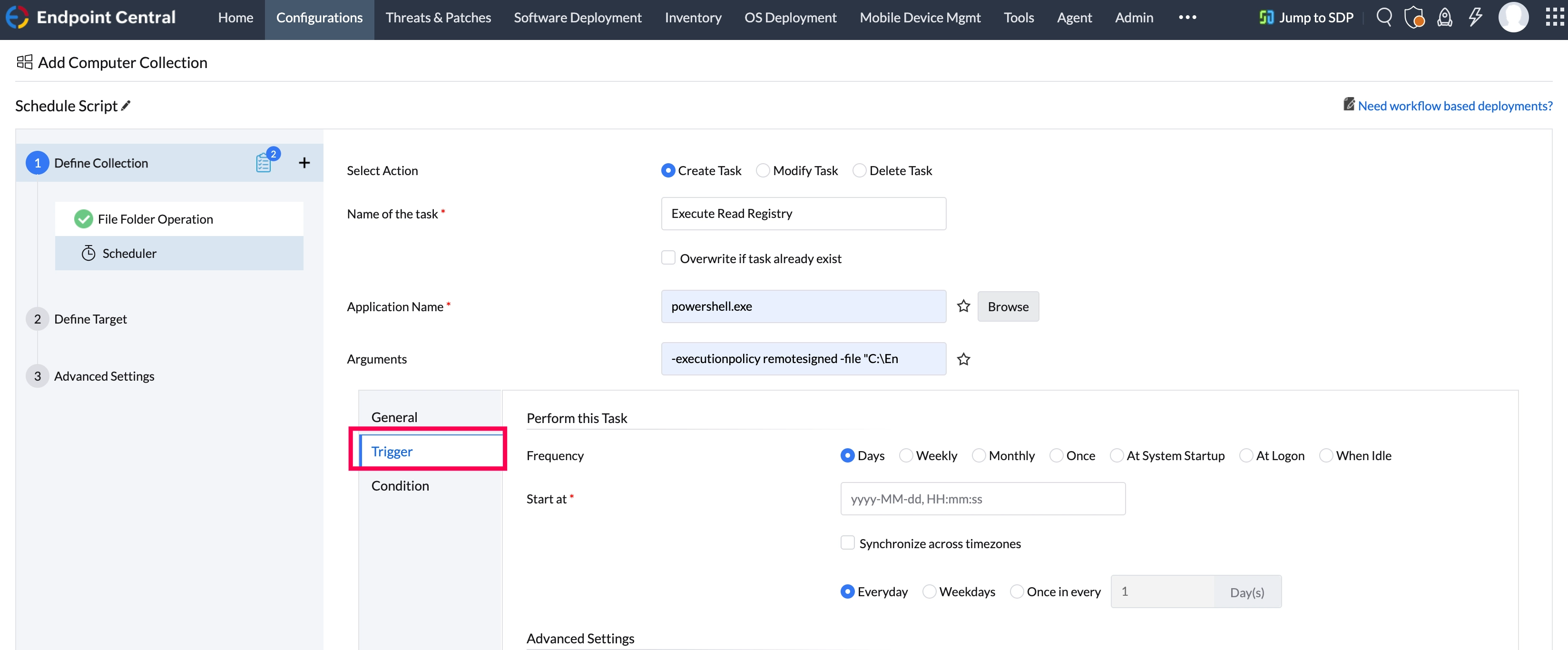
- Define the targets for the deployment.
- Specify retry options, if required
- Click Save & Continue
- Click Deploy
You have successfully Scheduled a Script using Endpoint Central.