Integrate with PAM360
The Endpoint Central—PAM360 integration empowers administrators with advanced privilege elevation and delegation management, enabling effective oversight of resources on organizational endpoints.
Advantages of Endpoint Central—PAM360 Integration
Using crafted rules, administrators can identify and manage privileged users, accounts, and resources across PAM360 resources. This functionality enables effective oversight of resources on organizational endpoints through advanced privilege elevation and delegation management.
Prerequisites
- You should be on Endpoint Central build 11.3.2404.1 or above.
- The user responsible for configuration should hold administrative privileges in both Endpoint Central and PAM360.
- The user currently logged into PAM360 must exist within Endpoint Central with an identical username. If the user is authenticated via Active Directory, their corresponding account in Endpoint Central should align with the same domain name. This synchronization ensures seamless integration and functionality across both platforms.
- Endpoint Central must be running in secured HTTPS port/mode only.
- As Endpoint Central is running in HTTPS mode, the identity of the system needs to be verified through a valid SSL certificate, which must be imported into the PAM360 certificate store. Follow the steps below:
- Stop the PAM360 service.
- Open the command prompt and navigate to the
<PAM360-Installation-Directory>/binfolder. - Execute the command:Command
importCert.bat <Endpoint Central Certificate> - Start the PAM360 service again.
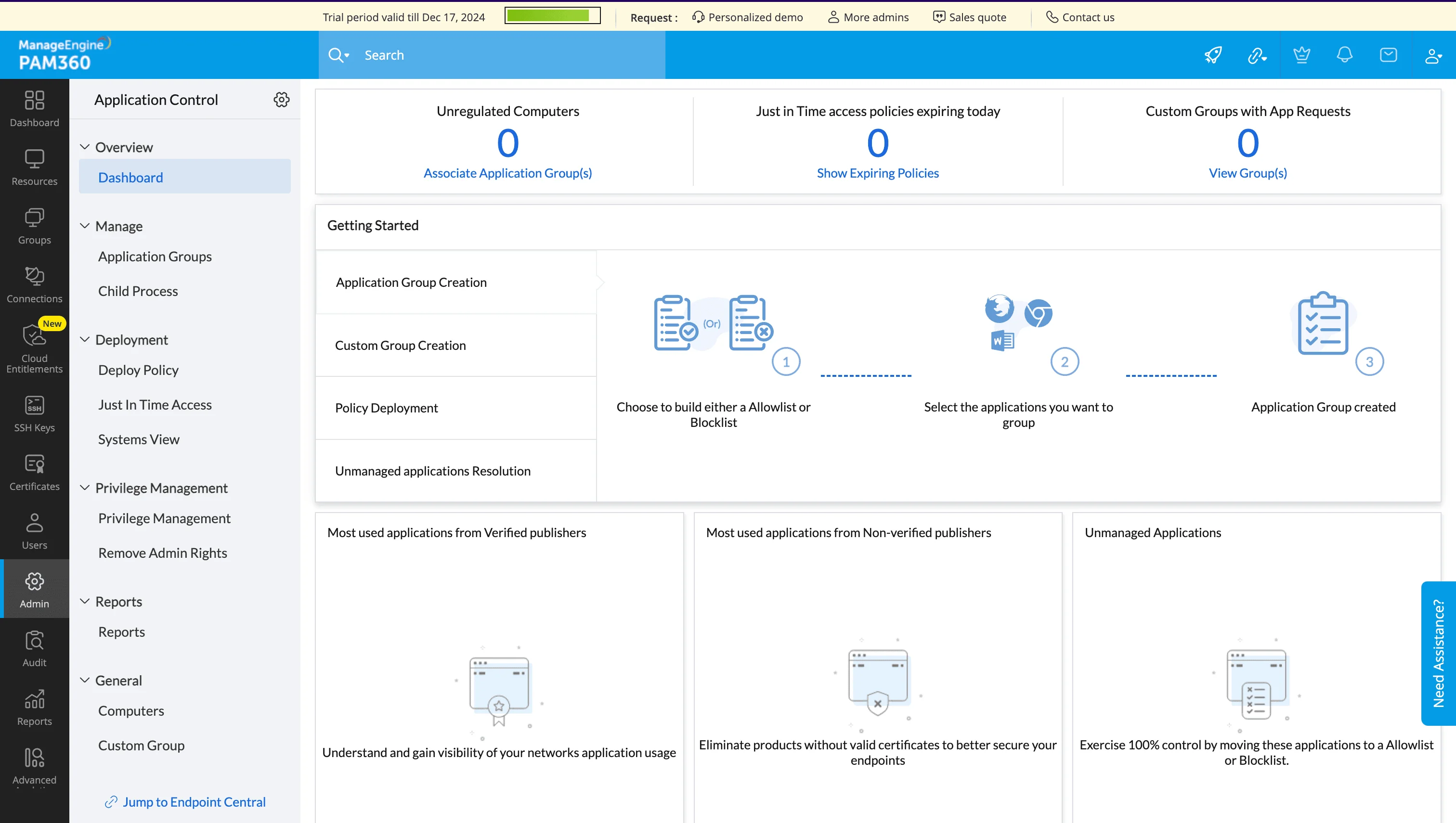
Role: Manage Endpoint Central
By default, users assigned the Privileged Administrator and Administrator roles can configure and manage Endpoint Central in PAM360. Alternatively, you can grant these same responsibilities to users by creating a custom role with the Manage Endpoint Central privilege enabled. Users assigned this custom role will be able to configure and manage Endpoint Central via PAM360.
Generation of API Key
To integrate PAM360 with Endpoint Central, you must first generate an API key from Endpoint Central. Follow the steps below:
- Log in to Endpoint Central and navigate to Admin → Integrations → API Key Management.
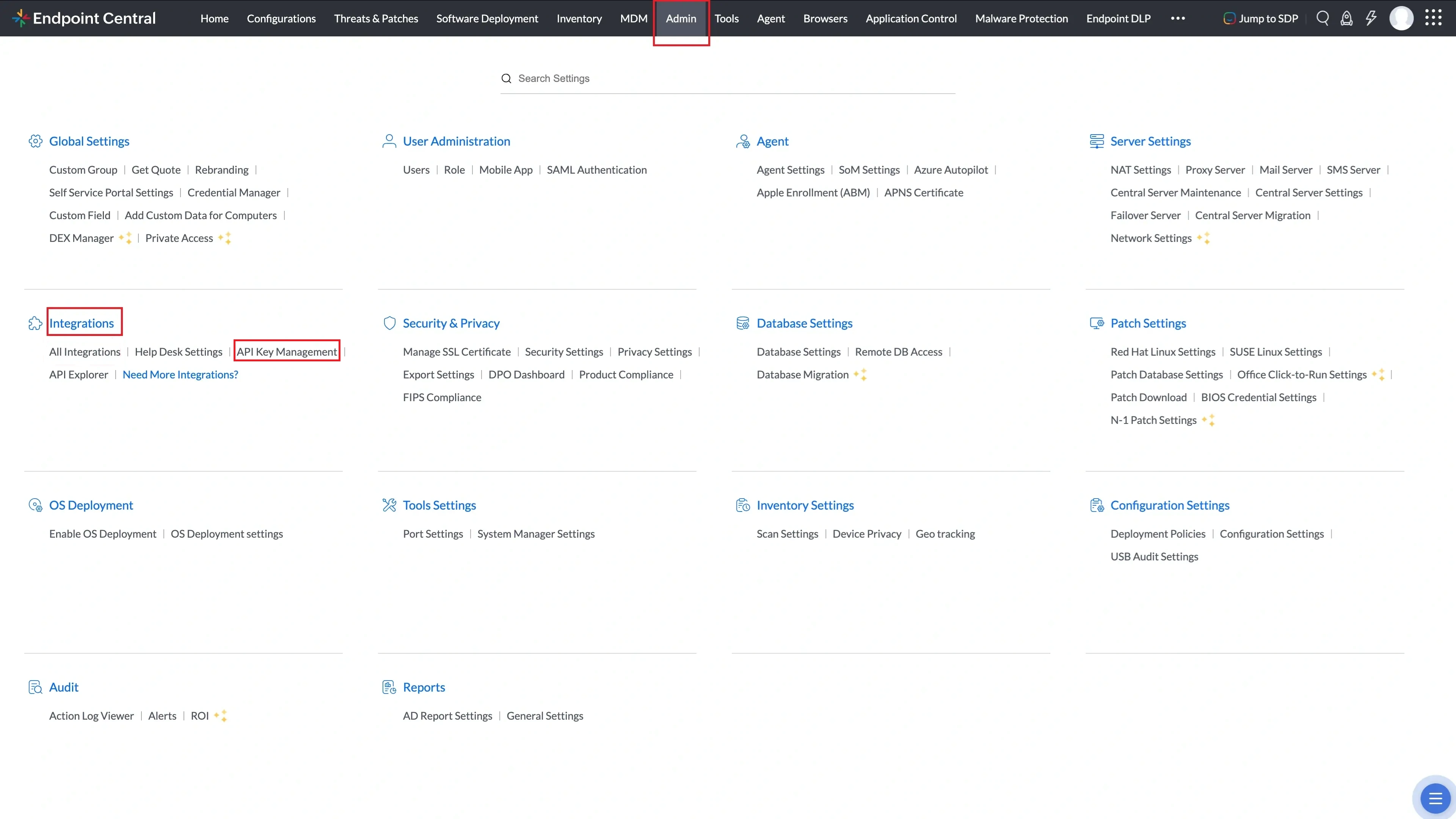
API Key Management page under Admin → Integrations in Endpoint Central. - Click Generate Key.
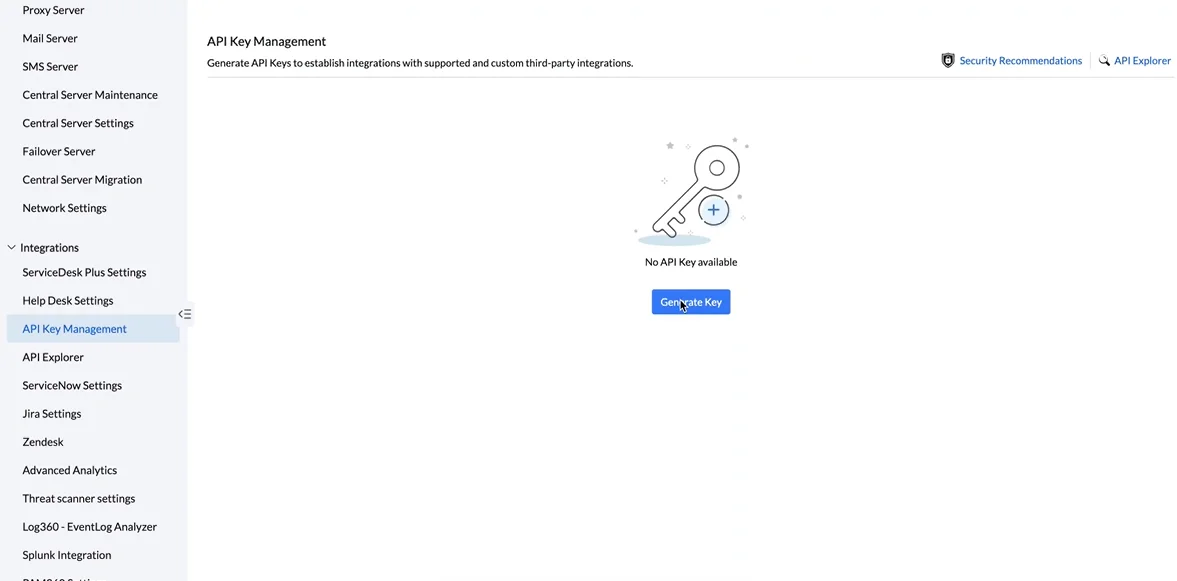
Generate Key button on the API Key Management page. - Select the application PAM Integration.
- Click Generate Key to generate the API key required for communication with PAM360.
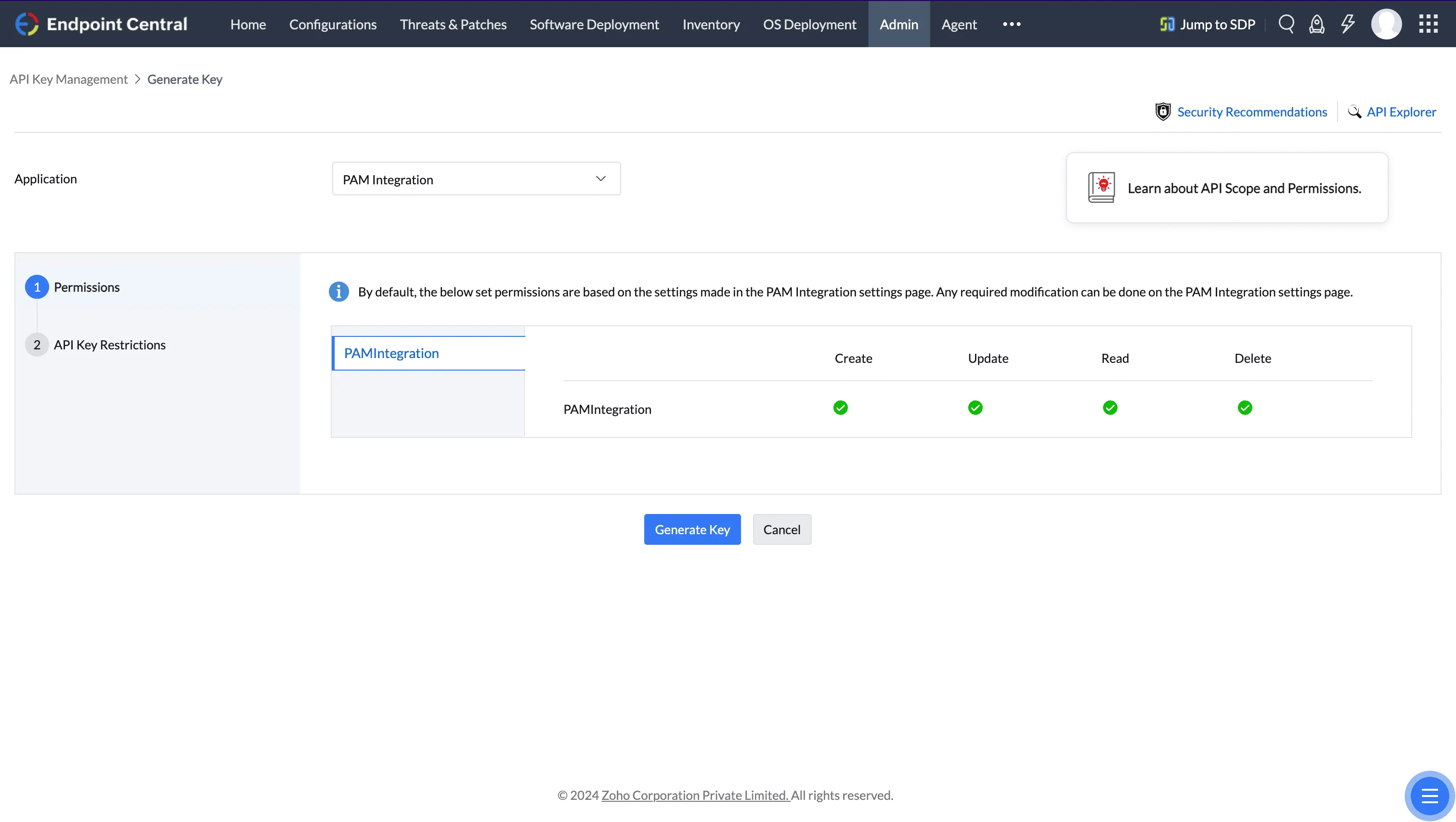
API Key Generation dialog with PAM Integration selected. - Copy the generated API key for use in PAM360 configuration and close the dialog.
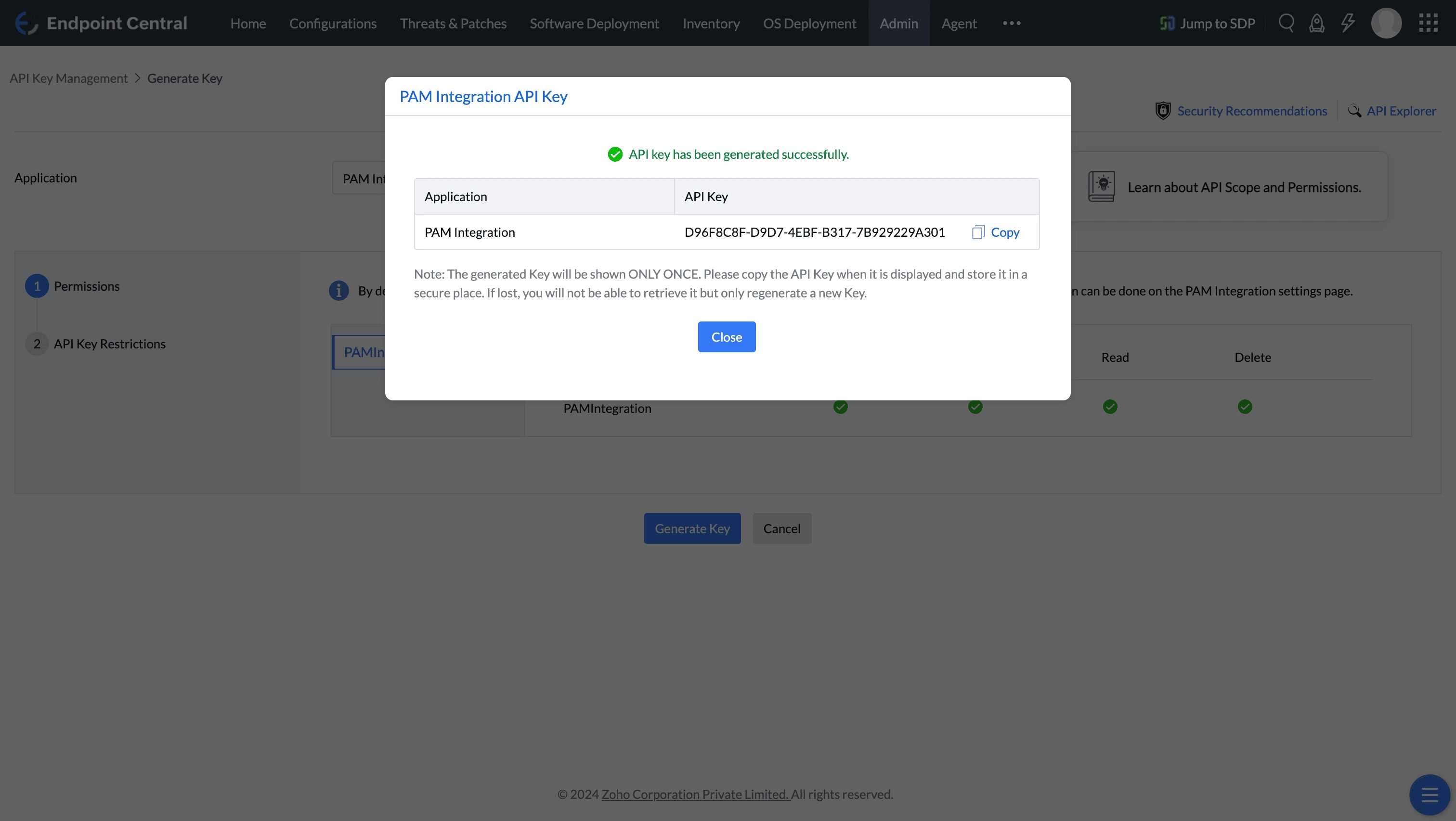
Generated API key ready to be copied for PAM360 configuration.
Configuring Endpoint Central and PAM360
To enable endpoint privilege management capabilities via the PAM360 environment, follow the steps below:
- Log in to the PAM360 user account.
- Navigate to Admin → Privilege Elevation and select Application Control.
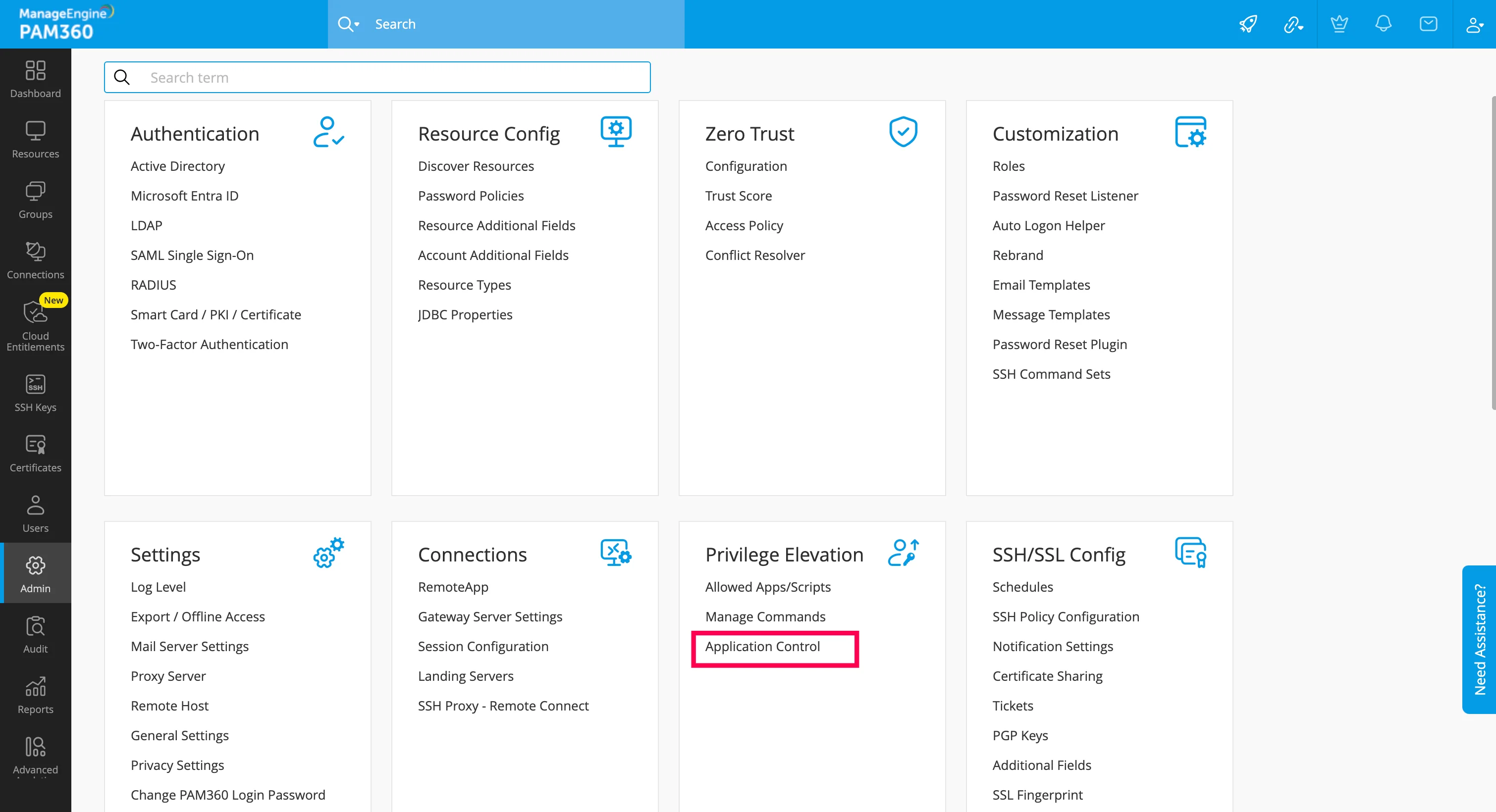
PAM360 Admin → Privilege Elevation → Application Control. - Click Configure.
- In the dialog box that opens:
- Enter the server name where Endpoint Central is installed (e.g., in-qaauto-92dt).
- Enter the HTTPS port number configured for Endpoint Central (default is 8383).
- Paste the API key copied from the Endpoint Central console into the Authentication Token field.
- Click Generate to generate the PAM360 Authentication Token, then copy the generated token.
- Click Enable.
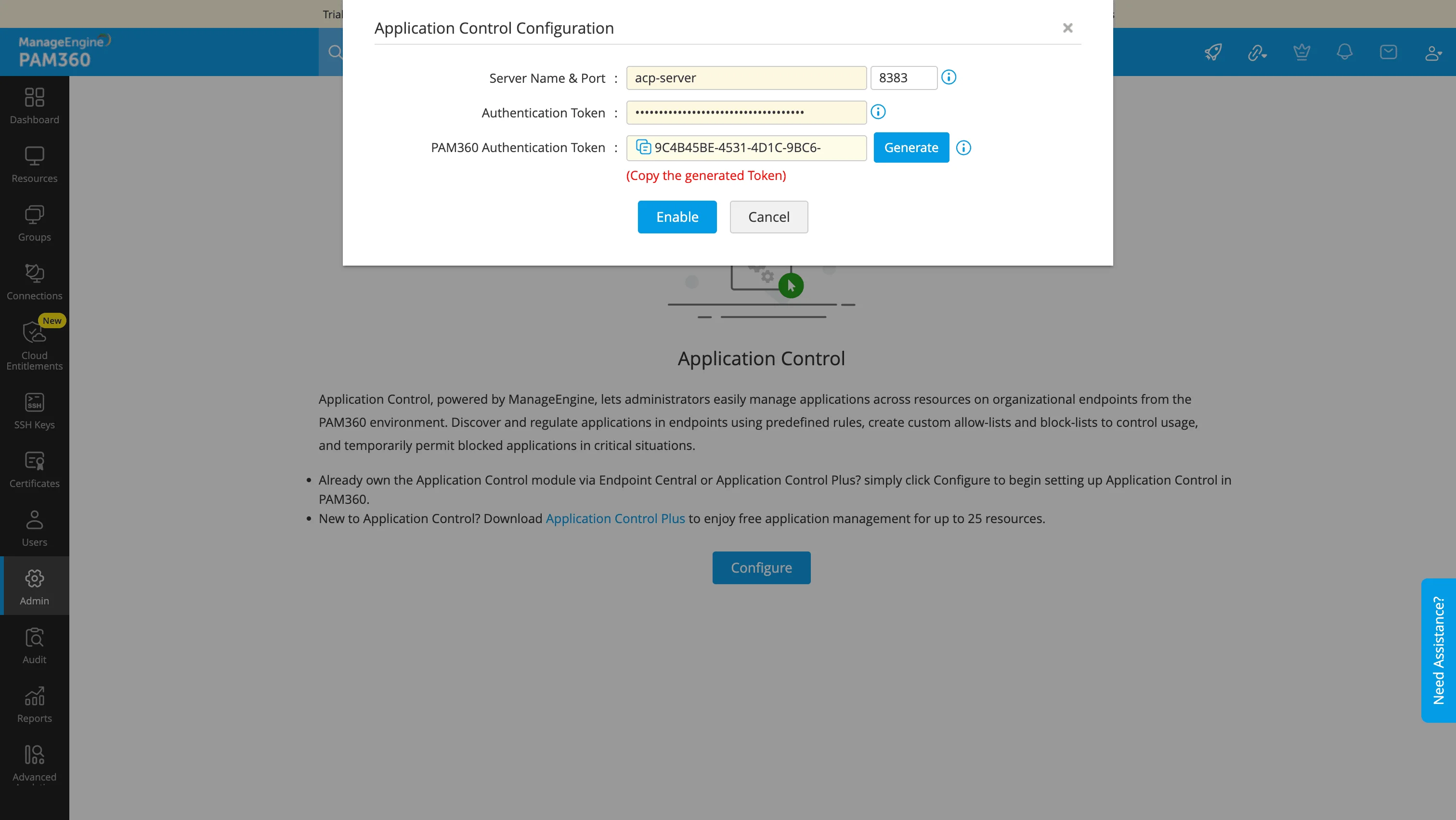
PAM360 configuration dialog for Endpoint Central showing server details and authentication token fields. - Open Endpoint Central and navigate to Admin → Integrations → All Integrations.
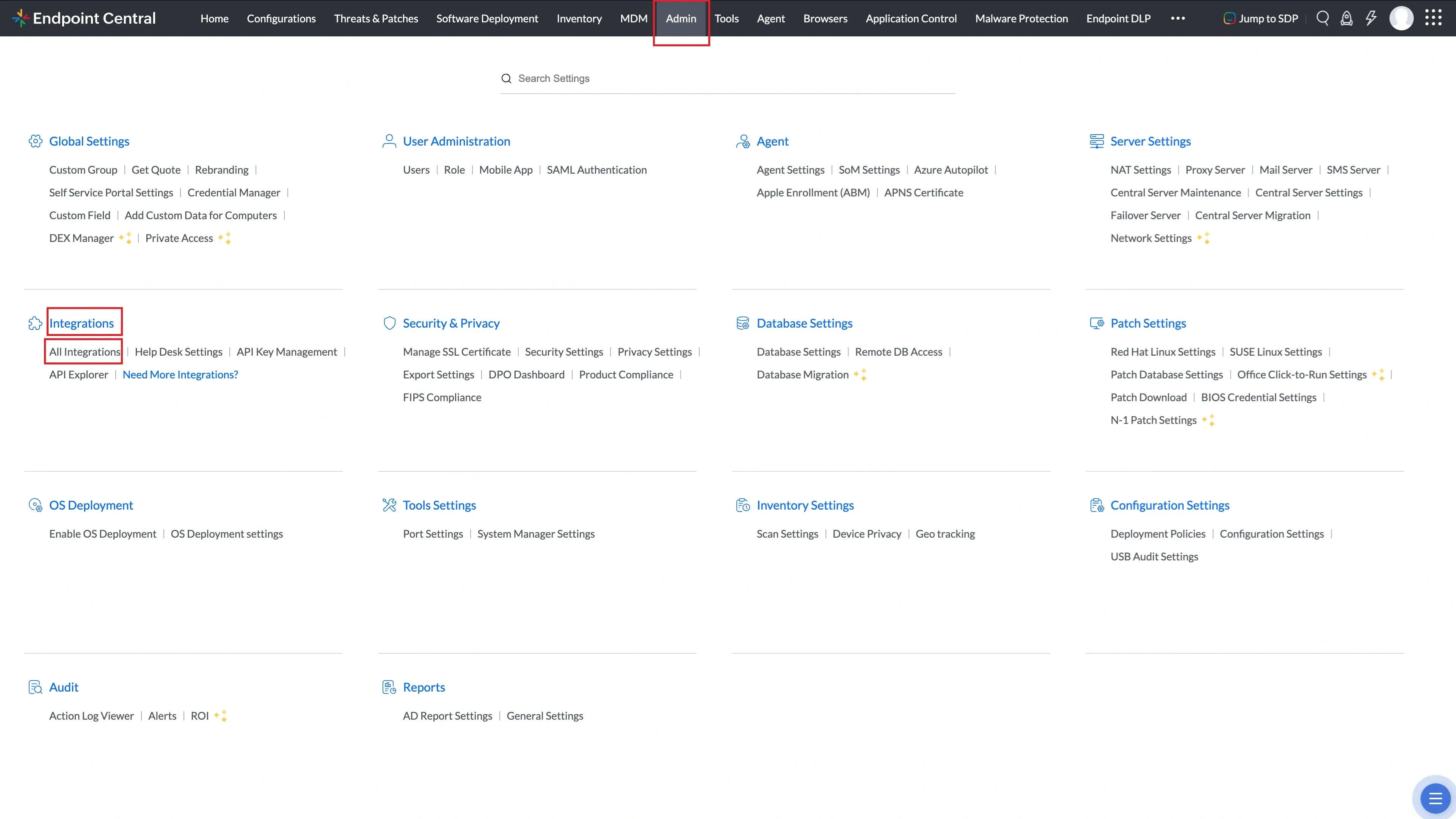
All Integrations page under Admin → Integrations in Endpoint Central. - Search for PAM360 and click Configure.
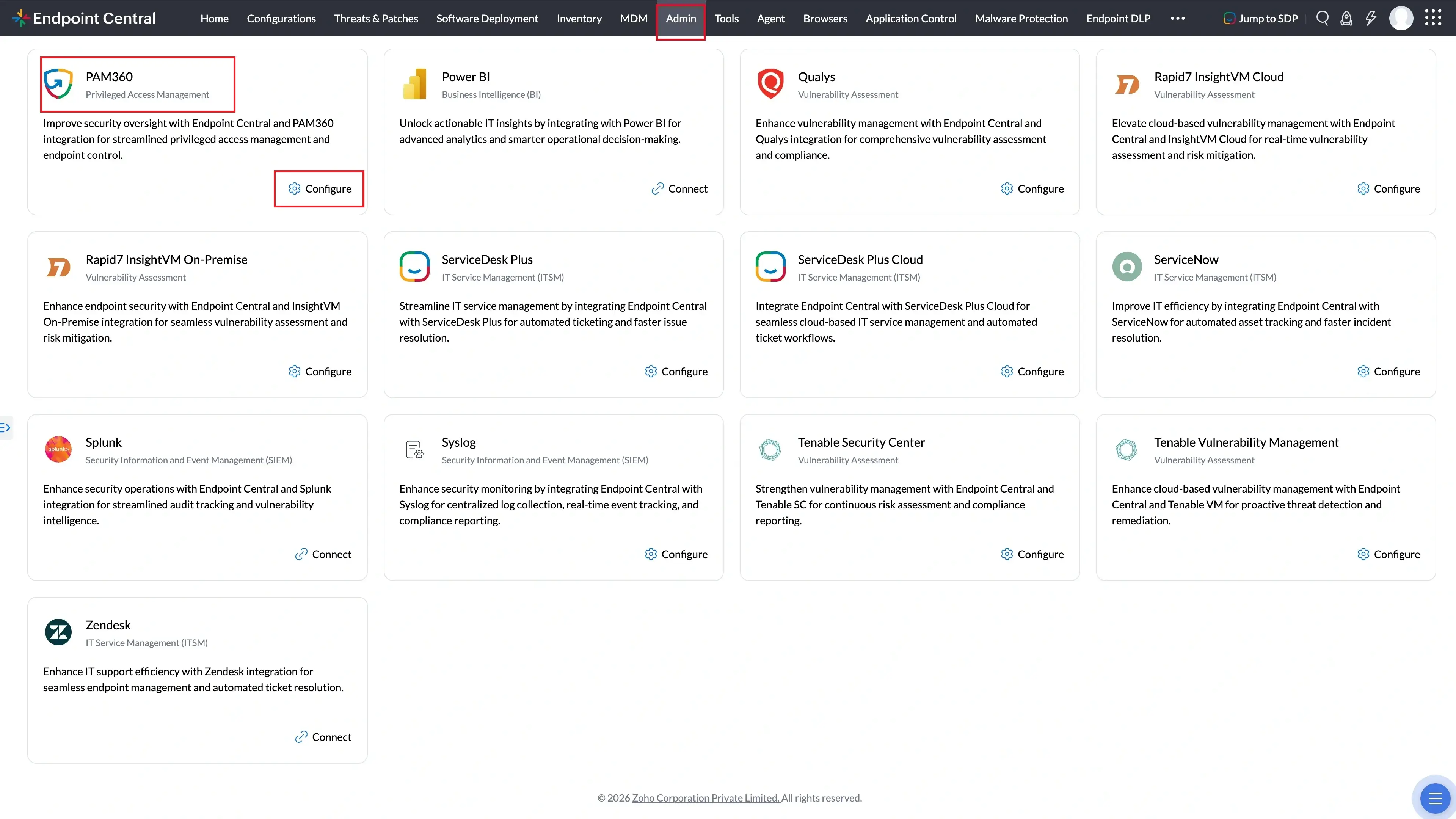
PAM360 in the All Integrations search results with the Configure option. - Enter the server URL where PAM360 is hosted and paste the Authentication Token copied from PAM360.
- Verify the PAM360 certificate details and click Trust this Certificate.
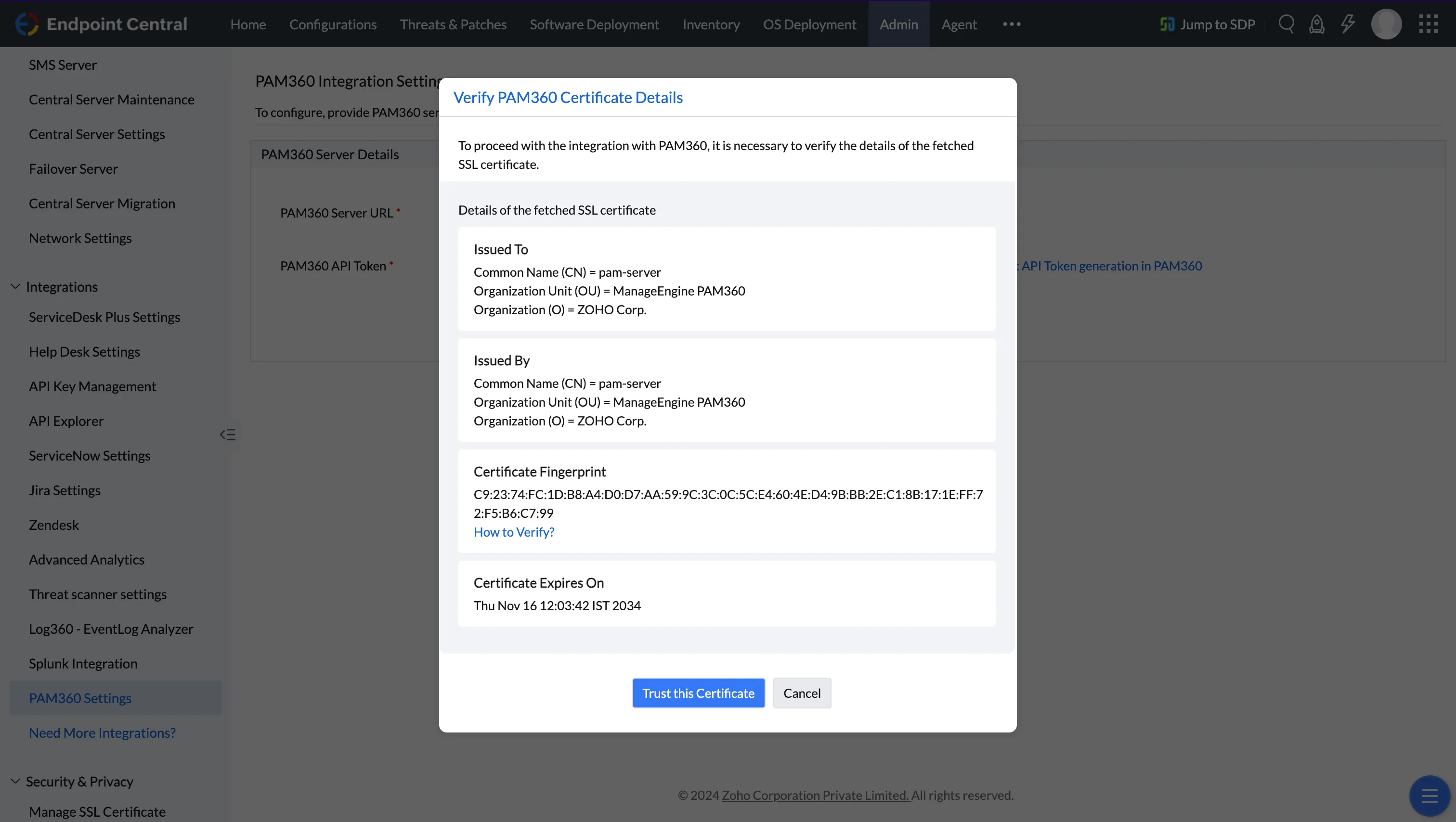
Trust Certificate dialog for verifying the PAM360 SSL certificate. - Click Save.
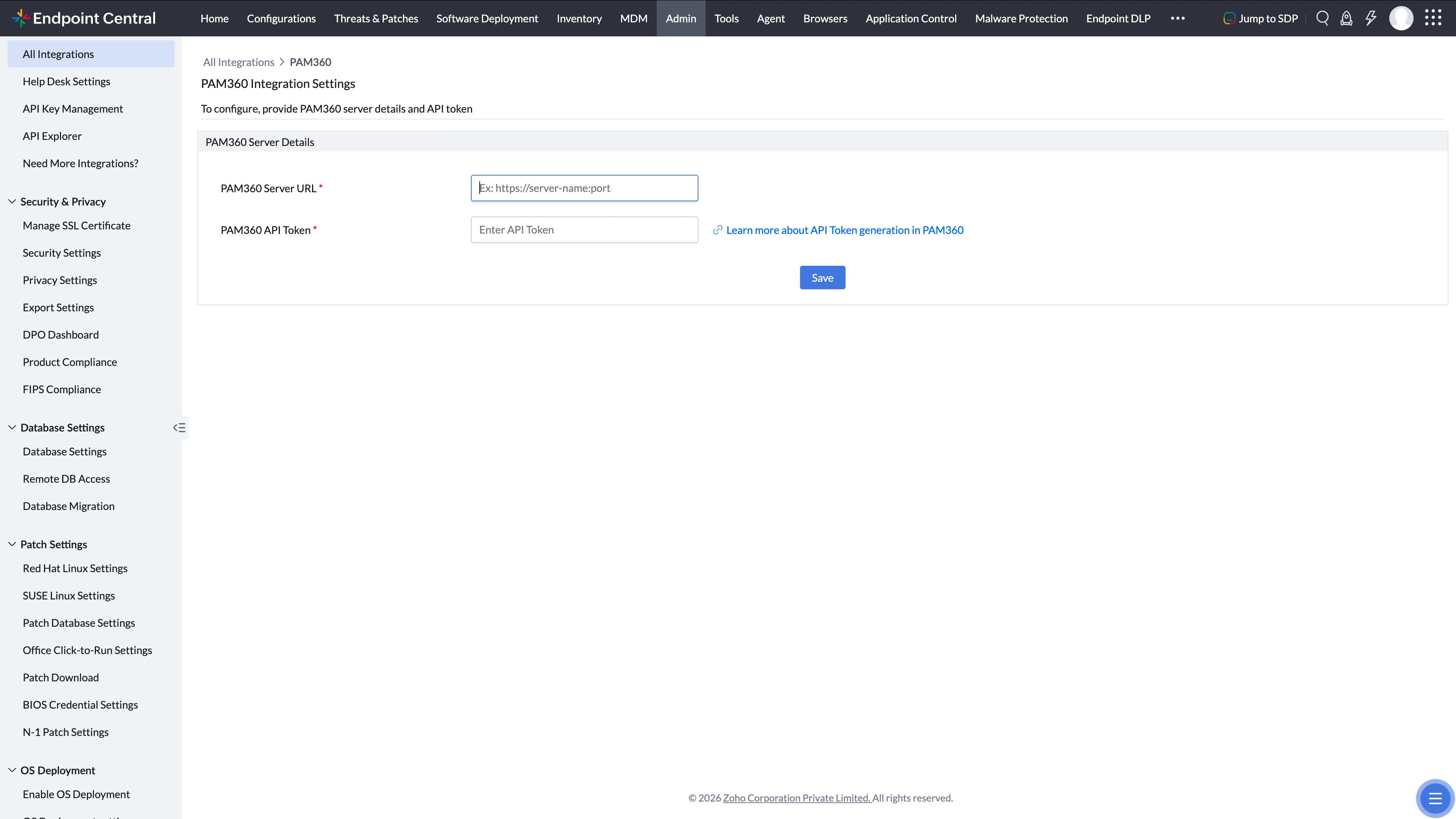
PAM360 Settings panel showing the final configuration before saving.
Configuration and Management Failure Scenarios
Encountering difficulties while configuring or managing Endpoint Central in PAM360 can result from various factors. The following describes common failure scenarios and how to address them:
- Mismatched Privileged Roles: If a user attempts to manage Endpoint Central via PAM360 but lacks a corresponding privileged role in Endpoint Central, issues may arise. Users should possess similar privileged roles in both platforms to access and manage Endpoint Central seamlessly.
- Unauthorized Access and Privileges: Configuration or management of Endpoint Central without the appropriate privileges can lead to unauthorized access attempts. Users should be granted the necessary privileges to avoid issues while configuring or managing Endpoint Central within PAM360.
- API Key/Authentication Token Update Requirement: Changing the API Key or Authentication Token on either server disrupts the functionality of the Endpoint Central—PAM360 integration, because the previously generated authentication token becomes invalid. To ensure smooth operation, update the configuration with the newly generated API key or authentication token on the corresponding server.
- Username Discrepancy: If a user attempting to access Endpoint Central does not have the same username as in PAM360, issues may arise. Consistency in usernames across platforms is necessary to facilitate seamless access and utilization of Endpoint Central functionalities.