×![]()
×
×![]()
×
×
Device Control Policy Deployment
After creating a device control rule, the next step is deploying it. Deploying a policy ensures device control rules are enforced on endpoints, enabling real-time monitoring and management of peripheral devices connected to your network. This safeguards sensitive data by controlling data transfers to unauthorized devices, strengthening security across all endpoints.
Associating a Policy with a Computer Group.
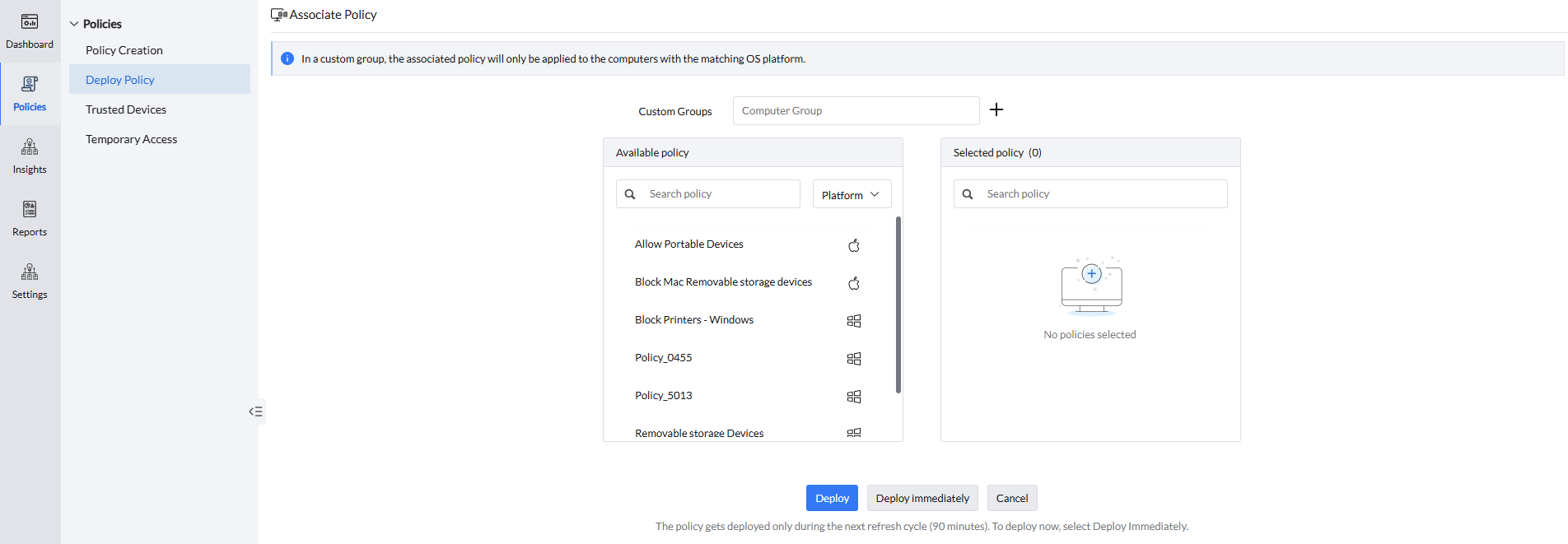
- To deploy a policy, Navigate to Policies -> Deploy Policy -> Associate Policy
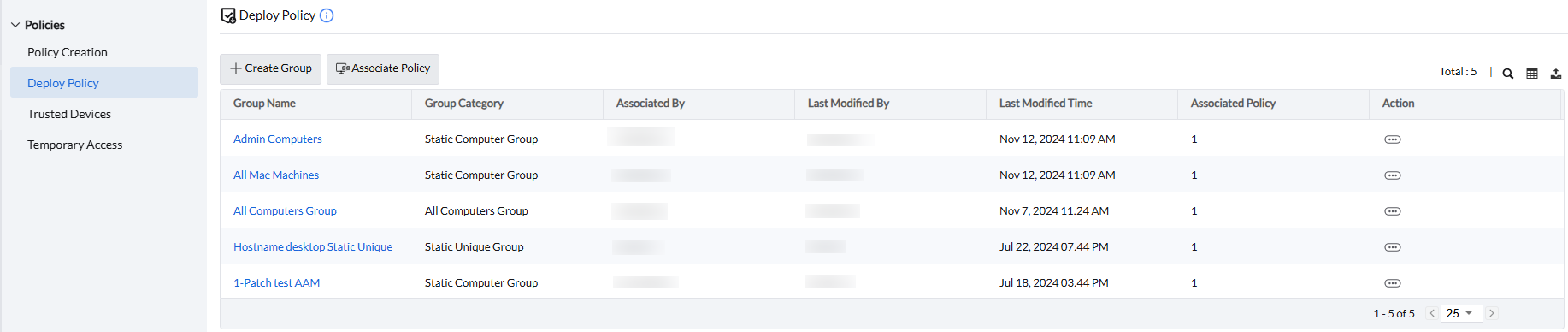
- Select the computer group to which policy should be associated.
Note
In a computer group, the associated policy applies only to computers with the matching OS platform.
Note
To learn more about creating computer groups, Click here
- Move the policy that you wish to associate from "Available Policies" to "Selected Policies".
- Deployment Methods:
- Click "Deploy" to apply the policy. The policy will be deployed during the next refresh cycle.
- Click "Deploy immediately" to deploy the policy immediately.
Exclude User Groups
To exclude specific user groups within a computer group:
- Select the computer group and select the desired policy -> Click the exclude user group button
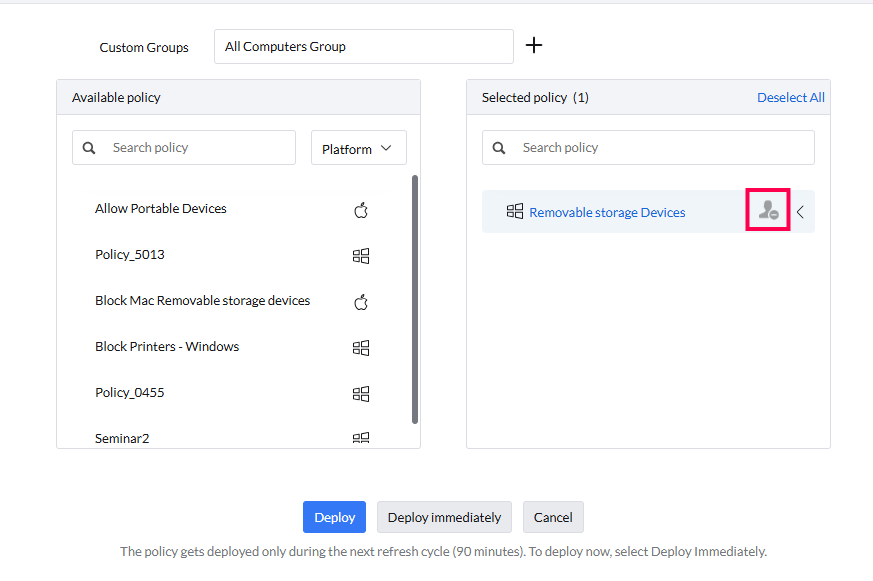
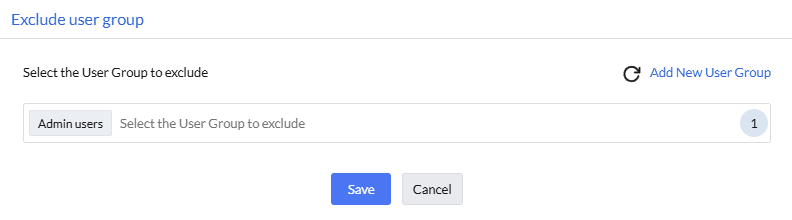
- Select the user group(s) to exclude from the policy.