How to Generate Your First Detection
Introduction
This is a functionality test to evaluate that the effectiveness of the behavior detection engine. It demonstrates a safe way of generating an alert. It also allows users to assess Endpoint Central's Next-Gen Antivirus capabilities and provides an overview of how detection operates without impacting actual files on your system.
Pre-Requisites
Step 1: Enable User Device Notification
Before proceeding further make sure Endpoint Central agent is installed and that NGAV add-on is enabled. To check that the NGAV software is working successfully, follow the below steps:
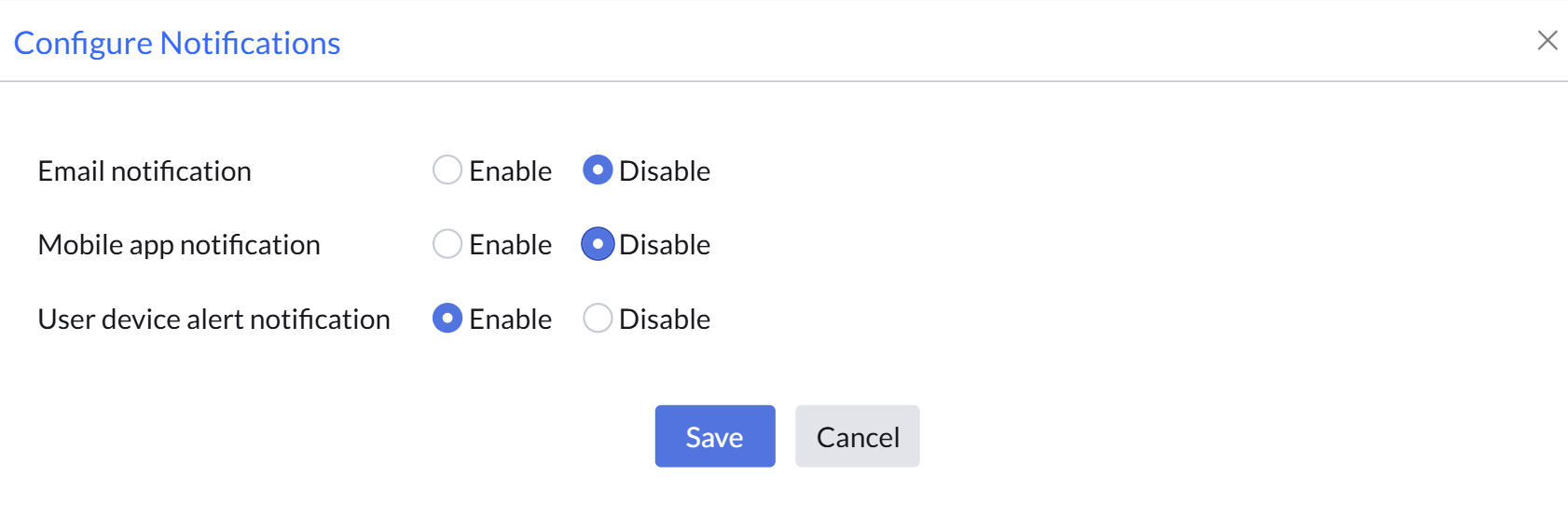
Navigate to settings -> Notification settings -> click modify -> ensure user device alert notification is enabled.
Step 2: Verify NGAV Service Status
- Open the Command Prompt by pressing Win + R, typing cmd, and pressing Enter.
- Run the command
sc query mearwservice
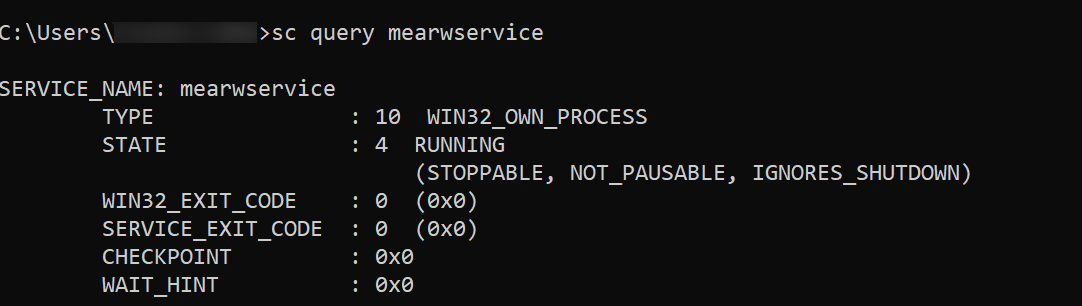
The state is listed as running, indicating that the NGAV software is operational.
Generating First Detection
Kindly follow the steps below to run the .exe process and generating the first malware detection:
- Open the Command Prompt by pressing Win + R, typing cmd, and pressing Enter.
- Run the command
choice.exe /m me_edr_sample_detection - Type Y for initiating the process when prompted with the command me_edr_sample_detection [Y,N]?
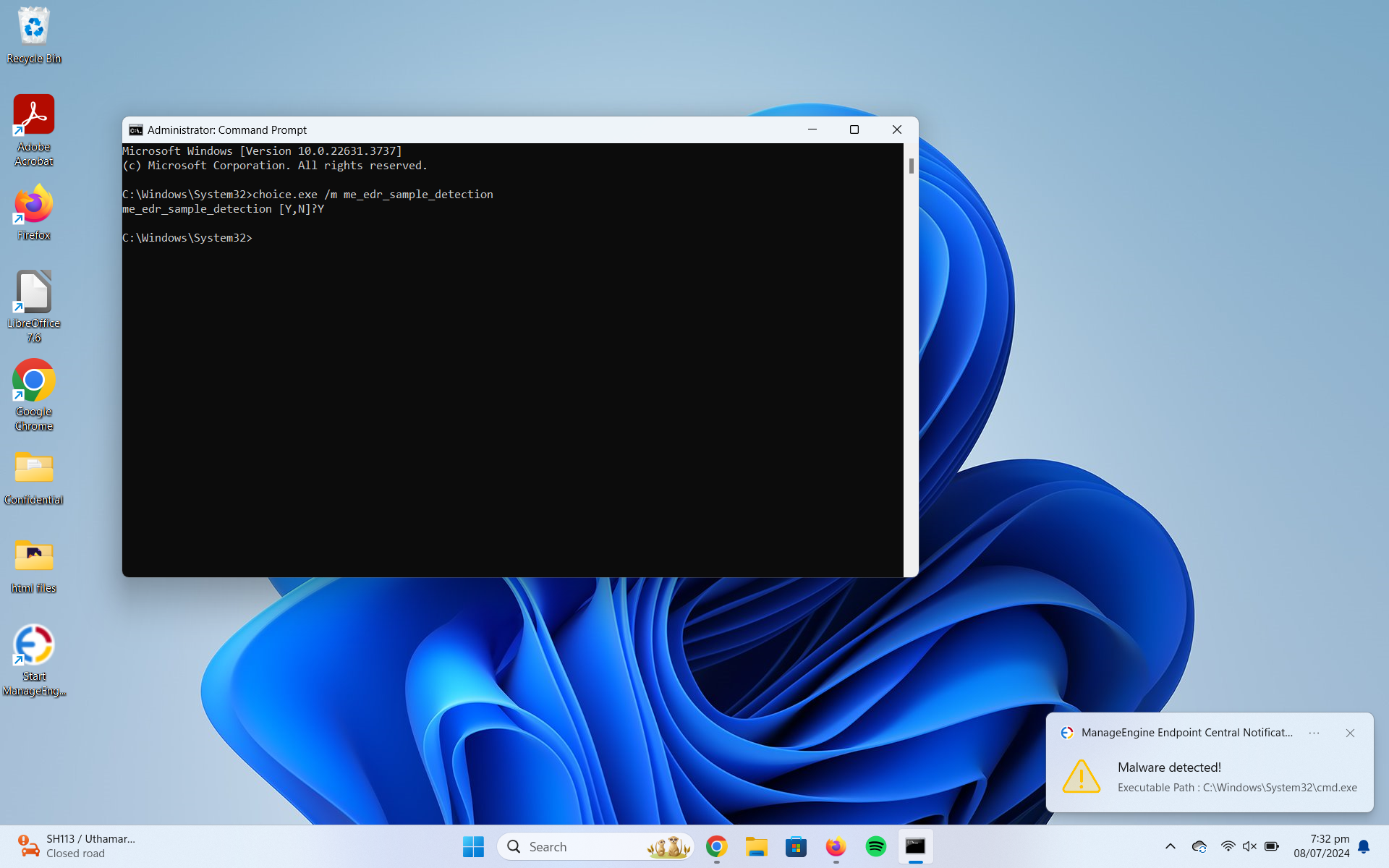
The notification of the process would be shown, and this process would be flagged as a malicious incident. It will be listed in the console under the Incidents tab.
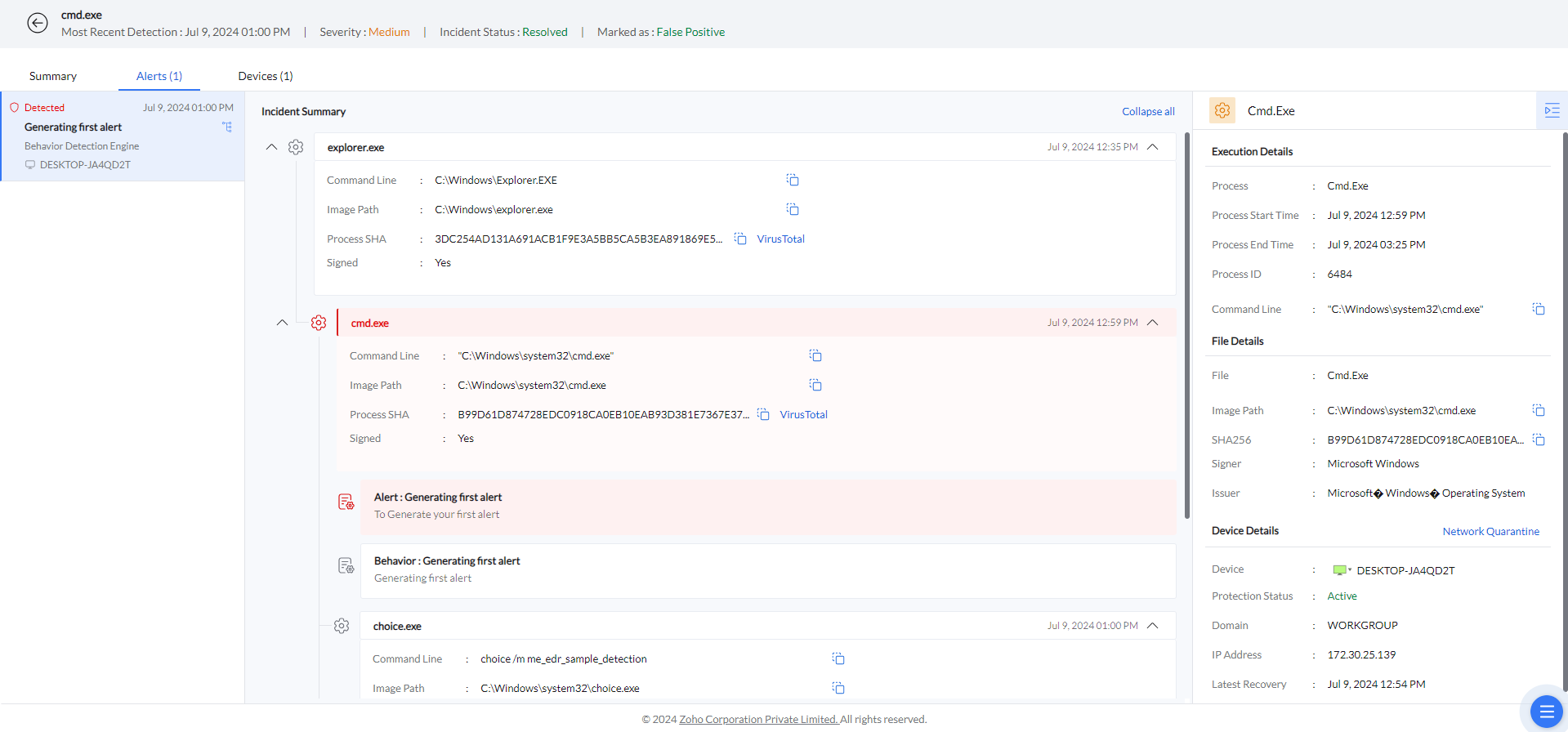
In the Incidents tab, a new alert appears detected by the Behavior Detection engine.
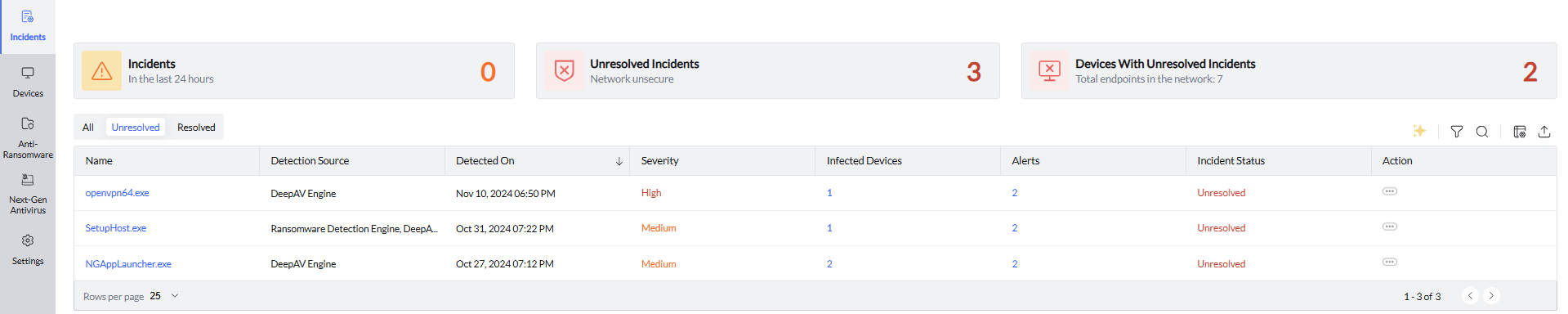
Click on the incident to expand the detection for additional details. The Summary tab gives an overview of the suspicious process.
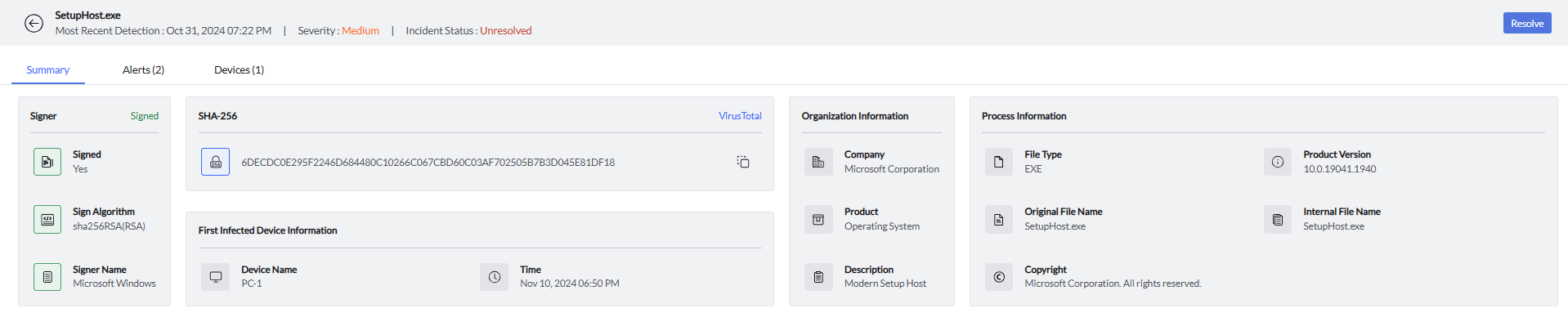
The Alerts tab encompasses the complete forensic data, including the process tree of the particular incident. Under the Devices tab, you can view the endpoints affected by the incident.