×![]()
×
×![]()
×
×
Integrate with ServiceDesk Plus
How to integrate Endpoint Central with ServiceDesk Plus?
ManageEngine's flagship endpoint management and security solution, Endpoint Central, integrates with multiple top-drawer helpdesk solutions to aid in quicker ticket resolution, and ManageEngine ServiceDesk Plus is one such solution. Endpoint Central - ServiceDesk Plus integration empowers SDP technicians to manage and secure endpoints right from the ticket window; not just that, you can now resolve tickets at light speed using this unified approach.
Note
To ensure compatibility, use ServiceDesk Plus (SDP) build 14730 or later with Endpoint Central build 2400.38 or later.
Steps to integrate
The two major steps in integrating Endpoint Central with ServiceDesk Plus are as follows:
- Steps to be done in Endpoint Central Console
- Steps to be done in ServiceDesk Plus Console
Steps to be done in Endpoint Central Console
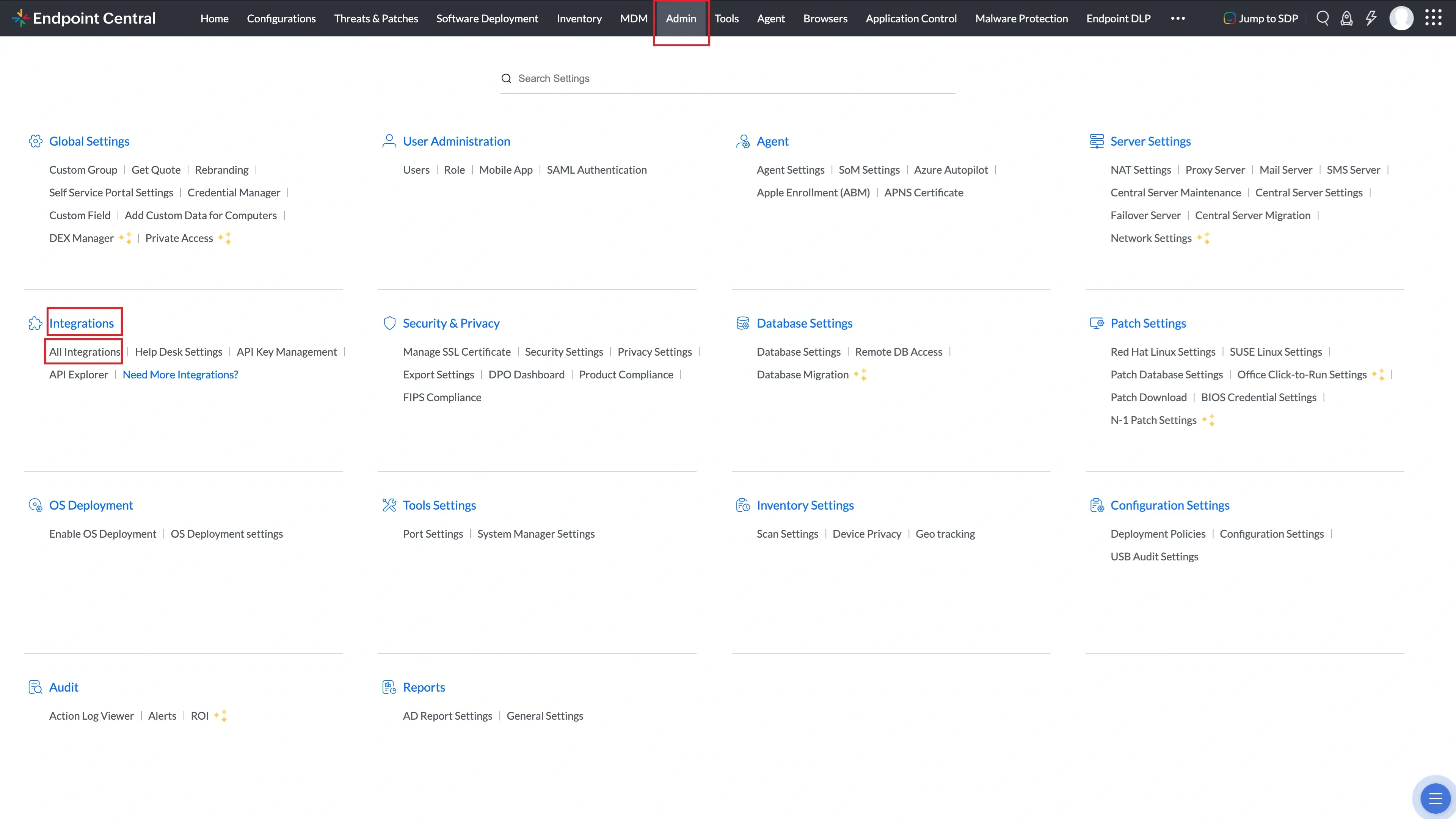
- From Endpoint Central console, navigate to Admin tab --> Integrations --> All Integrations.
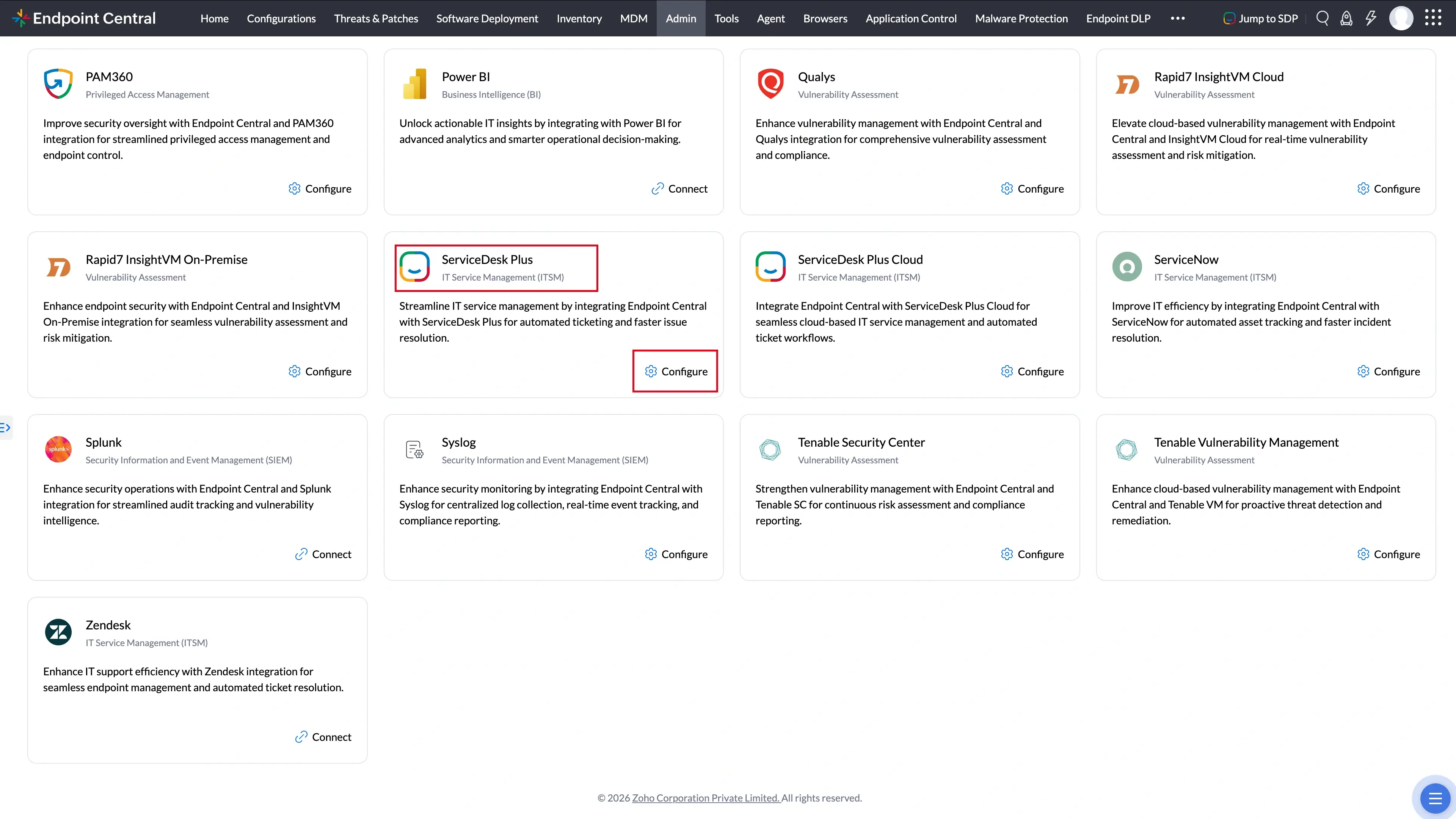
- Now here search ServiceDesk Plus and click Configure.
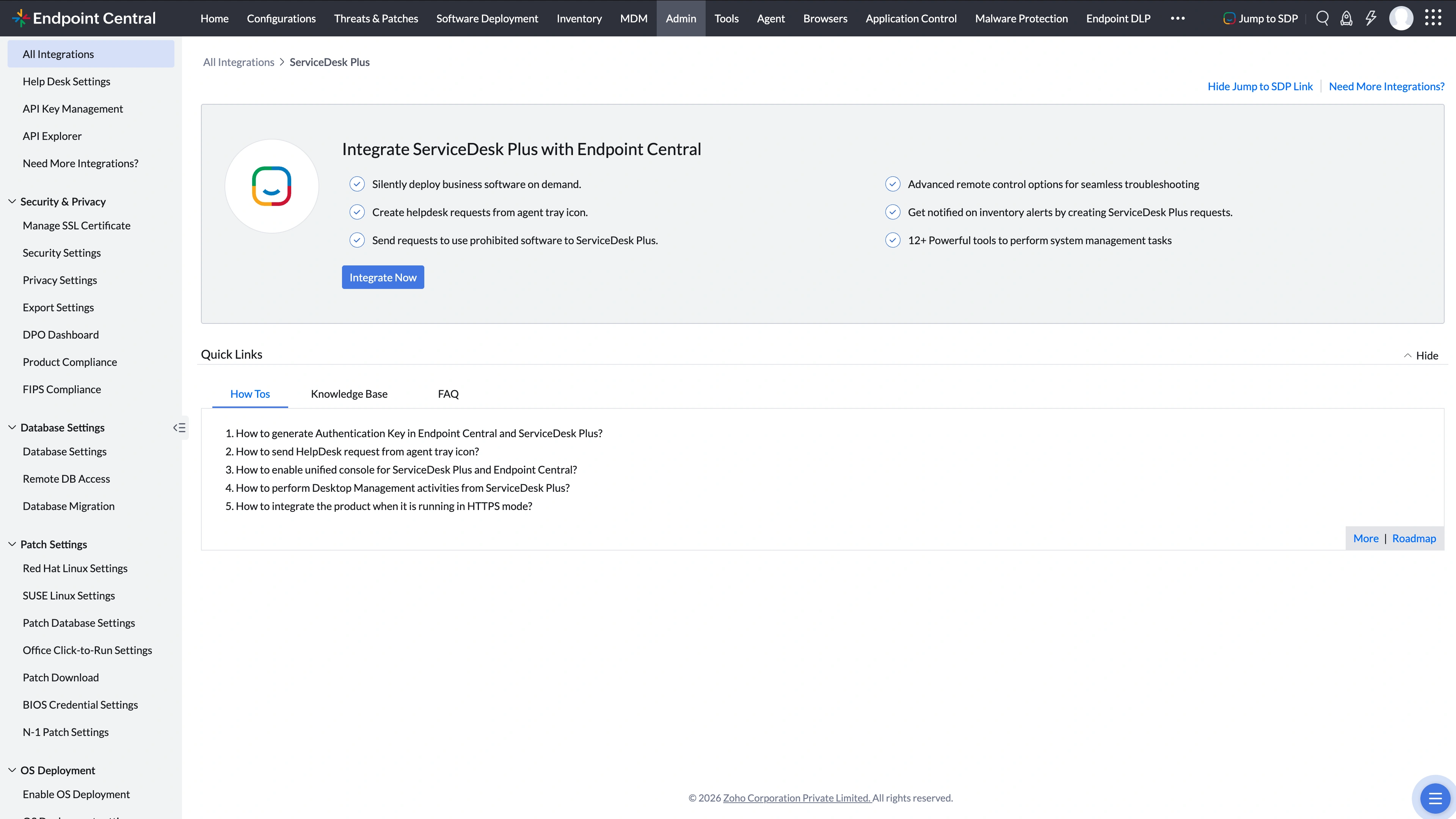
- Then click Integrate Now.
- Fill in the ServiceDesk Plus Server details and click Generate.
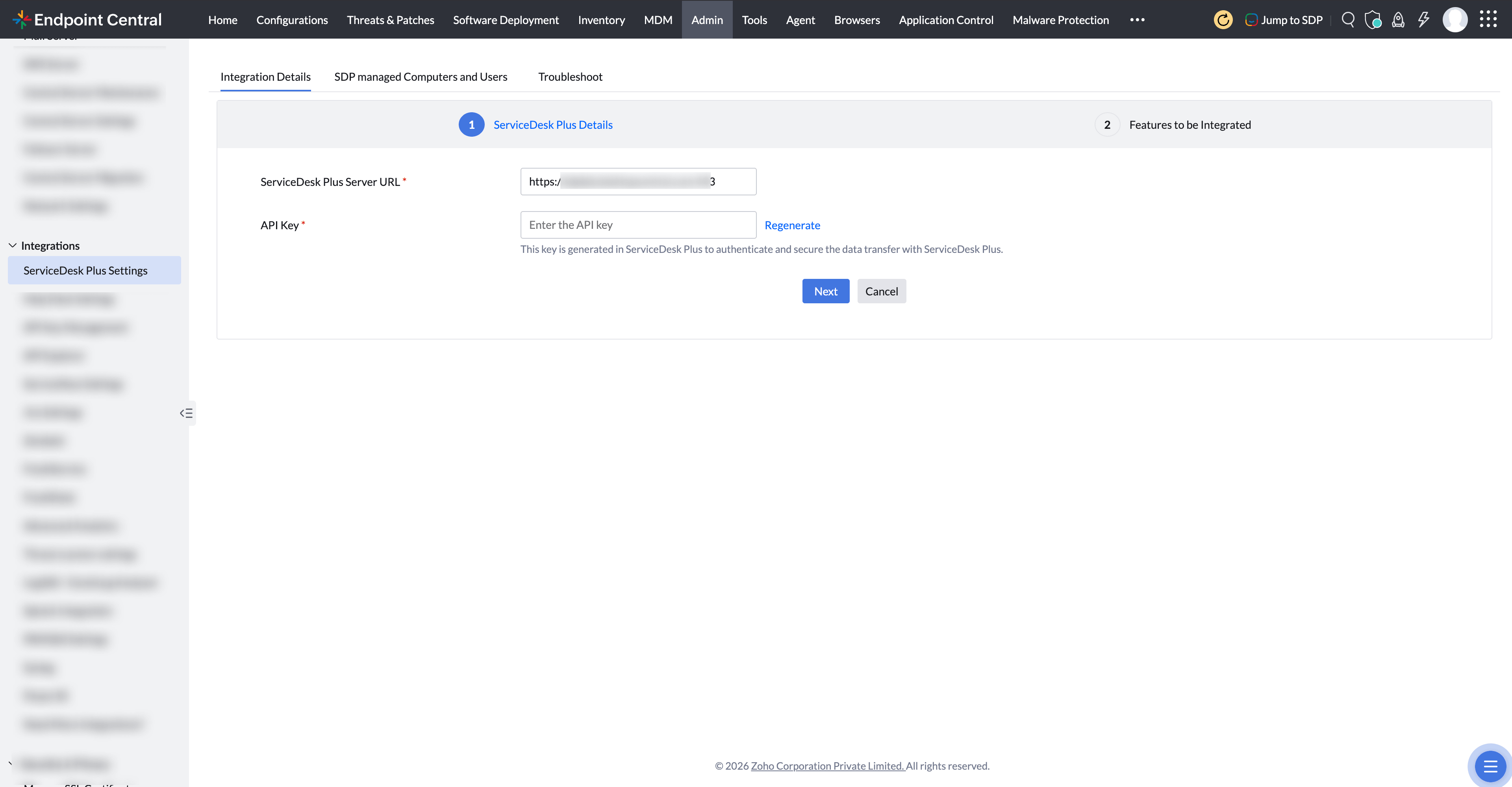
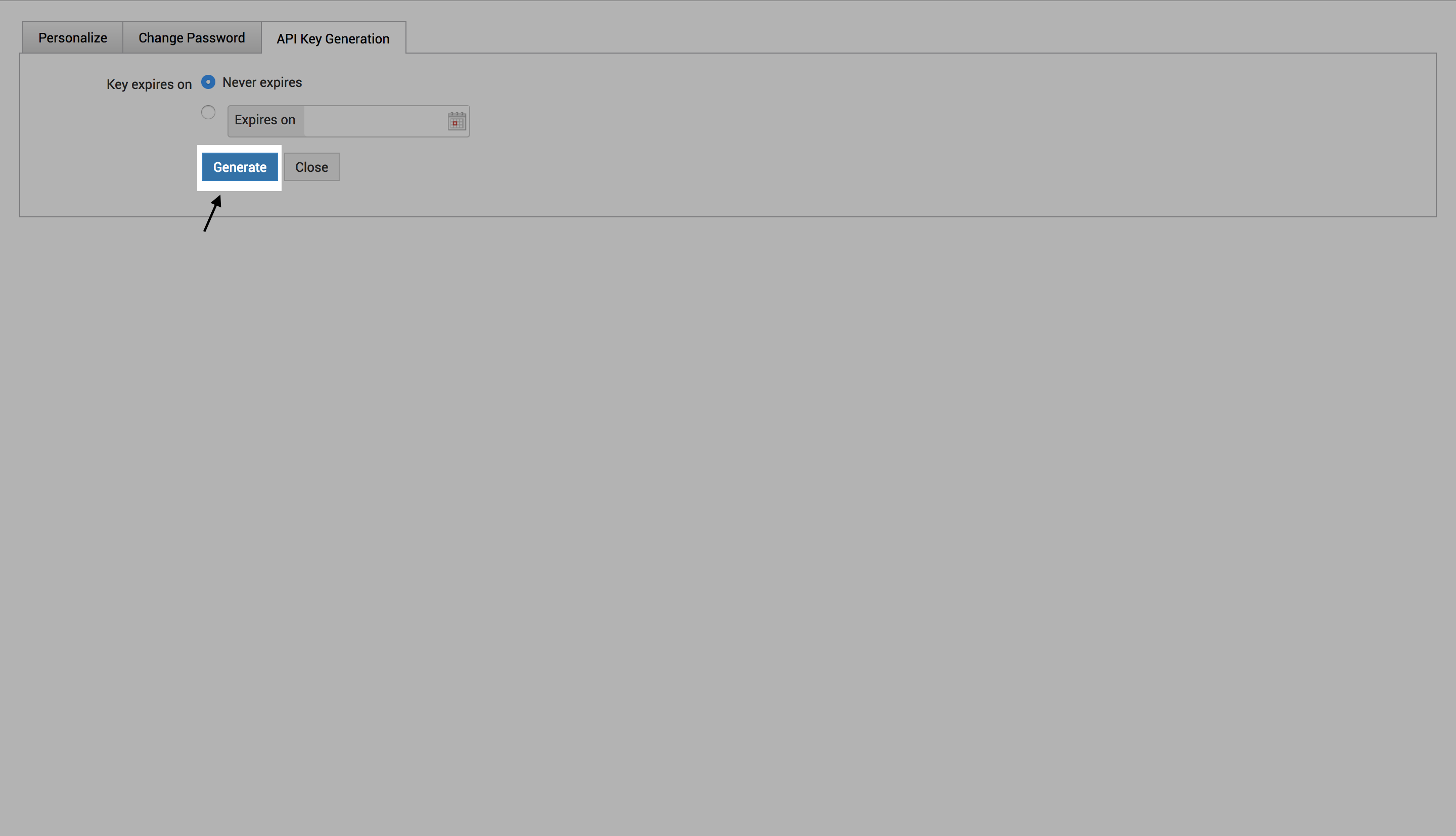
- Define the API key expiry and Generate
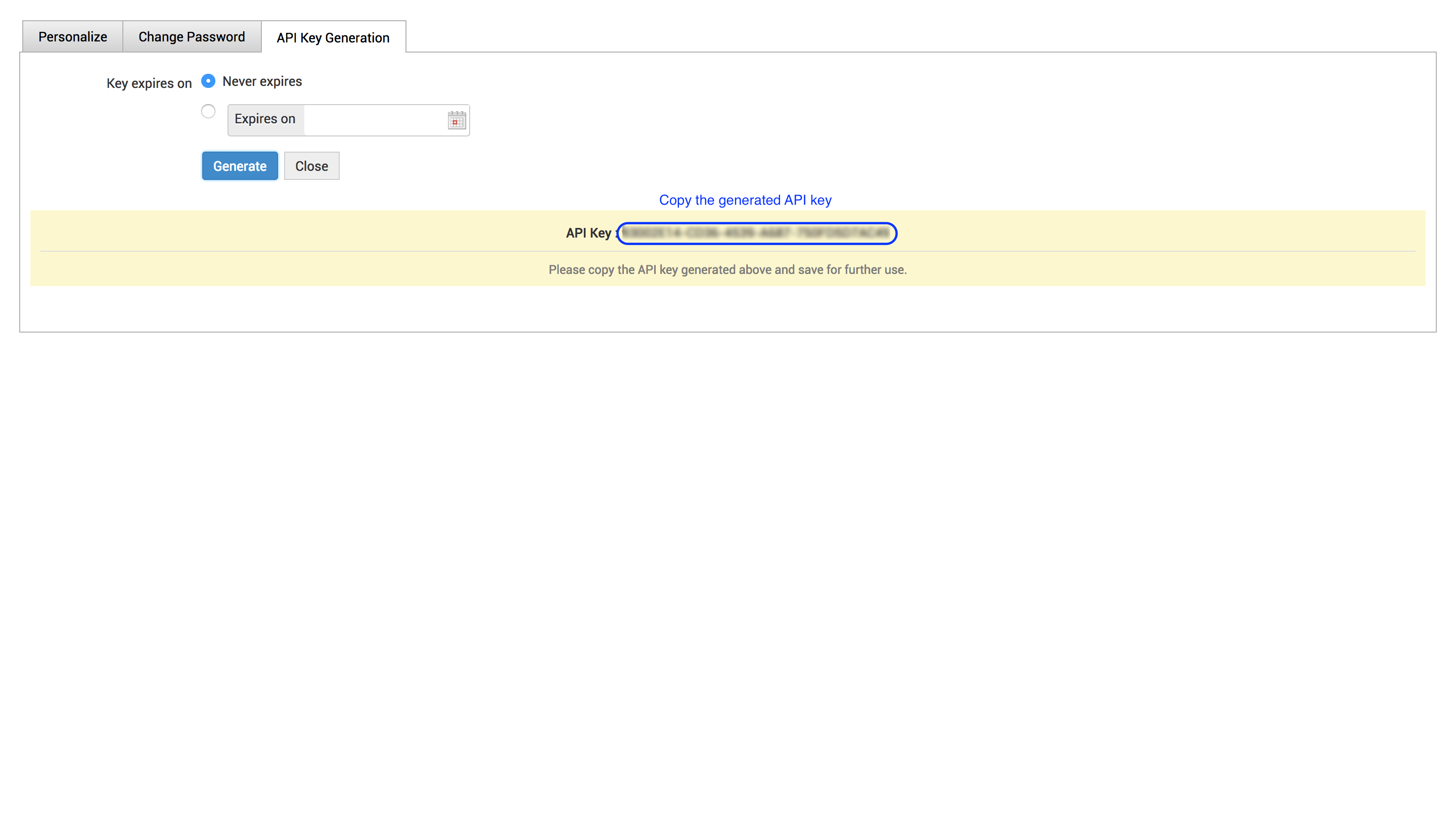
- Copy the generated API key and come back to Endpoint Central console
- Paste the API key here.
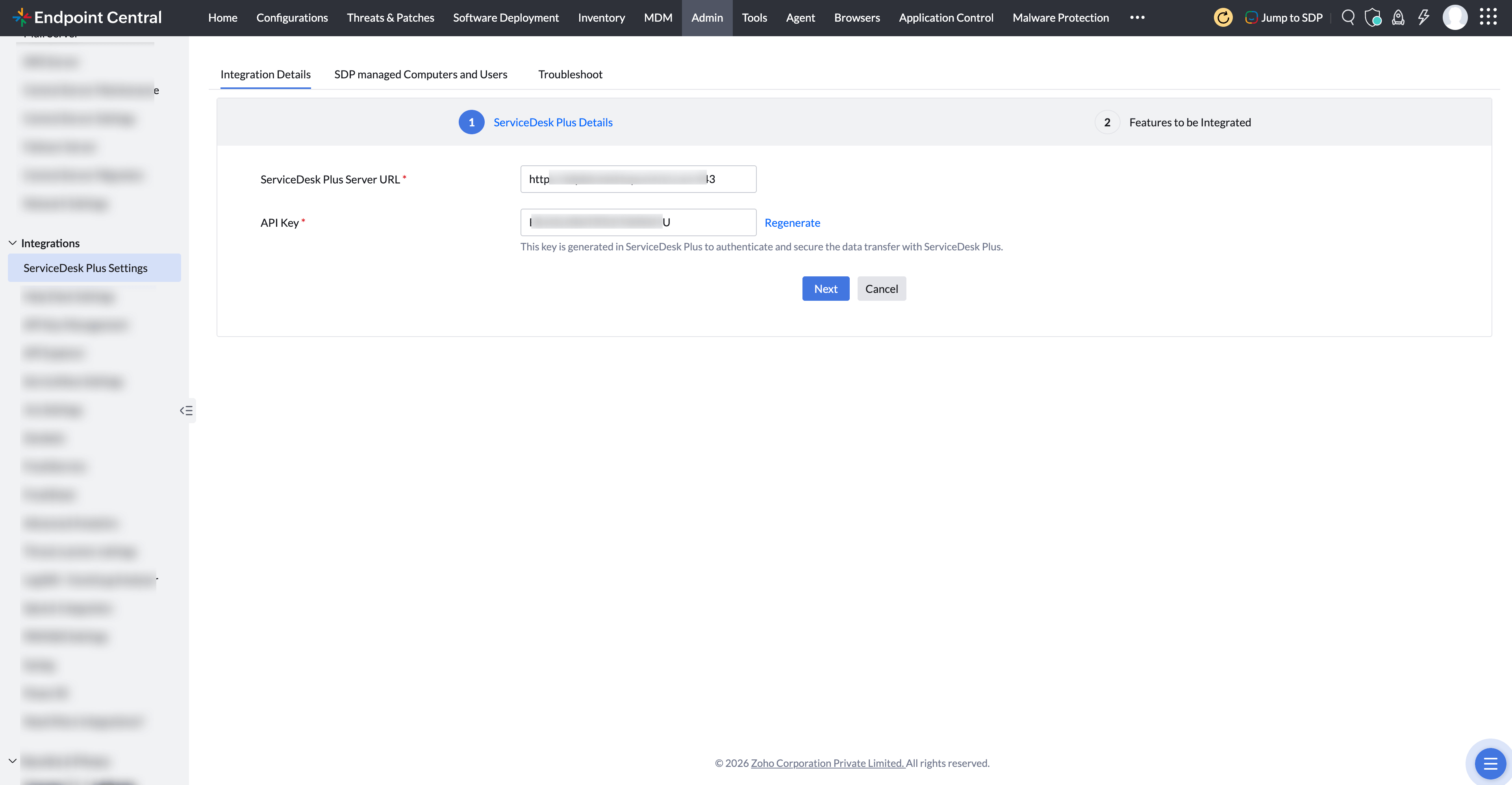
- Enable the features you would like to integrate and click Save.
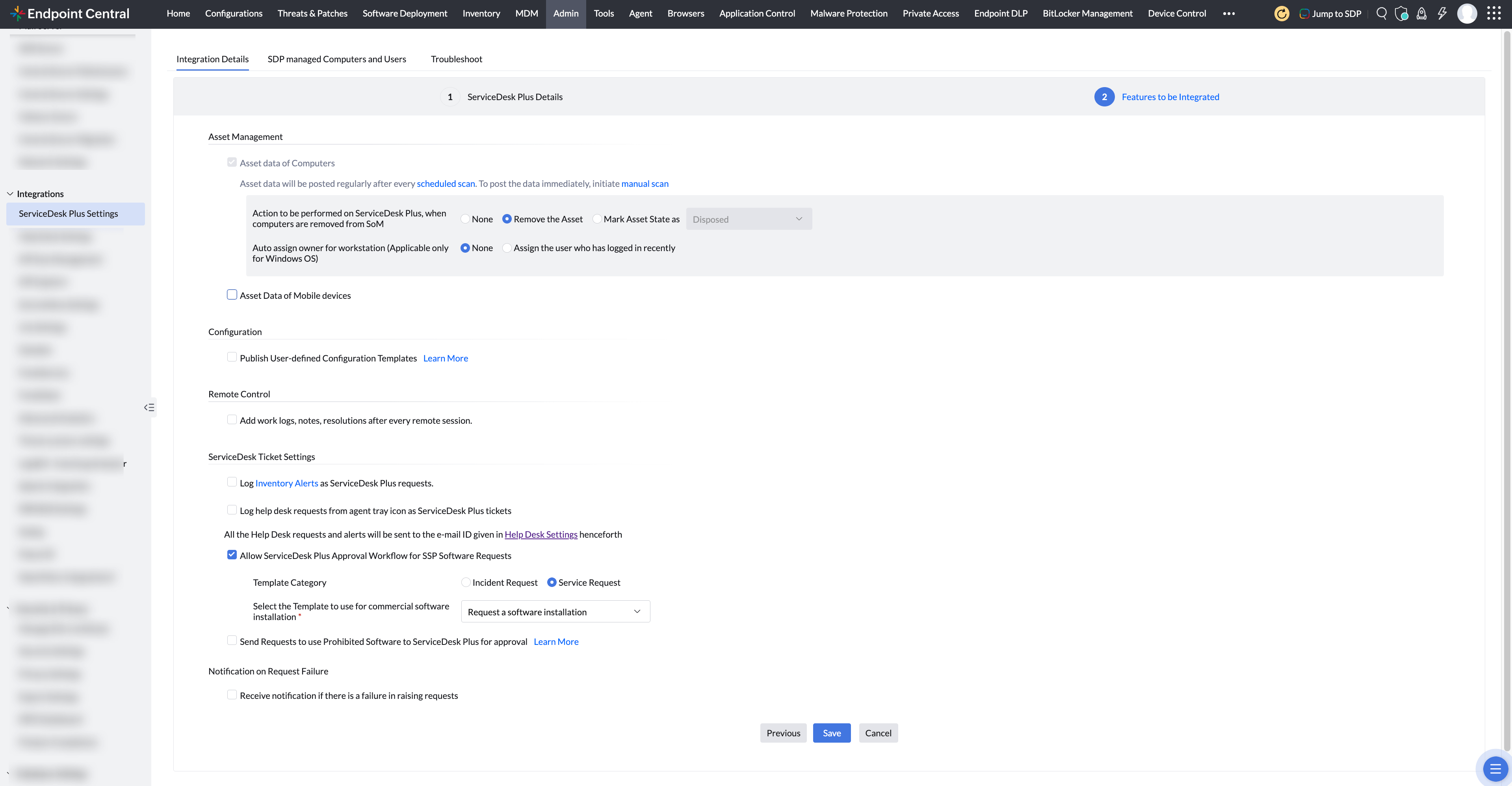
- You have now completed the first step of Integration
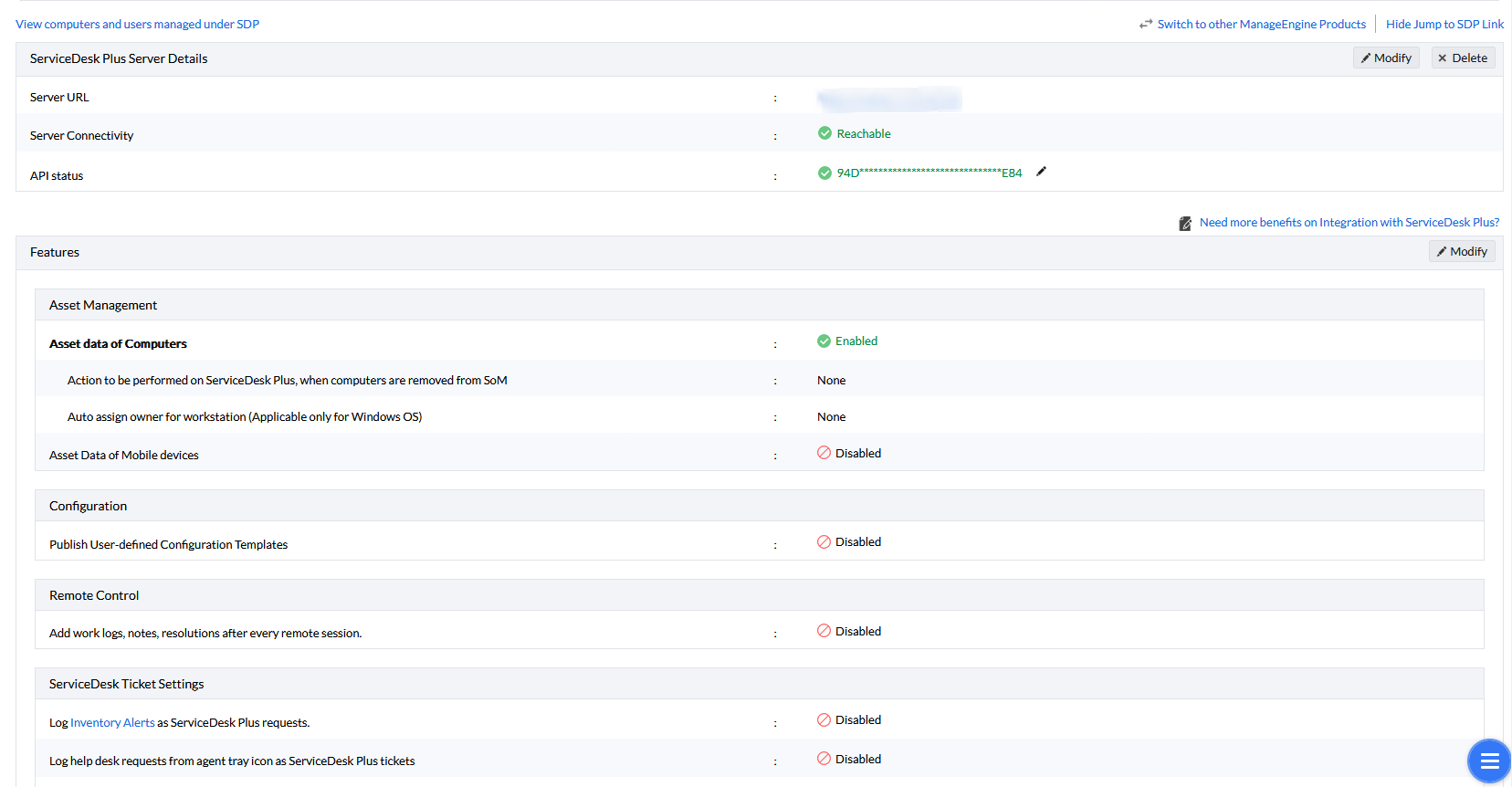
Steps to be done in ServiceDesk Plus Console
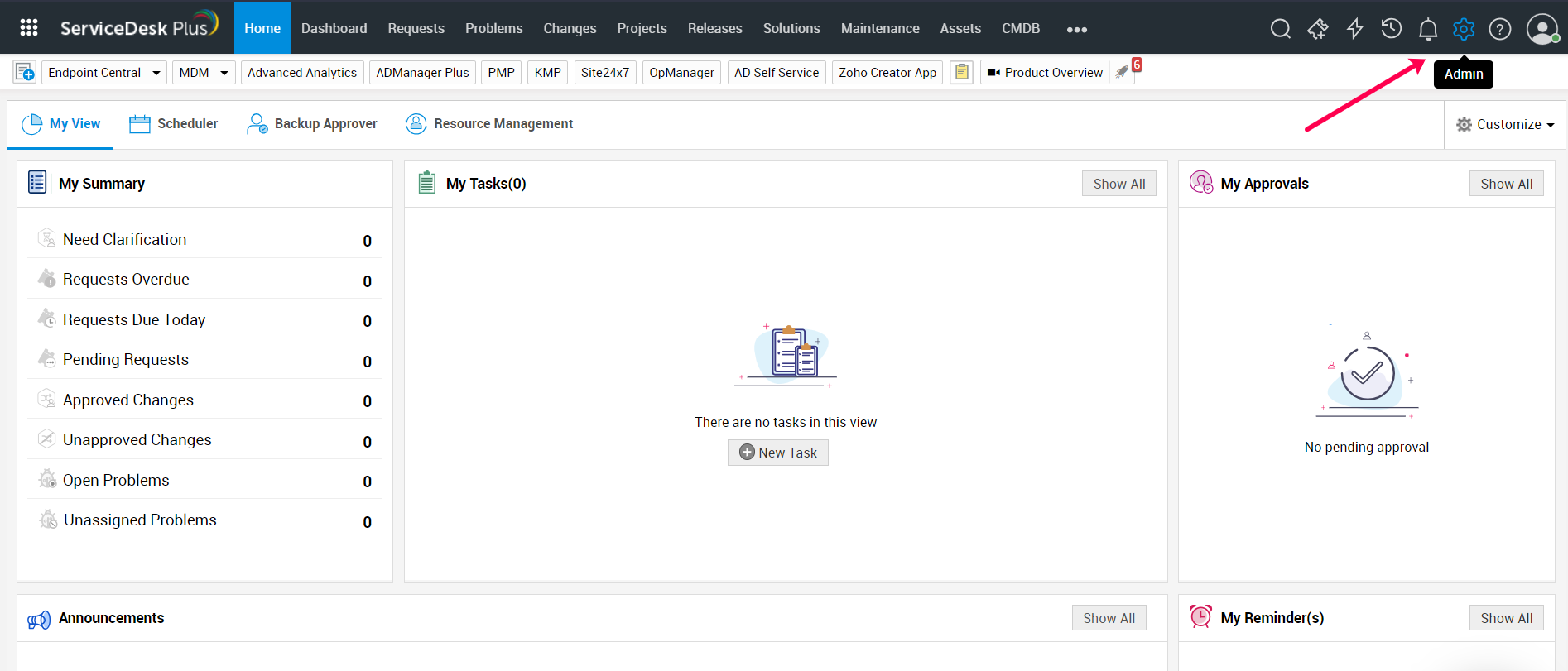
- From ServiceDesk Plus console, navigate to Admin tab
- Select Integrations
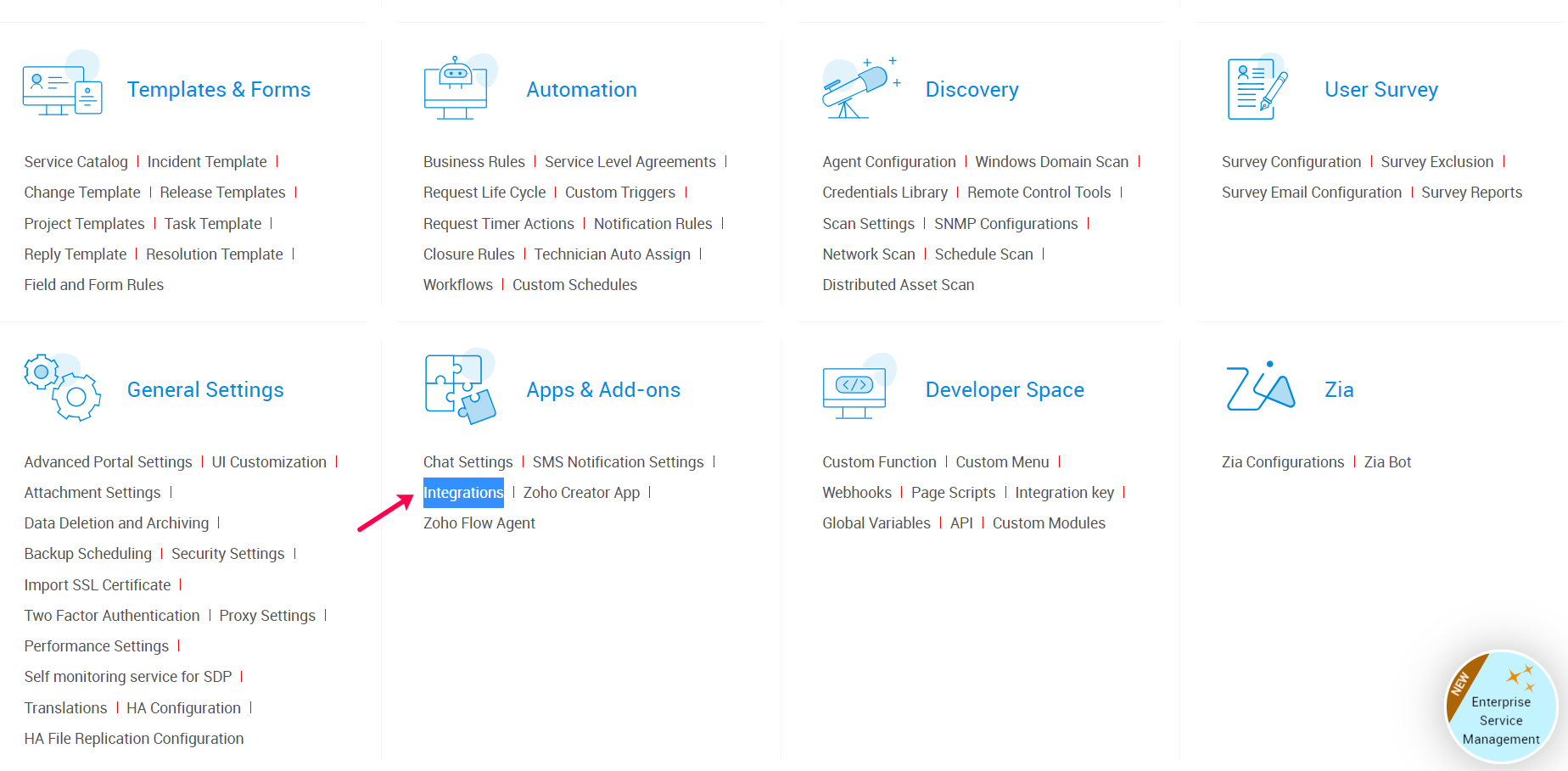
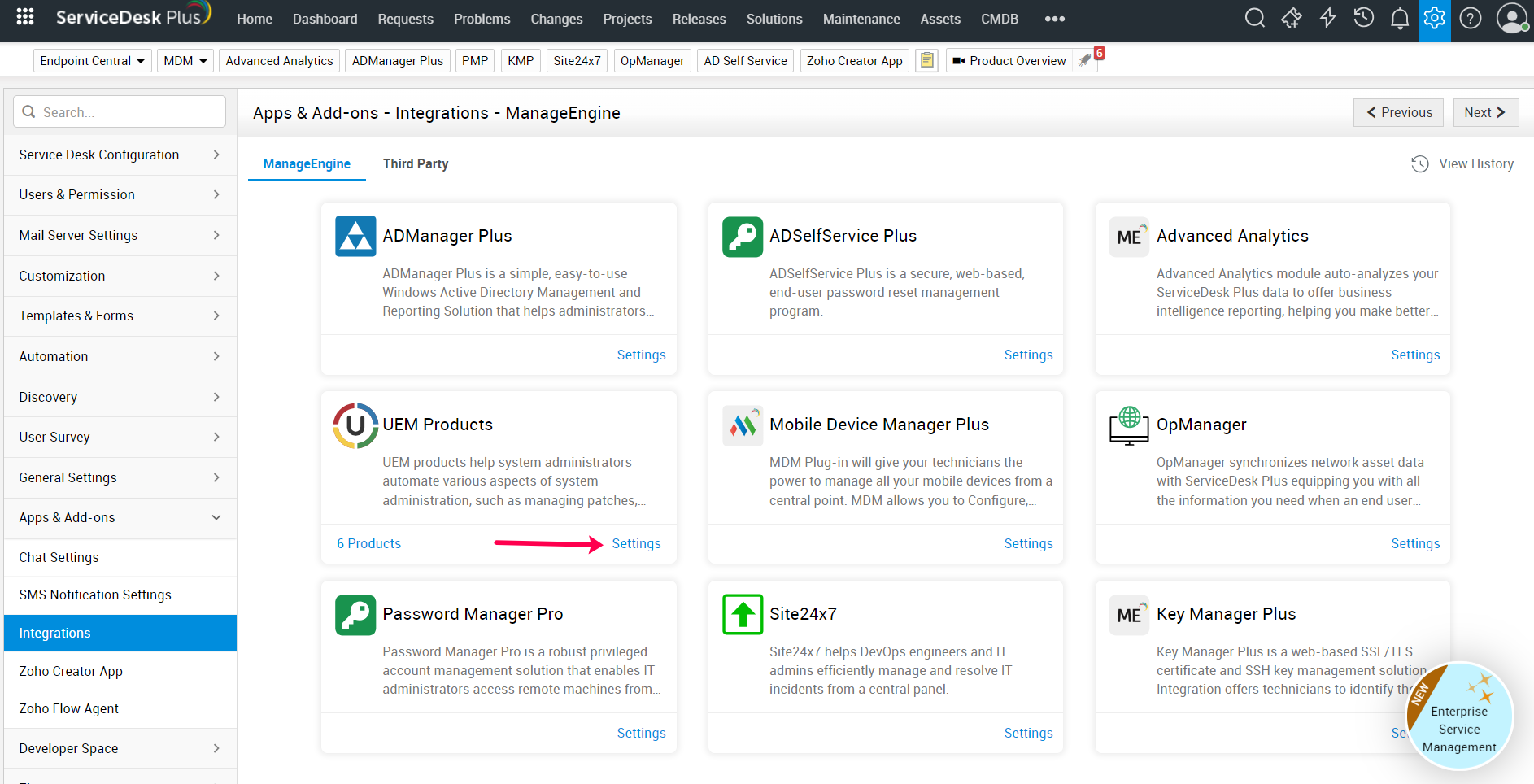
- Select UEM products
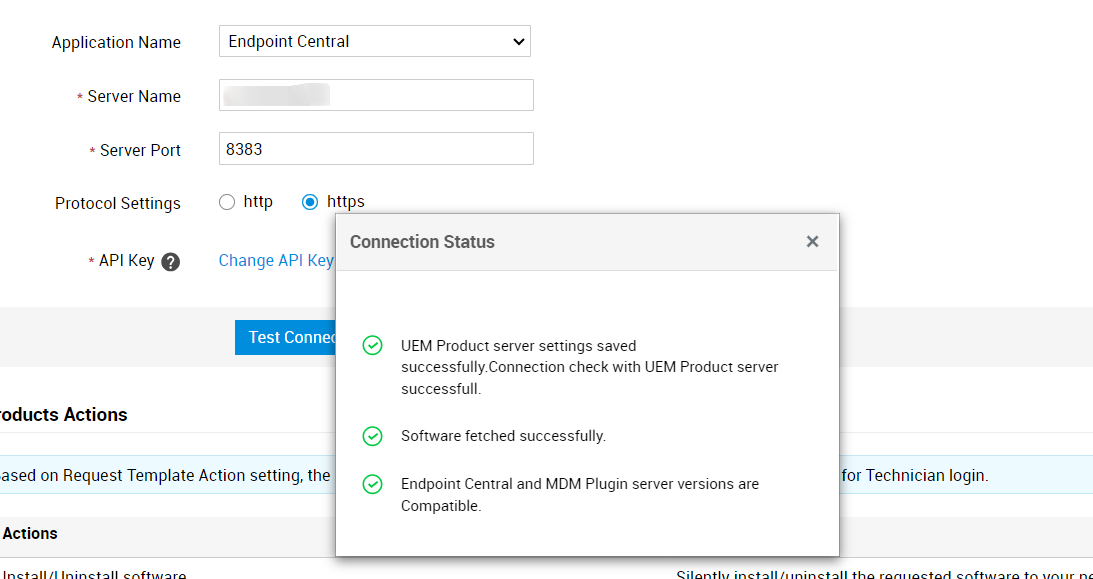
- Enable UEM add-on menu, select Endpoint Central from the drop-down box and fill in the server details. Generate API key.
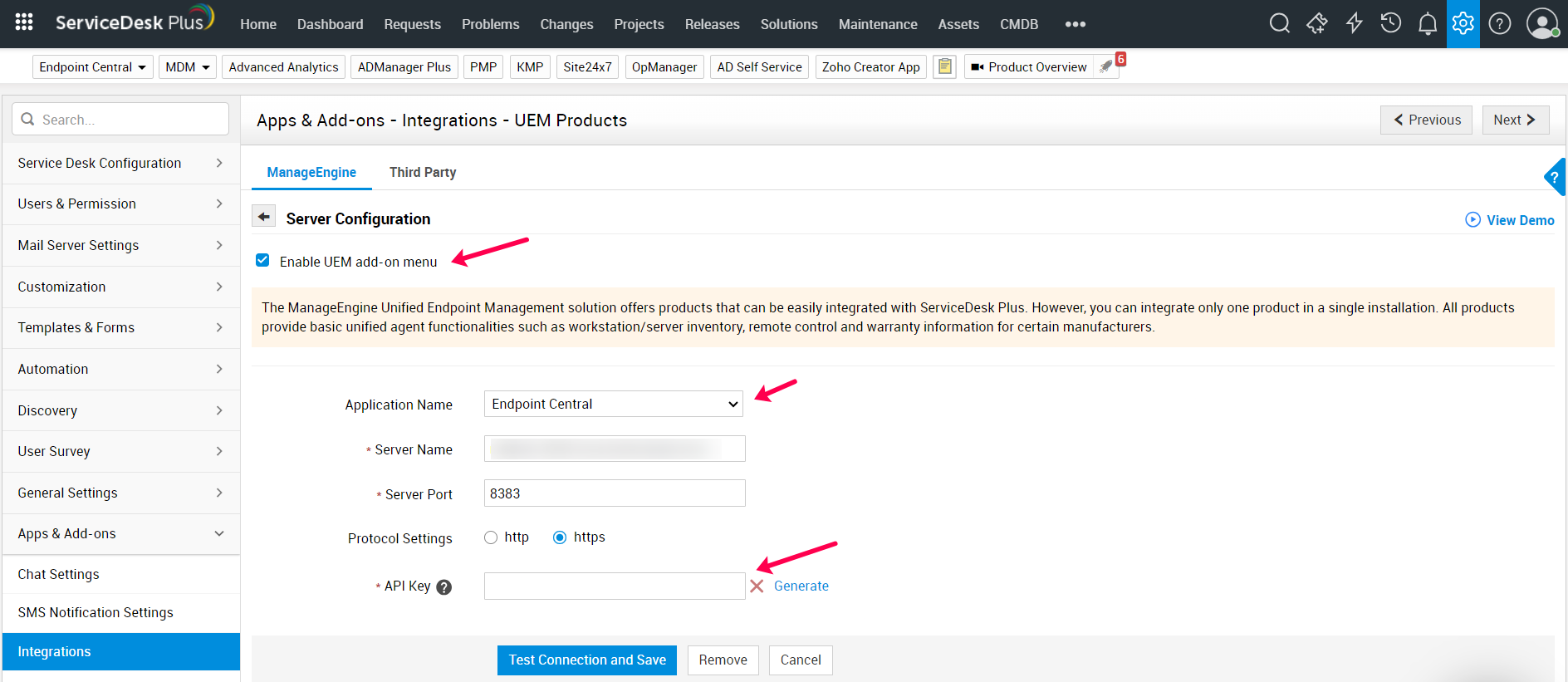
- Paste the generated key, test the connection and save