Send Network Announcements to Users & Computers
Send out unlimited announcements or alert notifications to all end users and computers, inside or outside your corporate network using Endpoint Central. In just one step, the message is delivered to all selected users. In critical situations where emails aren't reliable, Announcements help display information instantly on all targeted endpoints.
Supported OS: Windows
Schedule an announcement
Hint: Use announcements to notify users about VPN maintenance or critical patch deployments.
- Navigate to Tools > Announcement > Create Announcement.
- Choose to display the message to specific users or computers.
- Customize a relevant message title and content using rich text options such as tables, links, highlights, and pointers.
- To add an image, select Insert Image in the Message editor and then select Upload.
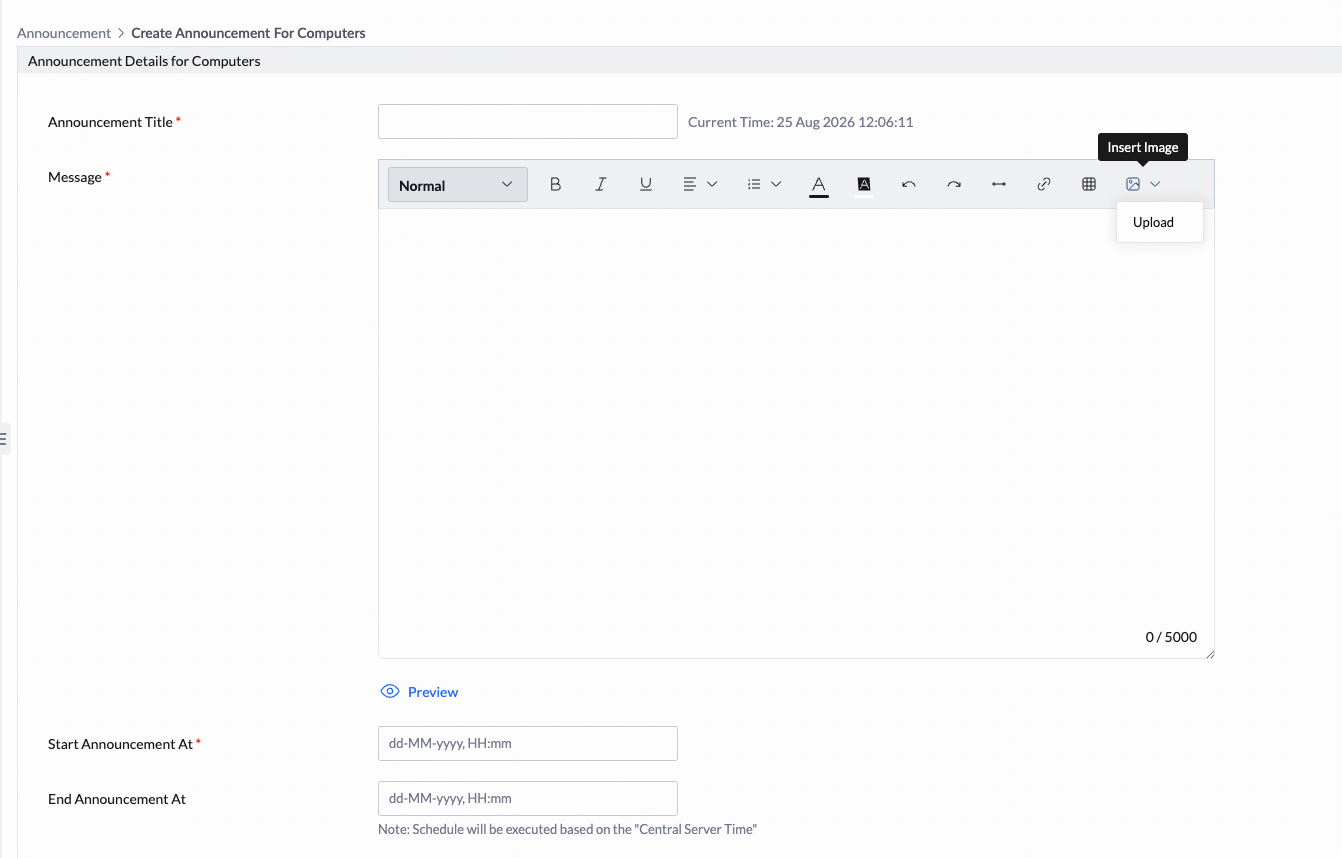
- Select one image in JPG, JPEG, or PNG format. The image must be no larger than 1 MB and must not exceed 300 x 300 pixels.
- Confirm that the image appears in the Message editor.
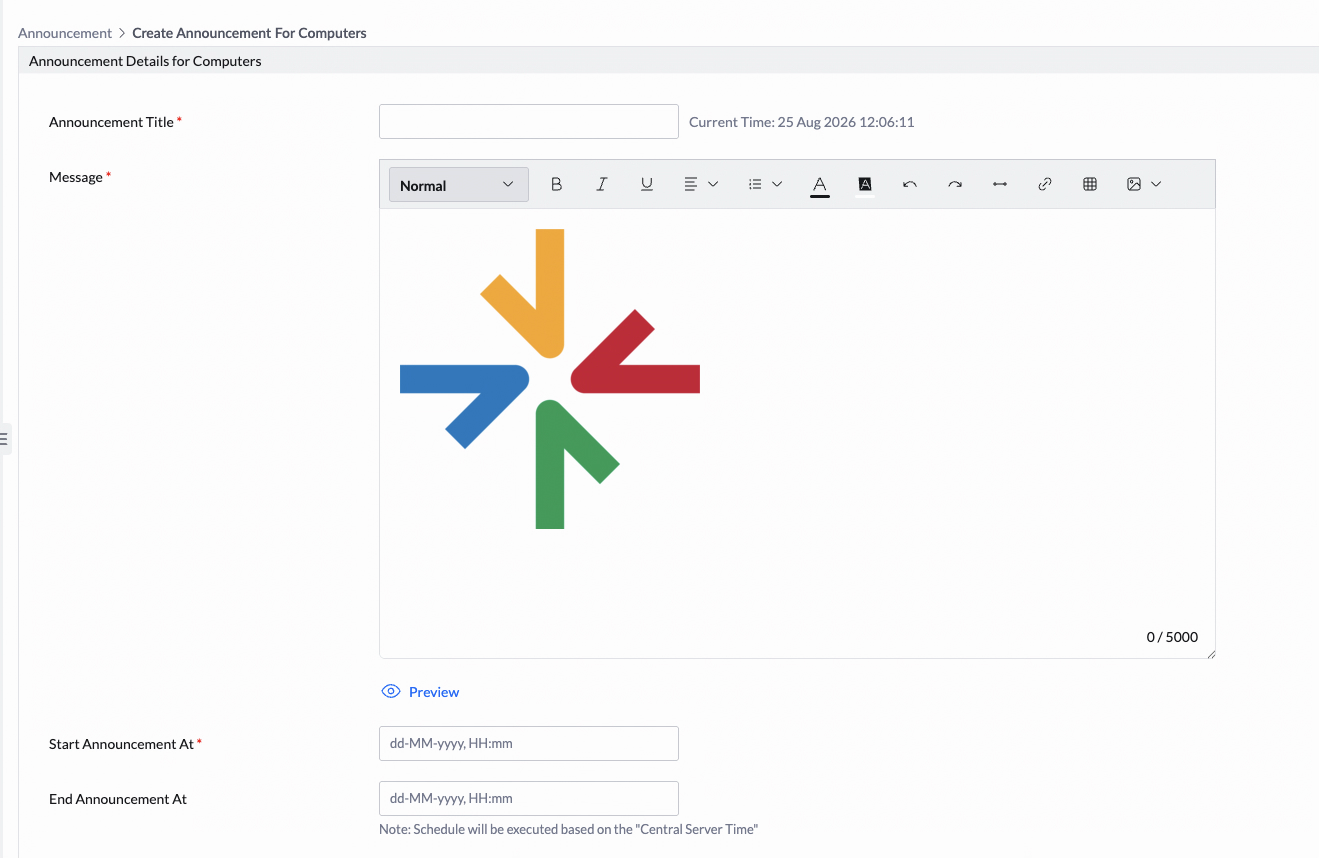
- Select Preview to verify the announcement content and image.
- Specify the start and expiry time for the announcement.
- Select whether the message should display once or multiple times within the specified time range.
- Define the target: choose Remote Office, Domain, or Custom Group users or devices.

Image Attachments and Target Selection
- Image attachments: Each announcement supports one image in JPG, JPEG, or PNG format, with a maximum file size of 1 MB and dimensions within 300 x 300 pixels.
- Image validation: The error dc.tools.announcement.invalid_image indicates that the uploaded image does not meet the specified format, size, or dimension requirements.
- Target selection: Announcements can be targeted to Remote Offices, Domains, or Custom Groups. To exclude specific users or computers, create a Custom Group containing only the intended recipients.
To explicitly exclude specific users or computers from the target list, use the Exclude Target option available in the appropriate Message Box configuration.
Announcements are executed based on Central Server time. Dynamic groups cannot be used as targets for announcements.
Modify an announcement
Use the Actions menu (three dots) to perform the following on an existing scheduled announcement:
- Modify: Edit an existing announcement.
- Suspend: Temporarily stop displaying the announcement.
- Resume: Resume a suspended announcement.
- Delete: Permanently remove the announcement.

Announcement reports
Announcements can be deployed to large numbers of users or computers. It's important to track execution status and delivery.
- Click the announcement title to view detailed reports.
- View a classified summary by status: Yet to Schedule, Scheduled, Failed, Displayed, or Expired.
- See a full list of users or devices targeted.
- Use the filter option to isolate failed executions.


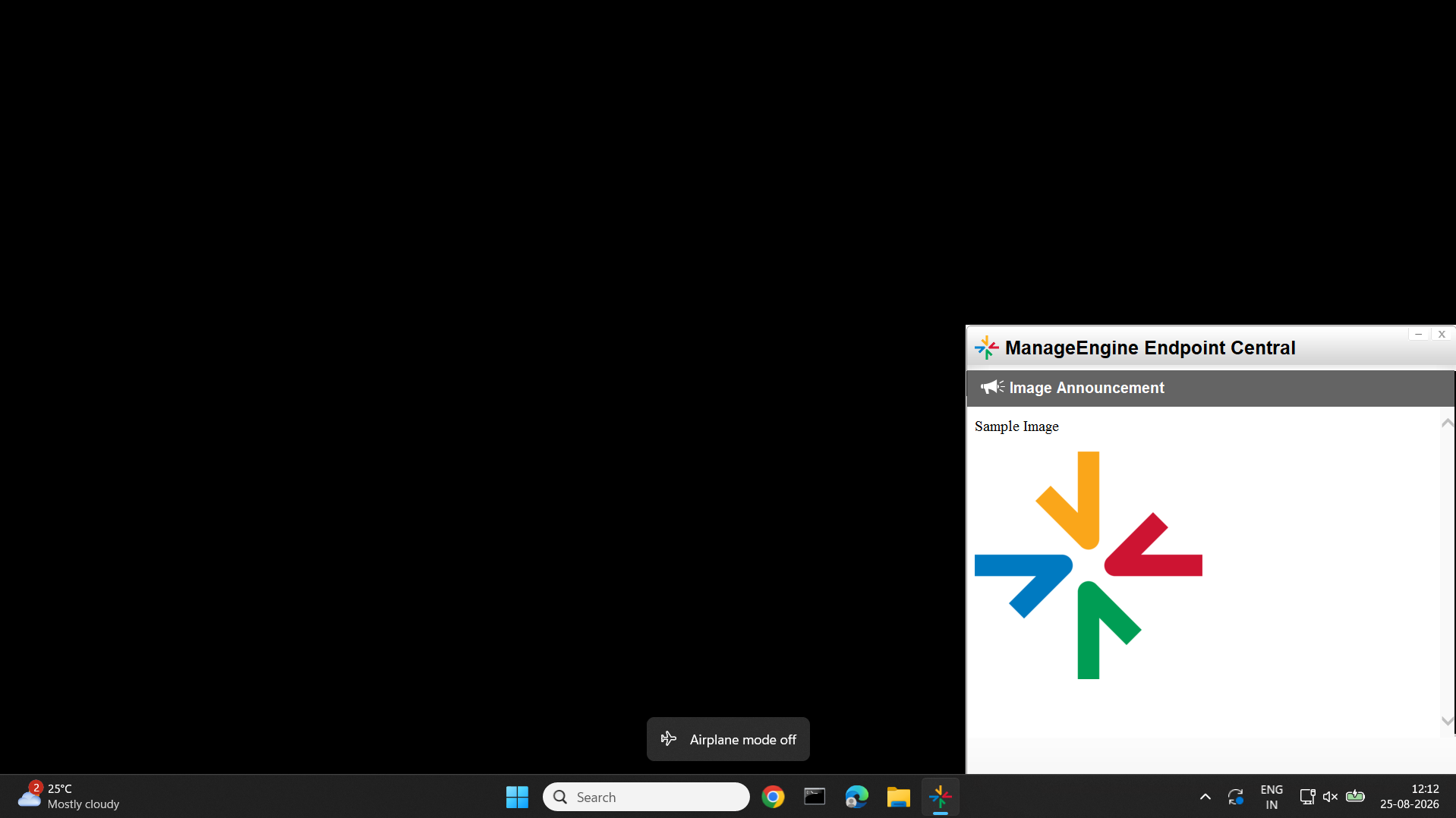
Image announcement as seen from the end user's endpoint
The uploaded image is displayed with the announcement content on the targeted endpoint.
Frequently asked questions
The status will be marked as "Expired", indicating the announcement was not shown within the time limit.
The message displays instantly to the first 200 users. Remaining users will receive it during the next 90-minute refresh interval.
- Navigate to Announcement > User/Computers.
- Select the existing announcement.
- Under Actions, select Save As New.
- Make the required changes and select Save.
It will not display unless resumed. It will only display again if the end date hasn't passed and it hasn't been shown to the targeted device yet.
Yes. It will appear on every computer where the user is currently logged in.
No. Announcements can be shown to any number of managed computers or users, either once or repeatedly.