Remote Windows Troubleshooting with System Manager
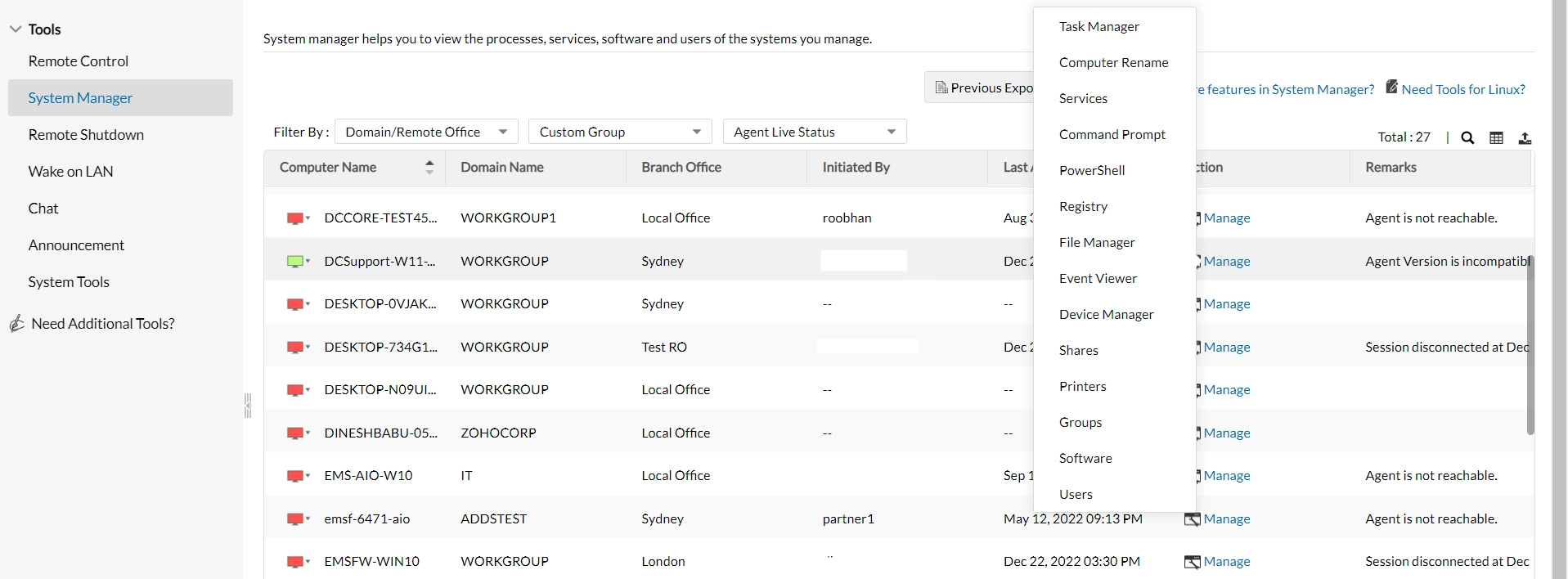
Perform troubleshooting tasks silently without interrupting end user's by leveraging the power of System Manager tools. You can instantly kill process, execute command line queries, uninstall software, block drivers and do much more from this tab. These tools are available for Windows devices.
System Manager tools
Without affecting end user's performance, silently troubleshoot endpoint's with the below System Manager tools:
Task Manager
- Kill or stop currently running process in the device.
- Sort the tasks based on users available in the remote computer.
- Export complete Task Manager report in PDF, CSV or XLSX format.
Task Scheduler
- Run, end, disable or delete tasks in the device.
- Sort the tasks based on the its current status.
File Manager
- Access drives and folders in remote computers.
- Add or delete existing files in a single click.
- Transfer files between the viewer and remote device silently.
- File Manager does not support generating recursive reports of matching file paths. To locate files by extension, use the AllFilesearchusingExtension.ps1 script available under Configurations > Templates and deploy it using a Windows Custom Script configuration. The matching file names, paths, and sizes can be viewed under Execution Status > Remarks.
- The script only identifies files and does not download them. To download the files, use File Manager through Remote Control or Tools > System Manager > Manage > File Manager. Activities can be reviewed under Admin > Action Log Viewer.
Device Manager
- Get a complete list of devices and drivers associated to each computer.
- Choose to enable/disable the drivers related to the devices instantly.
Services
- Remotely start, stop, or restart a service.
- Customize the startup mode for each service for best performance.
- For shutdown, restart, logoff, and scheduled power operations, use the Shutdown Tool, which supports including and excluding target devices.
Event Viewer
Event Viewer enables administrators to remotely view Windows system, application, and security event logs without interrupting the end user.
- View events related to Windows services, hardware and driver failures, unexpected shutdowns, disk activity, installed applications, successful and failed logons, logoffs, and policy changes.
- Analyze errors, warnings, and informational messages using timestamps and Event IDs to troubleshoot system crashes, performance issues, and security-related events.
- Export available event information in EVTX, XML, TXT, or CSV formats for further analysis and troubleshooting.
Event Viewer is supported only for Windows event logs and does not collect logs from Linux or macOS devices. For supported Linux command-line troubleshooting, use the Terminal tool.
Registry
- Remotely view and modify registry keys and values on a managed computer.
- Use the Search option to identify a key, value, or data entry.
- Export a detailed registry report of a managed system for troubleshooting.
- The Registry Editor panel width cannot be resized. Use Search or export the detailed registry report when a value is not completely visible.
Command Prompt
- Execute commands to automate tasks using scripts and batch files.
- Perform advanced administrative functions and other command-line operations on managed computers.
- Run Command Prompt with administrator or specific-user privileges.
PowerShell
- Execute advanced scripts and administrative commands through a standard remote Windows PowerShell console session.
- Streamline administrative tasks, including executing scripts and managing system configurations.
- PowerShell ISE (Integrated Scripting Environment) is not available through System Manager.
Clipboard copy and paste is supported in the current remote Command Prompt and PowerShell sessions. To copy text, select the required text and right-click. To paste, use Ctrl+Shift+V. If Ctrl+V inserts the literal characters ^V, use Ctrl+Shift+V instead.
Terminal
- Interact with the Linux OS using text-based commands for various tasks.
- Create and run scripts to automate tasks and manage systems efficiently.
Software
- View and manage currently installed software of the computer.
- Uninstall unnecessary software in the remote device directly.
Hardware
Get a full picture of all the in-built and external hardware attached to the managed computers.
Shares
- Get a list of all shared folders by the managed computer with path and description given.
- View and manage the shared folders with it's sessions and open files details.
- Set restrictions for number of users to access the shared folders.
Users
- Open Manage > Users for a device to view its local user accounts and identify whether each account is active or disabled.
- To view local administrators across multiple computers, navigate to Reports > Inventory Reports > System Group Users, select the required domain and Local Accounts, and filter the group by Administrators. To check a specific user, create a Computer custom report filtered by Username, including the Computer Name, Is Local Account, and Group columns.
Groups
- View and manage local users and groups of the managed computer.
- Perform actions like adding or removing group and members in group.
Printers
View and download the printer details available for an individual managed computer.
Historical print-job information for individual users can be reviewed through Event Viewer on the respective computer, provided the events have been logged and retained by Windows. For organization-wide printer information or customized reports, use PowerShell scripts through Executing Custom Scripts.
Computer Rename
Remotely rename managed computers in workgroup or Active Directory domain-based setup. If the computer name is changed locally on the endpoint, the updated name is reflected in Endpoint Central during the next agent refresh cycle.
Essential settings
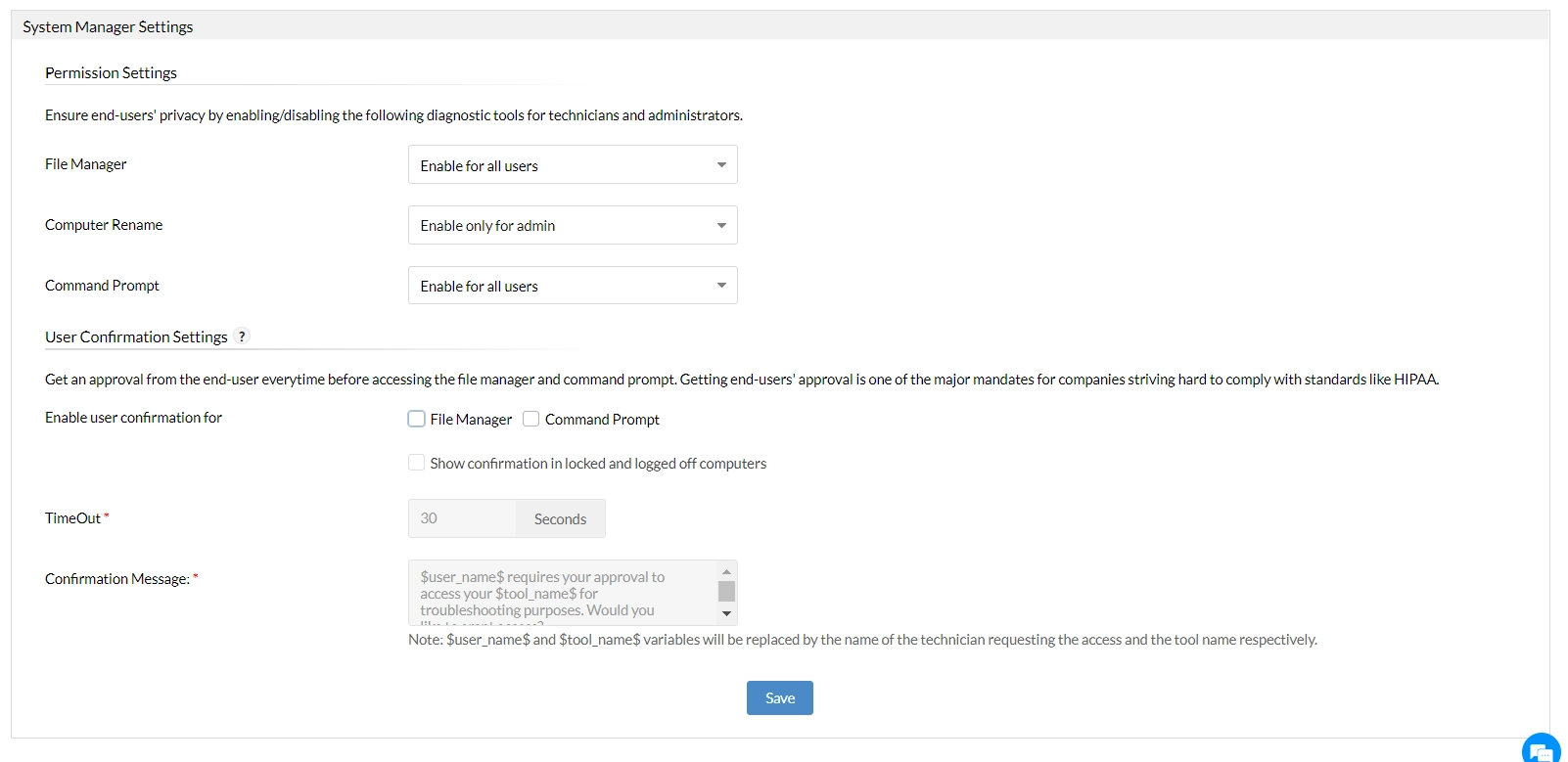
By configuring system manager settings, stay compliant to policies like HIPPA and end user's privacy is not breached.
- Navigate to Admin -> Tools Settings -> System Manager Settings
- Permission Settings: Restrict access to File Manager, Computer Rename, and command-line tools. Command Prompt and PowerShell share the same Command-line interface permission category.
- Enable for all users: No user-level restriction is applied to the tools.
- Enable only for admin: Only administrators can access the tools.
- Disable for all users: Administrators and technicians cannot access the tools.
- Permanently disable for all users: This setting can be reverted only by support.
- To restrict File Manager access for specific technicians, navigate to User Management > Roles, remove the File Manager permission from the required custom role, and assign the role to the respective technicians.
Note:System Manager permissions are managed at the administrator or technician role level and cannot be restricted to specific managed computers. Modifying registry settings or using scripts to restrict file access on endpoints is not recommended, as these changes may affect normal Windows operations.
- User Confirmation Settings: Get approval from end user before accessing certain System Manager tools.
- Enable user confirmation for: This setting applies to File Manager and the Command-line interface. The Command-line interface option includes both Command Prompt and PowerShell. To disable user confirmation for both command-line tools, clear the Command-line interface option and save the settings.
- If "show confirmation in locked and logged off computers" is not enabled, technician or admin will be able to access without end users approval.
- Time Out: Set a waiting time within which end user must approve. When time exceeds remote session will not be initiated.
- Confirmation Message: Customize message displayed on end users device.
- Viewing System Manager Activity Logs
To review System Manager activities and configuration changes, follow these steps:
- Navigate to Admin > Action Log Viewer.
- Select the required date range and filter the module by System Manager.
- Review the Username and Remarks columns to identify the technicians who modified System Manager settings or performed System Manager actions.
Steps to access system manager tools
- Navigate to Tools -> System Manager
- Click on Manage corresponding to the device name you wish to access under Action column.
- All available System Manager tools will be listed.
- Pick the one you wish to access. If user conformation is applicable server will wait for approval.