Remote Shutdown
End users generally tend to leave devices on even when not working. This significantly impacts an organization's power consumption and expenses. Shut down the managed devices in one click and save energy by leveraging the capabilities of remote power operations.
Supported OS: Windows, Mac, Linux
Instant power actions
Perform any power operation on unattended devices instantly with Endpoint Central's advanced power management capabilities.
- Navigate to Tools -> Remote Shutdown. All the managed devices will be listed here.
- Select the devices on which you wish to perform a power operation.
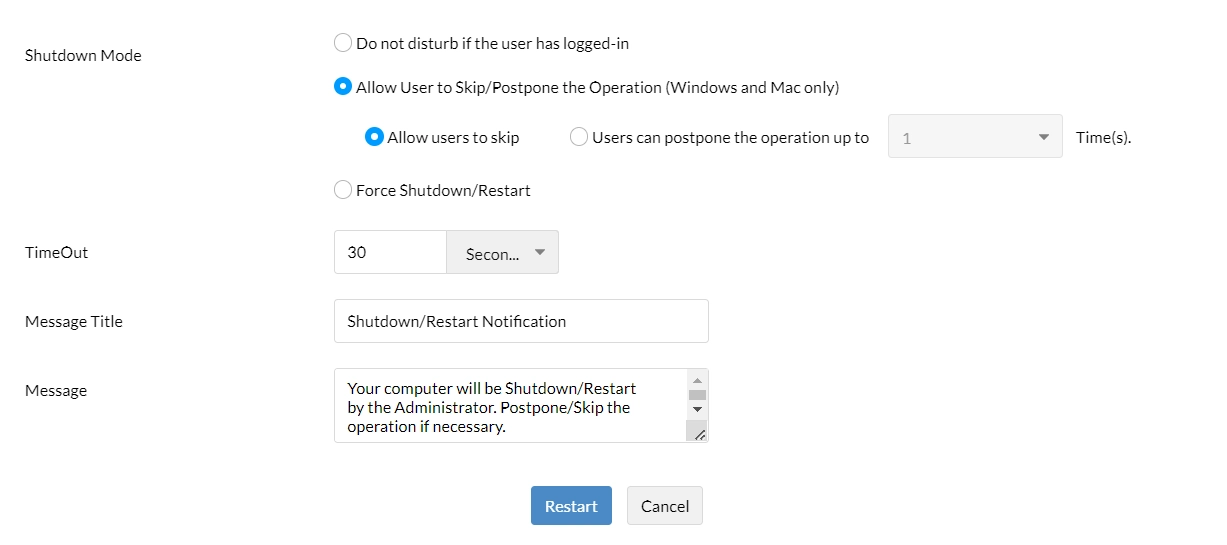
- Click Shutdown Now or More Actions to perform Restart, Hibernate, Log Off, Standby, or Lock.
- Since Shutdown and Restart interrupt the end user's session, you can customize the required settings.
- In case of Log Off, you can choose to log off the current user or all users on the endpoint.
Automate power management
Automate power operations to occur at regular intervals without admin intervention by scheduling tasks.
Hint: Try scheduling shutdown on weekends to optimize power consumption in your organization.
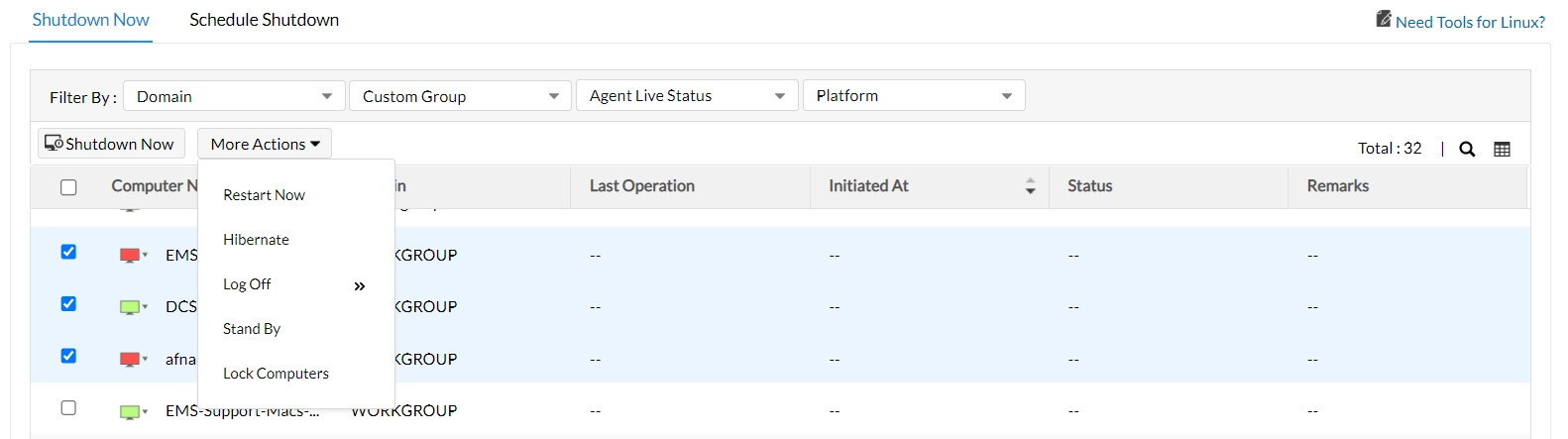
- Navigate to Remote Shutdown -> Scheduled Shutdown and click Add Shutdown Task.
- Give the task a name and choose the action: Shutdown, Restart, Hibernate, Log Off (current or all users), Standby, or Lock.
- Configure shutdown/restart settings to avoid end-user disruption.
- Define Targets: Specify the devices where the task should apply. Learn more
- Configure Scheduler:Customize frequency and time:
- Once: Task will run a single time.
- Daily: Run daily, on alternate days, or weekdays only.
- Weekly: Schedule actions for specific days of the week.
- Monthly: Run during certain months or on specific weeks/days of the month.
- Click Save to schedule the task.
- You can later modify, suspend, delete, or execute the task on demand from the same tab.
Scheduling Behavior
- Task details: Use the Task Name, Operation, Next Run Time, Frequency, and Status columns on the Scheduled Shutdown page to identify scheduled power actions.
- Task management: Use Suspend to pause recurring tasks, Resume to continue them, and Delete to remove schedules that are no longer required.
- Offline targets: One-time tasks execute only at their scheduled time. If a target is offline, the action is skipped. Recurring tasks execute at their next scheduled occurrence.
- Time zone: Under Scheduler Settings, configure Start at and select the required time zone. Each task follows a single time zone for all targets. Create separate tasks for different local execution times.
- Target exclusions: Define Targets supports included and excluded targets. To exclude an individual computer, select Computer as the exclusion type instead of Operating System.
- Log off Inactive User(s): This scheduled action supports a minimum frequency of once per day, with execution based on the configured schedule.
Shutdown or Restart Settings
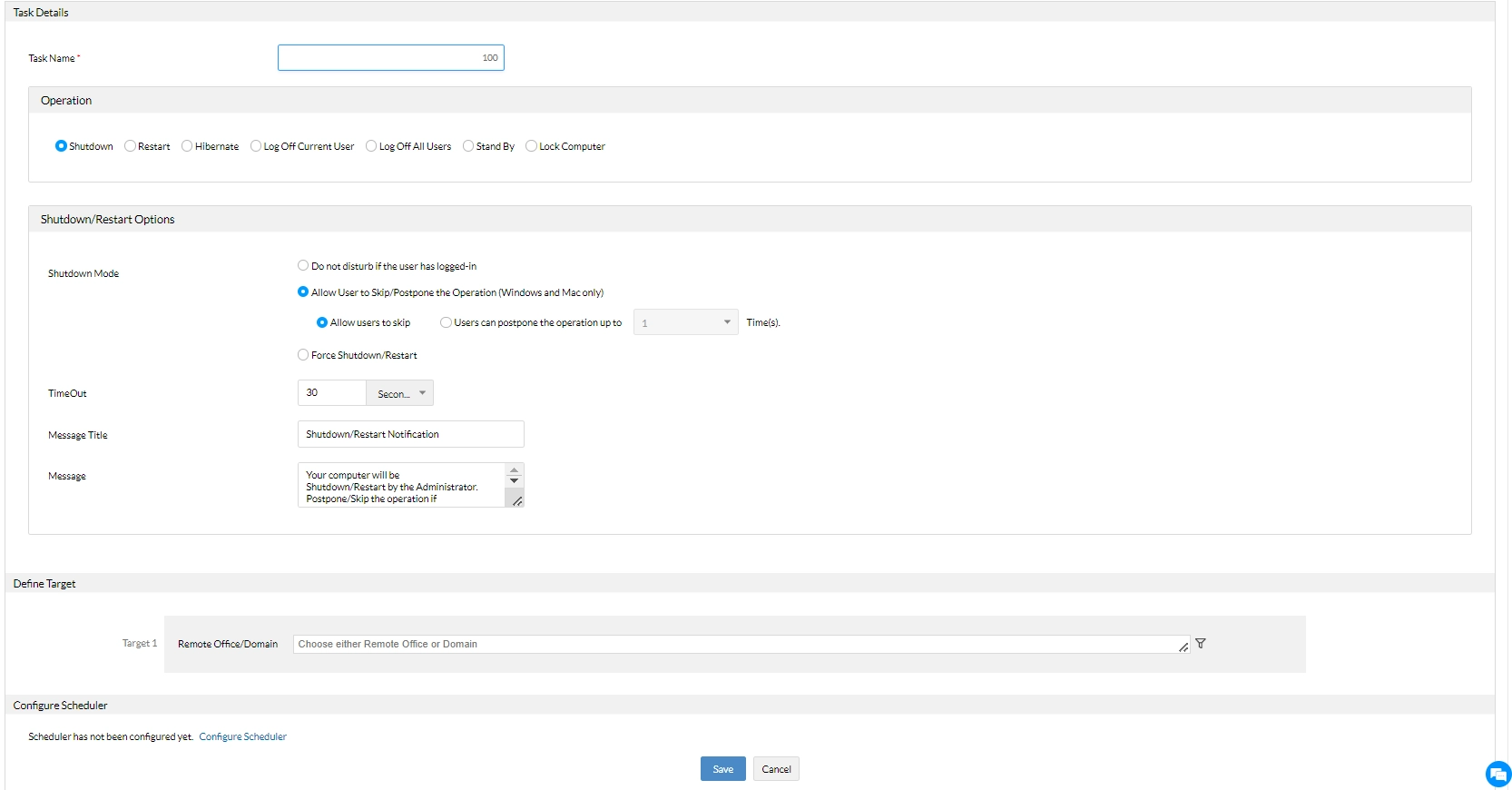
While initiating on-demand or scheduled shutdown or restart, you'll be prompted to configure the following settings:
- Mode:Based on user preferences, choose whether to perform the action or not.
- Do not disturb if the user has logged in: Skips action if someone is logged in.
- Allow users to skip/postpone: End users can skip the task multiple times, or admins can limit postponement attempts. (Supported on Windows and Mac)
- Force Shutdown/Restart: Forcefully terminates applications before action.
- Time Out: Set how long the warning message is displayed before execution.
- Message: Customize the warning message shown on the user's device.
Postponement Behavior and Custom Scripts
Postponement for one-time tasks: When users are allowed to skip or postpone a one-time task, the task stops attempting the action once the permitted postponements are exhausted. The task may remain in Scheduled or incomplete status. To ensure execution, enable Force Shutdown/Restart and configure Time Out to provide a warning before the action is forced.
Shutdown Tool or Custom Scripts: Use the built-in Shutdown Tool to display warnings with skip or postpone options. Scripts executed as the System user run outside the interactive user session and cannot display the same postponable prompt. Use Custom Scripts for script-specific shutdown operations where an interactive postponement prompt is not required.