Windows Configurations Deploying Custom Wallpaper
Description
This document provides you with steps required to deploy a custom wallpaper to all client computers and prevent clients from changing it.
Steps
To deploy a custom wallpaper to all client computers and prevent users from changing the wallpapers, follow the steps given below:
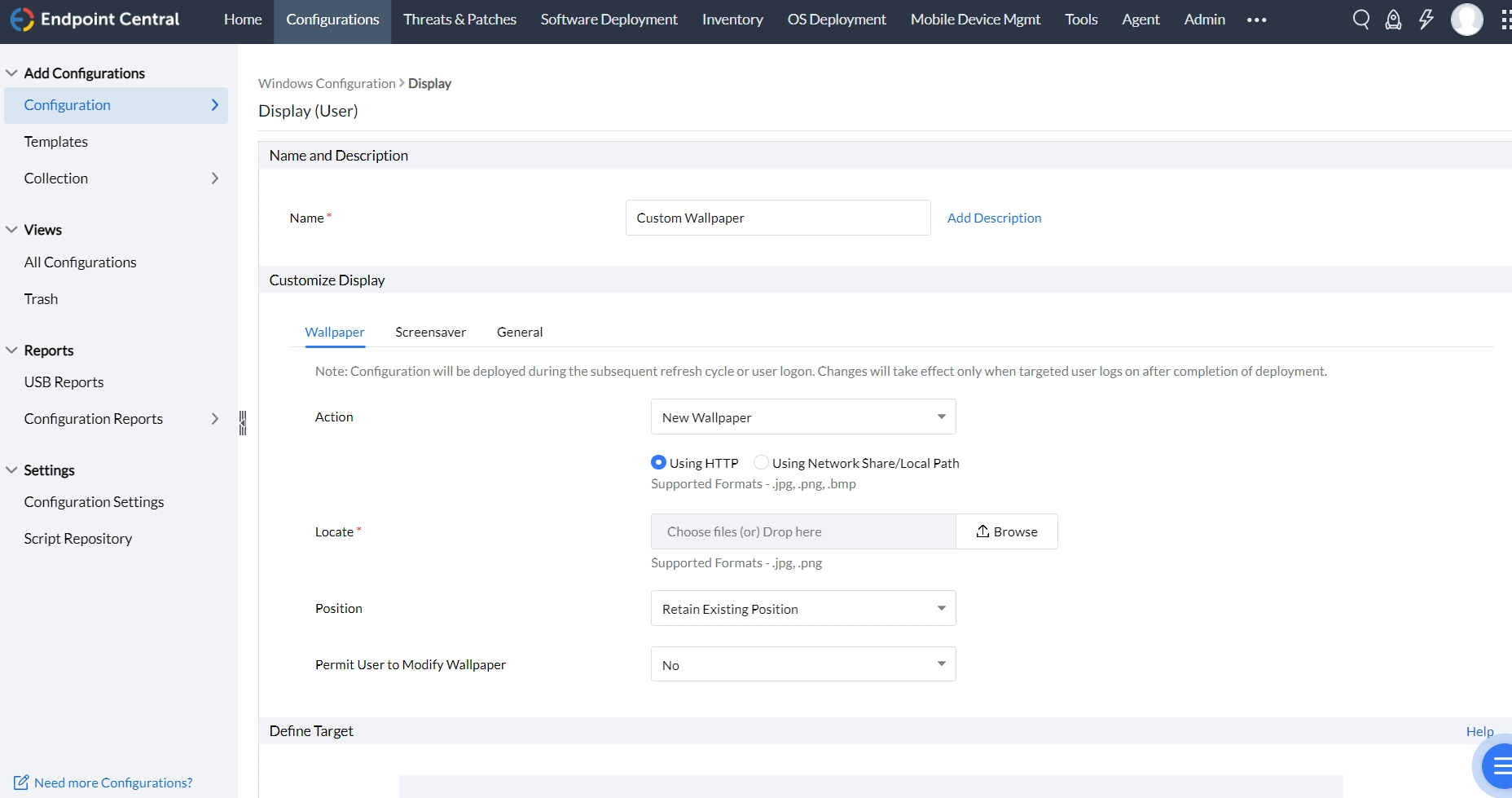
- Navigate to Configurations tab ---> Add Configurations ---> Configuration ---> Windows ---> Display ---> User
- Enter a Name and Description for the collection
- In the Customize Display criteria, enter the following details under Wallpaper
- To upload a custom wallpaper,
- Locate the image using HTTP or Network Share/ Local Path
- Specify the Position
- For the Permit User To Modify Wallpaper requisite, choose No
- Define the Target
- Specify retry options if required
- You can also enable notifications to receive emails based on the specified frequency.
- Click on the Deploy button to deploy the configuration in all the target endpoints
The settings will reflect in the client computers during the agent's 90-minute refresh cycle, during startup or during logon-whichever takes place earlier.
Troubleshoot Wallpaper Deployment
If the wallpaper configuration is deployed successfully but the wallpaper is not updated on the target computer, allow the configuration to be applied during the next agent refresh cycle, startup, or user logon. If the issue persists, verify the following:
- Windows background settings: On the target computer, navigate to Settings > Personalization > Background and verify that the background is set to Picture rather than Solid color.
- Conflicting policies: Check whether an Active Directory Group Policy, Intune policy, another wallpaper configuration, logon script, or endpoint security software is managing the wallpaper. Conflicting policies may overwrite the configured wallpaper during subsequent policy refresh cycles.
- Deployment method: The steps in this document use the native Display User Configuration. If the wallpaper is deployed using a PowerShell, batch, or other script, refer to Custom Script Computer Configuration. Verify the script's execution context, arguments, dependency files, exit code, and agent logs.
Check for Conflicting Windows Policy Values
If the wallpaper remains unchanged, check whether existing Windows policy values are conflicting with the deployed configuration. Inspect the following registry locations on the affected computer:
- Personalization policies: Navigate to
HKEY_LOCAL_MACHINE\SOFTWARE\Microsoft\Windows\CurrentVersion\PersonalizationCSPand check forDesktopImagePath,DesktopImageStatus,DesktopImageUrl,LockScreenImagePath,LockScreenImageStatus, andLockScreenImageUrl. - Wallpaper restrictions: Navigate to
HKEY_LOCAL_MACHINE\SOFTWARE\Microsoft\Windows\CurrentVersion\Policies\ActiveDesktopand check forNoChangingWallPaper. Also, inspectHKEY_LOCAL_MACHINE\SOFTWARE\Microsoft\Windows\CurrentVersion\Policies\SystemforWallpaperandWallpaperStyle. - User-specific policies: Check the corresponding policy locations under
HKEY_CURRENT_USERwhen the wallpaper is deployed through a User Configuration.
Modifying Windows registry values may affect existing policy configurations. Back up the affected registry keys and verify that the values are no longer required before making changes. Avoid deleting entire registry keys that may contain settings used by other policies.
If an obsolete registry value from a previous wallpaper policy is causing the conflict, remove only the conflicting value using the appropriate Registry Computer Configuration or Registry User Configuration. Redeploy the wallpaper configuration, restart the affected computer or sign in again, and verify that the wallpaper is updated. Check the configuration Remarks to confirm the deployment status.