Kernel security check failure: Causes and fixes for Windows 10 and 11
Last updated on:In this page
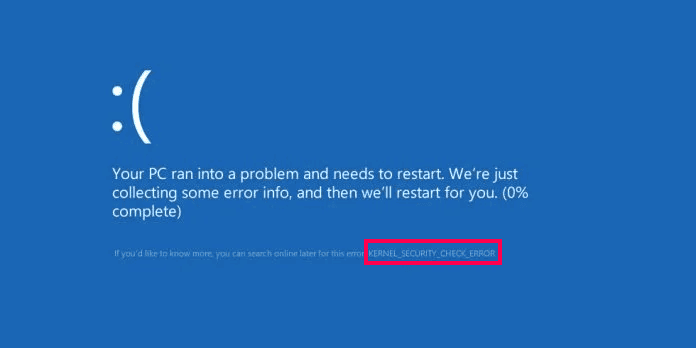
Kernel security check failure (stop code 0x139, KERNEL_SECURITY_CHECK_FAILURE) is a Windows blue screen error that appears when the kernel detects corrupted data in a critical structure. It is most often caused by a faulty driver, bad RAM or storage, corrupted system files, or a recent update.
Blue screen of death (BSOD) events represent critical system errors that prevent Windows from functioning normally. These events are recorded in Windows event logs and are triggered by an abrupt system halt, resulting in the characteristic blue screen display. BSODs arise from various factors. This article explains what causes the Windows kernel security check failure, how to fix it on Windows 10 and Windows 11, and how to identify the underlying causes across multiple machines using log analysis.
Quick fix: Kernel security check failure
Seeing the blue screen kernel security check failure right now? Try these in order and restart after each step:
- Unplug external devices (USB drives, docks, printers) and restart.
- Boot into Safe Mode. If the error stops, a driver or startup program is the cause.
- Update or roll back drivers, starting with graphics, chipset, network and storage drivers.
- Run sfc /scannow, then DISM /Online /Cleanup-Image /RestoreHealth in an administrator Command Prompt.
- Test your RAM and disk with Windows Memory Diagnostic and chkdsk C: /f /r
Get to the bottom of every blue screen
Collect crash data from all your machines and trace what triggered the failure.
Still crashing? See the full step-by-step fixes below.
Why does the Windows kernel security check failure occur?
Windows runs built-in integrity checks inside the kernel. A KERNEL_SECURITY_CHECK_FAILURE (0x139) occurs when one of those checks finds that a critical data structure has been corrupted, for example a damaged linked list or a stack buffer overrun. Windows halts immediately to protect the system, and that produces the blue screen. The corruption is usually caused by a faulty driver or failing hardware, and only rarely by malware.
This can stem from various sources. This section explores the common reasons behind these critical failures.
- Faulty drivers: Drivers act as intermediaries between the operating system and hardware components. A faulty driver, especially one with bugs or compatibility issues, can attempt to access memory or perform actions it's not authorized for. This unauthorized access triggers the kernel security check, leading to a BSOD.
- Hardware problems: Faulty hardware, particularly RAM or storage devices, can cause unexpected behavior that is interpreted by the kernel as a security threat. For example, faulty RAM might store corrupted data, leading the kernel to detect an attempt to access invalid memory and trigger a security check failure.
- Software conflicts: Sometimes, software conflicts can also contribute to kernel security check failures. Incompatible or buggy software applications might interact with the kernel in unexpected ways, leading to security check failures and BSODs.
- System file corruption: The Windows operating system relies on various system files for its core functionality. If these files become corrupted, they can introduce errors that the kernel perceives as security threats. Corrupted system files might lead to the kernel failing a security check and triggering a BSOD.
- Overclocking: Overclocking refers to pushing a hardware component beyond its designed operating speed. While tempting for performance gains, overclocking can introduce instability and errors. In some cases, overclocking can cause hardware to behave erratically, triggering kernel security checks and BSODs.
- Malware infections: Malicious software (malware) can intentionally target the kernel or system files to gain unauthorized access or disrupt system stability. In such cases, the kernel security check might detect these malicious activities and trigger a BSOD to prevent further damage.
- Recent Windows update: A patch can replace or conflict with a driver. If the blue screen began right after an update, that update is a prime suspect.
- Fast Startup: Fast Startup restores a saved kernel state at boot. If a driver does not resume cleanly, the integrity check can fail.
- Outdated BIOS/UEFI firmware: Old firmware can cause power-management and hardware compatibility problems that corrupt data.
Stop codes related to kernel security check failure
After an unexpected restart, the bug code in the event log tells you what Windows detected. Only 0x139 is the kernel security check failure itself. The other codes below are separate errors, but they often appear on the same machines because they share the same usual causes, such as faulty drivers, bad memory and disk problems.
| Stop code | Name | What it means |
|---|---|---|
| 0x00000139 | KERNEL_SECURITY_CHECK_FAILURE | The kernel found a corrupted critical data structure or a failed integrity check |
| 0x000000C4 | DRIVER_VERIFIER_DETECTED_VIOLATION | Driver Verifier caught a driver breaking the rules. It appears when Driver Verifier is turned on |
| 0x00000109 | CRITICAL_STRUCTURE_CORRUPTION | The kernel detected corruption of critical kernel code or data, often from a driver or hardware fault |
| 0x000000D1 | DRIVER_IRQL_NOT_LESS_OR_EQUAL | A driver accessed pageable memory at an invalid interrupt level, typically a faulty driver |
| 0x0000001E | KMODE_EXCEPTION_NOT_HANDLED | A kernel-mode program raised an exception that the error handler did not catch |
| 0x0000007F | UNEXPECTED_KERNEL_MODE_TRAP | The CPU raised a trap the kernel could not handle, often from hardware, overheating, overclocking or a faulty driver |
| 0x000000C2 | BAD_POOL_CALLER | A driver made an invalid memory pool request |
| 0x000000D6 | DRIVER_PAGE_FAULT_BEYOND_END_OF_ALLOCATION | A driver read or wrote memory past the end of its allocation |
| 0x00000024 | NTFS_FILE_SYSTEM | A problem in the NTFS file system driver, usually from disk corruption or a failing drive |
| 0x0000009C | MACHINE_CHECK_EXCEPTION | The CPU reported a fatal hardware error. Check temperatures, overclocking and hardware health |
| 0x000000A5 | ACPI_BIOS_ERROR | The BIOS is not fully ACPI compliant. Update the BIOS/UEFI |
| 0x00000001 | APC_INDEX_MISMATCH | A mismatch in kernel APC state, typically from a file system or driver bug |
Get more details about the bug codes from Microsoft's Bug Code Reference list.
How to fix kernel security check failure in Windows 10 and Windows 11
Common fixes for kernel security check failure error in Windows 10 and 11.
- Update Windows and drivers: Vulnerabilities triggered by outdated Windows or drivers can cause kernel security check errors. Ensure that your system is fully updated with the latest Windows patches and driver updates.
- Windows 10: Navigate to Settings > Update & Security > Windows Update and select Check for updates.
- Windows 11: Navigate to Settings > Windows Update and select Check for updates.
- To update the device drivers, especially display and chipset drivers, you can either manually update them through Device Manager or use the manufacturer's website for driver updates that are specific to your hardware.
- Run System File Checker (SFC) and DISM: Start the system in Safe Mode. If it doesn't encounter the error, then the system hardware and primary drivers are not at fault. If it encounters the error again, follow the steps below.
If Windows won't start, force the PC off during startup two or three times to open the Windows Recovery Environment. Then go to Troubleshoot > Advanced options > Startup Settings > Restart and press 4 or F4 for Safe Mode.
- System File Checker: Run the System File Checker (SFC) tool to scan and repair corrupted system files. Open a command prompt as administrator and type sfc /scannow. The tool will display the results of the scan. If SFC found no integrity violations, then your system files are healthy and are not the cause of the kernel security check failures. If SFC found corrupted files but couldn't repair them, this indicates a complex issue. In this case, you can run the DISM tool, which can repair the Windows image itself.
- DISM (Deployment Image Servicing and Management): Sometimes, SFC cannot fix certain severely corrupted files. In such cases, launch the DISM tool. Open a command prompt as administrator and type DISM /Online /Cleanup-Image /RestoreHealth. Please note that DISM requires an active internet connection to download the repair files.
- Consider a System Restore: If SFC and DISM fail, and the problem started recently, you can use System Restore to revert your system to a point before the errors began. This might be helpful if a recent software installation or configuration change caused the corrupted files.
NoteSystem Restore might not always be successful, and it's a last resort after trying other methods.
- Identify and fix faulty hardware: For the kernel security error caused by faulty hardware like RAM or storage device failures, run hardware diagnostics tools. Use tools like Memtest86, or the diagnostic tools provided by your system manufacturer, to test your RAM. Replace the faulty hardware if diagnostics indicate problems. Start with Windows Memory Diagnostic (press Win + R, type mdsched.exe), then run Memtest86 for a deeper test. To check the drive for errors, run chkdsk C: /f /r in an administrator Command Prompt and restart.
- Check for malware: If the kernel security check failure is due to malicious software, initiate a malware scan with your preferred antivirus or anti-malware tool to remove any potential threats.
- Fix overclocking issues: If you've overclocked your CPU or GPU for performance gains, consider disabling it temporarily.
- Uninstall the latest Windows update: If the blue screen began right after an update, remove it. On Windows 10 go to Settings > Update & Security > Windows Update > View update history > Uninstall updates. On Windows 11 go to Settings > Windows Update > Update history > Uninstall updates.
- Turn off Fast Startup: Open Control Panel > Power Options > Choose what the power buttons do > Change settings that are currently unavailable. Clear Turn on fast startup, save, then shut down fully and restart.
Kernel security check failure Windows 11
The fixes above all apply to Windows 11. One check is specific to it: drivers that conflict with Memory integrity (core isolation) can trigger this blue screen. Go to Settings > Privacy & security > Windows Security > Device security > Core isolation details. If Memory integrity is on and the error continues, update the drivers of the device that crashed. Turn Memory integrity off only briefly to test, and turn it back on once the driver is fixed, because it protects against attacks.
Kernel security check failure Windows 10
The fixes above apply to Windows 10 as well. Windows 10 reached end of support on October 14, 2025, so the PC no longer gets regular fixes from Microsoft unless it is enrolled in Extended Security Updates. Keep drivers and BIOS/UEFI firmware current from the hardware manufacturer, and consider upgrading to Windows 11 if the PC supports it.
Bonus tips:
- Analyze event logs: The Windows Event Viewer might contain clues about the specific cause of the errors. Look for entries around the time of the BSOD crash, particularly in the System and Kernel-Power logs, for any error messages or warnings that might shed light on the issue.
- Consider professional help: If you've exhausted all these troubleshooting steps and the problem persists, consider seeking assistance from a computer technician or advanced user who can help diagnose the problem further.
How log analysis helps you troubleshoot kernel security check failure
A log management solution centralizes logs from all sources across your network, including the Windows environment. If you are a system administrator, you would want centralization of log data to eliminate the need to check individual logs from different systems, saving time and effort when analyzing a BSOD.
Log analysis techniques to probe into kernel security check failures:
- Understanding error messages: Kernel logs might contain specific error messages hinting at the cause. Look for keywords like "driver violation," "memory access error," or references to specific drivers or hardware components in your kernel logs.
- Correlating events: Correlate logs from different sources to identify potential triggers. For example, kernel logs might indicate a driver issue, while application logs could show abnormal behavior before the BSOD.
Here's an example of how you can build or leverage the correlation rules in the log management platform to detect and investigate a potential kernel security check failure. Windows records two events after a blue screen: Event ID 41 (source Kernel-Power) marks the unexpected reboot, and Event ID 1001 (source BugCheck) holds the bug check code.
The rule below links the two on the same machine. It is an illustration of the logic, not exact product syntax, so adapt the fields to your log management tool.
Condition 1:  Source = Windows System log
              Event ID = 41 (Kernel-Power)
followed by
Condition 2:  Source = Windows System log
              Event ID = 1001 (BugCheck)
              Message contains "0x00000139"
Match on: same host
Within: 5 minutes
Action: raise an alert and notify the IT team
By correlating these two events, a SIEM solution or log management tool can identify situations that might be related to a kernel security check failure BSOD. Often the tools will also provide options to adjust the time limit (5 minutes) based on your needs and add other bug codes to Condition 2, such as 0x000000D1 or 0x0000007F.
How ManageEngine EventLog Analyzer helps you with kernel security check failure analysis in Windows 10 and 11
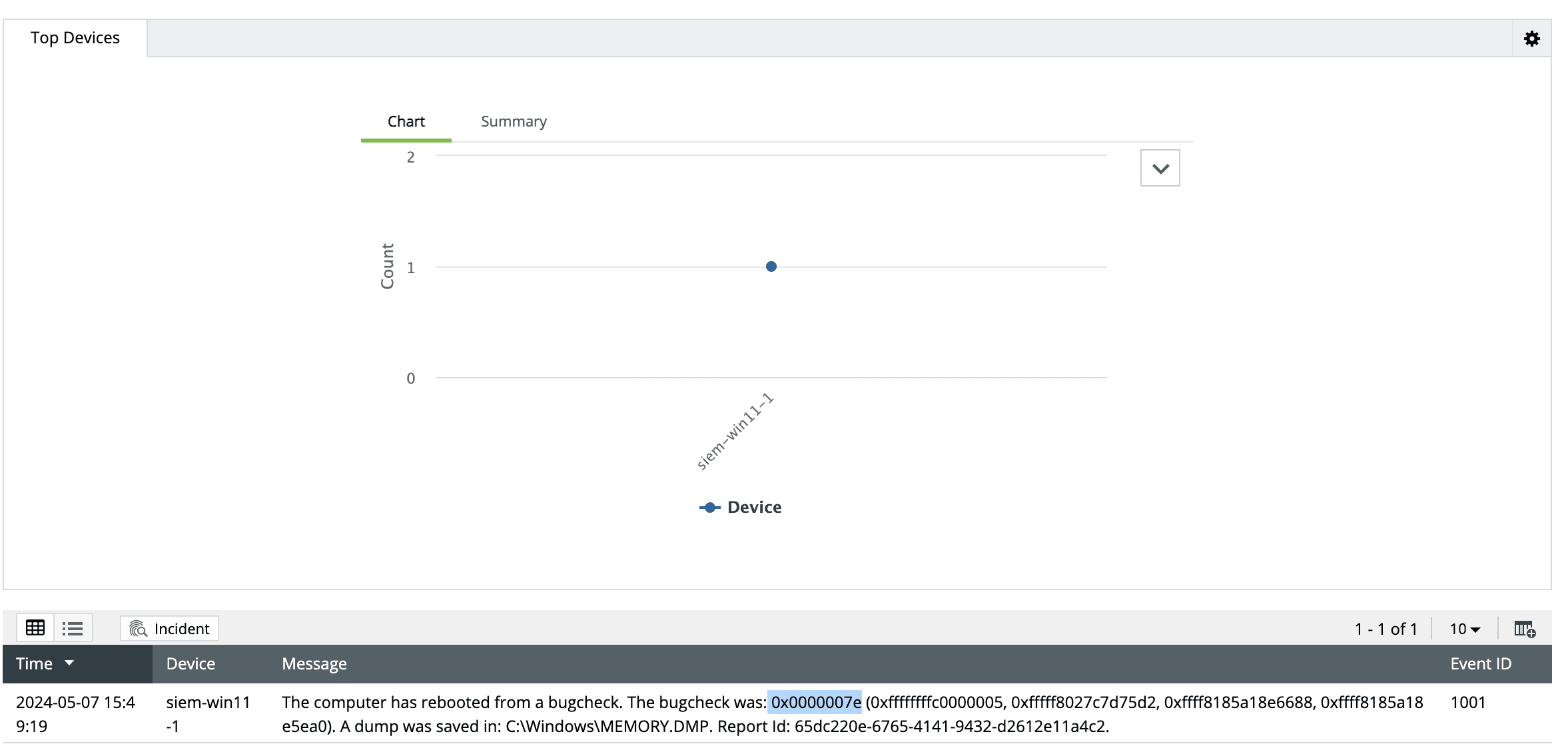
EventLog Analyzer, the comprehensive log management solution from ManageEngine, provides you with an out-of-the-box report for BSOD analysis. The report provides information on:
- Time of occurrence of BSOD
- Systems on which BSOD occurred
- Exact message for bug code analysis
- The location of the dump
- Report ID of the dump
Further, it allows administrators to trigger an alert whenever a critical Windows system is experiencing a BSOD, so they can fix it immediately without affecting business continuity.
FAQs
It is a Windows blue screen error with stop code 0x139. Windows shows it when the kernel finds corrupted data in a critical structure, or when an integrity check fails, and it stops the system to prevent damage. Faulty drivers and failing hardware are the usual causes.
Boot into Safe Mode, update or roll back drivers, uninstall the latest Windows update, then run sfc /scannow and DISM /Online /Cleanup-Image /RestoreHealth. If it continues, test your RAM and disk. On Windows 11, also check Memory integrity for incompatible drivers.
Yes. Some people search for it as "kernel check security failure." The correct name is KERNEL_SECURITY_CHECK_FAILURE, stop code 0x139, and the fixes on this page apply.
Most often a faulty or outdated driver. Bad RAM, a failing drive, corrupted system files and recent updates are also common. A virus is a rare cause, but run a malware scan to rule it out.
Force the PC off during startup two or three times to open the Windows Recovery Environment. Choose Troubleshoot > Advanced options > Startup settings > Restart and press 4 or F4 for Safe Mode. From there, roll back drivers, uninstall the latest update and run SFC and DISM.