Configuring SAML SSO for Bonusly
These steps will guide you through setting up the single sign-on functionality between ADSelfService Plus and Bonusly.
Prerequisite
- Login to ADSelfService Plus as an administrator.
- Navigate to Configuration → Self-Service → Password Sync/Single Sign On → Add Application, and select Bonusly from the applications displayed.Note: You can also find Bonusly application that you need from the search bar located in the left pane or the alphabet wise navigation option in the right pane.
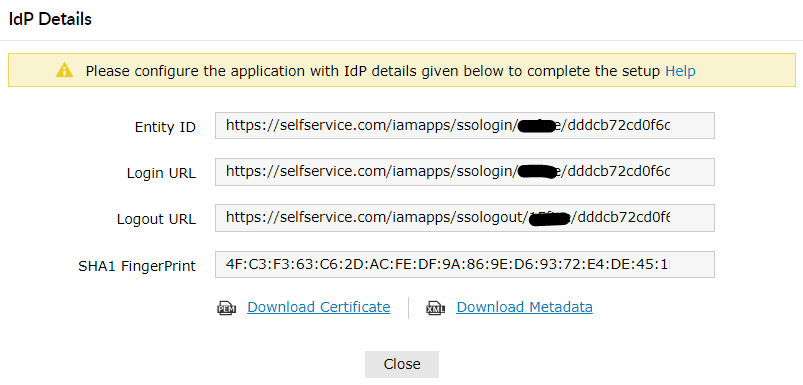
- Click IdP details in the top-right corner of the screen.
- In the pop-up that appears, copy the Entity ID, Login URL and download the SSO certificate by clicking on the Download Certificate.
Bonusly (Service Provider) configuration steps
- Login to Bonusly with an administrator’s credentials.
-
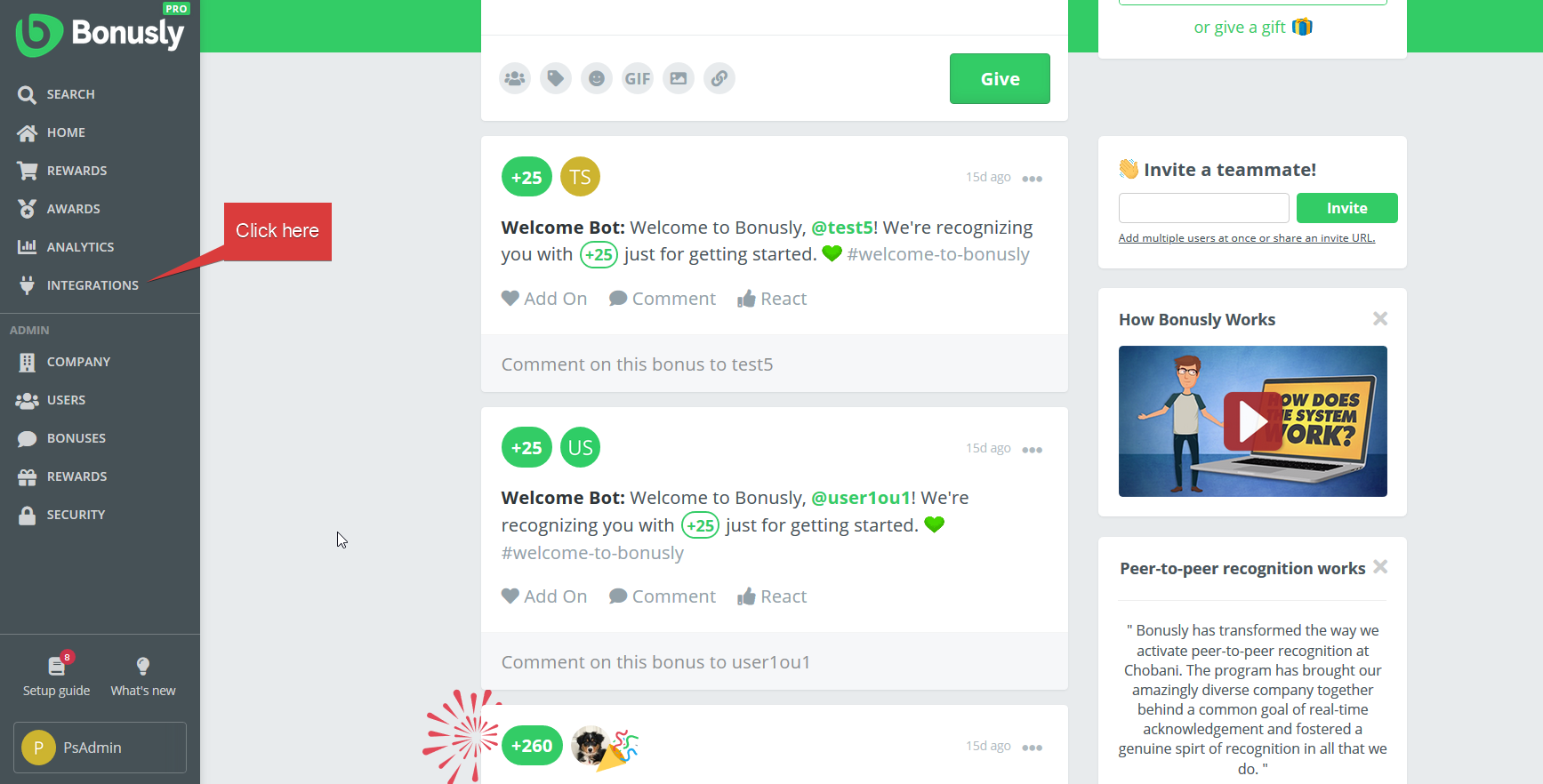
Navigate to Integrations → Single sign on.
-
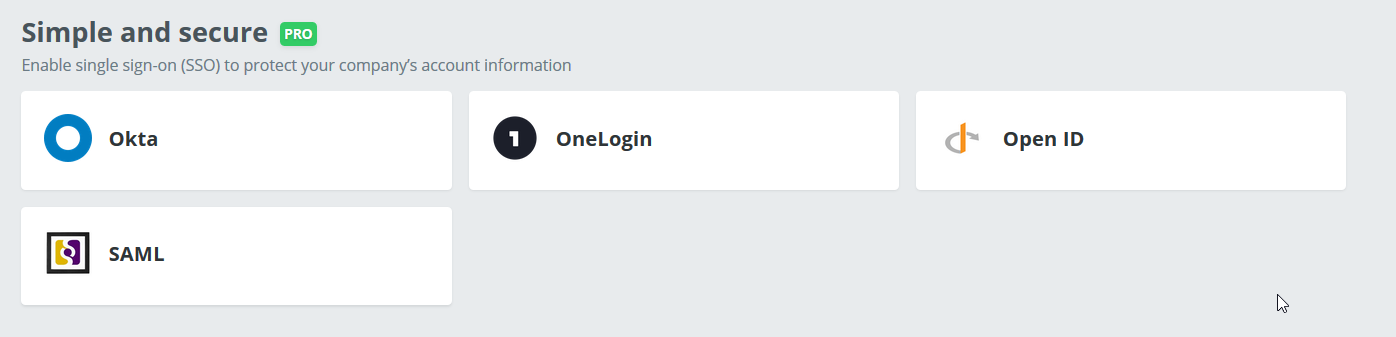
Click SAML button from the Simple and Secure section.
- Copy App ID.
- Uncheck Automatically configure from Metadata option.
-
Paste the Entity ID and Login URL , copied in Step 4 of Prerequisite, in the IdP Issuer (Entity ID) and IdP SSO target URL fields.
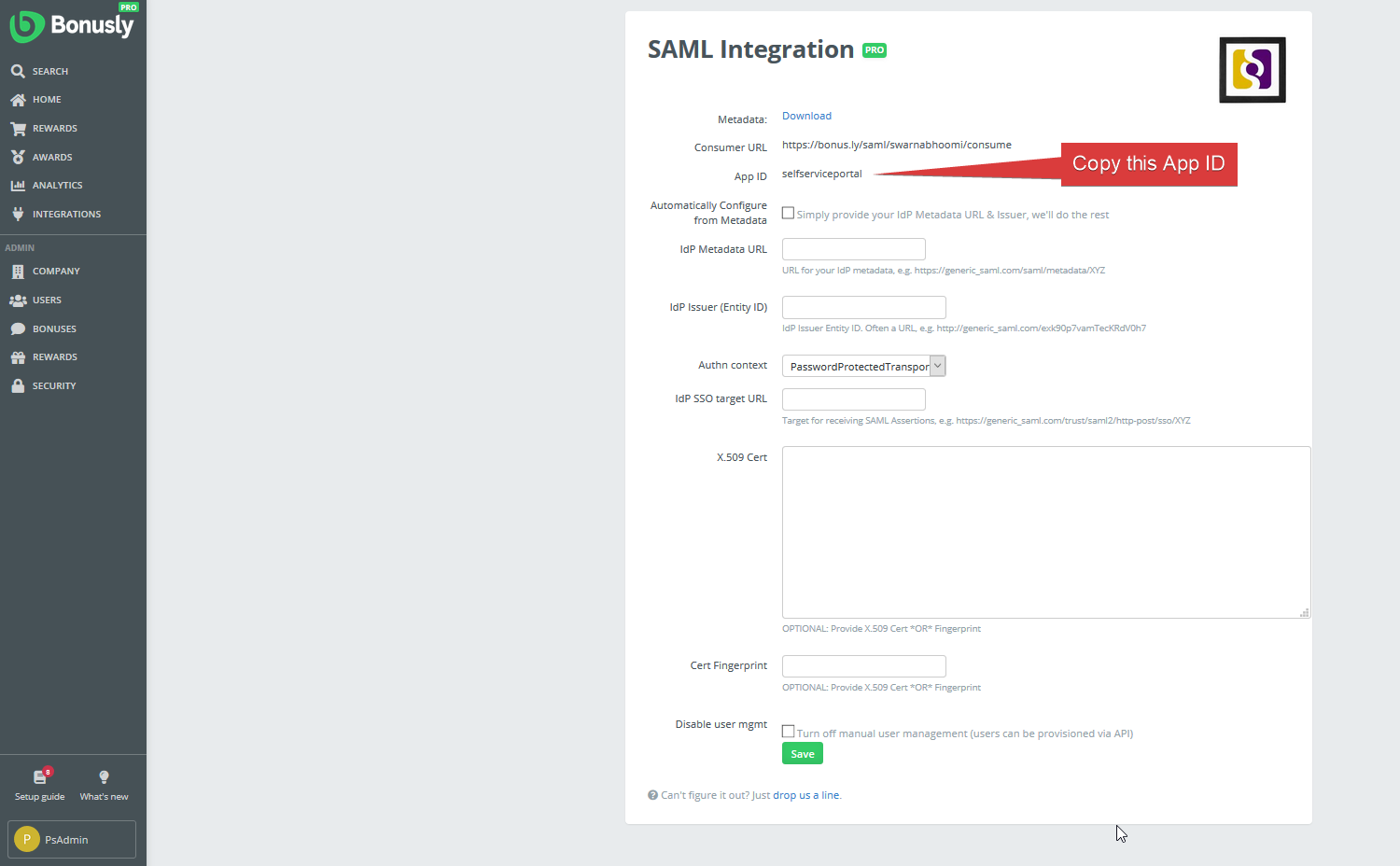
- Choose PasswordProtectedTransport as Authn context.
- Open the downloaded certificate as a text file. Copy and paste the content in the X.509 Certificate text field. You can also paste the Fingerprint value in Cert fingerprint field for authentication.
- You can save the configuration.
ADSelfService Plus (Identity Provider) configuration steps
- Now, switch to ADSelfService Plus’ Bonusly configuration page.
- Enter the Application Name and Description.
-
In the Assign Policies field, select the policies for which SSO need to be enabled.
Note: ADSelfService Plus allows you to create OU and group-based policies for your AD domains. To create a policy, go to Configuration → Self-Service → Policy Configuration → Add New Policy.
- Select Enable Single Sign-On.
- Enter the Domain Name of your Bonusly account. For example, if you use johndoe@bonusly.com to log in to Bonusly, then bonusly.com is the domain name.
- In the Name ID Format field, choose the format for the user login attribute value specific to the application.
- Click Add Application
Enter App ID copied in the step 4 of Bonusly configuration in the App ID field.
Note: Use Unspecified as the default option if you are unsure about the format of the login attribute value used by the application
Note: For Bonusly, single sign-on is supported for SP and IDP initiated flow.