Login agent customization
In ADSelfService Plus, login agent customization lets administrators change the appearance and behavior of the ADSelfService Plus login agent that runs on the computers in your organization. The login agent adds a password reset and account unlock option to the machine login screen. These settings are stored on the ADSelfService Plus server and applied to login agents on both Active Directory (AD)-joined and Microsoft Entra ID-joined machines, so a single configuration covers your entire directory environment.
How the feature works
The ADSelfService Plus login agent runs on each managed computer and presents a button, link, or tile on the machine login screen that end users select to reset a forgotten password or unlock a locked-out account. You configure what the login agent displays on the GINA/Mac Customization page, and ADSelfService Plus pushes those values to the agent.
The GINA/Mac Customization page is independent of the current product directory type. As the on-screen note states, changes you save affect all the directory types. The page is organized so that AD-joined and Entra ID-joined machines follow parallel paths:
- Shared settings — the icon, Frame Text, and Configure Access URL apply to every login agent regardless of directory type.
- Directory-specific button text — AD Button Text sets the button label on AD-joined machines, and AAD Button Text sets the button label on Microsoft Entra ID-joined machines.
- Advanced settings — in the Advanced dialog, Common Settings apply to all directory types, while Active Directory Settings apply only to AD-joined machines.
Customization affects only login agent installations performed after you save. To update agents that are already installed, run the customization scheduler. For more details, see GINA/Mac Customization Scheduler.
Prerequisites
Before you customize the ADSelfService Plus login agent, confirm the following:
- Permissions: You must log in to ADSelfService Plus with administrator credentials.
- Icon file (optional): To replace the default login agent icon, prepare a BMP file of 48x48 pixels that is no larger than 250KB.
Limitations
The following constraints apply to ADSelfService Plus login agent customization:
| Note: Customization applies only to upcoming login agent installations. Existing installations require the GINA/Mac Customization Scheduler .Login agent interface localization is supported only on Windows. Linux and macOS login agents support English only. Frame Text applies only to Windows XP machines. Show the Password Option by Default even if Other Windows Sign-in Methods are Enabled applies only to Windows Vista and later. Restrict user access when there is an invalid SSL certificate is supported on all Windows and Linux versions and on macOS up to version 12. On macOS 13 (Ventura) and later, you must trust the ADSelfService Plus CA certificate in Keychain Access.The Active Directory Settings in the Advanced dialog ( Install GINA/CP using and Password Rules Dialog Box ) apply only to AD-joined machines. |
|---|
Configuration instructions
To customize the ADSelfService Plus login agent, configure the customization page, the advanced settings, and, if needed, the display language. The following steps cover both AD-joined and Entra ID-joined machines.
Open the customization page
- Log in to ADSelfService Plus with administrator credentials.
- Go to Configuration > Administrative Tools > GINA/Mac/Linux (Ctrl+Alt+Del).
- Click GINA/Mac Customization.
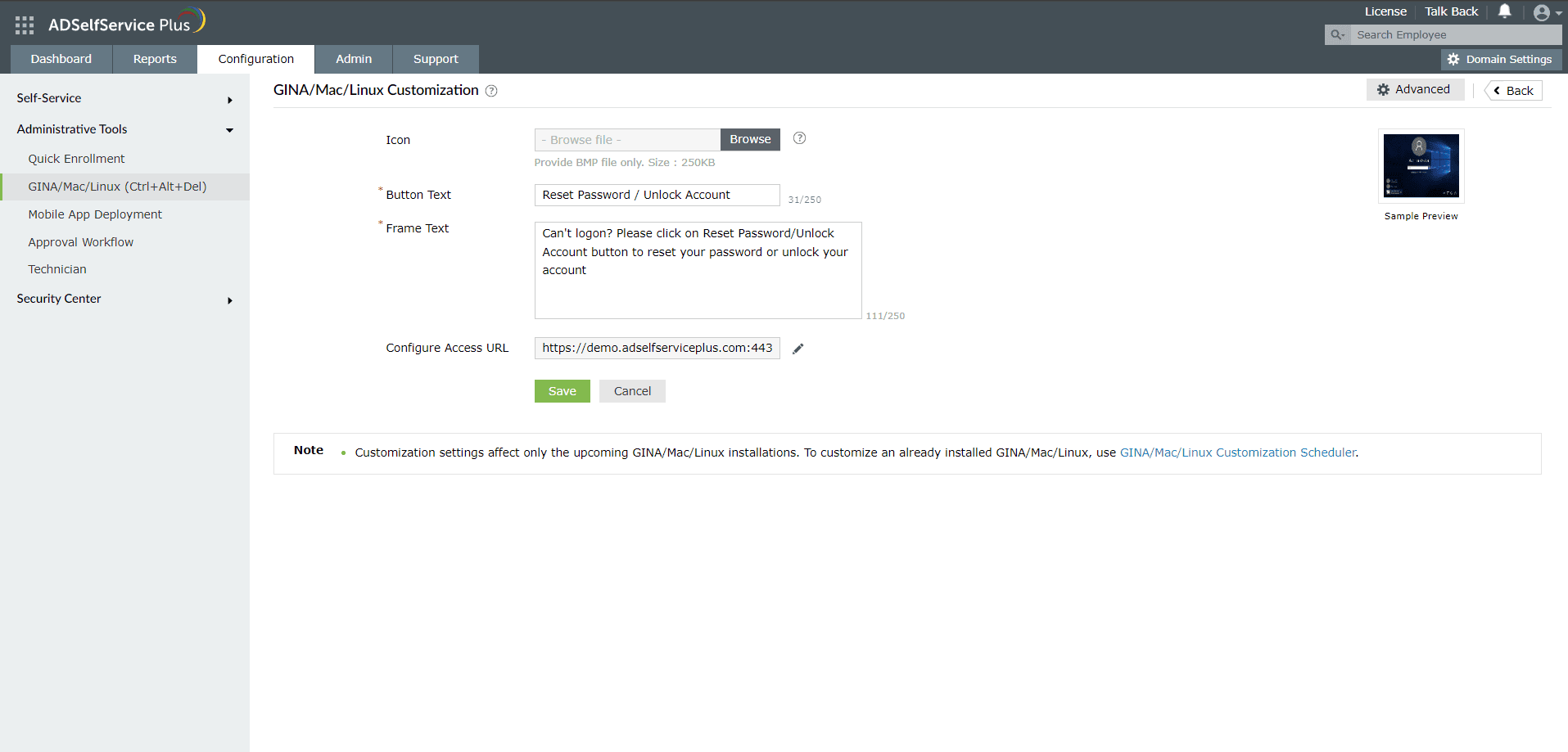
Set the icon and button text
On the GINA/Mac Customization page, configure the login agent icon and the button labels for each directory type.
- To replace the default icon, click Browse in the Icon field and select a BMP file of 48x48 pixels, no larger than 250KB.
- In the AD Button Text field, enter the button label to display on the login screen of AD-joined machines. The default is Reset Password / Unlock Account.
- In the AAD Button Text field, enter the button label to display on the login screen of Microsoft Entra ID-joined machines. The default is Reset Password.
- In the Frame Text field, enter the text to display next to the button on the login screen. The default is Can't logon? Please click on Reset Password/Unlock Account button to reset your password or unlock your account. This text applies only to Windows XP.
Each text field accepts up to 250 characters.
Configure the access URL
The Configure Access URL setting defines the address the ADSelfService Plus login agent uses to reach the ADSelfService Plus server.
- Next to Configure Access URL, click the edit icon.
- In the Server Name field, enter the ADSelfService Plus server name.
- For Protocol, select HTTP or HTTPS.
- In the Port field, enter the port the server listens on.
- Click Save to close the dialog.
- Click Save on the GINA/Mac Customization page to apply the icon, button text, frame text, and access URL settings.
| Note: Configure the access URL if you use a reverse proxy for the ADSelfService Plus server, or if you have blocked direct end-user access to the server. For more details, see Configuring the access URL. |
|---|
Configure advanced settings
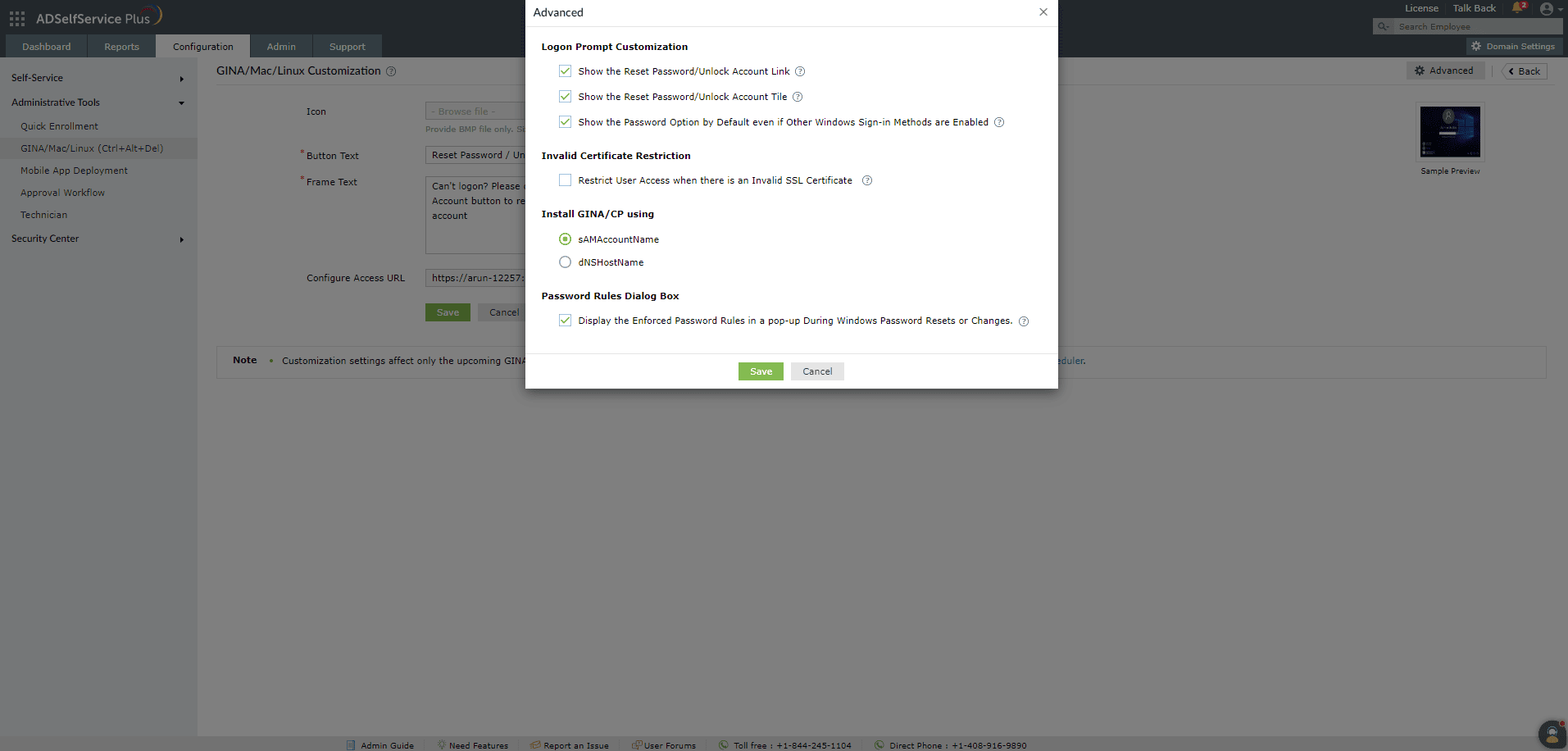
The Advanced dialog contains additional ADSelfService Plus login agent settings. On the GINA/Mac Customization page, click Advanced to open it. Common Settings apply to all directory types; Active Directory Settings apply only to AD-joined machines.
Common Settings
Logon Prompt Customization
- Select Show the Reset Password/Unlock Account Link to display the reset password and unlock account link on the machine login screen.
- Select Show Reset Password tile on logon prompt to display the reset password tile on the machine login screen.
- Select Show the Password Option by Default even if Other Windows Sign-in Methods are Enabled to display the password field by default for primary authentication, even when other sign-in methods such as Windows Hello are enabled. This setting applies only to Windows Vista and later.
Invalid Certificate Restriction
- Select Restrict user access when there is an invalid SSL certificate to block the login agent from reaching the ADSelfService Plus server when the workstation has an expired or invalid SSL certificate.
Active Directory Settings
Install GINA/CP using
- Select the computer attribute used to establish the connection between the ADSelfService Plus server and the client machine during agent installation: sAMAccountName or dNSHostName.
Password Rules Dialog Box
- Select Display the Enforced Password Rules in a pop-up During Windows Password Resets or Changes to show the password policy rules in a dialog when an end user changes or resets their password through the login agent.
- Click Save.
| Note: On macOS 13 (Ventura) and later, the Restrict user access when there is an invalid SSL certificate setting requires the ADSelfService Plus CA certificate to be trusted in Keychain Access:Open the Keychain Access app on the machine running macOS 13 (Ventura) or later.Add the ADSelfService Plus CA certificate to the System keychain, under the Certificates tab.Expand the trust section of the certificate and set When using this certificate to Always Trust. |
|---|
Set the login agent display language
The Windows ADSelfService Plus login agent can display the ADSelfService Plus portal in any of the 21 supported languages. For the list of supported languages, see Personalizing the portal display language.
Other login agent information on machines — including the offline MFA feature and custom password policies — can be displayed in 7 languages: Simplified Chinese, Japanese, French, German, Turkish, Spanish, and Polish.
By default, the login agent follows the Windows welcome screen display language (Start > Settings > Time & Language > Administrative language settings > Welcome screen and new user accounts > Copy settings > Welcome screen display language). To override this for a specific machine, edit the Windows registry on that machine, because an offline machine cannot fetch language details from the server.
- On the target machine, open the Registry Editor and go to the key for the machine architecture:
64-bit: HKEY_LOCAL_MACHINE\SOFTWARE\WOW6432Node\ZOHO Corp\ADSelfService Plus Client Software
32-bit: HKEY_LOCAL_MACHINE\SOFTWARE\ZOHO Corp\ADSelfService Plus Client Software
- Create a new String Value named LocaleID.
- Set the Value data to the code for your language from the table below.
| Offline MFA portal language | LocaleID value |
|---|---|
| Simplified Chinese | zh-cn |
| Japanese | ja |
| French | fr-fr |
| German | de-de |
| Turkish | tr |
| Spanish | es-mx |
| Polish | pl |
| Note: Login agent localization is supported only on Windows machines. Linux and macOS login agents support the English language only. Disclaimer: Avoid editing the Windows registry keys on user machines except where the product documentation specifies, because doing so can cause inconsistencies between the user machine and the server. After making a change, run the agent customization scheduler or reinstall the login agent to propagate the update to all user machines. For further clarification, contact ADSelfService Plus Support. |
|---|
Tips
In a mixed environment, set AD Button Text and AAD Button Text to matching labels so AD-joined and Microsoft Entra ID-joined machines present a consistent reset and unlock experience on the login screen.
Customization changes apply only to new installations. After you save, run the customization scheduler to push the updated appearance and settings to login agents that are already deployed. For more details, see GINA/Mac Customization Scheduler.
If end users reach ADSelfService Plus through a reverse proxy, set Configure Access URL so the login agent connects to the correct address. For more details, see Configuring the access URL.
Keep Restrict user access when there is an invalid SSL certificate enabled to prevent login agents from connecting over an untrusted certificate. On macOS 13 and later, trust the ADSelfService Plus CA certificate in Keychain Access so valid connections continue to succeed.
To install the login agent before customizing it, see Installing the login agent (GINA/Mac/Linux).