Installing and uninstalling ADSelfService Plus
This page provides step-by-step instructions to successfully install, run, and uninstall ADSelfService Plus, either as a standalone application (useful for testing or non-production environments) or as a Windows service (recommended for production environments to ensure automatic startup and background operations).
Prerequisites
Before installing ADSelfService Plus, complete the following checklist to ensure a smooth deployment.
- Verify that the Windows server on which you want to install ADSelfService Plus meets the recommended system requirements and is preferably joined to the Active Directory domain.
- Ensure you have administrator privileges on the server.
- Download the latest executable (.exe) file from the ADSelfService Plus website.
- Allocate a dedicated port for ADSelfService Plus. The default port is typically 8888 for HTTP or 9251 for HTTPS. Using a port already assigned to another application will cause conflicts.
Steps to install ADSelfService Plus as an application
- Double-click the downloaded EXE file to launch the ADSelfService Plus InstallShield Wizard. Click Next.
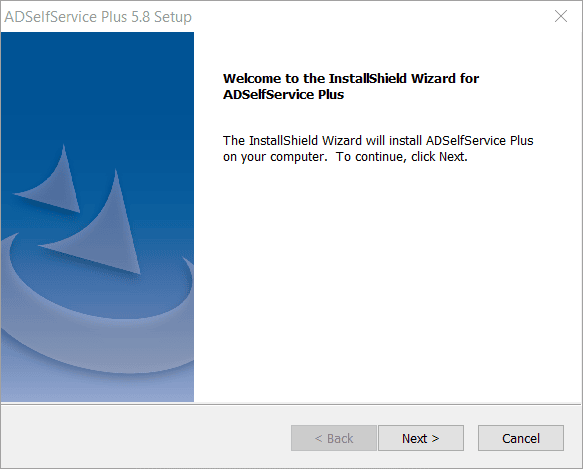
Fig.1: The ADSelfService Plus InstallShield Wizard
- Review the license agreement and select Yes to accept the terms.
- Choose your desired destination location for installation and click Next.
- On the Web Server Port screen, review the default port number or specify a different port if needed, and click Next.
- Select a Program Folder from the list and click Next.
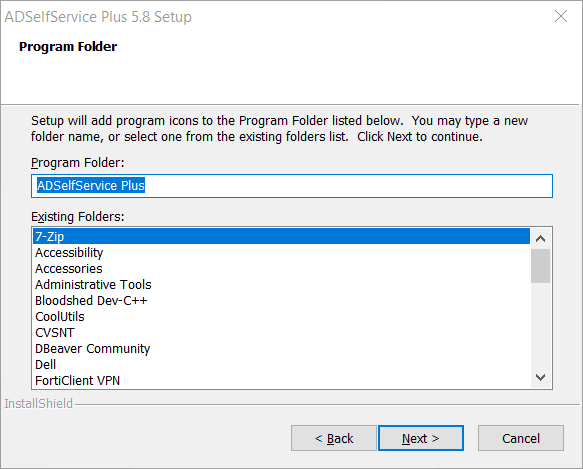
Fig.2: Program folder selection during ADSelfService Plus setup.
- [Optional] Complete the registration process to receive complimentary technical support from ADSelfService Plus' product experts. You can also contact support later via email or phone if required. Click Next or Skip.
- Review the installation summary, and click Next.
- Enable the checkboxes as per your requirements in the InstallShield Wizard Complete screen.
- Check Yes, I want to view readme file to review prerequisite information.
- Check Start ADSelfService Plus in console mode to launch the application immediately.
- Click Finish to close the installer.
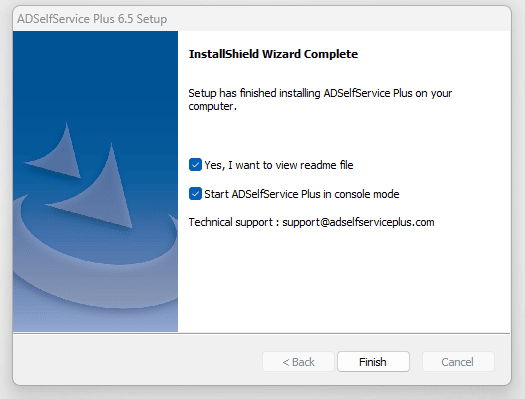
Fig.3: InstallShield Wizard Complete screen of ADSelfService Plus installation
- [Optional] If you want to open the ADSelfService Plus application manually,
- Click the ADSelfService Plus desktop icon, or
- Go to Start > ADSelfService Plus > Start ADSelfService Plus.
Important: >After installation, it is critical to secure your ADSelfService Plus instance. This includes hardening SSL connections, securing the installation directory from unauthorized access, and other measures. Refer to the ADSelfService Plus post-deployment security measures page for details.
Steps to install ADSelfService Plus as a service
To ensure ADSelfService Plus runs automatically after a server reboot and runs in the background, you must install it as a Windows service.
To install ADSelfService Plus as a service,
- Complete the installation using the InstallShield Wizard as described in the previous section.
- Go to Start > All Programs > ADSelfService Plus > Install ADSelfService Plus as a Service.
- After installation, navigate to the Services console, right-click the ManageEngine ADSelfService Plus service and provide the service account with the necessary permissions.
- Once the installation of the service is complete, you can start ADSelfService Plus manually via the Windows Services console (services.msc).
Steps to uninstall ADSelfService Plus
- Open the Control Panel and navigate to Programs or Programs > Programs and Features depending on your Windows version.
- Locate and select ADSelfService Plus from the list of installed applications.
- Click Uninstall and follow the prompts in the uninstallation wizard to complete the removal.
- Verify that all program files and folders are deleted from the installation directory as a security best practice. If the related files and folders are not deleted, ensure to manually delete them.