|
|
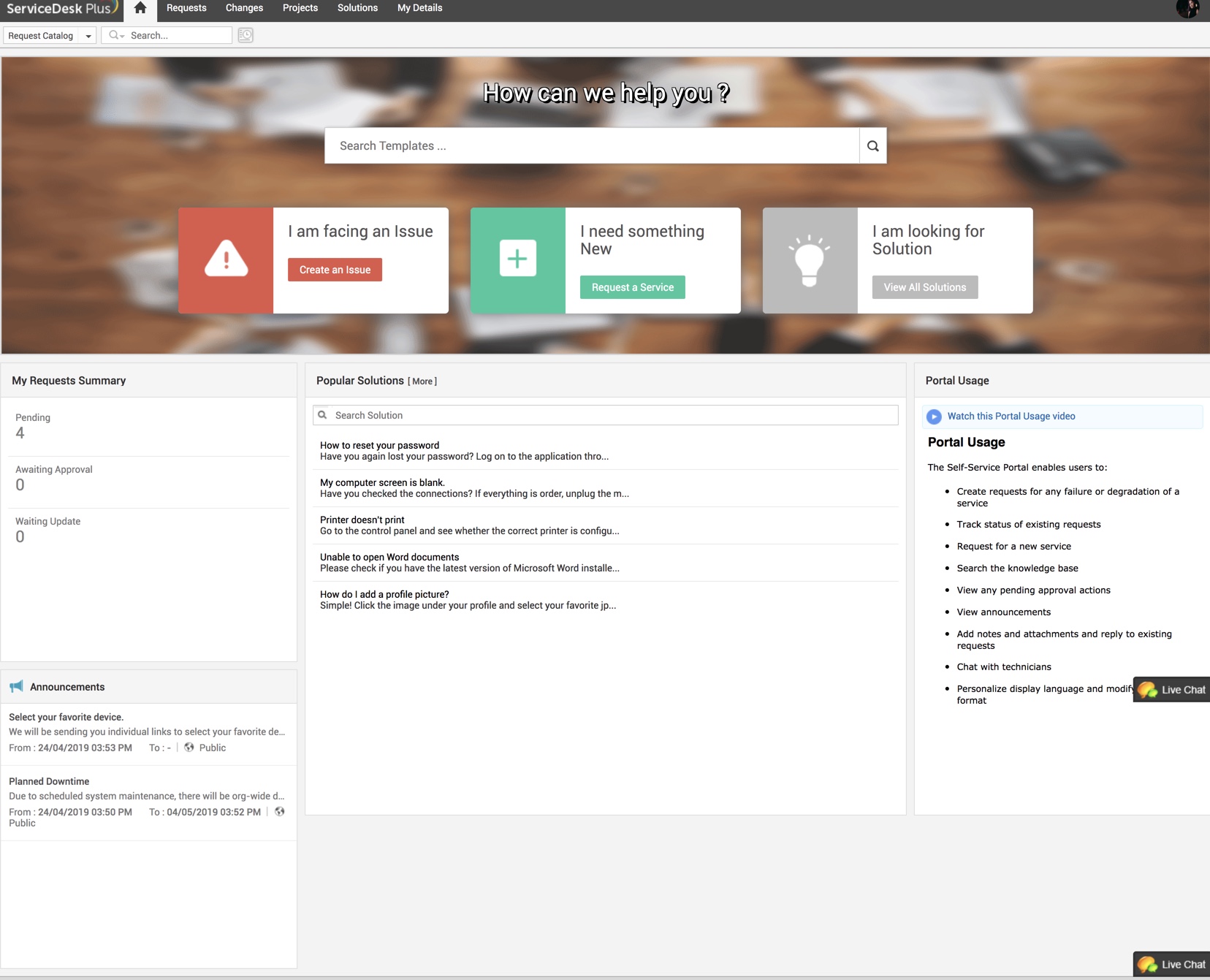
Getting Started with ServiceDesk PlusWhen you log into the application, the Self-Service Portal will be displayed. On this portal, you will able to log incidents, raise requests, and interact with the IT help desk.
Note that some of the tabs and widgets displayed in the following screenshot may not be available due to your permission scope or specific admin configurations.
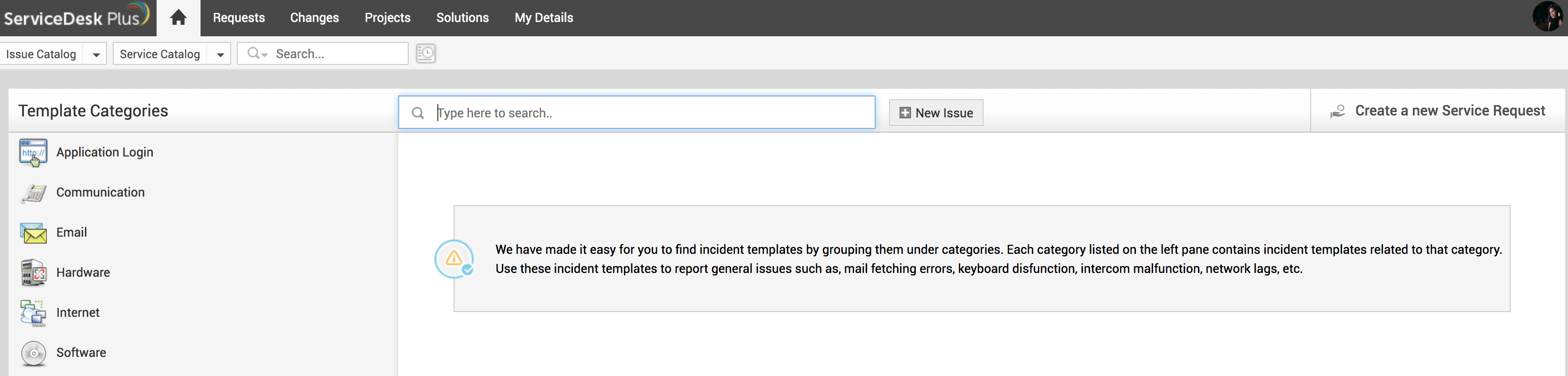
For quick access, this page lists specific modules, the Issue Catalog, Service Catalog, the Search field, and Recent Items.
Depending on Admin Configurations, incidents and service requests can be displayed together under the Request Catalog.
On this portal, you can do the following:
Log IT Incidents/Service RequestsAn incident occurs when something doesn't work as it's supposed to, and you are unable to proceed with your work. For example, if your laptop hangs constantly, it's an incident. If an error is thrown each time you log into an application, it's an incident. On the other hand, a new asset or a software that the company must provide you to do your work is called a service. You can log an incident in the self-service portal by clicking the Create an Issue button. To raise a service request, click the Request a Service button. This will take you to the Requests creation page, where you can decribe the incident or the service required in detail or use one of the templates available to log your request:
Using TemplatesTemplates are incident or service requests forms that already contain the information required to log the specific request. For example, a template for lost passwords will contain corresponding subject and category or user groups or technicians may already be selected. Using templates save you time and effort spent to creating the requests from scratch. It also helps reduce the time technicians take to solve the request because all the necessary information is alraedy available.
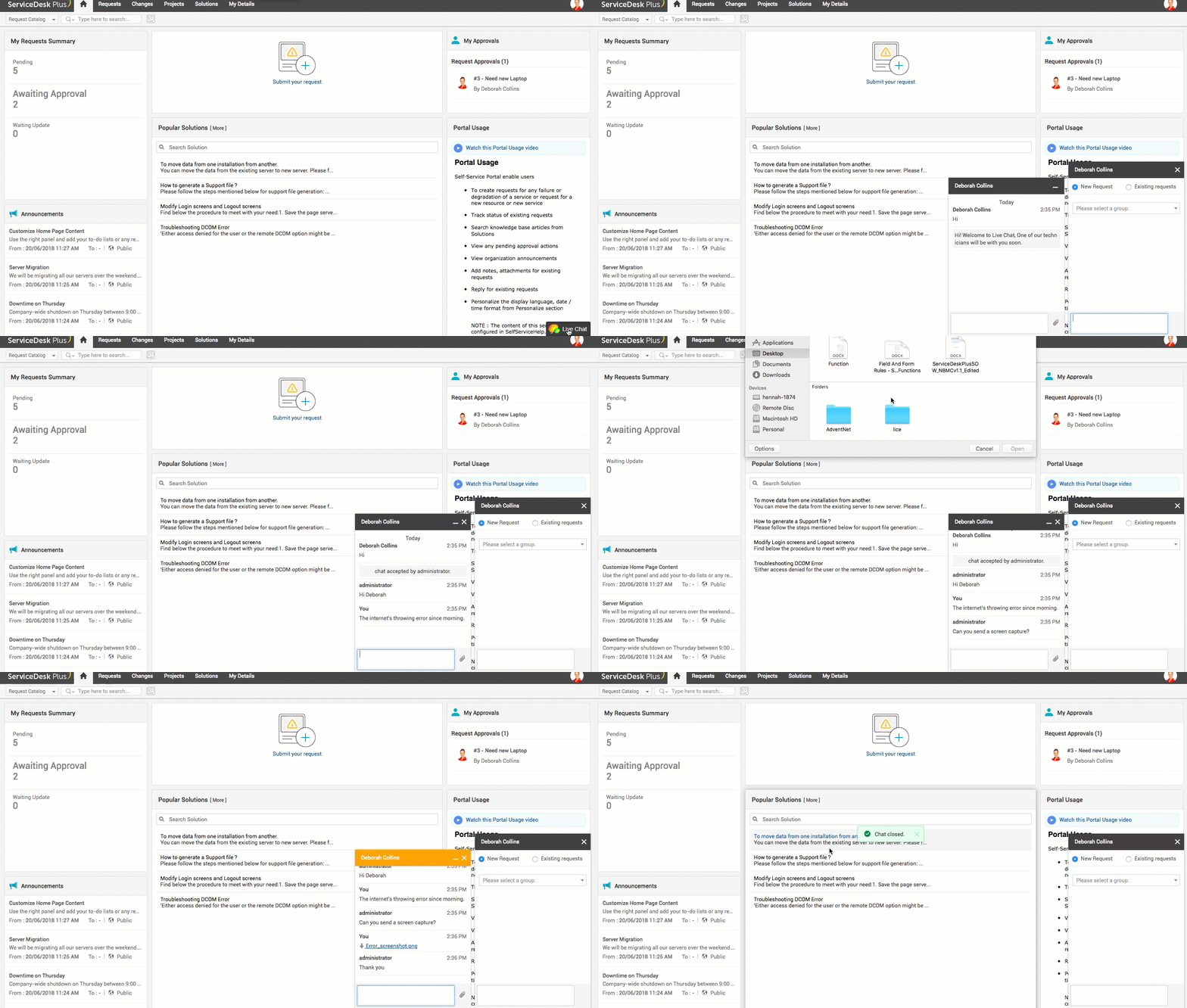
Chat with TechniciansUsing LiveChat, you can chat with technicians and have your issues resolved quickly. Over chat, you can log a new request or open an old request and also select the support group from the drop-down. Support groups are nothing but technicians grouped by expertise, sites, or departments. Selecting a support group will help in quicker resolution of the incident/service request. Over chat, you can send attachments of not more than 10 MB in size. Note that this size limitations can vary based on your admin configurations.
Search through SolutionsYou can either search through all solutions by clicking the View All Solutions button or use a keyword search in the Popular Solutions widget.
Track Request StatusThe My Request Summary widget lists the number requests that are Pending Approval, Awaiting Approval, or Awaiting Update.
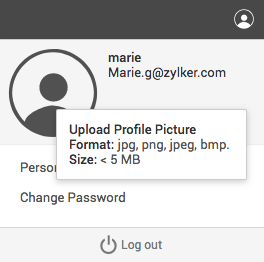
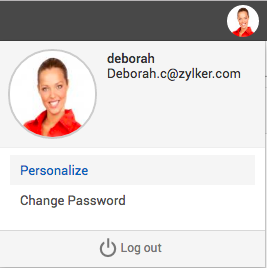
Personalize Settings and Change PasswordTo add a profile picture, click the user icon and select a jpg, png, jpeg, or bmp image that is not more 5 MB in size.
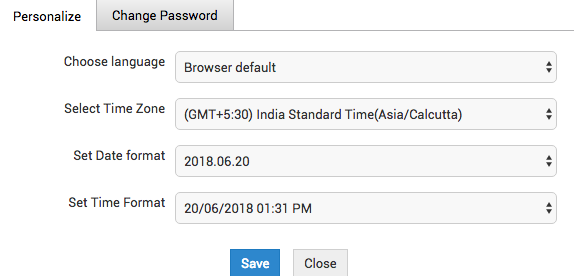
Click the profile picture and select Personalize to change language, time zone, and date/time format. Note: Only multi-language license users will have the permissions to change language.
|