# How to audit a SharePoint site collection
SharePoint Server and SharePoint Online platforms let you track user actions on a site and site contents, such as lists and document libraries. The table below shows how you configure and audit a site collection using the native tool and SharePoint Manager Plus.
| Native SharePoint | SharePoint Manager Plus |
|---|---|
| **Configuring site collection audit settings** | **Configuring site collection audit settings** |
| 1. Go to **Site settings > Site Collection Administration > Site collection audit settings**.
2. Configure the audit settings:
**Audit Log Trimming:** Auditing generates many audit events, and this in turn creates large quantities of audit logs. These logs will fill up the hard drive and affect your site collection's performance. Hence, enabling trimming of your logs is strongly recommended.
To trim your audit logs, select **Yes**. If necessary, specify the number of days and the location to store the audit logs.
3. From the available check boxes, select the events (documents and items) you'd like to audit in your site collection.
4. Click **OK**. | 1. Navigate to the **Management** tab.
2. Under *Site Collection Administration*, select **Site Collection Audit Settings**.
3. Select your farm and site collection.
4. Select the events you'd like to audit using the check boxes.
5. Choose if you'd like to trim the audit logs automatically and specify the retention period.
6. Click **Apply**.
 |
| **Viewing the site collection audit log** | **Viewing the site collection audit log** |
| 1. Go to **Site settings > Site Collection Administration > Audit log reports**.
2. Select the report and the library where you want to save the generated report.
3. Click **Run a custom report**.
4. Enter the **start date** and the **end date**.
5. A message will pop up as below.
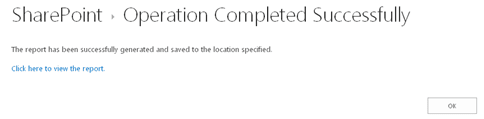
6. Select **Click here to view the report**.
To view audits in SharePoint Online:
1. Go to the Microsoft Purview portal.
2. Navigate to the **Audit** tab > **Search**.
3. Select and filter out the required details and click **Search** to fetch the audit data. | 1. Navigate to the **Audit** tab.
2. In the *Site Collection Changes* category from the left pane, select your desired report.
3. Select the **Farm** and the **Site Collection** that you wish to inspect. On doing so, the queried audit log will be generated.
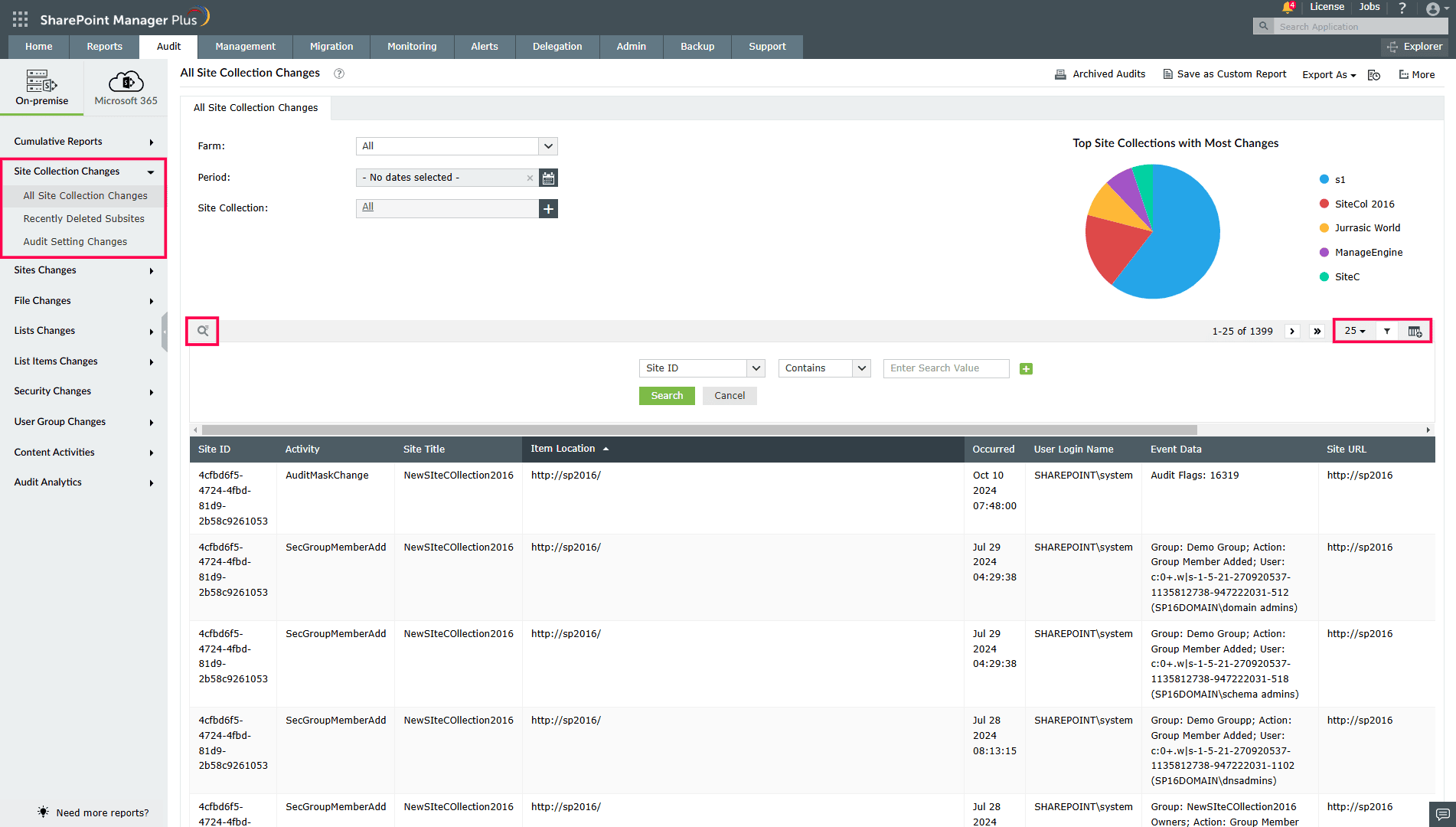
**Note:** You can customize the period and use the search and filtering options to narrow down your search. You can also export reports in different formats, like CSV, PDF, XLS, and HTML. |
### Limitations of using native tools to audit a site collection
- Generating a report multiple times requires you to select and filter settings repetitively.
- Reports can only be exported in the Excel file format.
- Lack of any scheduling or automation features requires periodic manual effort.
### Benefits of using SharePoint Manager Plus to audit a site collection
- **Simplified reports:** Get to your desired report in a few clicks and use filters to narrow down your search. Save as a custom report so you can quickly access it when necessary.
- **Export reports:** Export all reports to CSV, PDF, XLS, or HTML format based on your needs.
- **Automate reports:** Schedule reports to have them generated periodically or on a custom date. Get them sent to different email addresses of your choice.
- [Hybrid reporting](https://www.manageengine.com/sharepoint-management-reporting/sharepoint-reporting-tool.html): Get reports for both SharePoint Online and on-premises versions (Subscription Edition, 2019, 2016, 2013, 2010) from the same console.
- [Audit changes](https://www.manageengine.com/sharepoint-management-reporting/sharepoint-auditing-and-monitoring-tool.html): Track every activity in your SharePoint environment with information on the occurred time and who made the change.
- [Simplify management](https://www.manageengine.com/sharepoint-management-reporting/sharepoint-management-tool.html): Quickly grant, remove, or copy permissions to keep user and group access in check. Manage users individually or in bulk with a CSV file import.