Attention Required
The Attention Required section lists conditions that need review, such as patch deployment failures, EOL systems, and systems without agent contact. Review each condition to decide the next action.
Patch View
To open Attention Required in Patch View, click Threats & Patches → Patches.
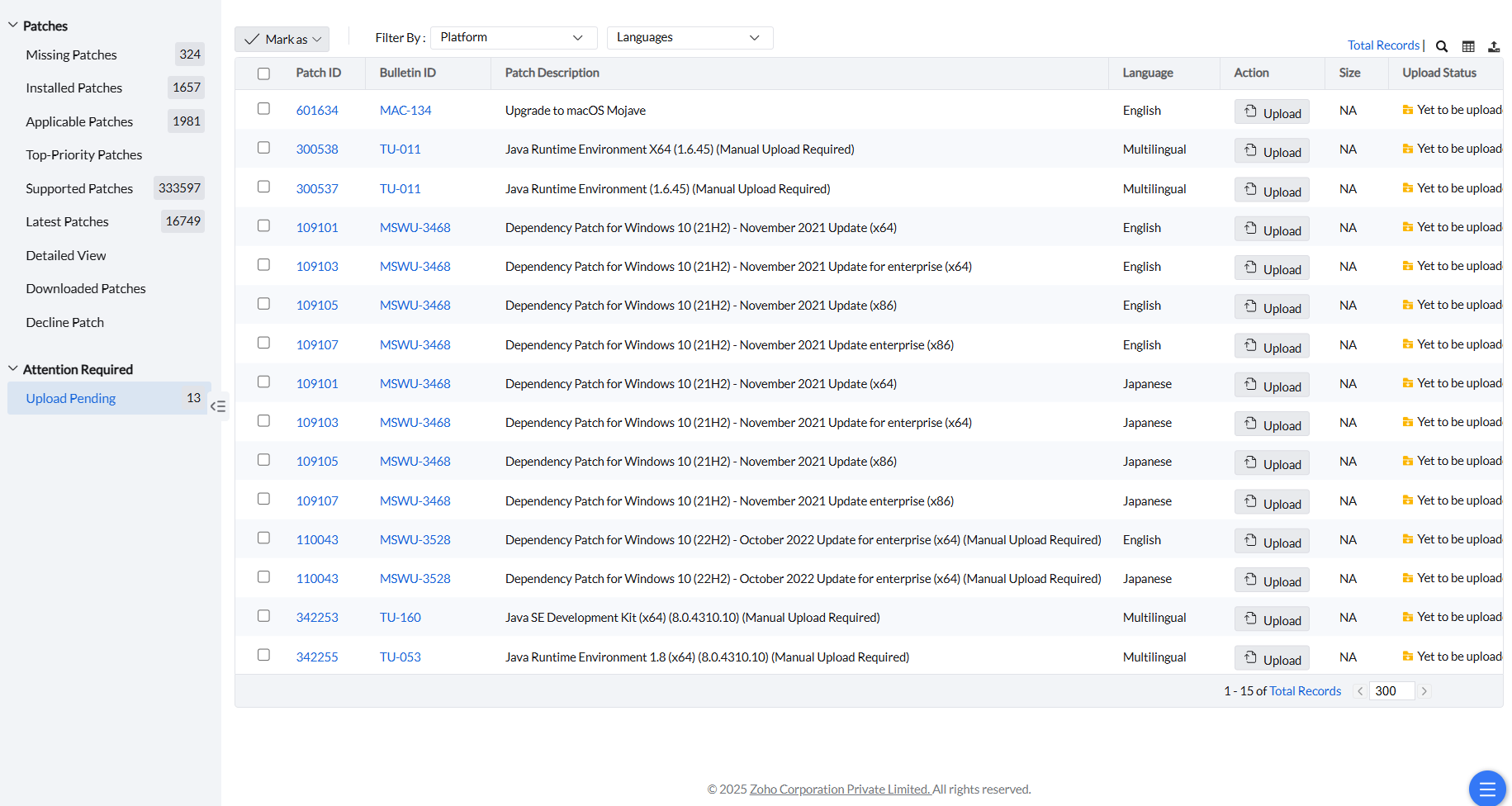
The Attention Required section contains the following view:
Upload Pending
Match the selected Patch ID’s instructions for package version, architecture, language and installer format. A similarly named package, a different architecture or a ZIP instead of the required EXE is not interchangeable. Use the available upload workflow for the supported Patch ID; uploading an arbitrary file does not create catalog support. For an unsupported variant, see support-coverage checks. Eligible failed downloads can also appear here, as described below.
Some vendors require users to download patches manually from their official websites. Access can require login credentials or explicit agreement to licensing terms. These factors prevent automatic retrieval of these patches by Vulnerability Manager Plus. To deploy these patches, whether manually or through automated tasks, first download them from the vendor website and upload them to the Vulnerability Manager Plus patch repository. Deployment occurs only after a successful upload. If a patch has not been uploaded or its upload has failed, it appears under Upload Pending, where you can check its Upload Status.
Patches that require this workflow are identified by (Manual Upload Required) in their description and appear in the Upload Pending view. Click the Patch ID or patch-name link to open the patch-specific instructions, which provide the vendor download location and package requirements. After downloading the exact package specified for that Patch ID and language, open Upload Pending. Enable the Action column if it is hidden, and click Upload.
In the Upload Patch dialog, select the required file, then click Upload inside the dialog. Selecting a file does not complete the patch upload. Wait for the upload success message.
If Upload Type is available, select Upload File for a local package. For External URL, enter the package URL, supply a checksum if requested, and click Save. If the dialog reports a failure, follow the reported error before retrying.
If an upload stays at the start or reports that the file could not be uploaded, confirm that your console session is active. Check whether browser privacy settings or an extension blocks authentication cookies for the console or upload site. Retry in an approved browser session. If it fails again, record the Patch ID, package details, time, and exact error message, and provide the relevant logs to Support. Do not disable browser protection globally.
After the upload, check Upload Status and the available Action to verify the result. A successfully uploaded patch can remain visible in the manual-upload list. The Manual Upload Required description does not mean that another upload is required. A successful upload does not confirm that the patch is installed on the target computer.
Patches explicitly marked Manual Upload Required can appear before deployment. A separate eligibility rule allows certain patches whose download attempt has failed to appear here; Office application types are excluded from that ordinary failed-download rule. This exclusion does not remove a package's separate explicit manual-upload requirement. Language, platform and supersedence filters can also affect visibility. If a patch is absent from Upload Pending, check its download status and the instructions for the exact Patch ID instead of assuming that any failed download can be uploaded.
If an Office or Office Deployment Tool package is absent from Upload Pending, follow Office download diagnostics for the configured downloading host. Use the selected patch or dependency's package instructions; downloading an arbitrary ODT executable does not make it eligible for upload.
Newly released application version
How do I add a newly released application version to the patch database?
After the version is released, synchronize the vulnerability database. If the vendor package must be uploaded, the patch appears as Manual Upload Required.
If the required version is still absent after synchronization, record the vendor release URL, version, architecture and closest supported Patch ID. Contact Support to check coverage. Uploading a newer installer to an older Patch ID does not add that version to the catalog. See application coverage checks.
Missing after a manual upload
A successful manual upload makes the package available for deployment. It does not install the patch or confirm that a Missing patch is installed. Review the deployment and scan results separately from the upload result.
If an upload fails with a checksum or patch-version mismatch, verify that the selected file is the exact package specified for that Patch ID. See Patch upload failed due to a checksum mismatch. For an upload that stays at the start, follow the upload session checks. If a Cloud upload fails with net::ERR_CONNECTION_RESET, see Manual patch upload connection reset.
A superseded patch can show Download attempts failed. Needs to be uploaded manually, Yet to be uploaded, or Yet to Download after the vendor makes the older download URL inactive. Check whether a newer patch supersedes it before treating the status as a network failure.
Opening the vendor download URL from a Distribution Server does not complete the patch upload. Complete the Upload Patch dialog and check its result. If it reports insufficient patch-store space or denied access, resolve that reported storage error before retrying.
Systems View
To open Attention Required in Systems View, click Threats & Patches → Systems.
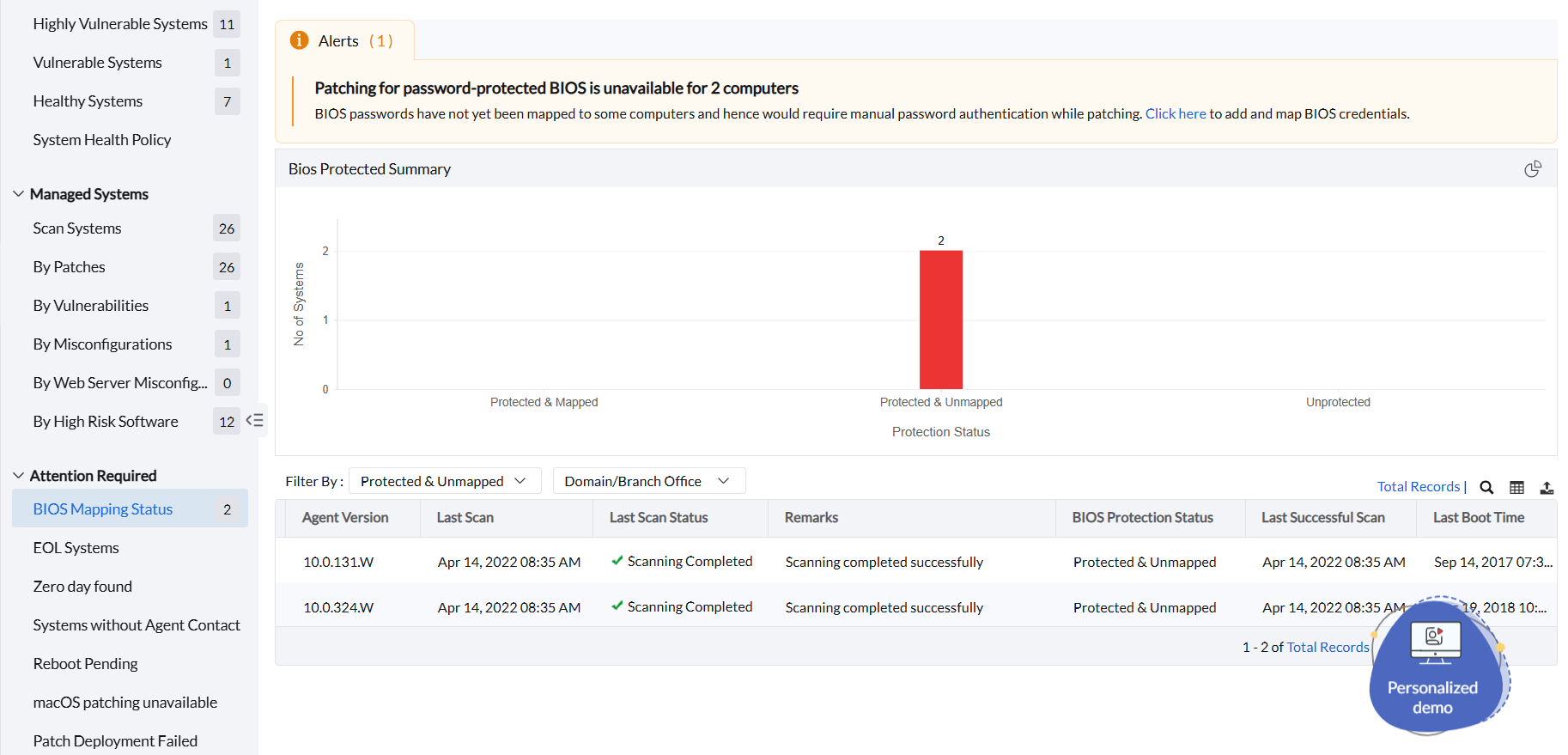
The Attention Required section contains the following views:
BIOS Mapping Status
Open this section to view the BIOS protection status of managed computers. If the BIOS is password protected and its authentication credentials are in the Credential Manager, the BIOS Protection Status column shows Protected and Mapped. After deployment, BIOS patching proceeds without manual intervention for Protected and Mapped computers.
If the BIOS is password protected but the authentication credentials have not been added to the Credential Manager, it will be displayed as Protected and Unmapped. Unless you add the BIOS credentials to the database, manual authentication is required to proceed with the deployment whenever BIOS patching occurs. If the BIOS password is not mapped or if an incorrect password is mapped, the deployment may fail with an authentication error. Before deployment, add and map the correct BIOS password in the Credential Manager.
For deployment without manual intervention, add the BIOS credentials to the Credential Manager. Click on Admin → Global Settings → Credential Manager → Add Credentials and add the required BIOS credentials. If a computer BIOS is not password protected, it will be displayed as Unprotected.
EOL Systems
Click EOL Systems to view managed computers with end-of-life Windows operating systems.
Windows Legacy EOL systems: This section lists managed computers with legacy Windows operating systems, such as Windows Server 2012 and Windows 7. Patching is not supported for these legacy operating systems.
Windows 10 EOL systems: This section lists computers with end-of-life versions of Windows 10. Select the required computers and click Install/Publish Patches to deploy the feature pack and upgrade to Windows 11 24H2.
Windows 11 EOL systems: This section lists computers with end-of-life versions of Windows 11. Select the required computers and click Install/Publish Patches to update them to Windows 11 24H2.
The EOL Systems view lists computers running end-of-life Windows versions. Application EOL auditing is separate. Where vulnerability management is licensed, go to Threats & Patches → Threats → High Risk Software → End of Life to review end-of-life applications installed on managed computers. This audit view does not automatically uninstall EOL applications. Plan a supported upgrade or removal workflow separately. For more information, see Audit End-of-Life Software.
Systems without Agent Contact
A managed computer without agent contact for more than 3 days requires attention. Its current patch status and vulnerabilities are unknown until contact resumes. Open Systems without Agent Contact to view the last contact time, last patching time, and last successful scan time. This view lists computers without agent contact for more than 3 days. Manual intervention is required to restore contact.
A computer being powered on does not confirm that its agent has contacted the service. If Last Contact Time is outdated and a requested scan does not complete, check agent connectivity with the Agent Troubleshooting Tool. Record the last contact time, last successful scan time, assigned Remote Office, and agent version. If the issue continues, collect the affected agent logs for further investigation. You do not need to wait for the 3-day no-contact threshold before investigating connectivity issues.
You cannot exclude devices from Threats & Patches based on inactivity or last-contact time while keeping them in inventory. Previously scanned devices keep their last known patch status until they communicate again, or they must be removed from product scope.
Reboot Pending
Some patches require a reboot for successful deployment. Users working on business-critical tasks might skip the reboot. Open this section to view computers with a pending reboot. Select a computer and click Reboot to restart it. For BIOS updates that remain missing or roll back after restart, see BIOS rollback troubleshooting.
To determine whether a reported reboot or shutdown was initiated by Patch Management, go to Threats & Patches → Systems → Scan Systems, open the computer, and review Power Event History. The event details identify the task, trigger, process, and responsible user.
In Manual Deployment, reboot-pending is a one-time status and does not change after the computer is rebooted. Only Automated Patch Deployment updates the status to success.
Do not keep rebooting to clear a stuck Requires Reboot status when C:\Windows\WinSxS\pending.xml is absent. On build 11.5.2622.08, dcconfig.exe could crash after each refresh cycle because of a missing parameter in agent-settings.xml, so Reboot History was not updated. Upgrade to the latest build from the service pack page.
macOS Patching Unavailable
On macOS systems with Apple silicon processors, OS patching requires manual authentication for each patch deployment. To avoid this, enroll the system in Vulnerability Manager Plus's MDM. Otherwise, this section lists the system with one of these Remarks:
Not enrolled with MDM, if the system is not enrolled in Vulnerability Manager Plus's MDM.
Incomplete enrollment configuration, if MDM enrollment in Vulnerability Manager Plus has failed for that computer.
Enrollment with a different vendor, if the system is enrolled with another MDM vendor but not with Vulnerability Manager Plus.
In all three cases, macOS OS patching requires manual user intervention.
For Apple silicon OS updates without user intervention, see Patching Mac systems without user credentials.
If a newer macOS update appears on the Mac but is absent from Missing Patches, compare the exact macOS version, database synchronization time, and last successful patch scan. Follow the patch-visibility checks. A credential prompt and an update that is not yet available in the patch catalog require different troubleshooting steps.
A third-party Mac installer can request administrator authorization when it installs or updates a privileged helper. Confirm the application, version, and exact prompt. This is separate from authentication for Apple silicon macOS updates. If unattended deployment is required, check the vendor-supported installer workflow and provide the deployment details to Support.
Patch Deployment Failed
This section lists computers with failed patch deployments. Select the required computer and click Deploy Failed Patch to retry the failed patch deployment.