Cleanup Settings
To configure cleanup settings for your server, click on: Threats & Patches → Settings → Cleanup Settings.
C:\Program Files (x86)\ManageEngine\UEMS_Agent\patches. The files remain on the agent until the patch is successfully installed. To reclaim space, you may delete older files from that patches folder only; do not delete other files or folders under the UEMS_Agent directory. C:\Windows\System32\DriverStore\FileRepository is managed by Windows; Vulnerability Manager Plus does not store patch binaries there and cannot clean it from the console. See Windows DriverStore FileRepository disk space.Windows Installer folder
Can Vulnerability Manager Plus clean C:\Windows\Installer after patch deployment?
C:\Windows\Installer is managed by Windows Installer. Vulnerability Manager Plus does not clean that folder.
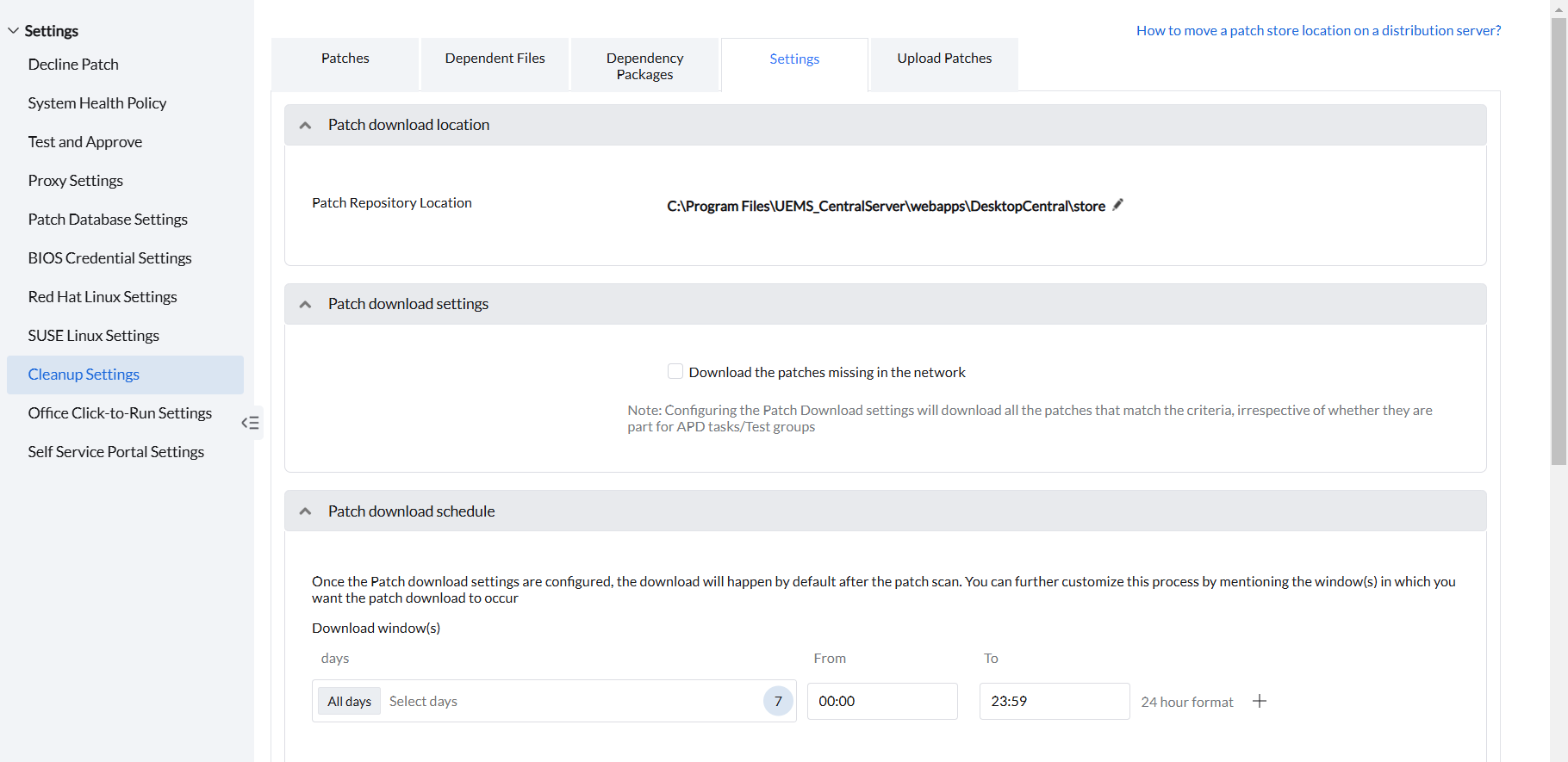
Under Cleanup Settings, you can configure:
Download Location for Patches
Under Patch download location, you can configure where to keep the patch repository in the server installed computer; all the patches will be downloaded here. This directory should have sufficient storage space to store all the downloaded patches.
Download failed for lack of space
Why does a download fail with downloaded_patch_failed?
That error can mean the patch repository does not have enough free space. The repository must have room for the downloaded patches.
On a Distribution Server computer, the default patch store is C:\Program Files (x86)\ManageEngine\UEMS_DistributionServer\replication\store. Identify the Distribution Server computer from Agent → Remote Office.
To reduce disk usage on the Vulnerability Manager Plus server OS and Data disks, follow the server cleanup procedure. After Patch Cleanup Settings are already configured, review <Server Installed Directory>\PatchBackup\ and <Server Installed Directory>\Patch\.
Patch Download Settings
Under this section, by enabling the checkbox of Download the missing patches in the network, you can determine whether to download all the missing patches. By configuring this, all patches that meet the criteria will be downloaded, even if they are not part of APD tasks or test groups.
After enabling the checkbox, under Patch download criteria, you can choose to download All missing patches or All approved missing patches. All approved missing patches downloads only patches that you have approved. Approve a patch with Mark As in a patch view. See Test and Approve.
Download Schedule
Under Patch Download Schedule section, under Download window(s),you can specify the day(s) and time window for downloading the patches. A download requested outside that window is not downloaded until the window.
Patch Cleanup Settings
These settings manage the Central Server and Distribution Server patch stores; they do not set a size limit for the Windows agent’s patches folder. Successful or reboot-required installation results can remove the files tracked for cleanup, while files needed for rollback can remain. A later eligible deployment can download files again. If the folder keeps growing or refilling, identify the manual or APD task and any failed or pending installation before removing files. Disabling one APD task does not stop other tasks targeting that computer. See deployment-source audit details.
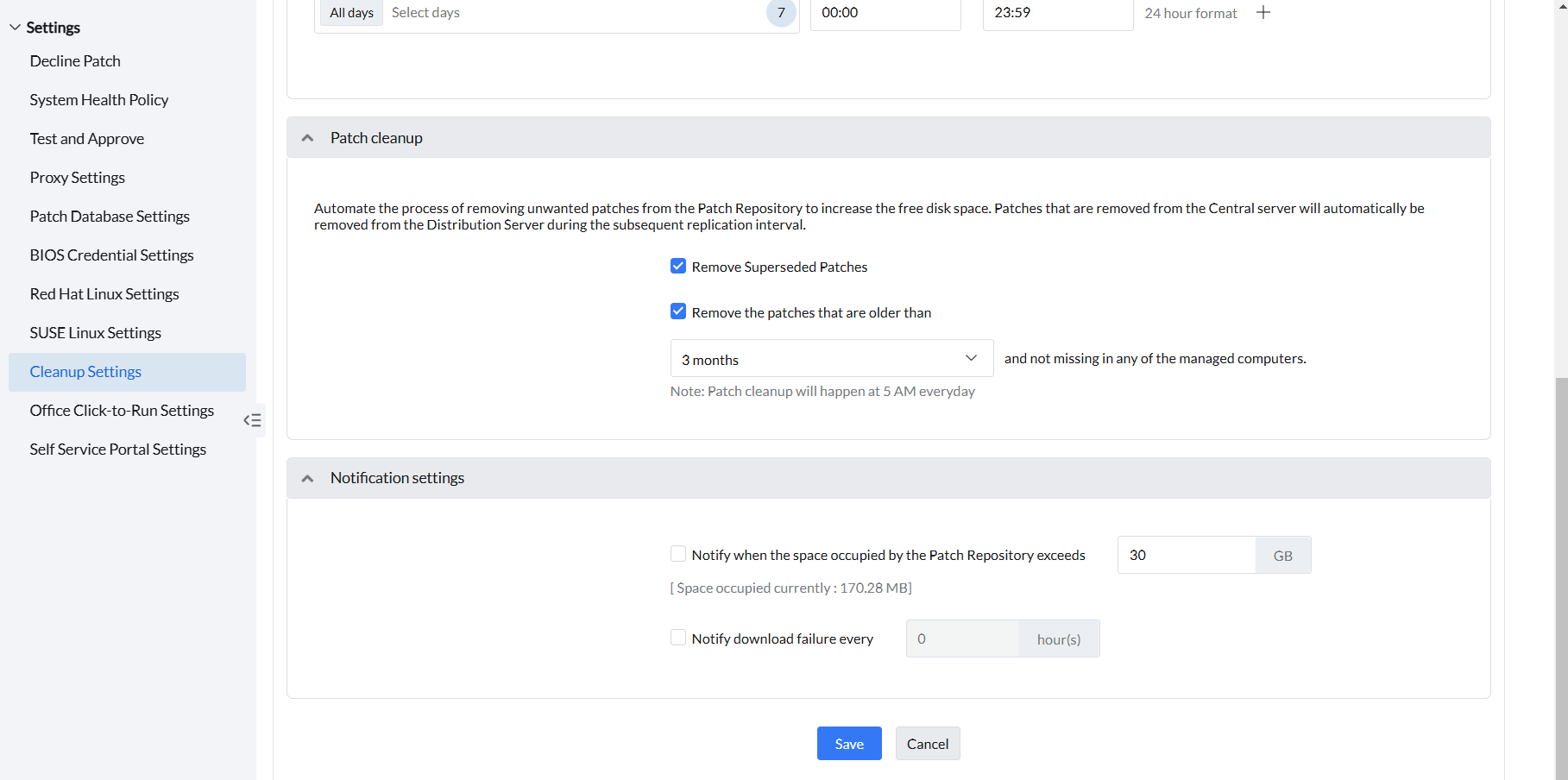
Use these settings to remove unwanted downloaded files from the patch store. Cleanup does not uninstall updates from managed computers. Files deleted from the Central Server are removed from Distribution Servers during the next replication cycle.
Remove Superseded Patches: Enable this option to remove eligible superseded patch files from the patch store.
Remove the patches that are older than: Select the retention period measured from download time. Cleanup removes eligible older files only when the patches are not missing on any managed computer. Package references and dependency requirements can also keep files in the store. Changing retention changes eligibility; it does not remove every older file immediately.
Cleanup eligibility
Patch Cleanup Settings do not remove every downloaded file as soon as you save the configuration. Patches remain in the store when any of the following is true:
- The patch is still detected as missing on any managed computer.
- A related patching task is failed, retrying, or in progress.
- The patch Superseded value is N/A. The vendor has not superseded that version, so Remove Superseded Patches does not remove it.
There is no force-cleanup option besides these settings. To request additional automatic cleanup, submit a feature request.
For an immediate cleanup, delete the downloaded patches from the console in the Distribution Server-wise view; they are then removed from the Distribution Server. Prefer deleting the patches from the Central Server first so they are removed from remote Distribution Servers during the next replication cycle.
Delete files from the Distribution Server store only when no active, in-progress, or retry task needs them; otherwise they are redownloaded. If a deleted patch is still missing on a managed computer, it is redownloaded.
To stop older patches being retained for decommissioned computers, remove those computers from Agent → Computers, then delete the corresponding older patches from the patch repository. Alternatively, decline the patches that remain missing only on those machines and delete them from the repository; declined patches are not downloaded automatically unless they are manually deployed.
Extra Office language files remain until the configured cleanup age is reached or they are deleted manually. Keep only the languages you manage in Threats & Patches → Settings → Office Click-to-Run Settings. See Microsoft 365 (Office 365) Patch Deployment.
Notification Settings
If you wish to receive notification about the activity, configure the Notification Settings.
Notify when the space occupied by the patch exceeds: You can see the current space occupied by the patches in the computer. By enabling this option and specifying the size limit, once the downloaded patches occupy space more than mentioned size you will be notified.
Notify download failure every: Enable this option to get notified about the patch download failures; you can specify the time interval for notification in hours.
After configuring the required notification settings, provide the Email address to receive the notification, and if you have installed the Mobile App and wish to receive notifications in it, you can also configure the same.
After configuring all the settings, click on Save.