Test and Approve Patches
Overview
An approved status means that the IT administrator considers the patch valid and trusted for the network. The administrator expects the patch to be suitable for the target systems and behave as intended by the vendor. The administrator can approve patches manually or use the Test and Approve feature.
Patch approval controls the product deployment workflow. It does not prevent Windows Update from installing updates independently. To control Windows automatic updates, see Disable Windows Automatic Updates. Review the manual deployment and approval settings separately when an administrator deploys a patch directly. For more information, see Manual Deployment.
Test and Approve Patches automatically applies to:
- Windows
- macOS
- Linux
Manually Approve or Decline selective patches to selective groups applies to:
- Windows
- macOS
Manual Approval
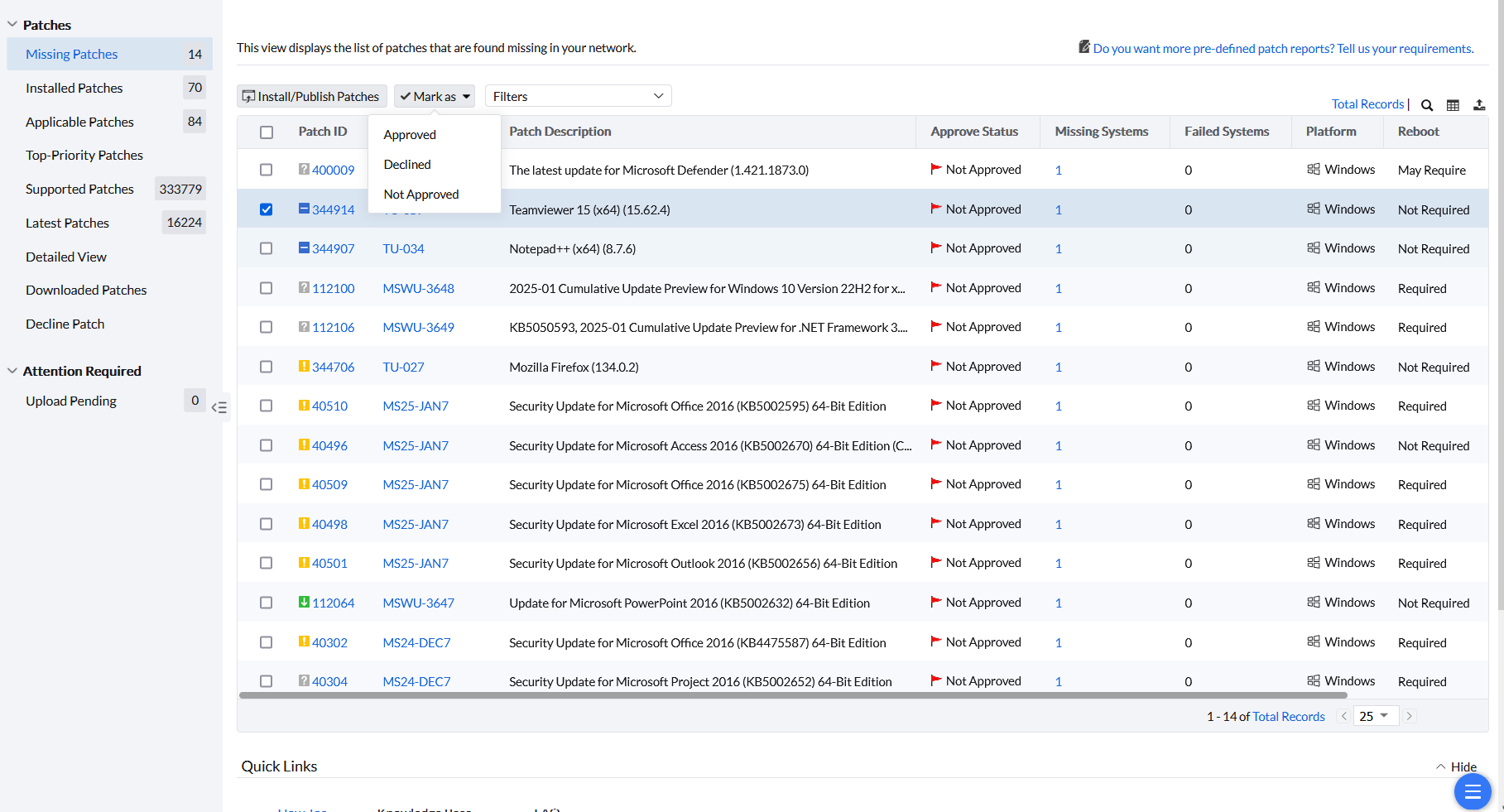
For manual control of patch approval, go to Threats & Patches → Missing Patches. Select the required patches, click Mark as, and choose an available status: Approved, Declined, or Not Approved.
You can also go to Threats & Patches → Patches → Supported Patches. Search for the complete Patch ID, select the patch, and click Mark as. Choose the available approval action. If a scope-selection dialog appears, confirm the target customer or group.
Available actions depend on your permissions and approval mode. Not Approved is available when Test and Approve is enabled.
Check the effective permissions instead of the role name alone. Patch approval requires the patch-management approval permission (PatchMgmt_Admin). Patch selection and installation require write access (PatchMgmt_Write). Use the interactive Patch View. If a superseded patch cannot be selected, review N-1 eligibility.
For more information about selecting patches, see Choosing the Patches. If the selection column is still missing after you confirm the required permissions, provide Support with the exact view, role details, and a screenshot.
Test and Approve
Testing patches on pilot computers before approving them and deploying them across the wider network is a best practice. Installing critical patches in all network computers without testing can sometimes lead to unexpected issues, such as software incompatibility, system crashes, or data loss. Pilot testing helps identify these risks early and contain their effects before wider deployment. It also helps determine the deployment strategy for the organization. Problems are easier to correct when fewer systems are affected.
To configure Test and Approve, click Threats & Patches → Deployment → Test and Approve.
Patch Approval Settings
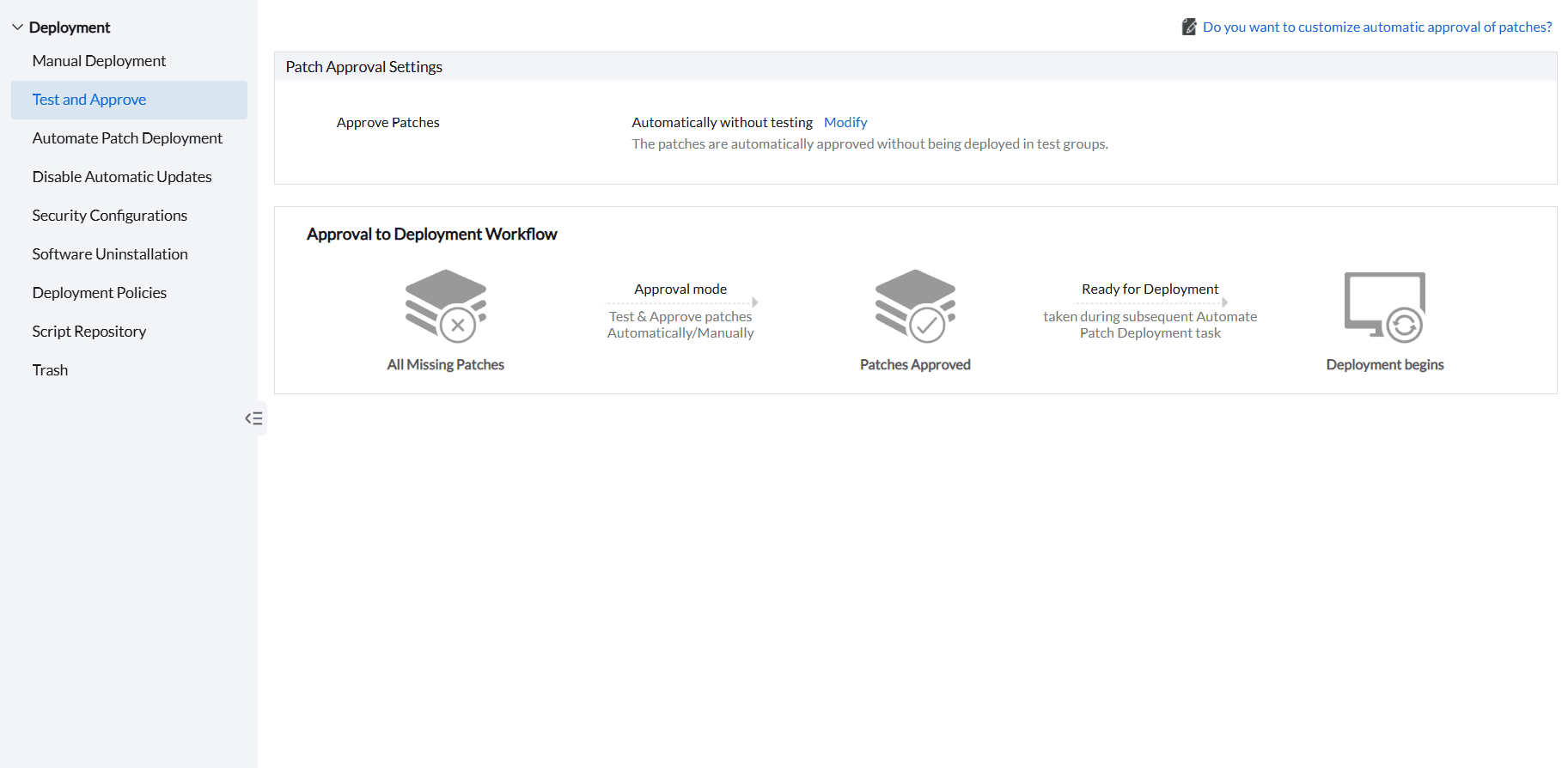
Under Patch Approval Settings, the default Approve Patches option is Automatically without testing. A newly released patch is approved automatically after it passes evaluation by Vulnerability Manager Plus. The approval status of these patches is listed as Approved. Use this option for less critical computers when you want to deploy newly released patches automatically without additional testing.
To re-evaluate the compatibility or integrity of patches before deployment, click Modify and select Test and Approve.
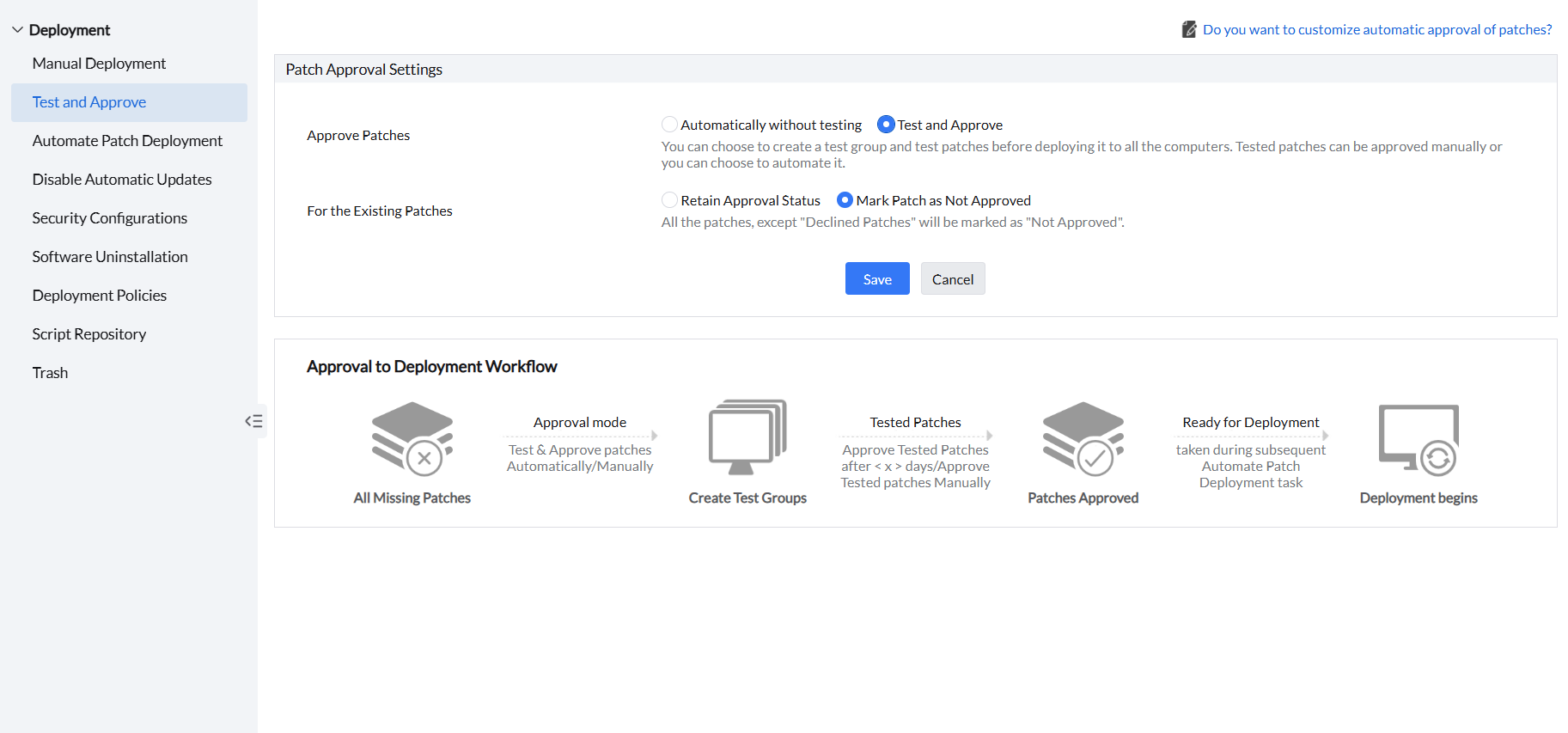
Under For the Existing Patches section, select Retain Approval Status if you prefer to keep the current approval status of the existing patches. New patches are marked as Not Approved and can be tested and approved later.
If you wish to move existing patches to Not Approved status, select Mark Patch as Not Approved. Those patches still go through the same test process if they are missing on test machines.
After configuring these settings, click on Save.
If Test and Approve or a test group is unavailable, verify the technician's patch-management permissions, managed-computer scope and access to the selected custom group. Check whether scope-based approval is enabled for your environment. A technician with full scope retains that scope; a restricted view does not isolate a full-scope administrator. Before moving devices to another portal to separate server and workstation administration, confirm the supported scope-based approval setup with Support.
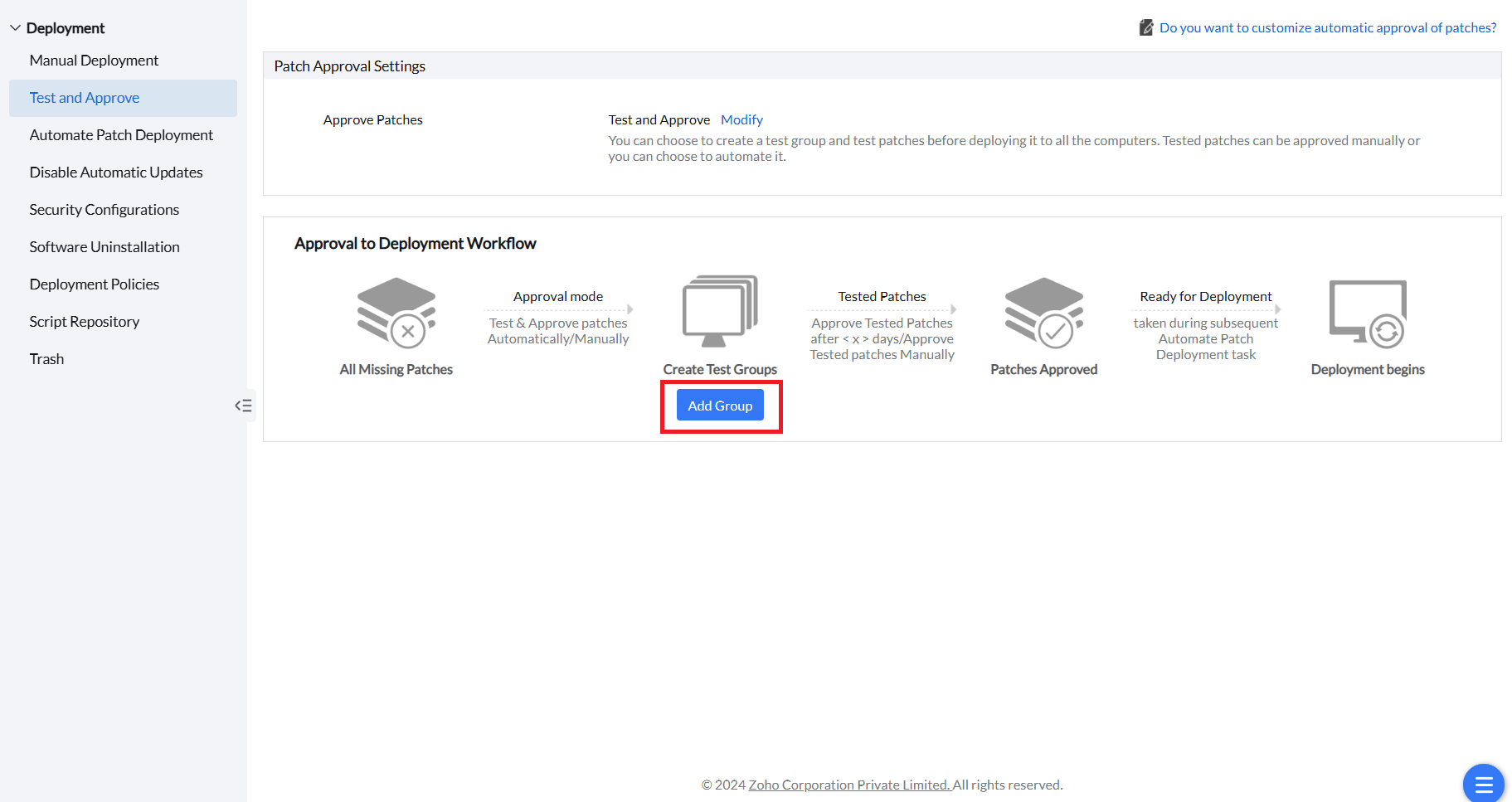
To create a test group, click Add Group. Configure Test Group Settings in the new window.
Test Group Settings
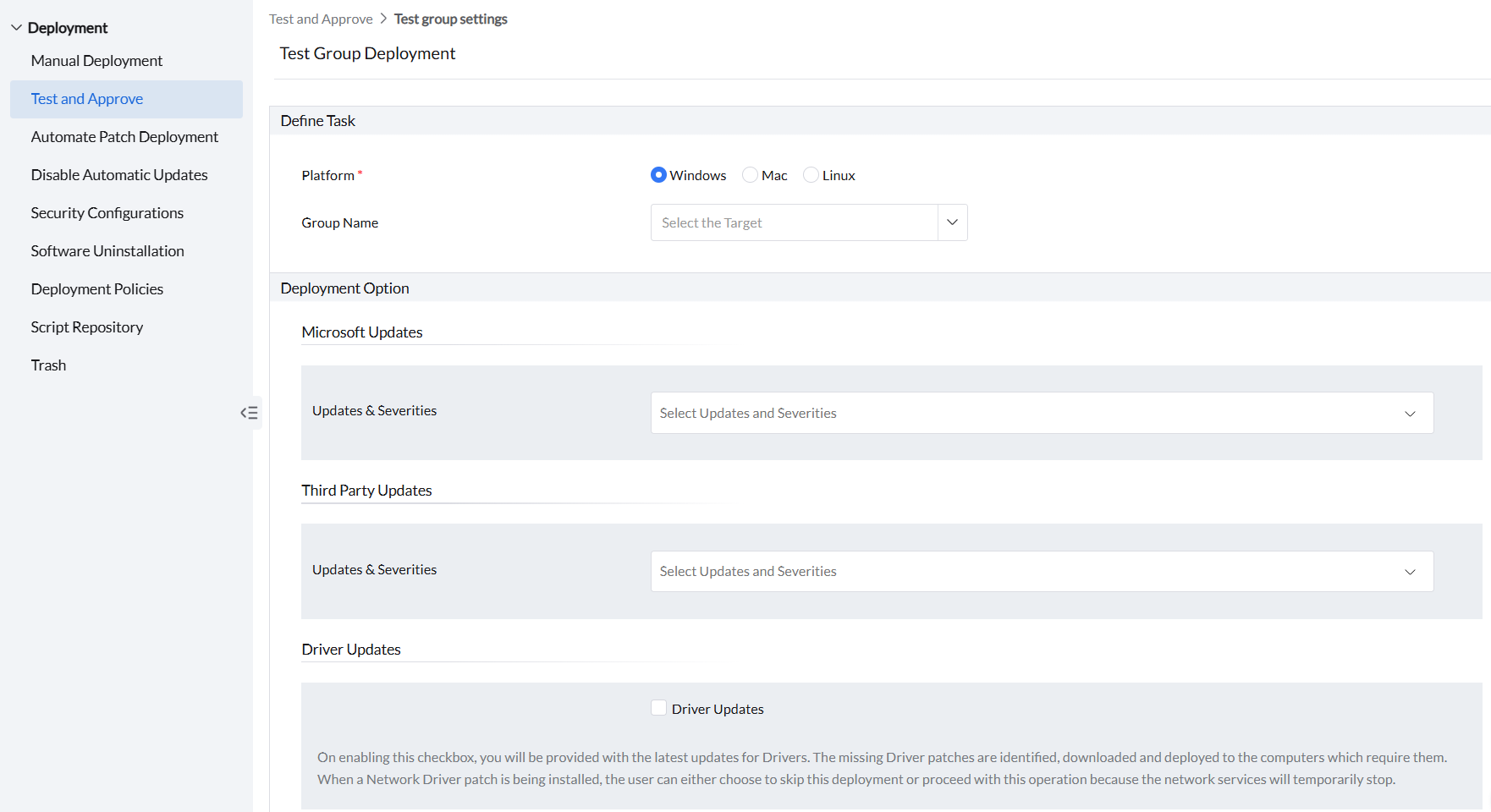
Under Define Task section, choose the Platform in which you want to test patches. Currently supported Operating Systems are Windows, Mac and Linux . Then under Group Name, select the Target Group of pilot computers where you want to test the patches. For custom-group creation instructions, refer to this page.
Deployment Option
Choose the Microsoft Updates for testing based on Updates and Severities as shown in the image.
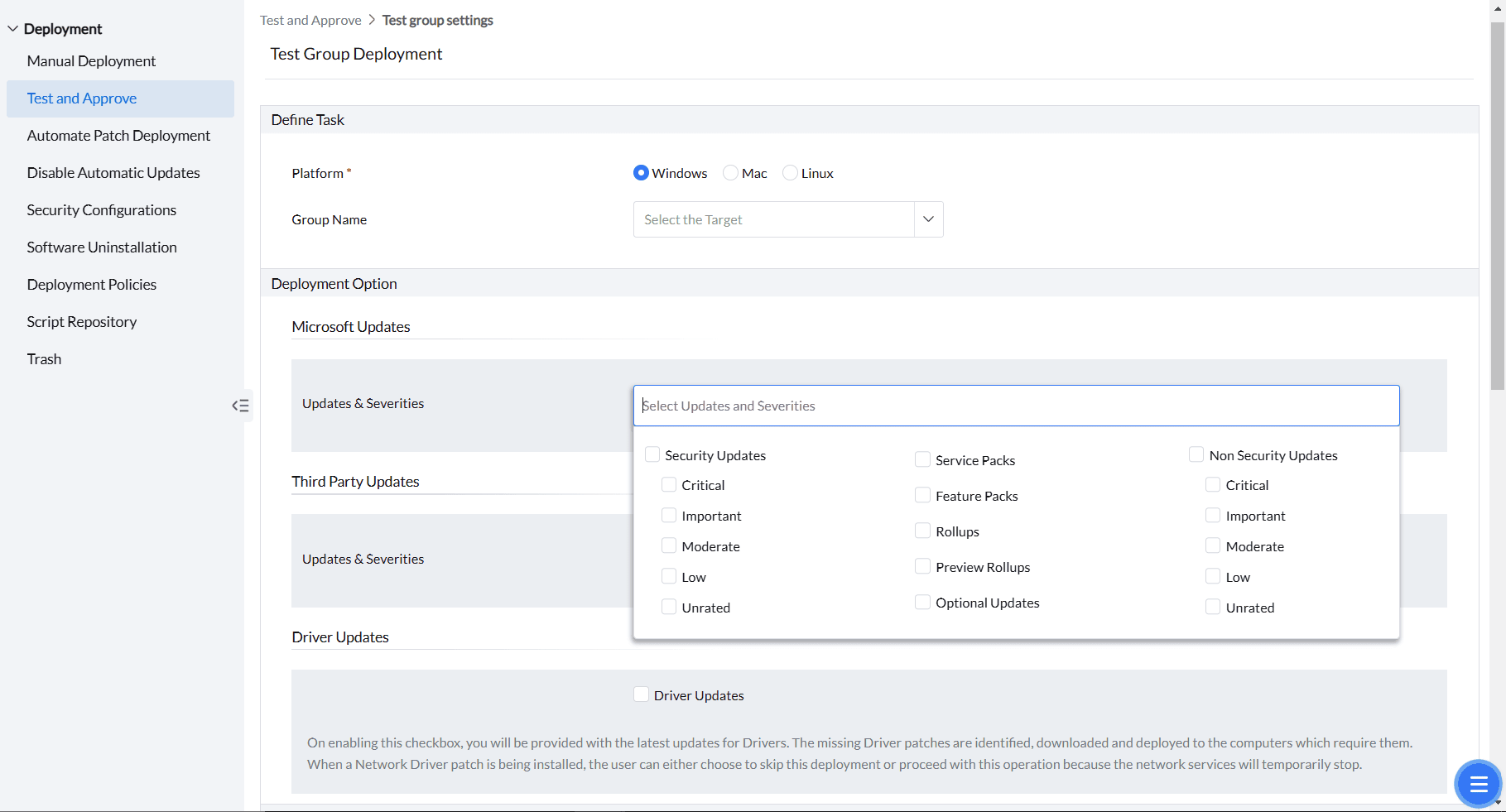
After selecting them, choose:
Patch All Applications to test the patching of all applications whenever patches with that severity and update type are released.
Patch Specific Applications to test the patching of specific applications whenever patches with that severity and update type are released. Select those particular applications under Selected Applications section.
Patch All Applications Except to exclude specified applications and test the patching of all other applications whenever patches with that severity and update type are released. Select the applications to exclude under the Selected Applications section.
You can choose to test Third Party Updates based on Updates and Severities as shown in the following image.
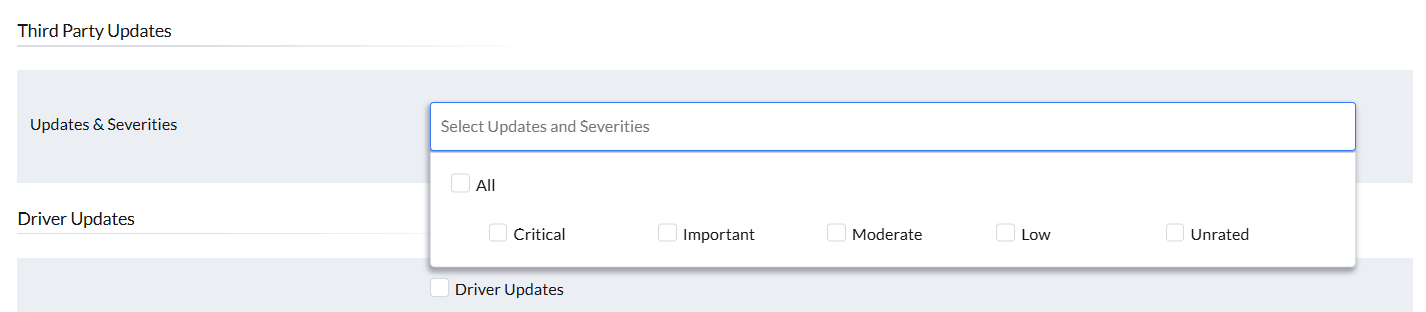
Similar to Microsoft Updates, you can also choose to Patch All Applications,Patch Specific Applications and Patch All Applications Except in this section.
To test device-driver patches, select the Driver Updates checkbox. For supported drivers, refer to this page.
Deployment Settings
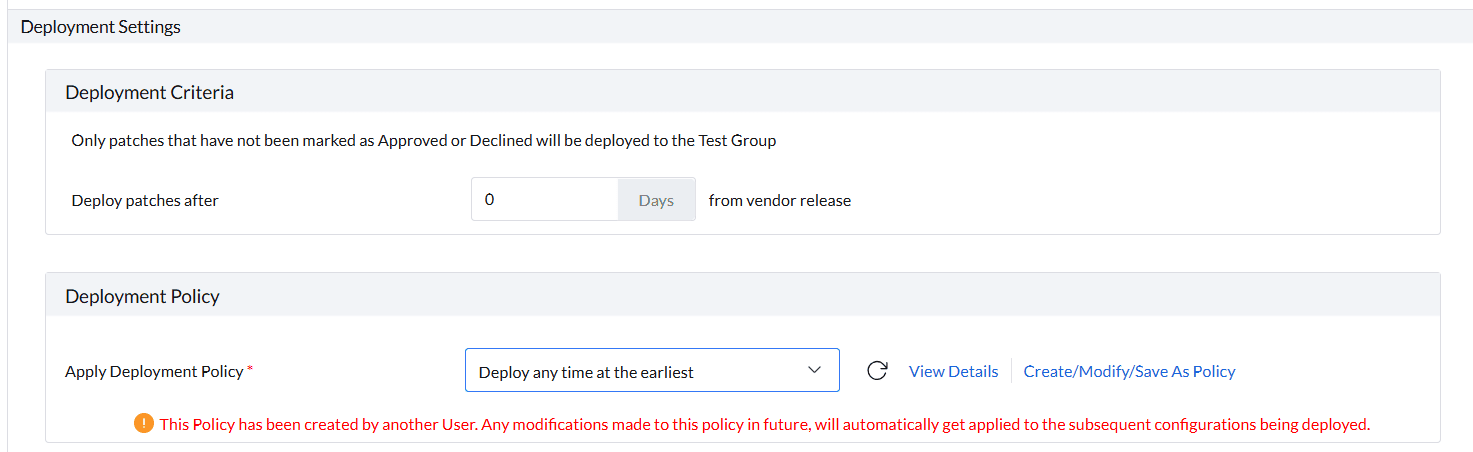
Under Deployment Criteria, use Deploy patches after to set the delay from vendor release to deployment on pilot computers. Set it to 0 Days, to test patches immediately after release.
Under Deployment Policy→ Apply Deployment Policy, select the deployment policy for the pilot computers. It is recommended to choose the policy Deploy any time at the earliest as you can test the patches at the earliest possible time. To learn more about deployment policies, refer to this page.
Notification Settings
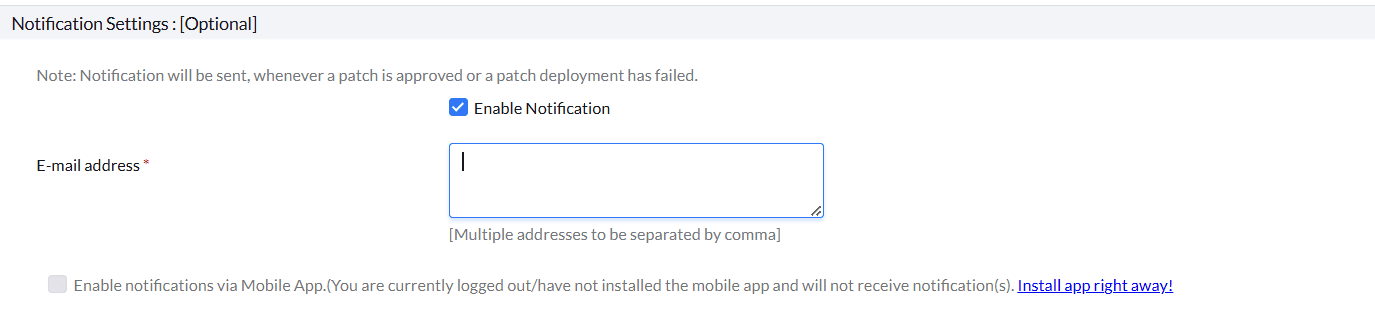
Under Notification Settings, if you wish to receive notifications whenever a patch is approved or a patch deployment has failed during the testing stage, select the checkbox in the Enable Notifications option. Notification Settings are optional. To learn more about configuring notifications, refer to this page.
Approval Mode
Pilot installation and automatic approval follow separate timing rules. The release delay and the test group’s deployment policy determine when the patch can be installed on pilot computers. The approval interval is then evaluated against the qualifying successful test results; it is not counted from the vendor release date.
For example, a patch released in August can be tested in a first-Monday September deployment window. With a one-day approval interval, it becomes eligible for automatic approval after the qualifying successful result has aged by that interval, provided the failure checks also pass. Approval occurs during a later evaluation, so the displayed approval time need not be exactly one day after the installation started.
Under the section Approval mode for tested patches, you can select the number of days after which the tested patches need to be auto-approved by enabling the option Automatically approve tested patches after. Patches are approved after the specified interval only if installation succeeds on at least one machine and fails on none. Use this interval to evaluate the test results. A patch that fails on any pilot computer is not approved.

After configuring the settings, click Create. The patches are tested on the selected test group according to its deployment policy and can then be approved. You can later deploy these patches either using an automated task or manually.
View Test and Approve status
After you create a test group, open the Test and Approve task to monitor testing.
- Patch View lists the Not Approved patches in that task.
- If a patch remains Yet to be downloaded, check its supersedence status before retrying. In Supported Patches, locate the Patch ID and review Superseded By when available. See Identify superseded patches for the existing procedure.
- System View shows the deployment status on the test machines.
- Not Approved patches that match the task criteria are deployed to the test group when at least one test machine is missing the update.
- Use the Approved By column to identify the approval source. Patches approved automatically by the Test and Approve task show DC-SYSTEM-USER, the built-in system identity. Manually approved patches show the approving technician's login name. To change automatic approval behavior, review Approval Mode.