
Spesso, gli amministratori desiderano conoscere l’elenco di tutti gli utenti attualmente connessi. È possibile ottenere questa informazione solo usando degli script di Windows PowerShell. Tuttavia, la creazione dello script e la necessità di modificarlo ogni volta per generare un report in un formato specifico rendono questo processo particolarmente noioso. Una soluzione di auditing AD come ADAudit Plus può aiutare gli amministratori a ottenere questo report in un baleno. Di seguito è riportato un confronto tra le procedure per ottenere il report di tutti gli utenti AD connessi con Windows PowerShell e ADAudit Plus:
function Get-Execute it in Windows PowerShell.UserLogon {
[CmdletBinding()]
param
(
[Parameter ()]
[String]$Computer,
[Parameter ()]
[String]$OU,
[Parameter ()]
[Switch]$All
)
$ErrorActionPreference="SilentlyContinue"
$result=@()
If ($Computer) {
Invoke-Command -ComputerName $Computer -ScriptBlock {quser} | Select-Object -Skip 1 | Foreach-Object {
$b=$_.trim() -replace '\s+',' ' -replace '>','' -split '\s'

If ($b[2] -like 'Disc*') {

$array= ([ordered]@{
'User' = $b[0]
'Computer' = $Computer
'Date' = $b[4]
'Time' = $b[5..6] -join ' '
})
$result+=New-Object -TypeName PSCustomObject -Property $array
}
else {
$array= ([ordered]@{
'User' = $b[0]
'Computer' = $Computer
'Date' = $b[5]
'Time' = $b[6..7] -join ' '
})

$result+=New-Object -TypeName PSCustomObject -Property $array

}
}
}

If ($OU) {

$comp=Get-ADComputer -Filter * -SearchBase "$OU" -Properties operatingsystem

$count=$comp.count

If ($count -gt 20) {

Write-Warning "Search $count computers. This may take some time ... About 4 seconds for each computer"

}

foreach ($u in $comp) {

Invoke-Command -ComputerName $u.Name -ScriptBlock {quser} | Select-Object -Skip 1 | ForEach-Object {

$a=$_.trim() -replace '\s+',' ' -replace '>','' -split '\s'

If ($a[2] -like '*Disc*') {

$array= ([ordered]@{
'User' = $a[0]
'Computer' = $u.Name
'Date' = $a[4]
'Time' = $a[5..6] -join ' '
})

$result+=New-Object -TypeName PSCustomObject -Property $array
}

else {

$array= ([ordered]@{
'User' = $a[0]
'Computer' = $u.Name
'Date' = $a[5]
'Time' = $a[6..7] -join ' '
})

$result+=New-Object -TypeName PSCustomObject -Property $array
}

}

}

}

If ($All) {

$comp=Get-ADComputer -Filter * -Properties operatingsystem

$count=$comp.count

If ($count -gt 20) {

Write-Warning "Search $count computers. This may take some time ... About 4 seconds for each computer ..."

}

foreach ($u in $comp) {

Invoke-Command -ComputerName $u.Name -ScriptBlock {quser} | Select-Object -Skip 1 | ForEach-Object {

$a=$_.trim() -replace '\s+',' ' -replace '>','' -split '\s'

If ($a[2] -like '*Disc*') {

$array= ([ordered]@{
'User' = $a[0]
'Computer' = $u.Name
'Date' = $a[4]
'Time' = $a[5..6] -join ' '
})

$result+=New-Object -TypeName PSCustomObject -Property $array

}

else {

$array= ([ordered]@{
'User' = $a[0]
'Computer' = $u.Name
'Date' = $a[5]
'Time' = $a[6..7] -join ' '
})

$result+=New-Object -TypeName PSCustomObject -Property $array

}

}

}
}
Write-Output $result
}
Screenshot
Di seguito sono elencate le limitazioni per ottenere un report di tutti gli utenti AD connessi mediante strumenti nativi come Windows PowerShell:
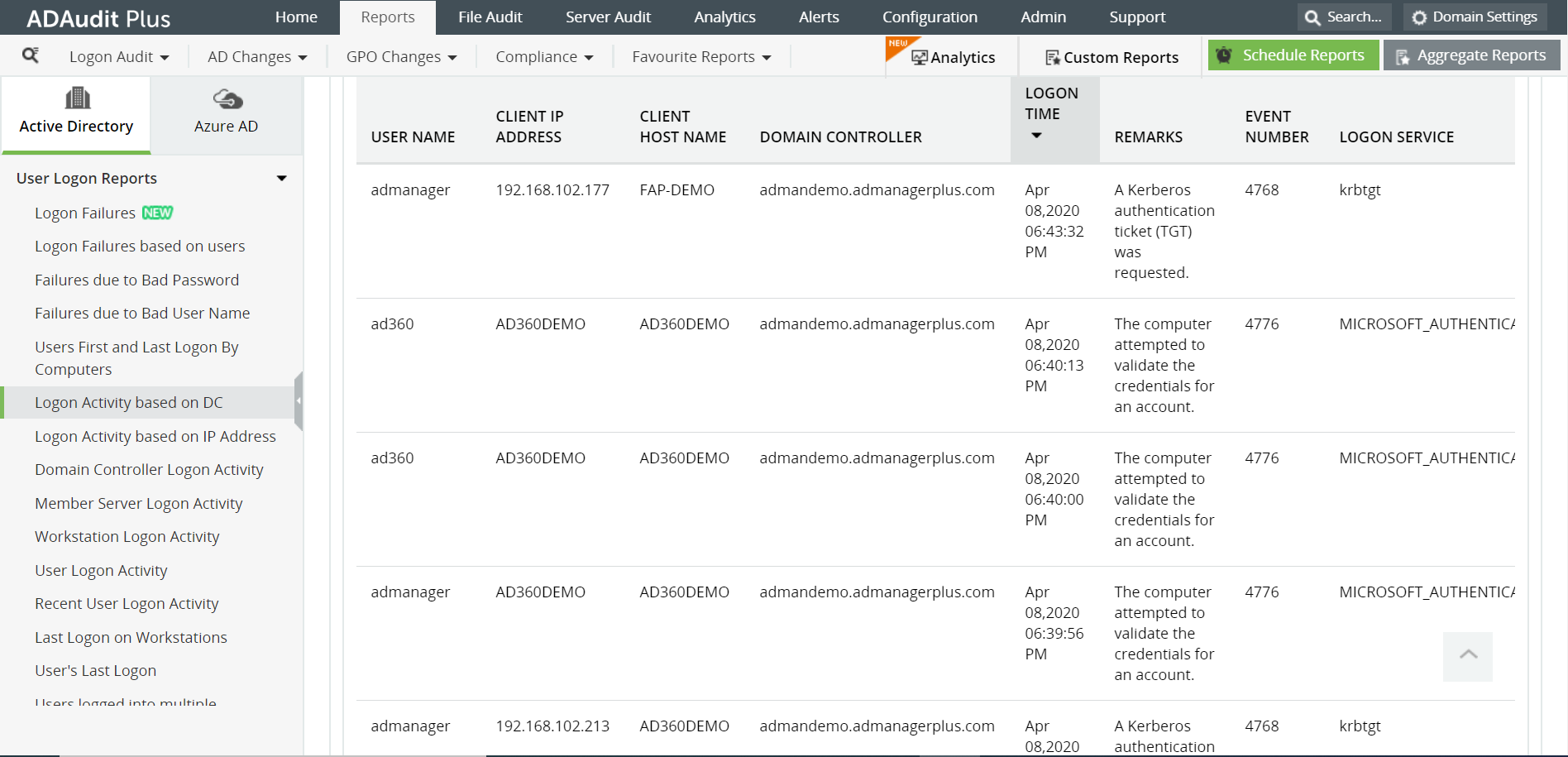
ADAudit Plus genererà il report scansionando in automatico tutti i controller di dominio presenti nel domino per estrarre l’elenco degli utenti connessi, mostrandolo tramite un’interfaccia utente semplice e dal design intuitivo.