Managing Additional Fields in Key Manager Plus Cloud
Key Manager Plus Cloud allows administrators to define and manage Additional Fields to include supportive information related to SSL certificates stored in the inventory. These fields help customize certificate data based on organizational requirements. Once an additional field is created, its default value is automatically applied to all certificates and is visible to all users. The values can later be individually modified for each certificate, if needed. You can create fields of the following types: character, numeric, date, email, and dropdown, depending on the kind of information to be included. The additional fields are applied globally across all the SSL certificates. This document covers the following topics in detail:
- Creating Additional Fields
- Displaying Additional Fields
- Editing Additional Fields
- Resetting Additional Fields
- Managing Field Visibility via the Column Chooser
1. Creating Additional Fields
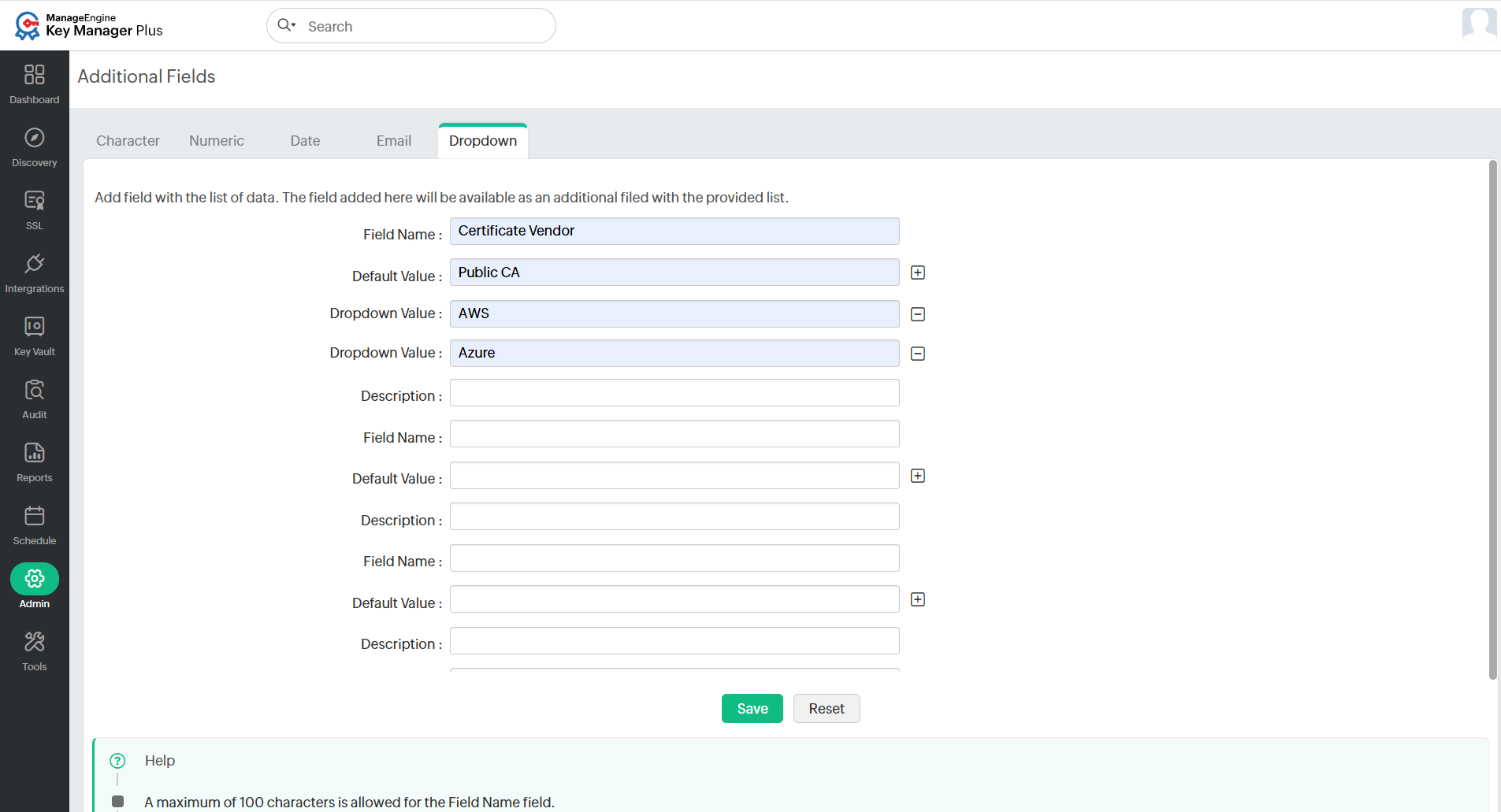
Key Manager Plus Cloud allows administrators to create additional fields that can be applied across all SSL certificates to include extra, customizable information. Follow the steps below to create additional fields:
- Navigate to Admin >> Other Settings >> Additional Fields.
- Select the field type based on the kind of information to be included:
- Character: To store general text inputs
- Numeric: To store numerical values
- Date: To store date and time entries
- Email: To store email addresses
- Dropdown: To store multiple predefined values
- Enter the Field Name, Default Value, and Description.
- Click Save. To view the newly created field in the SSL Certificates tab, use the Column Chooser icon from the top bar to enable its display.
Additional Detail
Certificate expiry notification emails can be sent to the email addresses specified in the additional fields of type Email, formatted according to the configuration in the Notification and Schedule tabs.
2. Displaying Additional Fields
Follow the below steps to display an additional field in the SSL certificates tab:
- Navigate to SSL >> Certificates tab.
- Click the Column chooser icon from the top bar.
- In the pop-up, select the checkbox beside the required additional field and click Save.
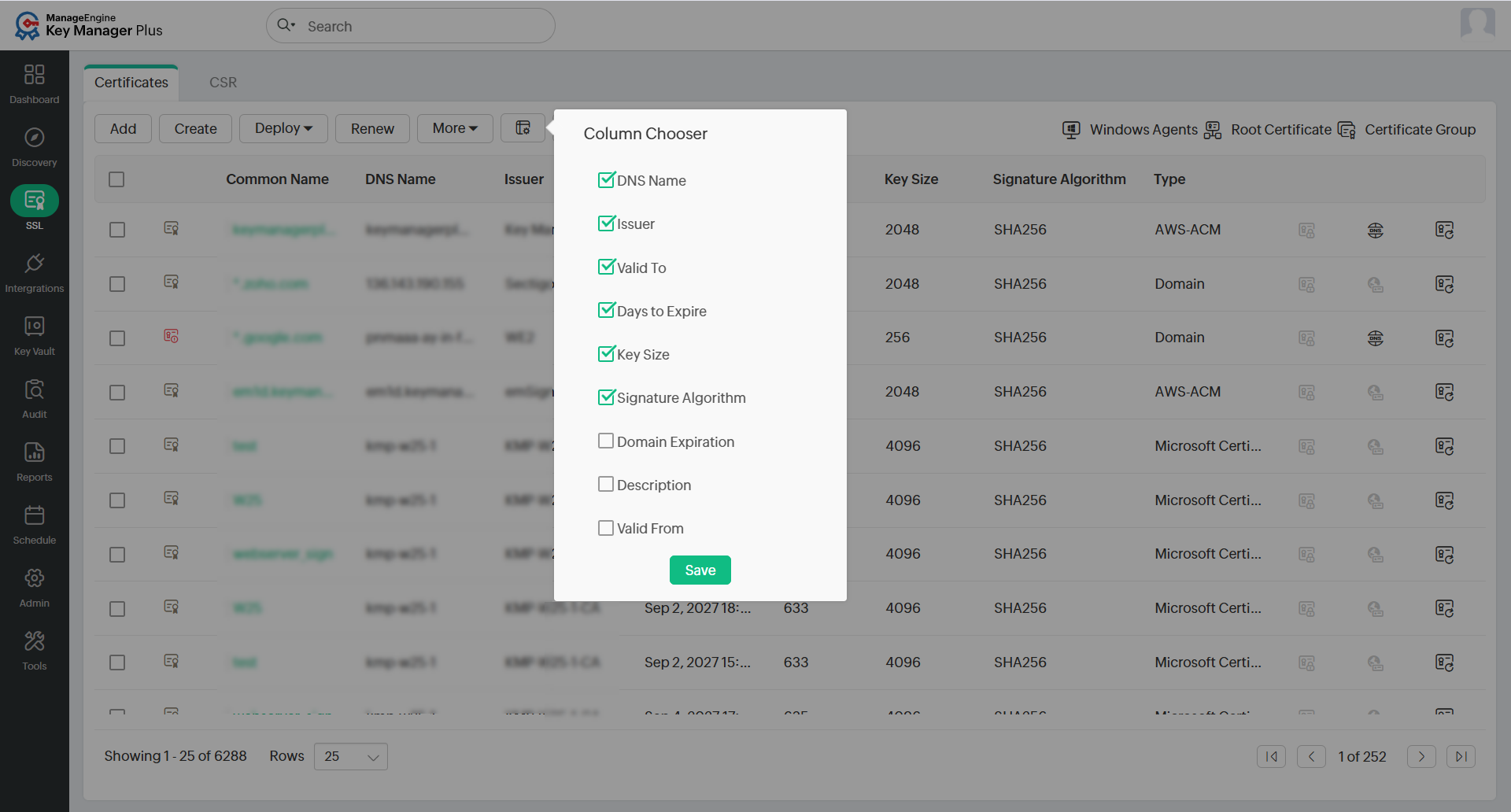
The selected additional field and its default value will now be visible alongside the other columns. The default value will be applied to all certificates in the inventory, but it can be edited for individual certificates if needed.
3. Editing Additional Fields
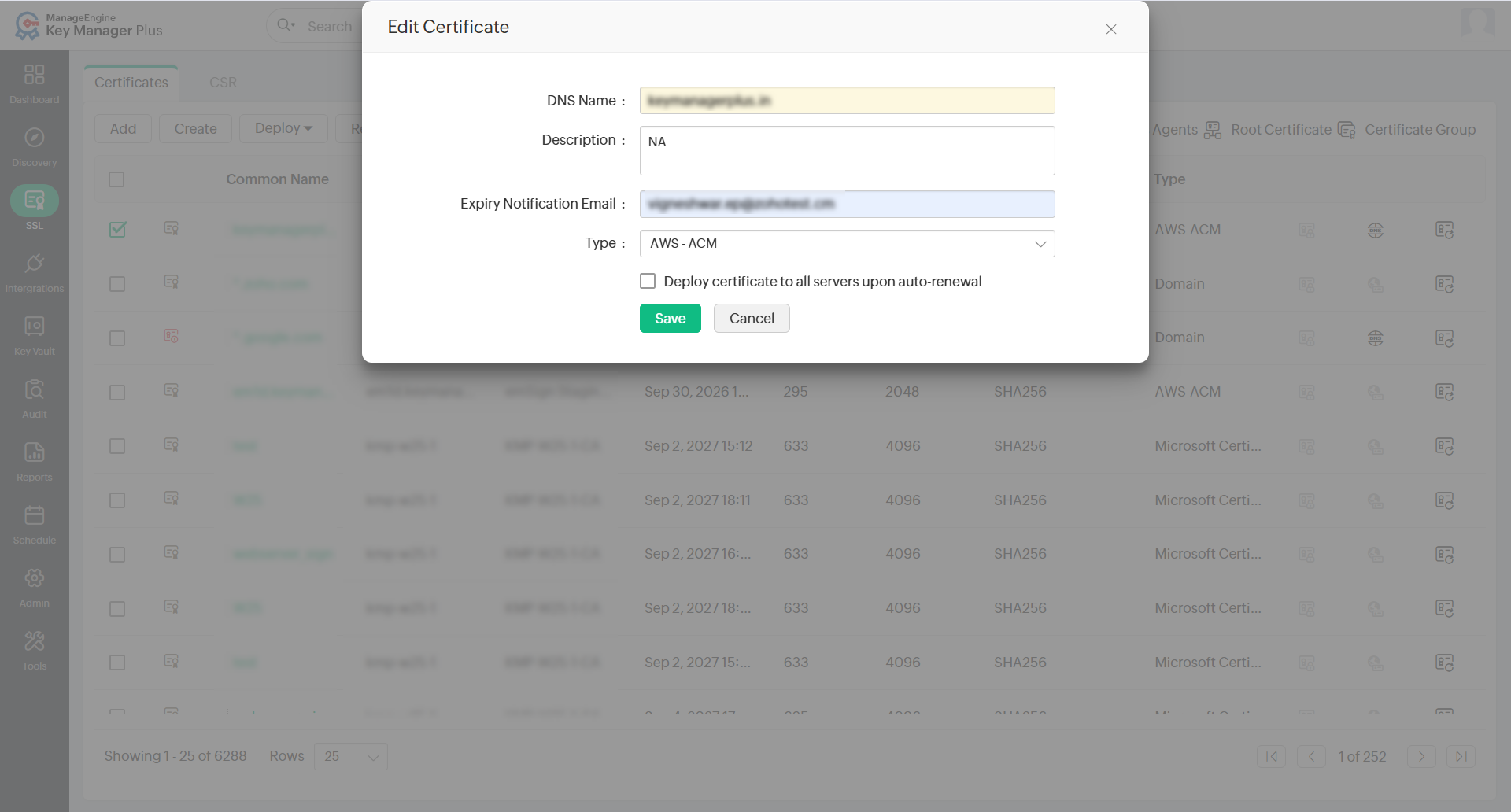
Once an additional field is created, its default value is automatically applied to all SSL certificates stored in the inventory. You can modify the value of an additional field for a specific certificate as needed. Follow the below steps to edit additional field values for a specific certificate:
- Navigate to SSL >> Certificates tab.
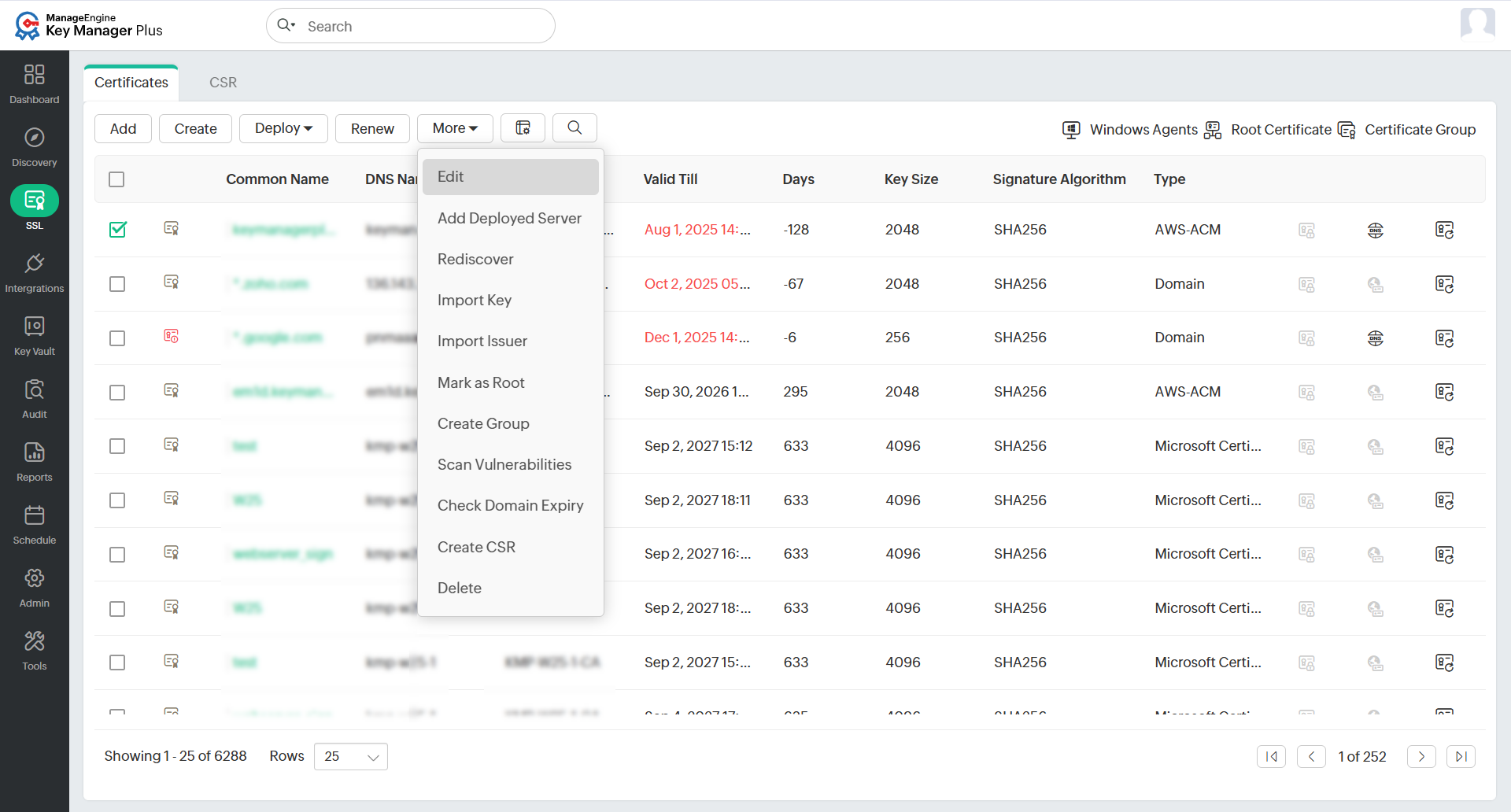
- Select a certificate and click Edit from the More dropdown in the top bar.
- In the Edit Certificate window that opens, modify the values in the text field or select a value from the dropdown, then click Save. This change will apply only to the selected certificate.
Follow the below steps to edit additional fields in bulk for multiple certificates at once:
- Select multiple certificates in the SSL >> Certificates tab.
- Click More >> Edit. In the edit window that opens, modify the values of the additional fields as needed.
- Click Save. The updated values will be applied to all selected certificates.
Follow the below steps to edit additional fields for certificate groups:
- Navigate to SSL >> Certificate Group tab.
- Select the required groups and click Update Additional Fields.
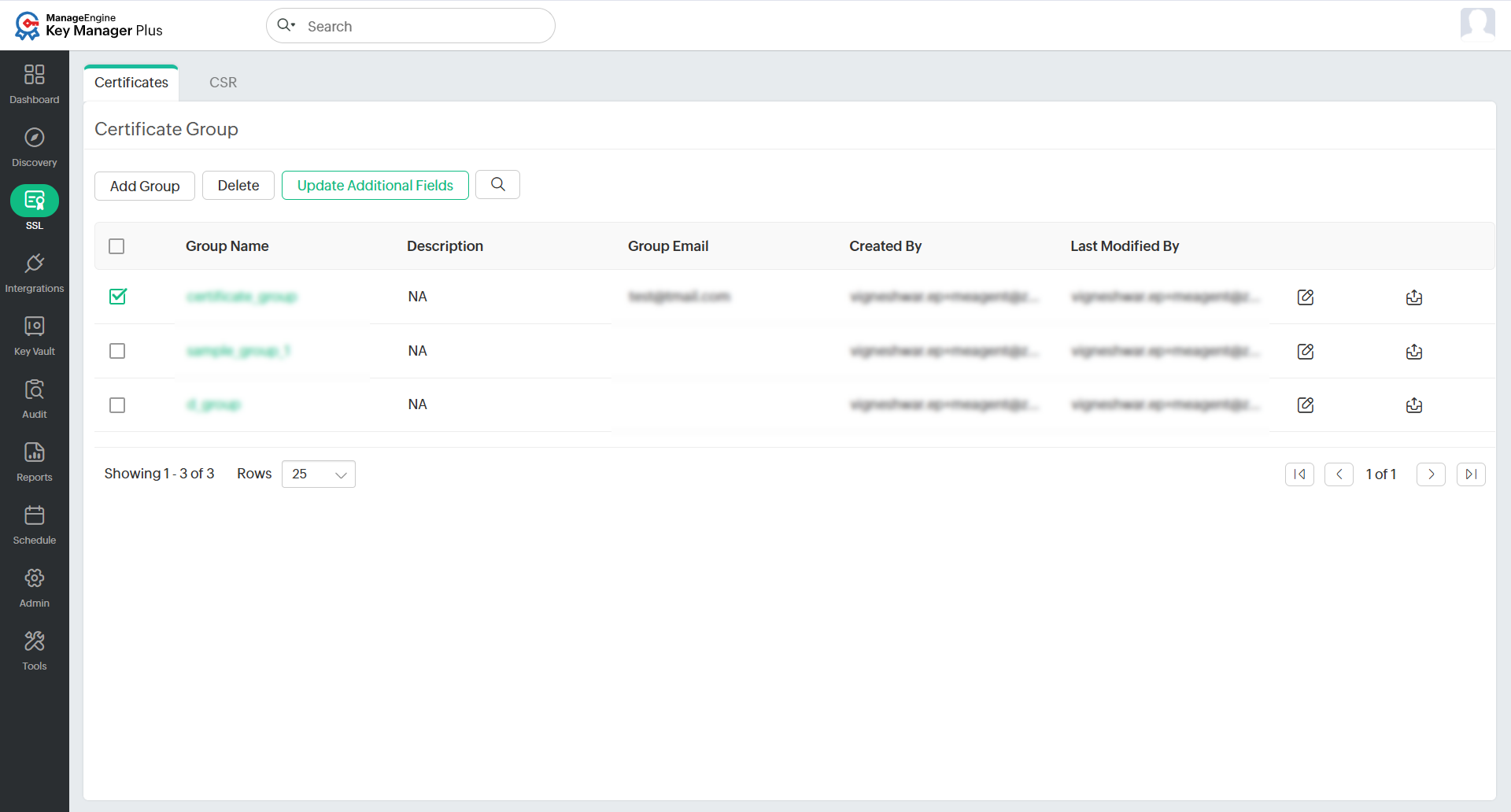
- In the pop-up that appears, update the desired additional field values.
- Click Save. The values will be applied to all certificates within the selected groups.
4. Resetting Additional Fields
Follow the below steps to reset the additional fields and remove any previously added ones:
- Navigate to Admin >> Other Settings >> Additional Fields.
- Click the Reset option available at the bottom of the page. In the pop-up that opens, confirm the reset by clicking OK. This will delete all additional fields from the SSL Certificates tab.
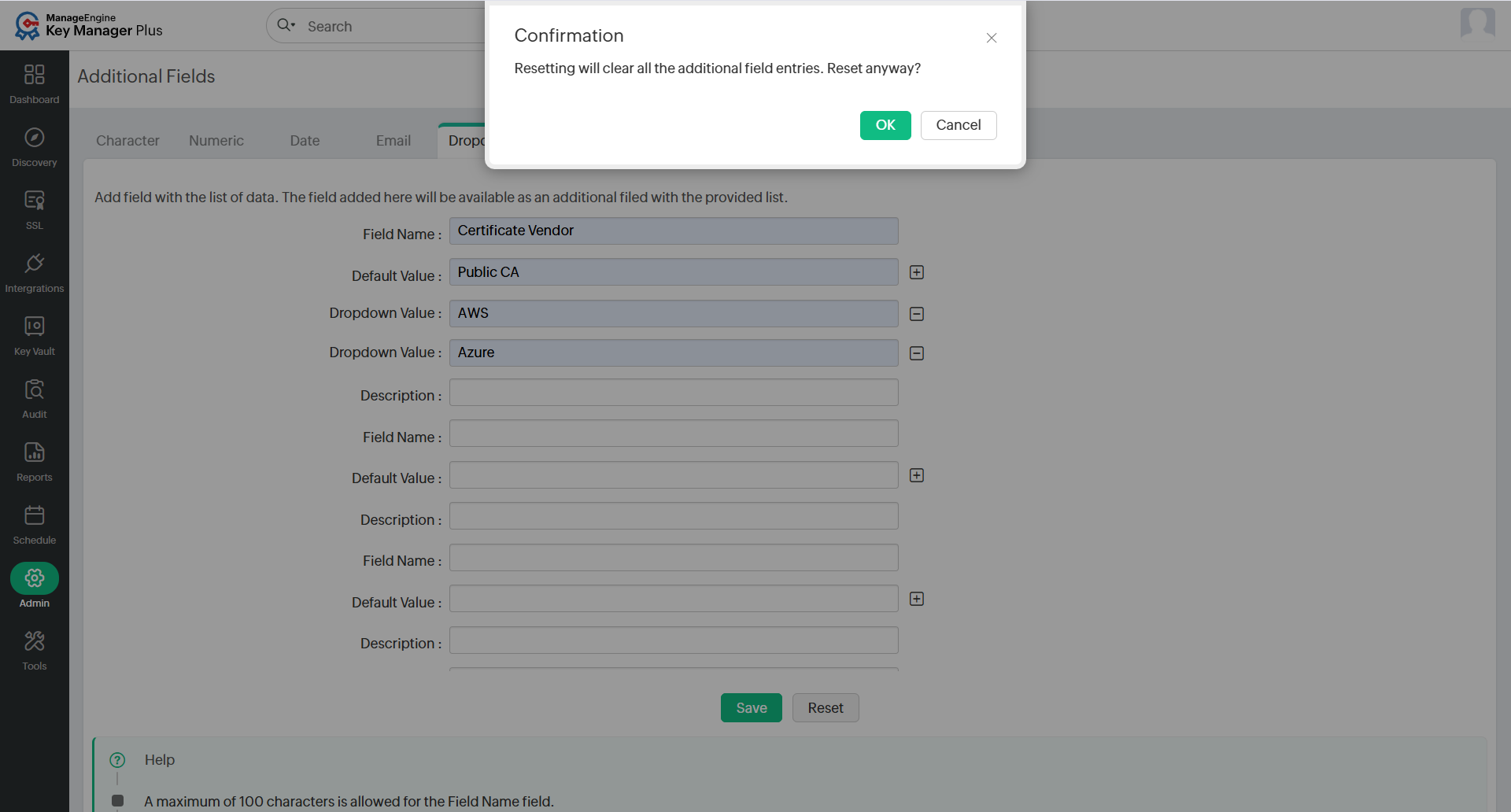
- To delete only selected additional fields, remove the Field Name, Default Value, and Description manually, then click Save to apply the changes.
5. Managing Field Visibility via the Column Chooser
The Column Chooser icon allows you to organize columns and choose to show or hide both default and additional fields as needed. The Column Chooser icon helps declutter the columns in the SSL Certificates and Reports tabs.
Additional Detail
Column chooser customization is user-specific. Any changes made by one user to the visibility or arrangement of columns will not affect other users.
Follow the below steps to show or hide columns in a tab view:
- Click the Column Chooser icon to display all the available columns.
- Unselect the checkboxes beside the column names that you want to hide from the tab view. This applies to both default and additional fields.
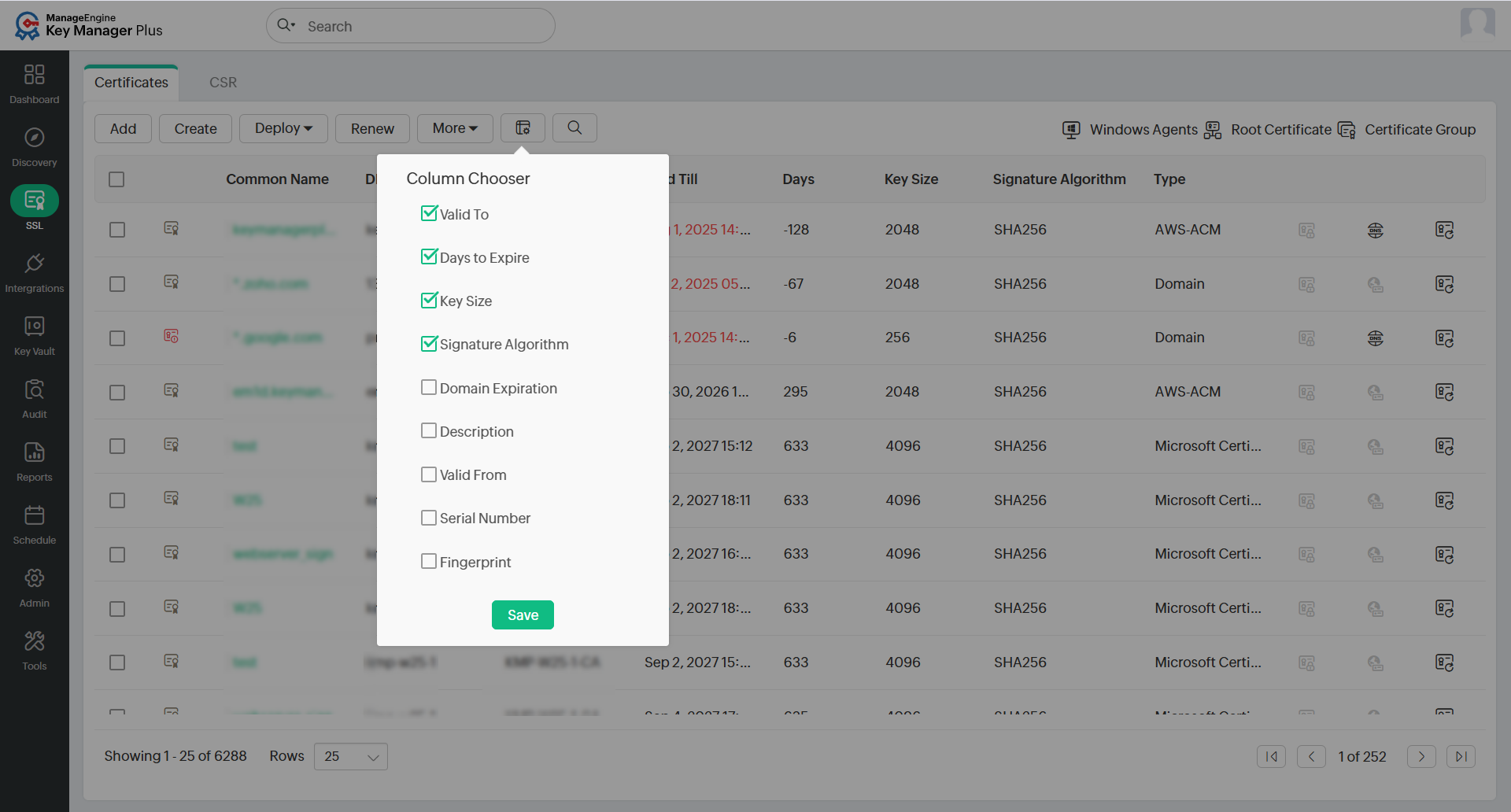
- To reorder columns, click and drag a column to the desired position.
All the additional fields created will also be listed under Admin >> Privacy Settings >> Export Data Settings along with the default columns. Select the checkboxes beside the column/field names to hide or mask the corresponding data from the exported reports.