Integrating emSign Certificate Authority with Key Manager Plus Cloud
Key Manager Plus Cloud facilitates integration with emSign signing authority (powered by eMudhra), making it possible for enterprises to automate the end-to-end management of web server certificates signed and issued by emSign from a centralized platform. This document discusses the steps to manage the life cycle operations of SSL/TLS certificates issued by emSign directly from Key Manager Plus Cloud, right from importing existing orders, certificate request and provisioning, to deployment, and thereupon.
Refer to the sections that follow to learn more about emSign integration and certificate management with Key Manager Plus Cloud:
- Configuring emSign CA Details
- Importing Existing Certificate Orders
- Creating New Certificate Orders
- Checking Order Status
- Managing Certificates Issued by emSign CA
1. Configuring emSign CA Details
To begin managing SSL certificates issued by emSign from Key Manager Plus Cloud, users should add their emSign account in Key Manager Plus Cloud via your unique API Key. If there is no emSign account, contact the emSign team for sign up and get the login credentials.
Once the emSign account is created, follow the steps below to generate an API key to begin the integration process:
- Log in to the emSign portal using your account and select Integration >> REST APIs from the left pane.
- Navigate to the upper-right corner of the page that appears and click the Add icon.
- In the dialog box that appears, enter the Description, select a User from the dropdown, and click Generate Access Key.
Upon submitting the request, you will get an access key generated by the system to use the emSign platform via REST API.
Additional Detail
Refer to this emSign documentation for more information about generating an API key from the emSign portal.
Now, log in to Key Manager Plus Cloud, and add your emSign credential with the unique Account Number and Access Key by performing the below steps:
- Navigate to Integrations >> Public CA Integrations >> emSign.
- If a pop-up confirmation dialog box appears, click OK to confirm adding an emSign credential into Key Manager Plus Cloud.
- Click Manage at the top-right corner of the page.
- In the new page that appears, click Add to add an emSign credential.
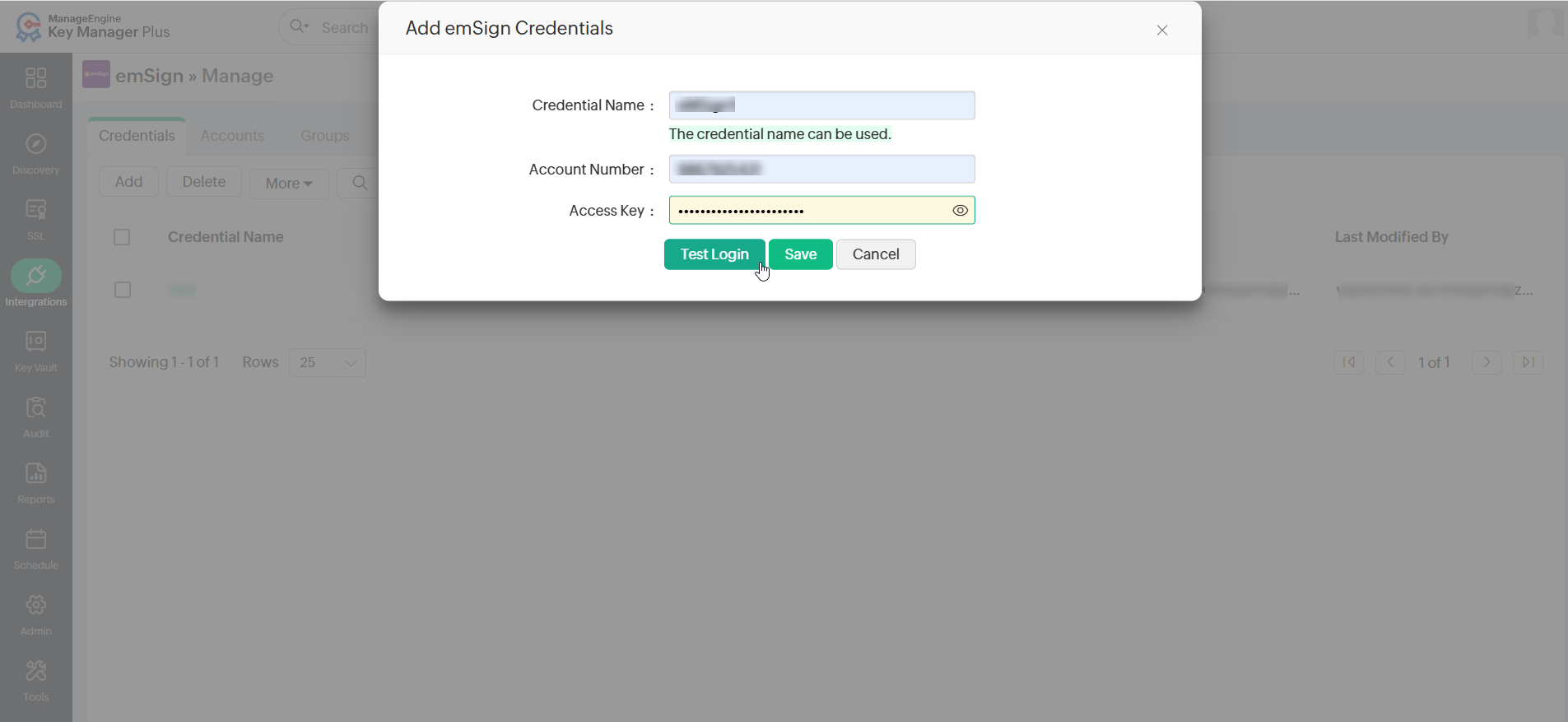
- In the dialog box that opens, enter the Credential Name, Account Number, and Access Key and click Save. This is a one-time operation. Users can also click Test Login to check the communication between the emSign portal and Key Manager Plus Cloud.
Once the emSign account details are linked to Key Manager Plus Cloud, the system retrieves vital information such as accounts, groups, organizations, and domains and organizes them under the individual tabs with corresponding details. These details are crucial as emSign CA issues certificates based on them. For further manual synchronization, users can use the Sync Groups, Sync Organizations, and Sync Domains options from the More dropdown in the tab by selecting the respective credentials.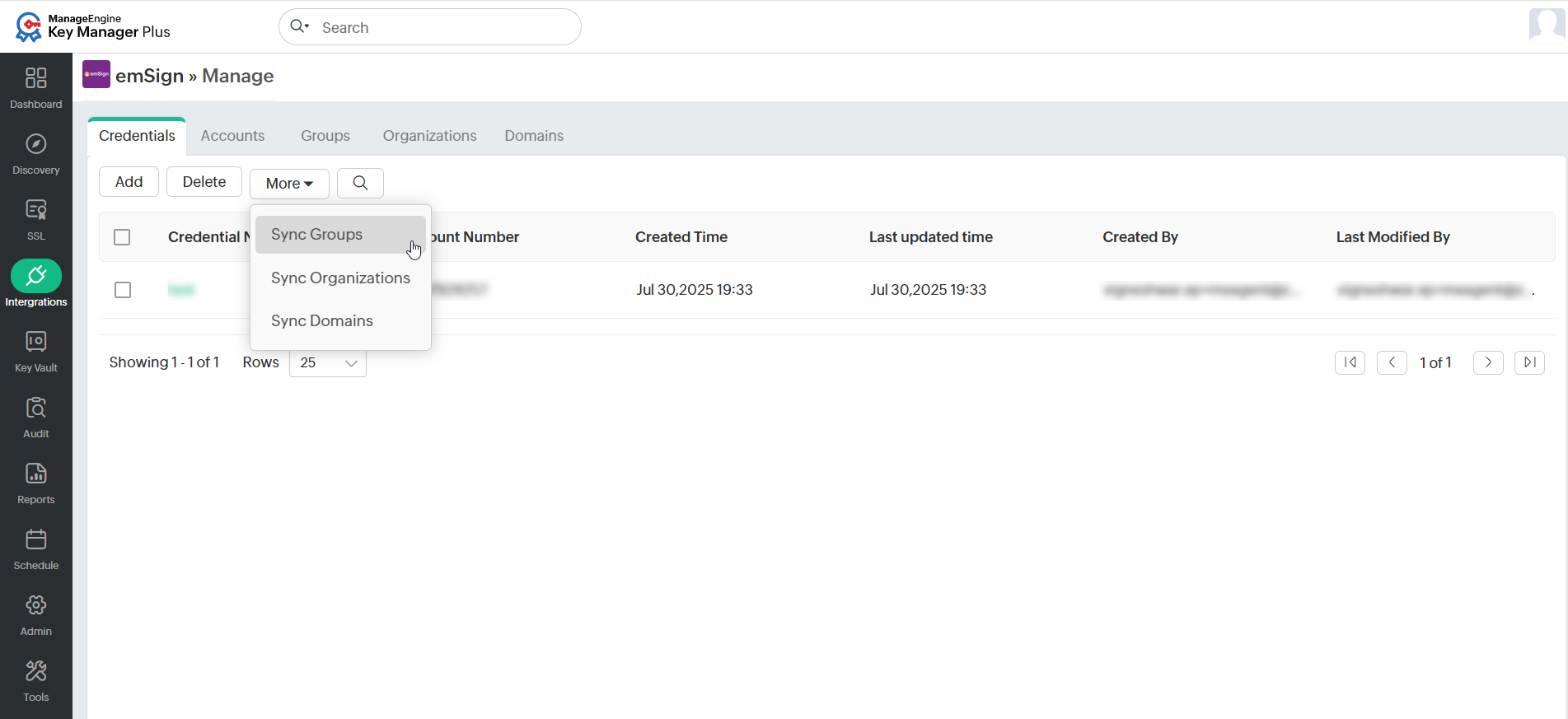
Upon successful integration of the emSign account into Key Manager Plus Cloud by providing the Username and Access key, you can import certificate orders from the emSign portal or create emSign certificate orders and retrieve certificates directly from Key Manager Plus Cloud.
2. Importing Existing Certificate Orders
If users have an active emSign account, it is likely that they currently have ongoing certificate orders. Key Manager Plus Cloud offers the convenience of initiating new certificate orders and importing and effectively managing all existing orders from the emSign portal through its user-friendly interface. The next step is to import all certificate orders from the emSign portal into Key Manager Plus Cloud.
To import the existing certificate orders, follow the steps below:
- Navigate to the Integrations >> Public CA Integrations >> emSign tab.
- Click Import Existing Orders from the top menu.
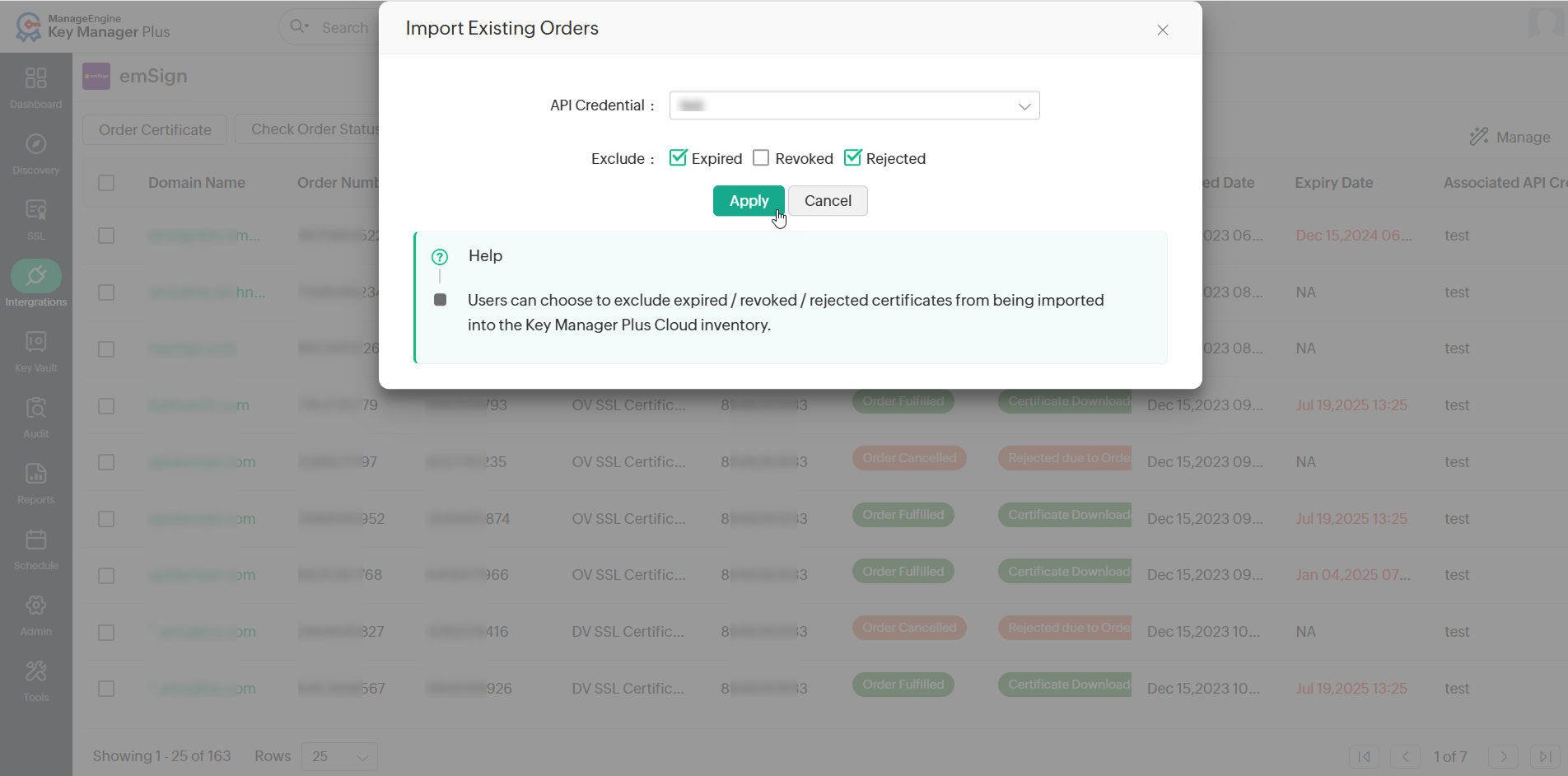
- When importing the existing orders, users can choose to exclude the expired, revoked, or rejected certificates from being added to Key Manager Plus Cloud (this option is provided to help users save license count by excluding the addition of unnecessary certificates into Key Manager Plus Cloud. However, irrespective of the option chosen, all the order details will be imported into Key Manager Plus Cloud).
- Select the required option and click Import.
All the existing certificate orders associated with your emSign account will be imported into Key Manager Plus Cloud.
3. Creating New Certificate Orders
To place a new certificate order, follow the steps below:
- Navigate to Integrations >> Public CA Integrations >> emSign and click Order Certificate from the top menu.
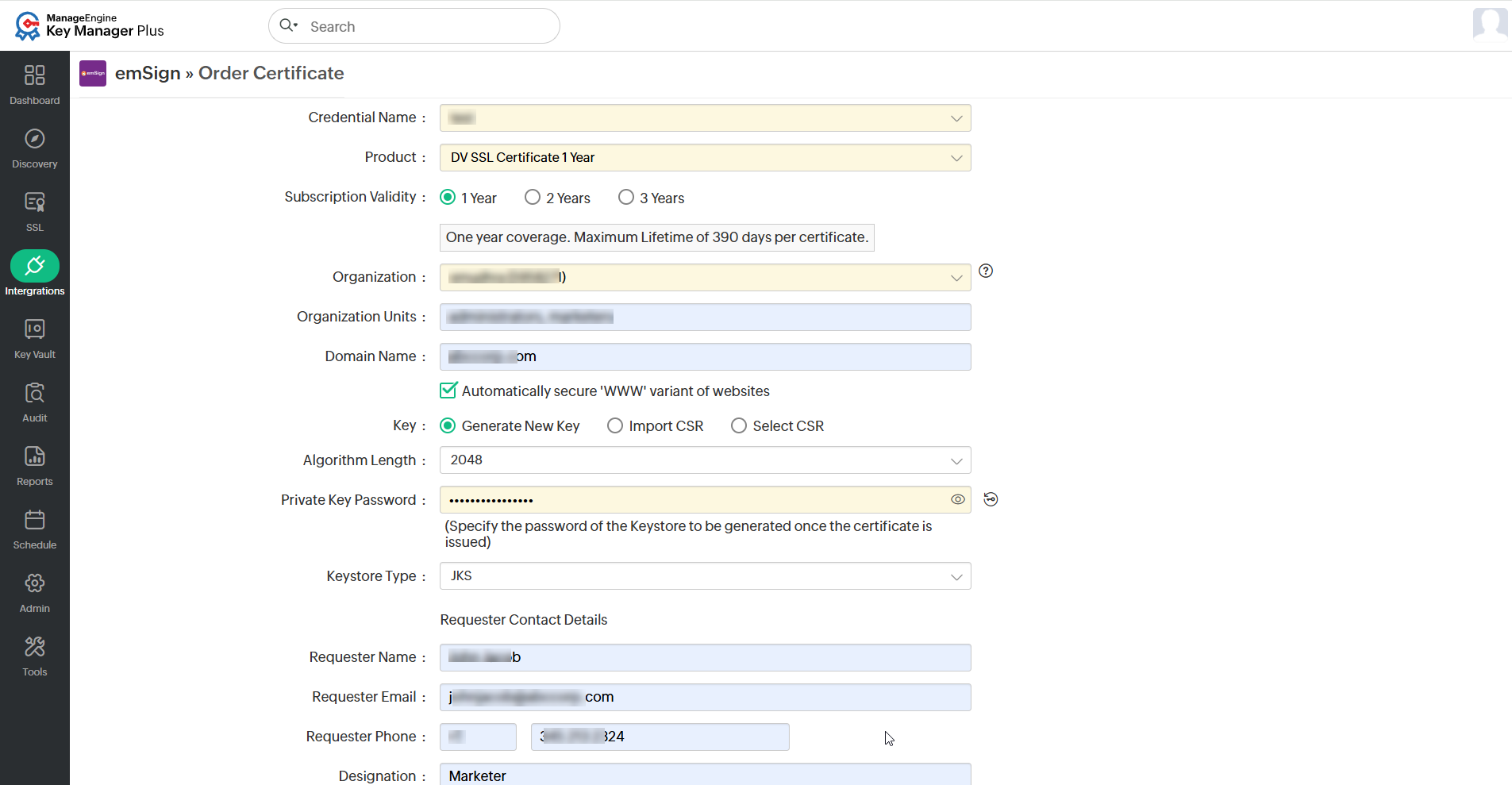
- In the window that opens, select the Credential Name, Product, Organization, and specify the Organization Units, Domain Name, Key, Algorithm Length, Private Key Password, Keystore Type, and the requester contact details such as Requester Name, Requester Email, Requester Phone Number, and Requester Designation attributes accordingly.
Additional Detail
Users have the option to either paste the CSR content directly or choose the CSR created via Key Manager Plus Cloud, eliminating the need to select it from the local files.
- Additionally, users can specify the subscription validity (in years) for a few products.
- To automatically secure the WWW variant of a website, tick the Automatically secure 'WWW' variant of websites checkbox beneath the Domain Name field.
- If required, specify the technical contact details.
- To automatically renew the emSign certificates, tick the Auto-renew certificates until subscription coverage checkbox and select the number of Days to Expire.
- After filling in the required details, click the Order Certificate button.
Additional Detail
For any discrepancies in the emSign-related details (Organization/Product/Domain) shown here, please verify the information on the emSign portal. Then, perform a manual synchronization under emSign >> Manage in Key Manager Plus Cloud to view the updated details. For any other issues related to the emSign account, please contact the emSign customer support team.
- To cancel the certificate order, navigate to Integrations >> Public CA Integrations >> emSign and select the certificate order from the list. Click the Cancel Order button at the top pane and confirm your action.
4. Checking the Order Status
Once a certificate order is successfully created, you can view it under the Integrations >> Public CA Integrations >> emSign tab, with its status displayed to the right. To track the certificate availability for an order, select the order and click Check Order Status from the top pane. Once a certificate is issued, it is fetched and added to Key Manager Plus Cloud. You will be able to view it under SSL >> Certificates.
Additional Detail
Certificates issued will be added to Key Manager Plus Cloud only if there is enough license count available. If the license count reaches the provided limit, you should renew your Key Manager Plus Cloud license before retrieving or importing any certificates. However, this will not remove the certificate request from emSign CA and the certificate remains accessible and manageable through the emSign portal.
5. Managing Certificates Issued by emSign CA
5.1 Revoking emSign Certificates
Key Manager Plus Cloud allows you to revoke emSign certificates right from its interface. To revoke a certificate from Key Manager Plus Cloud, follow the steps below:
- Navigate to Integrations >> Public CA Integrations >> emSign and select the certificate that is to be revoked.
- Click the Revoke Certificate button from the top menu.
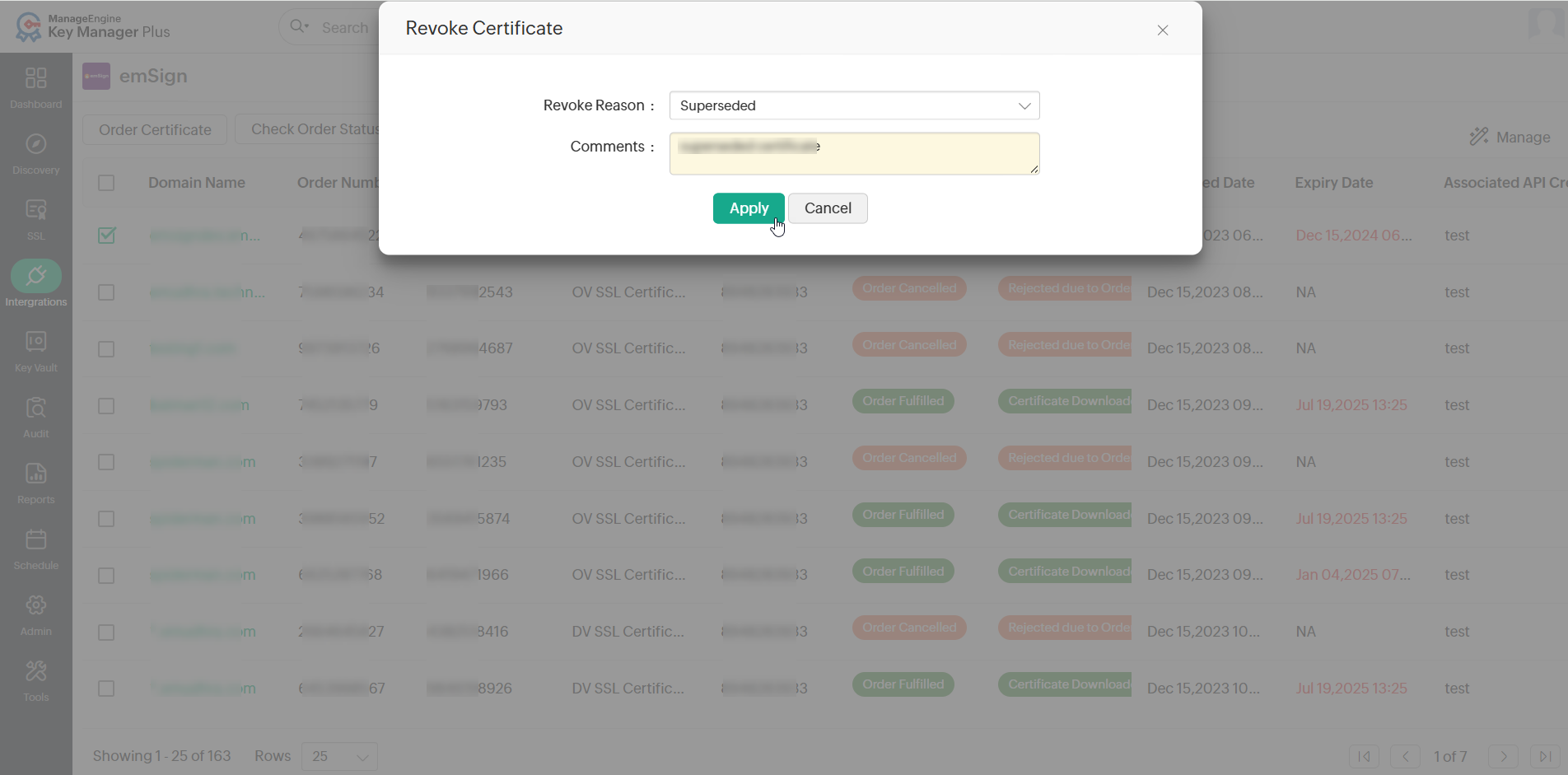
- In the dialog box that appears, select the Revoke Reason and enter the Comments for the certificate order revoke.
- Click Apply to revoke the emSign certificate.
5.2 Deleting emSign Certificates
To delete emSign certificate orders from Key Manager Plus Cloud, follow the steps below:
- Navigate to Integrations >> Public CA Integrations >> emSign and select the required certificate orders from the list.
- Click the Delete button at the top pane and confirm your action in the dialog box that appears.
Upon execution, the certificate orders will be deleted from Key Manager Plus Cloud and the related certificates will remain intact in the SSL tab.
Additional Detail
The Delete option only removes the certificate order from Key Manager Plus Cloud, and you can no longer manage it from Key Manager Plus Cloud. However, it does not delete the certificate order from emSign CertHub - the certificate can still be viewed and managed from the emSign portal.