Integrating Sectigo Certificate Manager with Key Manager Plus Cloud
Key Manager Plus Cloud facilitates integration with Sectigo Certificate Manager (SCM), a PKI management platform that specializes in managing SSL/TLS certificates, SSH keys, and various other digital identities. The integration leverages SCM's API and allows Key Manager Plus Cloud to act as a centralized platform where you can import and manage SSL or TLS certificates from the SCM. Automate the lifecycle management of these certificates through diverse operations that are supported by the integration.
This document details the steps to manage the lifecycle of SSL/TLS certificates issued by the SCM, which includes importing existing orders, creating new certificate requests, deployment, and renewal of certificates.
- Setting up Sectigo Certificate Manager
- Importing Existing Certificate Orders
- Creating a New Certificate Orders
- Checking Order Status
- Managing Certificates Issued by Sectigo Certificate Manager
1. Setting up Sectigo Certificate Manager
To begin managing SSL certificates issued by SCM, add the SCM account in Key Manager Plus Cloud and link the unique Customer URI. For users who does not have an SCM account, contact the Sectigo team to sign up and get the login credentials and Customer URI.
Follow the below steps to link the SCM account with Key Manager Plus Cloud and begin the integration process:
- Log in to the Key Manager Plus Cloud, navigate to Integrations >> Public CA Integrations >> Sectigo and click Manage.
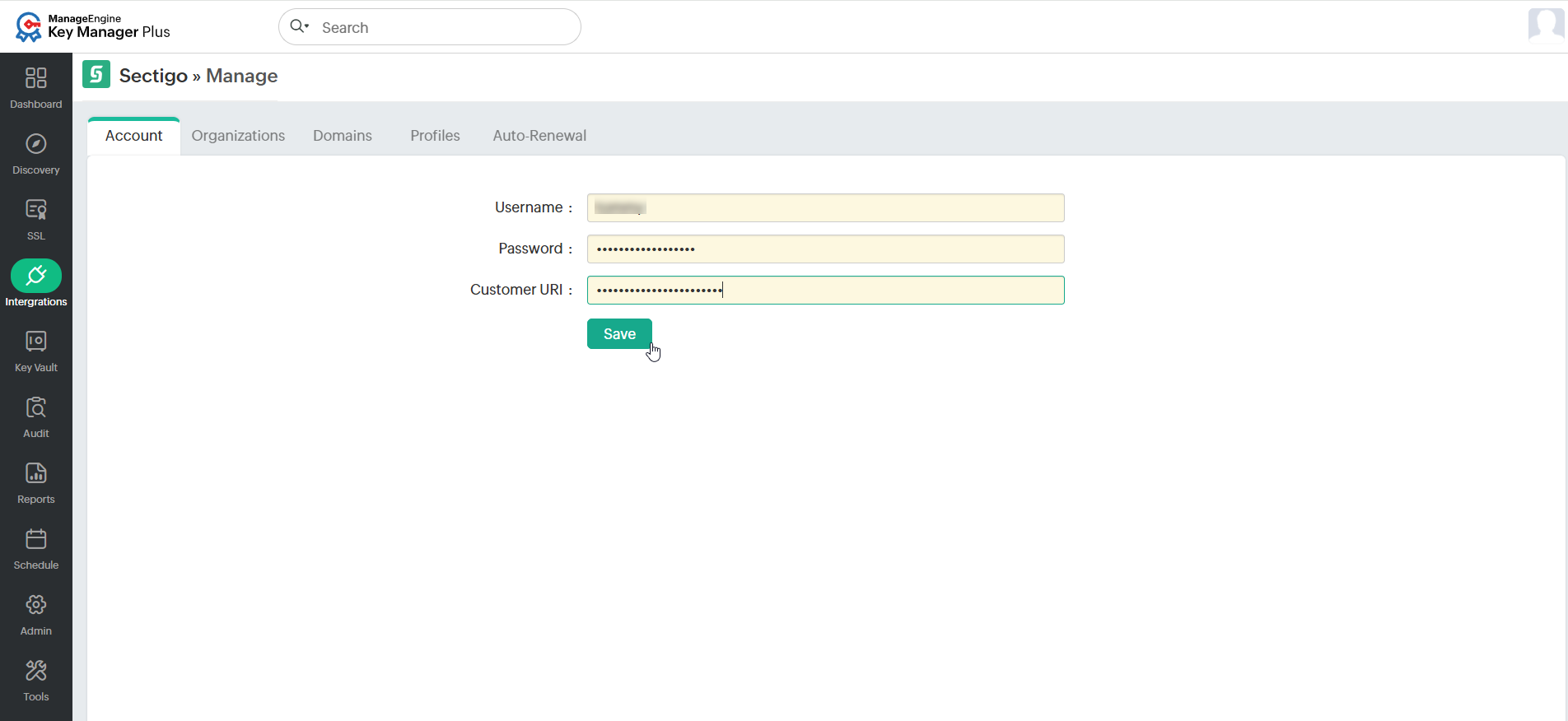
- Under Account, enter the SCM Username, Password, your unique Customer URI.
- Click Save. This is a one-time operation. Users can find your Customer URI suffixed in the SCM login URL as shown below:
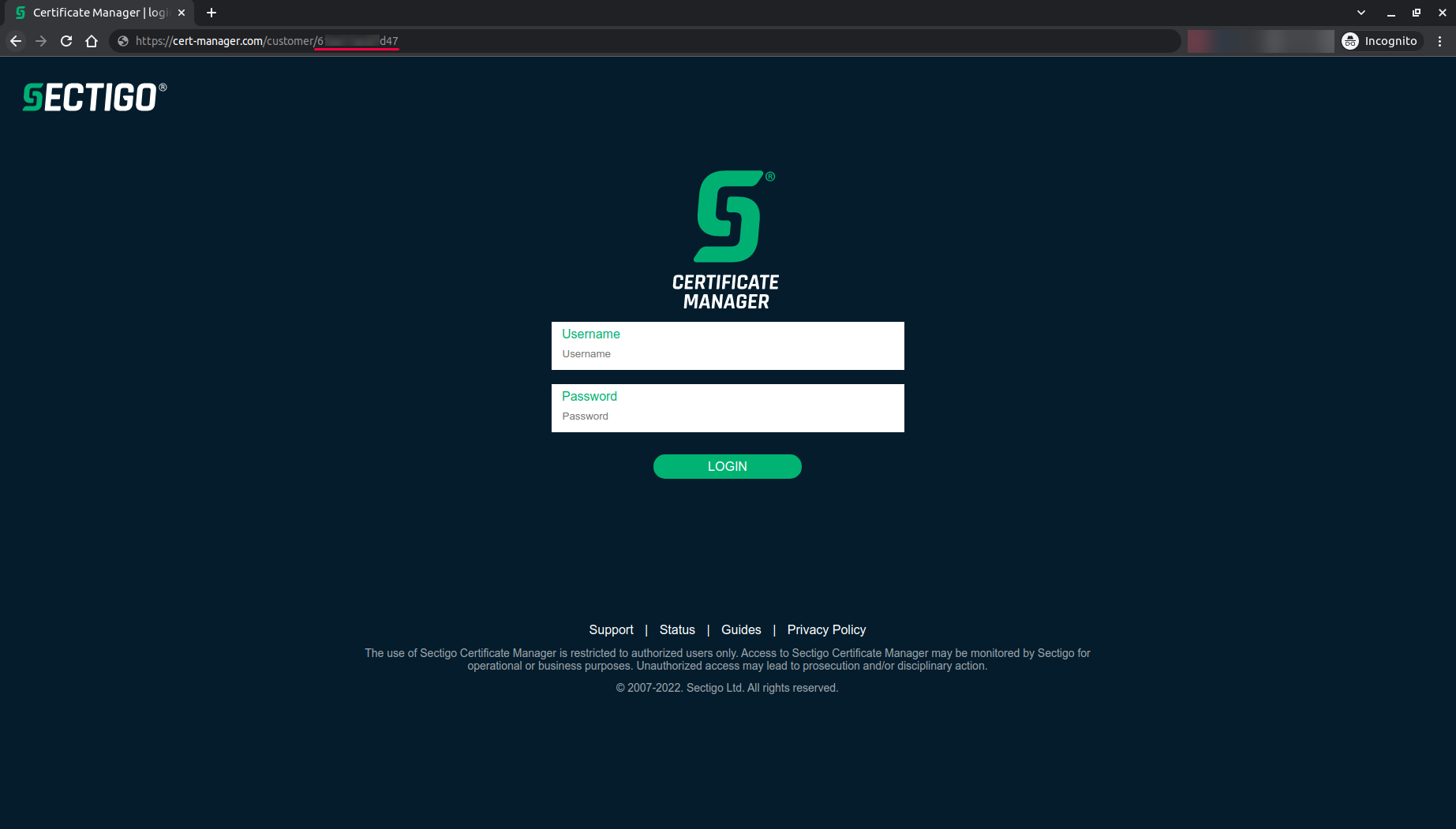
The SCM account details are saved and it is now successfully linked to the Key Manager Plus Cloud account.
Caution
- For this integration to work as expected, the SCM account should have the MRAO Admin user role in the Sectigo portal.
- The user profile under the SCM account you are using should contain pre-validated domains and organizations. To send certificate requests, Key Manager Plus Cloud fetches the existing domains, organizations, and certificate profiles from the SCM. Since the SCM issues certificates based on certificate profiles and pre-validated domains, this step is vital to ensure success of the integration.
Once the integration is complete, all the organizations, domains, and certificate profiles listed in your SCM account will be imported into Key Manager Plus Cloud and displayed under individual tabs, along with their ID and status. This information is updated once a week through an automated schedule.
Additional Detail
To manually sync the SCM account, click the Sync option available under each tab.
After successfully linking the SCM account with Key Manager Plus Cloud, users can start importing existing certificate orders or creating new certificate orders directly from Key Manager Plus Cloud.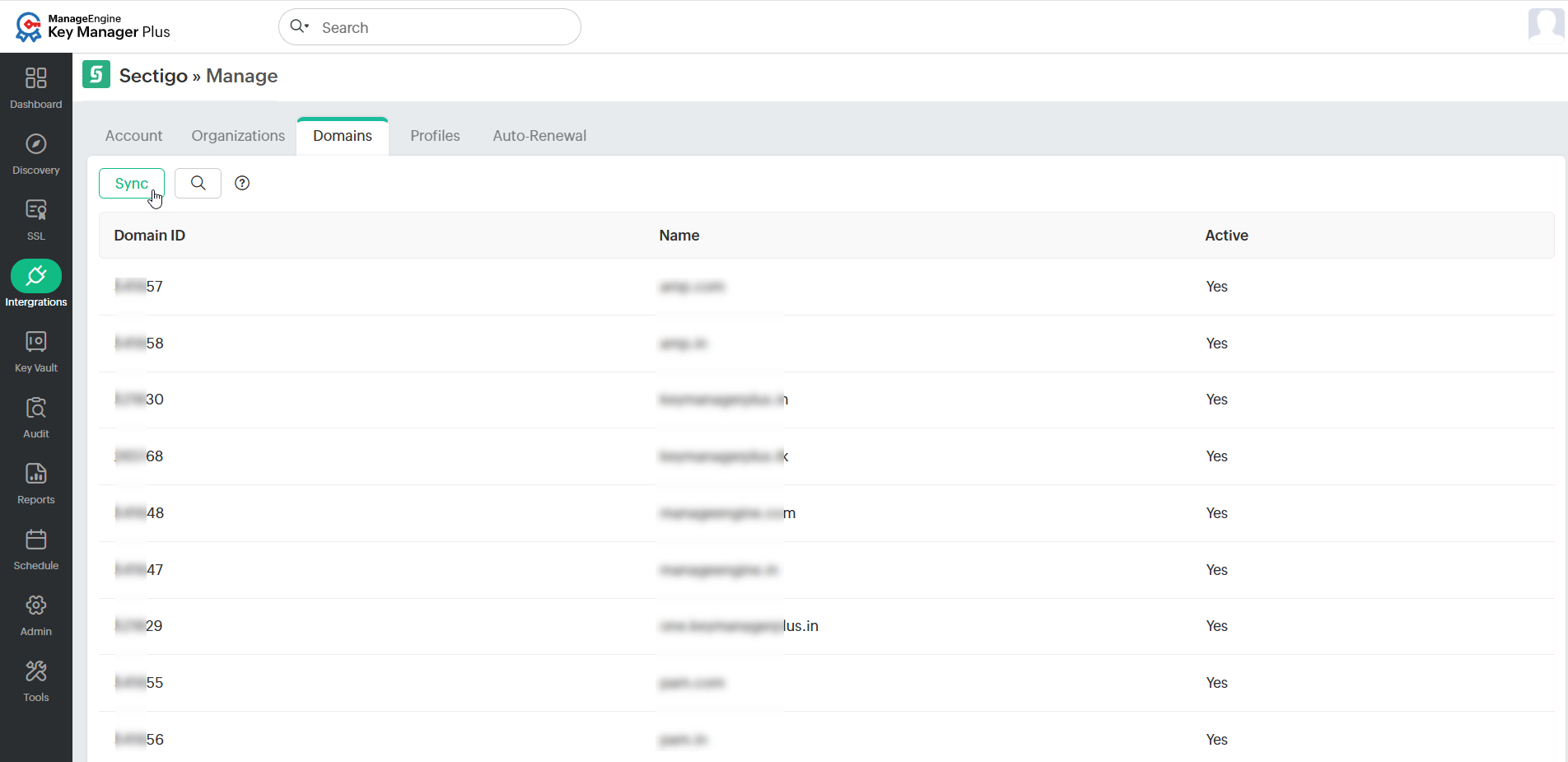
2. Importing Existing Certificate Orders
If the users have an active SCM account, they likely have the existing certificate orders that can be managed using SCM. Apart from creating new certificate orders, users can also import all the existing orders from the SCM portal and manage them from Key Manager Plus Cloud. To do so, follow the steps below:
- Log in to Key Manager Plus Cloud and navigate to Integrations >> Public CA Integrations >> Sectigo.
- Click More >> Import Existing Orders from the top menu.
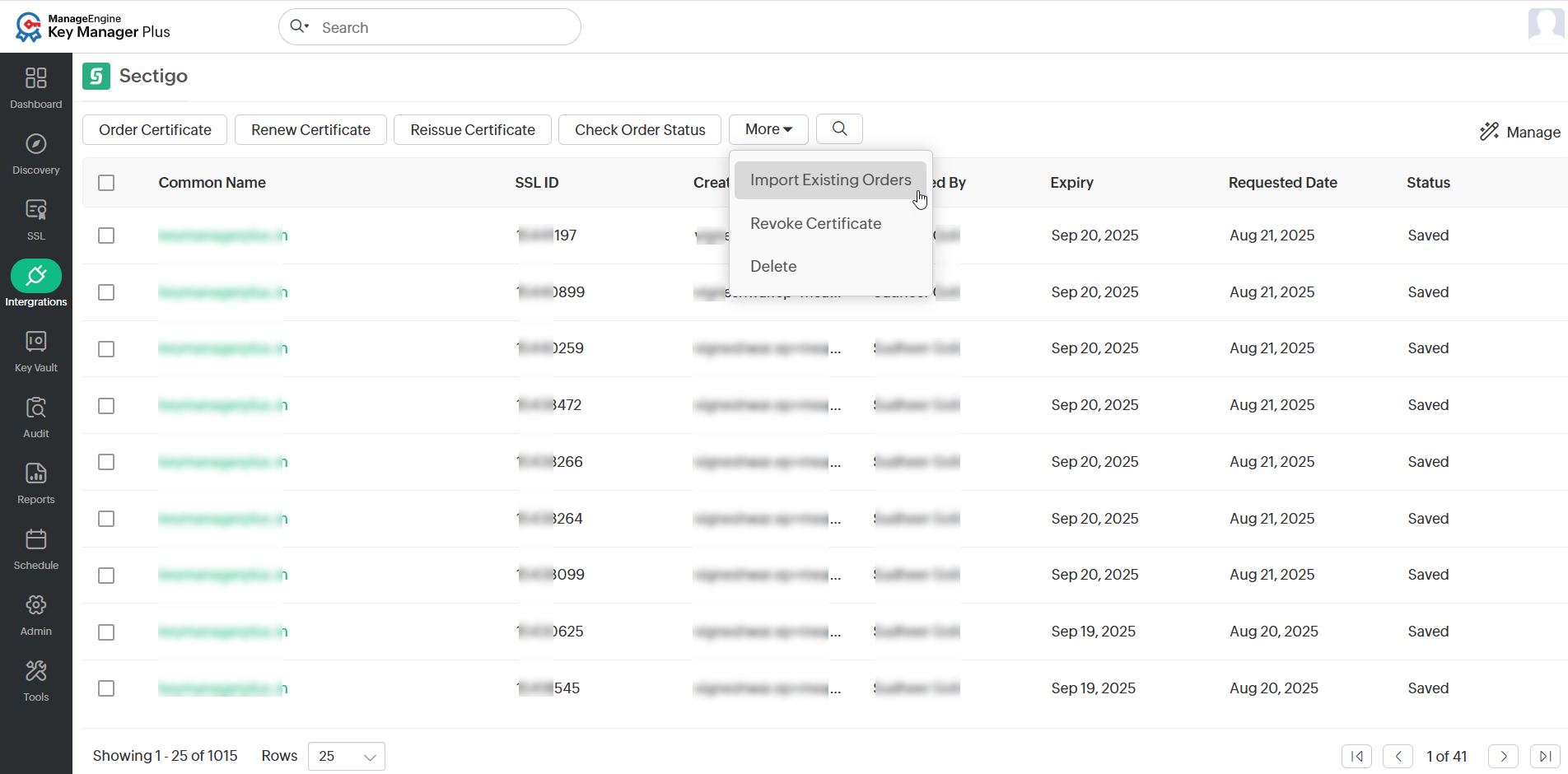
- Select the required option and click Import.
All the existing certificate orders associated with the SCM account are imported into Key Manager Plus Cloud.
3. Creating New Certificate Orders
To place a new certificate order, follow the steps below:
- Navigate to Integrations >> Public CA Integrations >> Sectigo and click Order Certificate from the top menu.
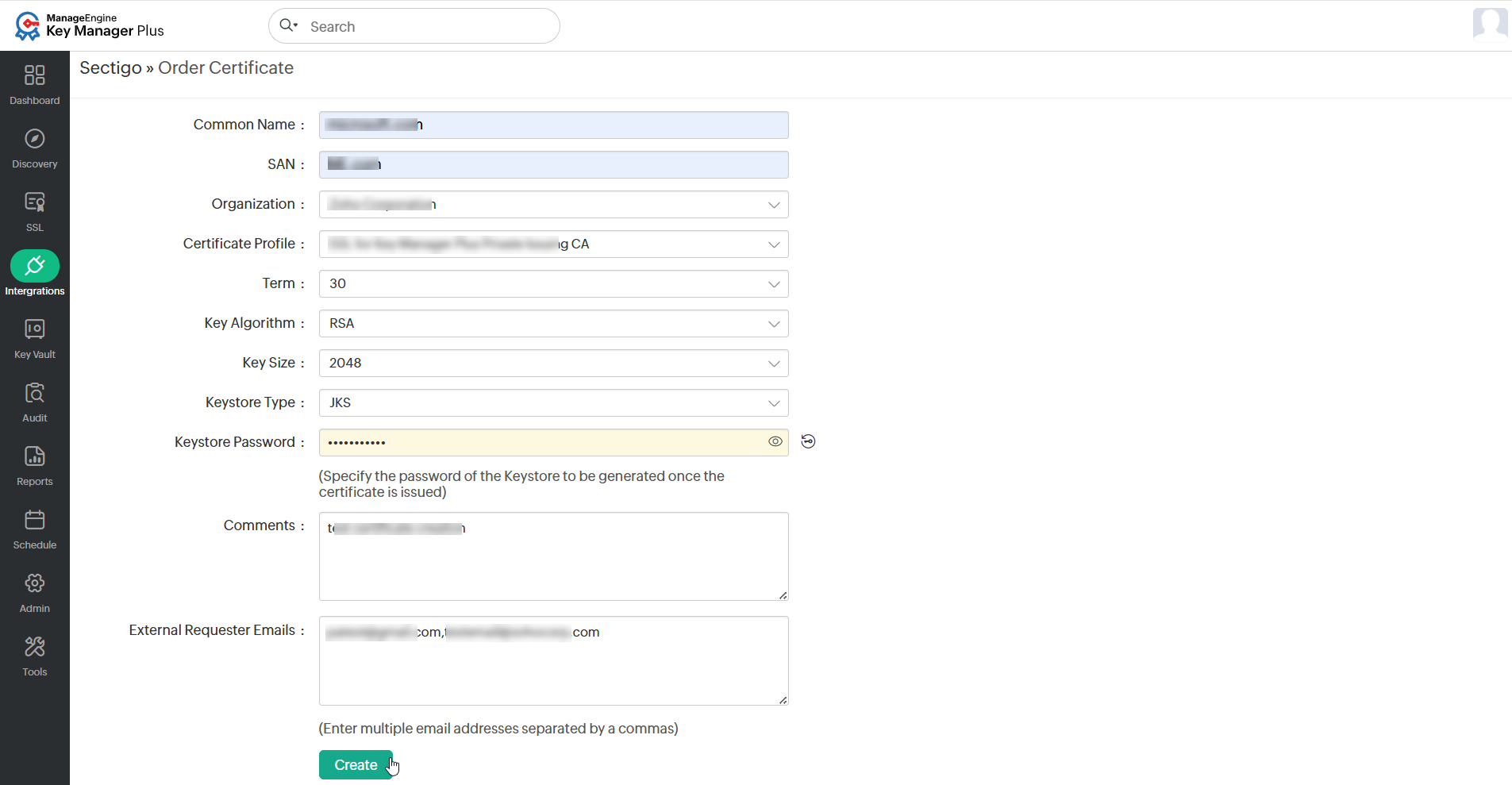
- In the form that opens, enter the following attributes: Common Name, SAN, Organization, Certificate Profile, Term, Key Algorithm, Key Size, Keystore Type, Keystore Password, Comments, and External Requester Emails.
- Ensure that the appropriate Certificate Profile is selected. Also, ensure that the comment does not exceed 1024 characters.
- Verify the details and click Create.
Additional Detail
If there is any mismatch in the SCM-related details, please verify them on the Sectigo portal and then perform a manual sync under Sectigo >> Manage in Key Manager Plus Cloud to refresh the details view.
4. Checking Order Status
Once a certificate order is successfully created, users can view it under the Integrations >> Public CA Integrations >> Sectigo tab with its status displayed to the right. To track the certificate availability for an order, select the order and click Check Order Status from the top menu. Once a certificate is issued, it is fetched and added to Key Manager Plus Cloud. Users will be able to view it under SSL >> Certificates.
Typically, the status of your certificate orders is checked automatically every day through a schedule. This way, whenever a certificate is available, it is fetched and added to Key Manager Plus Cloud.
Additional Detail
Please note that the certificates that are issued are automatically added to Key Manager Plus Cloud only if there is enough license count. If not, users should renew your Key Manager Plus Cloud license before attempting to import any certificates.
5. Managing Certificates Issued by Sectigo Certificate Manager
Users can renew, revoke, delete, or request reissuance of certificates or cancel certificate orders from Key Manager Plus Cloud.
5.1 Renewing Certificates
The below sections details how to renew certificates issued by Sectigo Certificate Manager.
5.1.1 Manual Certificate Renewal
To renew the desired certificates manually, perform the steps that follow:
- Navigate to Integrations >> Public CA Integrations >> Sectigo.
- Select the required certificate and click Renew Certificate from the top menu.
- In the confirmation pop-up that appears, click OK.
Upon successful validation, the certificate is issued and will be automatically added to Key Manager Plus Cloud.
5.1.2 Automated Certificate Renewal
To configure the auto-renewal process for the desired certificates, perform the steps that follow:
- Navigate to Integrations >> Public CA Integrations >> Sectigo and click Manage from the top right pane.
- From the page that appears, navigate to the Auto-Renewal section and enable the Auto-Renew button.
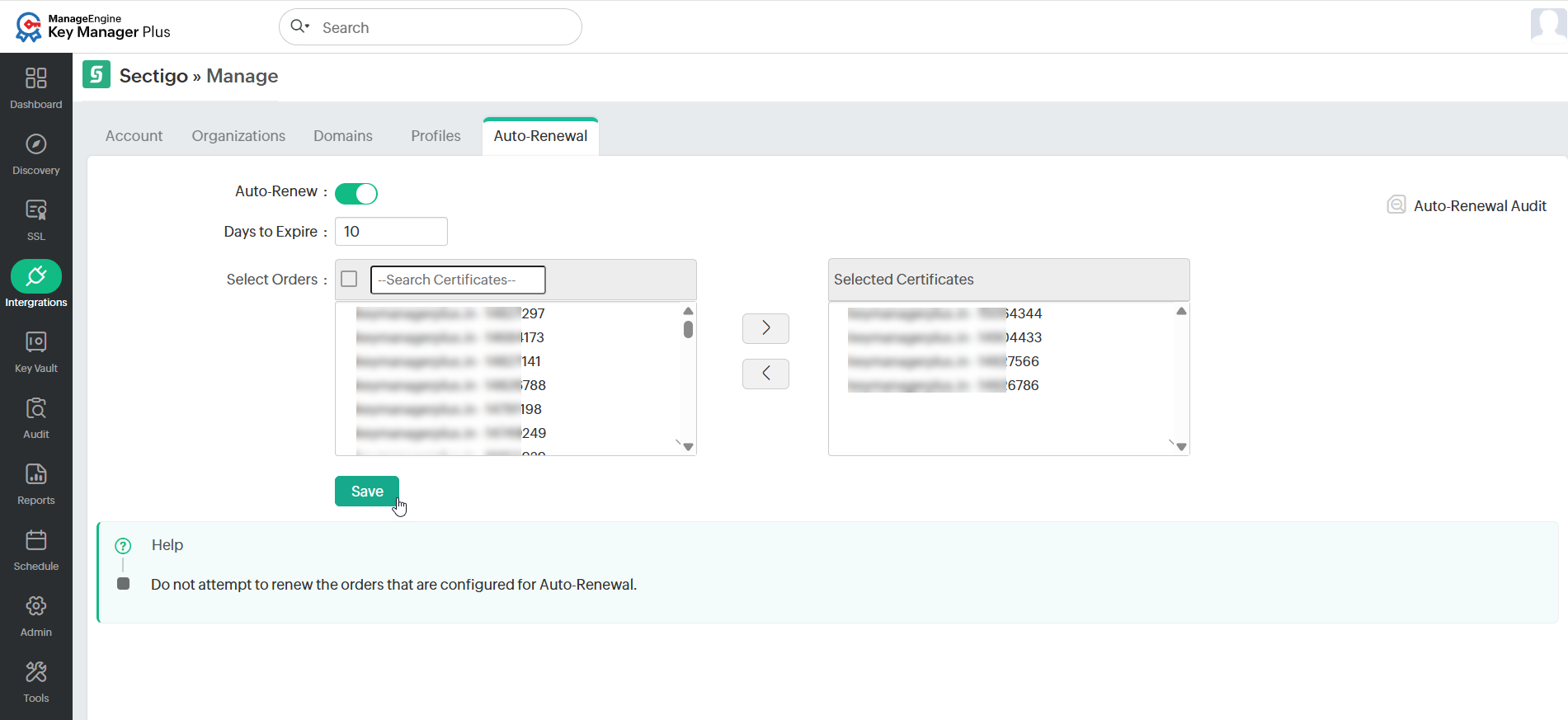
- Enter the number of days before expiry in which the auto-renewal process is to be carried out.
- Select the desired certificates that are to be auto-renewed and click Save.
- Based on the configured details, the auto-renewal process will be carried out. Click the Auto-Renewal Audit to get insights about the certificates renewed through the auto-renewal process.
5.2 Reissuing Certificates
To reissue the required certificates, do the steps that follow:
- Navigate to Integrations >> Public CA Integrations >> Sectigo.
- Select the required certificate and click Reissue Certificate from the top menu.
- In the window that appears, verify the Common Name, SAN, Key, Key Algorithm, Key Size, and Keystore Type.
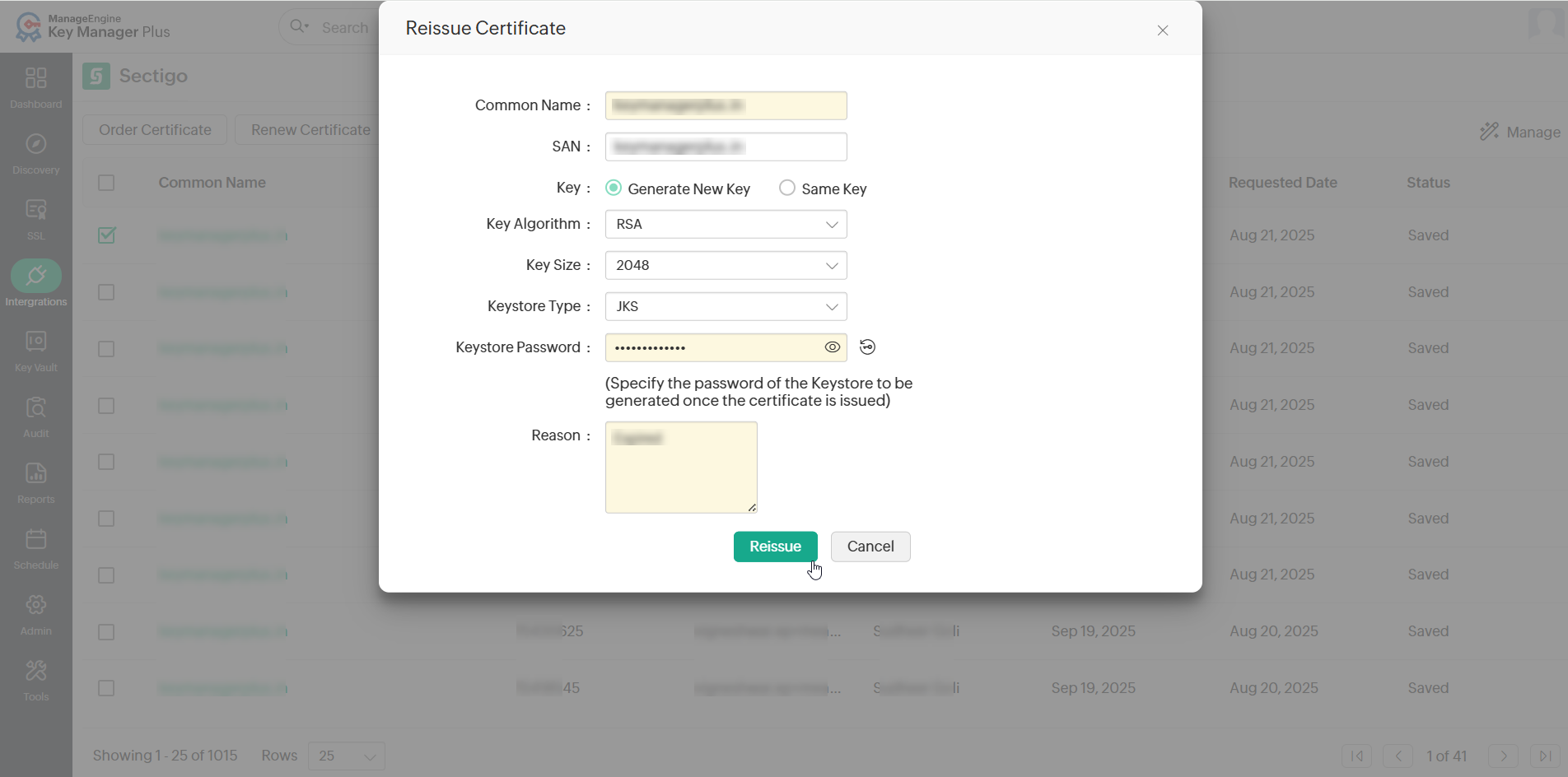
- Enter or generate the Keystore Password and the Reason for reissuing the certificate.
Upon successful validation, the certificate is issued and will be automatically added to Key Manager Plus Cloud.
5.3 Revoking Certificates
To revoke the certificates, do the steps that follow:
- Navigate to Integrations >> Public CA Integrations >> Sectigo.
- Select the required certificate and click More >> Revoke Certificate from the top menu.
- In the pop-up window that appears, enter the Comments to revoke the certificate order and click Revoke.
- The certificate is revoked. Go to the SSL >> Certificates tab and delete the certificate to remove it from Key Manager Plus Cloud.
5.4 Deleting Certificate Orders
To delete the certificate orders, do the steps that follow:
- Navigate to Integrations >> Public CA Integrations >> Sectigo.
- Select the required order and click More >> Delete from the top menu.
- In the confirmation dialog box that appears, click OK to delete the certificate order.
The certificate request is deleted from Key Manager Plus Cloud.
Additional Detail
Using the Delete option only removes the certificate from Key Manager Plus Cloud, and users can no longer manage it from the product. However, it does not delete the certificate request from the SCM—the certificate can still be viewed and managed from the SCM portal.