Configuring a DNS Account for Third-Party Certificate Authorities
When certificate orders are requested from CAs through Key Manager Plus Cloud, they should undergo Domain Control Validation (DCV) to verify domain ownership. DCV can be performed using email-based, file/HTTP-based, or DNS-based methods. If you choose DNS-based validation, ensure that the DNS account is configured in advance under the DNS tab and specified in the DNS field of the certificate order. This allows Key Manager Plus Cloud to complete the challenge verification process automatically.
Additional Details
- Users can add only one DNS account per supported DNS provider. Key Manager Plus Cloud currently supports automatic domain control validation for Azure DNS, Cloudflare DNS, Amazon Route 53 DNS, RFC 2136 DNS update, GoDaddy DNS, and ClouDNS.
- Once a DNS account is added in Key Manager Plus Cloud for any one of the third-party CAs, it can be used for other CA configurations.
To configure your DNS account,
- Navigate to Integrations >> Public CA Integrations. Select any supported third-party CA and click Manage at the top-right corner of the page.
- Switch to the DNS tab and click Add.
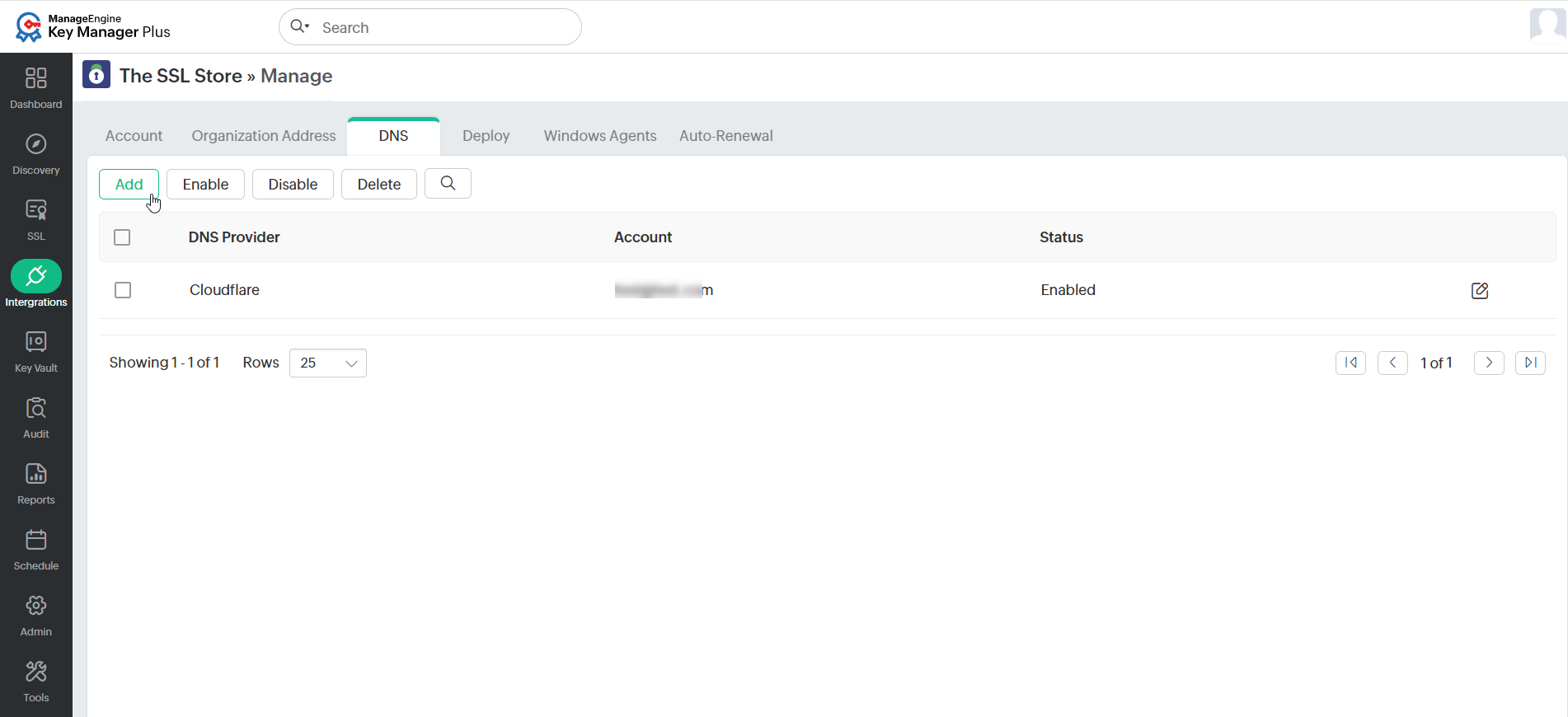
- In the pop-up that opens, choose any one of the following the DNS providers and provide the required details:
1. Azure DNS
If you have chosen Azure DNS as your DNS provider, follow these steps:
- Enter the Subscription ID. The ID will be available on the Overview page of the Azure DNS zone.
- Enter the Directory ID. This will be available under Azure Active Directory >> Properties.
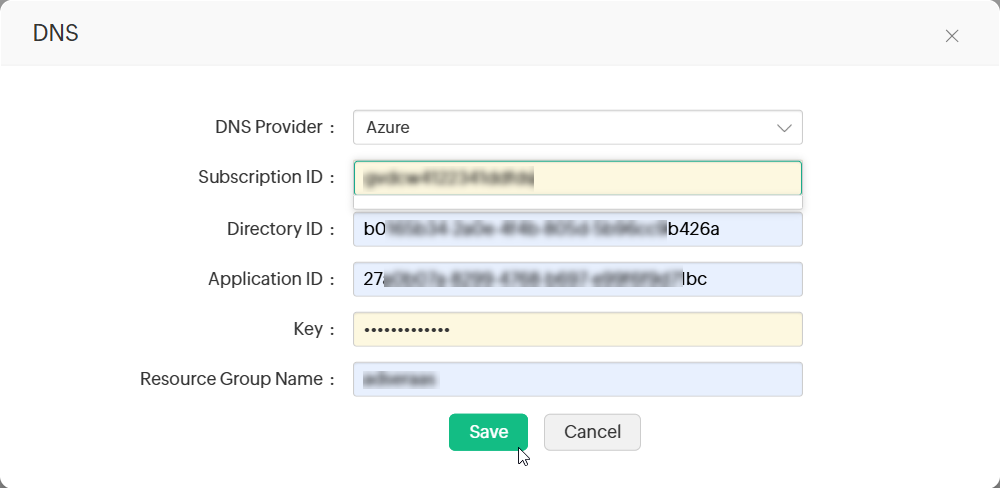
- If you have an existing Azure application, provide its Application ID and Key. Otherwise, follow the steps mentioned in this document to create the Azure application and to provide the application, access to the DNS zones for making API calls.
- Finally, enter the Resource Group Name, which is the group name in which you have created the DNS zone and click Save.
Your DNS account details are now saved and listed under Manage >> DNS.
2. Cloudflare DNS
If you have chosen Cloudflare DNS as your DNS provider, follow these steps:
- In the Email Address field, specify the email address associated with the Cloudflare account.
- For Global API Key, use the Generate API key option in the domain overview page of the Cloudflare DNS to generate the key and paste the value in this field.
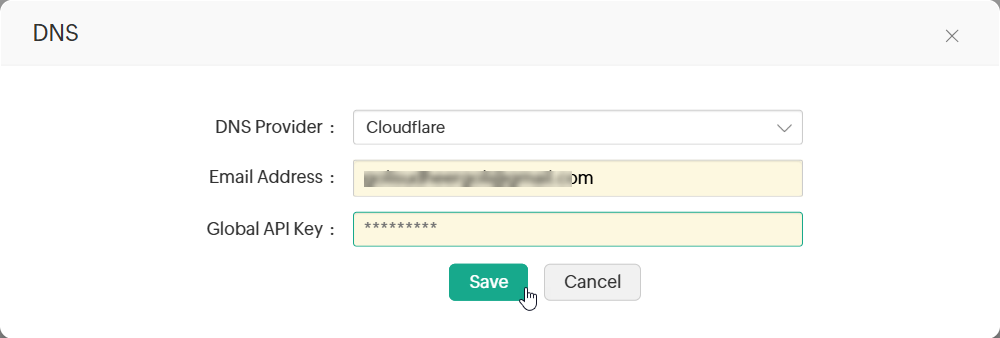
- Click Save. The DNS account details will be saved and listed under Manage >> DNS.
Caution
For DNS based domain validation type, if you are going to specify an already configured DNS account in the certificate order for domain control validation, ensure its status is marked as Enabled under Manage >> DNS.
3. AWS Route 53 DNS
If you have chosen AWS Route 53 DNS as your DNS provider, follow these steps:
- Generate and specify the Access Key ID and Secret associated with your AWS account.
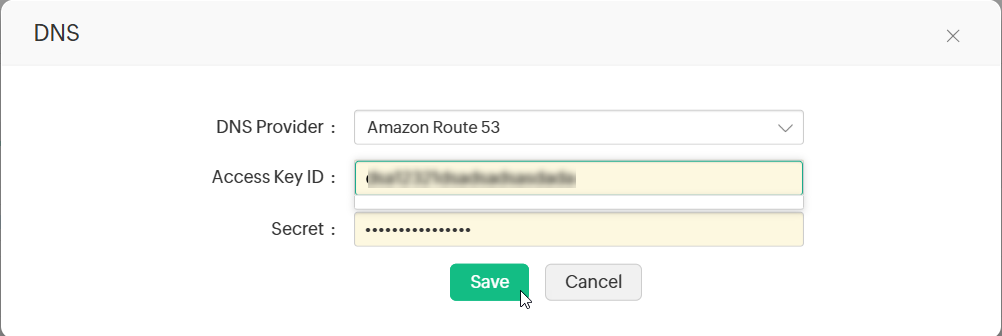
- If you do not have an AWS account, create one and generate the Access Key ID and Secret by following these steps:
- Log in to the AWS console and navigate to IAM Services >> Users.
- Click Add user.
- Provide the username and select the access type as Programmatic access.
- Switch to the next tab, click Attach existing policies directly under Set Permissions and search for AmazonRoute53FullAccess.
- Assign the policy that is listed and switch to the next tab.
- In the tags section, add appropriate tags (optional) and switch to the next tab.
- Review all the information entered and click Create user.
- The user account is created, and subsequently, an Access Key ID and a Secret are generated. Copy and save them in a secure location, as it will not be displayed again.
- If you have an existing AWS user account, grant the 'AmazonRoute53FullAccess' permission to the user and generate the access key (if not provided already). Then, if the user account has an access key associated already, it is just enough to ensure that the required permission is granted.
To grant the required permissions:- Navigate to the Permissions tab, select the required user account, and click Add Permission.
- Click Attach existing policies directly under Set Permissions and search for AmazonRoute53FullAccess.
- Assign the listed policy and click Save.
- To generate the access key,
- Select the particular user account and navigate to the Security Credentials tab.
- In the window that opens, click Create access key.
An Access Key ID and a Secret are generated. Copy and save them in a secure location, as it will not be displayed again.
4. RFC 2136 DNS Update
For users opting to use open source DNS servers such as Bind, PowerDNS etc., that support RFC 2136 DNS update, follow the steps below:
- The DNS Server IP / Hostname represents the server name or IP address in which the DNS server is installed or running. These details are usually found in the server installation directory. For instance, in the case of Bind9 DNS server, you can find these in the file named.local.conf in the server installation directory.
- Specify the Key Secret. This is the key content stored in the server installation directory.
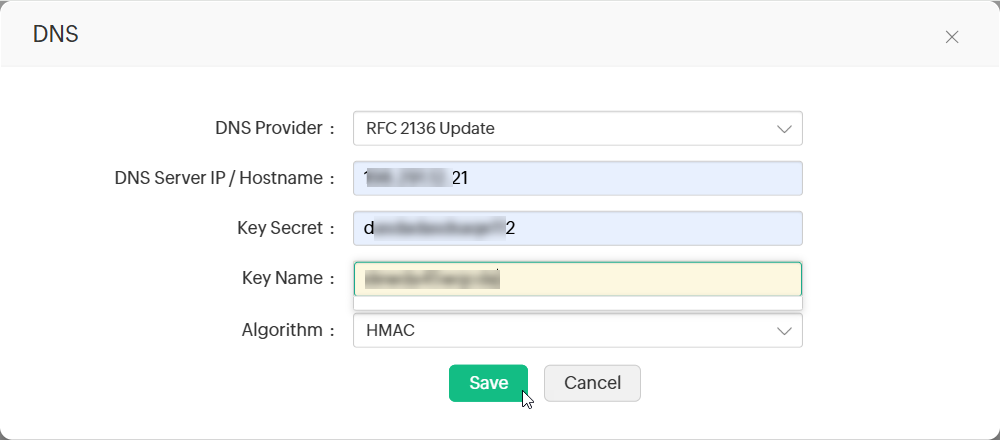
- Provide a name for the key and choose the signature algorithm.
- Click Save to configure the DNS account.
5. GoDaddy DNS
To use GoDaddy DNS for DNS validation, follow the steps below:
5.1 Obtaining GoDaddy API Credentials
- Go to the GoDaddy developer portal and switch to the API keys tab.
- Log in to your GoDaddy account if you have not logged in already.
- Once you log in, you will be redirected to the API keys page where you can create and manage API keys.
- Click Create New API key.
- Provide your application name, choose Production as the environment type, and click Next.
- The API key and its secret are generated. Copy and save the secret in a secure location, as it will not be displayed again.
5.2 Adding GoDaddy DNS Account
- In Key Manager Plus Cloud, navigate to Integrations and select the required third-party CA.
- Click Manage at the top-right corner of the page.
- Switch to the DNS tab and click Add.
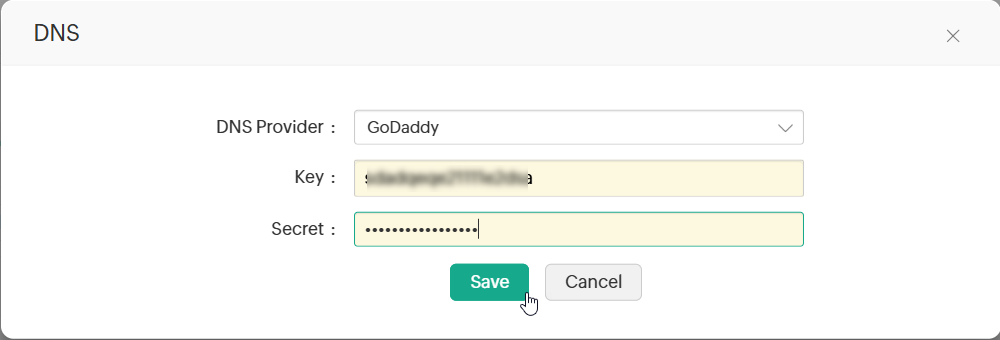
- In the pop-up window that appears, choose GoDaddy from the DNS Provider drop-down menu.
- Enter the Key and Secret that was previously generated from the GoDaddy portal.
- Click Save to add the GoDaddy DNS account.
6. ClouDNS
To use ClouDNS for DNS validation, follow the steps below to automate the DNS-based domain control validation procedure using Key Manager Plus Cloud:
6.1 Obtaining ClouDNS API Credentials
- Log in to your ClouDNS account and go to Reseller API.
- If an API user ID is already created, get it under API Users. If not, click Create API to generate a new one.
Click here to learn more about ClouDNS API Auth IDs.
6.2 Adding ClouDNS Account to Key Manager Plus Cloud
- Navigate to Integrations and select the required third-party CA.
- Click Manage at the top-right corner of the page.
- Switch to the DNS tab and click Add.
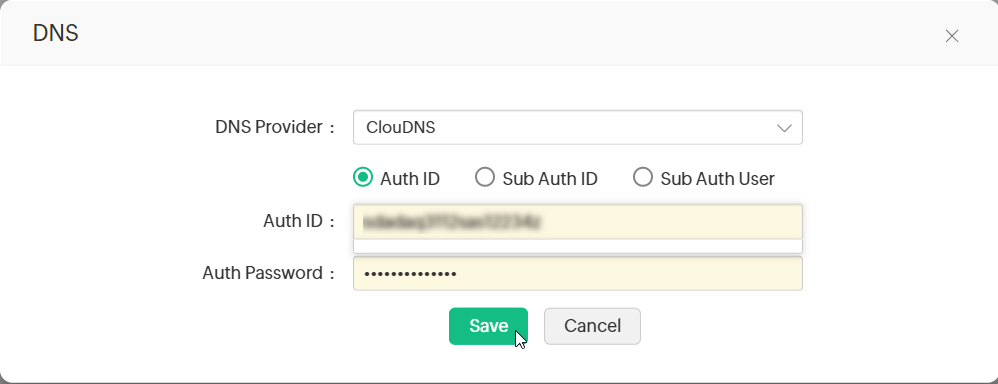
- In the pop-up window that appears, choose ClouDNS from the DNS Provider dropdown.
- Choose one of the following options: Auth ID, Sub Auth ID, or Sub Auth User.
- Enter the chosen ClouDNS Auth ID, its respective Auth Password, and click Save.
7. DNS Made Easy
If you have chosen Azure DNS as your DNS provider, follow these steps:
- In the DNS tab, click Add from the top menu.
- In the pop-up window that appears, enter the name of your choice in the Name field.
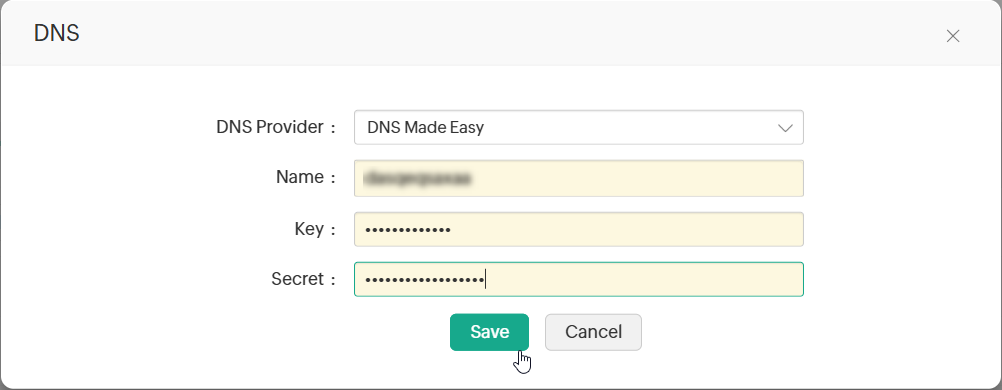
- The Key and Secret will be available on the DNS Made Easy webpage under Config >> Account Information. Enter those details in the respective fields.
- Now, click Save to save your DNS account details.
The saved DNS details will be listed under Manage >> DNS.