Deploying Certificates in Key Manager Plus Cloud
Managing SSL certificates across multiple systems can be challenging, especially when manual deployment is required for different target environments. Key Manager Plus Cloud simplifies this by storing all SSL certificates in a centralized inventory and enabling manual deployment and auto renewal to the required target systems. This approach ensures timely updates, minimizes the risk of expired or misconfigured certificates, and streamlines overall certificate lifecycle management.
You can deploy certificates using the Key Manager Plus Cloud agent to ensure secure and seamless deployment on the target servers. To learn more about the agent installation on the target servers, refer to this document.
Supported Target Systems for Certificate Deployment
Key Manager Plus Cloud supports deploying SSL certificates to a wide range of target systems. Once you select a certificate from SSL >> Certificates and click Deploy from the top menu, you will get the following target systems to deploy the certificate: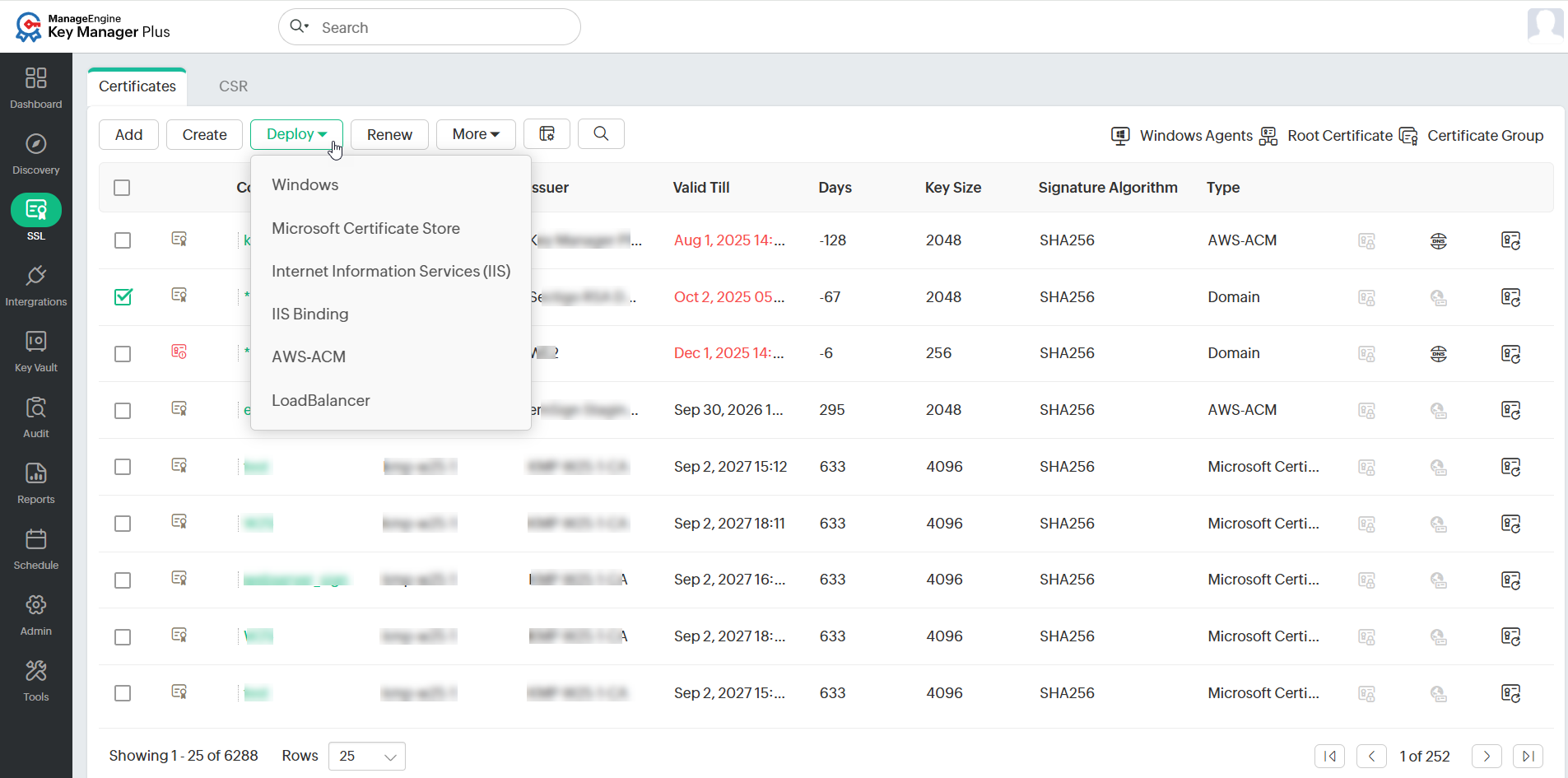
1. Windows
Caution
- When deploying multiple certificates to a Windows server using the Key Manager Plus Cloud agent, the common name of each certificate will be used as the default file name.
- For deploying certificates on Windows systems, MS Certificate Store and Internet Information Services (IIS), use your domain administrator account as the service login account of the Key Manager Plus Cloud agent.
- If you are using a domain service account to run the Key Manager Plus Cloud agent, ensure you already have it configured in your local admin group.
To deploy a certificate to a Windows server, select Windows as the server type and follow the steps below:
- In the window that appears, select the Agent that is installed on the target endpoint. To manage agents, click Manage beside the Select Agent field.
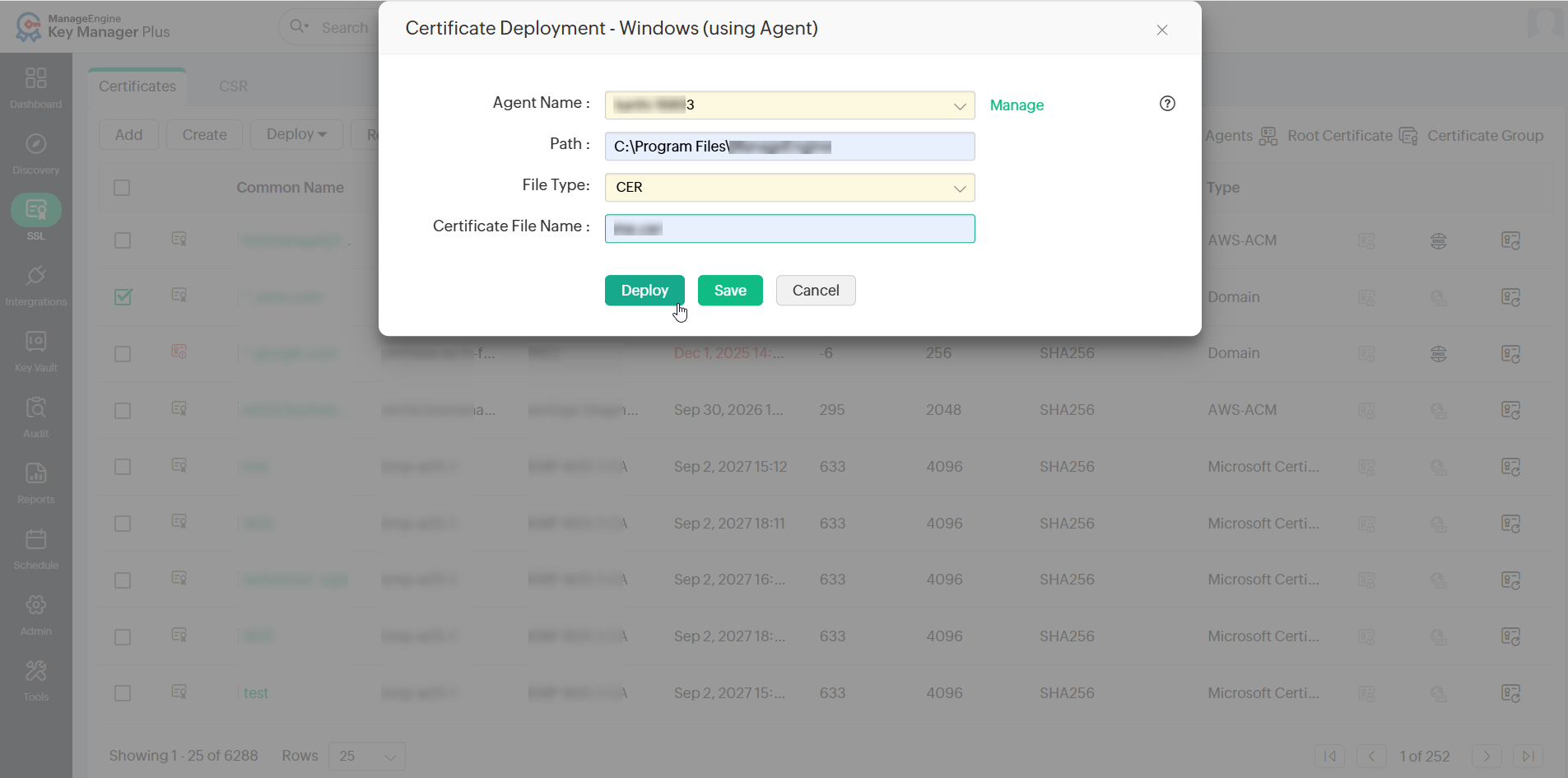
- Enter the agent installed directory in the Path field.
- Select the File Type from the dropdown. The supported certificate file types are .cer, .crt, .der, and .pb7.
- Enter the Certificate File Name and click Deploy to deploy the selected certificate to the Windows server.
2. Microsoft Certificate Store
To deploy a certificate on the MS certificate store, choose the server type as Microsoft Certificate Store and follow the steps below:
- In the certificate deployment window that appears, select the Key Manager Plus Cloud agent from the Agent Name dropdown. To manage agents, click Manage beside the Agent Name field.
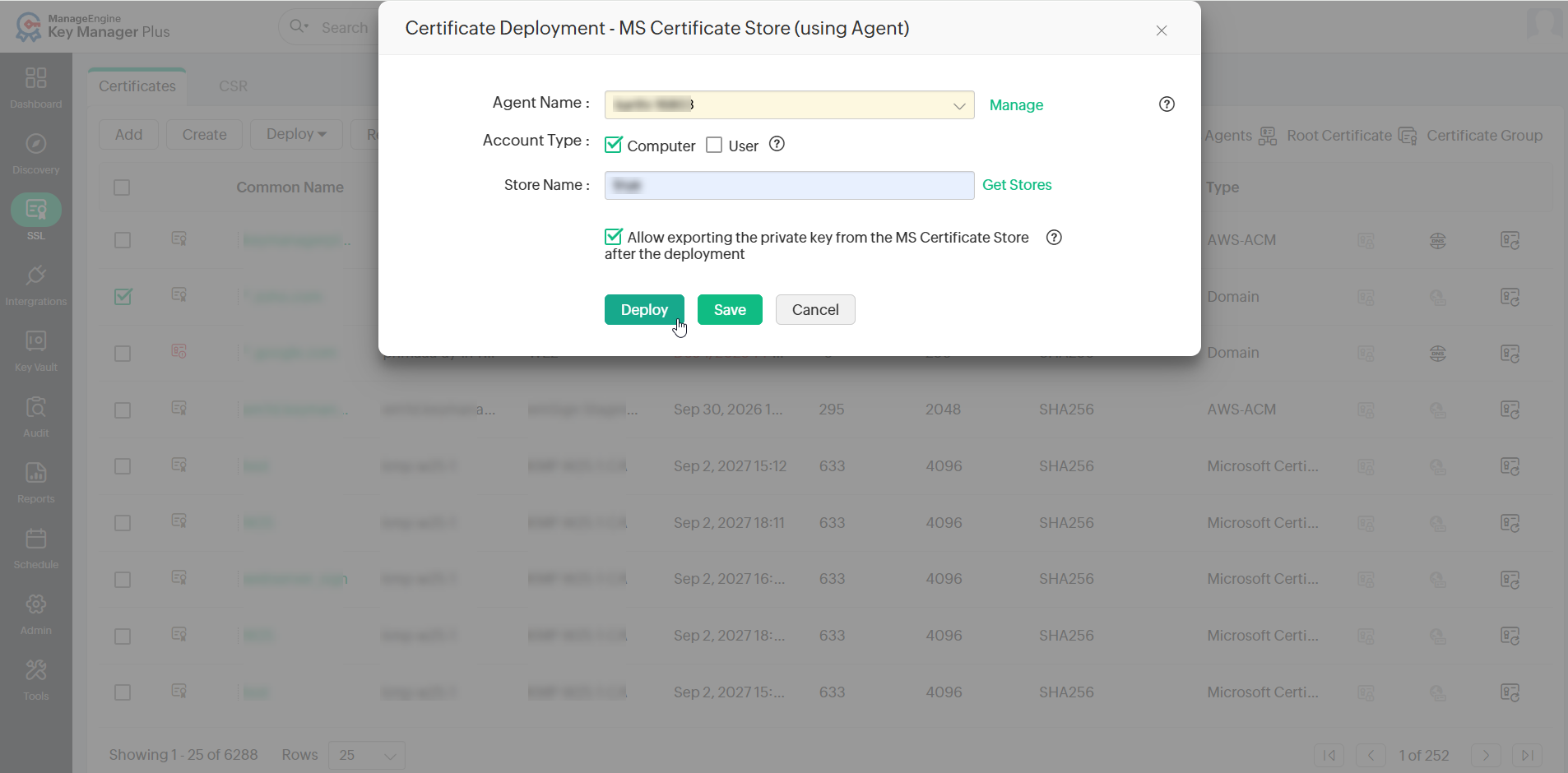
- Choose either Computer or User account or both to deploy the certificate to the selected account.
- Enter the Store Name to which the deployed certificate is to be added. You can also fetch the store name by clicking Get Stores beside the Store Name field.
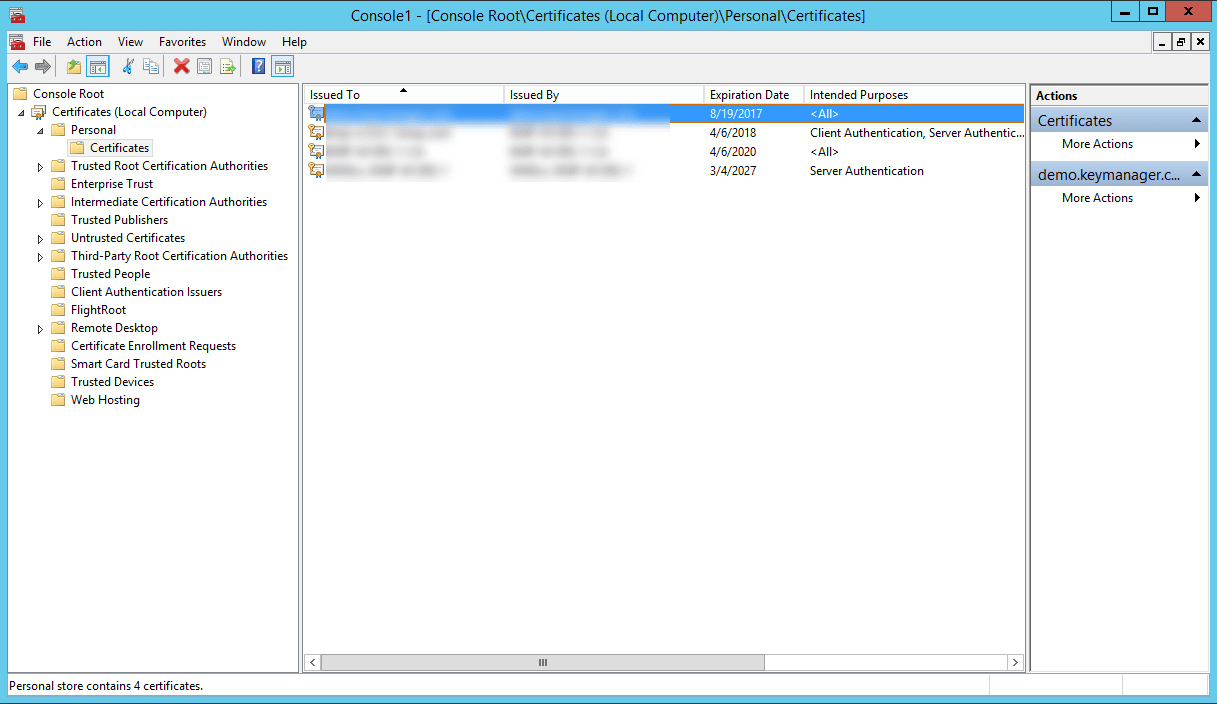
- For the Computer account, add the certificate to all the available stores of the computer account.
- For the User account, only the personal store (My store) of the user account will be available.
- Select the Allow exporting private key from the MS Certificate Store after the deployment checkbox to enable exporting the private key of the certificate.
- Click Save to save the certificate deployment details or click Deploy to deploy the selected certificate to the target agent-installed machine.
3. Internet Information Services (IIS)
To deploy a certificate on a Microsoft IIS server, choose the server type as Internet Information Services (IIS) from the Deploy dropdown. In the dialog box that appears, select the required Key Manager Plus Cloud agent from the Agent Name dropdown and click Deploy to deploy the certificate.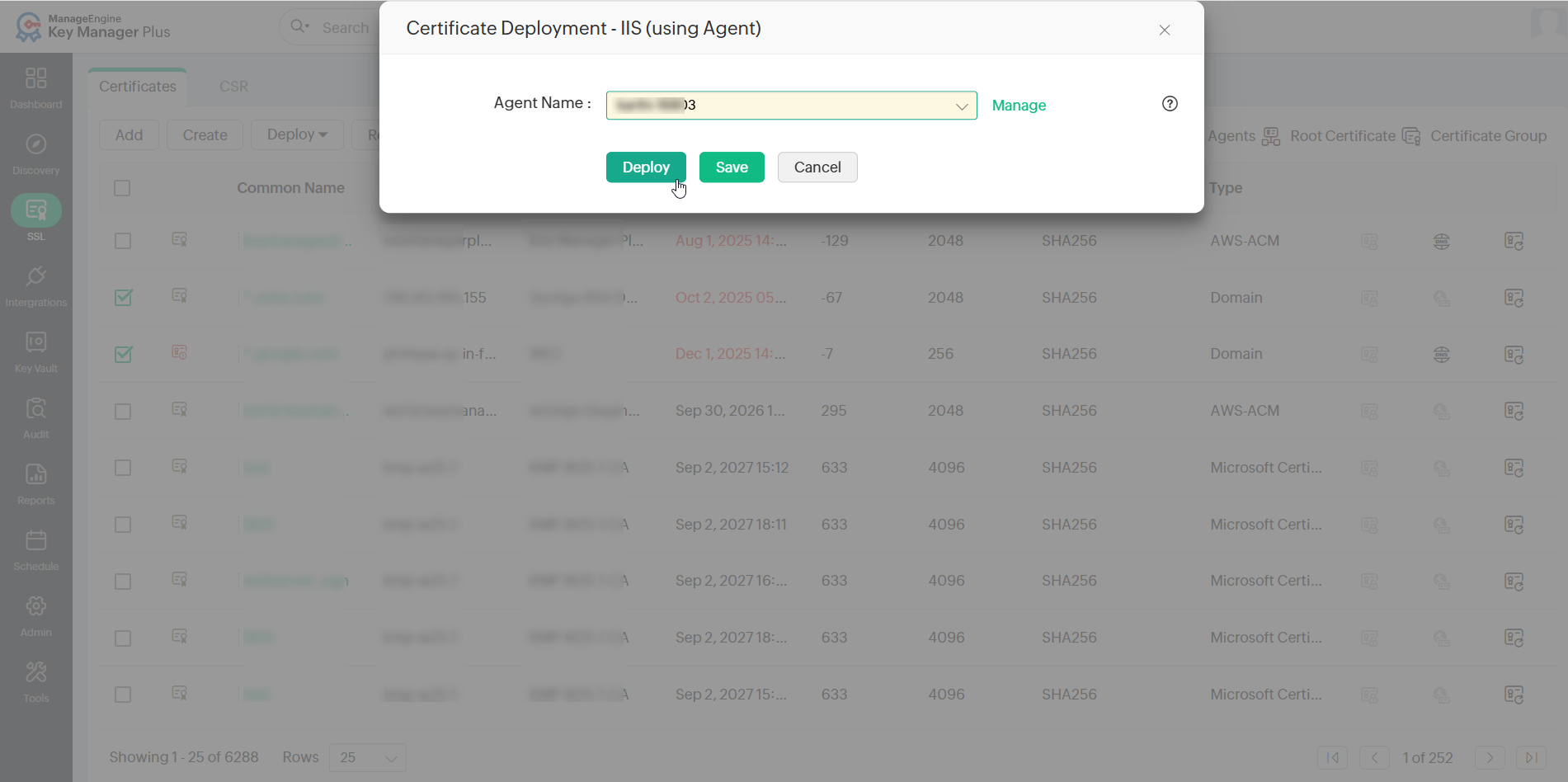
Caution
If the selected certificates does not have the corresponding private key file, the certificates will not be deployed to the IIS server.
4. IIS Binding
Caution
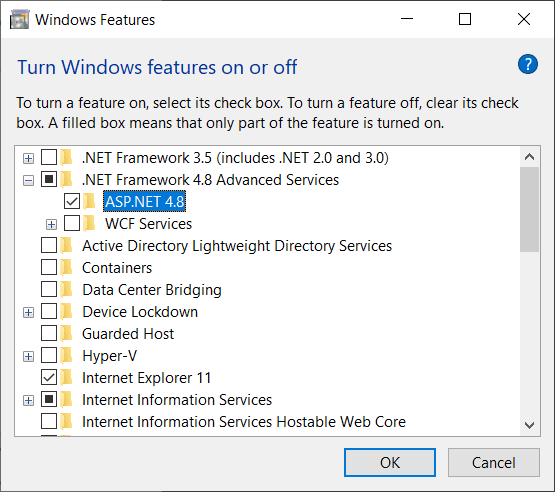
Ensure that the IIS Manager is installed/enabled on the agent-installed machine. Also, ensure that the agent-installed server has the ASP.Net of .Net Framework version 4 or above.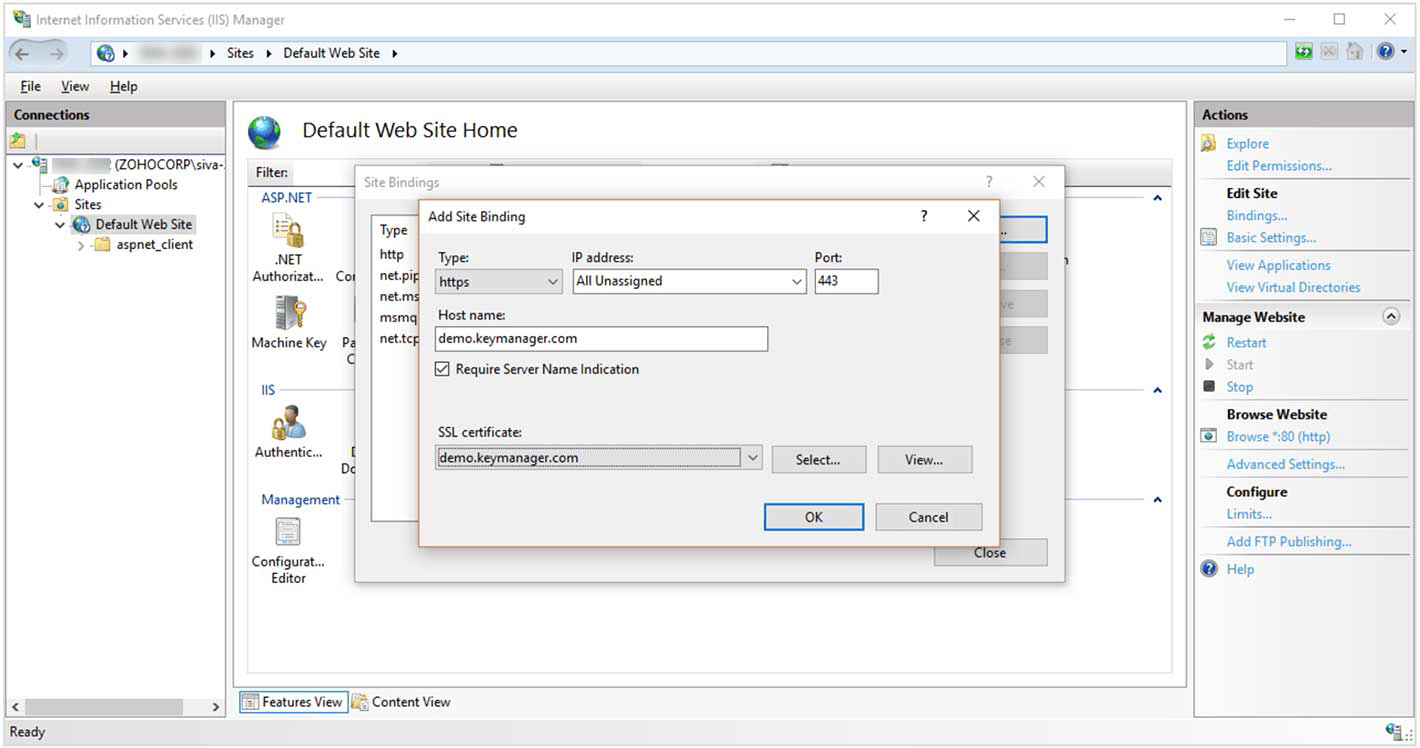
To deploy certificates on a Microsoft IIS server and perform IIS binding, follow these steps:
- Choose the server type as IIS Binding from the Deploy drop-down list.
- In the dialog box that appears, select the required agent from the dropdown.
- Click Get Sites and Bindings beside the Site Name field to list all sites and their respective bindings available on the selected agent installed server. Else, enter the name of a site in the Site Name field, click Get Bindings to list all the bindings available for that site.
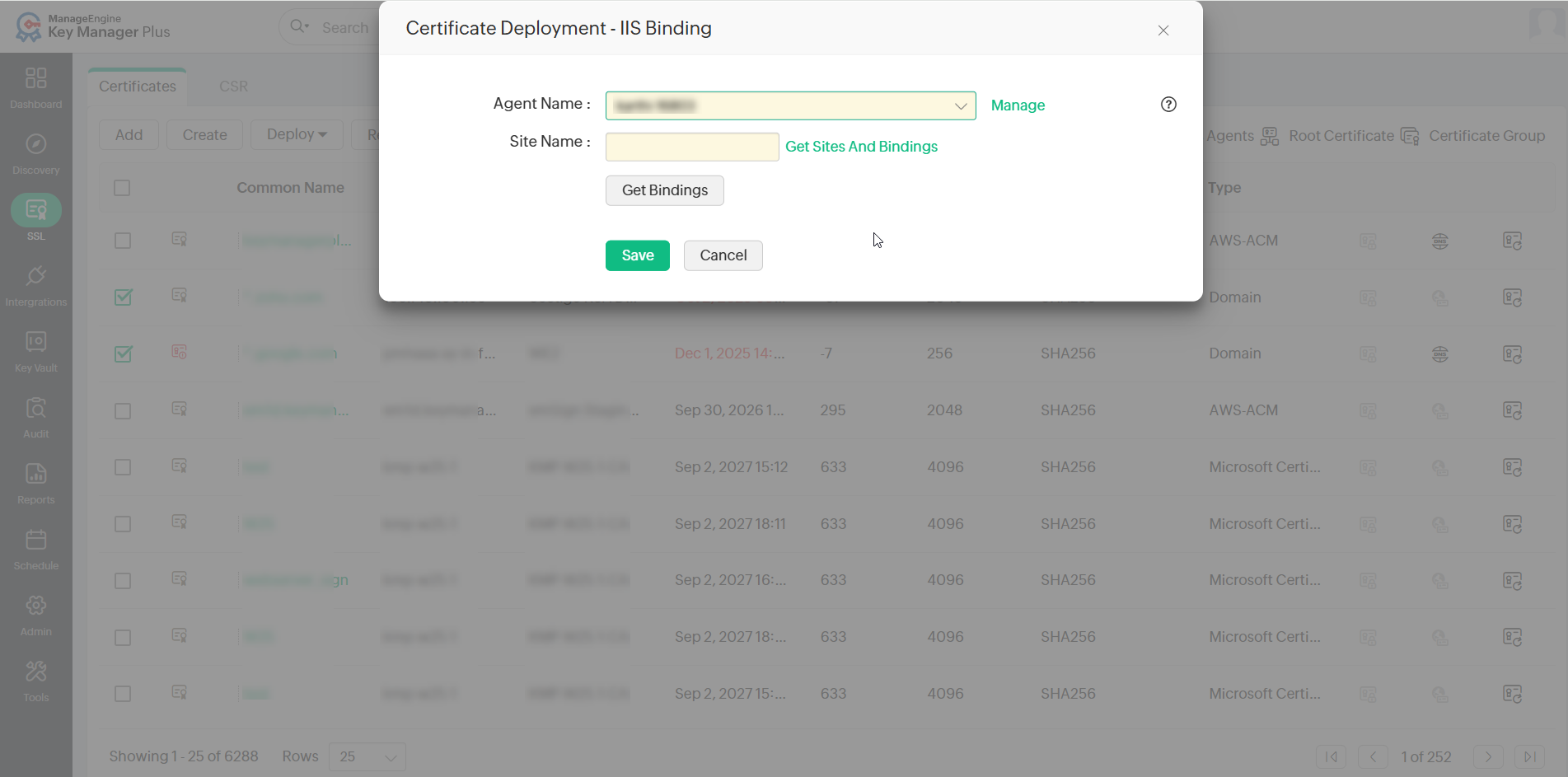
- In the window that appears, click Add New Bindings and enter attributes such as Protocol, Hostname, Port, IP Address, and select a certificate.
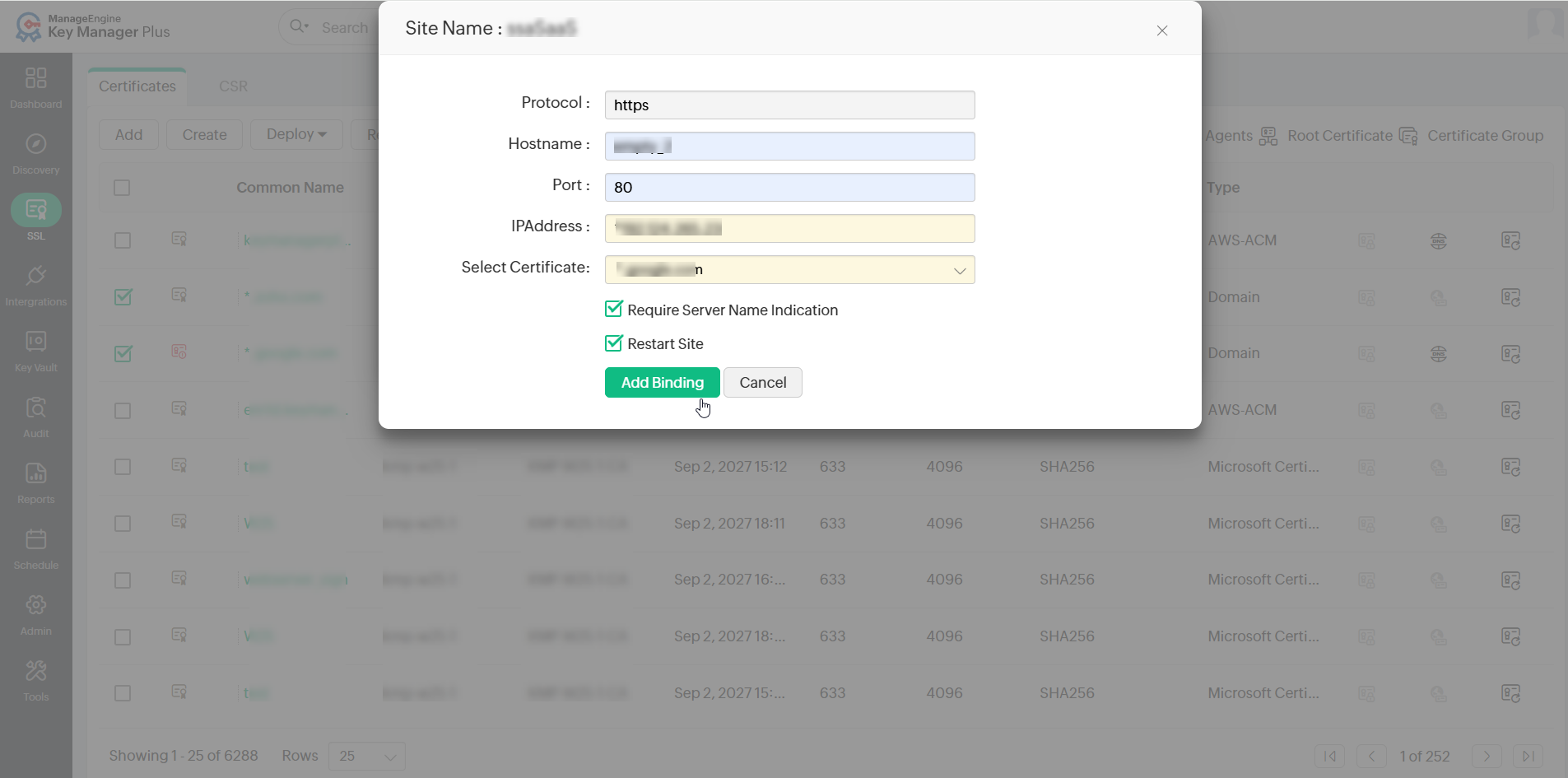
- Tick the Require Server Name Indication checkbox if SNI is required
- The newly added bindings will be visible under Admin >> SSL >> IIS Binding.
Additional Detail
The new site bindings added in Key Manager Plus Cloud will not reflect in the IIS server until they are deployed to the server using the Deploy and Bind option.
- To populate the list of sites associated with the IIS server,
- Click Get Site Names and choose a site from the dropdown. To enter a site name manually in the Site Name field, click Hide List, type in the site name and click the Get Bindings option.
- Enter the Hostname, IP Address, and Port of the site manually.
- Select the Restart Site option to restart the site automatically.
- Click Add Binding / Update Binding to deploy the certificate at the path specified in your IIS server and complete IIS site binding.
- To update multiple bindings, select the required bindings from the list and click Save. Go to Admin >> SSL >> IIS Binding, select the bindings and click Deploy and Bind.
- To save the specified details and deploy the certificate later, click Save. The server details and the respective site details will be available under Admin >> SSL >> IIS Binding.
- To edit the binding details, click the Edit icon beside a server. In the window that opens, modify any of the given details and click Save. Now, select the server name and click Deploy and Bind from the top bar.
The selected certificate will be deployed on the servers and the IIS binding will be updated in the IIS server. The details of sites and IIS bindings displayed in the IIS Binding table above are local to Key Manager Plus Cloud. To update the binding entries here with the entries from IIS server, select the required entries and click Update Binding. Also, note that deleting entries from the above table will not remove any data from the IIS server.
5. AWS
Key Manager Plus Cloud's integration with AWS facilitates users to deploy certificates to the AWS Certificate Manager (ACM) and manage them from their console. To deploy certificates to ACM, follow the steps below:
- Navigate to SSL >> Certificates.
- Select the required AWS certificate and click Deploy >> AWS-ACM from the top menu.
- In the dialog box that appears, choose the following attributes:
- AWS Credential from the dropdown.
- Select one or more Regions using the checkboxes.
Additional Detail
To add a new AWS credential, click Manage AWS Credential beside the AWS Credential field and enter the required details.
- Certificates can be deployed to all the supported regions provided the private keys are available.
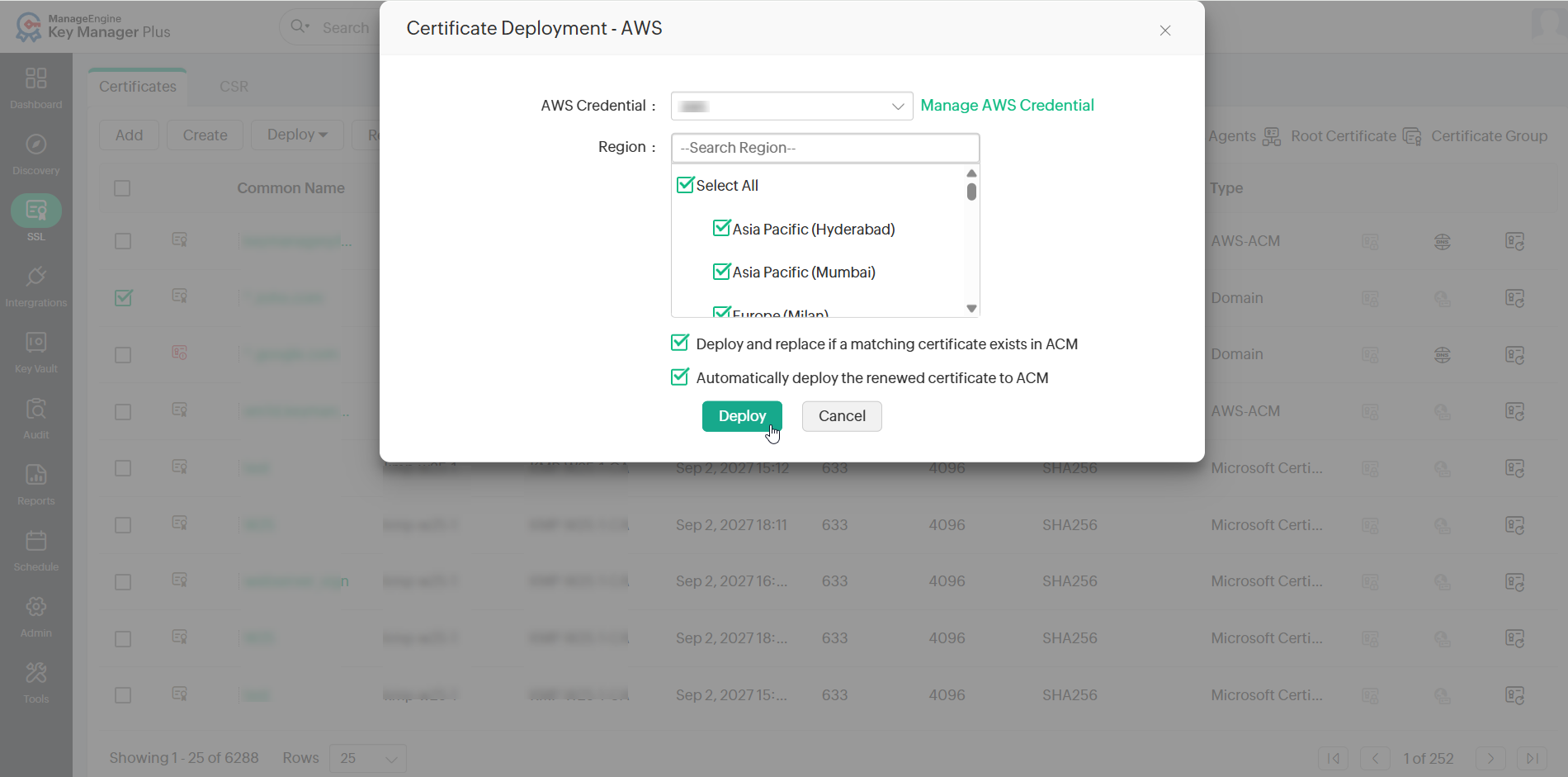
- Deploy and replace if the same certificate is found in ACM: To replace the certificate in ACM after deployment, in case it turns out to be a duplicate, select this option.
- Automatically re-deploy the certificate to ACM upon renewal: Select this option to automatically re-deploy the certificate to ACM every time it is renewed so that the certificate in Key Manager Plus Cloud and AWS are always in sync.
If there is a mismatch in the deployed certificates, they will be marked in red in the AWS tab in Key Manager Plus Cloud.
6. Load Balancer
Key Manager Plus Cloud supports certificate deployment to Citrix ADC and FortiGate Firewall load balancers.
6.1 Citrix ADC
- On the Certificates page under the SSL tab, select a certificate and click Deploy >> Load Balancer from the top menu.
- In the pop-up dialog box that appears, select Citrix ADC as the Load Balancer Type.
- Select the required Citrix credential from the Citrix Credentials dropdown.
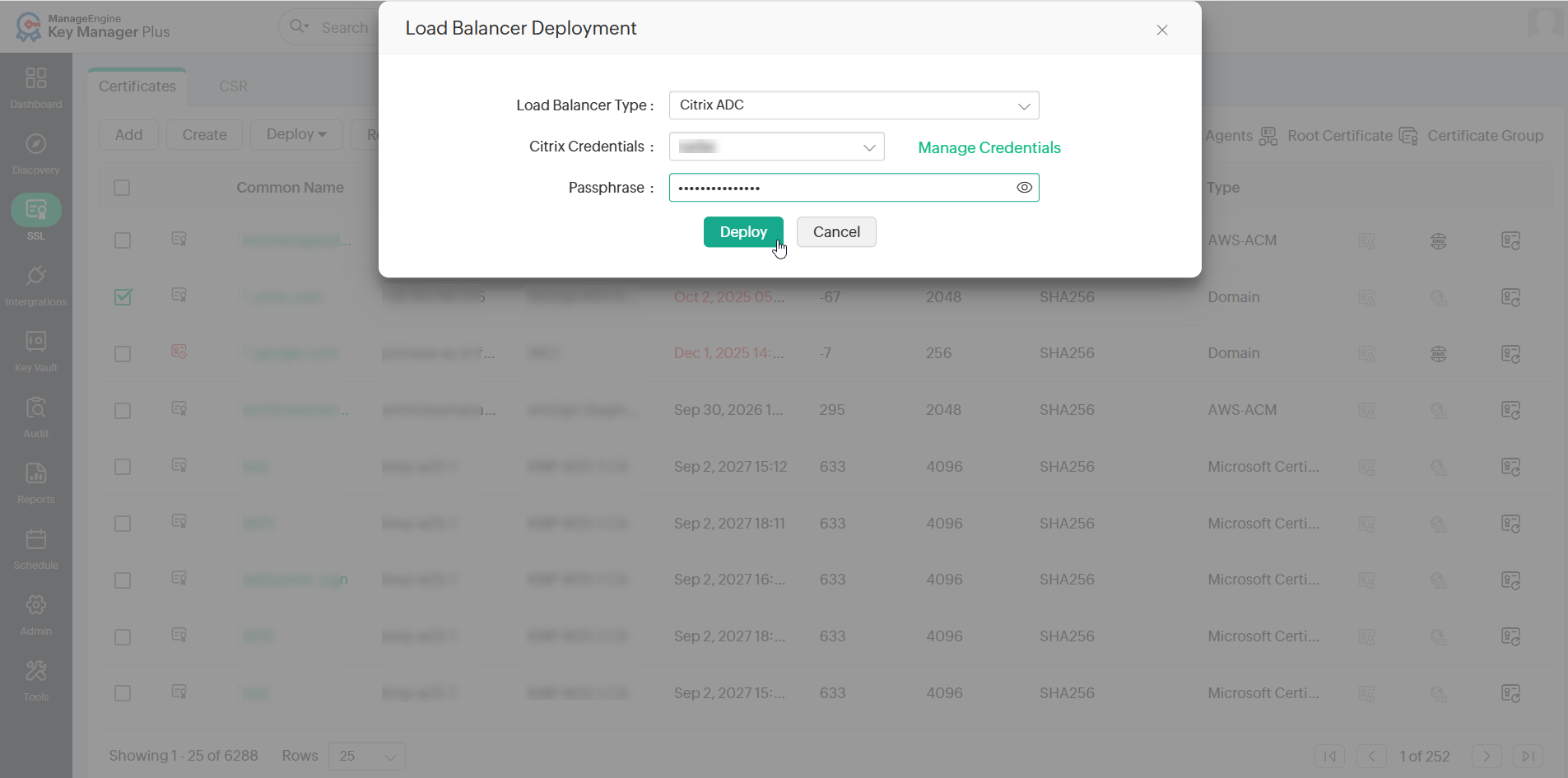
- To add a new Citrix ADC credential, click Manage Credentials and perform the following steps in the pop-up that appears:
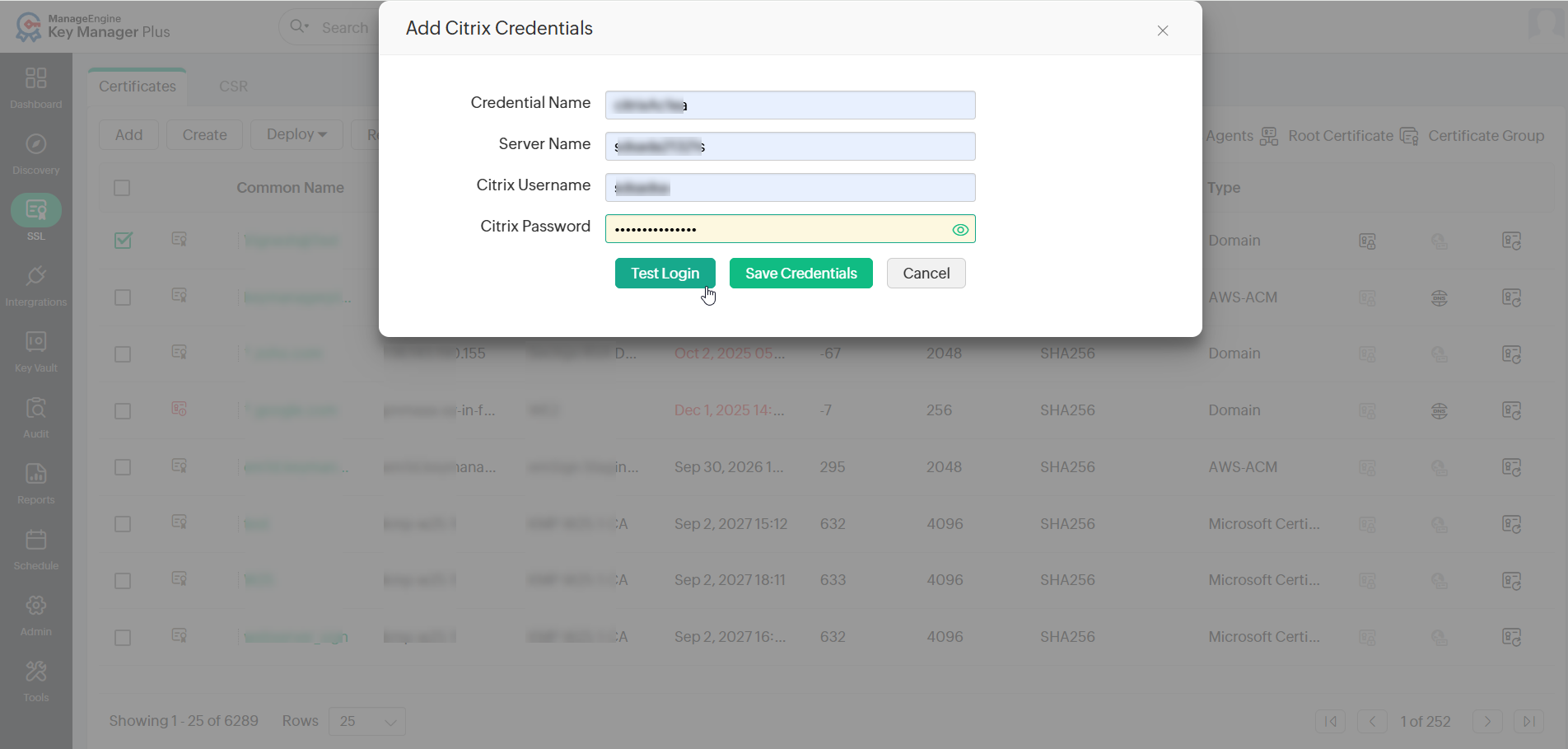
- Click Add and enter the Credential Name, Server Name, Citrix Username, and Citrix Password.
- Click Test Login to test the credential and click Save Credentials.
Additional Detail
To delete a Citrix credential, click Manage Credential, select a credential from the list, and click Delete. In the confirmation pop-up that appears, click OK.
- Enter the Passphrase and select either Service Deploy or Virtual Server Deploy.
- If the Service Deploy option is selected, choose the services to deploy the load balancer and click Select Services.
- If the Virtual Server Deploy option is selected, choose the virtual servers to deploy the load balancer and click Select Virtual Servers.
- Click Deploy to deploy the certificate to the Citrix load balancer.
6.2 FortiGate Firewall
To deploy a certificate to FortiGate Firewall load balancer, follow the below steps:
- On the Certificates page under the SSL tab, select a certificate and click Load Balancer from the Deploy dropdown.
- In the pop-up window that appears, select FortiGate Firewall from the Load Balancer Type dropdown.
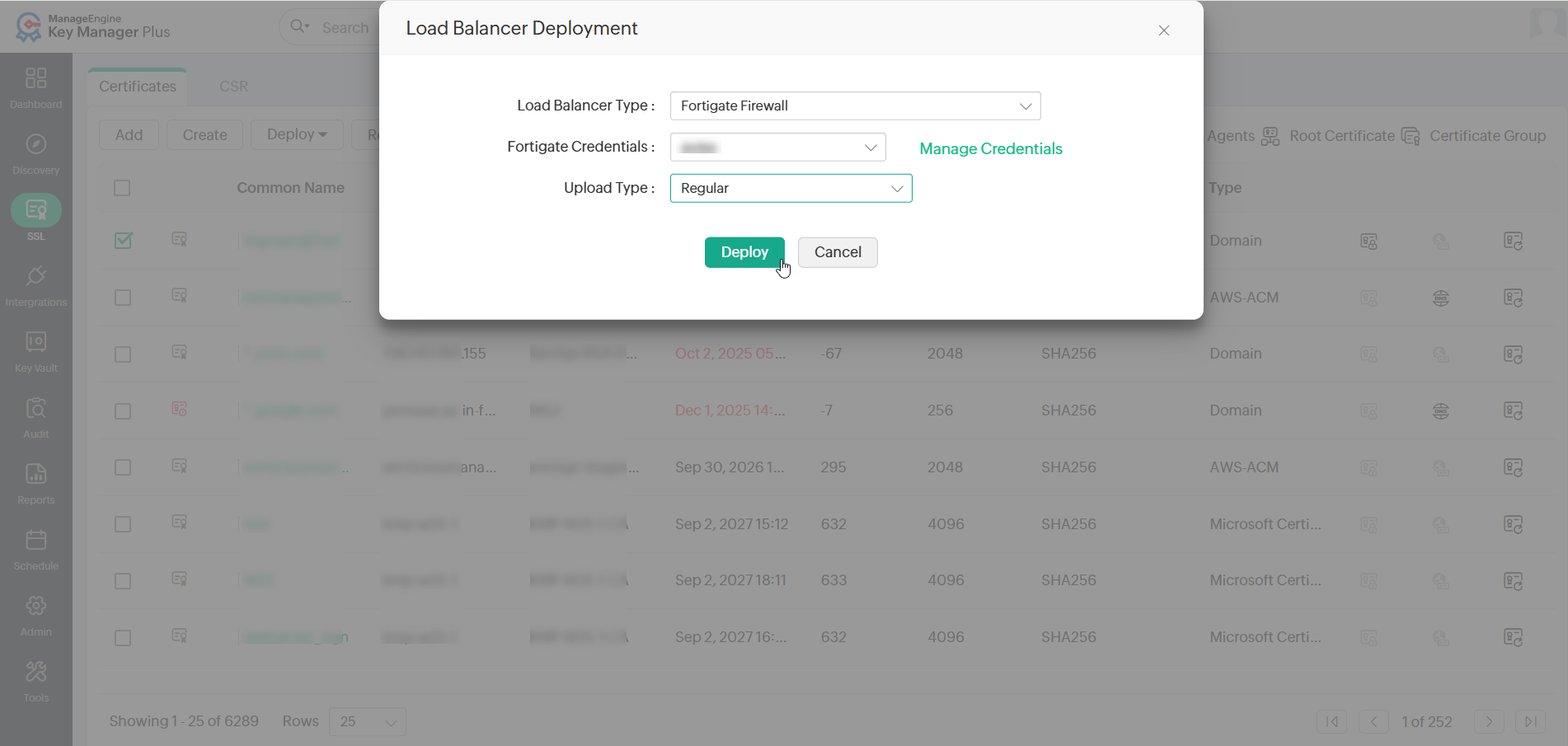
- Select the required FortiGate credential from the FortiGate Credentials dropdown. To add a new FortiGate credential, click Manage Credentials and perform the following steps in the pop-up that appears:
- Click Add and enter the Credential Name, Server IP, and API Key.
- Click Save Credentials to save the newly added FortiGate Firewall credential.
Additional Detail
To delete a FortiGate credential, select a credential that is to be deleted and click Delete. In the pop-up confirmation dialog box that appears, click OK to delete the selected credential.
- In the Load Balancer Deployment window, select the Upload Type as Regular if the certificate has a Keystore file. Else, select the Upload Type as Remote.
- Click Deploy to deploy the selected certificate to the FortiGate Firewall.