Discovering Certificates in Key Manager Plus Cloud
Key Manager Plus Cloud enables comprehensive discovery of SSL certificates deployed across your network, regardless of the issuing Certificate Authority (CA). This functionality allows IT administrators to gain centralized visibility and maintain control over all certificates in use, helping to prevent outages caused by untracked deployments or unexpected expiries.
SSL certificate discovery can be performed manually at any time or configured to run automatically through scheduled tasks. The discovery process is highly flexible. You can scan a single server or multiple servers at once, and target one or more ports in a single operation. In addition, Key Manager Plus Cloud allows quick rediscovery of expired or near-expiry certificates directly from the Certificate Expiry widget on the dashboard.
Key Manager Plus Cloud supports various methods to discover SSL certificates, including the following:
- Manual Discovery of Certificates
- Automated Certificate Discovery through Schedules
- Discovery of Certificates from the SMTP Servers
- Discovery of Certificates Deployed on Load Balancers
- Discovery of Certificates using the Key Manager Plus Cloud Agents
- Discovery of Certificates Hosted on AWS (ACM and IAM)
- Rediscovering Certificates
These discovery options ensure that your organization can maintain complete visibility into all SSL certificates and effectively manage their lifecycle with confidence.
1. Manual Discovery of Certificates
Key Manager Plus cloud allows discovering SSL certificates manually from the Discovery tab. This enables administrators to locate SSL certificates from one or more servers on demand. Also, this method is useful for ad-hoc discovery or when only a small number of systems need to be scanned. You can specify servers by hostname or IP address, and also upload a list of servers for bulk discovery.
To discover the SSL certificates manually in Key Manager Plus Cloud, follow the steps below:
- Navigate to the Discovery tab and click SSL from the left panel.
- On the SSL Discovery page, you have two options to discover certificates: Hostname / IP Address or From File.
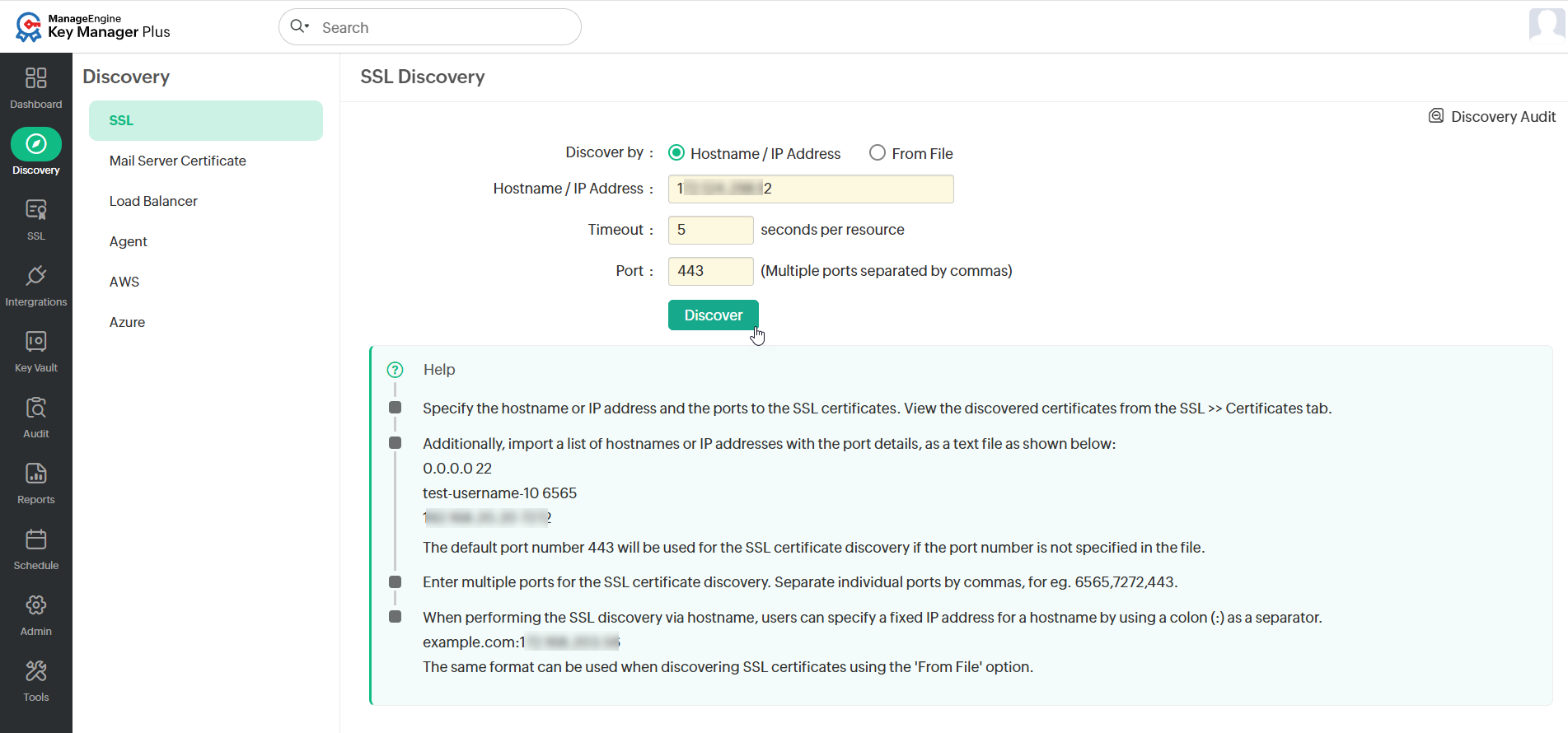
- If you select Hostname / IP Address, enter the hostname or IP address of the server from which the SSL certificates are to be discovered. Enter timeout (in seconds) and port number in the respective fields.
- If you have a list of the servers in which certificates are available in your network saved as a text file, it can be loaded directly, and all these certificates can be discovered. To do so, select the From File option as your discovery type and upload the file. Make sure that you enter the timeout in the respective field.
Caution
Ensure that the file to be imported is a text file containing the hostname or IP addresses of individual servers, entered on separate lines. Also, make sure you enter the ports to scan on each server separated by a space, entered on separate lines as illustrated below:
0.0.0.0 6565
test-username-10 443
192.168.20.20 7272If you do not specify any port, SSL certificates using the default port 443 will be discovered. Also make sure that you specify the values for the Timeout and the Port options.
- Timeout: Refers to the number of seconds the application tries to discover the certificates (each). The default value is 5 seconds.
- Port: It refers to the port on the end terminal used for SSH communication. Port 443 is used by default for SSL certificates.
- Click Discover to discover the SSL certificates.
You will be redirected to the Discovery Audit page where the status of the current discovery instance is updated.
Additional Details
- You can specify multiple ports for the discovery of SSL certificates in a single discovery instance, separated by commas.
- During SSL discovery or when manually adding certificates, you can choose to exclude specific certificates by providing their details (common name and serial number) in the Admin >> SSL >> Excluded Certificates tab.
2. Automated Certificate Discovery through Schedules
Scheduled discovery is ideal for maintaining continuous visibility over SSL certificates without manual intervention. You can configure when, where, and how SSL certificate discovery should occur, and define recipients to be notified upon completion.
To schedule automatic certificate discovery,
- Click the Schedule tab in the GUI.
- Click Add from the top menu.
- On the Add Schedule page, enter a Schedule Name for the schedule and select the Schedule Type as SSL Discovery.
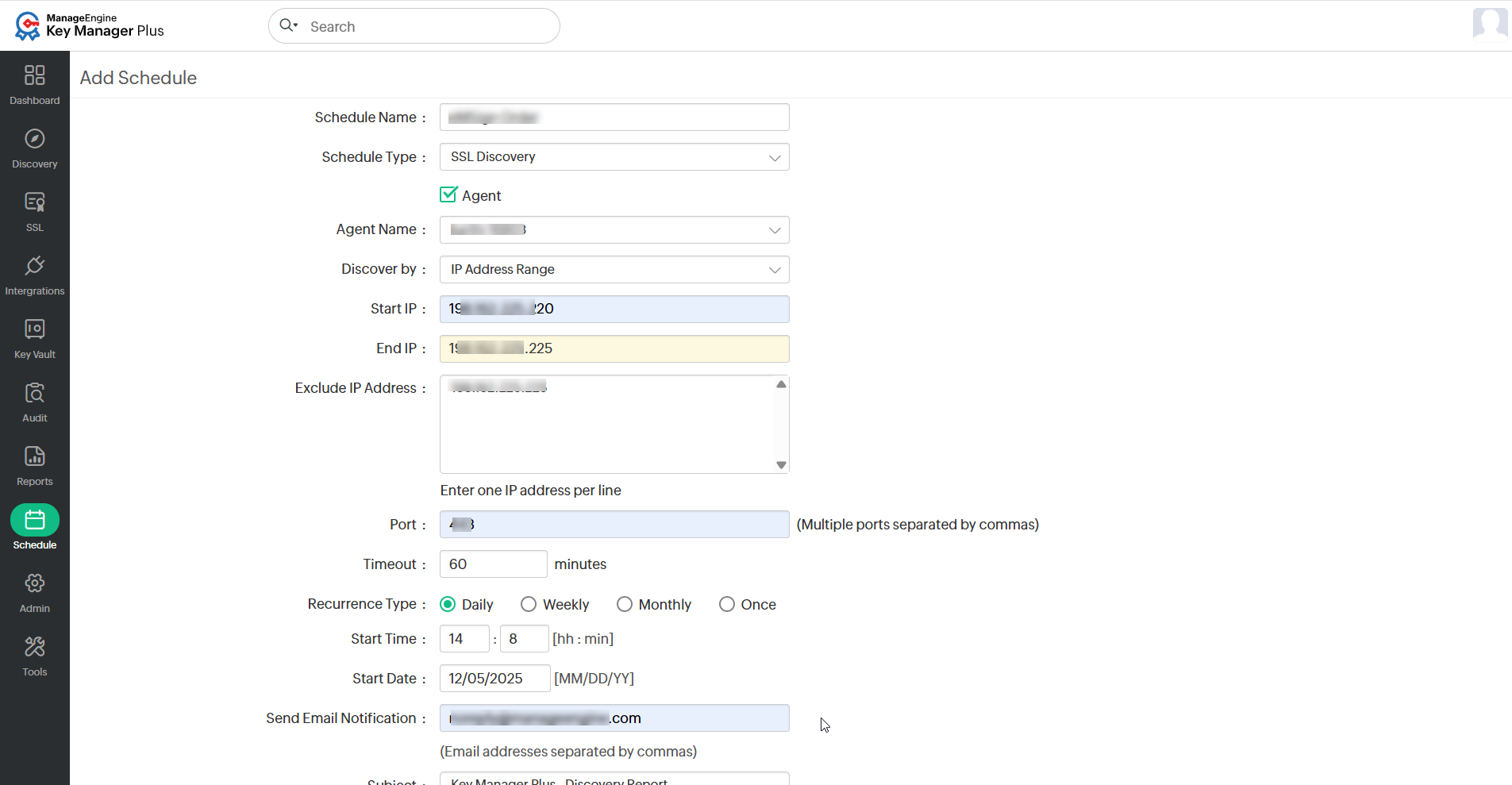
- Select the Agent checkbox and choose the desired agent from the dropdown to discover and include the certificates available on the agent-installed server. If the Agent checkbox is disabled, users have to browse and add the certificates manually for the discovery.
- Choose IP Address Range or Directory as the discovery method from the Discovery by dropdown.
- If you have selected the discovery by IP address range, specify the Start and End IP addresses and the Port on the end terminal to check for SSL certificates.
- You can also exclude IP addresses by entering them in the Exclude IP Address text field.
- If you have selected discovery by directory, specify the path and select files. To fetch certificates from the agent installed server, click Discover certificate list beside the field and select the certificates from the pop-up window that appears.
- Select the Recurrence Type — hourly, daily, weekly, monthly, or once only. Set the Starting Time, Date, or Day corresponding to the option chosen.
- Enter the email addresses of the users to be notified.
- Select the report format as PDF or CSV and click the Save button.
You will get a message confirming the addition of a new schedule. The result of the schedule execution will get updated in the Schedule Audit and the Discovery Audit tabs.
3. Discovery of Certificates from the SMTP Servers
You can discover SSL certificates used by mail servers present in your network and consolidate them in the centralized certificate inventory of Key Manager Plus Cloud. To perform the mail server certificate discovery,
- Navigate to Discovery >> Mail Server Certificate.
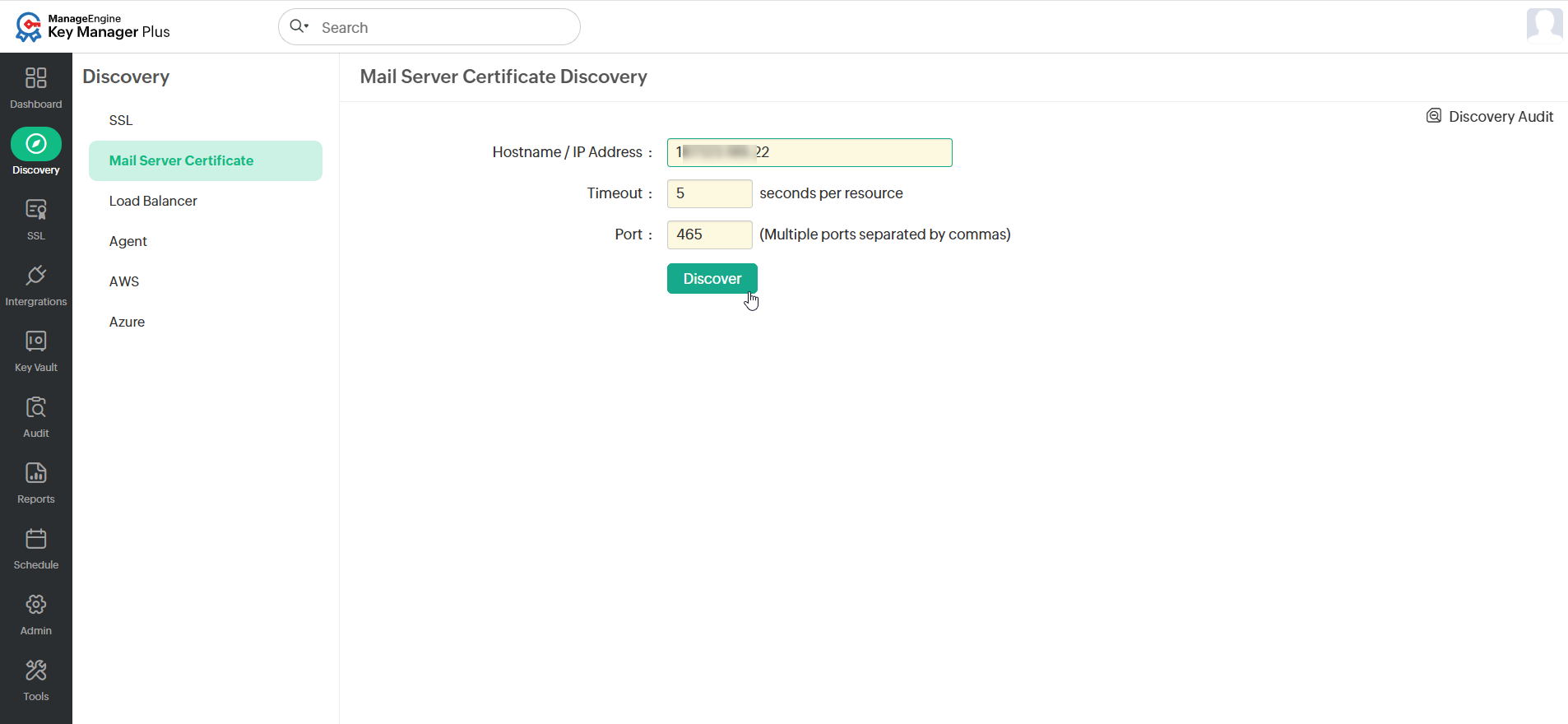
- Provide the Hostname or IP Address from which the certificate is to be discovered and specify the Timeout (in seconds) and Port number. You can specify multiple port values by separating them with commas.
- Click Discover to discover the certificates from your network.
On successful discovery, the SSL certificates are fetched from the specified resources and added to the Key Manager Plus Cloud inventory.
4. Discovery of Certificates Deployed on Load Balancers
Key Manager Plus Cloud allows you to discover SSL certificates deployed to load balancers (i.e., Citrix and FortiGate Firewall) within your network and consolidate them in its secure, centralized inventory.
To perform load balancer certificate discovery,
- Navigate to Discovery >> Load Balancer.
- Select a load balancer type from the Type dropdown. Key Manager Plus Cloud supports two types of Load Balancer discovery: Citrix and FortiGate Firewall.
- If you have selected the Load Balancer Type as Citrix, perform the following actions:
- Select a Citrix credential from the Citrix Credentials List dropdown.
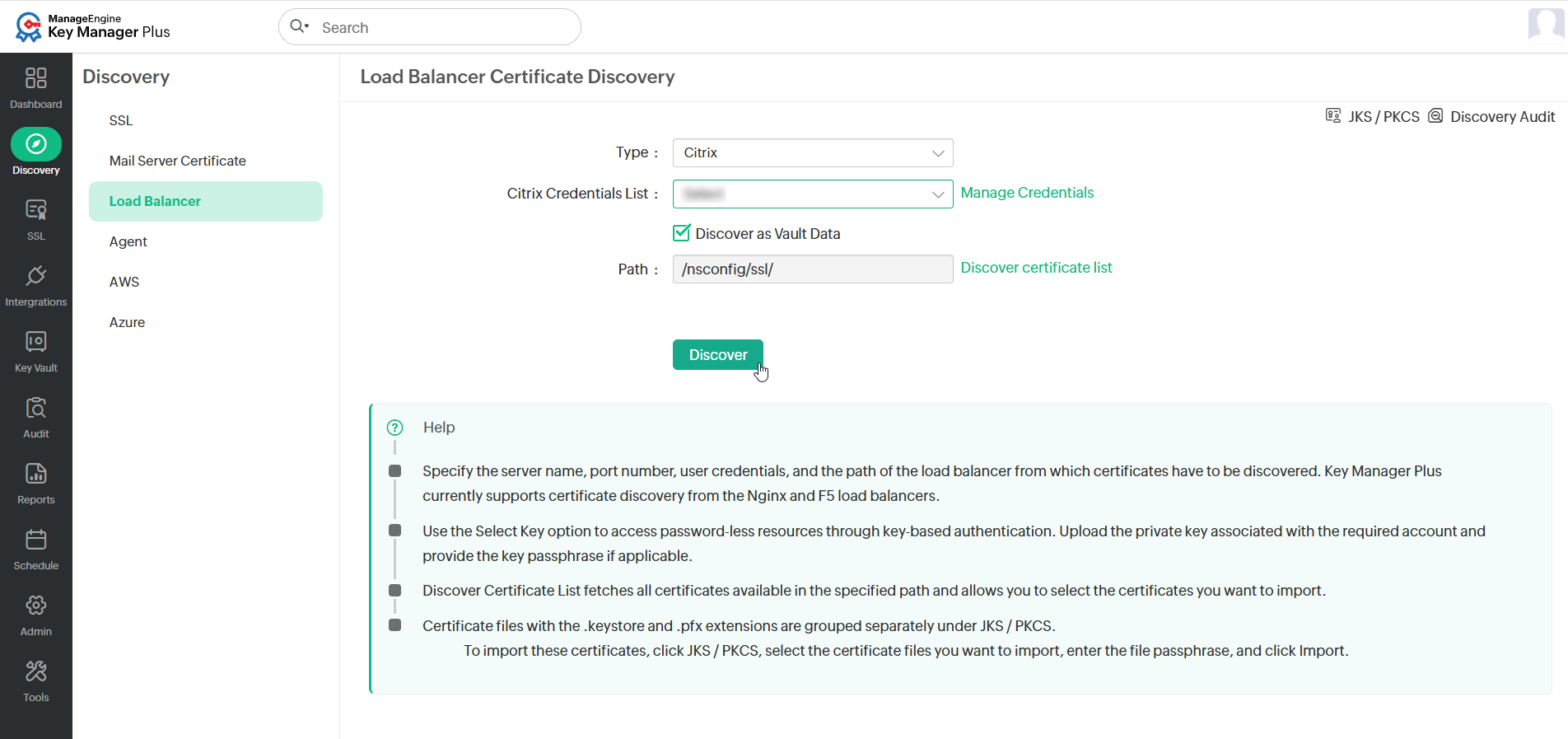
- If you have not added any credential, click the Manage Credentials next to the dropdown.
- In the window that appears, Click Add and enter Credential Name, Server Name, Citrix Username, and Citrix Password.
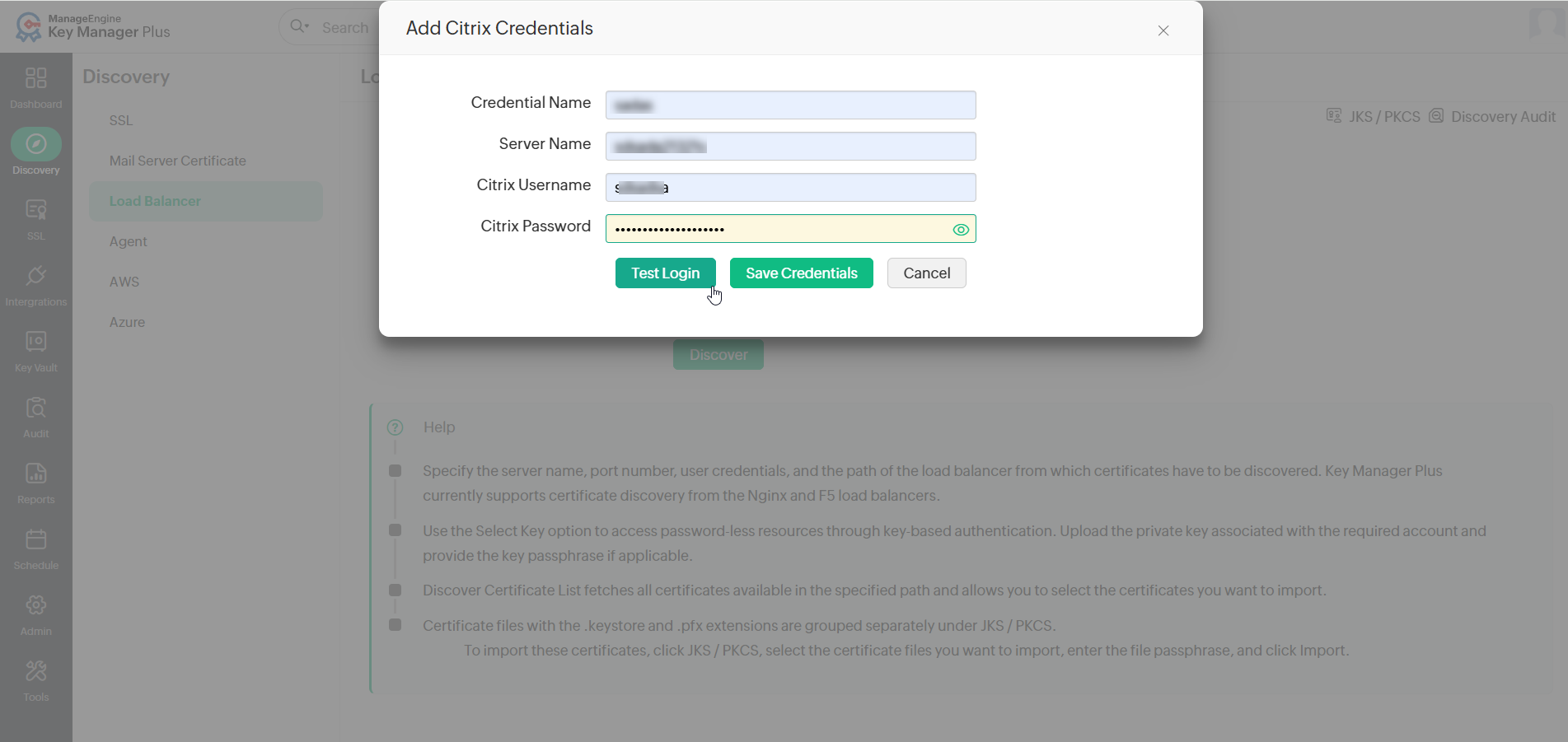
- Click Test Login to validate the credentials and then click Save Credentials.
- On the Load Balancer Certificate Discovery page, select the Discover as Vault Data checkbox to discover only the certificate details instead of a certificate.
- Enter the Path in the server from which certificates have to be discovered. You can also click Discover certificate list beside the Path field to fetch all the certificates available in the specified path.
- Click Discover to discover the certificates and import them into the Key Manager Plus Cloud' centralized certificate inventory.
- Select a Citrix credential from the Citrix Credentials List dropdown.
- If you opt to discover certificates from FortiGate Firewall load balancer, follow these steps:
- Select a FortiGate Credential from the FortiGate Credentials dropdown.
- Click Manage Credentials to add or delete a credential. In the pop-up window that appears:
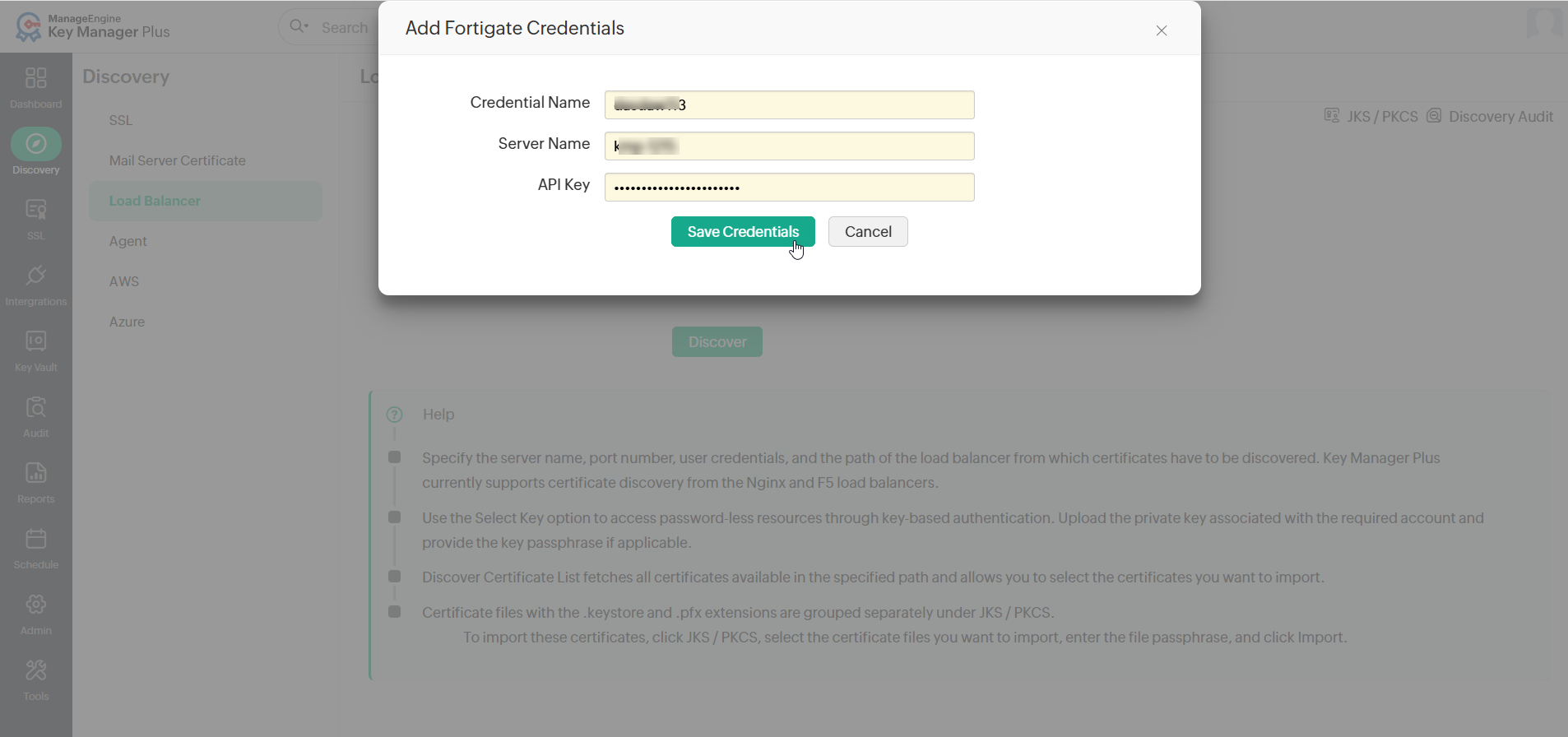
- Click Add and enter the Credential Name, Server IP, and API Key to add a credential.
- Click Save Credentials to add a new FortiGate Firewall credential.
- To delete a credential, select a credential that you want to delete and click Delete. If prompted for confirmation, click OK to delete the selected credential.
- On the Load Balancer Certificate Discovery page, enter the Path, and click Discover certificate list. From the list that opens, select the required certificates to be added.
- Click Discover to discover and import the certificates into the centralized certificate inventory of Key Manager Plus Cloud.
The certificate files discovered with extensions .keystore and .pfx requires passphrases while importing the certificates. These types of certificate files are grouped separately under the JKS/PKCS section (located at the top-right corner of the page).
4.1 Manual Import of Certificates from JKS/PKCS Files
To import the certificates, click JKS/PKCS at the top-right corner of the page, and in the window that appears, choose the certificate file from which you wish to import the certificates and click Import from the top menu. In the popup that appears, provide the passphrase of the certificate file and click Import. The selected file will be verified with the provided password, and the relevant certificates will be successfully imported and added to Key Manager Plus Cloud' certificate inventory.
4.2 Automatic Import of Certificates from JKS/PKCS Files
- Click Assign Passwords from the Load Balancer Certificate Discovery page.
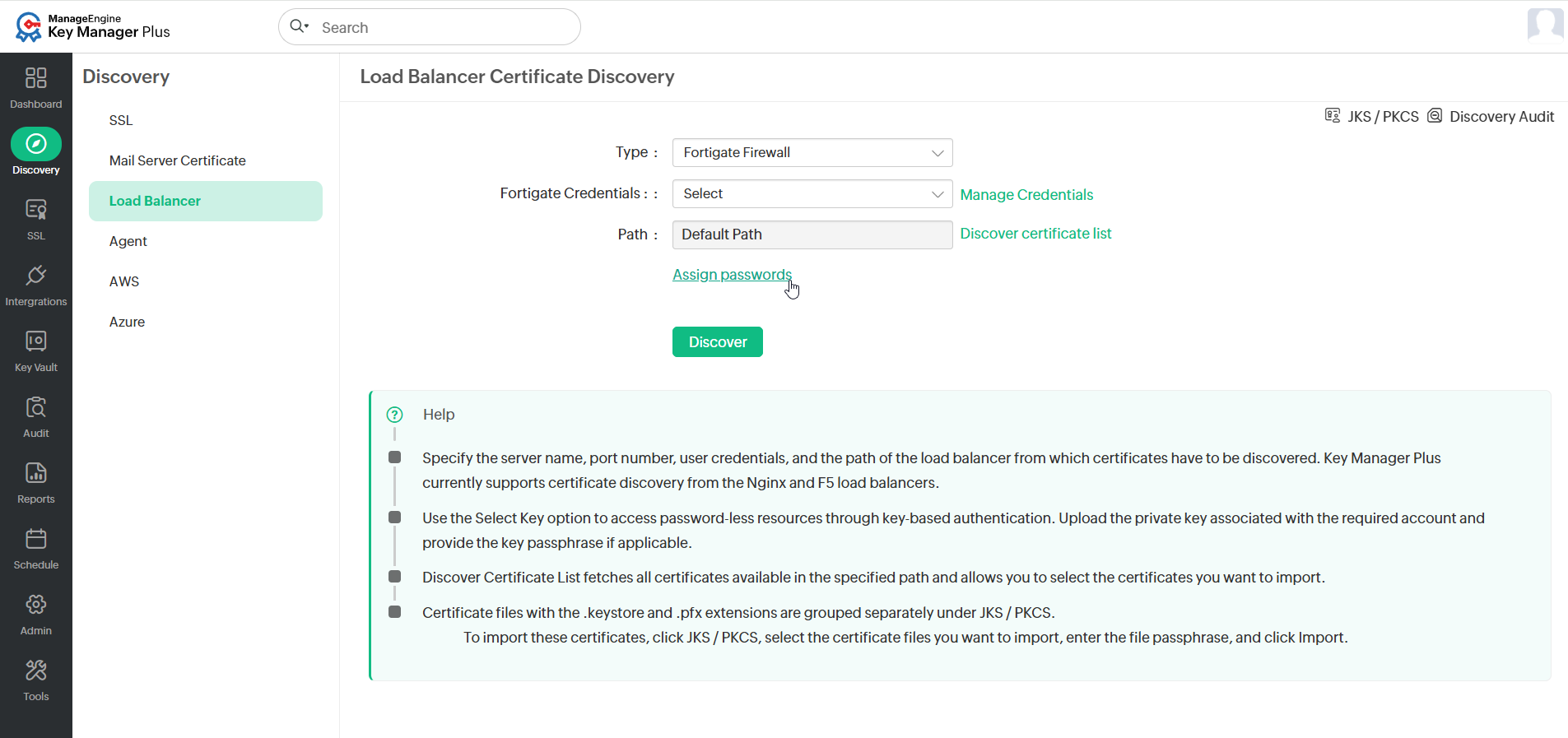
- In the pop-up that opens, click Add to input the passwords of the JKS/PKCS files.
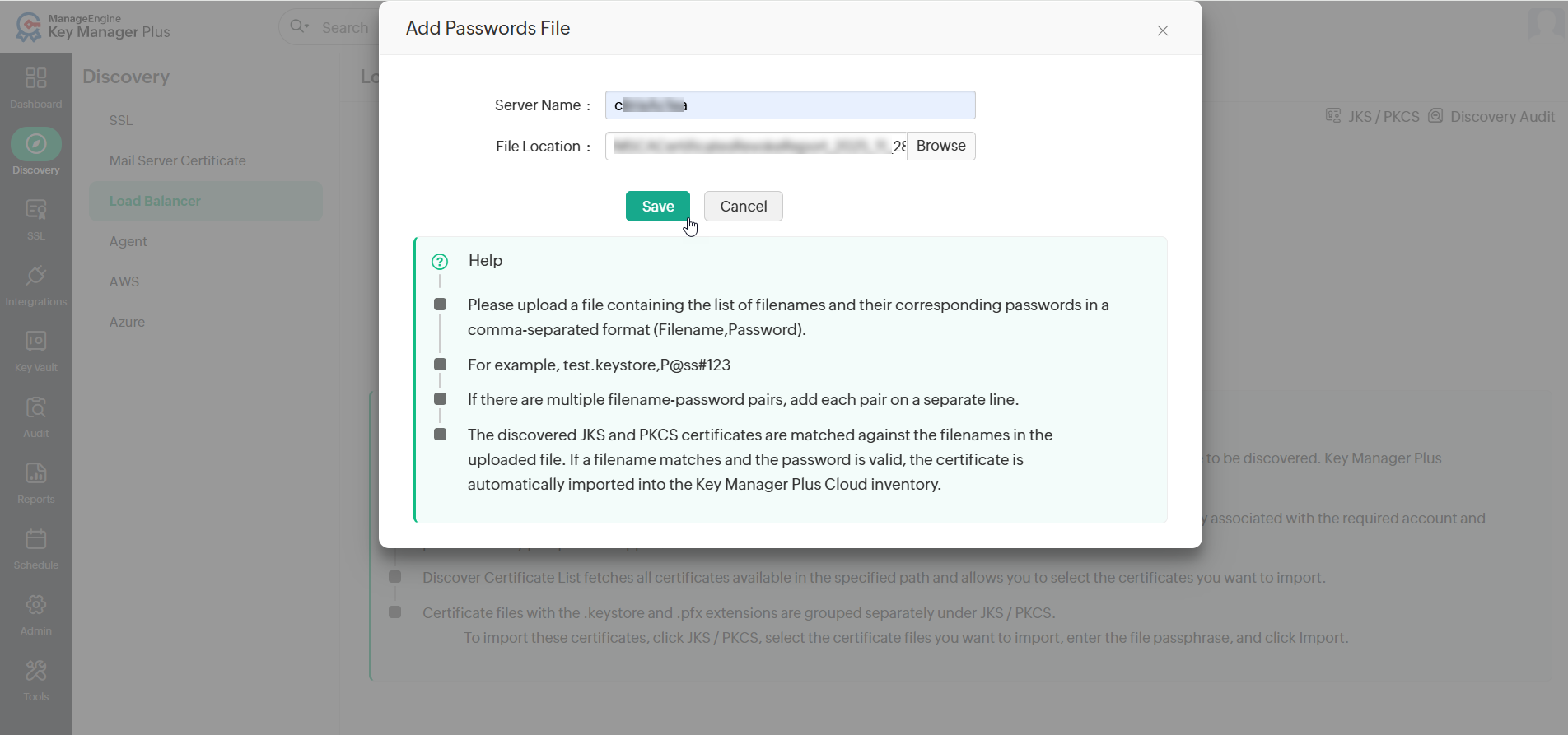
- In the new popup that appears, enter the Server Name and upload a file containing the available JKS/PKCS filenames and passwords.
- If there are multiple filenames and passwords, enter the corresponding passwords on consecutive lines in a comma-separated format (e.g., test.keystore, P@ss#123).
- Click Save to store the list of JKS/PKCS file passwords.
4.3 How Does this Assign Passwords Work During the Discovery Process?
For example, in a certificate discovery process for Citrix, fill in the respective fields as mentioned above for the certificate discovery and click Assign Passwords. In the pop-up that opens, select the file with the JKS/PKCS filenames and passwords relevant to the Citrix load balancer's server and click Use Passwords. Upon certificate discovery from the Citrix load balancer, the discovered JKS/PKCS files will be matched with the file names provided in the uploaded file. If the file name matches, it will verify the password, and the respective certificates will be automatically imported into the SSL tab of the Key Manager Plus Cloud inventory.
5. Discovery of Certificates using the Key Manager Plus Cloud Agents
Key Manager Plus Cloud provides IT administrators the option to discover SSL certificates deployed across their network through agents. This functionality enables them to download and deploy Key Manager Plus Cloud agents to target systems, discover, and import certificates from those systems into a centralized certificate inventory directly from the Key Manager Plus Cloud interface. The connection between the Key Manager Plus Cloud and the servers in which the agent is deployed is over HTTPS and is completely secure. Currently, Key Manager Plus Cloud agents are available only for Windows Operating Systems.
Performing certificate discovery through agents is helpful in the following scenarios:
- When the administrative credentials of the target servers required to perform the discovery operation are not available in the Key Manager Plus Cloud.
- When certificates have to be discovered from servers that Key Manager Plus Cloud does not have direct access to—for instance, servers in the demilitarized zone (DMZ). In such cases, the agent is usually installed in an intermediate jump server that has the permission to access the remote servers and pass on the required information to Key Manager Plus Cloud.
Steps to perform SSL certificate discovery through Key Manager Plus Cloud agent:
- Navigate to Discovery >> Agent.
- Choose the discovery type from where you want to perform the discovery—DMZ, Certificate Store, Microsoft Certificate Authority, or Directory.
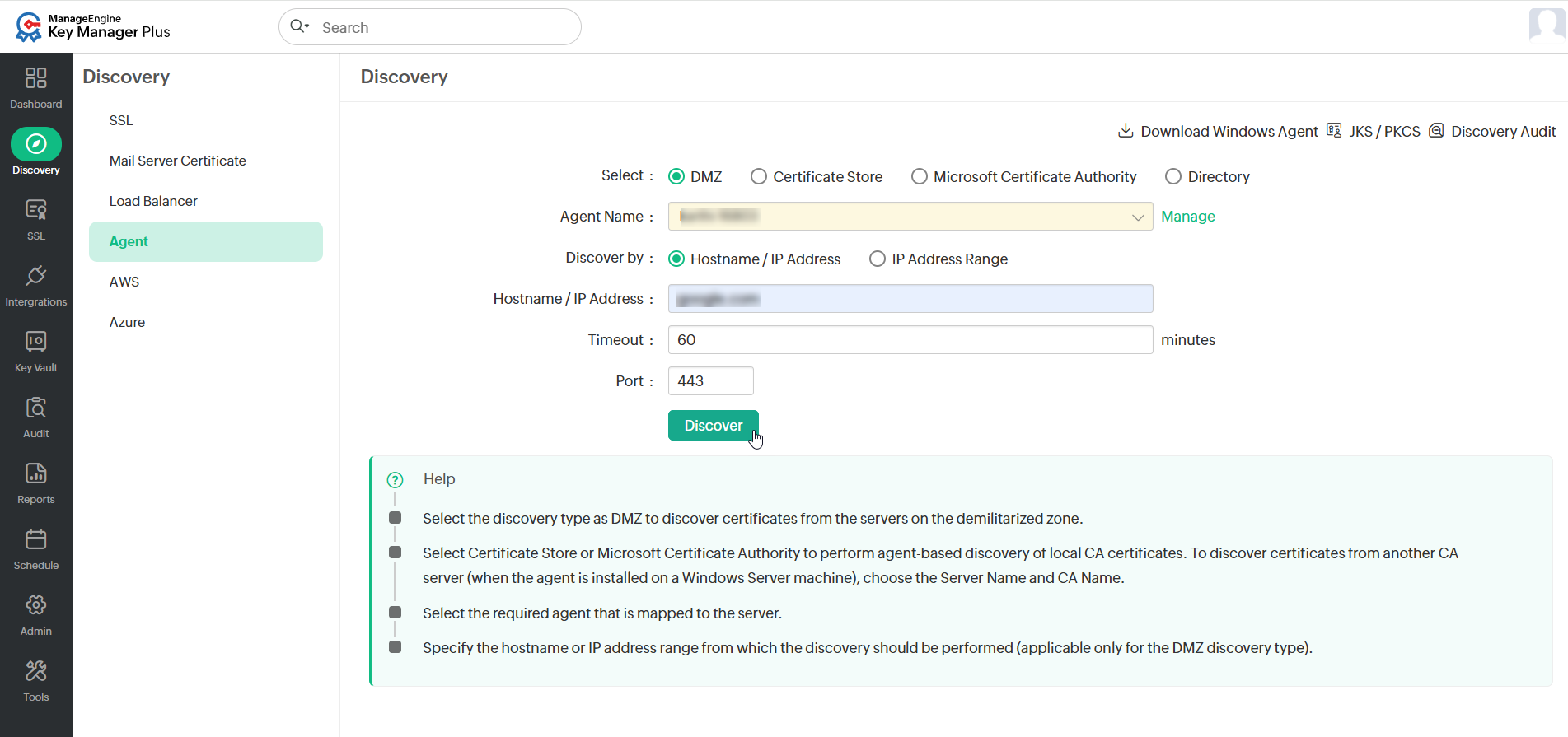
- Select the required agent from the dropdown to perform the operation. If the agent is busy, wait and try again after sometime.
- Provide the required details based on the selected discovery type.
- For MSCA discovery, you can choose to exclude expired/revoked certificates or perform discovery based on issue date or certificate template using the filters provided. Select the Template Name / OID option to choose certificate templates. This option is available during scheduled discovery of certificates issued by Microsoft Certificate Authority as well.
- Click Discover to discover the SSL certificates.
Now, the certificates are discovered from the servers in which the agent is installed and imported into the Key Manager Plus Cloud's certificate inventory.
6. Discovery of Certificates Hosted on AWS (ACM & IAM)
Key Manager Plus Cloud enables you to discover, import, and configure expiry notifications for SSL certificates hosted in the following Amazon Web Services: AWS Certificate Manager (ACM) and AWS Identity and Access Management (IAM). Follow the steps in the below sections to discover and import SSL certificates from ACM/IAM into Key Manager Plus Cloud.
6.1 Configuring the AWS Credentials in Key Manager Plus Cloud
- Navigate to Discovery >> AWS >> Manage AWS Credential.
- Click Add on the AWS Credentials page.
- In the Add AWS Credentials window that opens, provide the Credential Name, Description, Access Key, and Secret Key.
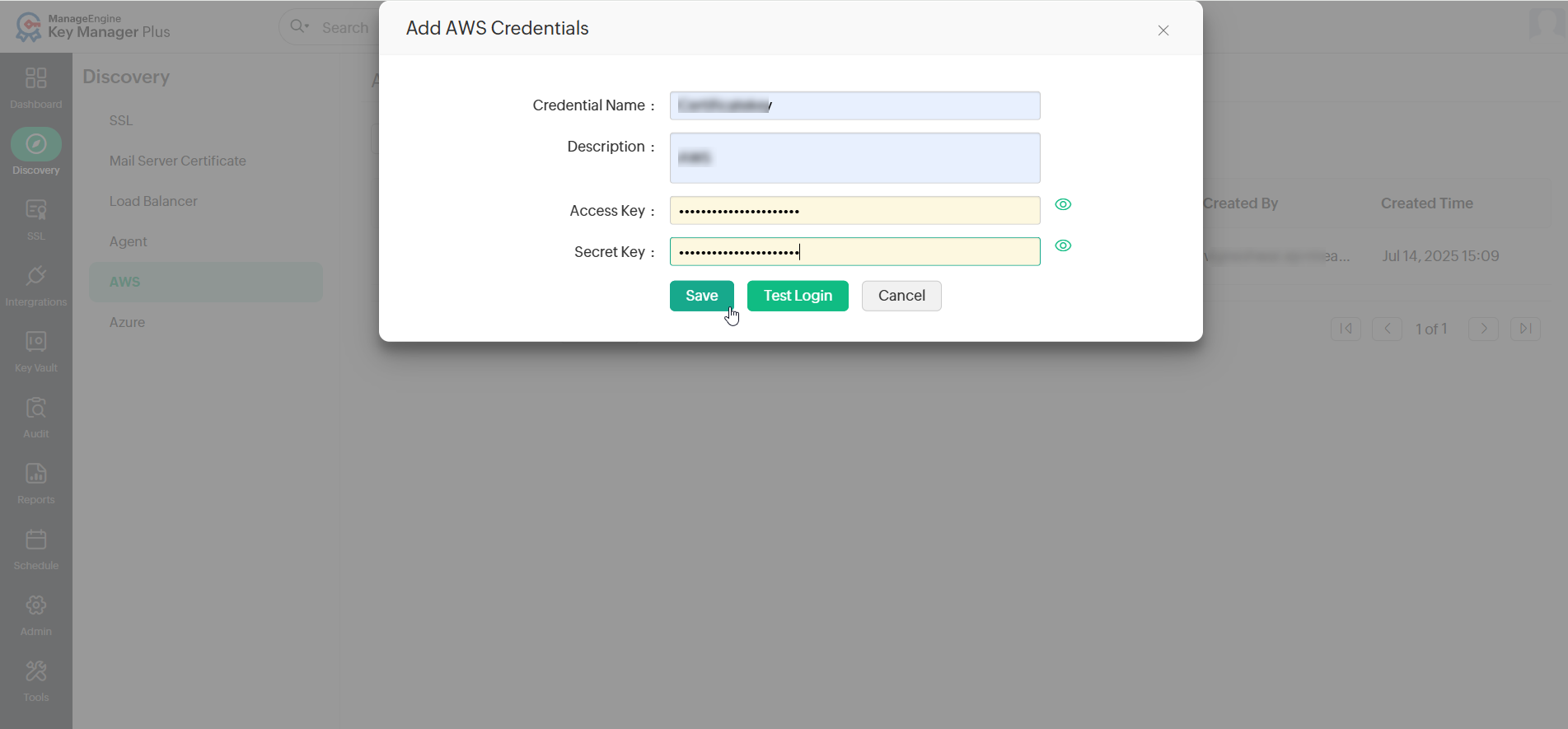
- Click the Test Login button to validate the credentials. You will be notified if the login is successful.
- Click Save to save the AWS credentials in Key Manager Plus Cloud.
6.2 Discovering and Importing Certificates
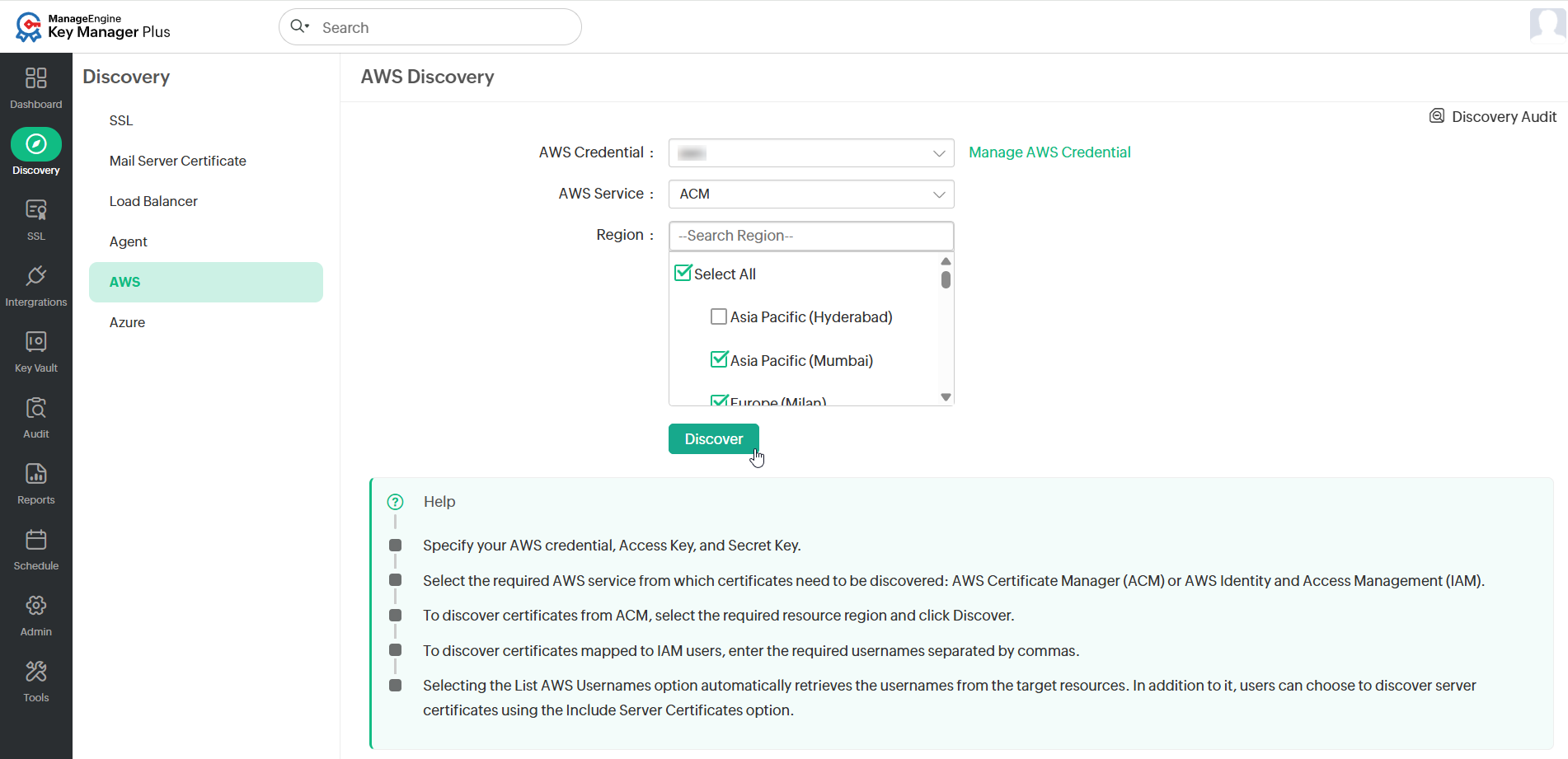
- Switch to the Discovery >> AWS tab.
- Choose the appropriate AWS Credentials from among the ones configured in Key Manager Plus Cloud or click Manage AWS Credential and add a new AWS credential by providing your Access Key and Secret Key.
- Choose the required AWS Service from which the certificates need to be imported: ACM or IAM.
- To import certificates from ACM, select ACM from the AWS Service dropdown, choose the service Region, and click Discover. The certificates are discovered from resources in the selected region and imported into Key Manager Plus Cloud.
- To import certificates from IAM, select IAM from the AWS Service dropdown and specify the required AWS User Names or use the List AWS User Names option to retrieve the usernames. Choose the required usernames and click Discover. You can also choose to import server certificates for the corresponding AWS users by checking the Include Server Certificates checkbox.
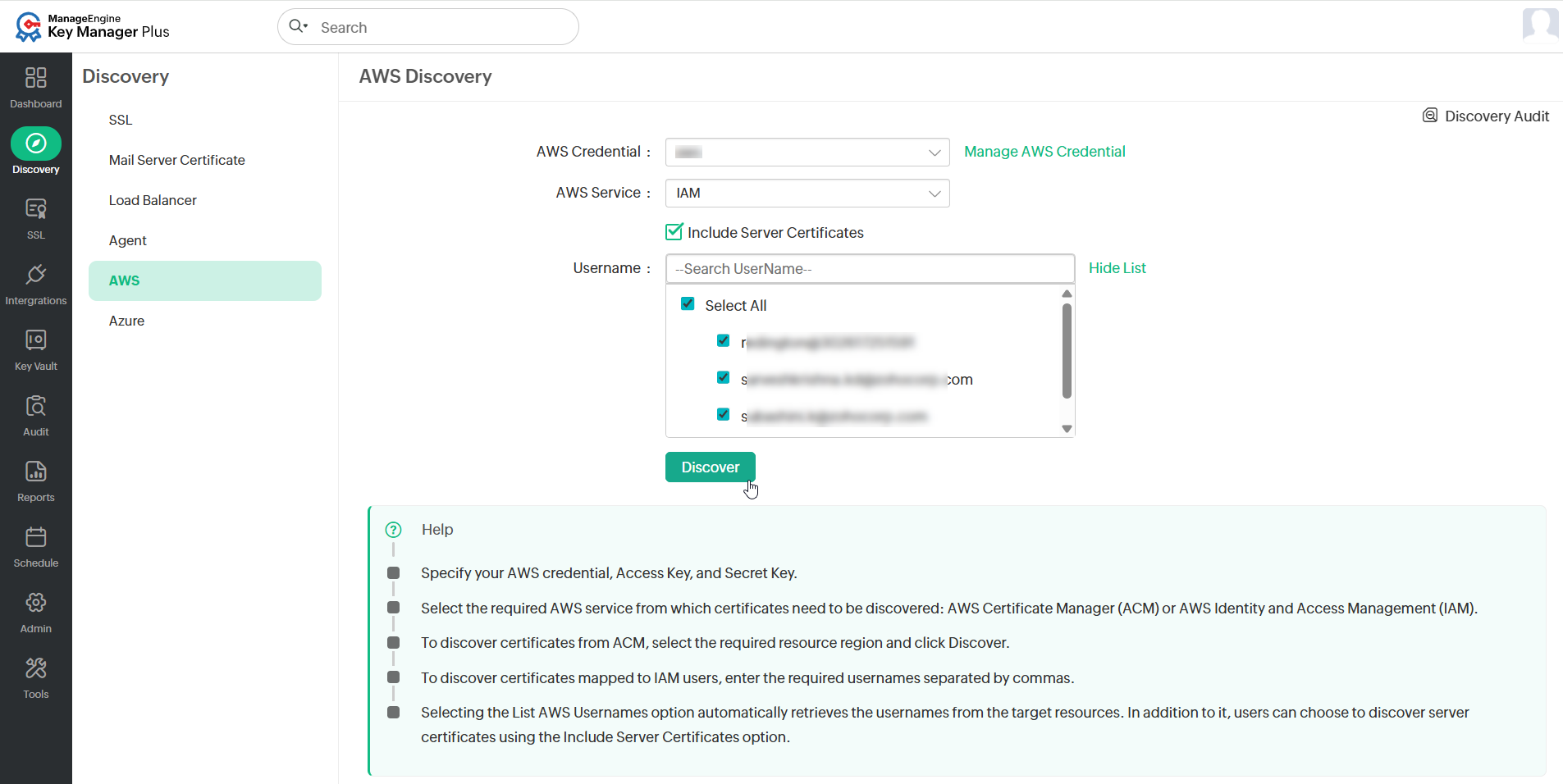
Now, the SSL certificates are imported into Key Manager Plus Cloud.
7. Rediscovering Certificates
Key Manager Plus Cloud allows you to rediscover SSL certificates from the same source using the server details entered during the previous discovery operation. Follow the below steps to perform certificate rediscovery:
- In the Key Manager Plus Cloud GUI, navigate to the SSL >> Certificates tab.
- Select the required certificates and click More >> Rediscover.
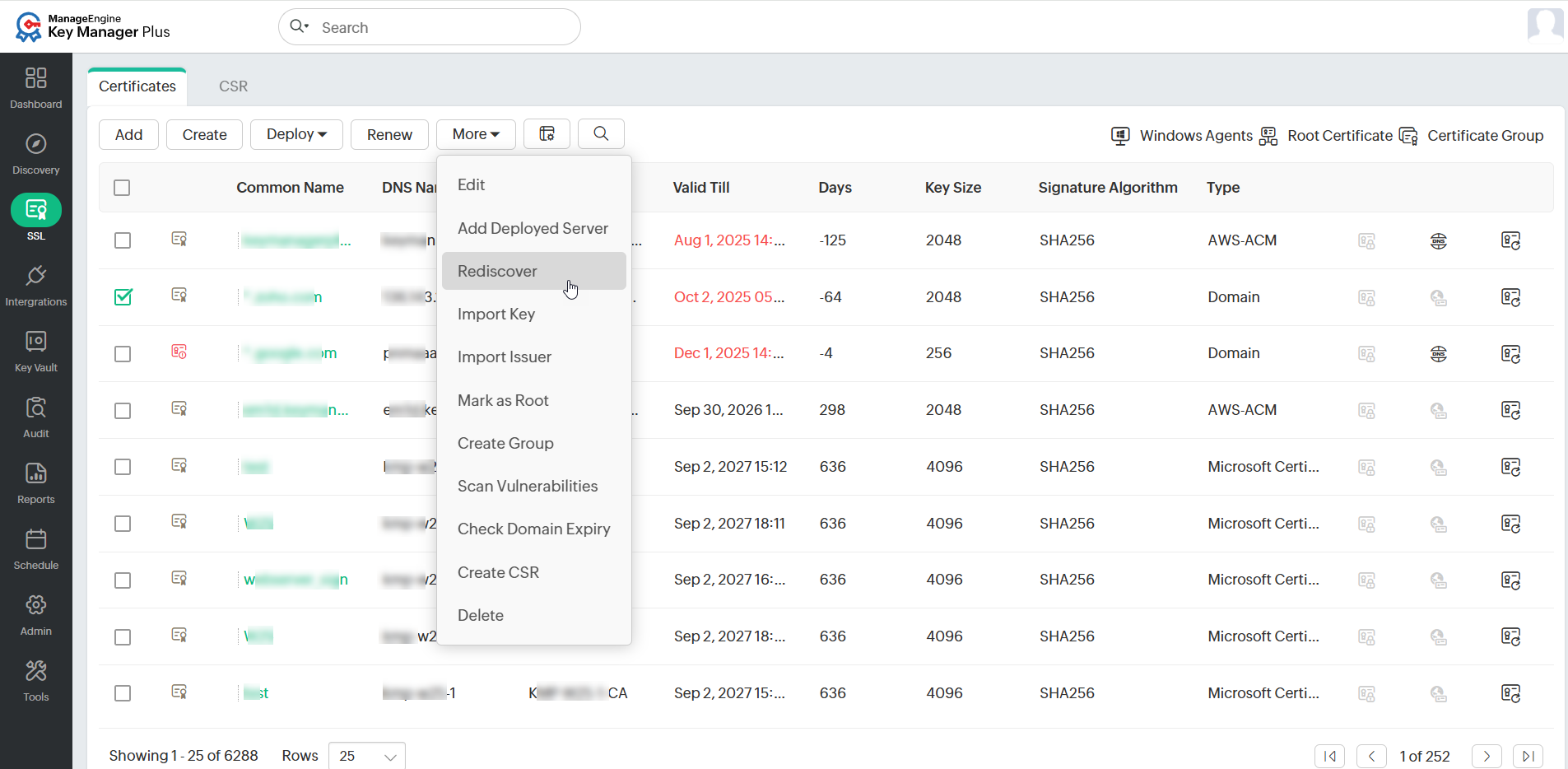
The rediscovery operation begins immediately. You can track the discovery status in the Discovery Audit page.