Managing PGP Keys
Key Manager Plus Cloud allows you to create, import, and manage Pretty Good Privacy (PGP) keys directly from the web interface. PGP keys are used for encrypting emails, files, and verifying the authenticity of data through digital signatures. Each PGP key pair comprises a Master Key and a Sub Key, and Key Manager Plus Cloud lets you define usage permissions for each key component, such as signing, certifying, encryption, or authentication. All created or imported PGP keys are stored securely in the centralized Key Vault, where you can organize, update, export, or email them as needed. You can also view passphrases, add detailed descriptions to help identify key usage, and monitor activities via audit logs. Email notifications can be configured for key expiry alerts, ensuring timely renewals.
You can perform the following operations from the PGP Keys tab:
1. Create a PGP Key
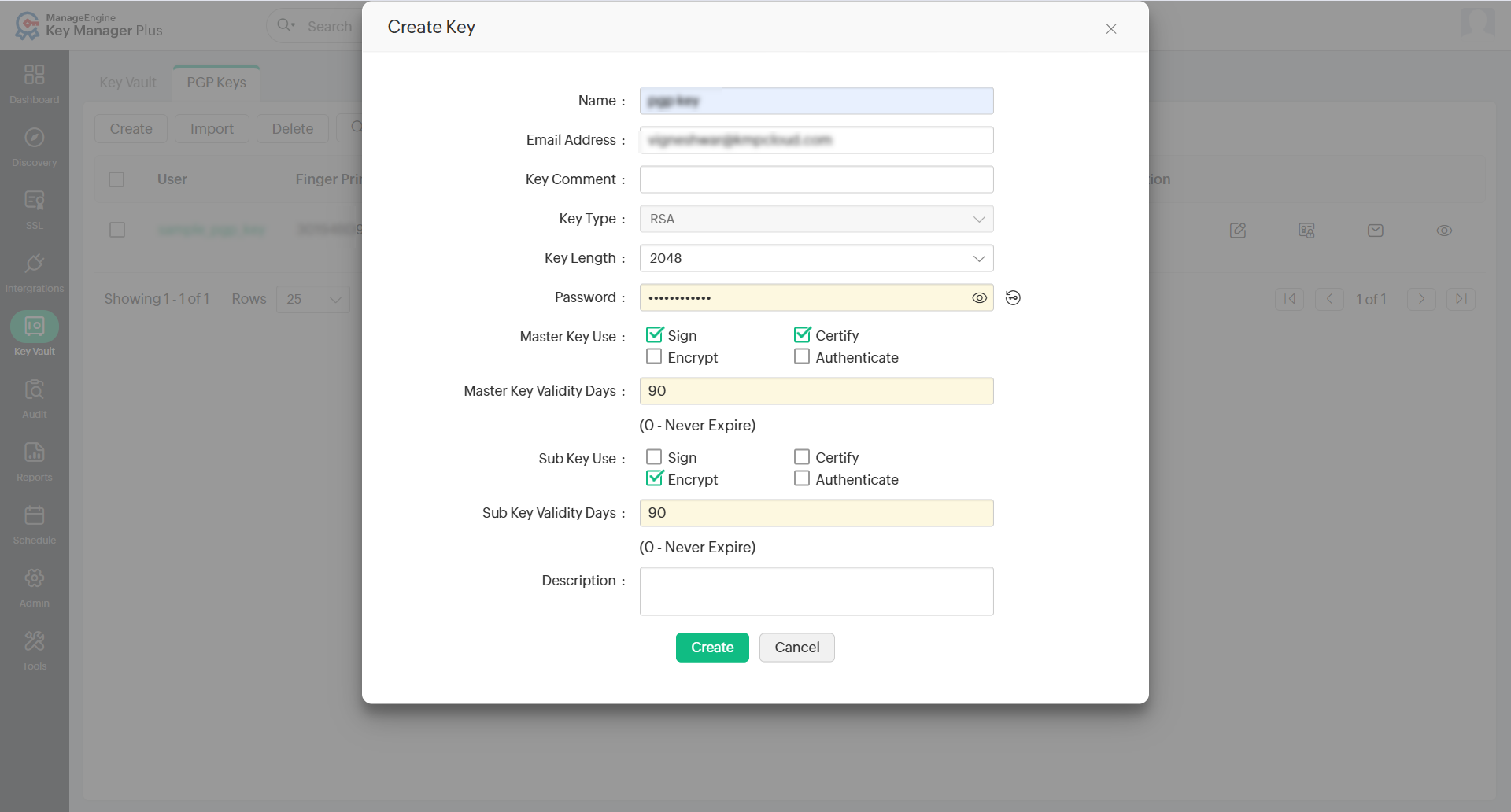
Key Manager Plus Cloud allows you to create new PGP key pairs directly within the application. To generate a new PGP key pair in the cloud environment, follow the below steps:
- Navigate to Key Vault >> PGP Keys and click the Create button.
- In the dialog that appears, enter the following details:
- Name: Enter a name for the key.
- Email Address: Specify the email address of the key owner.
- Key Comment: Add an optional comment to describe the purpose of the key (for example, Email Encryption).
- Key Type: The key type is RSA by default.
- Key Length: Choose the key length from the drop-down (2048 or 4096)
- Password: Enter a secure password to protect the key.
- Master Key Use: Select the checkboxes to define the intended operations for the Master Key. Available options include Sign, Certify, Encrypt, and Authenticate.
- Master Key Validity Days: Set the validity period for the Master Key. The default is 90 days. Enter '0' for no expiration.
- Sub Key Use: Select the checkboxes to define the operations for the Sub Key. Available options include Sign, Certify, Encrypt, and Authenticate.
- Sub Key Validity Days: Set the validity period for the Sub Key. The default is 90 days. Enter '0' for no expiration. Note that this period should not exceed the Master Key's validity.
- Description: Enter a description for the key.
- Click Create to generate and store the key.
The key will now be listed under the PGP Keys tab. You can click on its name to view details of both the Master Key and Sub Key separately.
Additional Detail
The Master Key and Sub Key together form a single logical key and are treated as one entity under the Key Manager Plus Cloud license.
2. Import a PGP Key
Key Manager Plus Cloud allows you to import existing PGP keys into its secure key inventory. This feature enables centralized management of keys that were generated or used outside the application. Once imported, the keys are securely stored and can be described for easier identification. You can then perform operations such as viewing the passphrase, exporting the key, or sending it via email—all from within the PGP Keys section. To import a PGP key into the Key Manager Plus Cloud inventory, follow the steps below:
- Navigate to the PGP Keys section.
- Click the Import button from the top menu bar.
- In the pop-up window that appears:
- Browse and upload the PGP key file.
- Enter the associated Passphrase and optionally add a Description for the key.
- Click Import to add the key to the vault.
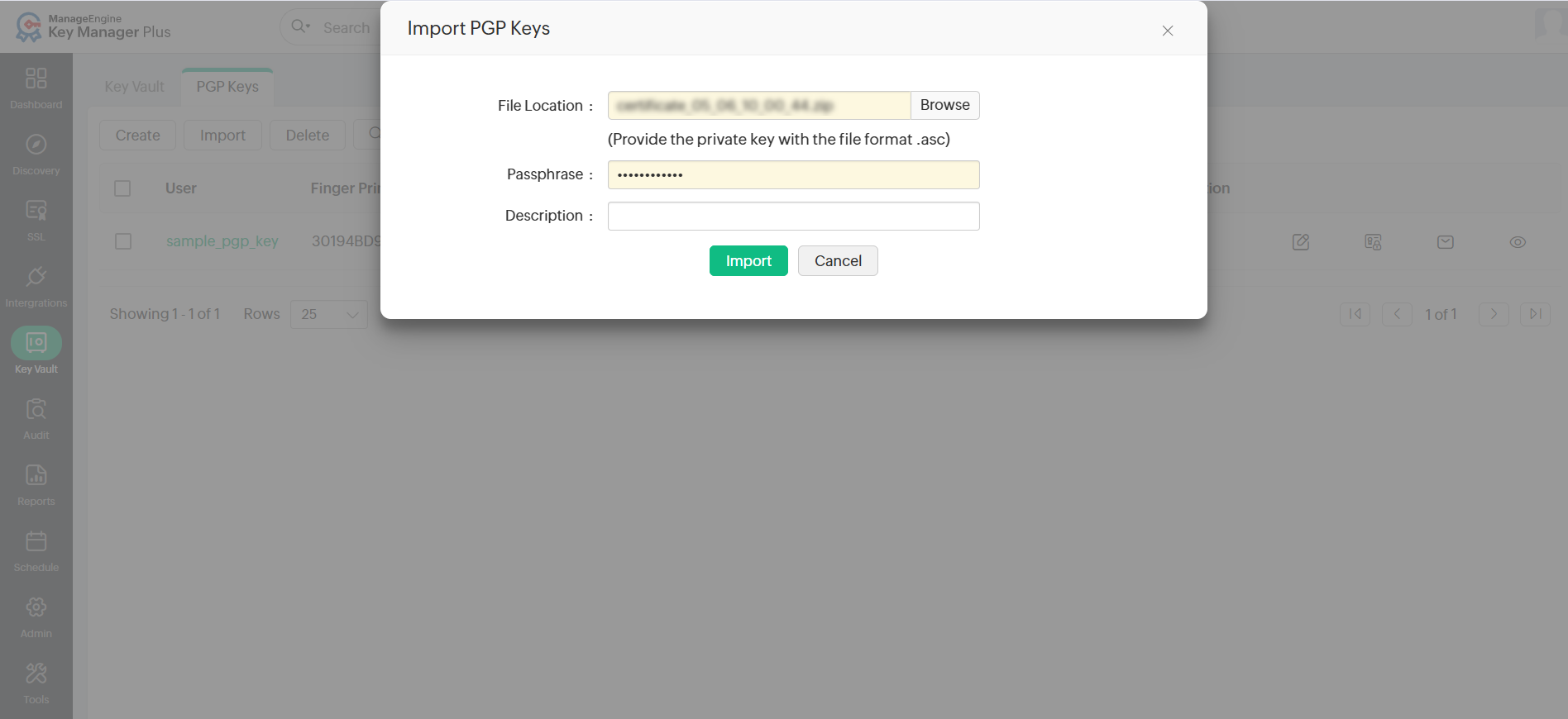
Now, you have successfully imported the key to the Key Manager Plus Cloud inventory.
3. Edit a Key
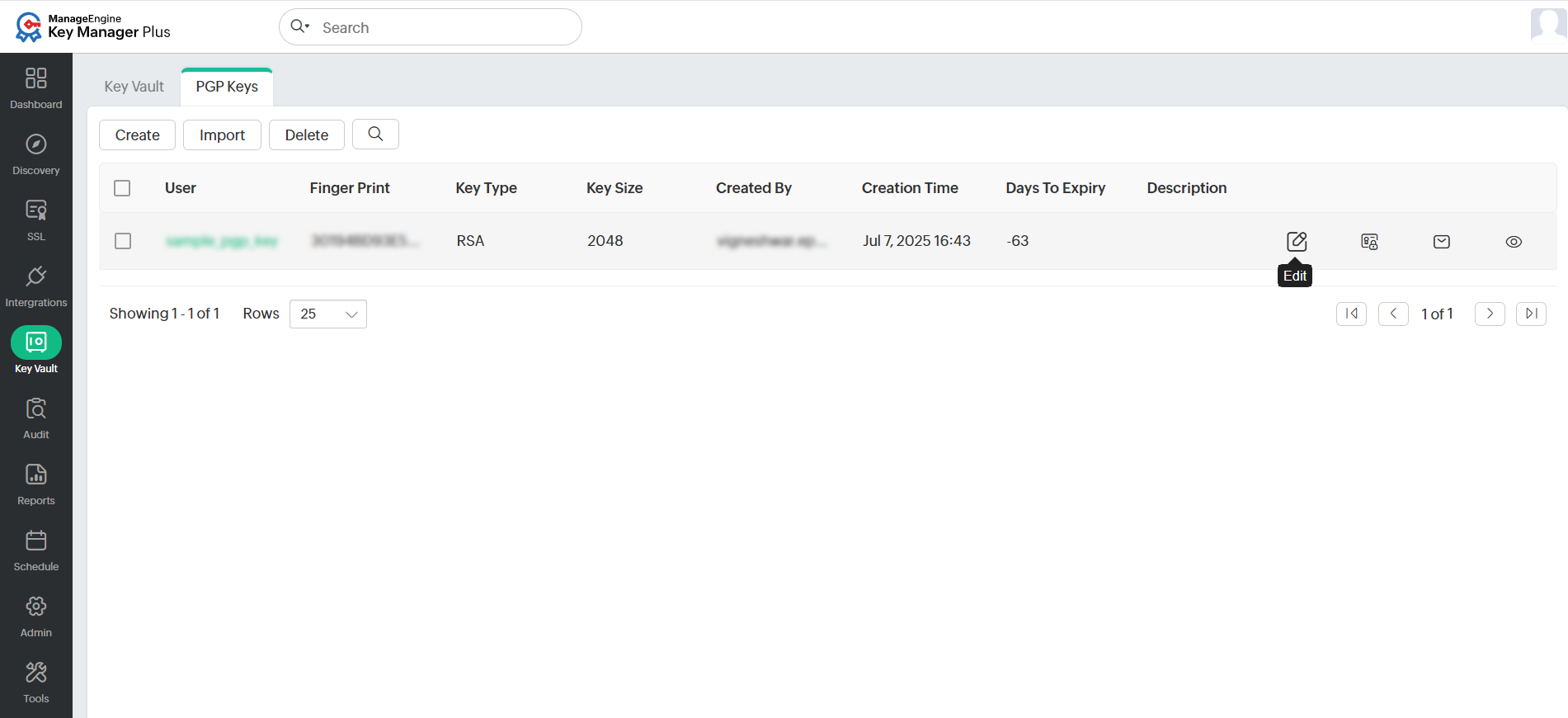
Key Manager Plus Cloud allows you to update the description of a PGP key after it has been created or imported. This helps you add context or modify existing information to make the key easier to identify. To edit a PGP key, follow the below steps:
- Click the Edit icon next to the required key.
- In the Edit window, update the Description field.
- Click Update to save the changes.
4. Export a Key
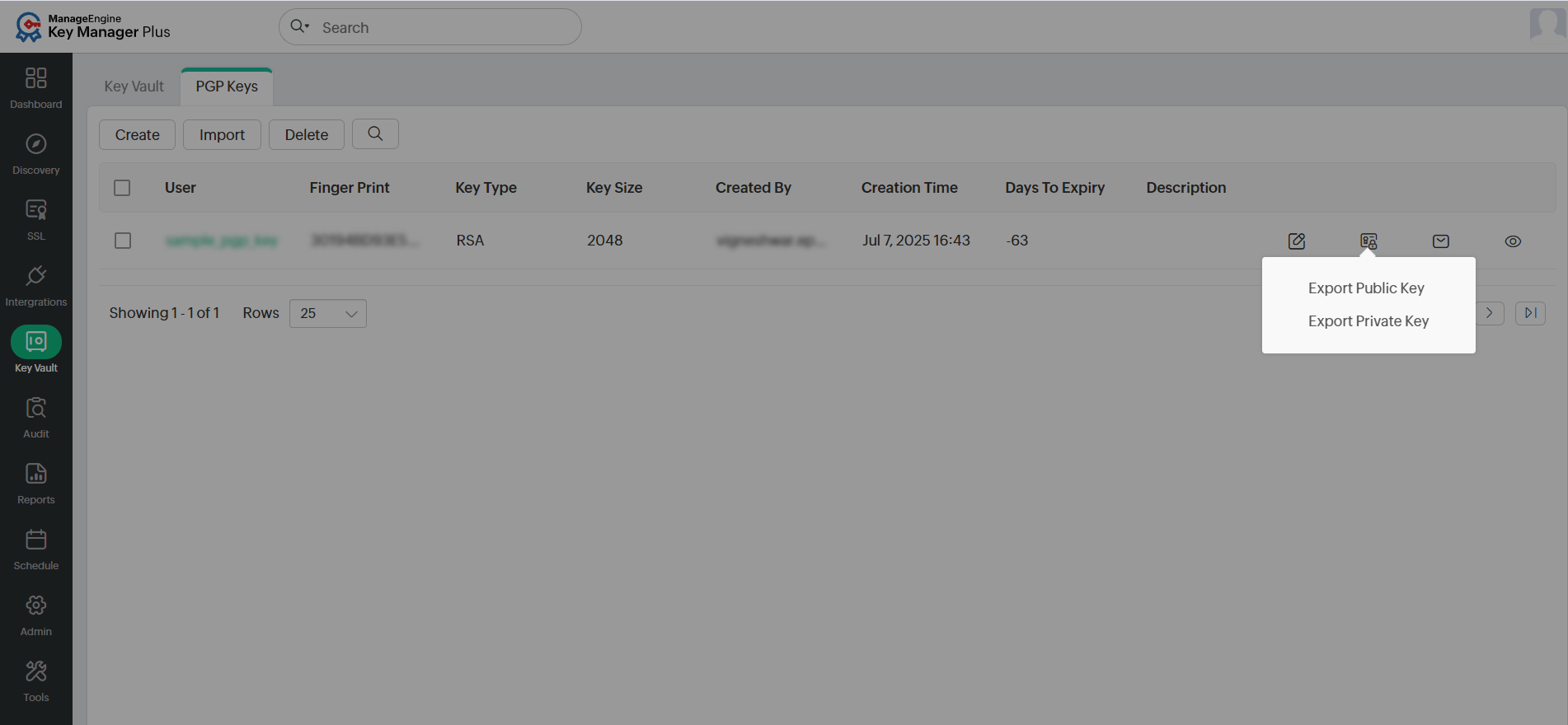
Key Manager Plus Cloud allows you to export PGP keys from the inventory when you need to use them externally or share them securely. You can export either the public or private portion of a key as needed. To export a key file, follow the below steps:
- Click the Export icon next to the required key.
- Choose one of the following options from the dropdown:
- Export Public Key
- Export Private Key
- The selected key will be downloaded as an .asc file.
Additional Detail
Exported keys remain protected by their passphrases. You should provide the same passphrase to use the key in other environments.
5. Email a Key
Key Manager Plus Cloud provides an option to securely share PGP keys via email. This is useful when you need to distribute the public key, private key, or both to trusted recipients directly from the interface.
To send a PGP key to one or more email addresses, follow the steps below:
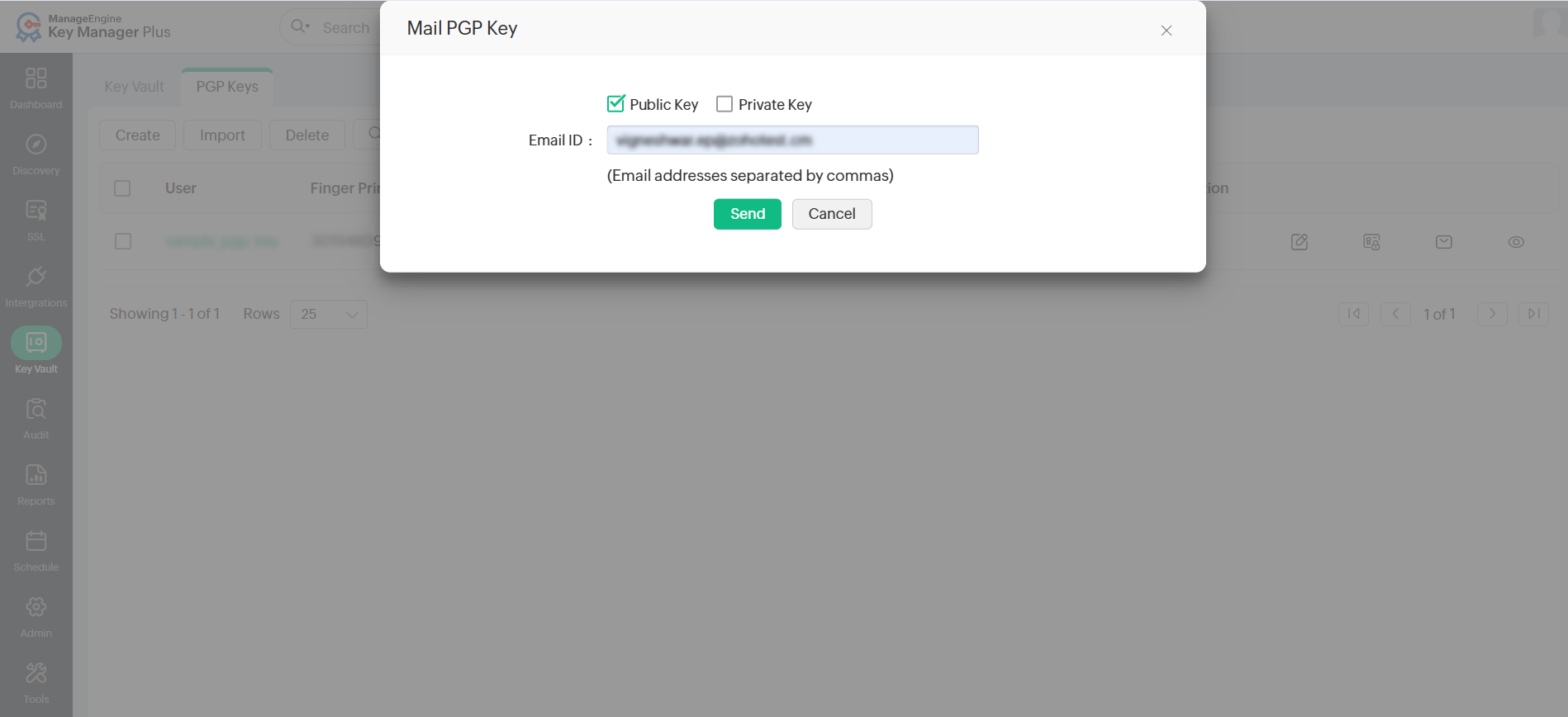
- Click the Mail icon next to the required key.
- In the Mail PGP Key window:
- Select the checkboxes to send the Public Key, Private Key, or both.
- In the Email ID field, enter one or more email addresses, separated by commas.
- Click Send, and the selected keys will be emailed to the specified recipients.
6. Show Passphrase
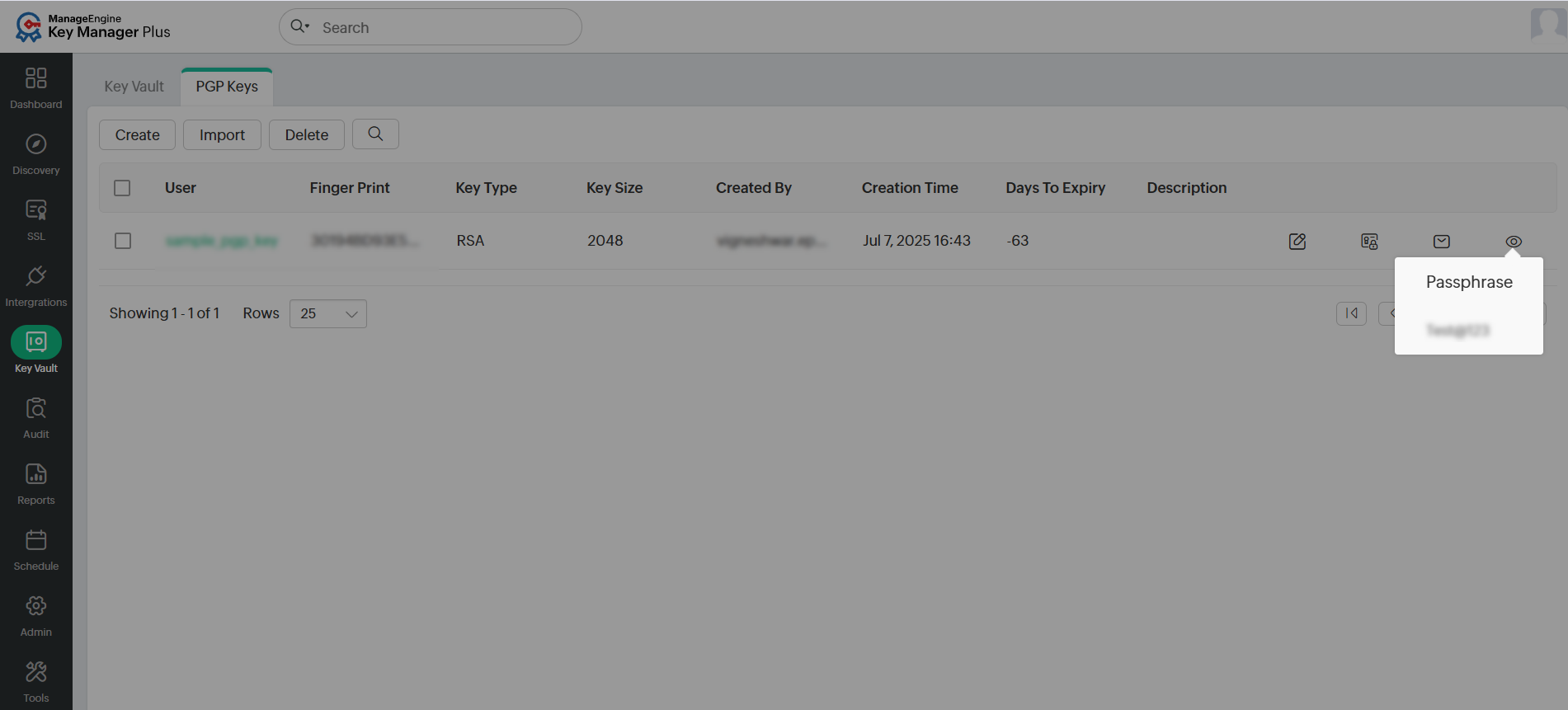
Key Manager Plus Cloud allows authorized users to view the passphrase of stored PGP keys for reference. To view the passphrase of a key, follow the below steps:
- Click the Show Passphrase icon next to the required key.
- The passphrase of the key will be displayed in the dropdown.
7. Delete Keys
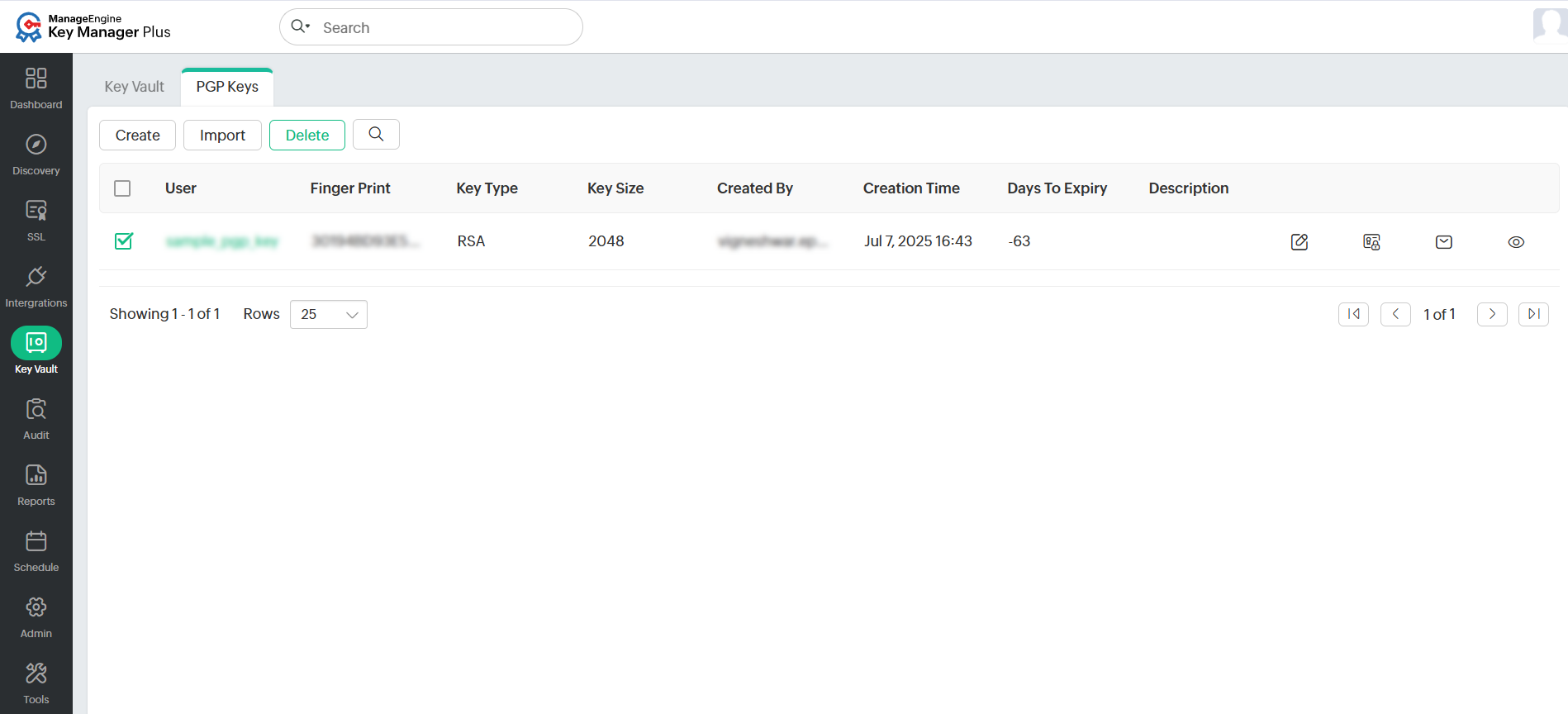
Key Manager Plus Cloud allows you to delete PGP keys from the inventory when they are no longer required. To delete one or more PGP keys, follow the below steps:
- Select the checkboxes beside the required keys.
- Click the Delete button in the menu bar at the top.
- Click OK in the confirmation dialog that appears.
All deletion actions are recorded in the Audit section, including the time, date, and user details.