Managing Notification Settings
Key Manager Plus Cloud offers comprehensive notification settings for the management of SSL certificates, PGP keys, domain expirations, and Azure TLS secrets. With customizable email alerts, users can ensure proactive management of sensitive keys and certificates. This document guides you through managing expiry notification settings, configuring email alerts, and setting up audit notifications for improved visibility and compliance.
1. Managing Expiry Notifications
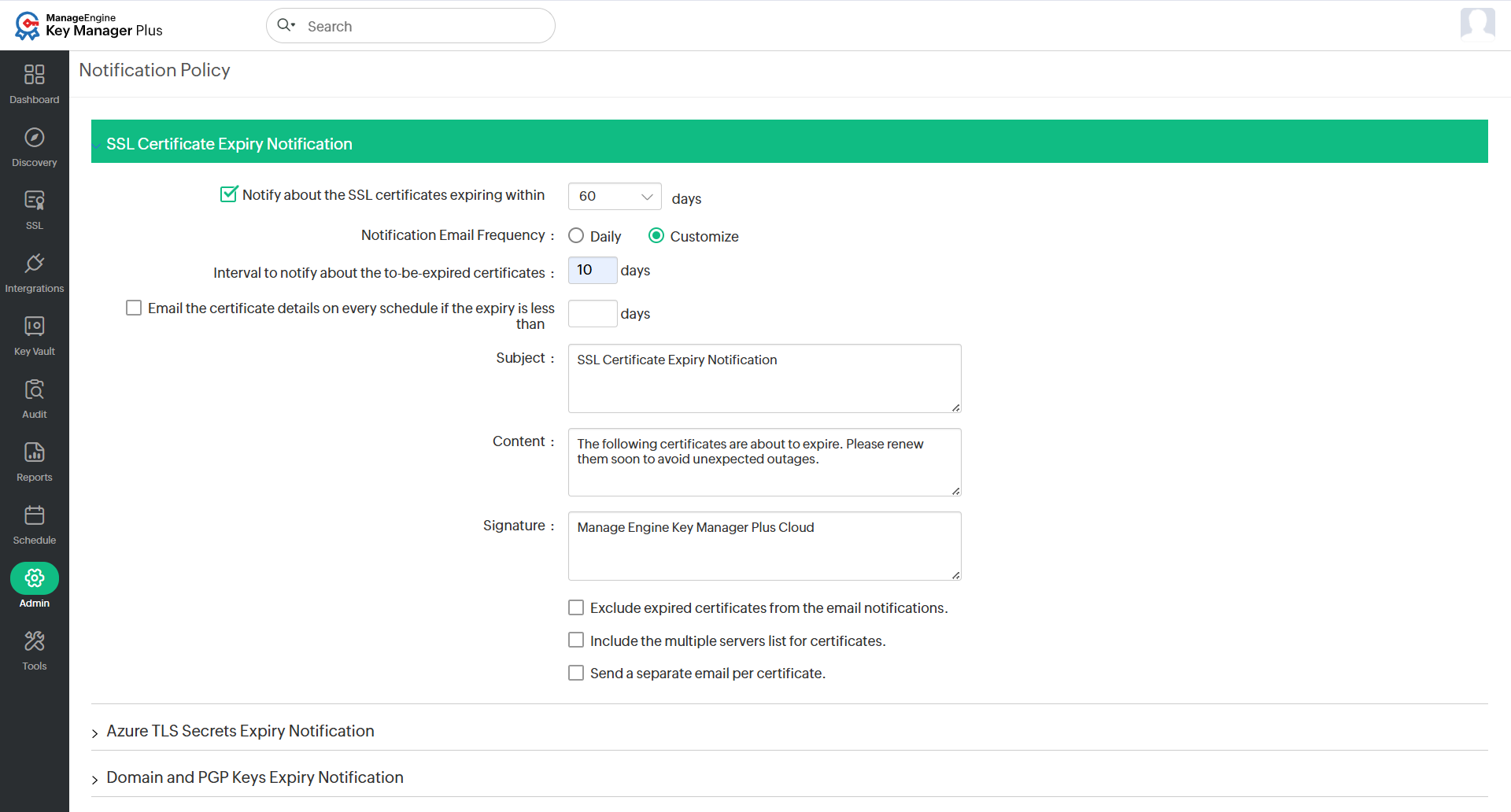
To configure expiry notifications, navigate to Admin >> Notifications >> Expiry in the Key Manager Plus Cloud web interface. You can enable and customize the following notification types:
- SSL Certificate Expiry Notification - Enable SSL Certificate Expiry Notifications by selecting the Notify about the SSL certificates expiring within checkbox and entering the desired number of days. Notifications will be sent only for certificates expiring within the specified period. To customize the notification frequency, enable the following as required:
- Notification Email Frequency: Choose Daily or Customize to control how often the alerts are sent. If you choose Customize, specify the Interval to notify about the to-be expired certificates and optionally enable Email the certificate details on every schedule if the expiry is less than, if you want to receive notifications on all schedules irrespective of the above-set interval.
- Exclude expired certificates from the email notifications: Enable this to skip alerts for already expired certificates.
- Include the multiple servers list for certificates: Enable to fetch the servers details where certificates are deployed.
- Send a separate email per certificate: Choose to receive separate emails per certificate.
- You can also modify the Subject, Content, and Signature of the notification email. After configuring these settings, click Save.
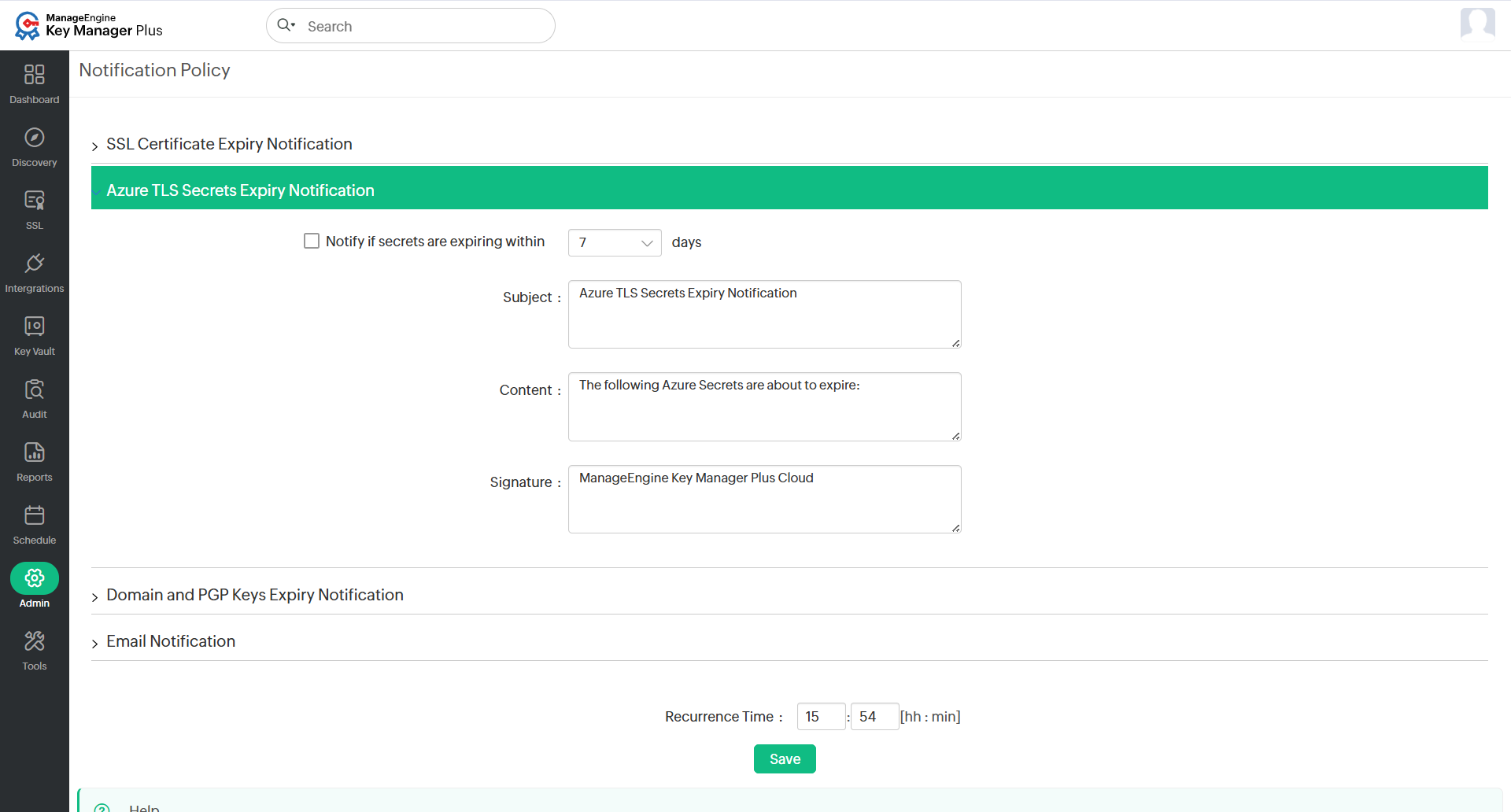
- Azure TLS Secrets Expiry Notification - Enable expiry alerts for Azure TLS secrets by selecting the Notify if secrets are expiring within checkbox and entering the desired number of days. You can also customize the Subject, Content, and Signature. Click Save to apply the settings.
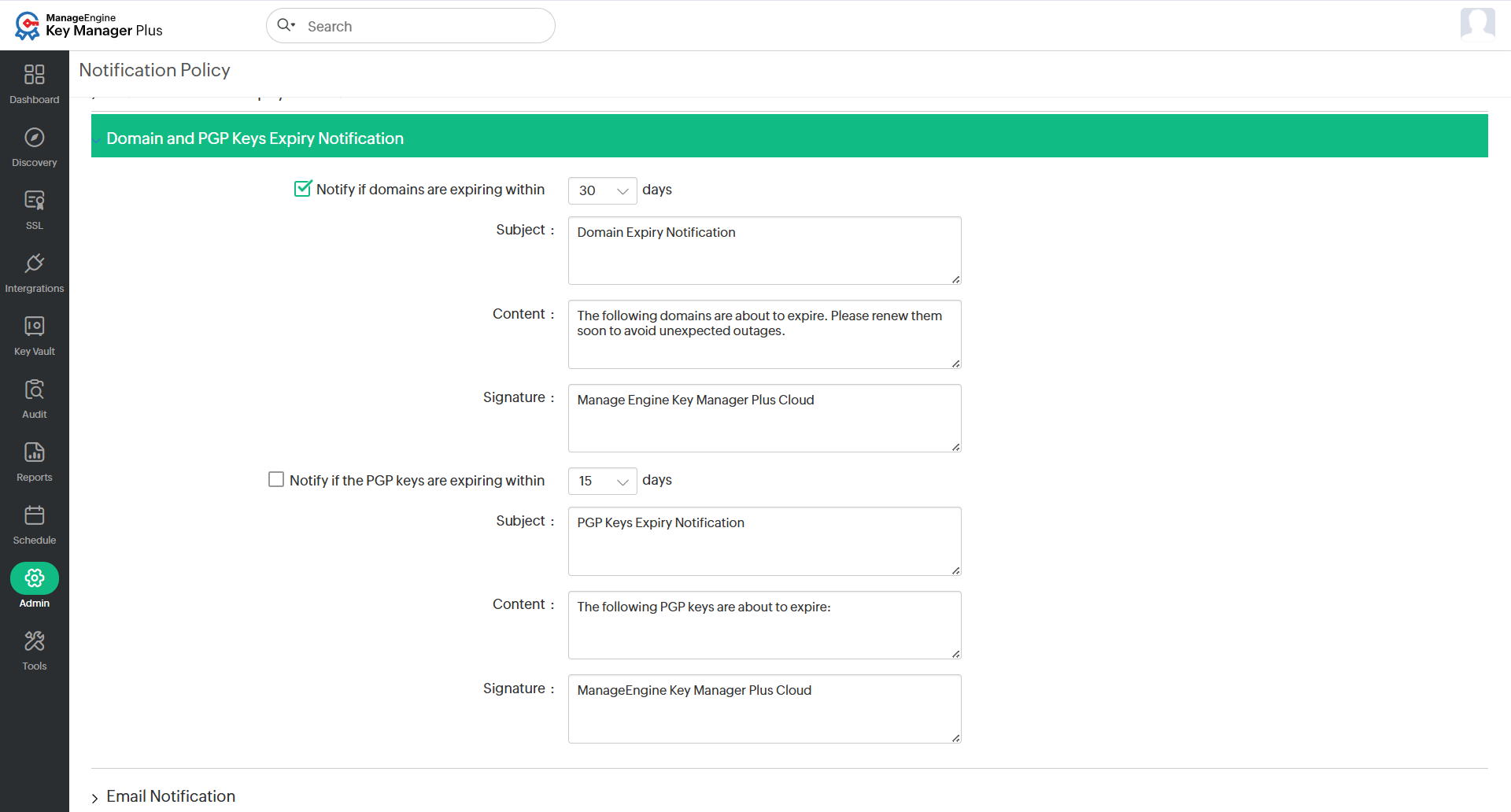
- Domain and PGP Keys Expiry Notification - Enable expiry alerts for domain names and PGP keys by selecting the respective checkboxes Notify if domains are expiring within and Notify if the PGP keys are expiring within, and enter the required number of days for each. You can also customize the Subject, Content, and Signature. After configuring these settings, click Save.
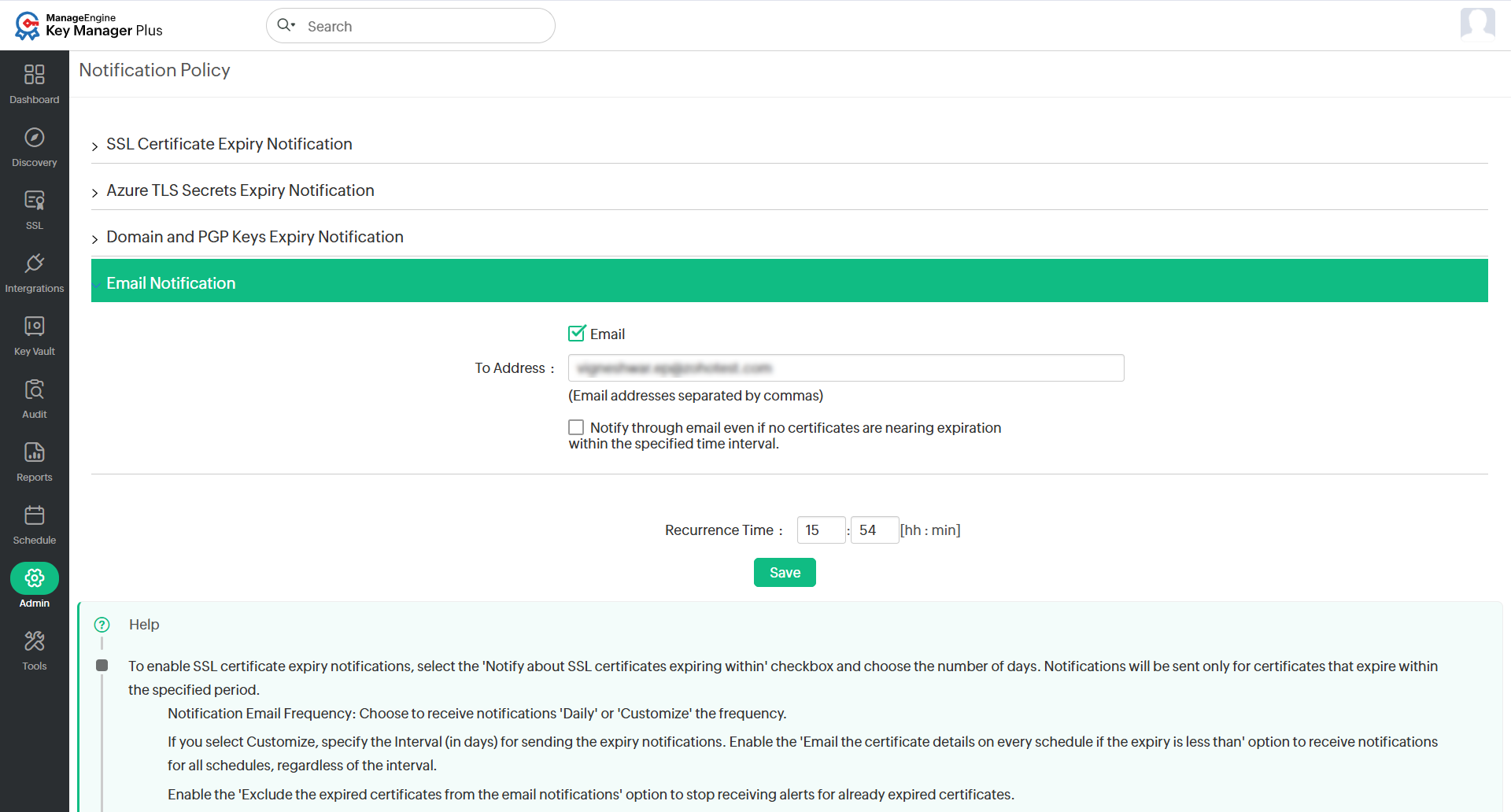
- Email Notification - Enter one or more recipient email addresses. If you want to receive emails even when there are no certificates nearing expiration, enable the checkbox Notify through email even if no certificates are nearing expiration within the specified time interval.
- Set the Recurrence Time to define when the email notifications should be sent, and Click Save to apply your settings.
2. Configuring Audit Notifications
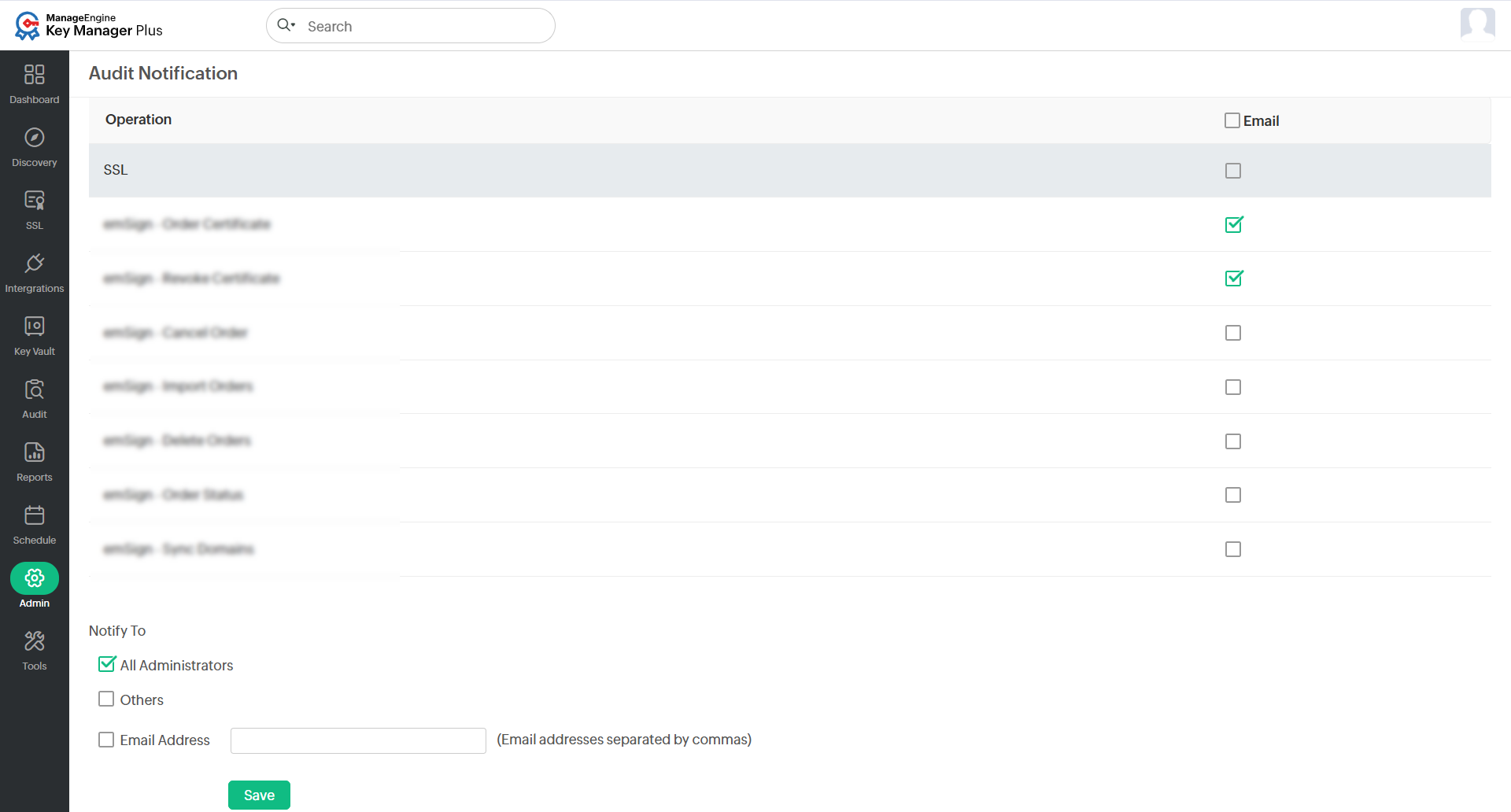
Audit notifications in Key Manager Plus Cloud help you stay informed about critical operations performed within the application. All audit alerts are delivered only via email. Follow the below steps to configure audit notification settings:
- Navigate to the Admin >> Notifications >> Audit tab on Key Manager Plus Cloud web interface.
- A list of auditable operations will be displayed. Enable the checkbox next to each operation for which you want to receive audit alerts.
- You can either choose to notify all the administrator users or just a specific set of email IDs by enabling the respective check boxes.
- Once you have specified the choices, click Save to apply the configuration.