Managing SSL Schedules
In Key Manager Plus Cloud, you can create scheduled tasks to automatically perform operations such as SSL certificate discovery, certificate expiry notifications, vulnerability scans, and report generation at regular intervals. This document covers the following topics in detail:
1. Add Schedules
To add a schedule, follow the steps below:
- Navigate to the Schedule tab and click Add.
- Enter the Schedule Name.
- In the Schedule Type dropdown, select the type of schedule. The following are the types of schedules available.
i. SSL Discovery
You can schedule SSL certificate discovery using one of the following methods in Key Manager Plus Cloud:
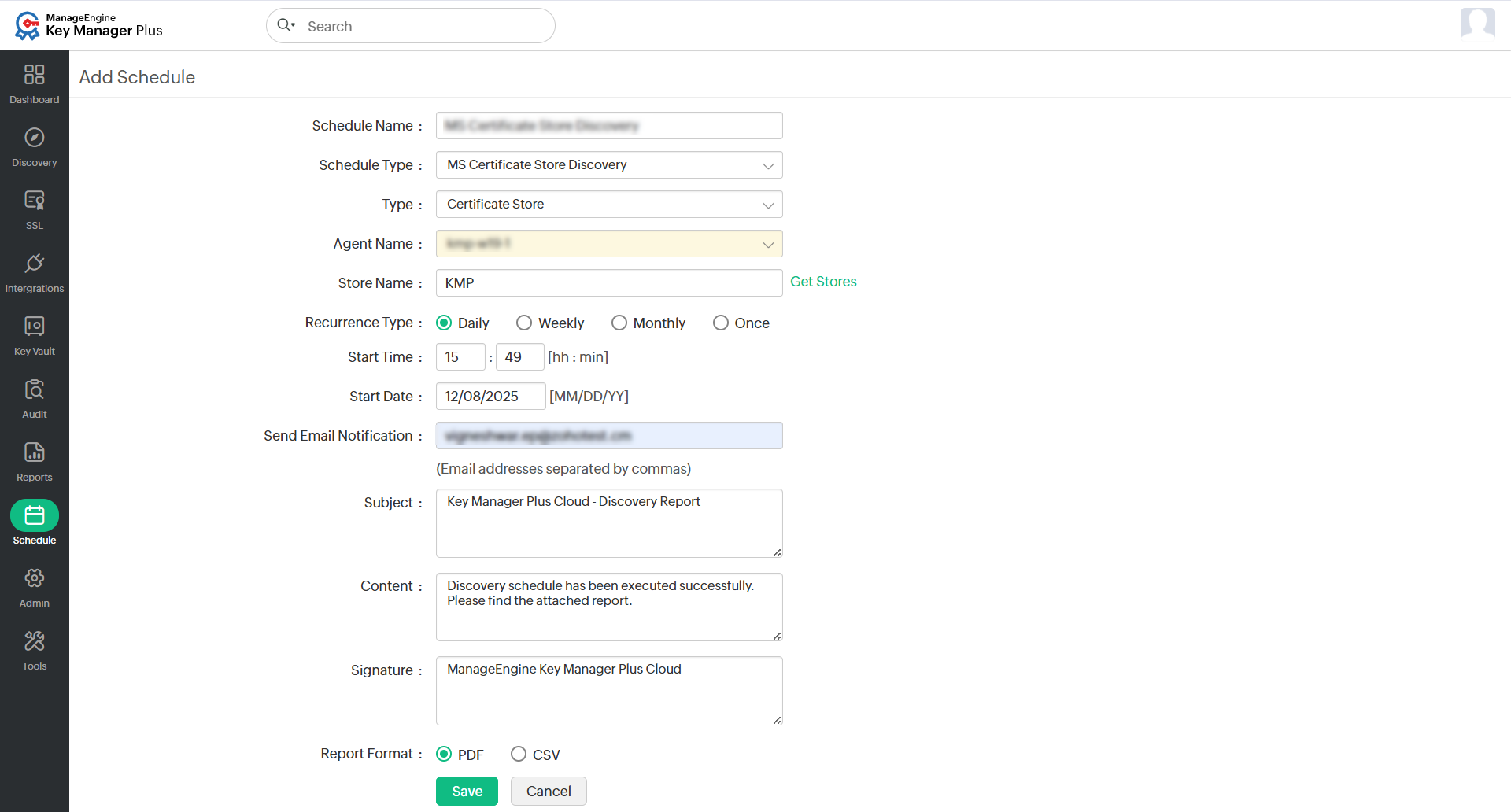
- From File - Use this method to upload a file that contains the list of systems to be scanned for SSL certificates.
- Select SSL Discovery from the Schedule Type dropdown and leave the Agent checkbox unchecked.
- Under File Location, click Browse and upload the required file.
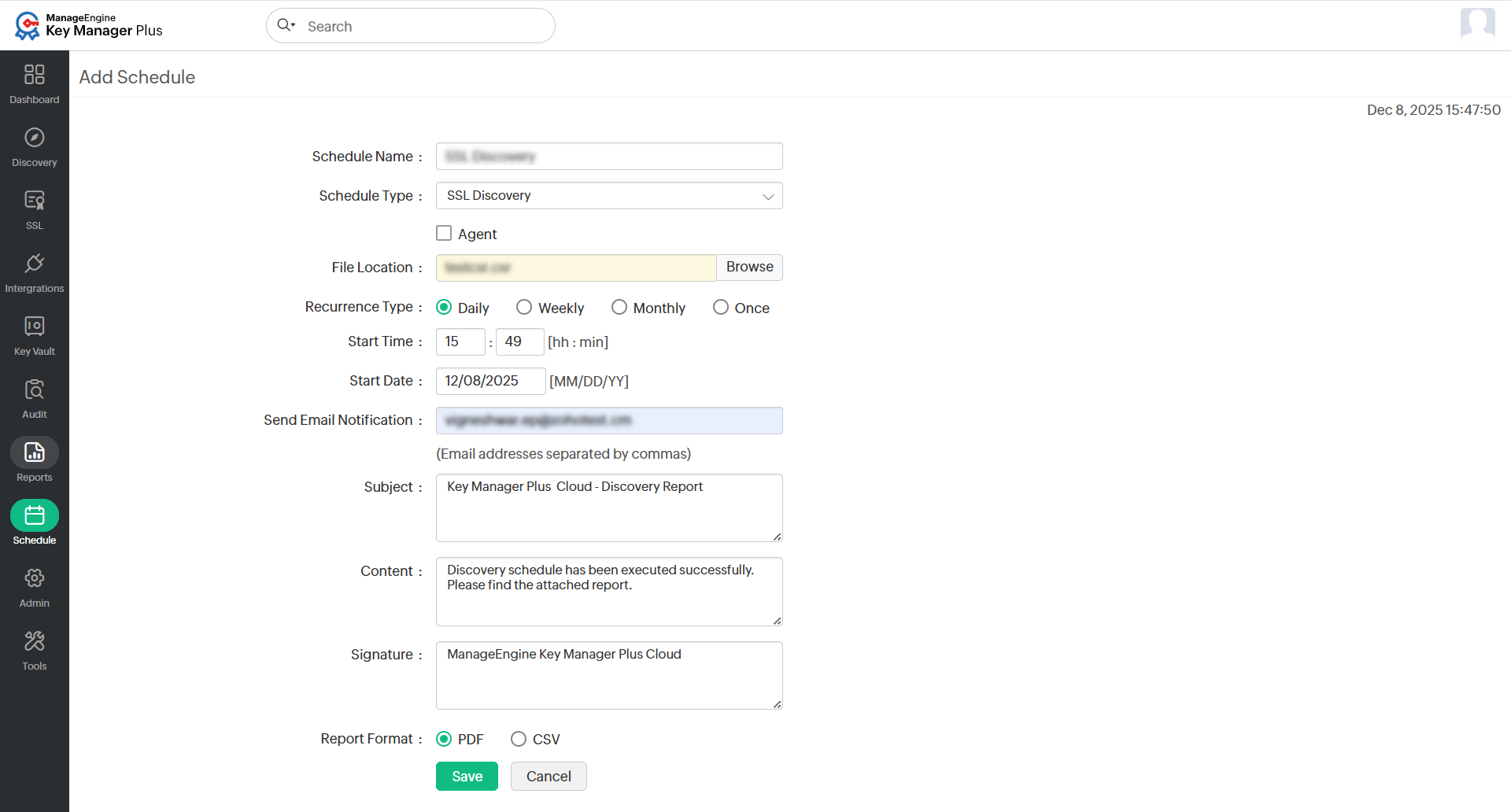
- Agent-based Directory Discovery - Use this method to perform SSL certificate discovery using a selected agent.
- Select SSL Discovery from the Schedule Type dropdown and enable the Agent checkbox.
- In the Select Agent dropdown, choose the required agent from the list.
- Under Discover by, select Directory, enter the path where the certificate files are stored, and choose the file types to scan or select IP Address Range, enter the Start IP and End IP, optionally specify IPs to exclude in the Exclude IP Address field and specify the Port to be scanned for SSL certificates.
- Specify the Time out value for the discovery process.
- Configure the Recurrence Type, Start Time, and Start Date.
- Enter email addresses for notifications, and optionally customize the Subject, Content, and Signature fields and choose the Report Format as PDF or CSV.
- Click Save to schedule the certificate discovery.
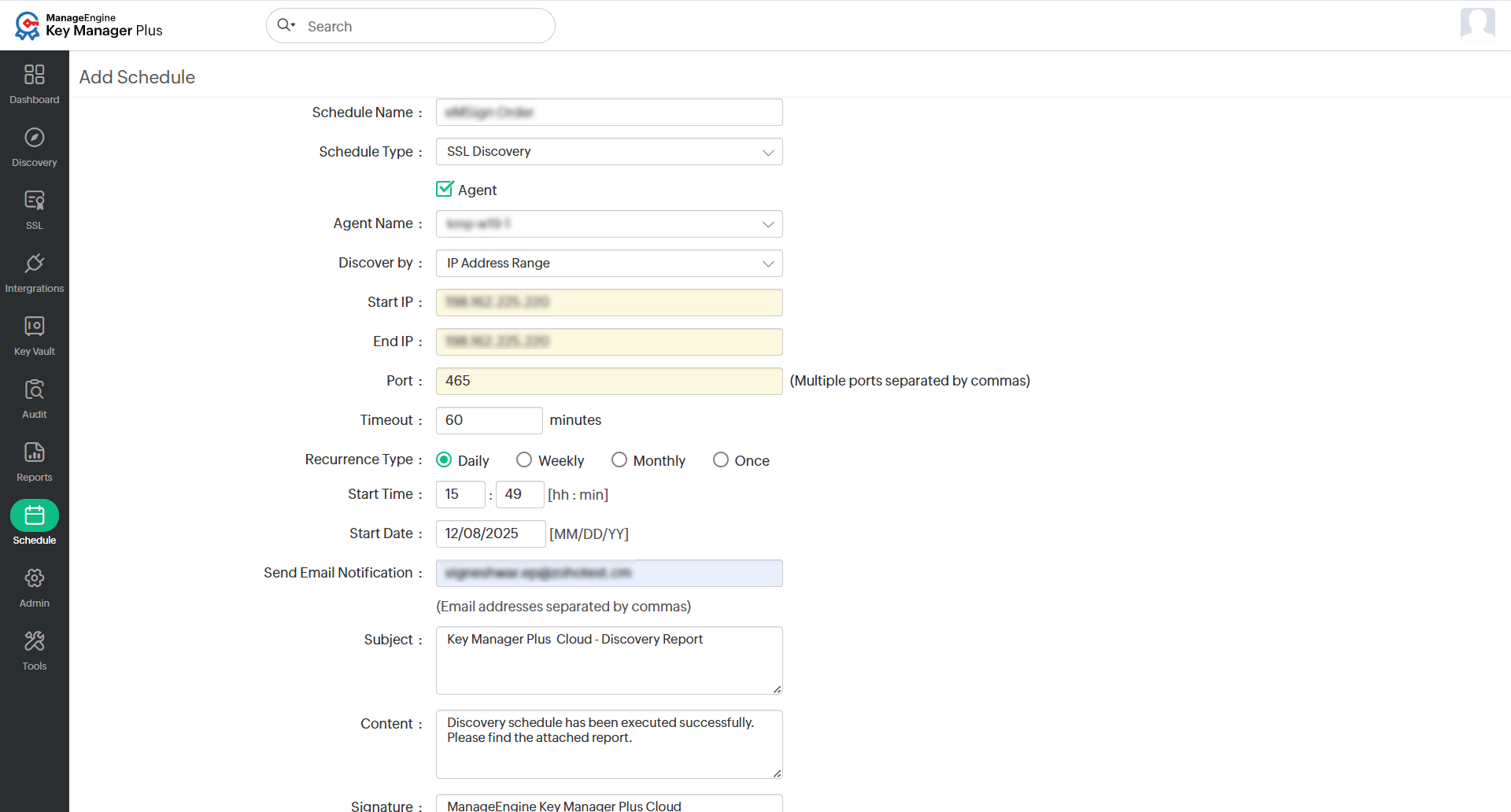
ii. MS Certificate Store Discovery
Schedule the discovery of SSL certificates from Microsoft Certificate Store and certificates issued by Microsoft Certificate Authority and Certificate Store using this option.
- Choose a type from the dropdown:
- Microsoft Certificate Authority: Select this type to discover certificates issued by a Microsoft CA. Choose the required agent from the available list and provide the Server Name. You can refine the discovery results by including expired or revoked certificates, filtering based on certificate issue date, and selecting up to five certificate templates using their template names.
- Certificate Store: Select this type to discover certificates from the Microsoft Certificate Store. Choose the required agent and click Get Stores to list and select the available certificate stores.
- Configure the Recurrence Type as Daily, Weekly, Monthly, or Once only, and set the corresponding Start Time and Start Date. Specify the email addresses of the recipients to receive the discovery report.
- Customize the email notifications by entering a Subject, Content, and Signature. Select the preferred Report Format as PDF or CSV.
- Click Save to create the schedule.
iii. AWS Discovery
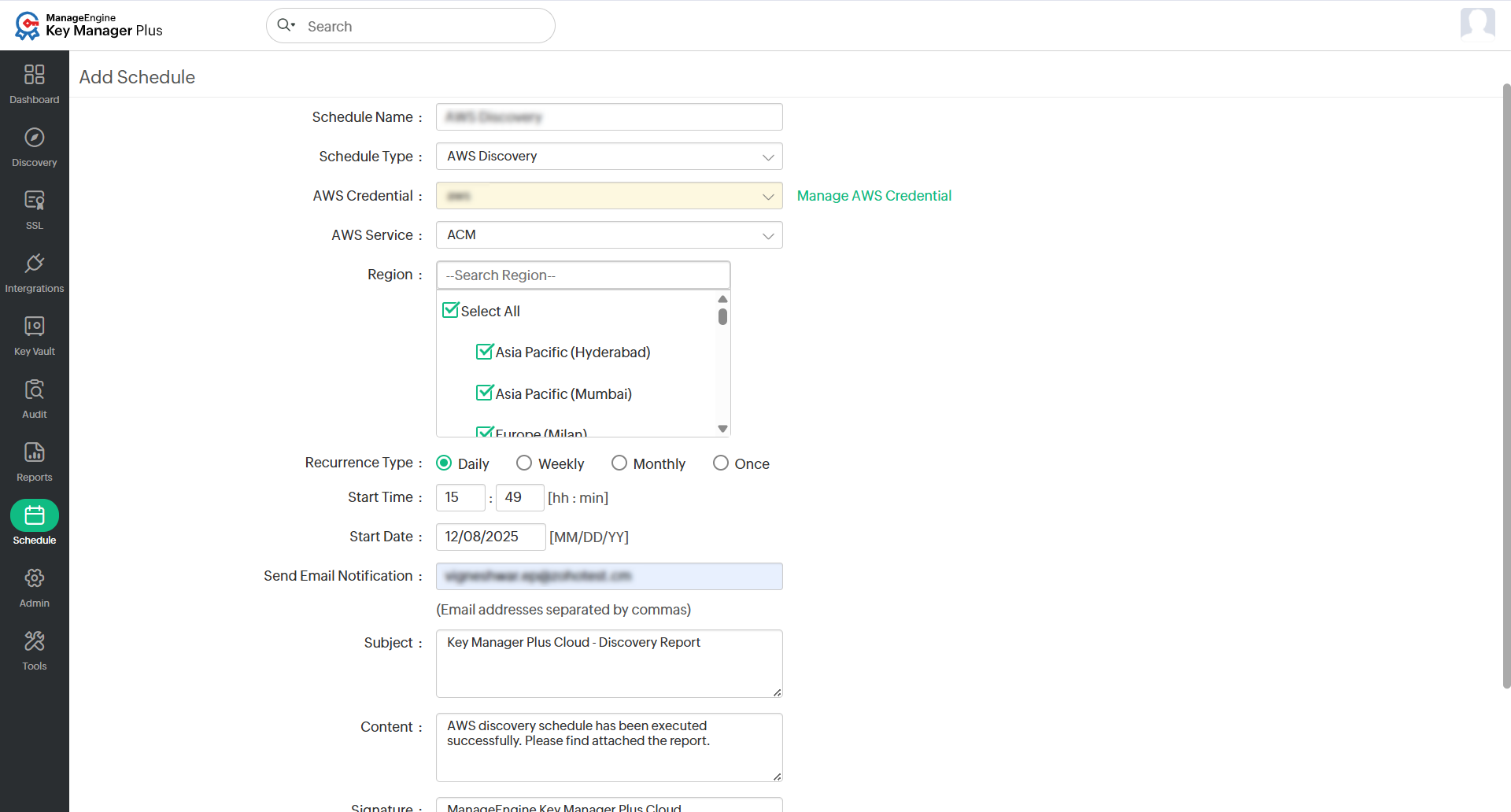
Use this option to schedule the discovery of SSL certificates from your AWS environment. Key Manager Plus Cloud supports certificate discovery from both AWS Certificate Manager (ACM) and AWS Identity and Access Management (IAM) services.
- In the Schedule Type dropdown, select AWS Discovery.
- Click Manage AWS Credential to add or select the required AWS access credentials. These credentials are used to authenticate and retrieve certificate data from your AWS account.
- In the AWS Service dropdown, choose the AWS service from which you want to discover certificates.
- Select the required regions from which the certificates should be discovered.
- Configure the Recurrence Type as Daily, Weekly, Monthly, or Once only, and set the corresponding Start Time and Start Date. Specify the email addresses of the recipients to receive the discovery report.
- Customize the email notifications by entering a Subject, Content, and Signature. Select the preferred Report Format as PDF or CSV.
- Click Save to complete the configuration and schedule the AWS discovery.
iv. SSL Vulnerability
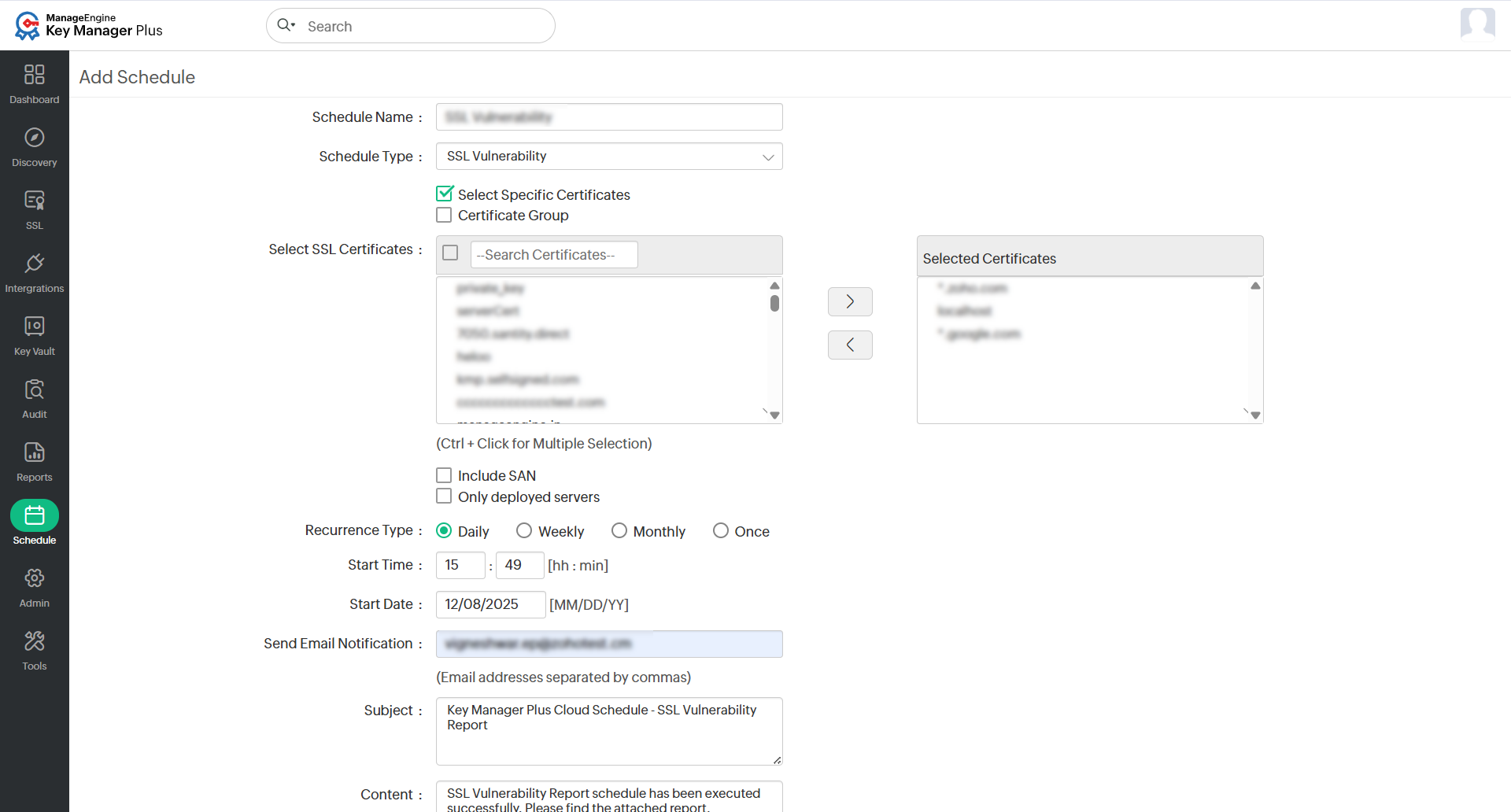
Schedule periodic vulnerability scans on selected or all SSL certificates in the Key Manager Plus Cloud inventory.
- You can Select Specific Certificates or Certificate Group, and move the required certificates to the Selected Certificates column using the arrow keys to generate reports for the selected certificates.
- Select the checkboxes Include SAN and Only Deployed Servers to include SAN certificates and scan only the deployed servers available in Key Manager Plus Cloud.
- Configure the Recurrence Type as Daily, Weekly, Monthly, or Once only, and set the corresponding Start Time and Start Date. Specify the email addresses of the recipients to receive the notifications.
- Customize the email notifications by entering a Subject, Content, and Signature.
- Click Save to schedule the SSL vulnerability scan based on the configured settings.
v. SSL Expiry
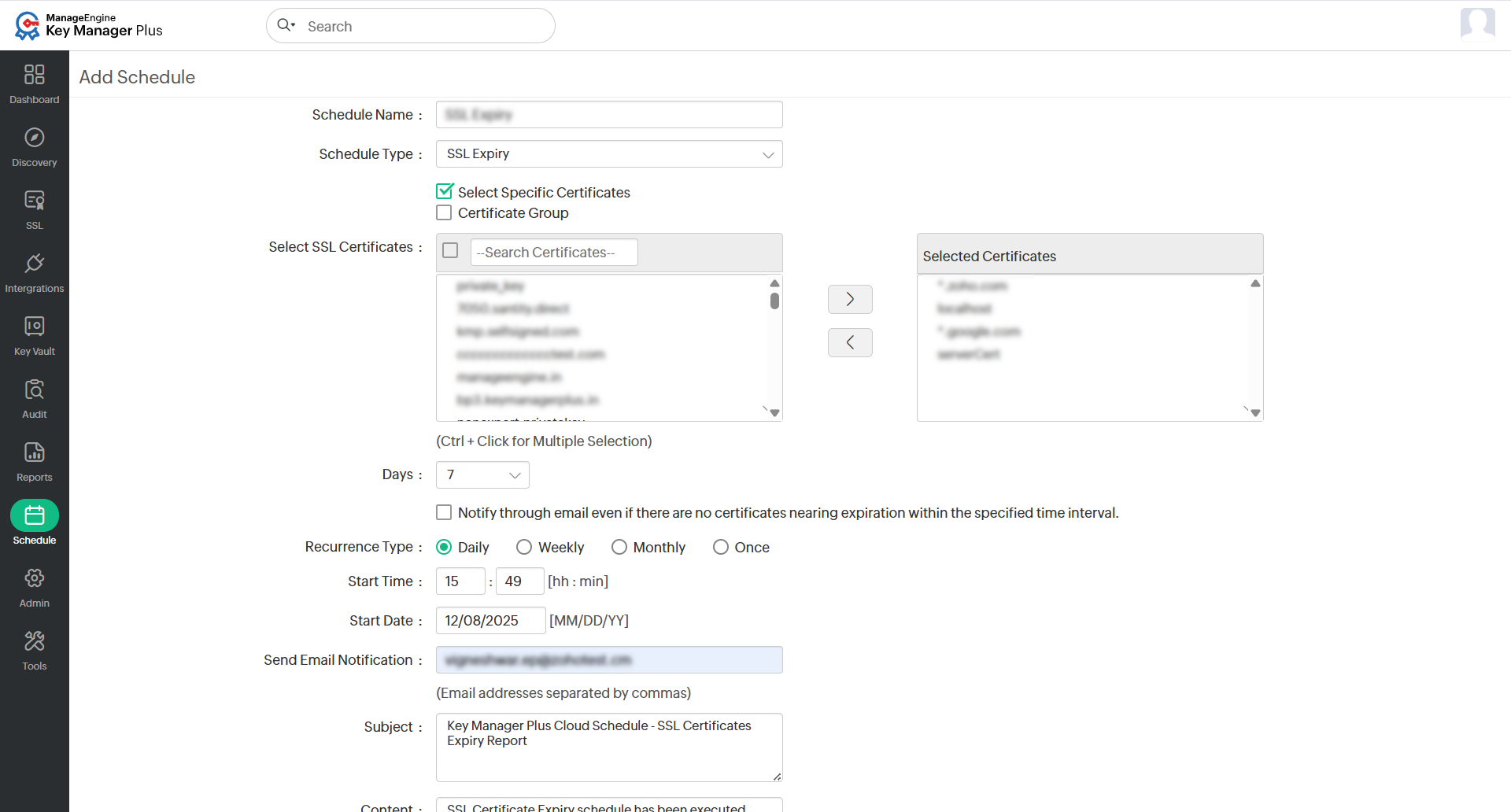
Schedule expiry alert notifications for SSL certificates.
- You can Select Specific Certificates or Certificate Group, and move the required certificates to the Selected Certificates column using the arrow keys to generate reports for the selected certificates.
- Specify the number of Days to expiry before which the email notification should be sent.
- Configure the Recurrence Type as Daily, Weekly, Monthly, or Once only, and set the corresponding Start Time and Start Date, and Provide the email addresses to which notifications should be sent.
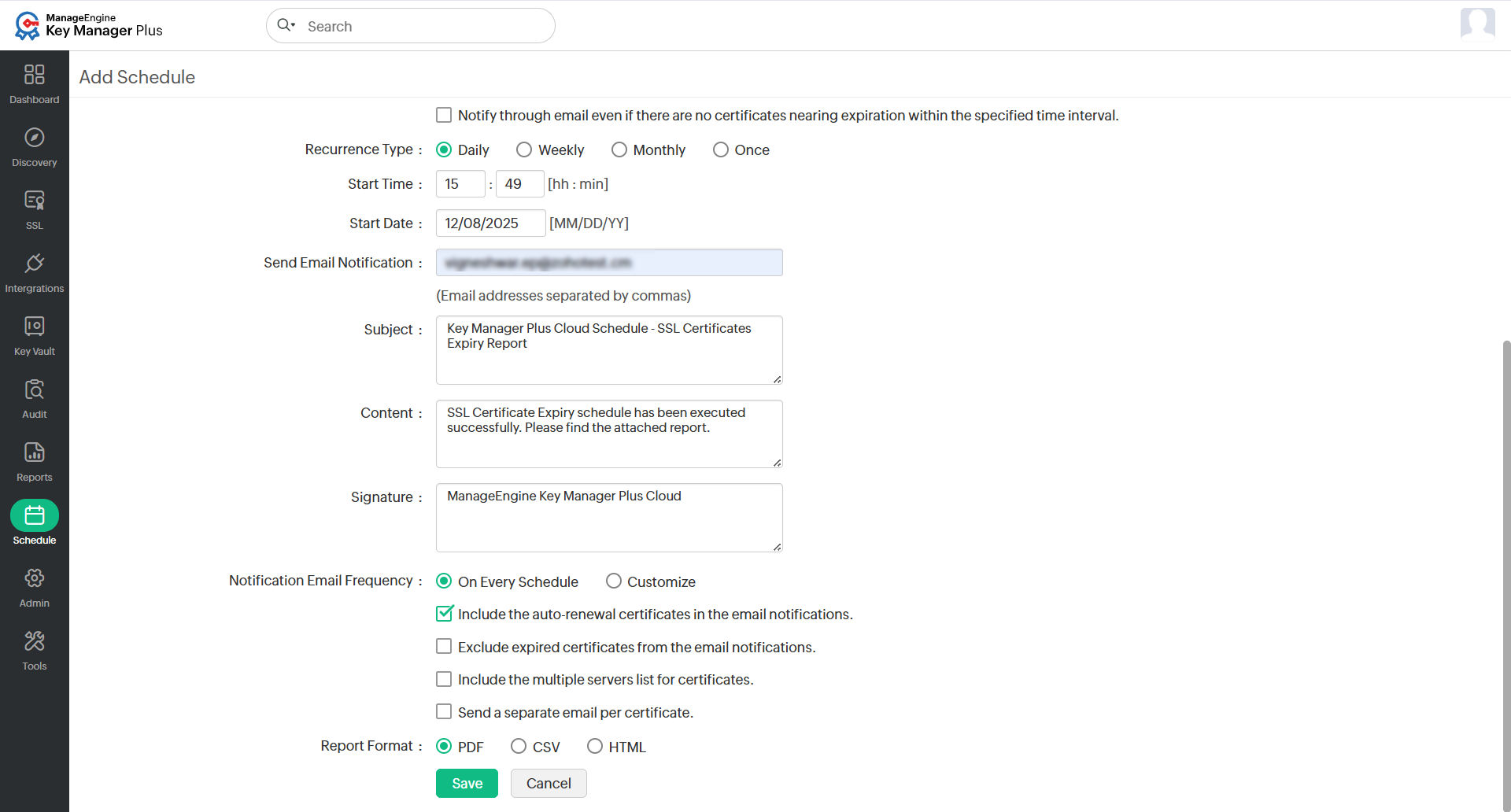
- Choose to receive notifications either On Every Schedule or Customize your notifications.
- If you choose Customize, set the Interval to notify about the to-be-expired certificates.
- Select the Email the certificate details on every schedule if the expiry is less than option if you want to receive notifications during every schedule run, regardless of the custom interval set above.
- Choose the Report Format as PDF, CSV, or HTML, and click Save to schedule expiry alert notifications based on the configured settings.
vi. Reports
Schedule reports to be generated and sent to the specified email addresses. All reports generated by Key Manager Plus Cloud can be scheduled using this option.
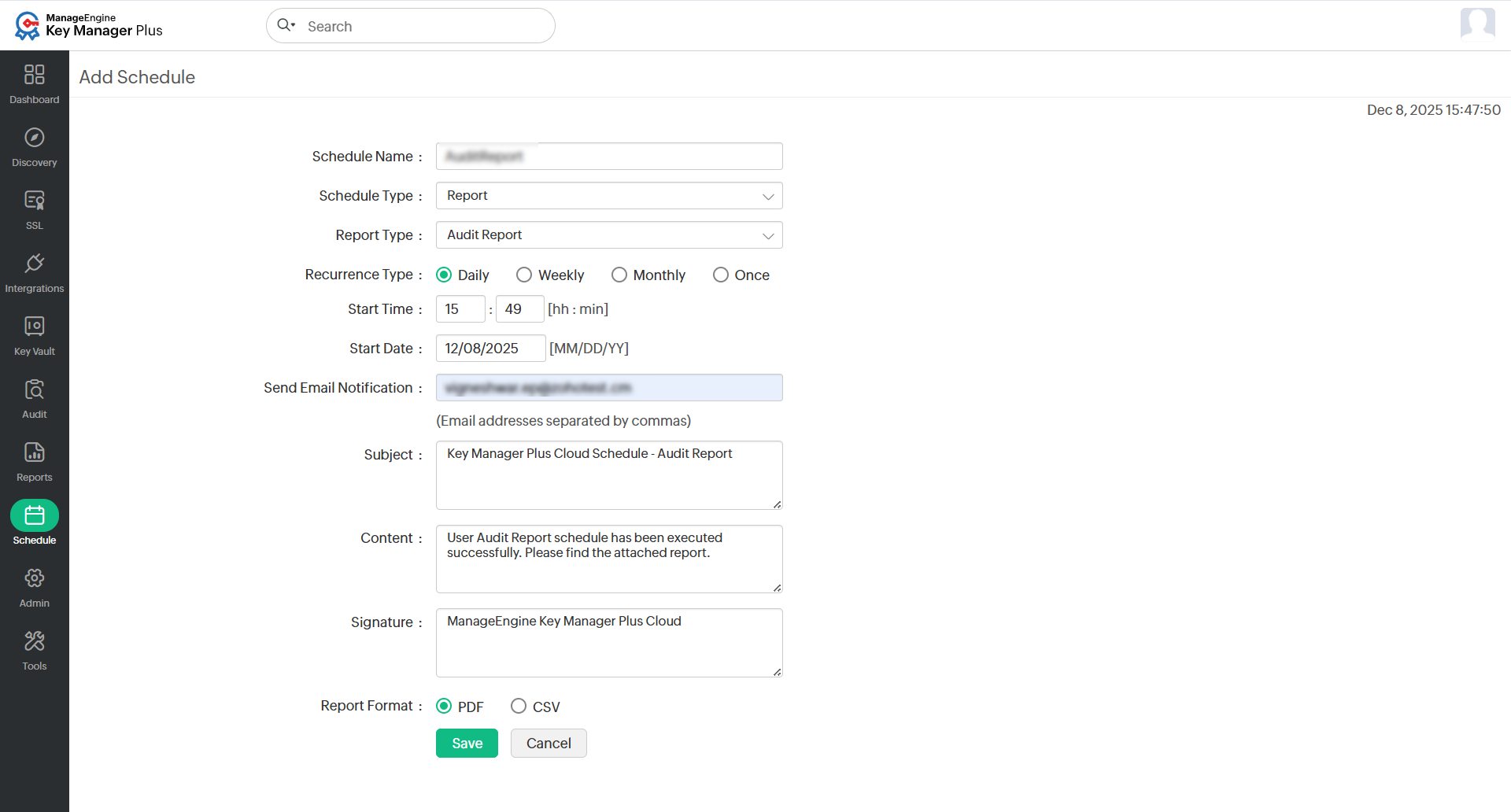
- Select Schedule Type as Report and choose the required Report Type from the dropdown.
- Select the recurrence type as Daily, Weekly, Monthly, or Once only. Set the Start Time and Start Date corresponding to the selected recurrence option.
- Enter the email addresses of the recipients to be notified.
- Customize the email notifications by entering a Subject, Content, and Signature.
- Choose the Report Format as PDF, CSV, or HTML.
- Click Save. You have now successfully added a new schedule.
- To execute a schedule, click the Execute Now icon beside the respective schedule.
Additional Detail
The result of each schedule execution will be updated in the Schedule Audit and the relevant Operation Audit.
2. Edit Schedules
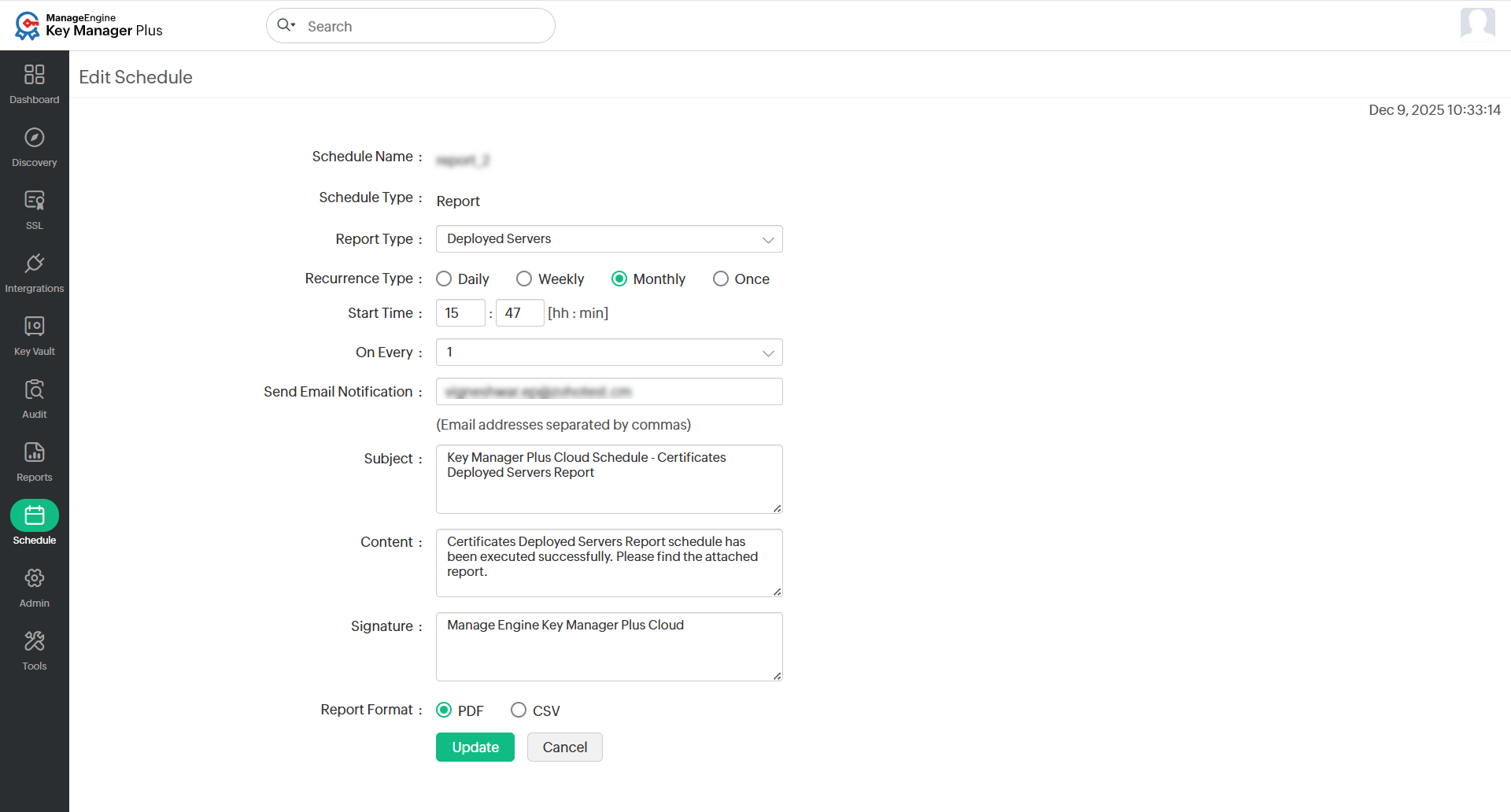
If you need to make changes to an existing schedule, such as updating the recurrence, agent, or notification settings, you can do so from the Edit Schedule window. To edit a schedule, follow the steps below:
- Navigate to the Schedule tab.
- Click the name of the schedule you would like to edit.
- You will be redirected to the Edit Schedule window. All schedule details can be modified except the name and type.
- Click Update to save the changes.
3. Enable or Disable Schedules
Schedules can be enabled or disabled at any time. Use the Disable option to pause the execution of a schedule without deleting it. Once re-enabled, the schedule resumes its periodic execution.
To enable or disable a schedule, follow the steps below:
- Navigate to the Schedule tab.
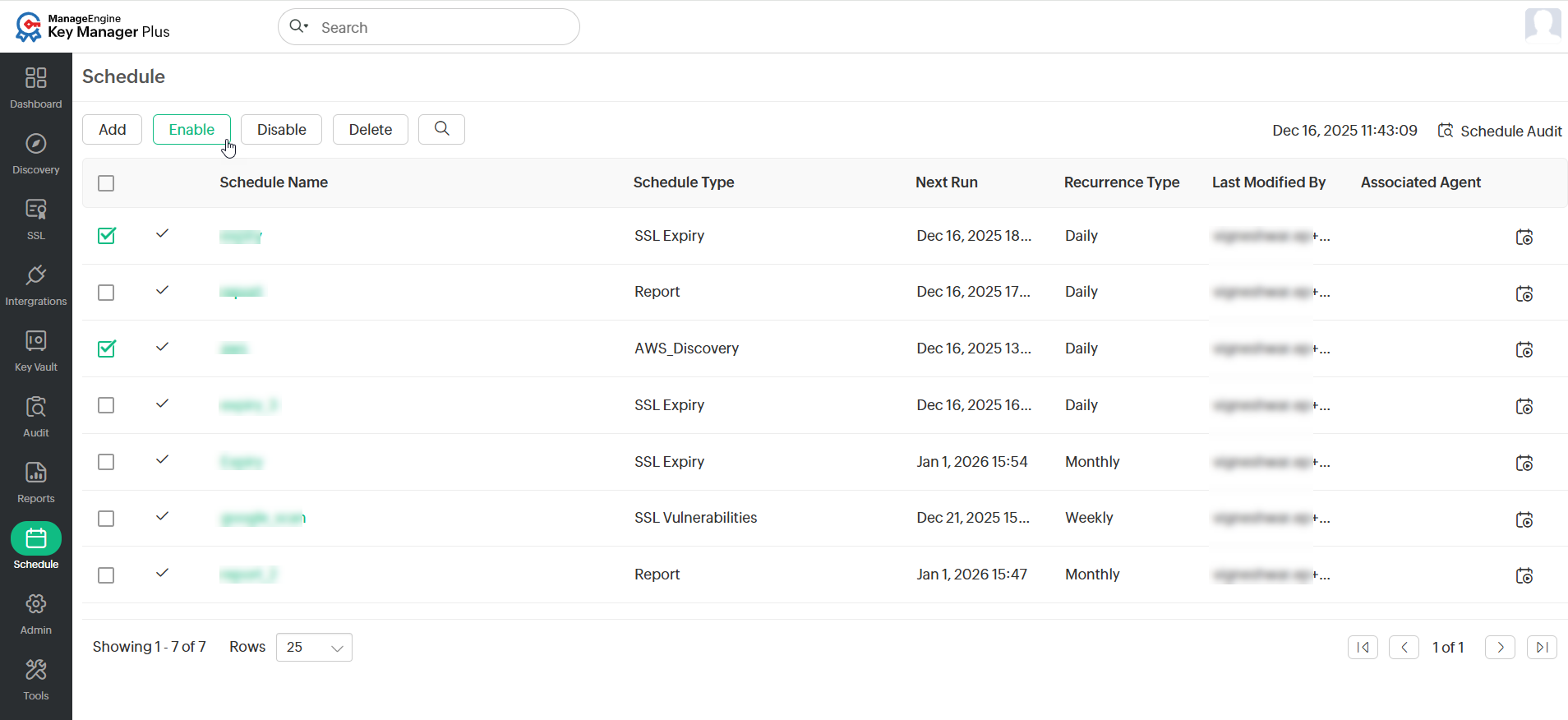
- Select the desired schedules from the list.
- Click Enable or Disable from the top pane. A confirmation message will appear once the action is completed successfully.
Additional Detail
The schedules set to run only once cannot be enabled if they have already been executed. Modify the schedule to enable it.
4. Delete Schedules
Key Manager Plus Cloud allows you to manage and maintain your task schedules efficiently. When a schedule is no longer needed, you can delete it from the system to keep your environment organized. To delete a schedule, follow the steps below:
- Navigate to the Schedule tab.
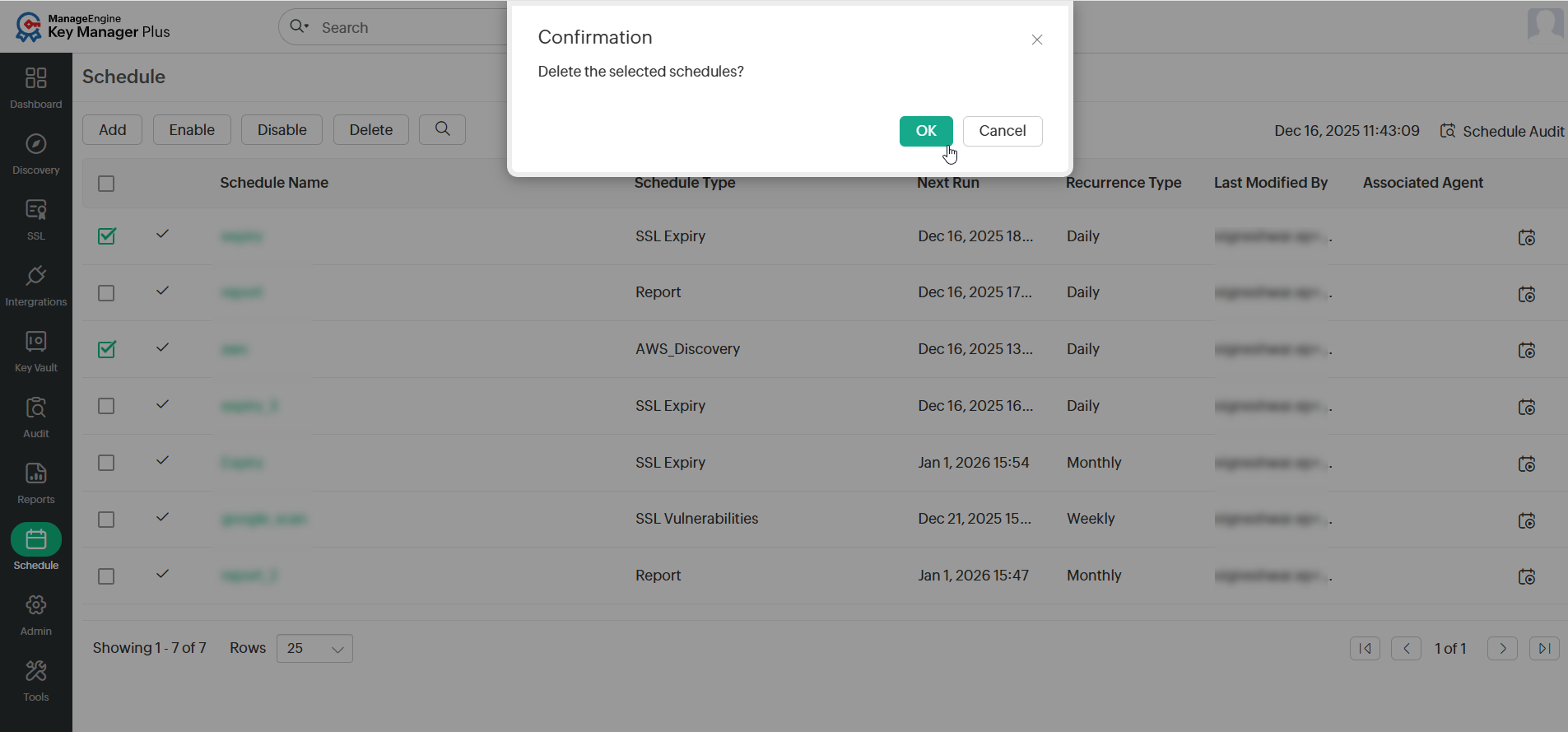
- Select the schedules you want to delete and click the Delete button.
- Click OK in the confirmation pop-up window. A confirmation message will appear once the schedules are deleted successfully.