User Management in Key Manager Plus Cloud
In Key Manager Plus Cloud, user management is a fundamental part of maintaining secure and streamlined certificate operations within an organization. This feature allows administrators to create user accounts, assign appropriate roles, and control access based on the level of responsibility required. With well-defined roles and user-specific privileges, organizations can ensure that their SSL certificate management processes are both efficient and secure.
1. User Roles in Key Manager Plus Cloud
Key Manager Plus Cloud comes with predefined user roles that dictate what actions each user can perform within the application. These roles are designed to maintain security and clarity over certificate ownership and operations. Assigning the correct role to each user ensures that access is limited to only the functions required by their role, reducing the risk of accidental or unauthorized changes.
i. Administrator
Users with the Administrator role have complete access to all features and operations in Key Manager Plus Cloud. This includes user and user group management, scheduled tasks, report generation, and full audit trail visibility.
ii. SSL Power User
Users with this role are granted elevated permissions specifically for SSL certificate operations. They can perform all SSL management tasks but cannot manage user accounts or access global settings. The few intended behaviors of this role are:
- The SSL power user has only access to the SSL-related operations of Key Manager Plus.
- The certificates managed by an SSL power user will not be accessible by another user of the same role unless they are shared.
- If the user of this role is removed or changed to the operator role, the certificates owned by this user will be transferred to the administrator who performs this operation.
- If SSL certificates are shared with a user of this role by an administrator, then both will have privileged permission to manage those certificates.
iii. Operator
Users assigned with the operator role have limited access. They can only view the SSL certificates that have been shared with them by an administrator. This role is ideal for team members who need visibility into certificates but are not responsible for making any changes to the predefined settings.
2. Managing Users
The User Management feature in Key Manager Plus Cloud allows administrators to add, edit, or remove user accounts as needed. This ensures that access to certificate operations remains secure and tightly controlled. The platform supports manual user addition and provides flexibility to update or remove users based on organizational requirements.
2.1 Adding Users
Administrators can manually onboard new users into Key Manager Plus Cloud after setting up the organization. Each new user is assigned a role that defines their access permissions. Invitations are sent via email to complete the user registration process. Below are the steps to add a user in Key Manager Plus Cloud.
- In the Key Manager Plus Cloud interface, navigate to Admin >> User Management >> Users.
- On the page that appears, click Add from the top menu and enter the following details on the form that appears:
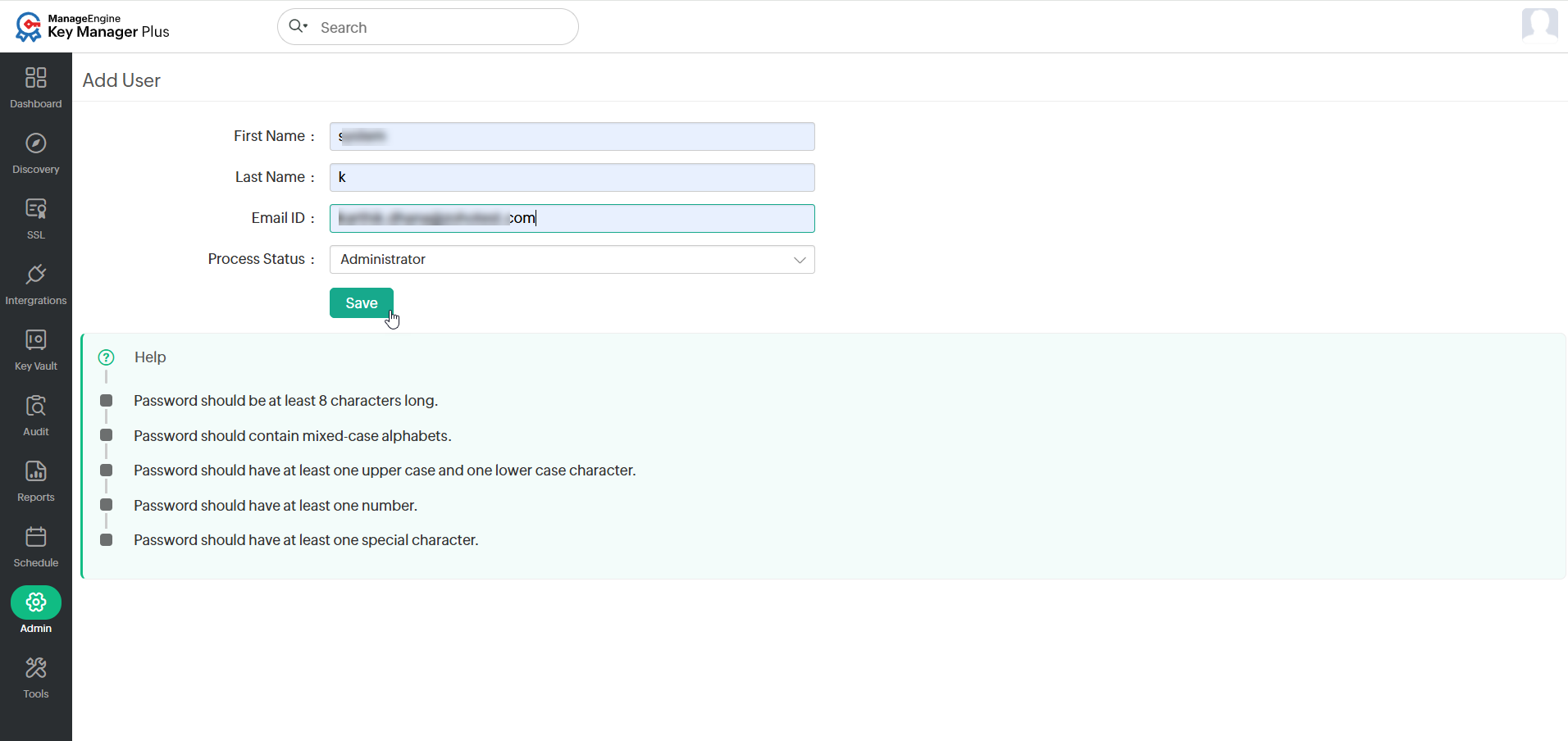
- First Name: Enter the first name of the user.
- Last Name: Enter the last name of the user.
- Email-ID: Enter a valid email ID of the user to be added.
- Process Status: Select the user role from the dropdown.
- Click Save to complete the process. An invitation will be sent to the respective email. Upon accepting the invitation, the user gets added to the organization.
Additional Detail
If the invitation sent to the user expires, you can resend it by clicking Reinvite on the Users page.
2.2 Modifying User Data
Administrators can edit the details of existing user information that needs to be updated. To modify the user data:
- Navigate to the Admin >> User Management >> Users tab in the GUI.
- Select a user and click the Edit from the top menu.
- On the page that appears, modify the Login Name, Email ID, and Process Status as needed and click the Save button to update the changes.
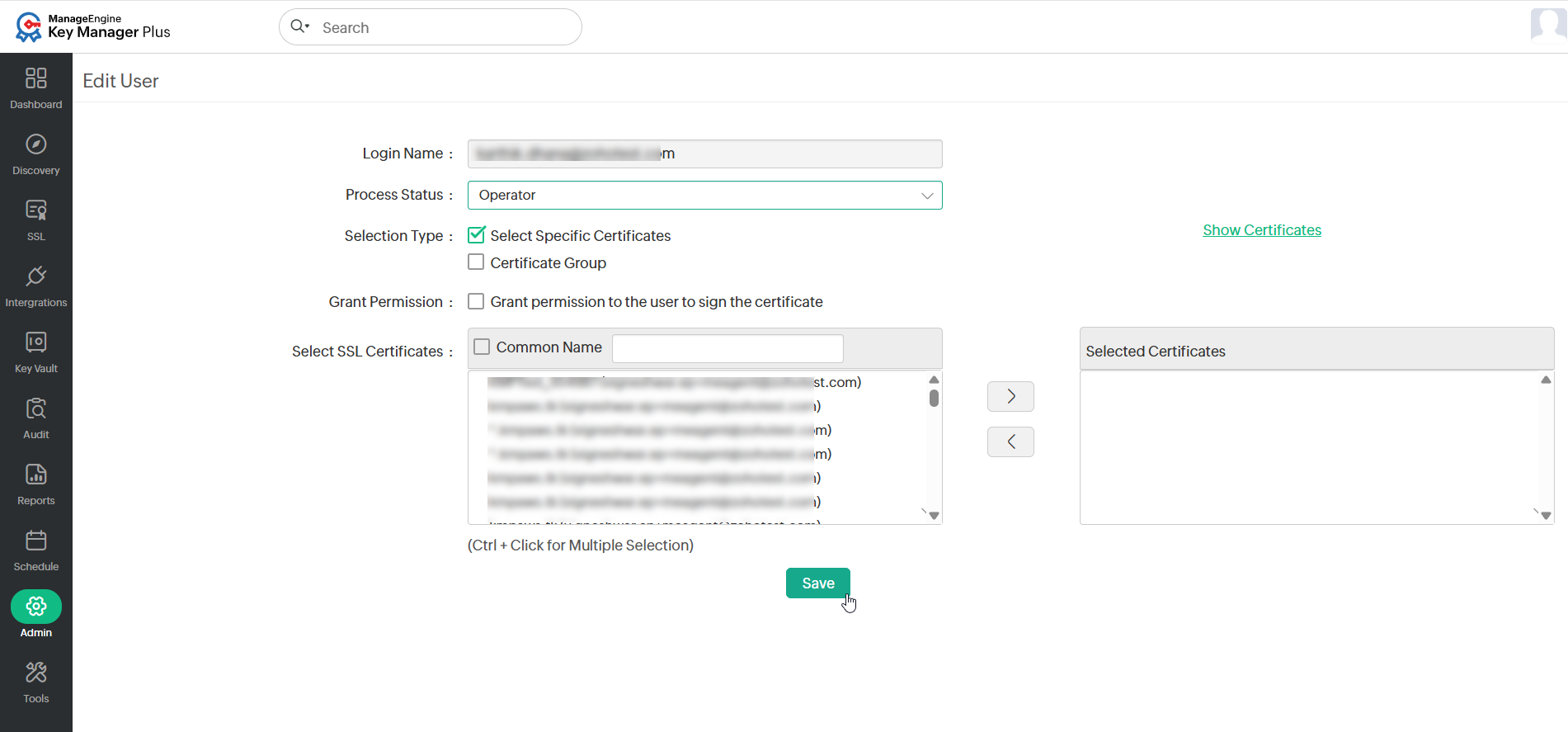
You will get a confirmation message that the changes to the user have been updated successfully. For detailed information, you can also refer to Audit >> Operation Audit.
2.3 Deleting a User
Key Manager Plus Cloud allows administrators to remove users who no longer require access to the organization, ensuring that only active members can manage certificates. To delete a user from Key Manager Plus Cloud, follow the steps below:
- Navigate to Admin >> User Management >> Users.
- Select the users you would like to delete and click Delete from the top menu.
- In the confirmation dialog box that appears, click OK to delete the selected users.
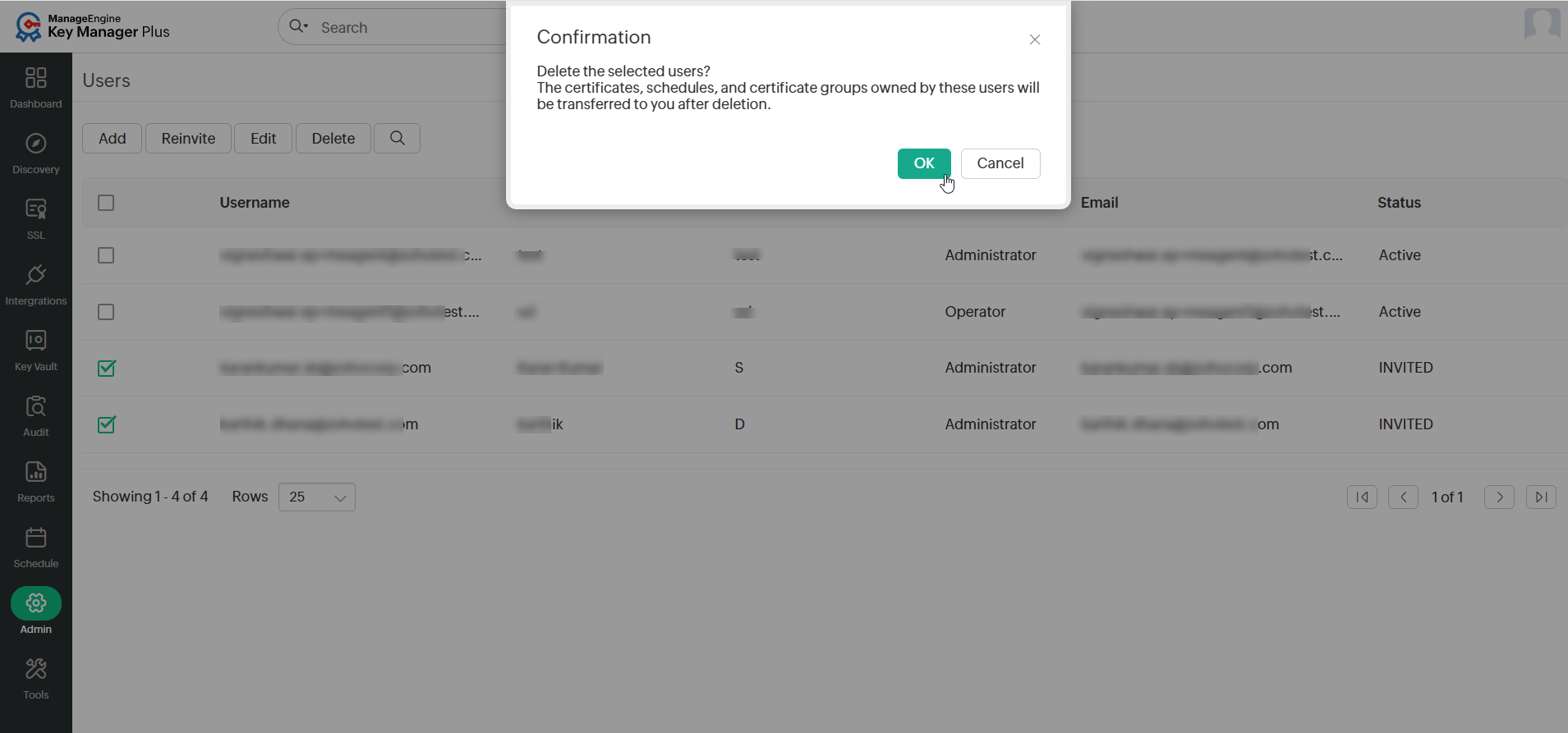
You will get a confirmation that the user has been deleted successfully. Also, you can check the Operation Audit for more details.