Installing Key Manager Plus
This help guide provides information on how to install and set up ManageEngine Key Manager Plus across different environments. It outlines step-by-step procedures for deploying the application on both Windows and Linux systems, ensuring a smooth and secure installation experience.
In addition to standard installation methods, this guide also explains how to transfer an existing Key Manager Plus setup to a new location or machine without data loss. This is particularly useful for system migrations, infrastructure upgrades, or environmental changes.
Best Practice
Before proceeding with the installation, ensure that all prerequisites are met. For detailed information on each component and its capabilities, refer to the basic requirements document.
Prerequisites
1. Installing Key Manager Plus in Windows
Follow the below steps to install Key Manager Plus:
- Double-click the downloaded .exe file with administrator rights to run the installer.
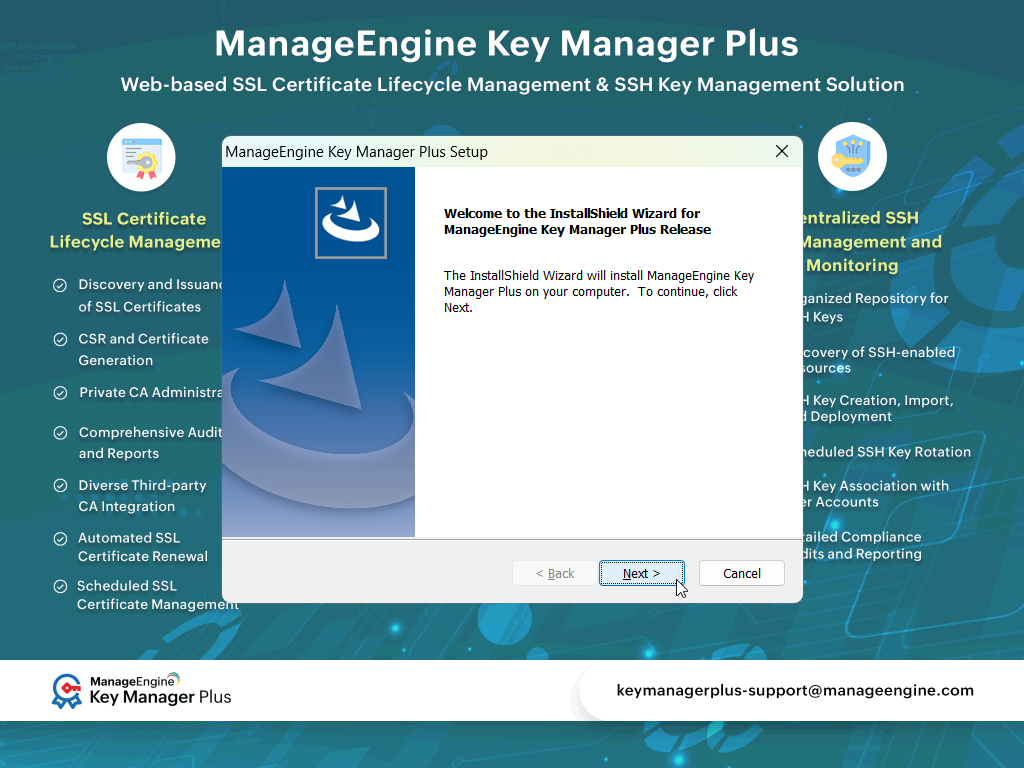
- The InstallShield wizard of Key Manager Plus will open on the screen. Click Next to continue with the installation process.
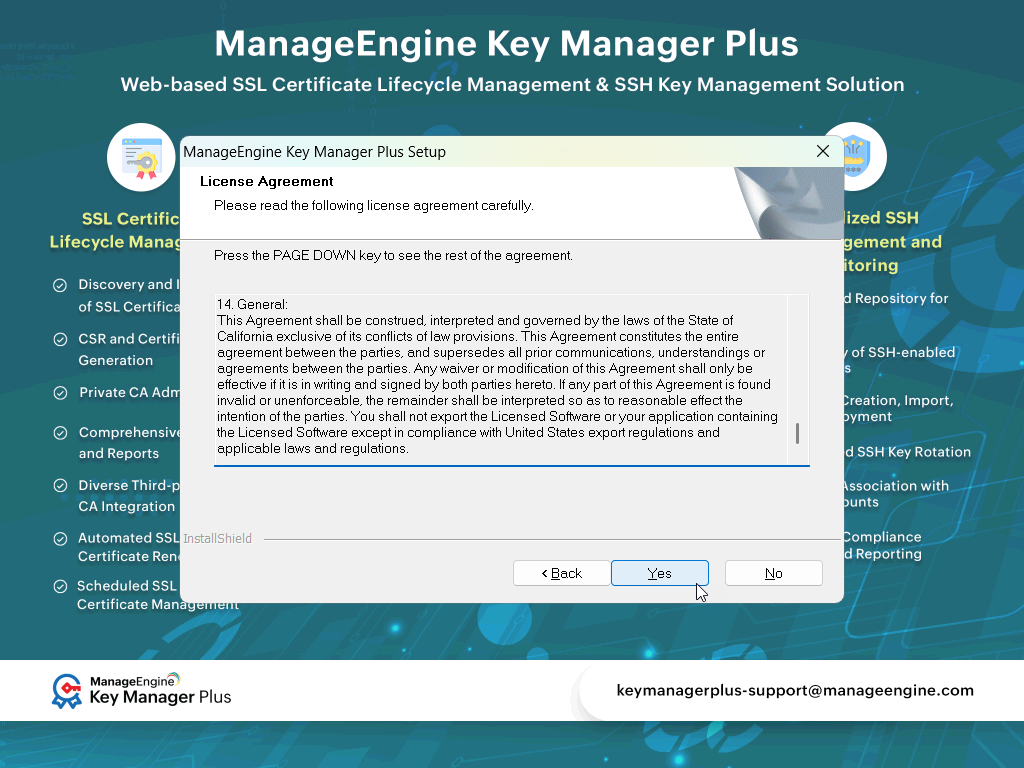
- The Software License Agreement page appears. Scrolldown and read the agreement thoroughly. Click Yes to agree and proceed with the installation. Click Back to go back to the previous wizard. Click No to exit the setup.
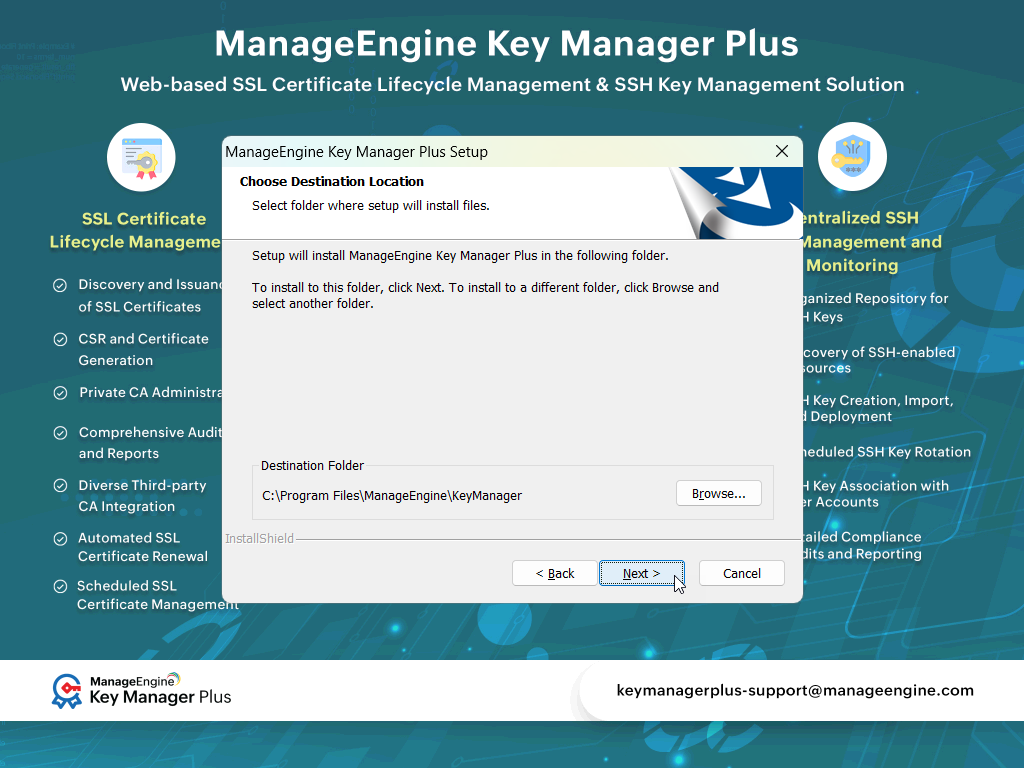
- Choose an installation directory. By default, the product is installed at C:/Program Files/ManageEngine/KeyManager. This path is referred to as KeyManagerPlus_Installation-Directory throughout the documentation. If you want to install the product on a different location, click Browse and select your desired location.
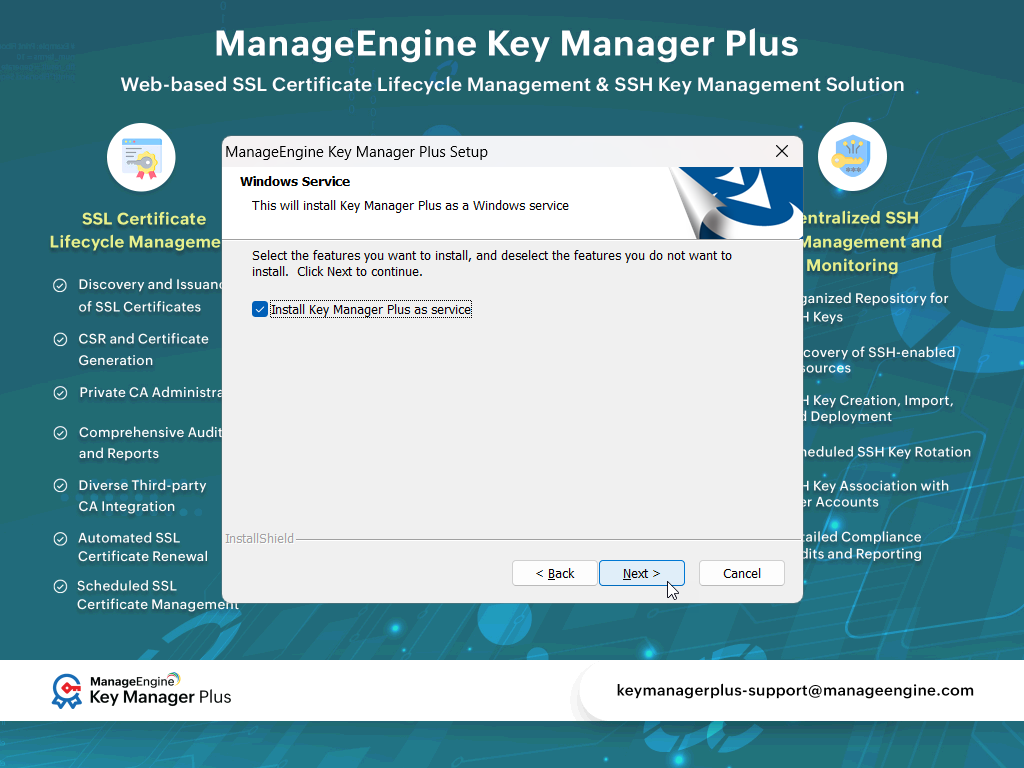
- On the next page, tick the Install Key Manager Plus as service checkbox and click Next.
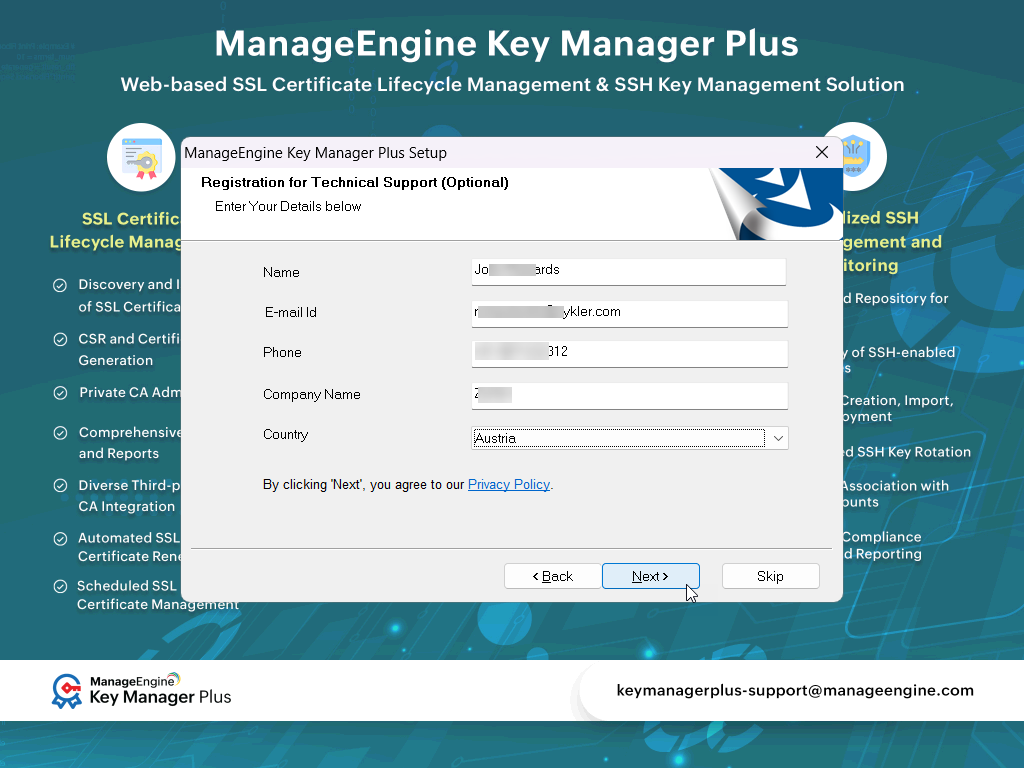
- Enter your details in the registration form for technical support and click Next. If you want to skip this step, click Skip.
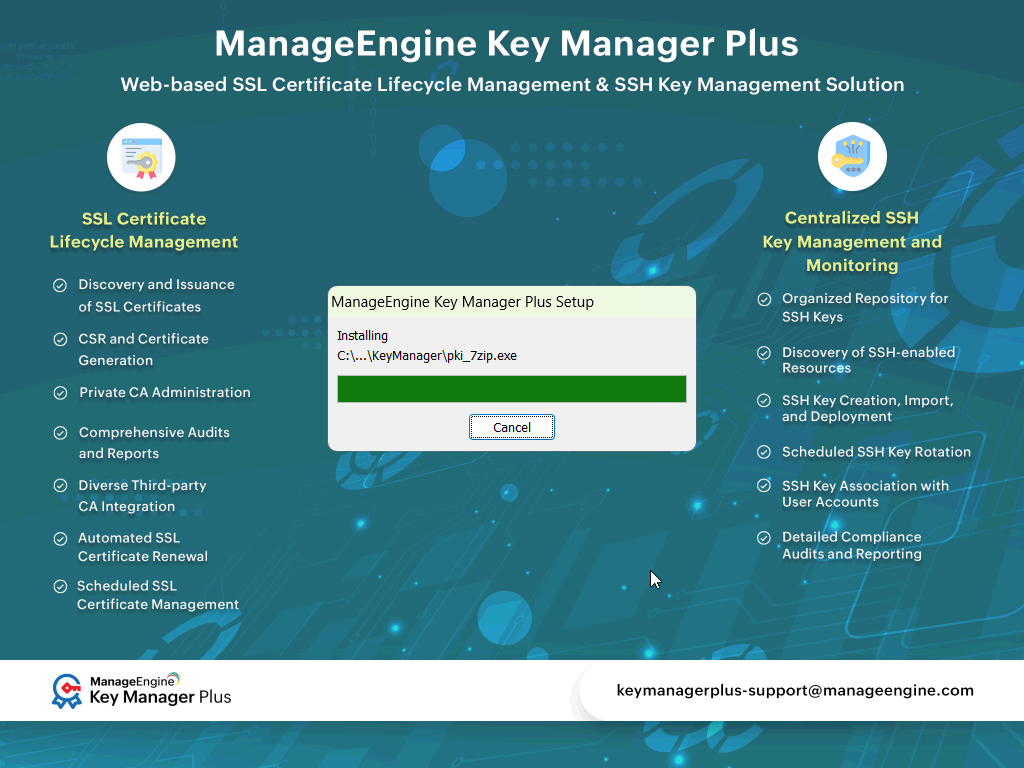
- The setup wizard installs the file in the selected directory.
- After the installation process, a wizard appears, indicating the completion of the installation process. Choose to do any of the following by selecting the corresponding checkboxes:
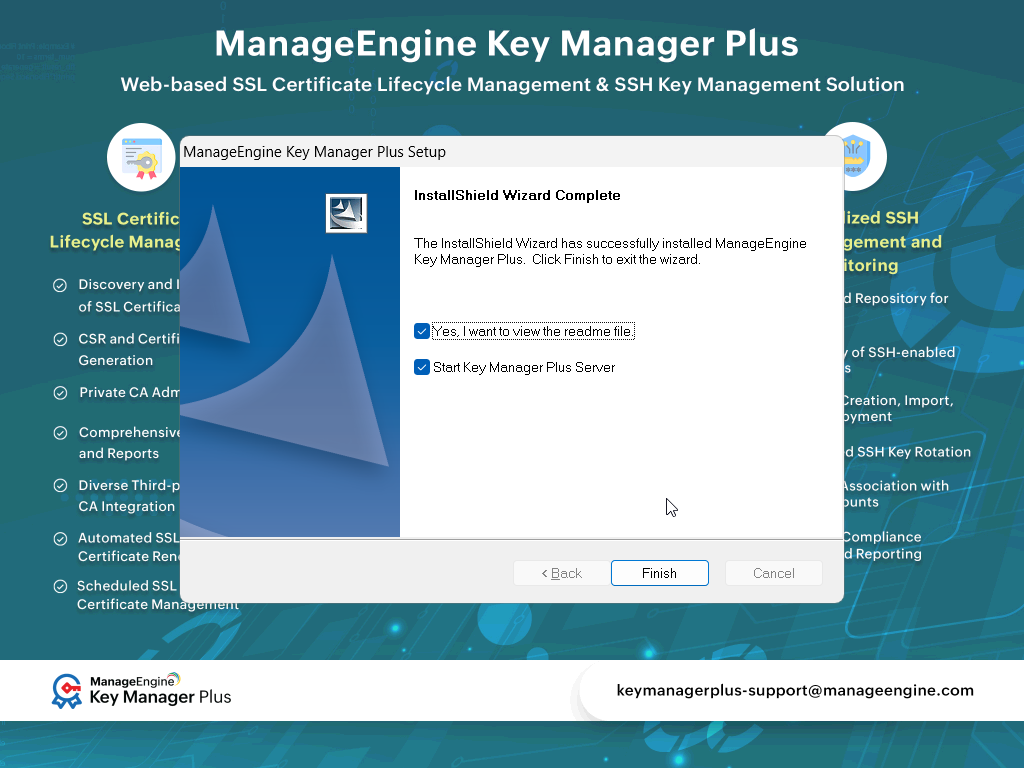
If you prefer to start the Key Manager Plus server later, navigate to Start >> Programs >> ManageEngine Key Manager Plus and run it as administrator. From the Start Menu, you can also perform other actions such as stopping the server or uninstalling the product.
2. Installing Key Manager Plus in Linux
Follow the below steps to install Key Manager Plus on your Linux machine:
- Log in using a non-root user account.
- Open Terminal and grant the executable permission for the installation file using the command:
chmod a+x <file_name> - Run the installer file by preceding its name using the command:
./<'file_name> - If you are installing on a headless server, run the command:
./<'file_name> -i console
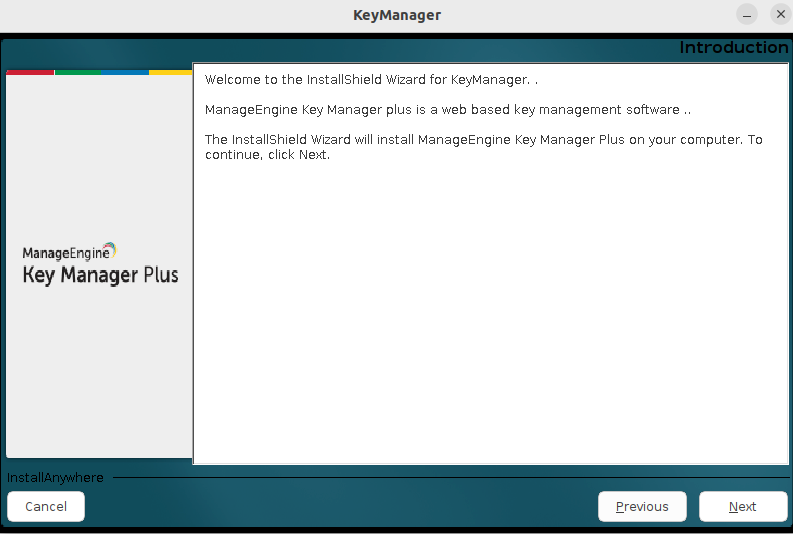
(Use '-C' if '-console' does not work.) - In the installation wizard that appears, click Next to continue.
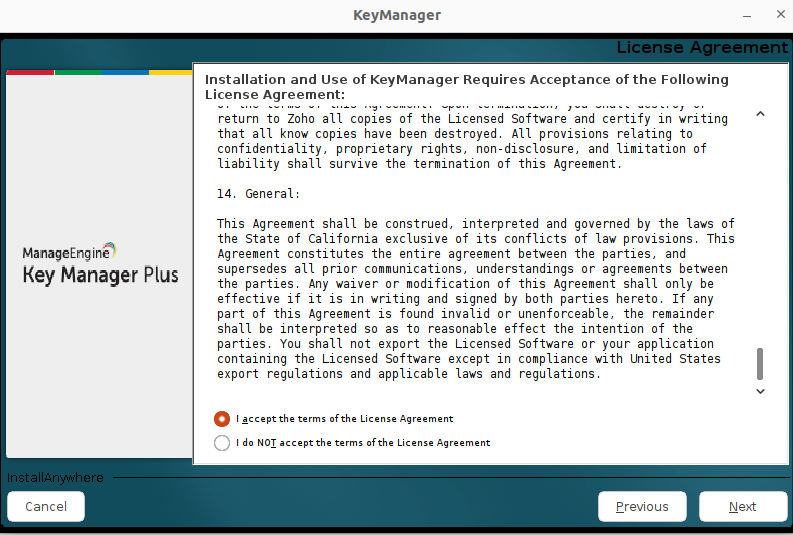
- The Key Manager Plus License Agreement appears. Read the Agreement carefully and select I accept the terms of the License Agreement to proceed with the installation. Click Previous to go back to the previous wizard. Click Cancel to exit the setup anywhere between the installation.
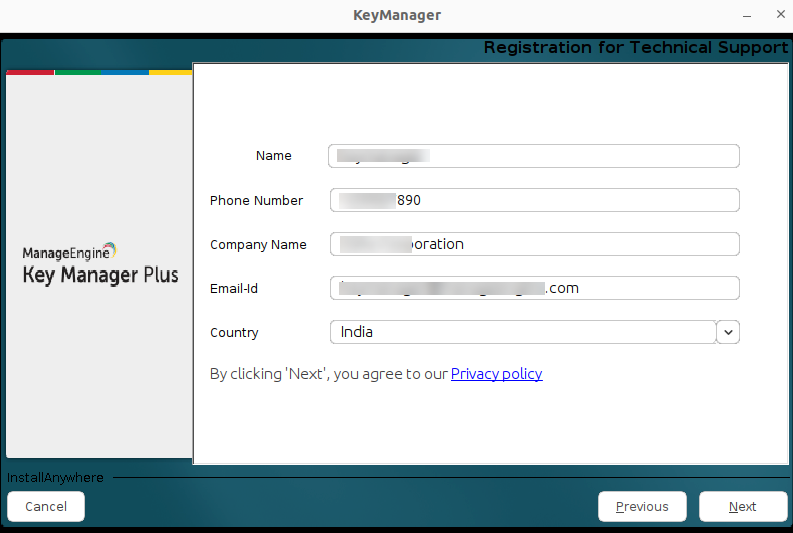
- Enter your details in the registration form for technical support and click Next.
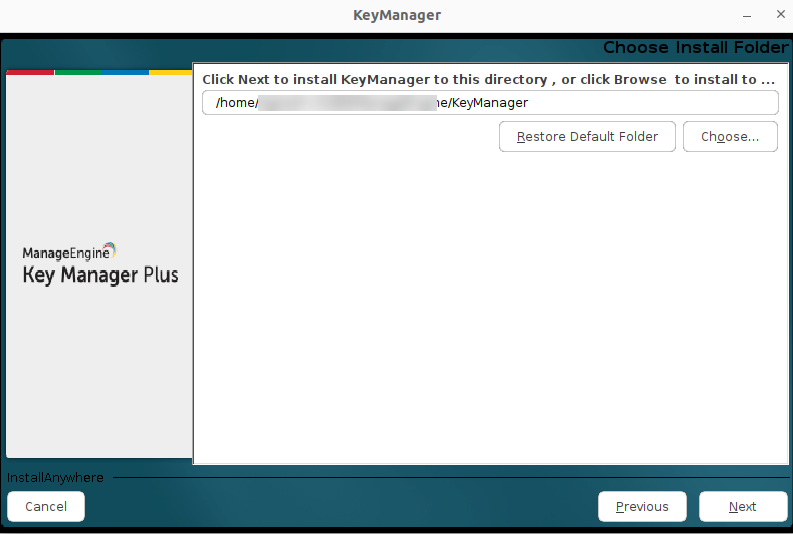
- Select the folder to install Key Manager Plus on your system. You can either go with the default location, or click Choose to install Key Manager Plus in a different location. You can also click Restore Default Folder to change from the given different location to the default location. Click Next to proceed with the installation or Previous to go back to the previous wizard.
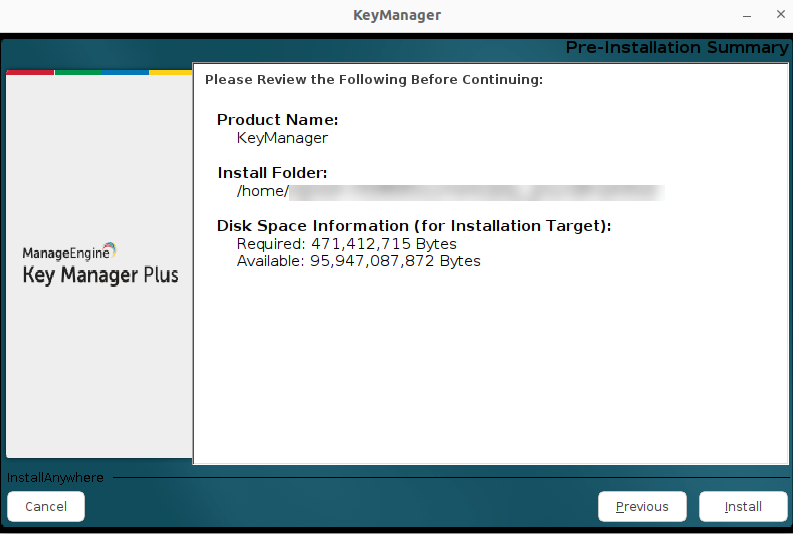
- Now, the Pre-Installation Summary window appears that will require you to review your settings and begin the installation. Click Previous to make any changes or click Install to let the setup wizard begin the Key Manager Plus installation process.
- Once the installation process is completed, click Done. Key Manager Plus will be installed in the directory you selected in the setup wizard. This installation directory is referred to as KeyManagerPlus-Installation-Directory throughout the documentation.
- Continue the following steps as the non-root user to install the Key Manager Plus as a startup service:
- Open the console and navigate to the <KeyManagerPlus-Installation-Directory>/bin folder.
- Execute the command sudo sh keymanager.sh install (In Ubuntu, execute as sudo bash keymanager.sh install).
3. Transferring a Key Manager Plus Installation
If you need to move your Key Manager Plus installation to a different location on the same machine, or to an entirely different machine, follow the procedure below.
- Backup and Precaution: Do not remove the existing installation until the new one is confirmed to be working properly. This ensures you have a backup and can recover from any issues or data corruption during the transfer process.
- Backup Current Database: Take a backup of the current Key Manager Plus database.
- Install on New Machine: Install Key Manager Plus on the new machine.
- Restore Backup Data: Restore the backup data to the new installation.
By following these steps, you can ensure a smooth and secure transition to your Key Manager Plus installation.