
Technician Audit
Last updated on:
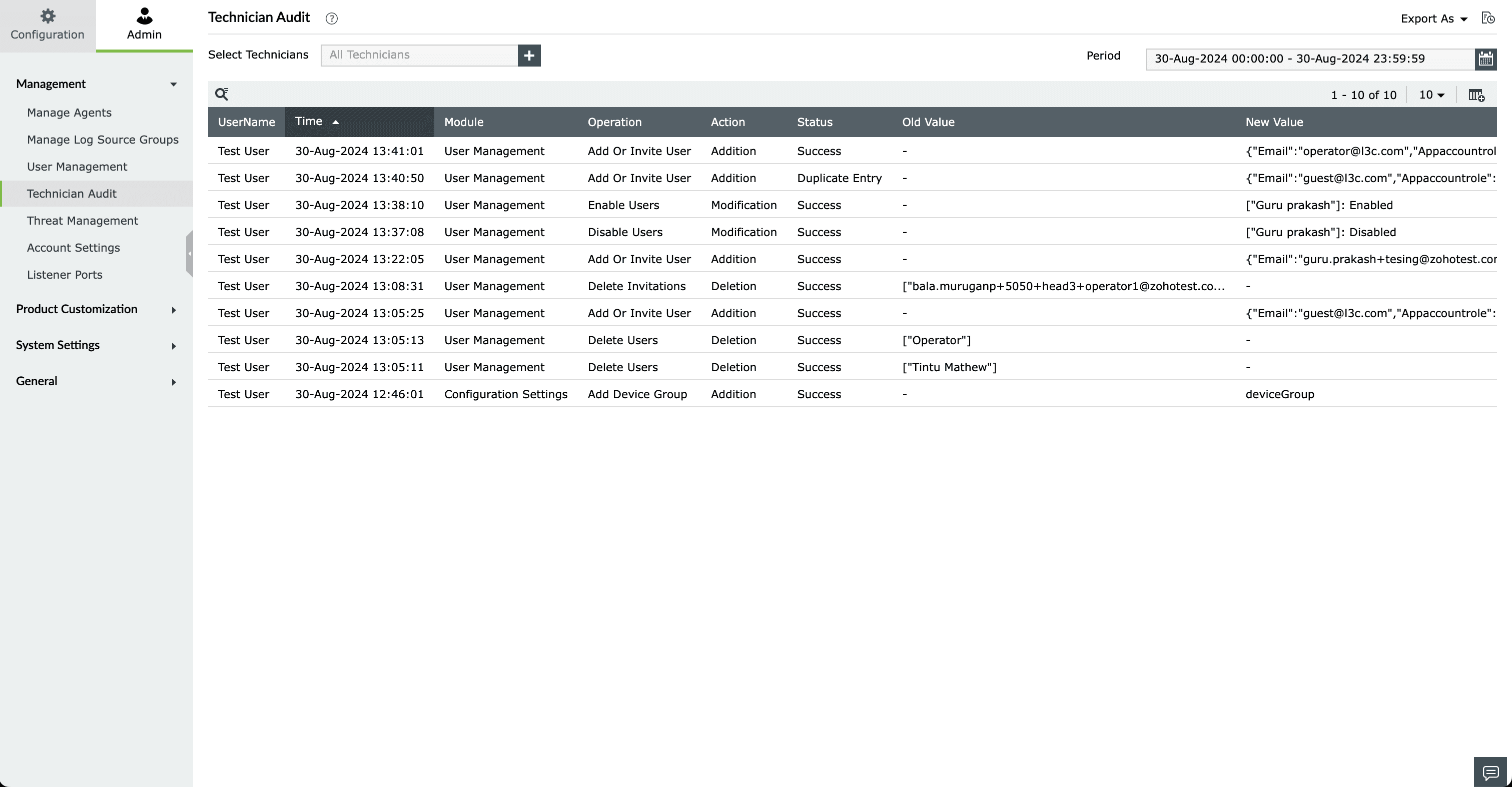
Technician Audit is a feature in Log360 Cloud that allows you to audit all the actions of the admins and technicians who use the tool. This feature gives you information on the
- Name of the technician
- Time of action
- The module in which the action was performed (E.g. Alerts, Compliance, etc.) and
- The message triggered during operation.
Accessing the Technician Audit dashboard:
- Open the Settings tab.
- Go to Admin → Management → Technician Audit.
Adding or removing columns:
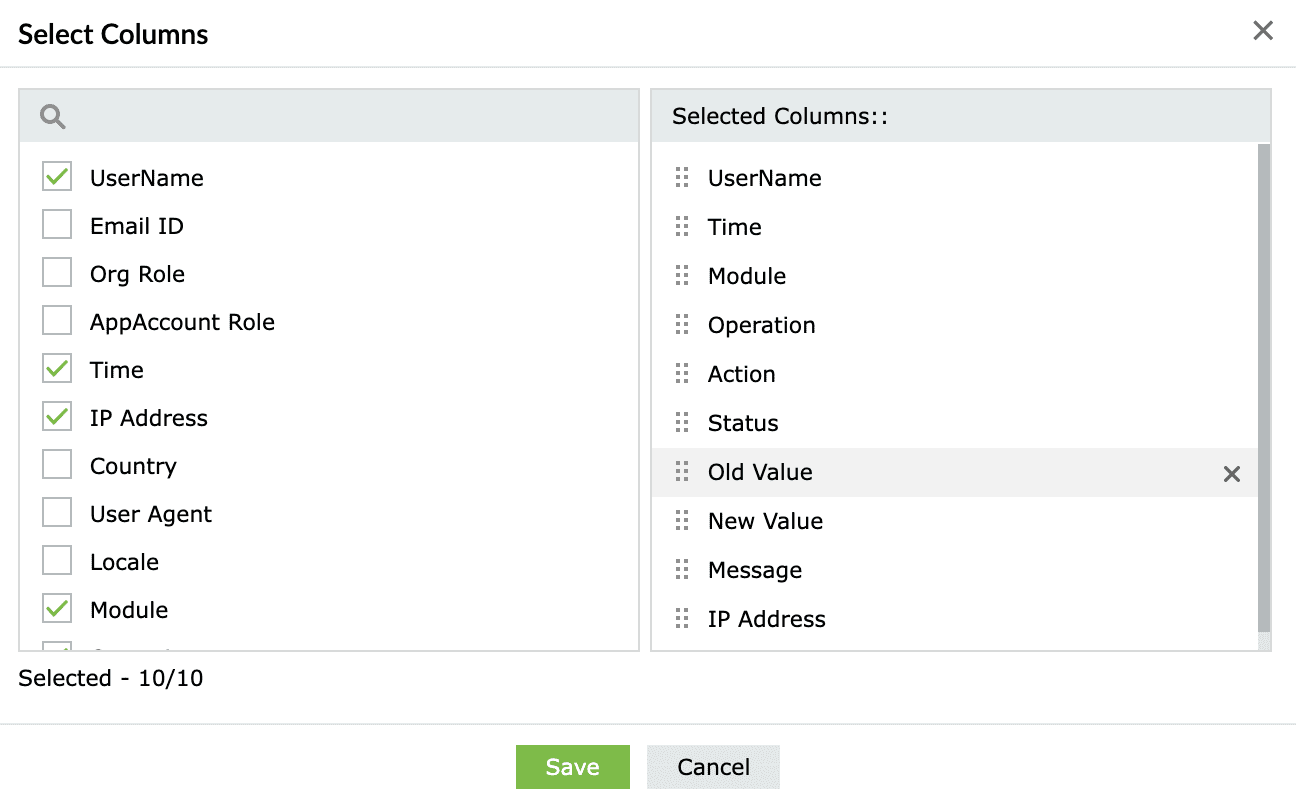
- Click on the Add or Remove column button from the top right corner of the dashboard.
- From the Select Columns dialog box, click on the columns you want to add or remove from the dashboard.
- You can also rearrange the order of the columns displayed on the dashboard by clicking and dragging the columns from the right side of the dialog box.
Looking for information:
You can also perform search operations within the dashboard.
- Click on the Search button on the top left corner of the dashboard.
- Once this option is enabled, every column within the dashboard becomes searchable.
Auditing specific technicians:
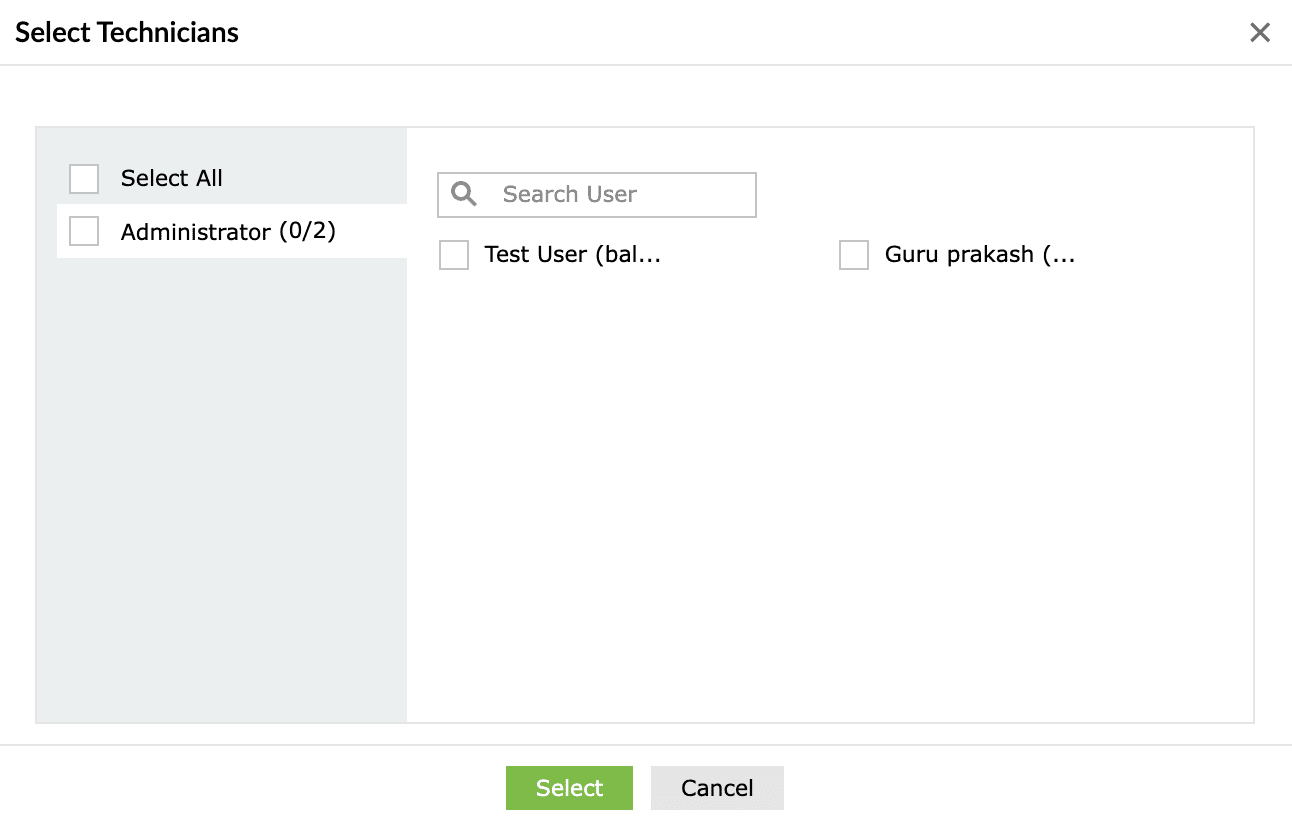
Log360 Cloud lets you audit the actions of a single user or group of users.
- Click on the Select Technician button on top of the dashboard.
- From the resulting dialogue box, you can select the type of user and the username you want to audit.
Exporting reports:
Once you've decided on the report you need, you can export the data from the dashboard in the CSV or PDF format.
- From the date picker, select the From and To date and click Apply.
- Click on the Export As button from the top right corner. From the drop-down box, select the format to download the report.

Note You can click on the Report Export History button to view the logs of the report exported in the past.