
Profiles
Last updated on:
In this page
Overview
In ManageEngine Log360, profiles let you define which device groups are used to populate the product’s modules. You can select from the available device groups to create profiles, but only one profile can be set as the default. If any profile is set as the default, it will be reflected only for that user.
The devices included in this default profile determine the logs displayed across the Dashboard, Reports, and other modules, forming the foundation for log analysis within the product. This provides consistent, device group-specific visibility without requiring manual filtering in each module.
Creating a profile
- Log in to your product console and navigate to the Settings tab.
- Under Admin Settings, go to General and select Profiles.
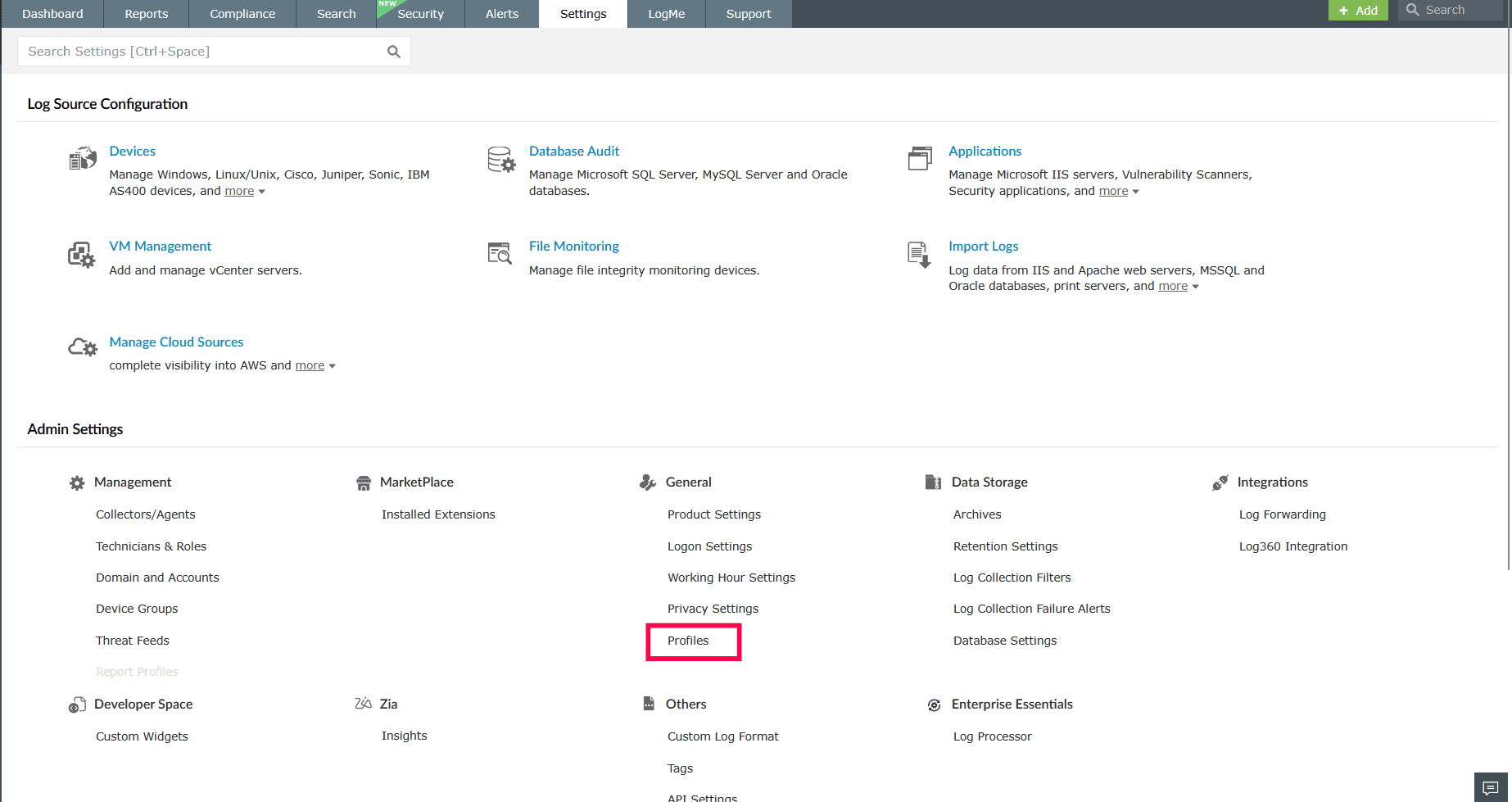
Figure 1: Navigating to Profiles - In the Profiles page, click Add in the top-right corner to create a new profile.
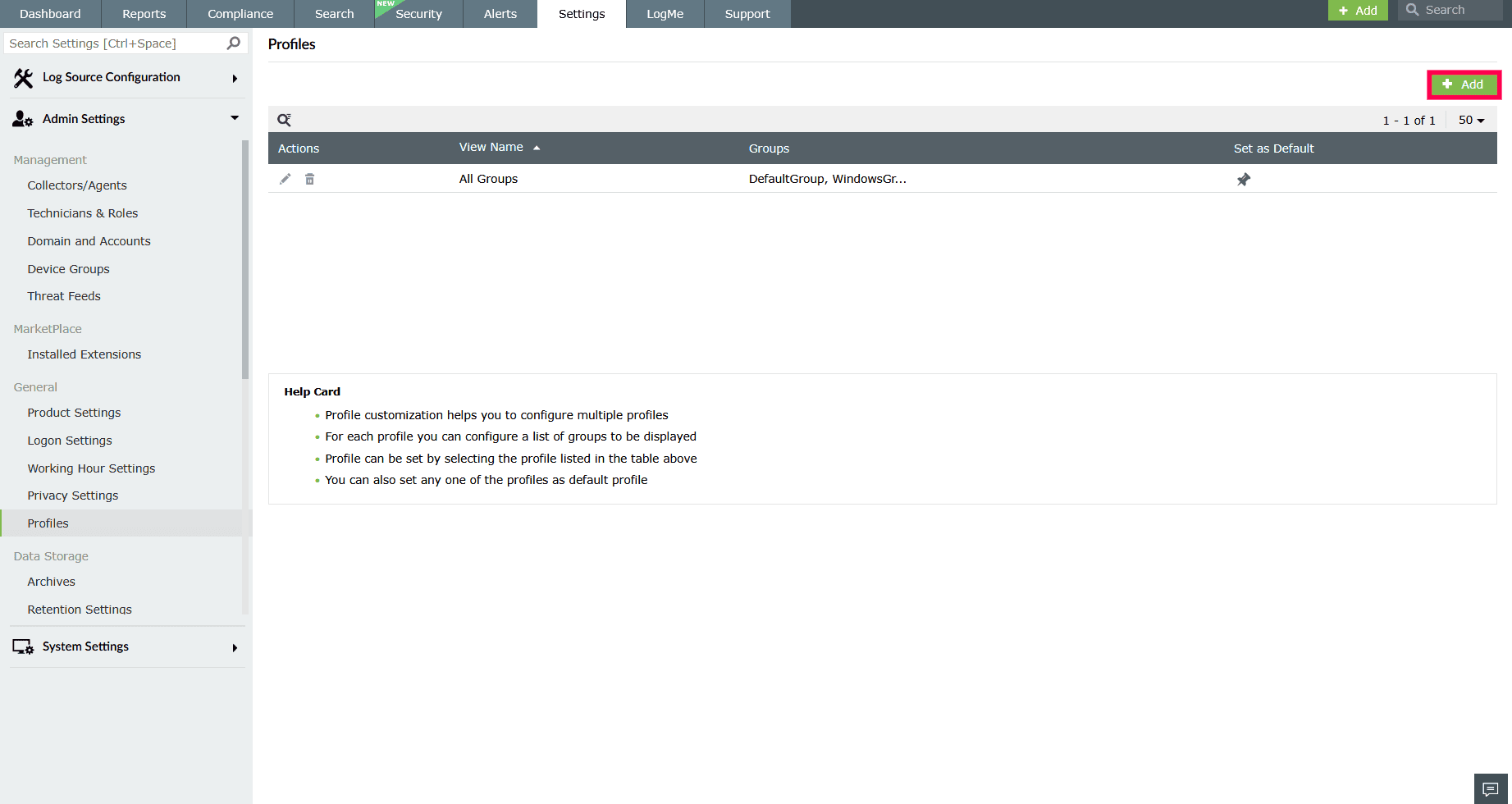
Figure 2: Creating a new profile - In the Create Profile window, enter a unique name for the profile in the View Name field.
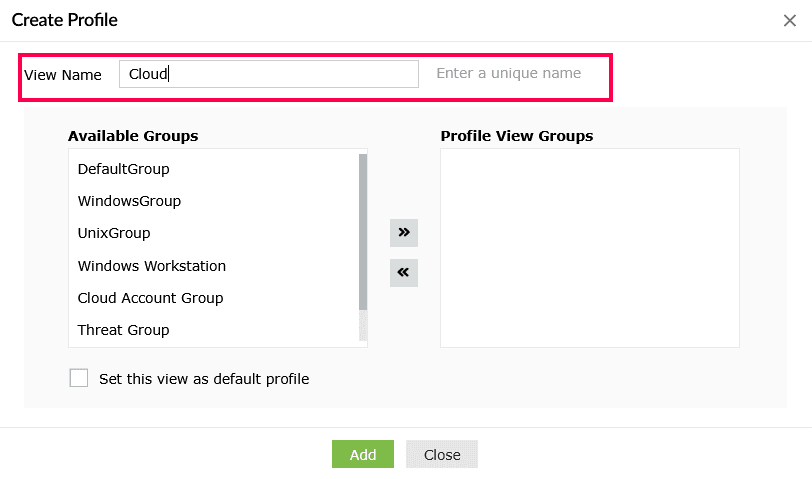
Figure 3: Entering a view name - Under Available Groups, select the device groups you want to include and move them to the Profile View Groups section by clicking the icon.
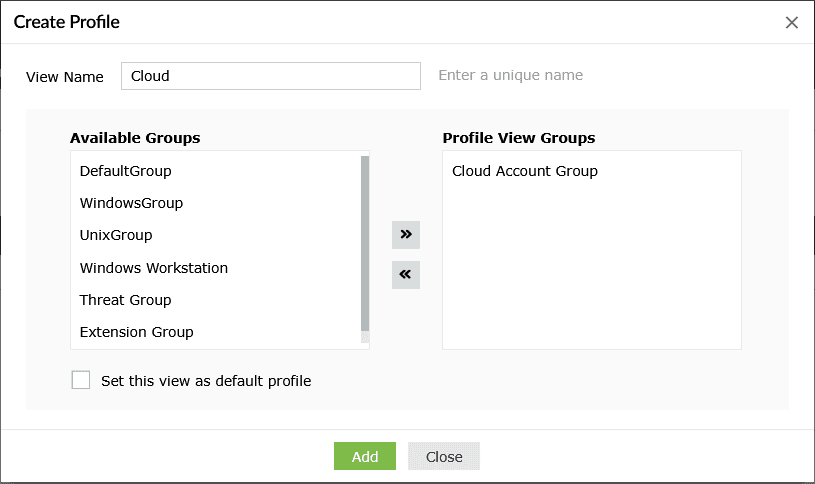
Figure 4: Selecting device groups - To remove any selected groups from Profile View Groups, click the icon.
- You can also select the checkbox Set this view as default profile if you want this profile to be the default.\
NOTE Only one profile can be set as the default at a time.
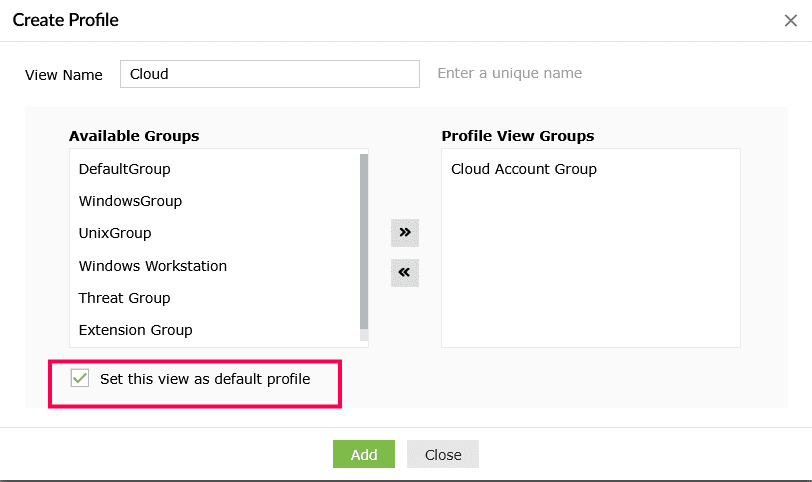
Figure 5: Setting a view as a default profile - Click Add to save the profile.
Setting a default profile
The default profile defines the device groups on which the product’s modules are based. Only one profile can be set as the default at a time.
To set a profile as the default:
- In the Profiles page, click the icon corresponding to the desired profile.
- In the confirmation pop-up, click Yes.
Editing a profile
- In the Profiles page, click the
 icon corresponding to the profile you want to modify.
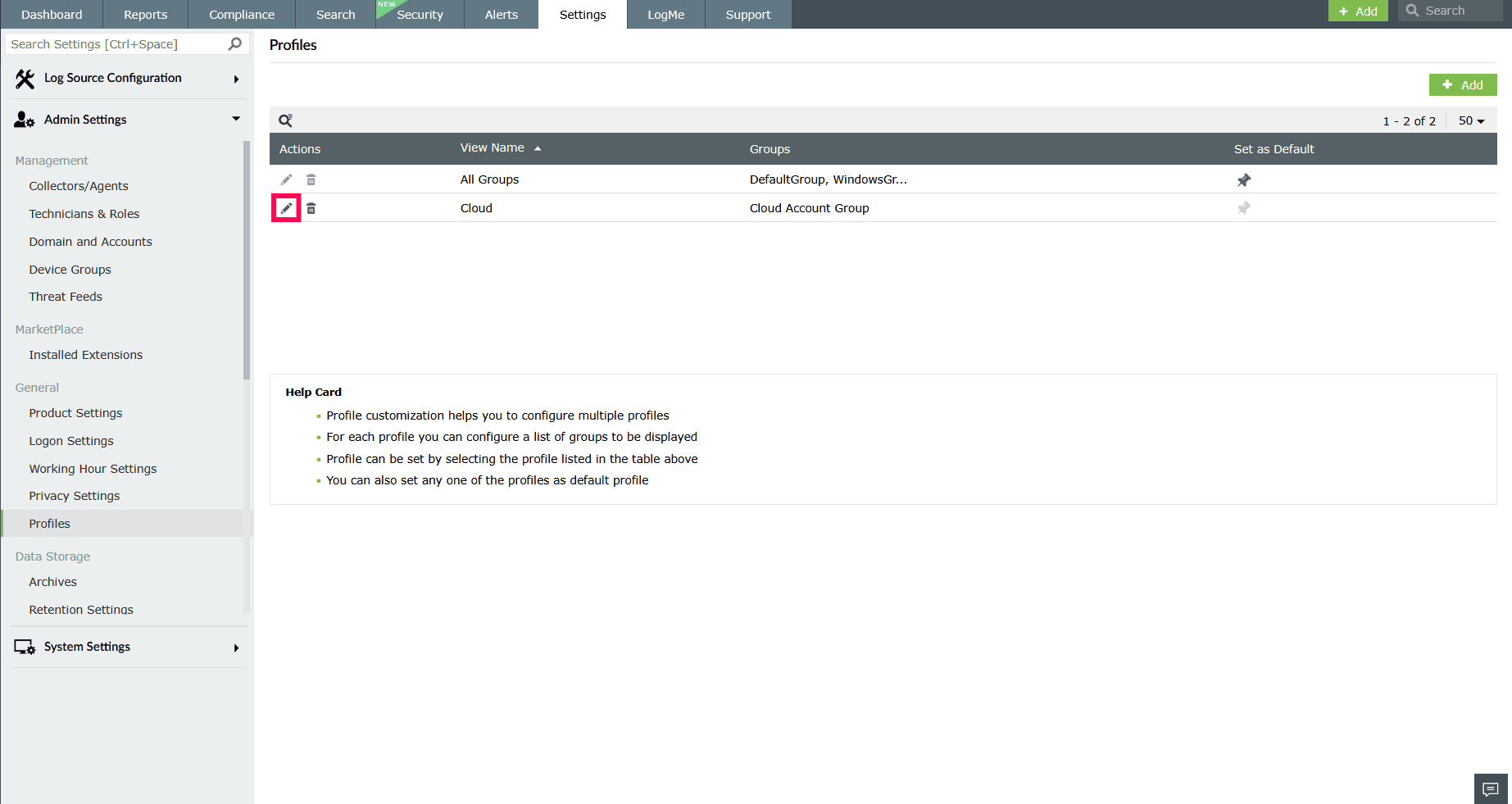
Figure 6: Editing a profile - In the Edit Profile window, change the device groups included in the profile as required.
NOTE The View Name cannot be modified.
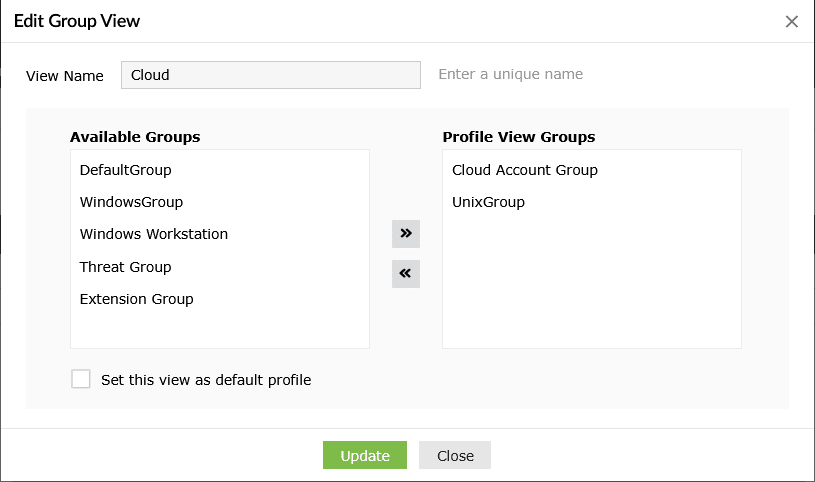
Figure 7: Updating device groups - You can also select the checkbox Set this view as default profile to make it the default profile.
- Click Update to save the changes.
Deleting a profile
- In the Profiles page, click the
 icon corresponding to the profile you want to remove.
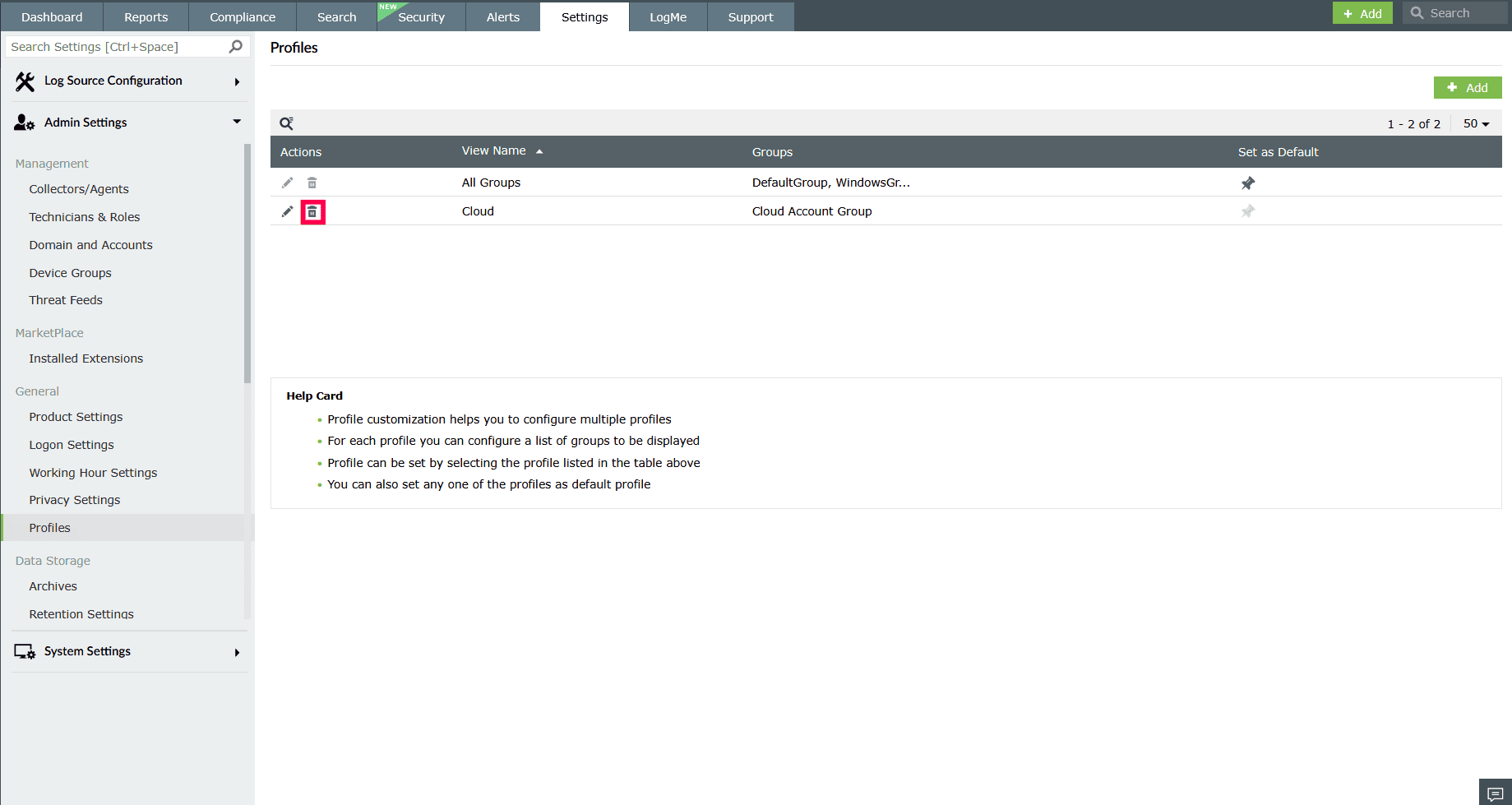
Figure 8: Deleting a profile - In the confirmation pop-up, click Yes to delete the profile.
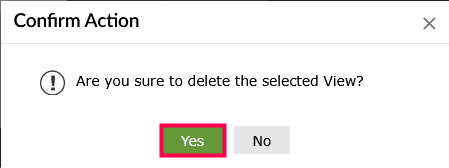
Figure 9: Confirming deletion
Read also:
This page explains how to create and manage device groups to organize log sources and streamline log collection, monitoring, and reporting across your environment.