
Adding a data source
Last updated on:
In this page
Overview
This page explains how to add Microsoft 365 services as data sources in the product console after configuring a tenant. Once the tenant is configured, you can select the account and add any of the following services as data sources to enable log collection: Microsoft Entra ID, Exchange Online, SharePoint Online, M365 General, and Exchange MailTrace.
Steps to add a data source
- In your product console, navigate to the Settings tab.
- In the left pane, select Admin and click Account Settings.
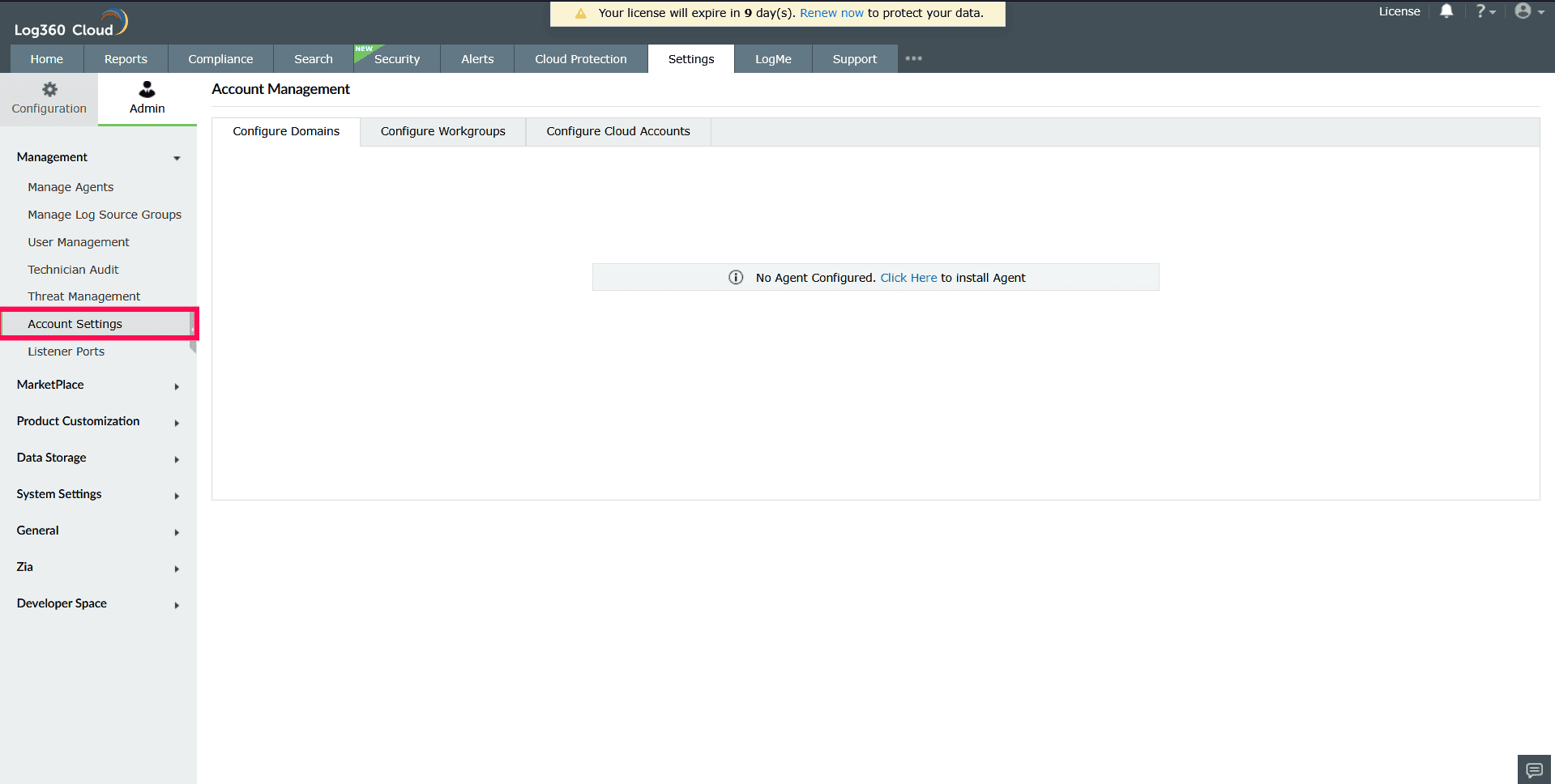
Figure 1: Navigating to Account Settings - Go to Configure Cloud Accounts and select Manage Sources on the Account Management page.
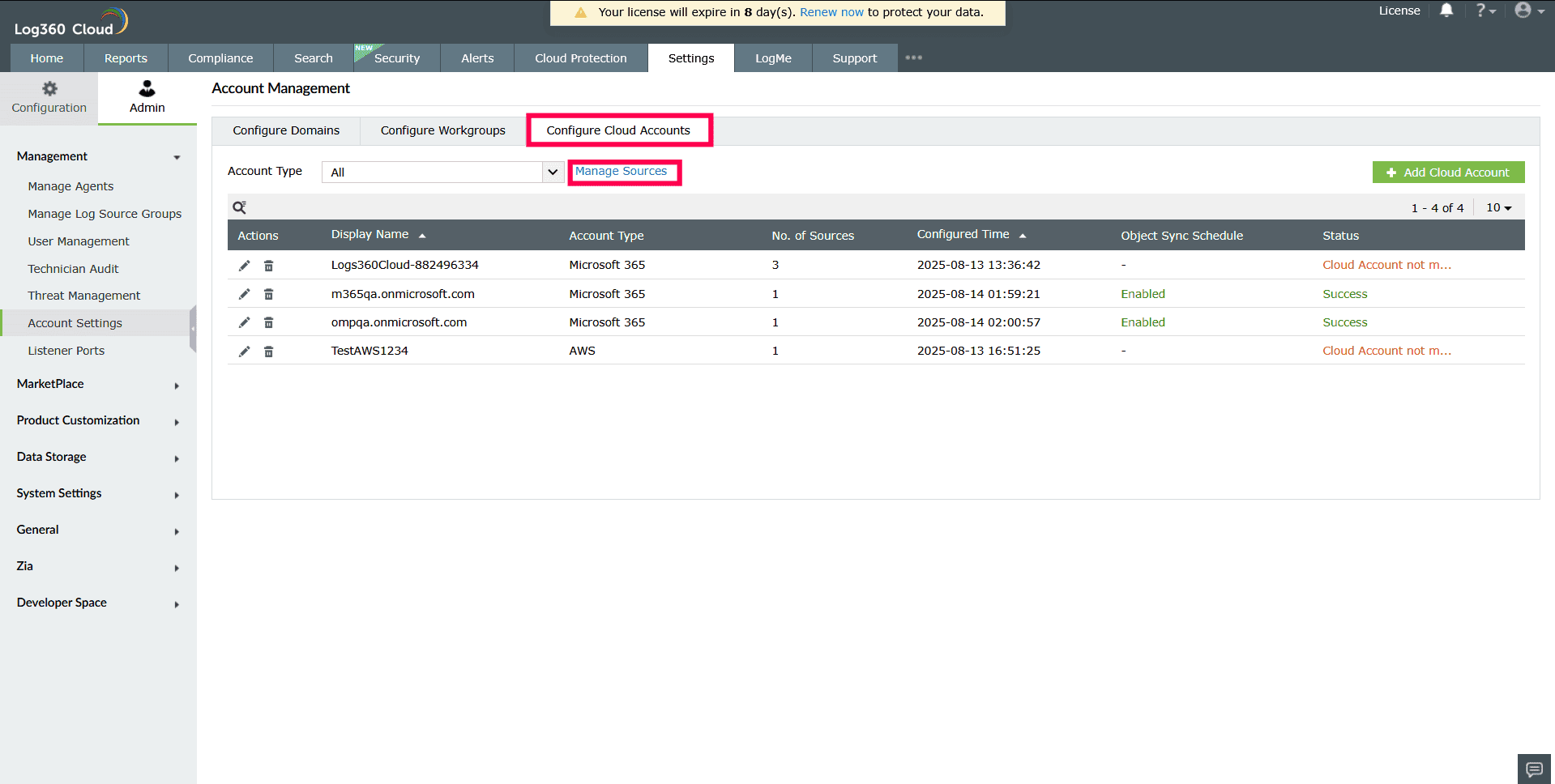
Figure 2: Adding a data source - Click Add Data Source in the top-right corner.
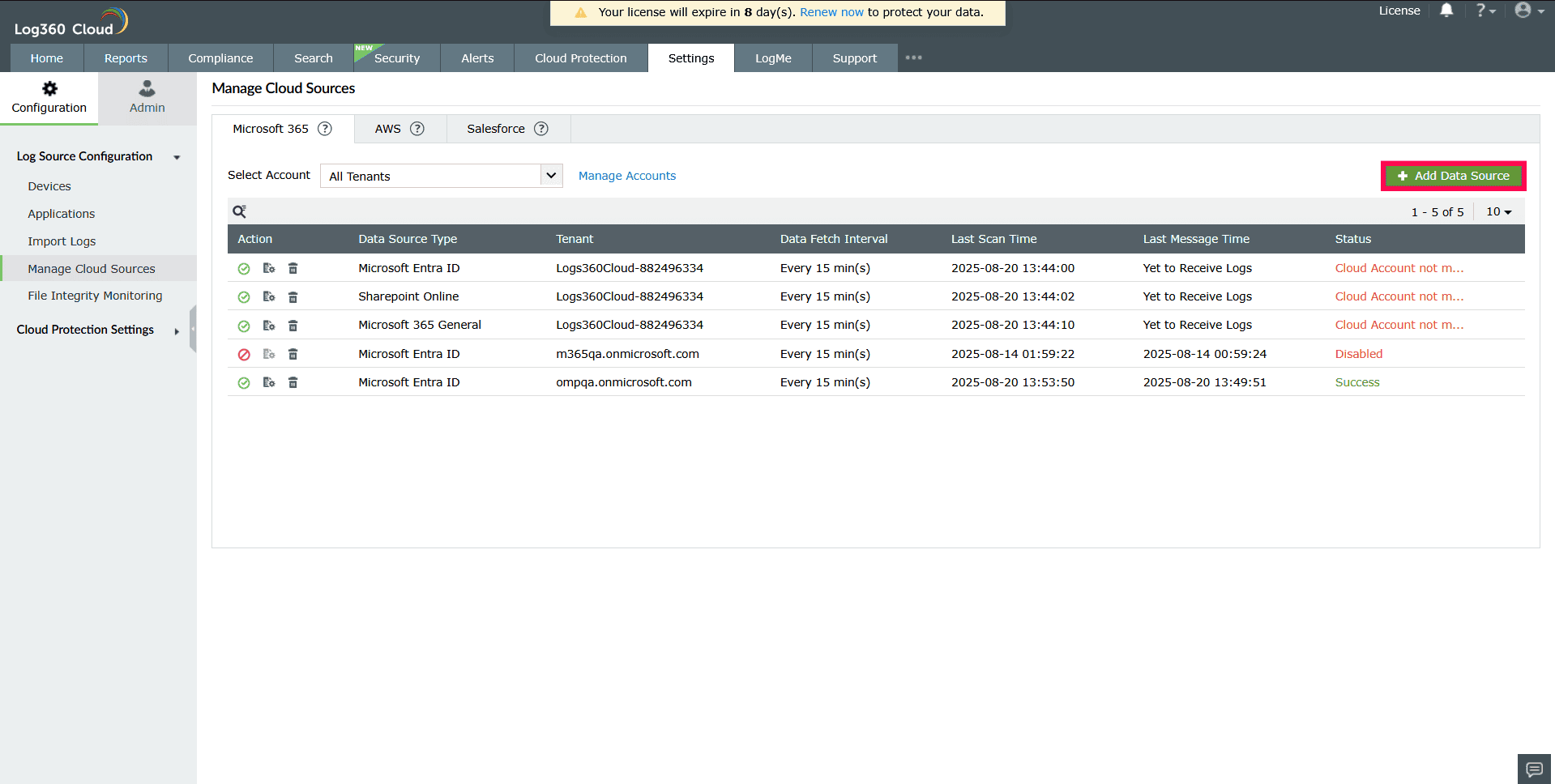
Figure 3: Adding a data source - In the Add Data Source window, select an account from the Select Account drop-down.
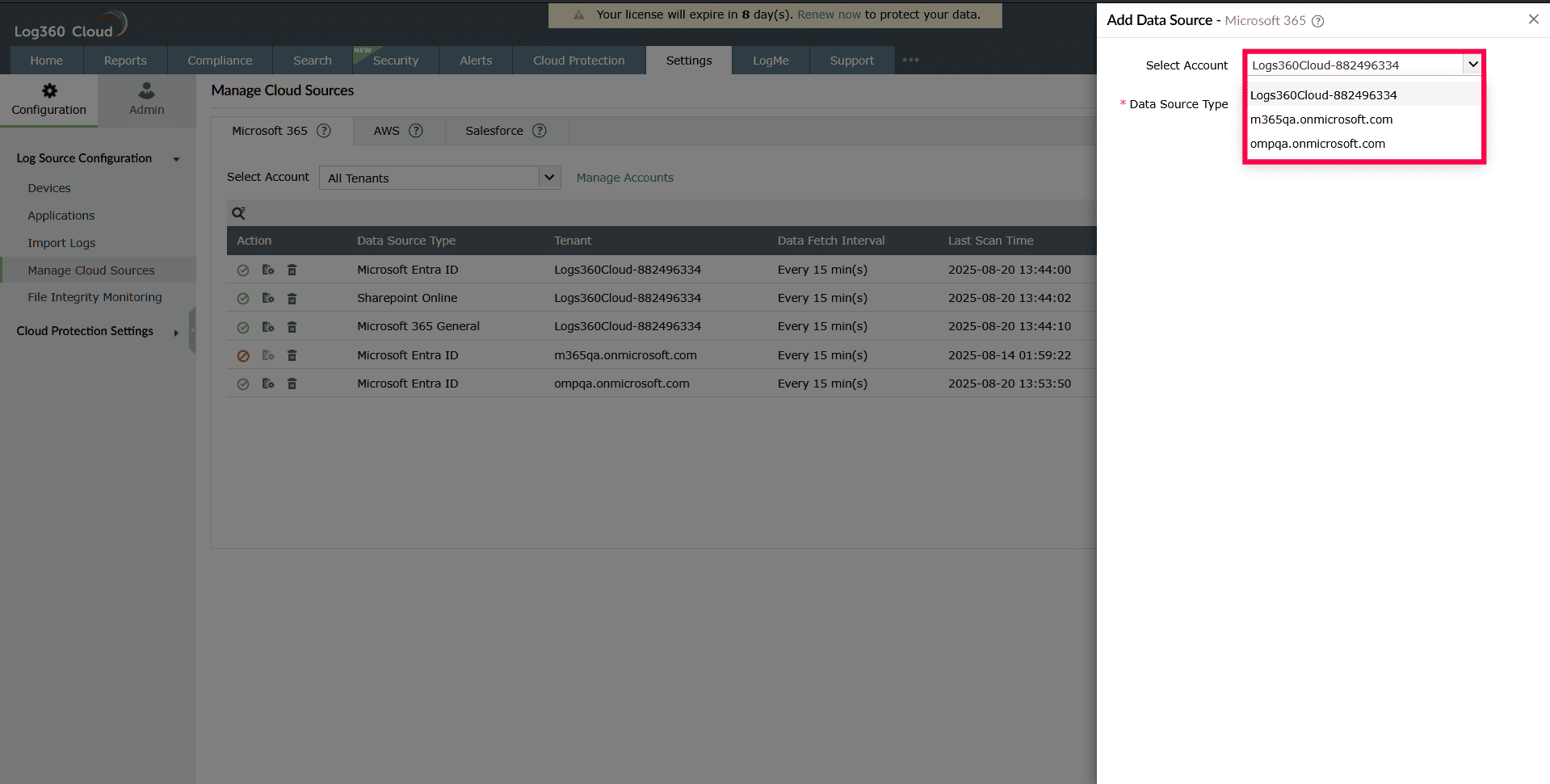
Figure 4: Selecting an account - From the Data Source Type drop-down, choose the Microsoft 365 service(s) you want to add.
NOTE You can add one or more services at a time. The available options are: Microsoft Entra ID, Exchange Online, SharePoint Online, M365 General, and Exchange MailTrace.
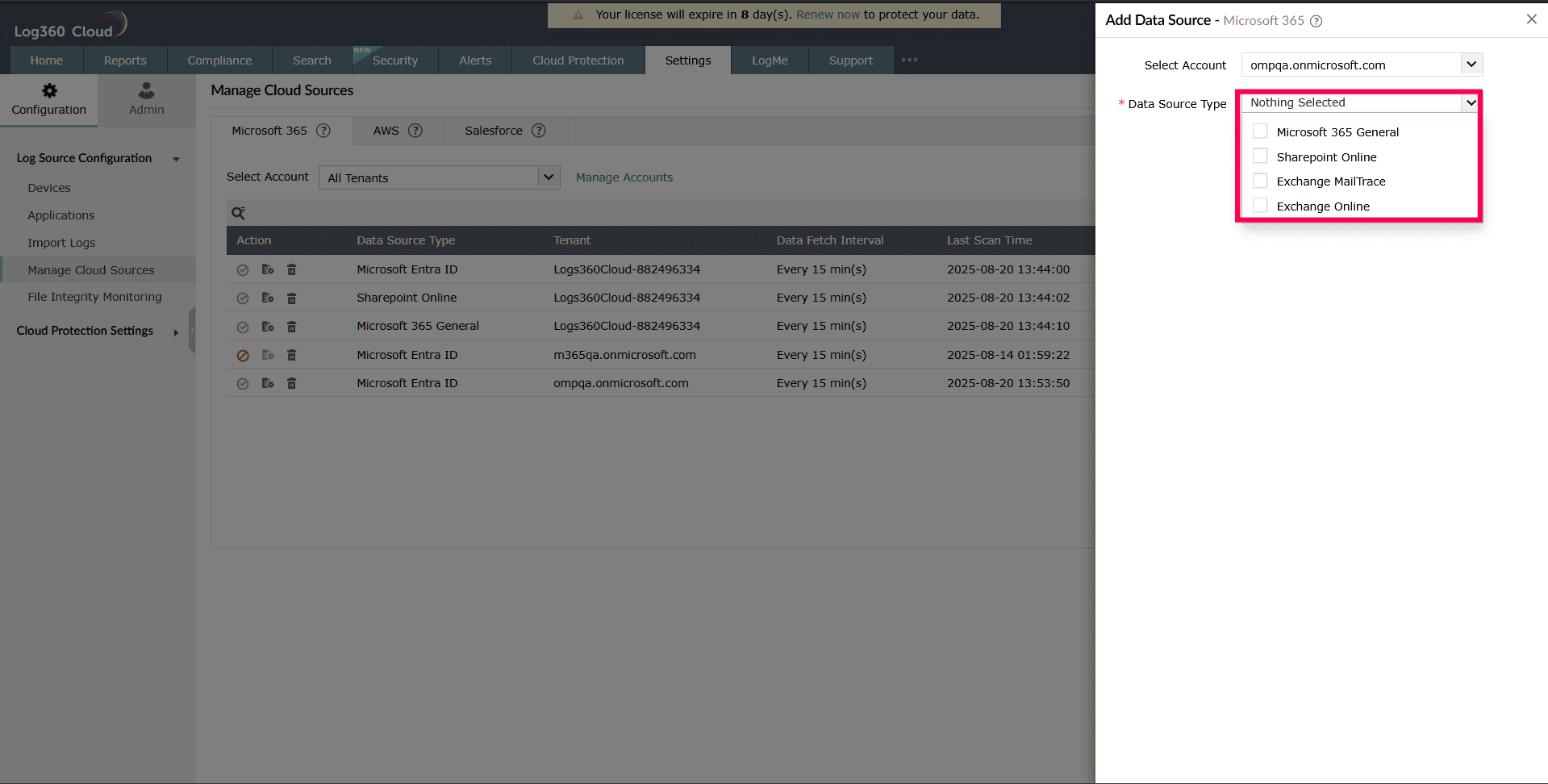
Figure 5: Selecting data source types - Click Add to add the selected data sources.
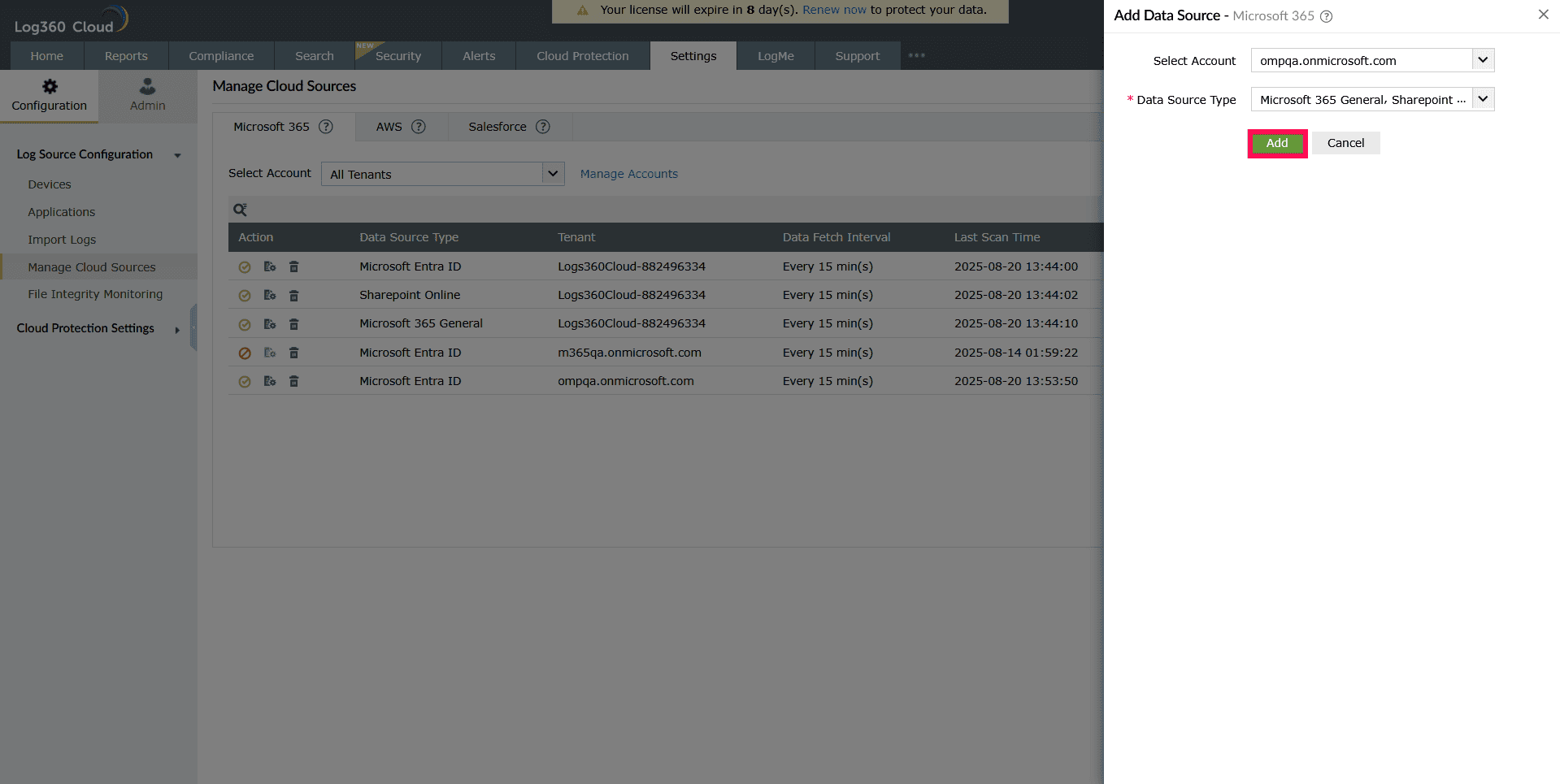
Figure 6: Adding selected data sources
Read also
This page detailed how to add Microsoft 365 services as data sources in the product console after configuring a tenant. To learn more about related configurations, see the articles below: