
Adding a Syslog Application
Last updated on:
When should the Syslog Application be used?
If syslog is simultaneously forwarded from a device that has already been configured as a Windows device, EventLog Analyzer server will ignore the syslog in order to maintain a single base log source. If you want to configure EventLog Analyzer server to receive syslog too from a Windows device, follow the procedure given below:
- Navigate to Settings > Log Source Configuration > Applications. You can also click on the +Add button on the top-right corner of the Home page and select Application.
- Click on the General Application -> Add General Applications.
- Choose Syslog Application as Application Type
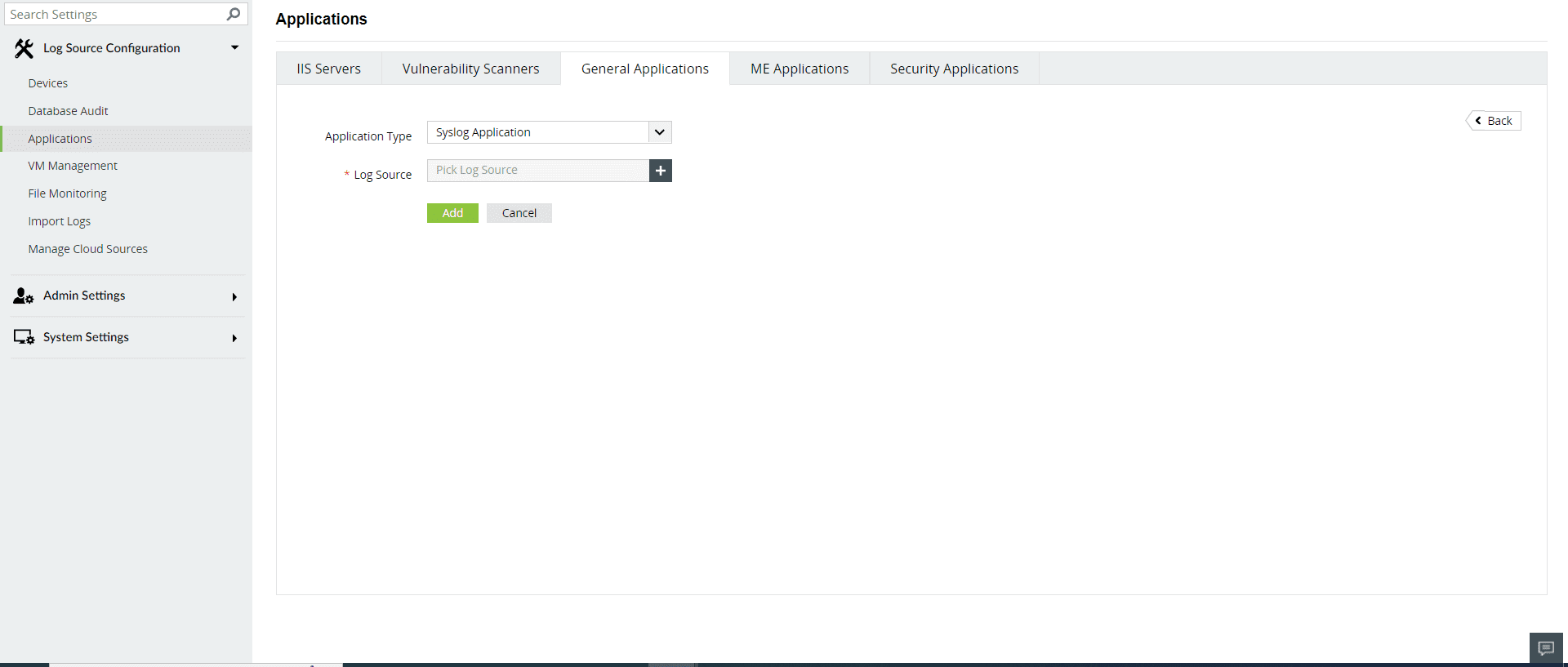
- Expand the list by clicking the "+" icon to add a new device.
- Choose from the drop-down menu to add Configured devices, Workgroup devices, domain
devices, etc.
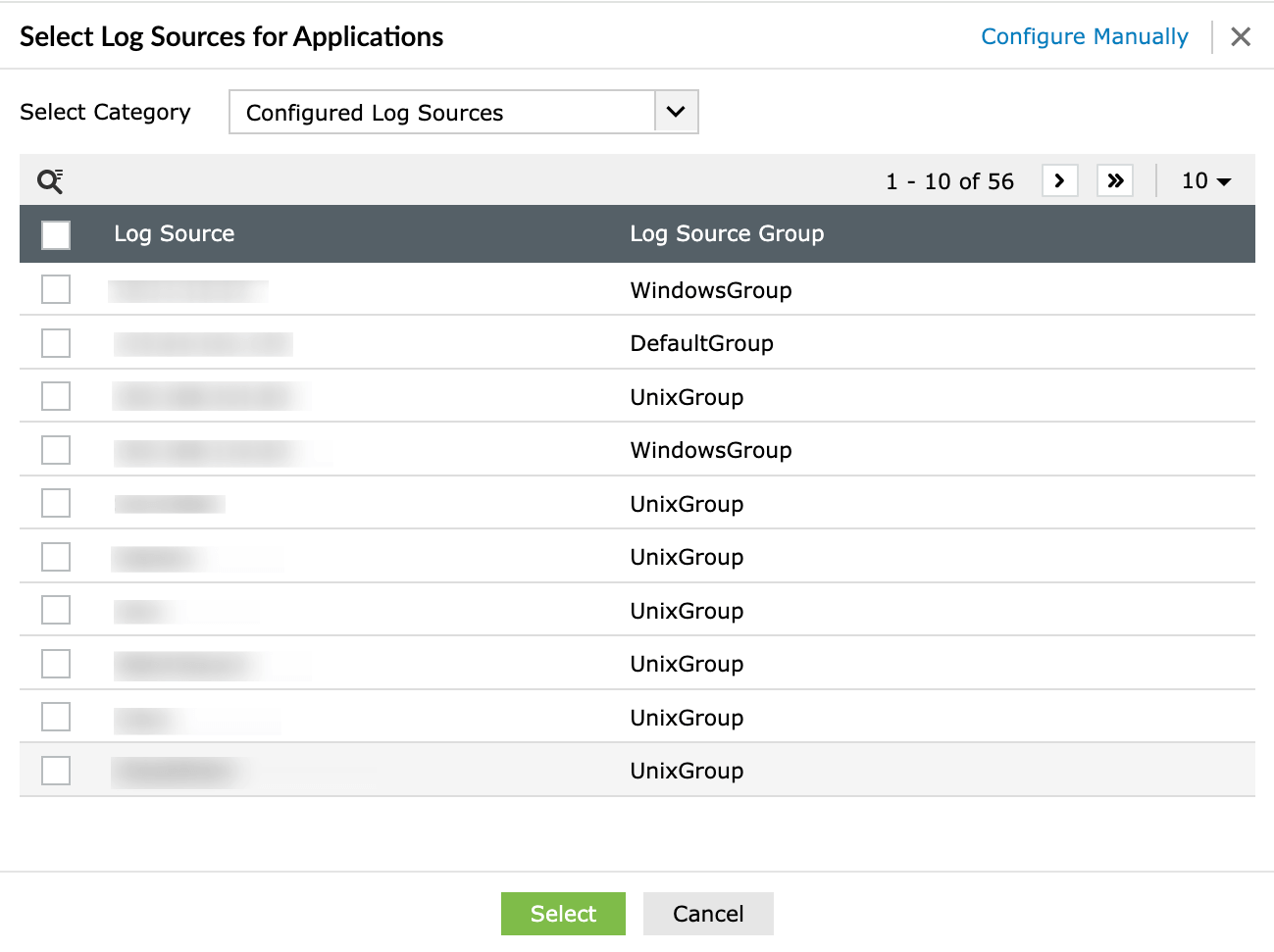
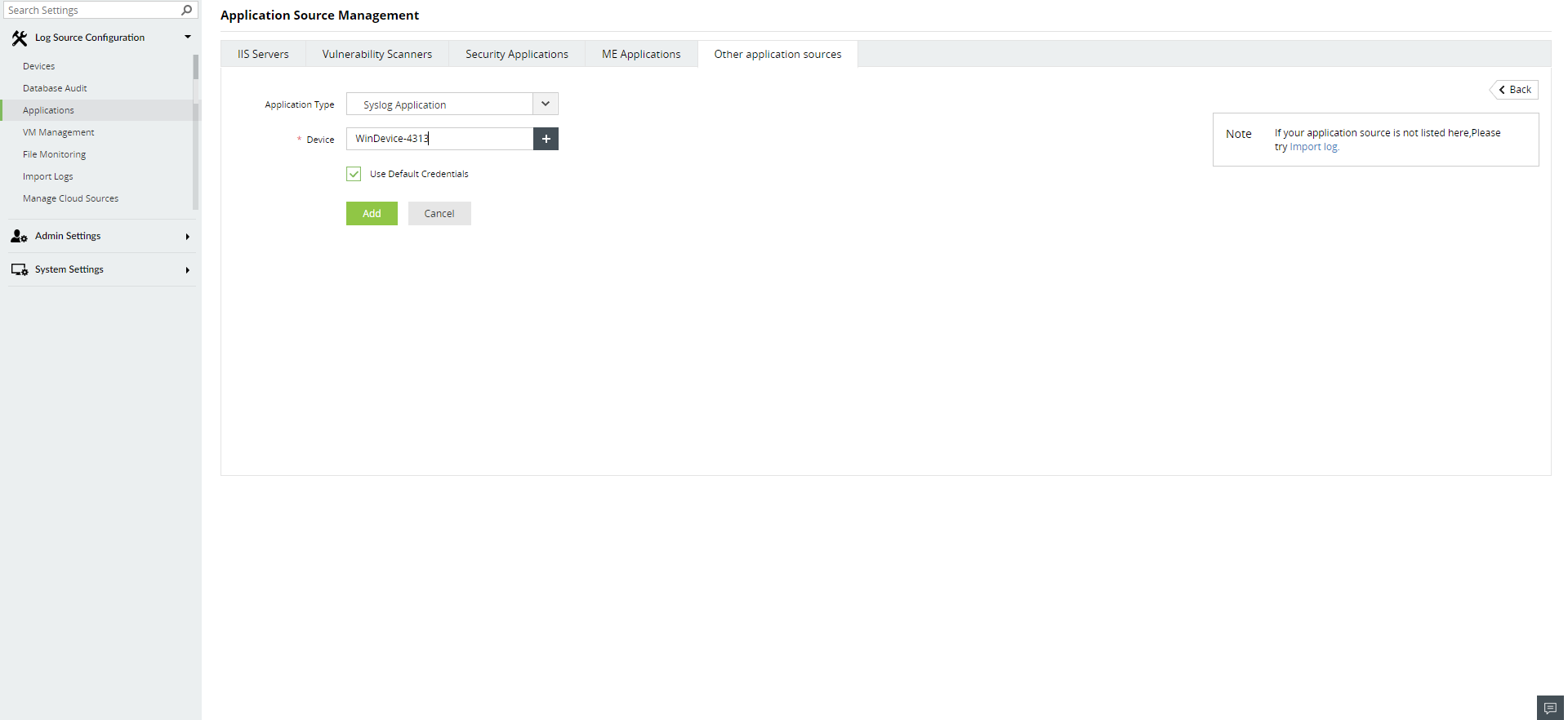
- To add new devices manually, click on Configure Manually and enter
Log Source > Select and click on Add.
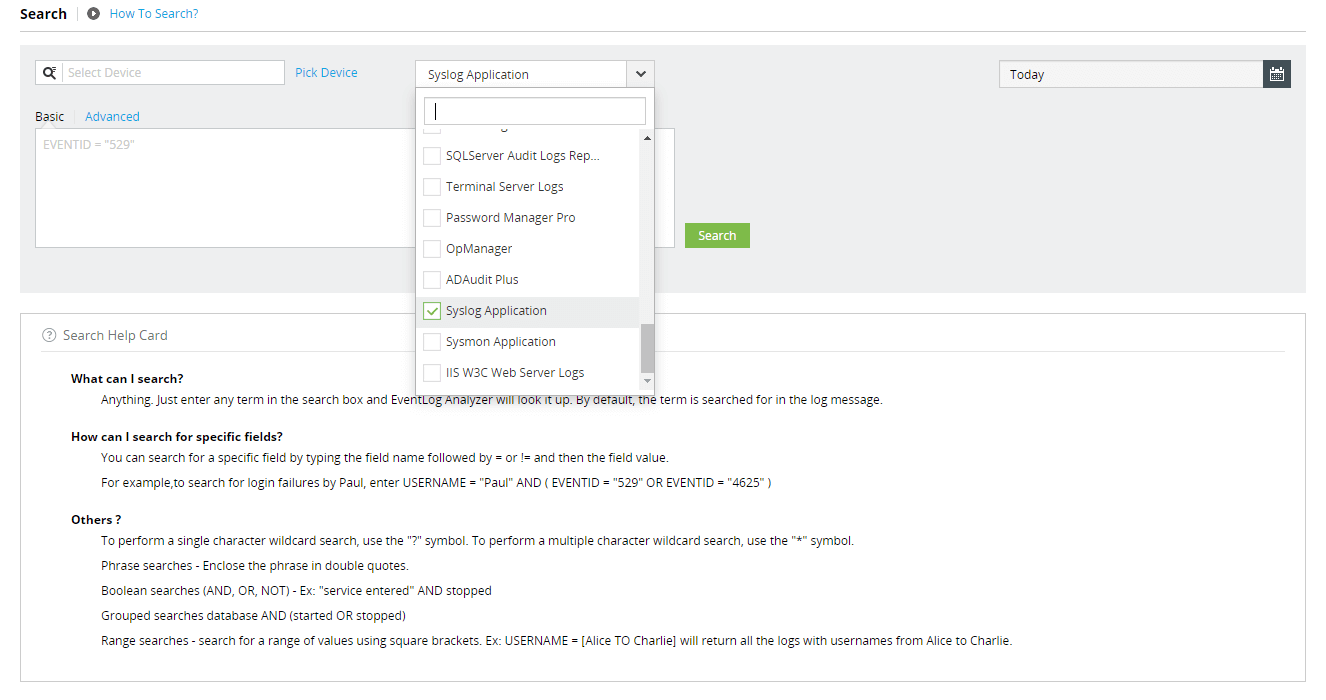
In Search
Navigate to Search. You can search for Syslog Application logs by clicking the drop down box and scrolling down. You will find a specific logtype categorization for Syslog Application.
To gain more insights from Syslog Application logs, you can extract or create custom/new fields from the logs. Click here to know more.