
Configuring the Syslog Service on Sangfor devices
Last updated on:
To configure the Syslog service in your Sangfor NGAF devices, follow the steps below:
- Access the NGAF Web Interface.
- Open a web browser and navigate to the NGAF's management IP address. Login using your administrator credentials.
- Navigate to System > Logging Options
- Check all Syslog checkboxes under Log Location for the type of logs to be forwarded.
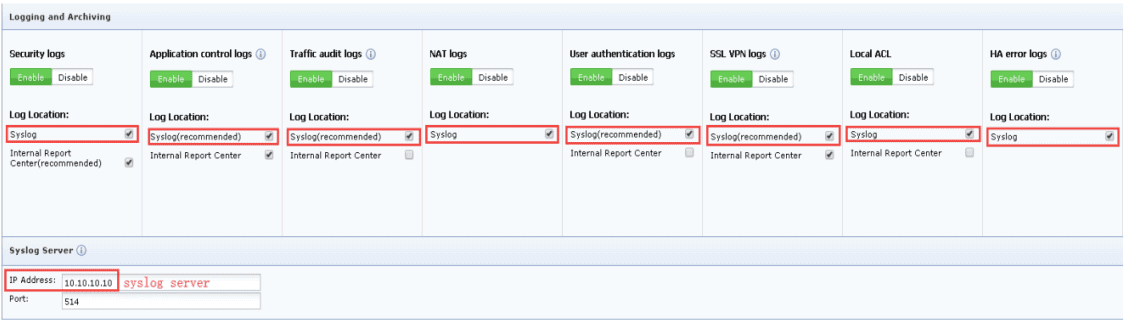
- In Syslog Server tab, enter the IP address of EventLog Analyzer server and port (514), which is EventLog Analyzer's syslog listener port, in the respective boxes.
- Click OK to apply changes.
For NGAF version 6.4 and below:
- Access the NGAF Web Interface.
- Open a web browser and navigate to the NGAF's management IP address. Login using your administrator credentials.
- Navigate to System > Logging Options > Syslog
- Check Enable Syslog checkbox.
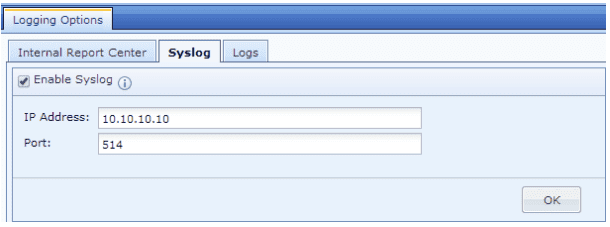
- Enter the IP address of the EventLog Analyzer server and port (514), which is EventLog Analyzer's syslog listener port, in the respective boxes.
- Click OK to apply changes.
- Access the IAM Web Interface.
- Open a web browser and navigate to the IAM's management IP address. Login using your administrator credentials
- Navigate to System > General> Advanced > Syslog Server.
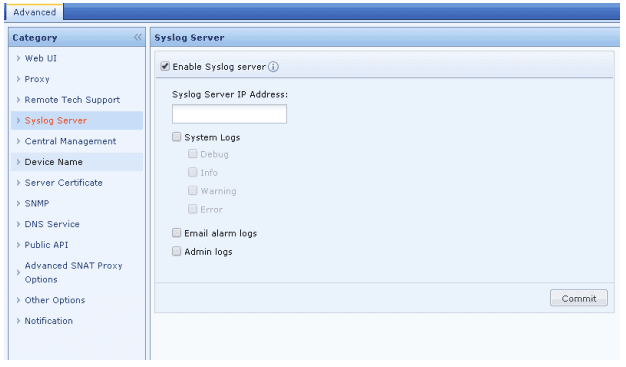
- Check the Enable Syslog Server checkbox.
- Enter the IP address of the EventLog Analyzer server and EventLog Analyzer's syslog Listener port in the given box as ipaddress:port example: 10.10.10.1:514
- Click Commit to apply changes.
To configure the Syslog service in your Sangfor IAM devices, follow the steps below:
Sangfor reports
EventLog Analyzer supports Sangfor Firewall and provides out-of-the-box reports for the following categories of events:
Sangfor Events:
Provides information on all the events associated with Sangfor devices.
Logon Report
These reports provide information on successful logons, logoffs, and logon overview.
Firewall Allowed and Denied Traffic:
Provides insights on traffic based on source, destination, protocol, and also generates a report on traffic trends.
Firewall IDS/IPS Events:
Provides insights on attacks based on source and destination IP address, also provides a report on attack trends.
VPN Reports:
Provides insights on VPN logons, failed logons, logons trend, VPN blocked connections.
System Events:
Provides reports on configuration changes.
Device Severity Reports:
Provides reports on emergency, alerts, critical, error, warning, and notice events.