Adding an IIS server
Last updated on:
Prerequisite for adding an IIS server
When configuring IIS log source in EventLog Analyzer for the first time, administrative privileges are required. (Administrator shares privileges are required eg : Admin$,c$ )
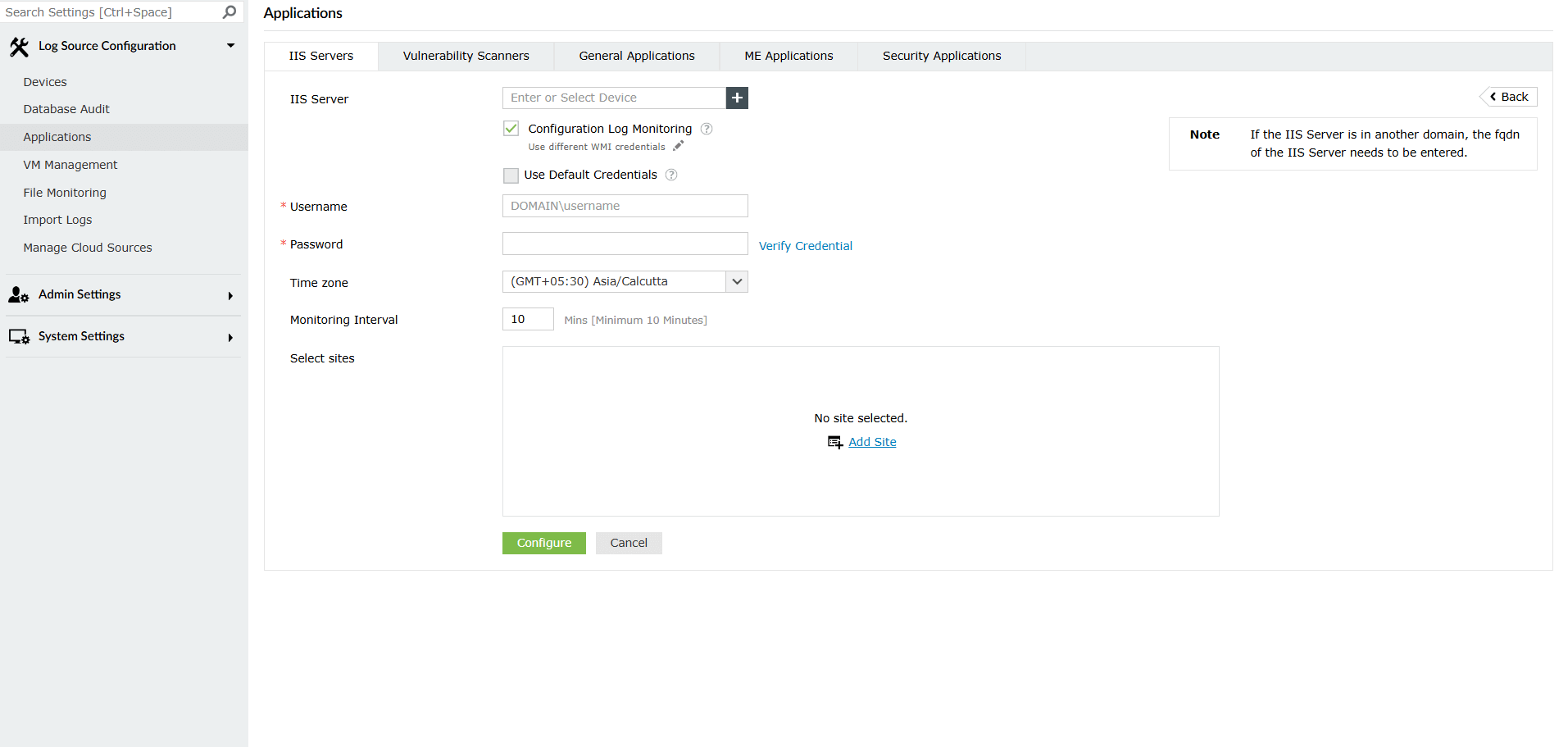
- Navigate to Settings > Log Source Configuration > Applications.
- In the Application Source Management page, click the + Add IIS server button.
- Click the + icon to browse and add IIS servers.
- If you wish to configure log collection, select the check box Configuration Log Monitoring.
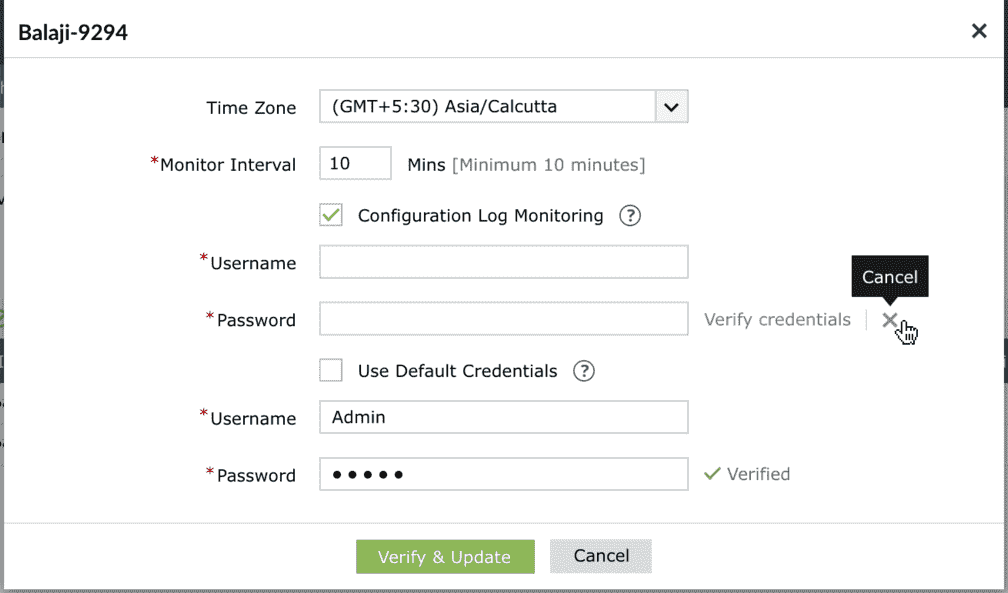
- You can choose to use default credentials, or enter the Username and Password for the IIS Server in the credentials field.
- Select the Time Zone from the dropdown menu and enter the desired
Monitoring Interval.
Note The time-zone selected must be the same as that of the IIS server. Also, EventLog Analyzer uses port 445 (TCP) to read IIS log files using the Server Message Block (SMB) protocol.
- You can use separate credentials for configuring log collection.
- Click on + Add Sites. From the list of discovered sites, choose the
sites you wish to monitor
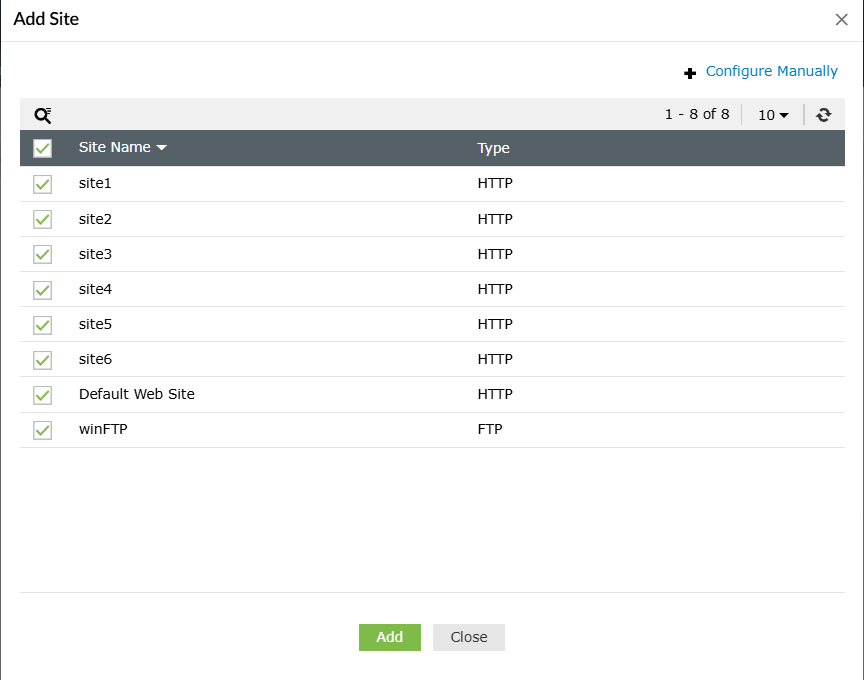
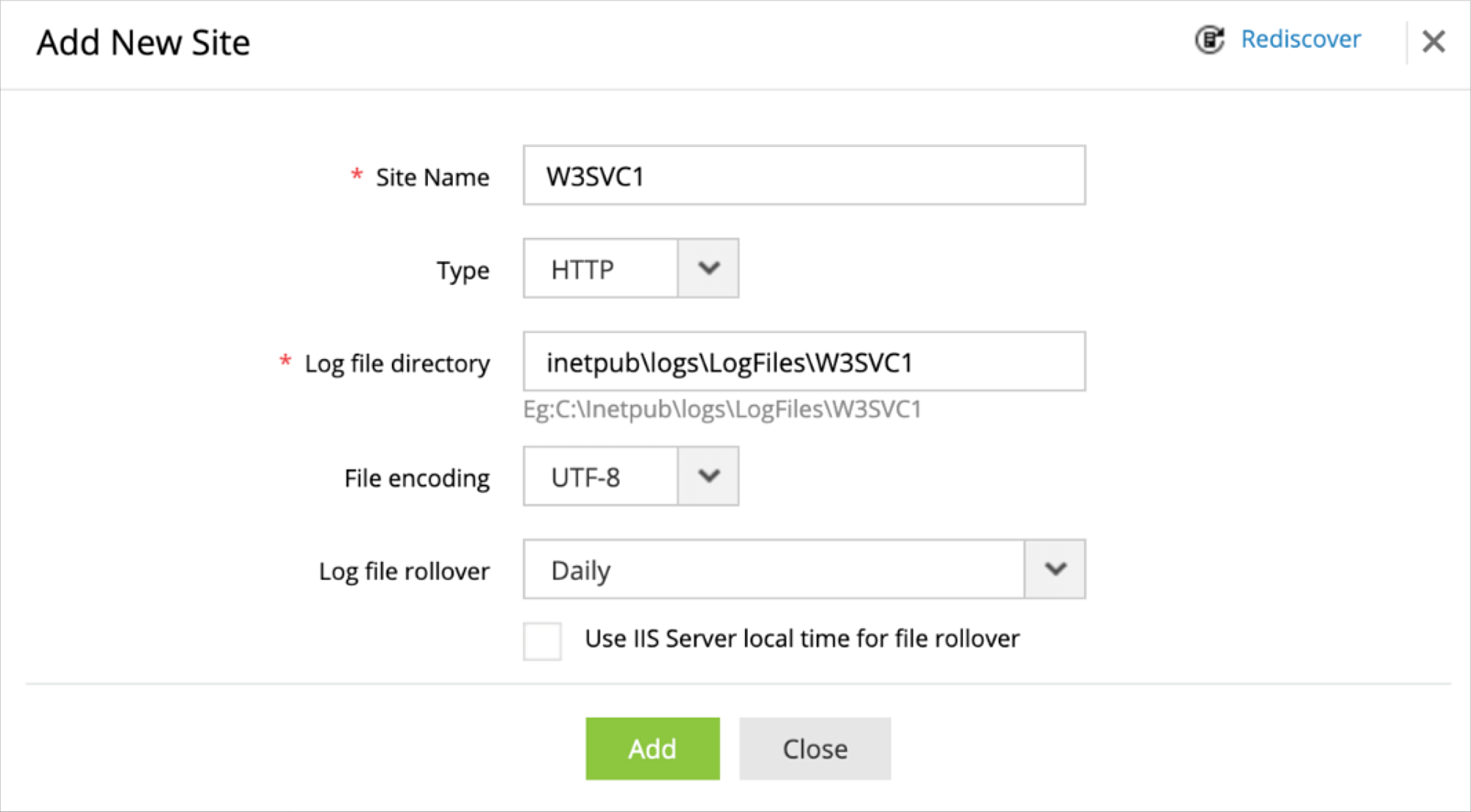
Alternatively, you can manually add a site by entering the site name, protocol, and log file path in the pop-up that appears. Choose the file encoding scheme and schedule the log file rollover.
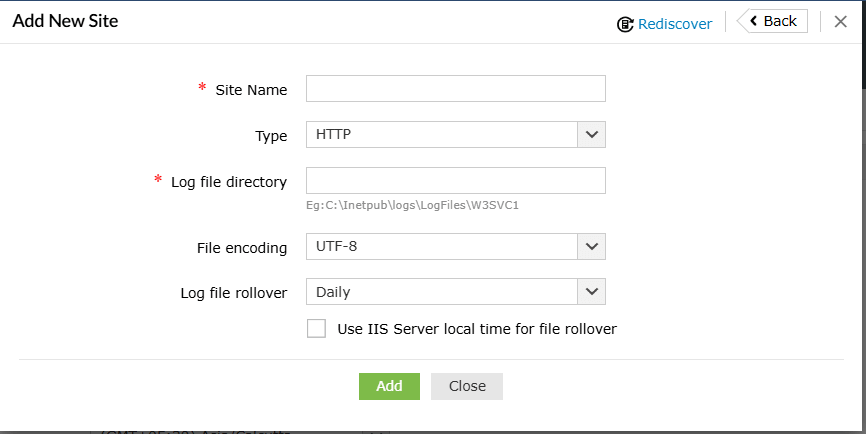
Click Add and then Configure to start monitoring the site.
Configuring an IIS site for non-admin users
Steps to configure the IIS site in EventLog Analyzer for non-admin users:
- In the IIS server, navigate to the C directory (Note: The default location may vary)
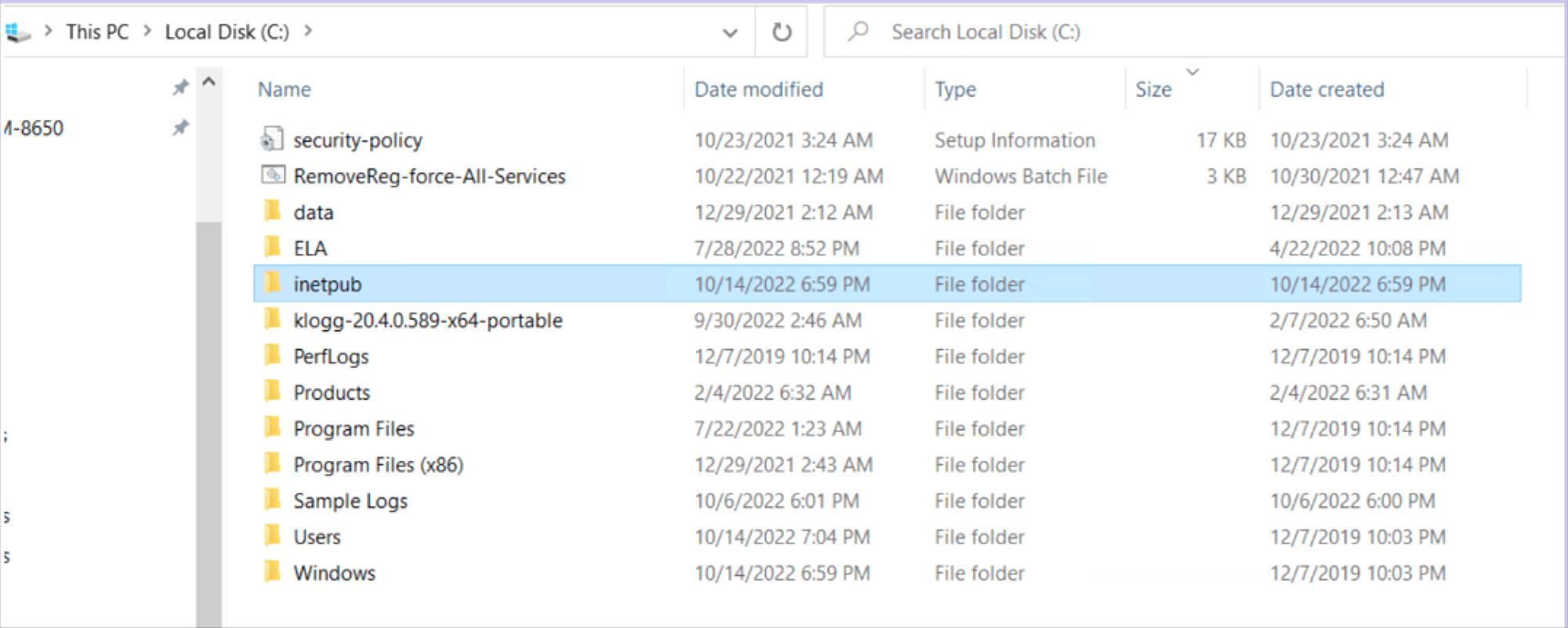
- Right-click inetpub and select Give access to → Specific people.
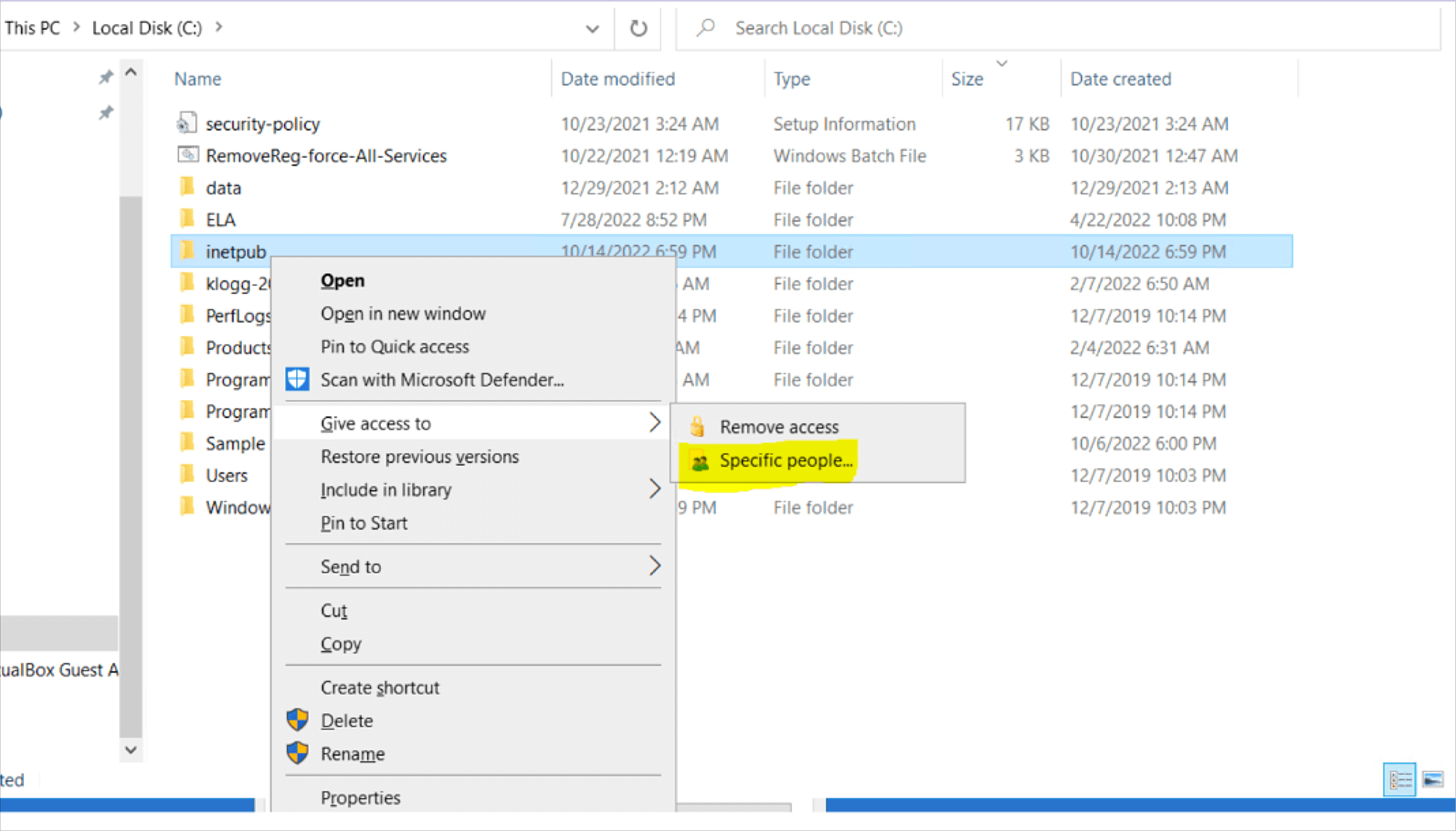
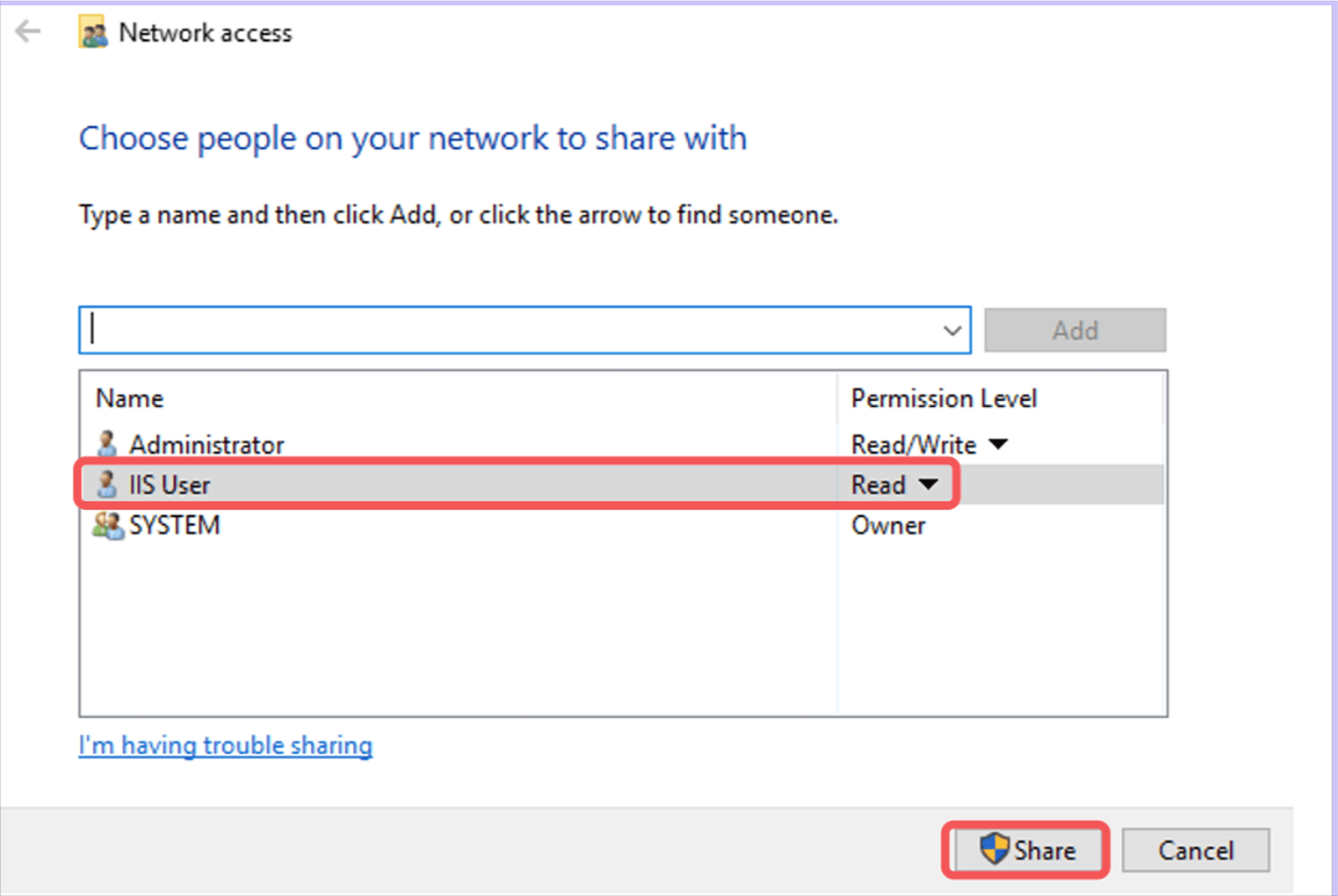
- Add the service account user with read permission level and click on
Share
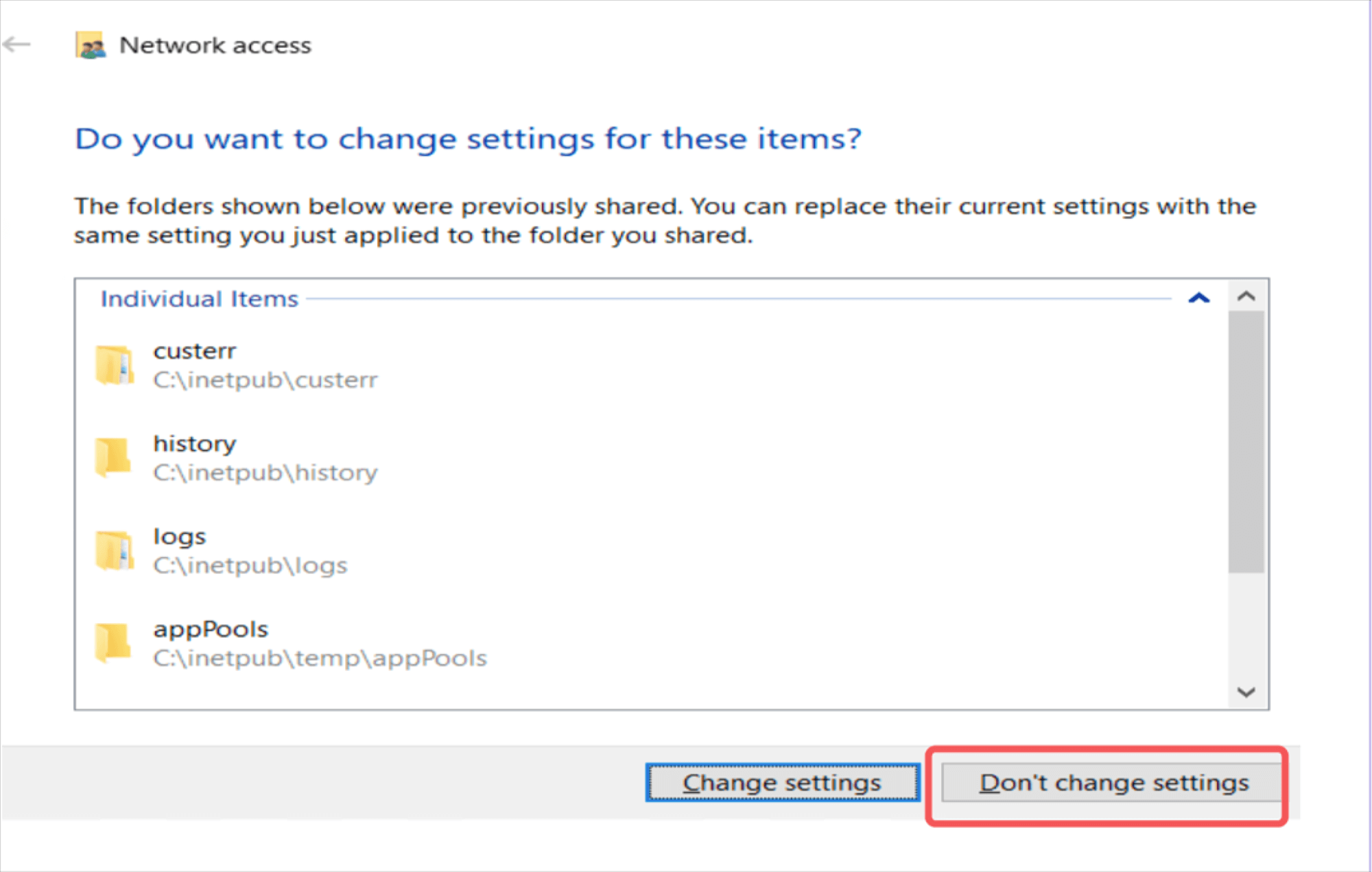
- If the pop-up occurs, click on Don't change settings.
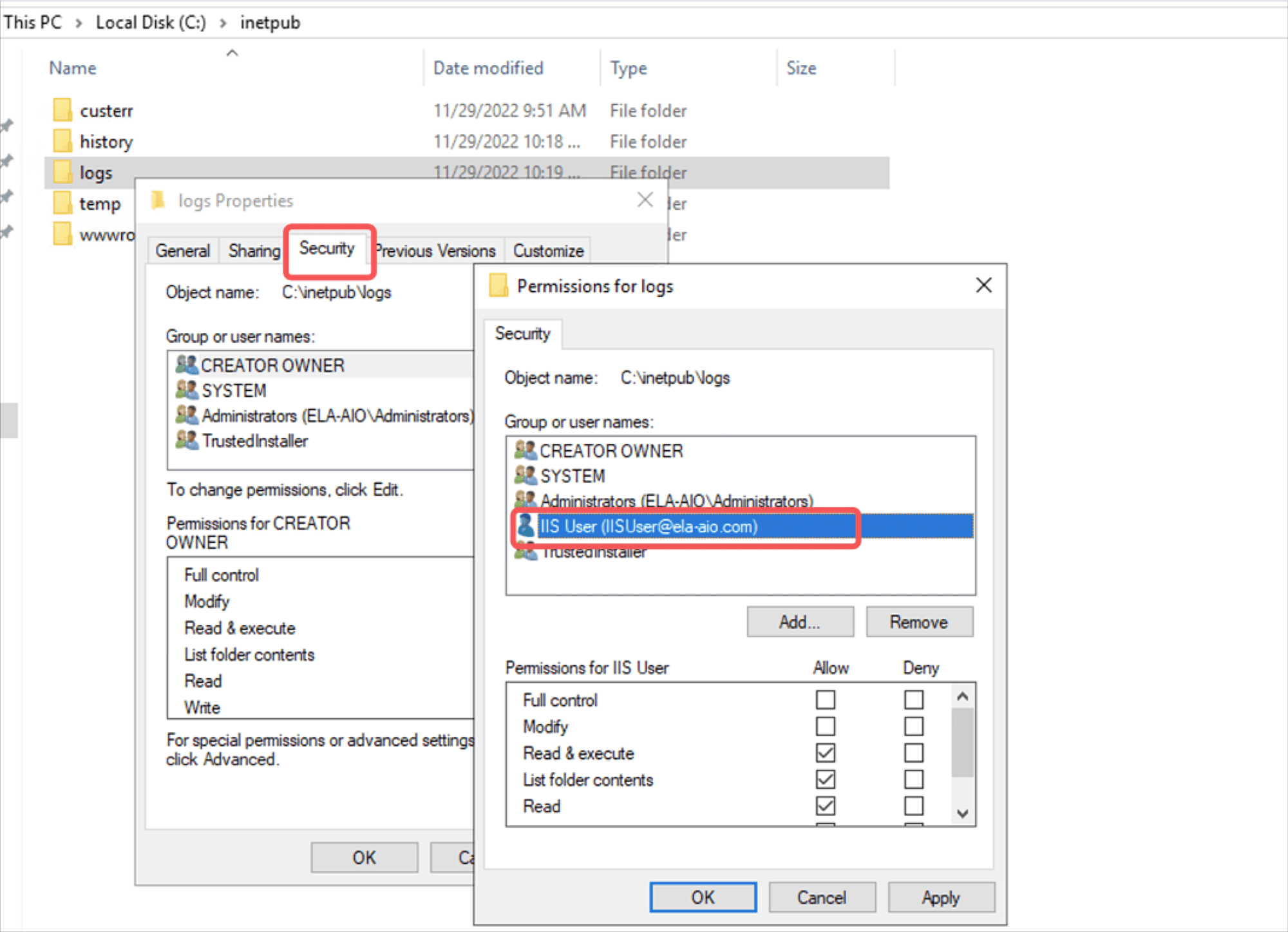
- Navigate to inetpub → logs → properties → Security → add the service account
with read access permission. (Note: The default location may vary)
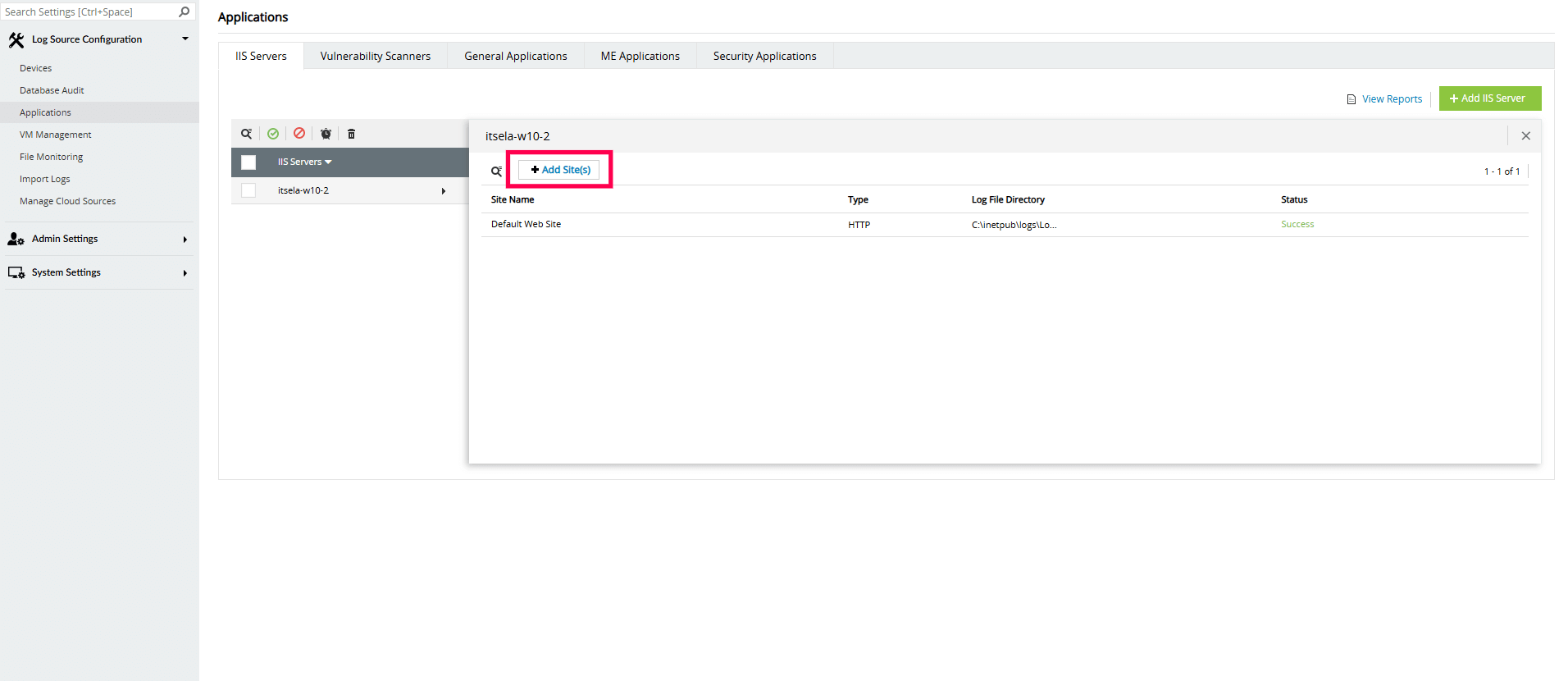
- Navigate to EventLog Analyzer console → Settings → Application → IIS site,
Enter the Username and password of service account (Do not verify the
credentials - when you do it will display verification failed) > Add
site
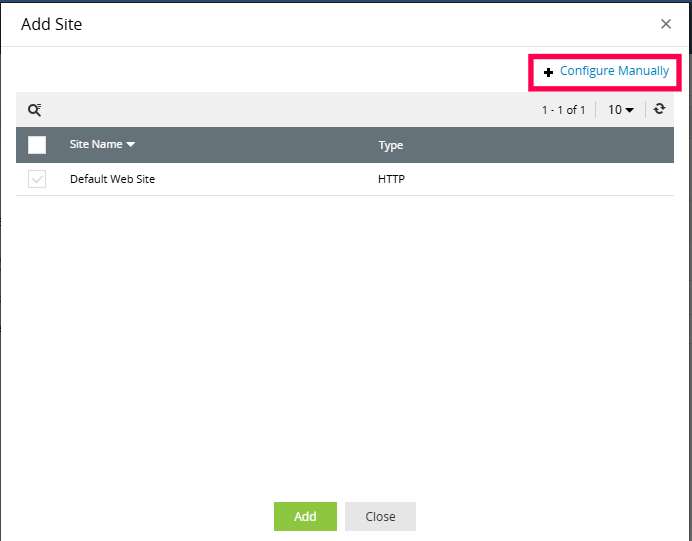
- Enter the IIS site name, path → Add and configure
IIS Configuration Change Logs
Configuration change logs are collected in the IIS similar to how logs are collected for Windows. These logs are collected through the Microsoft-IIS-Configuration/Operational event source file.
Troubleshooting steps:
- Ensure that configuration log has been successfully configured. If not, you must configure it.
- The device that has been configured must be enabled. This can be done in the Manage Devices tab.
- Ensure that the Microsoft-IIS-Configuration/Operational option is enabled in the configure event source file for the device. This option can be enabled in the Manage Devices tab.
- The Configuration log monitoring credential provided must have the WMI access.