
Adding windows device
Last updated on:
Domain
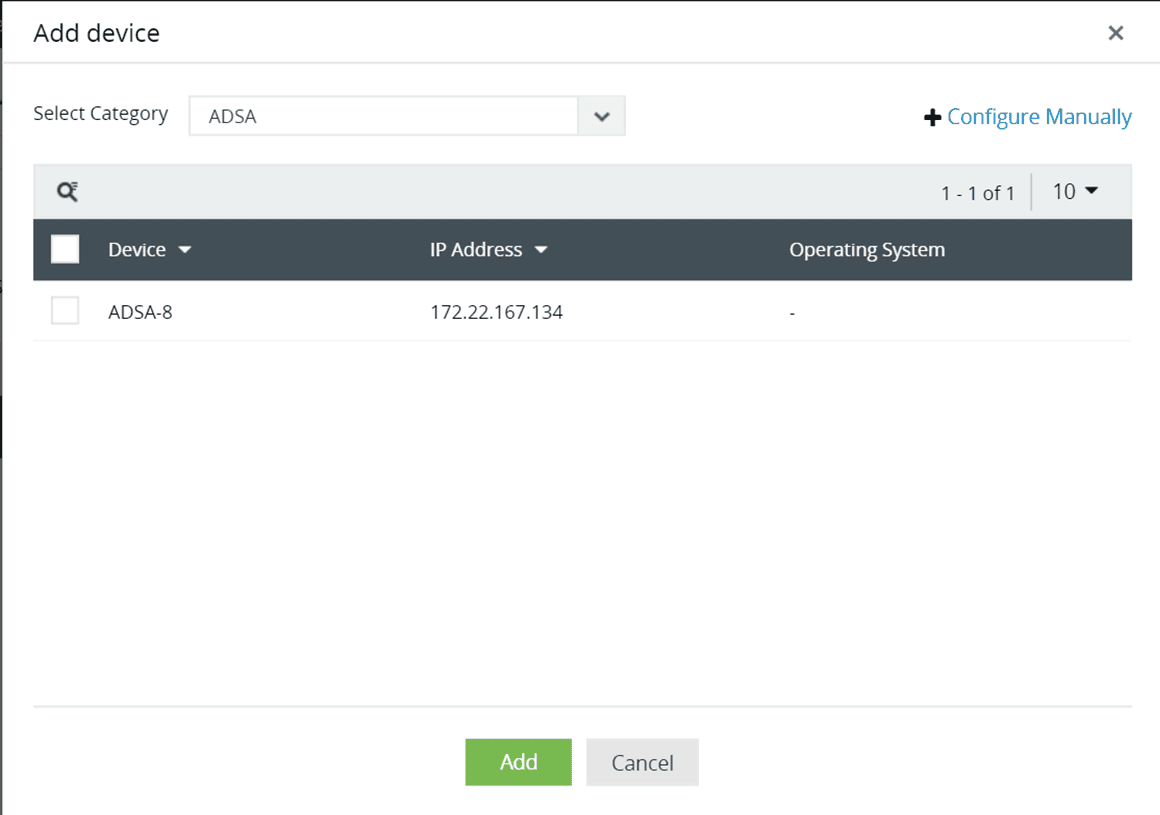
- Click on +Add Device(s) and select the domain from the select category drop down menu. The Windows devices in the selected domain will be automatically discovered and listed.
- Select the device(s) by clicking on the respective checkbox(es). You can easily search for a device using the search box or by filtering based on the OU using OU Filter.
- Click on the Add button to add the device(s) for monitoring.
Workgroup
- Choose the workgroup under the workgroups option in Select Category drop down menu.
- Select the device(s) by clicking on the respective checkbox(es).
- Click on the Add button to add the device(s) for monitoring.
Note You have the option to update, reload and delete a workgroup by clicking on the respective icons next to the Select Domain drop down window. Optionally, you can manually add the device as shown below by clicking on the Configure Manually link.
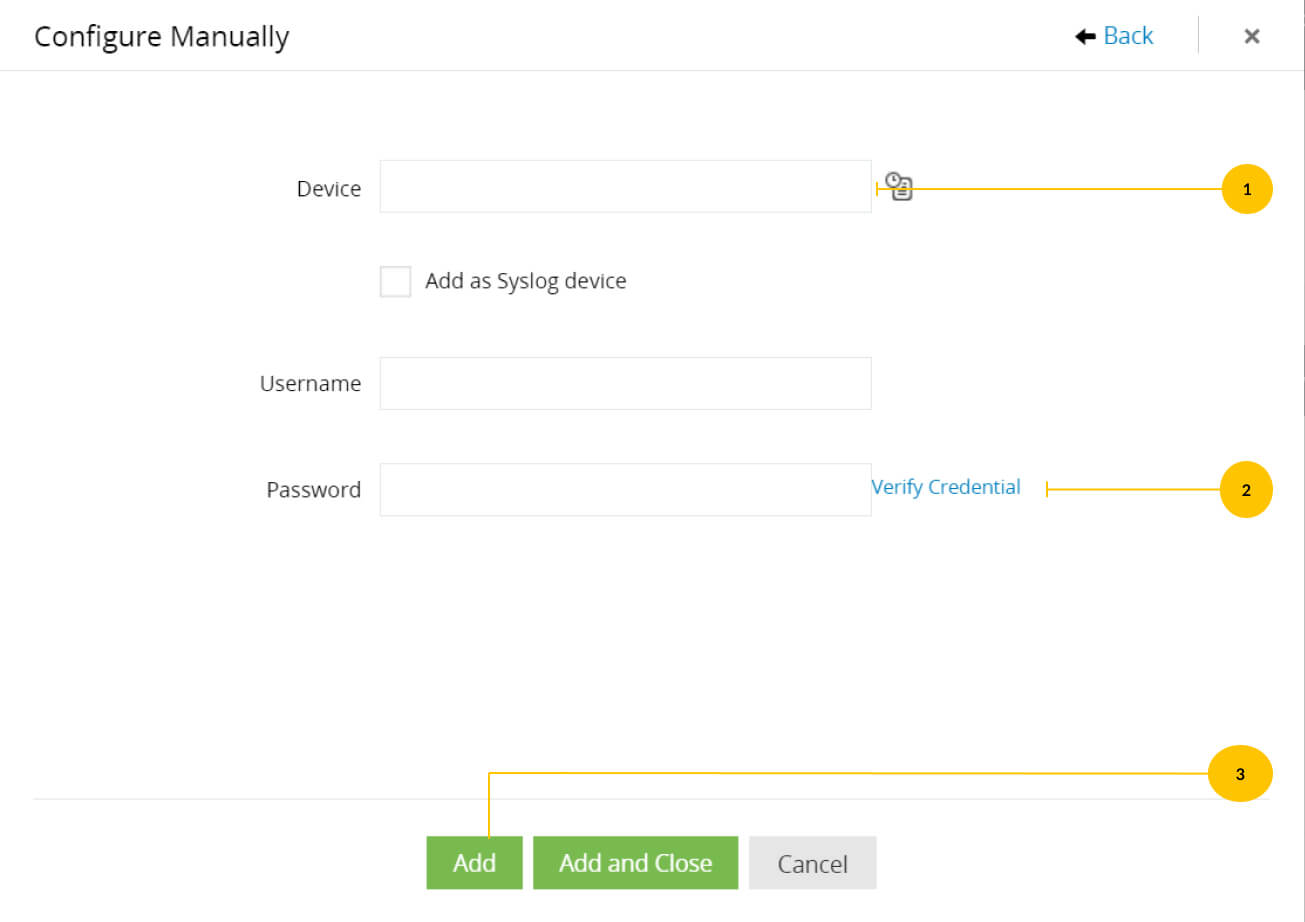
- Enter the Device name or IP address. You can add the device as a Syslog device by clicking the Add as Syslog device checkbox.
- Enter the Username and Password with administrator credentials, and click on Verify Credential.
- Click on the Add button to add the device for monitoring.
How to configure event source files in a device
- Go to Settings > Configuration > Manage Devices > Windows.
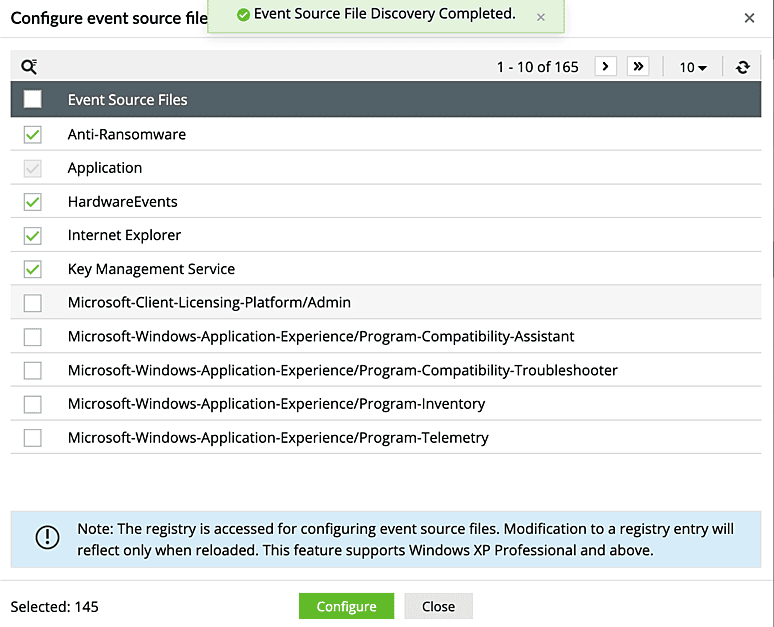
- Click the Configure Event Source Files icon for the device.
- In the Event source files dialog box, select the type(s) of event source files.
- Click Configure.
Note The registry is accessed for configuring event source files. Modifications to a registry entry will reflect only when reloaded. This feature supports Windows XP Pro and above.
Historic log collection
- Navigate to Settings > Configuration > Manage Devices > Add Devices. Select the device, click the icon on the right to enable historic log collection, and click Add.