
Security Hardening
Last updated on:
Security hardening feature helps you manage and configure the security settings of Log360. This tab also displays a security score which is calculated based upon the weightage given to each configuration.
To manage individual settings, click the Configure or Enable option corresponding to that security setting and make the required changes. Once configured, the setting will have a green ticked Configured/Enabled  icon next to it, as shown in the image below.
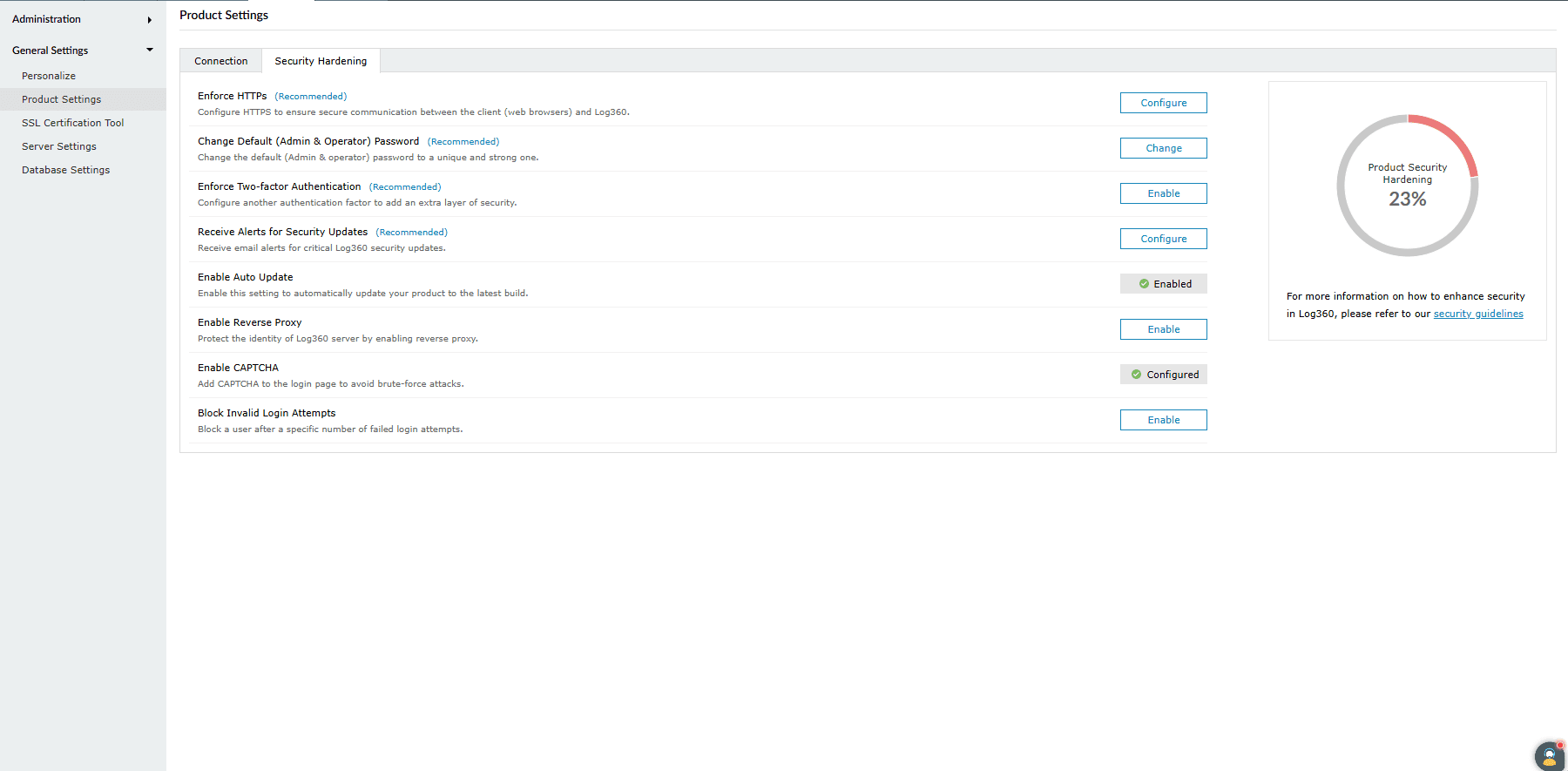
We recommend you to configure all the settings and ensure your product security score is 100%. The security settings alert will be displayed in the notification center (  icon on the top-right corner) until a security score of 100% is reached.
List of security settings:
- Enforce HTTPS*
Configuring HTTPS helps you secure connection between the web browser and the Log360 server. See how to enable HTTPS.
- Change Default (Admin & Operator) Password*
It is recommended to use a strong password to access Log360 dashboard. Use this setting to change both the admin and operator password.
- Enforce Two-factor Authentication*
Two-factor authentication adds an additional layer of security. See how to configure two-factor authentication.
- Receive Alerts for Security Updates*
Configuring this setting allows you to receive email notifications on the release of important security patches. This ensures that you are well-informed about important security updates for the product, enabling you to update it as soon as possible.
- Enable Auto Update
Enable this setting to automatically update your product to the latest build. Click on Configure to navigate to the auto-update settings tab. See how to enable auto-update.
- Enable Reverse Proxy
Enabling reverse proxy helps protect the identity of Log360 server. Click on Configure to navigate to the reverse proxy settings tab. See how to enable reverse proxy settings.
- Enable CAPTCHA
This setting adds captcha to the login page to avoid brute-force attacks. See how to add captcha.
- Block Invalid Login Attempts
This setting allows you to block a specific user who fails to login after a specific number of attempts. See how to block invalid login attempts.