
Re-branding in Log360
Last updated on:
In this page
Overview
Log360 allows you to customize the product interface by replacing default logos, images, and links with your own branding. This feature is particularly useful for Managed Security Service Providers (MSSPs) who want to deliver a personalized experience for their clients.
You can modify the logos and images used in the product interface and reports, as well as the strings and links displayed on login pages and other sections of the product.
This page explains how you can rebrand the Log360 client to reflect your organization’s branding.
Steps to rebrand the Log360 client
- In your account, navigate to the Settings tab.
- Under System Settings, click Rebranding.
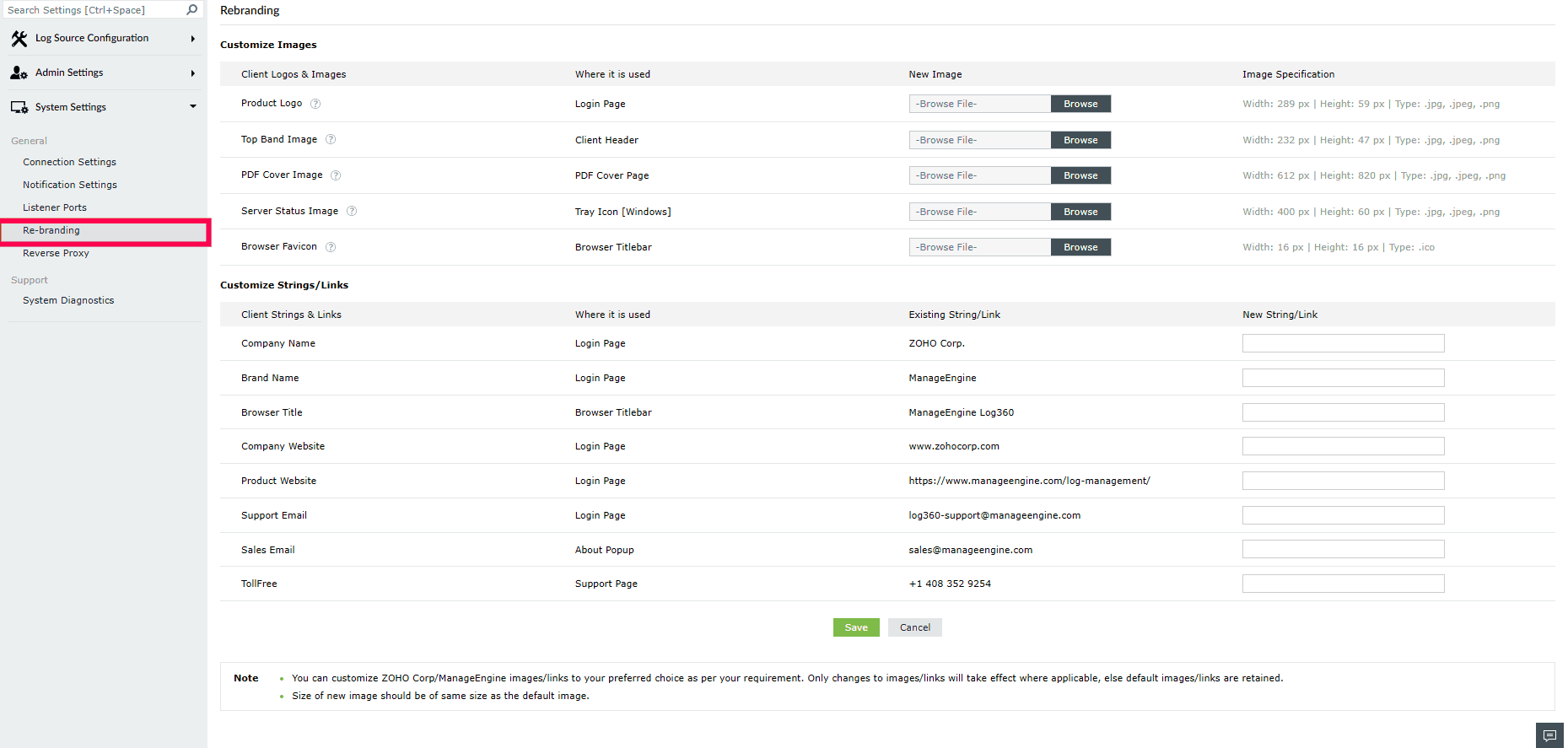
Figure 1: Navigating to Re-branding - Under the Customize Images section, you can replace default product images with your organization’s branding.
- To update an image, click Browse next to the image you want to replace.
- Select the new image from your system.
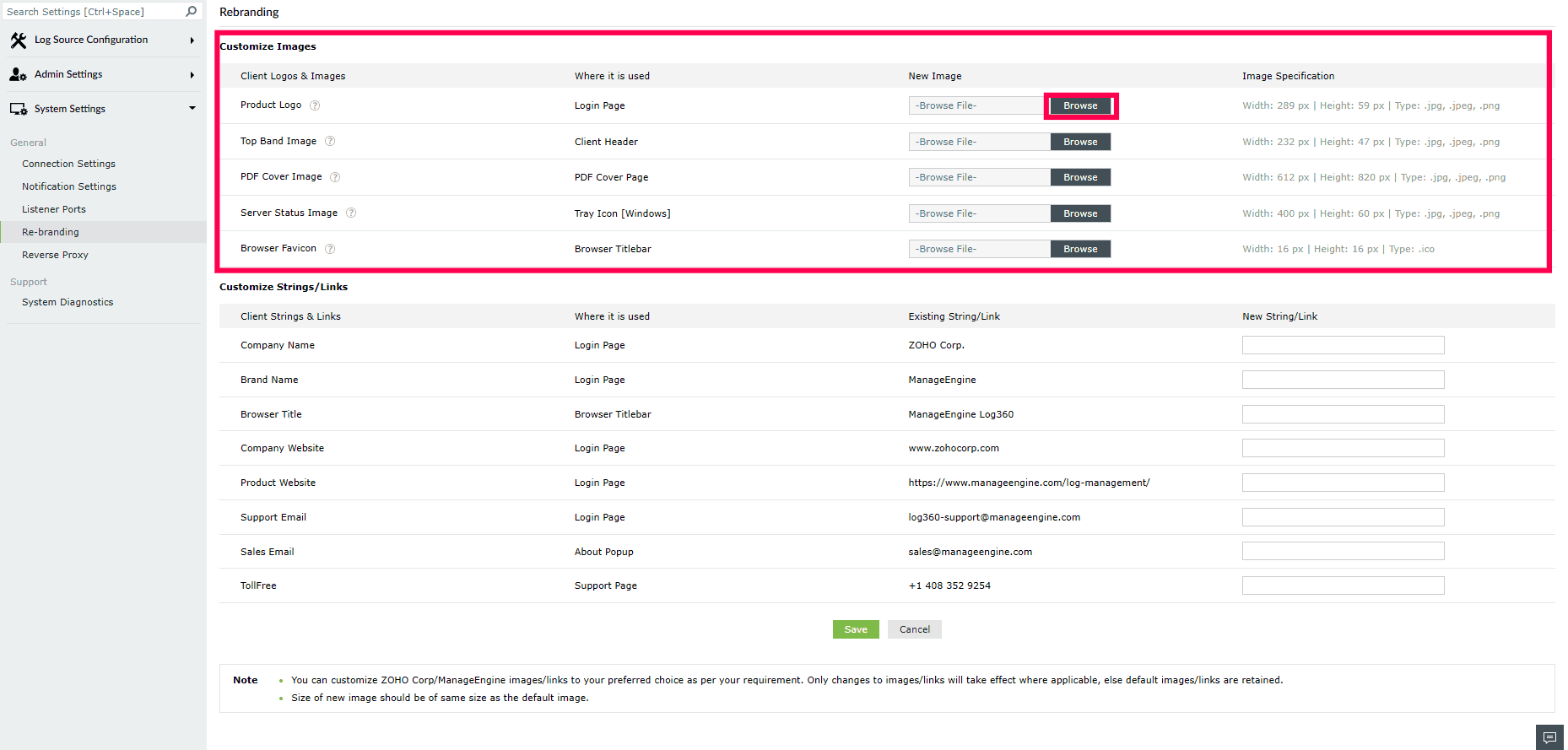
Figure 2: Customizing images - Ensure the image meets the specified dimensions and file type requirements displayed in the Image Specification column.
- Under the Customize Strings/Links section, you can replace the default text and links with your organization’s details.
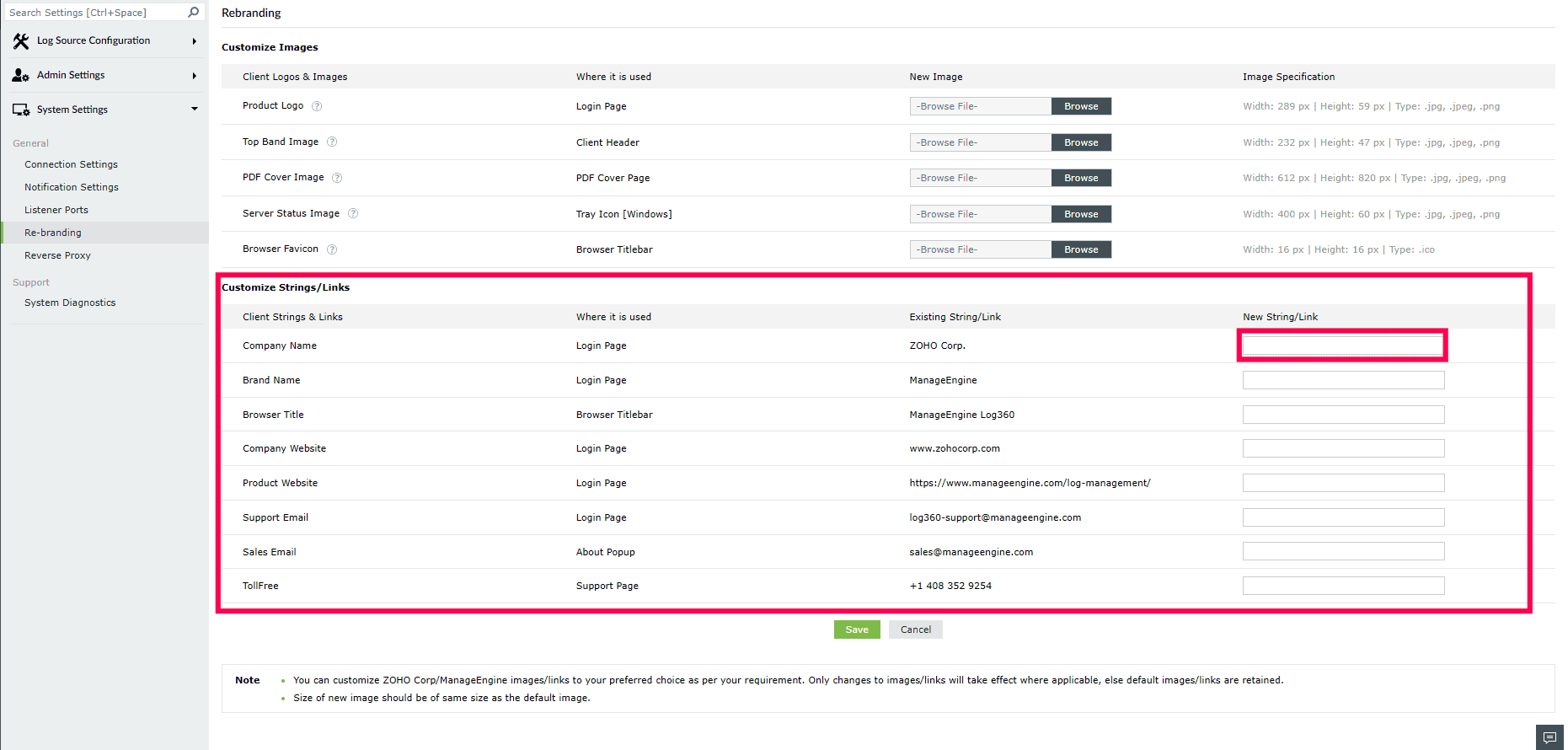
Figure 3: Customizing strings/ links - To update, locate the string or link you want to customize.
- Enter the new string or link in the corresponding field.
- Click Update to update the customized images/logos and strings/texts.
NOTE
You can customize all ZohoCorp/ManageEngine images and links as per your requirement
- Customization takes effect only for the updated images or links. Unchanged fields will retain their default values.
- The size of the new image should match the size of the default image.
- Only the following image file formats are supported: .jpg, .jpeg, .png,
Read also
This page explained about rebranding the Log360 client.