
Single Sign-On
Last updated on:
In this page
You can set up single sign-on - through SAML or NTLM authentication.
SAML Authentication
You can set up single sign-on for technicians and admins using AD authentication to access the product through any of these popular identity providers:
Configuring single sign-on using Okta
Step 1: Configure the product in Okta
- Log in to the Okta portal as Admin.
- Under the Application tab, click Applications and select Create App Integration.
- Choose Sign on method as SAML 2.0 and click Next.
- In General Settings, enter the SAML application name, say EventLog Analyzer, in the App name field. Upload a logo for the application if needed, then click Next.
- In the Configure SAML section, enter the values for:
- Single sign-on URL
- Audience URI
Note The values for these two fields can be obtained from EventLog Analyzer→ Settings→ Admin Settings → General → Logon Settings → Single Sign-On → SAML Authentication. Copy the ACS/Recipient URL value and paste it in the single sign-on URL field. Copy the Entity ID value and paste it in the Audience URL field.
- Select Application username that matches with userPrincipleName or samAccountName or Username of Active Directory user.
- If you want to encrypt SAML Assertion, Click Show Advanced Settings and Select Encrypted in Assertion Encryption. Leave other encryption options as it is.
- Upload the Encryption Certificate, CA-signed or Self-Signed (Downloaded from Settings→Admin Settings → General → Logon Settings→ Single Sign-On → SAML Authentication → Advanced Settings → Encryption Configuration → Download Self-Signed Certificate).
Note If you want to configure multiple ACS url , add the Access urls in Other Requestable SSO URLs
For example, if you have another access url: eventloganalyzer-server-1:8445
Navigate to Settings → Admin Settings → General → Logon Settings → Single Sign-On → SAML Authentication
ACS url shown in configuration page:
https://eventloganalyzer.com:8445/samlLogin/XXXXXXXXXXXXXXXXXXXXXXXXX
you need to enter as https://eventloganalyzer-server-1:8445/samlLogin/XXXXXXXXXXXXXXXXXXXXXXXX
- Leave the other settings as they are.
- Click Finish.
- Once the configuration is complete, navigate to the Sign on tab to download the Identity Provider metadata file.
Step 2: Configuring Okta in the product
- Log in to EventLog Analyzer as an administrator.
- Navigate to Settings→ Admin Settings → General → Logon Settings → Single Sign-On → SAML Authentication.
- Mark the checkbox against Enable Single Sign-on with Active Directory.
- Select Okta from the Identity Provider (IdP) drop-down.
- For SAML Configuration Mode option, select Upload Metadata File.
- Click Browse and upload the metadata file obtained in Step 11 (1).
- In Advanced Settings, Select SAML response as Signed and SAML Assertion as Signed.
- Select Signature Algorithm as SHA256.
- In Encryption Configuration, Configure Assertion Encryption if Assertion is encrypted.
- Click Save to complete the configuration.
Configuring single sign-on - using OneLogin
Step 1: Configure the product in OneLogin
- Log in to the OneLogin portal.
- Click Administration and Select Applications → Applications..
- Click Apps tab and search for SAML Test Connector (IdP) and select it.
- Enter the Display Name and upload the icon for the application. Click Save.
- Under Configuration tab, enter the values for ACS (Consumer) URL Validator and ACS (Consumer) URL.
Note The values for these two fields can be obtained from EventLog Analyzer → Settings → Admin Settings → General → Logon Settings → Single Sign-On → SAML Authentication → Identity Provider (IdP) → OneLogin. Copy the ACS/Recipient URL value and paste it in these two fields.
If you have multiple ACS url you may need to enter the regex for multiple ACS url in the ACS (Consumer) URL Validator . For example, if you have another access url: eventloganalyzer-server-1:8445
ACS url shown in configuration page:
https://eventloganalyzer.com:8445/samlLogin/XXXXXXXXXXXXXXXXXXXXXXX
you need to enter as ^(https://eventloganalyzer.com:8445)|(https://eventloganalyzer-server-1:8445)/samlLogin/XXXXXXXXXXXXXXXXXXXXXXXX
- Select the SAML nameID format that matches with userPrincipleName or SamAccountName or Username of Active Directory User.
- Click Save to complete the configuration in OneLogin.
- Click More Actions in the top panel and click SAML Metadata to download the metadata file.
Step 2: Configure OneLogin in the product
- Log in to EventLog Analyzer as an administrator.
- Navigate to Settings→ Admin Settings → General → Logon Settings → Single Sign-On.
- Mark the checkbox against Enable Single Sign-On.
- Select OneLogin from the Identity Provider (IdP) drop-down.
- For SAML Configuration Mode option, select Upload Metadata File.
- Click Browse and upload the metadata file obtained in Step 8 (1).
- Click Advanced Settings
- Select SAML Response as Unsigned.
- Select SAML Assertion as Signed.
- Select Signature Algorithm which you have configured in OneLogin IDP.
- Select Assertion Encryption unencrypted.
- Click Save to complete the configuration.
Configuring single sign-on using Ping Identity
Step 1: Configure the product Ping Identity
- Logon to the Ping Identity portal.
- Click Applications -> My Applications -> Add Application -> Application Type->SAML Application.
- Enter the application name, description, and logo, then click Configure.
- To auto-populate the configuration details of EventLog Analyzer, you can upload the metadata file which can be downloaded by navigating to Settings→ Admin Settings → General → Logon Settings → Single Sign-On → SAML Authentication -> Ping Identity -> Download SP Metadata.
- The alternative option is to enter the ACS URL and entity ID which can be obtained by navigating to Settings→ Admin Settings → General → Logon Settings → Single Sign-On → SAML Authentication -> Ping Identity -> ACS/Recipient URL.
- Click Save.
- Go to configuration page, if you want to configure multiple ACS url , click Add below ACS URLs and enter the Access url.
For example, if you have another access url: eventloganalyzer-server-1:8445
Navigate to Settings → Admin Settings → General → Logon Settings → Single Sign-On → SAML Authentication.
ACS url shown in configuration page:
https://eventloganalyzer.com:8445/samlLogin/XXXXXXXXXXXXXXXXXXXXXXX
you need to enter as https://eventloganalyzer-server-1:8445/samlLogin/XXXXXXXXXXXXXXXXXXXXXXXX
- If you want to encrypt SAML Assertion, Check Encryption Enable.
- Upload the Encryption Certificate, CA-signed or Self-Signed (Downloaded from Settings→Admin Settings → General → Logon Settings→ Single Sign-On → SAML Authentication → Advanced Settings → Encryption Configuration → Download Self-Signed Certificate).
- If you want to sign SAML request , check Enable in Enforce Signed Authentication Request.
- In Overview, Click Attributes, Select saml_subject that matches with userPrincipleName or SamAccountName or Username of Active Directory User.
- Once the configuration is complete, the metadata file can be downloaded.
Step 2: Configure Ping Identity in the product
- Logon to EventLog Analyzer.
- Navigate to Settings→ Admin Settings → General → Logon Settings → Single Sign-On.
- Select Ping Identity from the drop-down list.
- Upload the metadata file obtained in Step 4 (1).
- Click Save to complete the configuration.
Configuring single sign-on using AD FS
To configure AD FS for identity verification, you need the following components:
- You need to install the AD FS server. The detailed steps for installing and configuring AD FS can be found in this Microsoft article.
- An SSL certificate to sign your AD FS login page and the fingerprint for that certificate.
AD FS Configuration steps:
Relying Party Trust and Claim Rules
During configuration, you will need to add a Relying Party Trust and create claim rules. A claim is an attribute that is used for identifying an entity to establish access. For example, the Active Directory UserPrincipalName.A Relying Party Trust is created to establish the connection between two applications for authentication purposes by verifying claims. In this case, AD FS will trust the relying party (EventLog Analyzer) and authenticate users based on the claims generated. Claims are generated from claim rules by applying certain conditions on them.
Step 1: Adding a Relying Party Trust
- The connection between AD FS and EventLog Analyzer is created using a Relying Party Trust (RPT). Select the Relying Party Trusts folder from AD FS.
- From the Actions sidebar, select Add Relying Party Trust. The Add Relying Party Trust Wizard opens.
- Click Start.
- In the Select Data Source page, click on the Enter Data About the Party Manually option and click Next.
- In the Specify Display Name page, enter a display name of your choice and also add additional notes if required. Click Next.
- On the Configure Certificate screen, If you want to encrypt SAML Assertion, Upload the Encryption Certificate, CA-signed or Self-Signed (Downloaded from Settings → Admin Settings → General → Logon Settings → Single Sign-On → SAML Authentication → Advanced Settings → Encryption Configuration → Download Self-Signed Certificate).
- On the Configure URL screen, check the box labeled Enable Support for the SAML 2.0 WebSSO protocol. The Relying party SAML 2.0 SSO service URL will be the ACS URL of your EventLog Analyzer server. Note that there is no trailing slash at the end of the URL. For example: https://eventloganalyzer.com/samlLogin/XXXXXXXXXXXXXXXXXXXXXXXX
Note
- ACS URL/Recipient URL: Log into EventLog Analyzer web console with admin credentials.
- Navigate to Settings → Admin Settings → General → Logon Settings → Single Sign-On → SAML authentication → ACS URL/Recipient URL. Copy the ACS URL/Recipient URL.
- In the next page, for the Relying party trust identifiers option, add the Issuer URL/Entity ID.
- In the Choose Issuance Authorization Rules page, you can choose to either Permit all users to access this relying party or Deny users to access this relying party. Click Next.
- The next two pages will display an overview of the settings you have configured. In the Finish page, click Close to exit the wizard. If you choose the option Configure claims issuance policy for this application when the wizard closes, the Claim Rules Editor will open automatically.
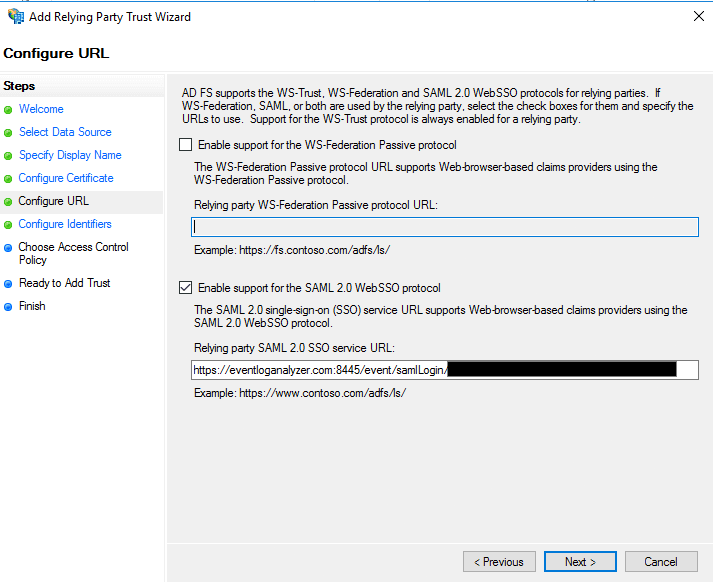
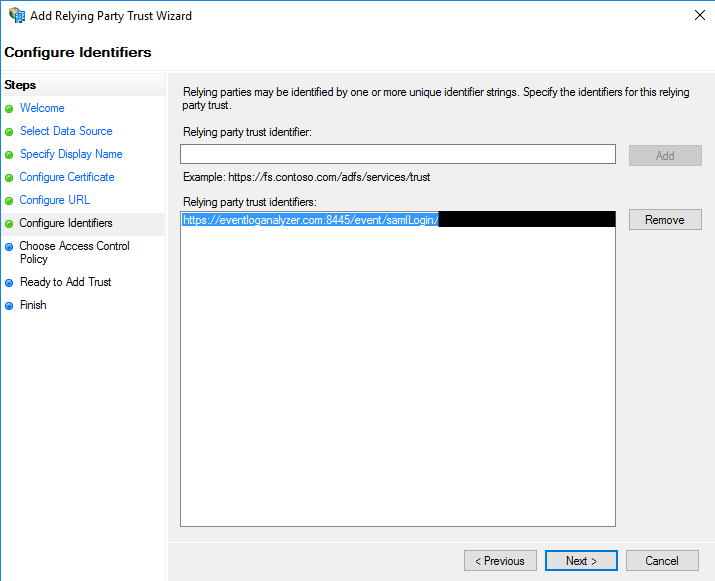
Step 2: Creating a Claim Rule
Once you have configured the Relying Party Trust, you can create the claim rules using the Claim Rules Editor, which opens by default when you finish creating the trust.
- To create a new rule, click on Add Rule.
- From the list of claim rule templates available, select Send LDAP Attributes as Claims. Click Next.
- In the next page, provide a Claim rule name and select Active Directory as the attribute store.
- From the LDAP Attribute column, select the Attribute that matches with User Principle Name or SamAccountName or Username of Active Directory User.
- Select Name ID in Outgoing Claim Type.
- After completing the AD FS configuration, download the metadata file by clicking on the Identity Provider metadata link. For example:
https://adfsserver.domain.com/FederationMetadata/2007-06/FederationMetadata.xml. You will need this file while configuring SAML authentication in EventLog Analyzer. So, save this file and keep it safe.
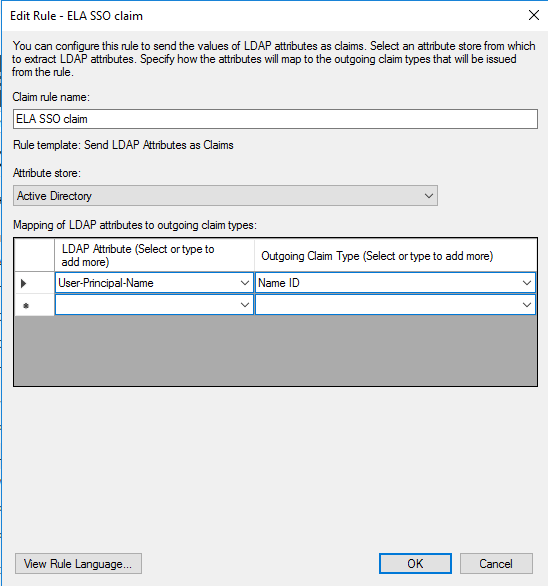
If you want to configure multiple ACS url, navigate to the Relying Party Trusts and find the rule you've created. Right-click on the rule and click Properties.
In the window which opens, find the Endpoints tab and click the Add SAML button.
Select Binding as POST.
In the Trusted URL box, paste the Access url
For example, if you have another access url: eventloganalyzer-server-1:8445
Navigate to Settings → Admin Settings → General → Logon Settings → Single Sign-On → SAML Authentication.
ACS url shown in configuration page:
https://eventloganalyzer.com:8445/samlLogin/XXXXXXXXXXXXXXXXXXXXXXXX
You need to enter as https://eventloganalyzer-server-1:8445/samlLogin/XXXXXXXXXXXXXXXXXXXXXXXX
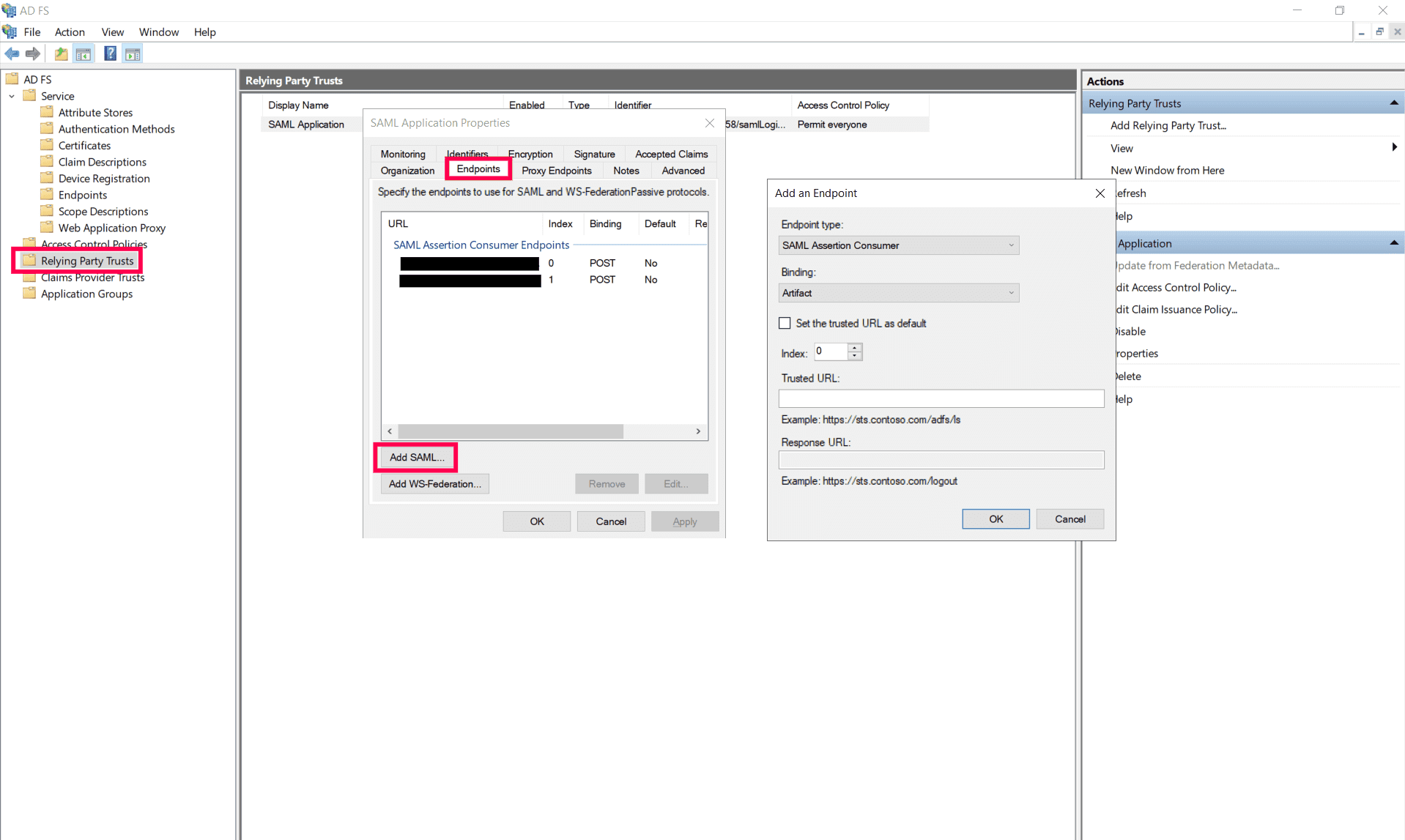
For Windows Server 2016:
- Open PowerShell with administrative properties in your ADFS server.
- Run the following command to enable IdP-initiated SSO:
Set-ADFSProperties -EnableIdPInitiatedSignonPage $true
- Run the following code to enable RelayState:
Set-ADFSProperties -EnableRelayStateForIDPInitiatedSignon $true
- Restart the ADFS server.
Step 3: Configuring AD FS in the product
- Log in to EventLog Analyzer as an Administrator.
- Navigate to Settings→ Admin Settings → General → Logon Settings → Single Sign-On.
- Mark the checkbox against Enable Single Sign-On.
- Select the SAML Authentication radio button.
- Select AD FS from the Identity Provider (IdP) drop-down.
- Click Browse and upload the metadata file you downloaded from Step 6 (2).
- In Advanced Settings, Select SAML response as Unsigned and SAML Assertion as Signed.
- Select Signature Algorithm as SHA256.
- In Encryption Configuration, Configure Assertion Encryption if Assertion is encrypted.
- Click Save.
Accessing the product through AD FS
- To access EventLog Analyzer, use the URL provided below:
https://adfsserver.domain.com/idpinitiatedsignon.aspx
- ADFSserver is the server in which the ADFS is deployed.
- Select EventLog Analyzer app name from the list of applications.
Configuring single sign-on using custom identity provider
You can configure any custom identity provider of your choice to enable single sign-on to access EventLog Analyzer. Follow the steps outlined in the previous sections for supported identity providers to set up EventLog Analyzer within your chosen identity provider.
Configure custom identity provider in the product
- Log in to EventLog Analyzer as an Administrator.
- Navigate to Admin ->Administration -> Logon Settings -> Single Sign-On.
- Mark the checkbox against Enable Single Sign-On.
- Select the SAML Authentication radio button.
- Select Custom Identity Provider from the drop down list.
- Upload the metadata file of the custom identity provider.
- Click Save to complete the configuration.
NTML Authentication
To enable NTLM-based single sign-on, follow the steps listed below:
To enable single sign-on for multiple components and domains, follow the steps listed below:
- Navigate to Settings → Admin Settings → General → Logon Settings → SSO Settings.
- Mark the check-box Enable Single-Sign On with Active Directory.
- Select the components that you wish to enable single sign-on from the Select Components drop-down box.
- Select the domains that you wish to enable single-sign on from the Select Domains drop-down box.
- Click Save Settings.
- Click Start → run → services.msc.
- Locate the service name Manageengine EventLogAnalyzer.
- Right click the service and select Properties → Log On.
- Select This account and provide the credentials.
Note To enable NTLMv2 SSO for ManageEngine EventlogAnalyzer, you will have to download the Jespa JAR file and add it to the product's lib folder. For more information, click here. If you have already enabled NTLMv2 SSO, you can continue using the feature and no further actions are needed.
Note The component will only be displayed if the component supports single sign-on.
To modify existing single sign-on settings,
- Navigate to Settings → Admin Settings → General → Logon Settings → SSO Settings.
- Click the
 icon in the status column against the domain that you wish to modify the settings for.
 - Enter the Computer Name and Password in the respective fields. Click on the Create this computer account in the domain check-box to create a computer with the entered credentials if it is not already present in the domain.
- Click Advanced. If the DNS Servers and DNS Site are not filled automatically after entering the computer name and password, enter them manually.
- Click Save.
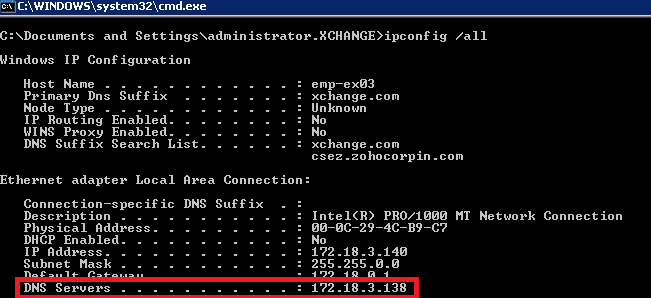
To identify the DNS Server IP address:
Open Command Prompt from a machine belonging to the domain that you have selected
Type ipconfig /all and press enter
Use the first IP address displayed under DNS Server
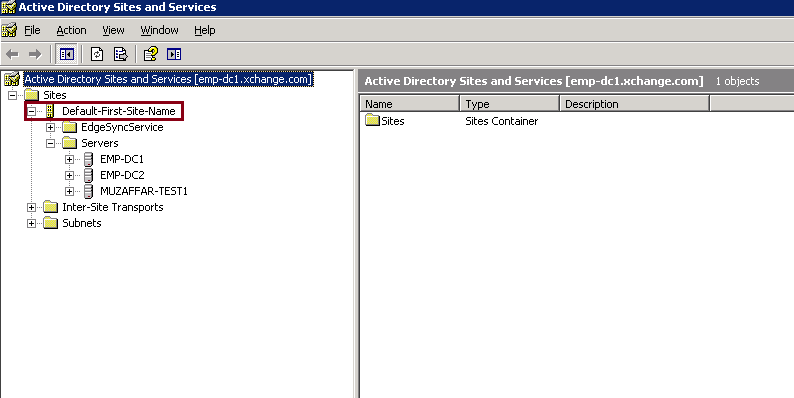
To identify the DNS Site:
Open Active Directory Sites and Services
Expand the Sites and identify the Site in which the Domain Controller configured under the selected domain appears
Use the Site name for DNS Site
See the images below for reference.
Troubleshooting steps for SSO - NTLM Authentication:
Please ensure that you have performed the following actions before troubleshooting.
- Added the site to a trusted site.
- Added the technician's details in EventLog Analyzer's "Technicians and Roles" for whom SSO is enabled.
- Not accessing EventLog Analyzer Web Client in Workgroup Machine.
- Accessing EventLog Analyzer Web Client on the machine that belongs to the domain in which you've configured SSO.
- Not accessing EventLog Analyzer Web Client in Private or Incognito Window.
I. Change browser settings to allow Single Sign-On
Trusted sites are the sites with which NTLM authentication can occur seamlessly. If SSO has failed, then the most probable cause is that the EventLog Analyzer URL isn't a part of your browser's trusted sites. Kindly add the EventLog Analyzer URL in the trusted sites list. Follow the steps given below:
- Microsoft Edge (link to the steps below)
- Chrome (link to the steps below)
- Firefox (link to the steps below)
Note It is recommended that you close all browser sessions after adding the URL to the trusted sites list for the changes to take effect.
Note Google Chrome and Microsoft Edge use the same internet settings. Changing the settings either in Microsoft Edge or in Chrome will enable NTLM SSO in both browsers. It is again recommended to close both the browser sessions for the changes to be enabled.
Microsoft Edge
- Open Control Panel → click the Internet Options button.
- In the Internet Options dialog box that opens, click the Security tab, and then click a security zone (Local intranet, Trusted sites, or Restricted sites).
- Click Sites.
- Click on the advanced button and add the EventLog Analyzer site to the list of intranet site.
- Click Close, and then click OK.
- Close all browser sessions and reopen your browser.
Chrome
- Open Control Panel → click the Internet Options button.
- In the Internet Options dialog box that opens, click the Security tab, and then click a security zone (Local intranet, Trusted sites, or Restricted sites).
- Click Sites.
- Click on the advanced button and add the EventLog Analyzer site to the list of intranet sites.
- Click Close, and then click OK.
- Close all browser sessions and reopen your browser.
Firefox
- Open Firefox web browser and type about:config in the address bar.
- Click I'll be careful, I promise in the warning window.
- In the Search field, type: network.automatic-ntlm-auth.trusted-uris.
- Double-click the "network.automatic-ntlm-auth.trusted-uris" preference and type the URL of EventLog Analyzer in the prompt box. If there are sites already listed, type a comma and then the URL of EventLog Analyzer. Click OK to save the changes.
- Close all browser sessions and reopen your browser.
II. Check the computer account configuration
Status: Error in Creating Computer Account
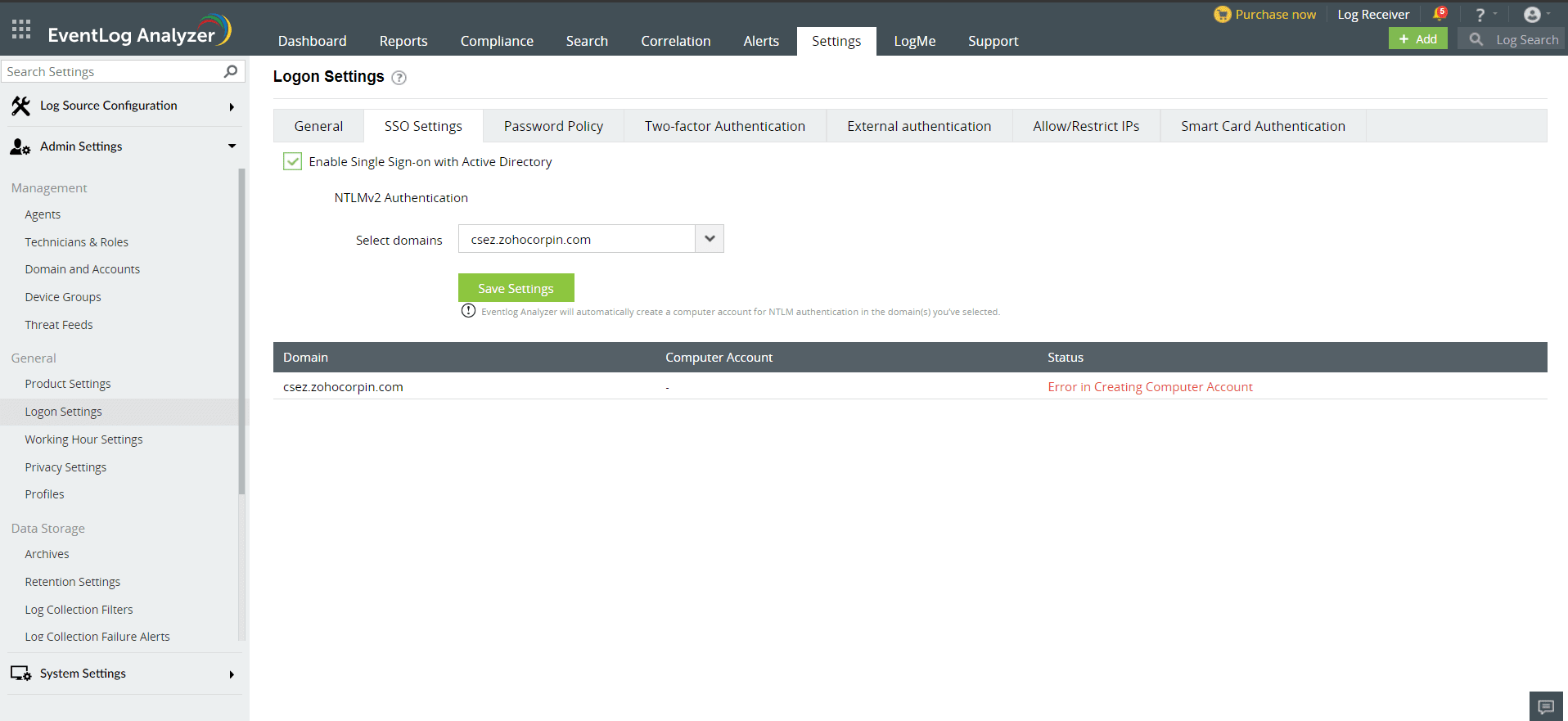
This error can be due to any of the reasons listed below:
Invalid domain credentials in EventLog Analyzer
This could happen when the credentials of the user account specified in the domain settings section of EventLog Analyzer are expired. To update the credentials and synchronize it with EventLog Analyzer, follow these steps:
- Log into EventLog Analyzer web-console with admin credentials.
- Click on Settings → Admin Settings → Management → Domain and Accounts and update the domain credentials (i.e., username and password).
- Synchronize the updated domain credentials with EventLog Analyzer by navigating to EventLog Analyzer → Admin tab and clicking on the Sync now button.
Domain controllers are not accessible from EventLog Analyzer
When EventLog Analyzer cannot reach the specified domain controllers (DCs), you must add another DC that it can access. To do this:
- Log into EventLog Analyzer web-console with admin credentials.
- Click Settings → Admin Settings → Management → Domain and Accounts and specify the name of the relevant DC, and also the credentials of the account that EventLog Analyzer should use.
- Synchronize the updated domain controller with EventLog Analyzer by navigating to Settings → Admin Settings → Management → Domain and Accounts tab and clicking on the Sync now button.
Non-conformance to password policy
This error occurs when the password of the automatically created computer accounts for NTLM authentication does not meet the domain password policy settings. To resolve this issue, you need to create a computer account manually with a password in accordance with the domain policy settings. To accomplish this, follow the steps given below:
- Click the error message: 'Error in creating a new computer account', in the status column against the domain in which you wish to create a computer account.
- Create a computer account manually by entering Computer Name and Password.